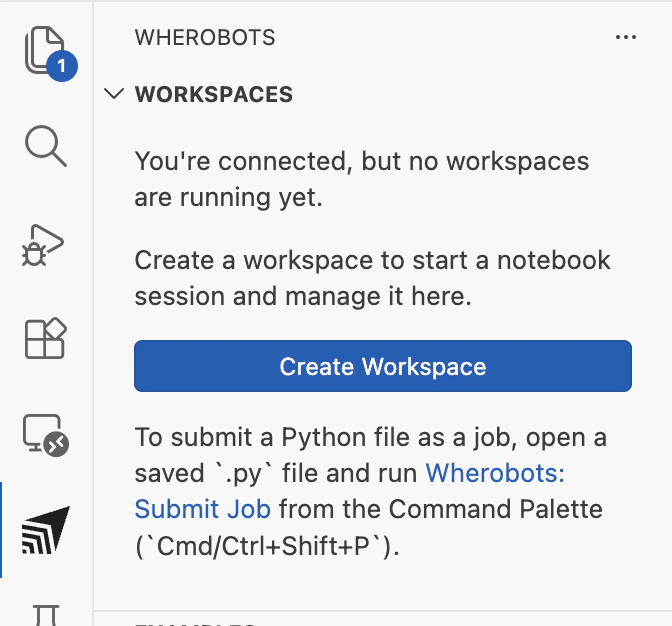
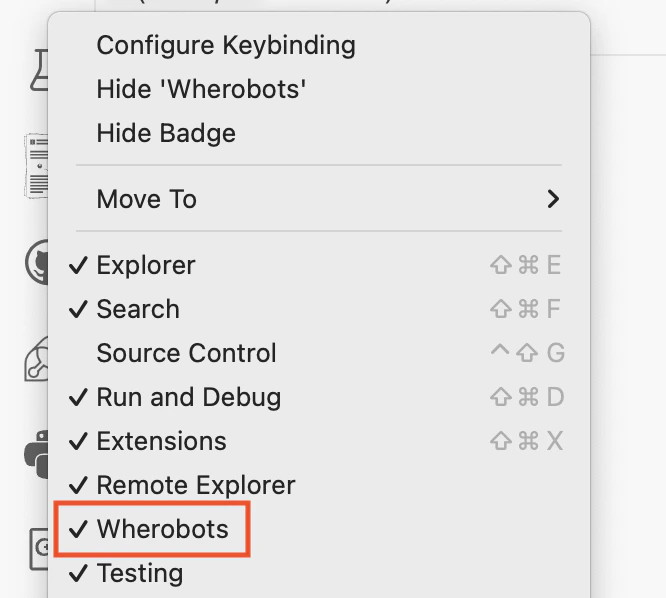
Install the Wherobots VS Code Extension in Positron and manually configure the MCP Server and Agent Skills for AI-assisted geospatial development.
Public PreviewDraftPositron by Posit is a Code OSS-based editor designed for data science workflows. The Wherobots VS Code Extension installs but MCP Server and Agent Skills must be configured manually.
These instructions are a preliminary adaptation of the standard VS Code Extension within the Positron environment. Users may encounter steps that require manual adjustment. Should you experience any technical difficulties, please contact Wherobots Support for assistance.
Wherobots’ Agentic Tools consist of the following components that work together to provide our agentic experience:
MCP Server
Connects your AI assistant to Wherobots Cloud for catalog exploration, documentation search, read-only Spatial SQL queries, and workload and Spark execution details.
Agent Skills
Gives your AI assistant domain-specific Wherobots knowledge for more accurate commands and fewer errors.
Wherobots CLI
Wraps the full Wherobots API into a single binary for job submission, log streaming, and automation.
Wherobots’ agentic tools connect your AI assistant to Wherobots Cloud and your local development environment so you can interact with your spatial data, catalogs, and jobs in a more intuitive way.
Explore your spatial catalog conversationally
The MCP Server connects your AI assistant to Wherobots Cloud so you can browse catalogs, databases, and table schemas (including Overture Maps and your own datasets) by asking questions in plain language instead of navigating the console.
Generate Spatial SQL without memorizing functions
Describe a geospatial task (e.g. “find buildings within 500m of this point”) and your AI assistant writes Spatial SQL with WherobotsDB’s ST functions, using the table schemas and documentation that the MCP Server provides, then runs it on Wherobots Cloud.
Submit and monitor Wherobots jobs from your editor
Use the CLI or the extension to submit Spark job runs, stream logs in real time, check resource metrics, and cancel jobs without leaving your editor or terminal.
Get Wherobots-aware AI assistance
Agent Skills teach your AI assistant Wherobots-specific APIs, query patterns, and workflow sequences so it produces correct wherobots CLI commands, valid MCP tool calls, and accurate notebook code on the first try.
After installation, connect to Wherobots Cloud by signing in from your browser (OAuth) or setting an API key.
These steps apply to VS Code, Cursor, Windsurf, Kiro, Positron, Antigravity, Trae, VS Codium, and other Code OSS editors. All use the same Command Palette and extension settings.
1
Open the Command Palette
To open the Command Palette, click the search bar at the top of your editor and type >wherobots:.
You can also press ⌘ + Shift + P on Mac, Ctrl + Shift + P on Windows/Linux to open the Command Palette.
2
Sign in to Wherobots
Click Wherobots: Sign In to start the OAuth flow. A browser window opens for you to sign in to Wherobots and select your Organization; when you’re done, return to your editor.To sign out at any time, run Wherobots: Sign Out from the Command Palette.
Prefer an API key? Click Wherobots: Set API Key and enter your existing or newly created Wherobots API key when prompted, then press Enter. If you don’t have a key yet, click Wherobots: Generate API Key on Wherobots Cloud to create one first.
The Wherobots MCP Server enables AI assistants to explore your spatial data catalogs, generate Spatial SQL, and execute queries. Configure it manually:
1
Add the MCP server
Open the Command Palette (⌘ + Shift + P on macOS, Ctrl + Shift + P on Windows/Linux).
Type MCP: Add Server and select it.
Select HTTP (HTTP or Server-Sent Events) as the server type.
Enter the URL: https://api.cloud.wherobots.com/mcp/
Enter a name for the server (e.g., wherobots-mcp-server).
2
Add your API key
Your mcp.json file opens automatically. Add a headers object with your Wherobots API key:
Open the Command Palette and select Reload Window.
The extension’s MCP settings, such as query timeout, runtime size, and cloud region, don’t apply to an MCP server that you configure by hand in mcp.json. See Extension Settings.