

How it works
Prerequisites
Create an integration
Benefits
The S3 storage integration provides the following benefits:Ease of access to data
Ease of access to data
Guided, self-service setup
Guided, self-service setup
Reusable Cloud Connections
Reusable Cloud Connections
Secure authentication
Secure authentication
Control data access
Control data access
Supports Requester Pays buckets
Supports Requester Pays buckets
How it works
An S3 storage integration is built from two pieces, each provisioned by its own pre-filled CloudFormation stack in your AWS account:Cloud Connection (the trust relationship)
Cloud Connection (the trust relationship)
Storage integration (the bucket grant)
Storage integration (the bucket grant)
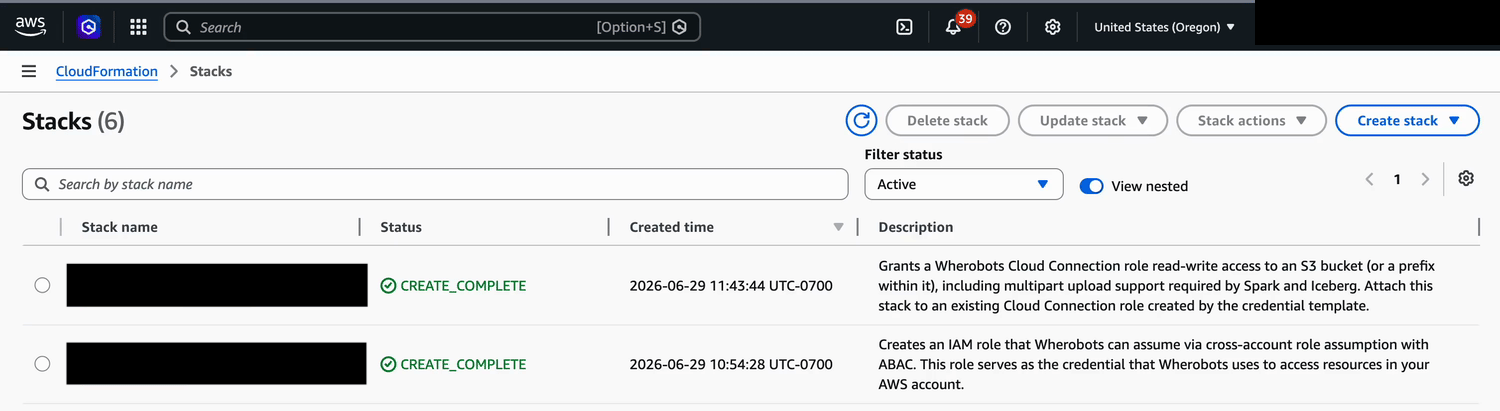
Both CloudFormation stacks in the AWS console after a successful setup: the connection (trust relationship) stack and the storage (bucket grant) stack.
Cloud Connections
A Cloud Connection is a single, reusable trust relationship between your Wherobots Organization and a cloud provider account. For AWS, it’s a first-class object that stores your AWS account ID and an IAM role (with an external ID) that Wherobots assumes on your behalf to access resources in your account.Manage Cloud Connections
Cloud Connections live in Organization Settings under Cloud Connections, where Admins can create, list, verify, and delete them.- Verify: Confirms Wherobots can assume your IAM role through the two-hop AWS STS
AssumeRolechain. - Delete: Blocked while any storage integration or Glue catalog is still bound to the connection. You must remove any resources bound to that Cloud Connection prior to its deletion.
Before you start
The following requirements must be met within both your Wherobots Organization and AWS account before creating an S3 storage integration:Wherobots Requirements
Wherobots Requirements
- An Admin account within a Professional, Innovation, or Enterprise Edition Organization.
Wherobots Organization members with the User role can use existing integrations set up by Admins but cannot create new ones. See Organization Roles.
AWS Requirements
AWS Requirements
- An AWS account.
-
Permission to create CloudFormation stacks that provision IAM resources in that account (typically
AdministratorAccess). CloudFormation creates the IAM role and policies for you, so you don’t edit them by hand.What CloudFormation provisions
The pre-filled templates create or modify IAM resources on your behalf. The actions they perform typically requireAdministratorAccess:For a complete list of IAM Actions, see Actions defined by AWS Identity and Access Management in the AWS Documentation. - An existing public or private AWS S3 bucket.
-
Permission to edit that bucket’s CORS configuration (
s3:PutBucketCORS), if you plan to visualize data stored in it. -
Permission to read that bucket’s CORS configuration (
s3:GetBucketCORS), if the bucket already has CORS rules you need to merge with.
Bucket types
The following Amazon S3 bucket types can be integrated with Wherobots:Public Bucket
Public Bucket
Private Bucket
Private Bucket
Requester Pays Bucket
Requester Pays Bucket
Browser access and CORS
A storage integration grants Wherobots server-side access to your bucket: compute runtimes assume the Cloud Connection role and read objects through the S3 API. Visualizing that data in Wherobots Cloud takes a different path — the browser reads objects directly from your bucket over HTTPS range requests. Those browser reads are subject to Cross-Origin Resource Sharing (CORS), and the CloudFormation stacks in this workflow create IAM resources only — they never touch your bucket’s CORS configuration. If you plan to visualize data stored in your own bucket, allow-list the Wherobots Cloud origins in the bucket’s CORS policy as part of creating the integration.Setting up CORS
Create a storage integration
- Hosted
- Bring Your Own Cloud (BYOC)
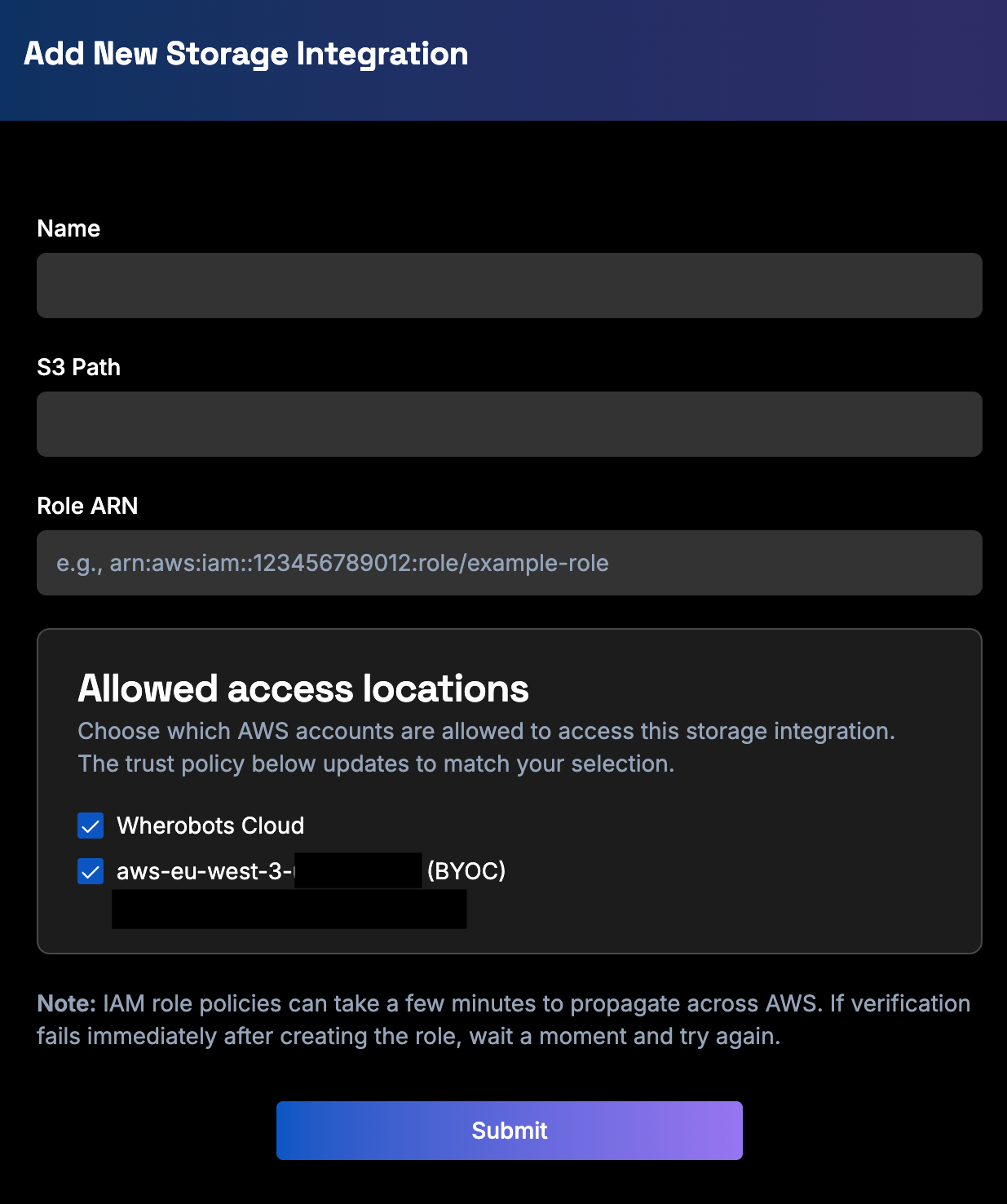
s3://my.bucket.name is not allowed. Acceptable paths can consist of alphanumeric characters, underscores, equal signs, and dashes.Start the integration
- Log in to Wherobots Cloud and click Storage in the left sidebar.
- Click Create Storage Integration.

The Storage page, with the Create Storage Integration button in the top right.
Enter the integration details
- Name — a name for this integration (must include at least one letter).
- S3 Path — your bucket path, optionally with a prefix, prefaced by
s3://(for example,s3://my-bucketors3://my-bucket/optional/prefix).
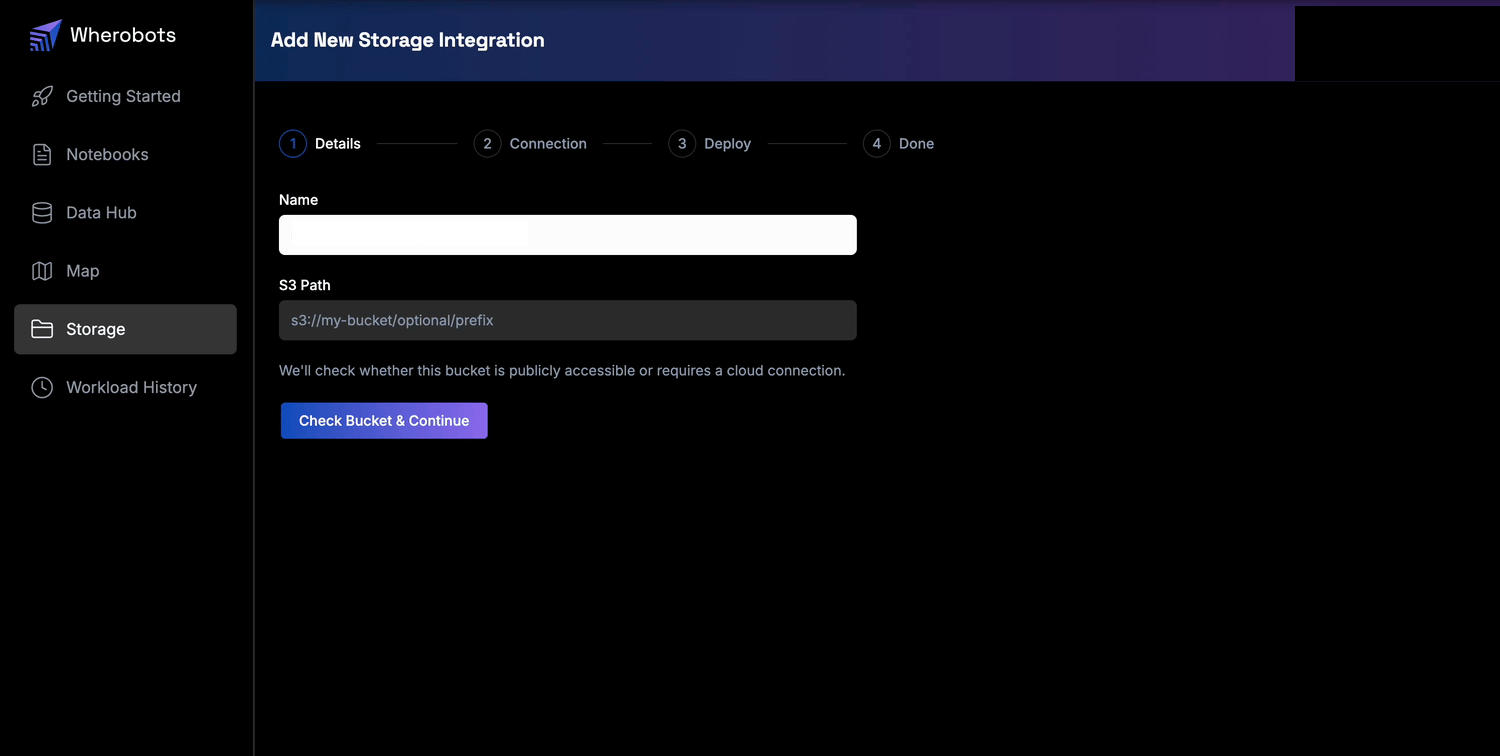
Step 1, Details: name the integration and enter the S3 path.
Choose or create a Cloud Connection
- Reuse a connection: Select an existing connection from the dropdown, then continue to the next step.
- Create a connection: Select Create new connection and follow the steps below.
Create a new Cloud Connection
Create a new Cloud Connection
Enter the connection details
- Connection Name — a label that identifies the trust relationship in Wherobots.
- AWS Account ID — the 12-digit AWS account you’re connecting to.
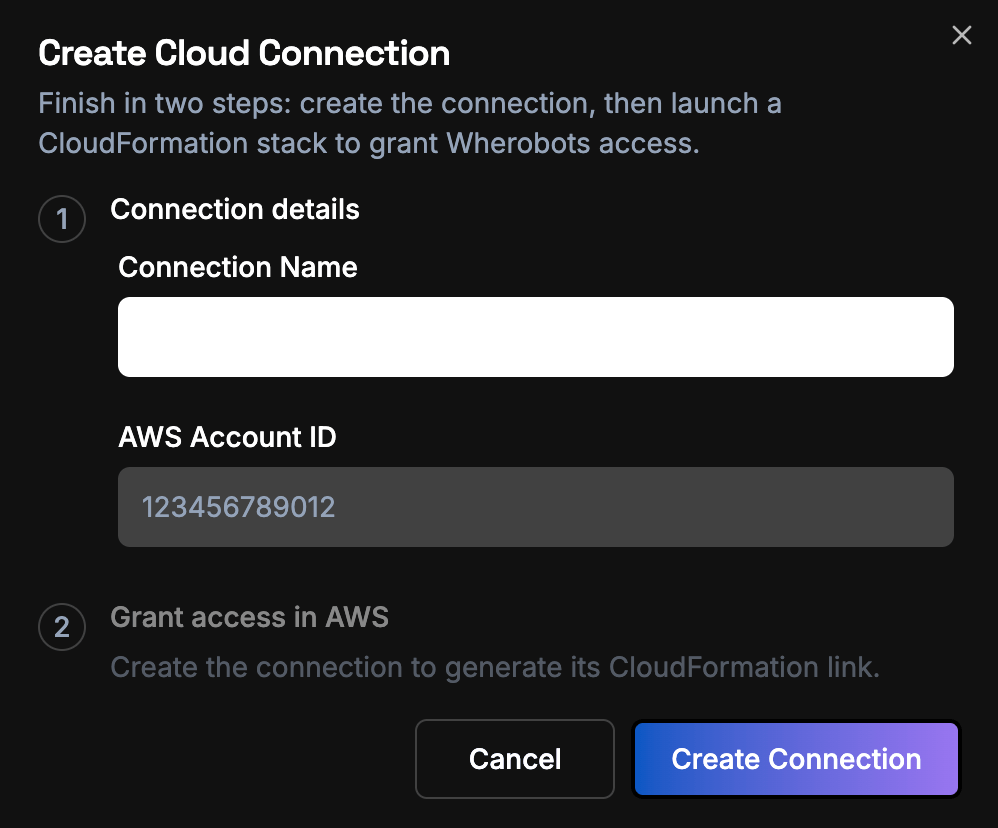
Connection details: name the connection and enter your AWS Account ID.
Grant access in AWS
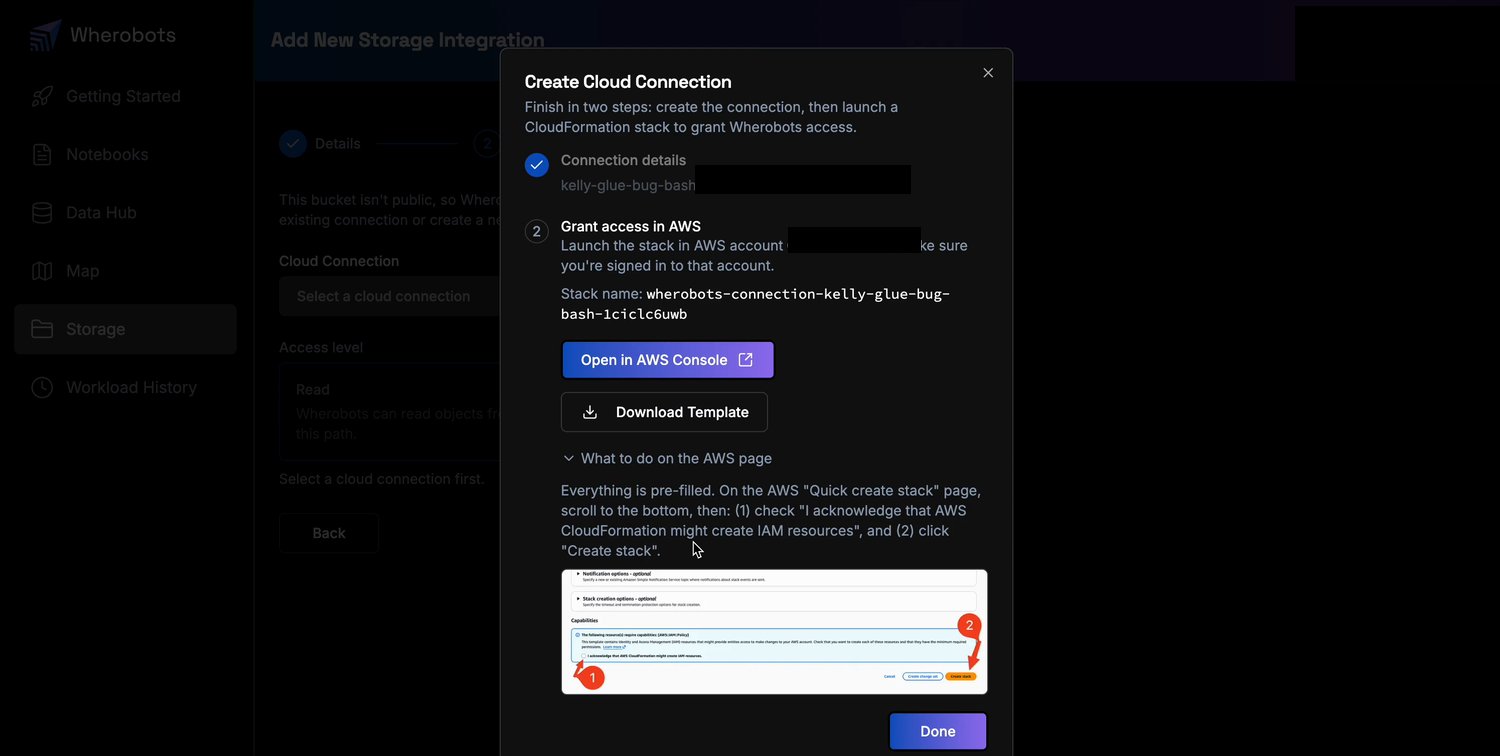
Grant access in AWS: launch the pre-filled CloudFormation stack that creates the Cloud Connection role.
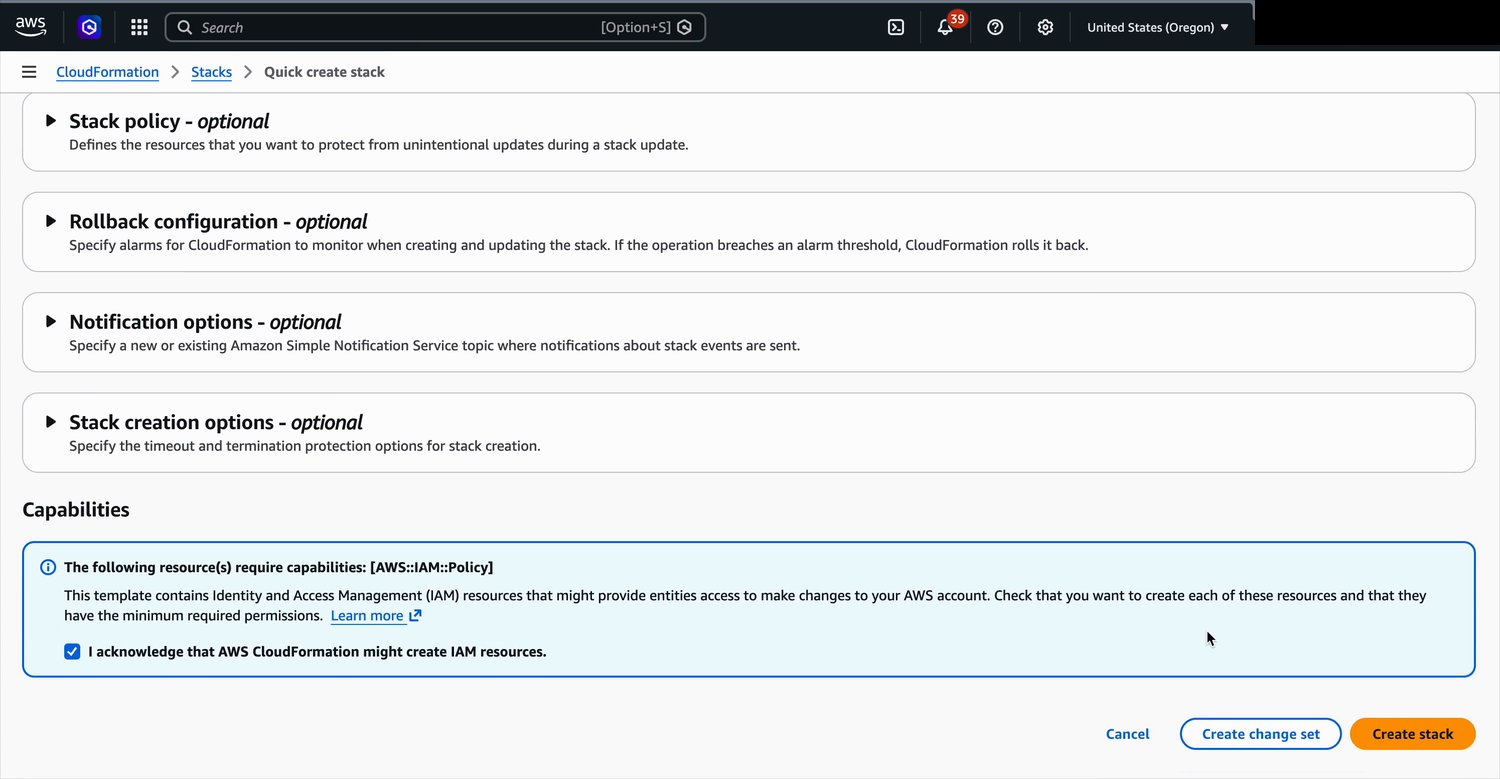
On the AWS Quick create stack page, acknowledge the IAM capability and click Create stack.
Choose an access level
- Read: Wherobots can read objects from this path.
- Read & Write: Wherobots can read and write objects, enabling Managed Catalogs.
Deploy the storage stack
- Click Open in AWS Console (or Download Template).
- On the AWS Quick create stack page, select I acknowledge that AWS CloudFormation might create IAM resources, and click Create stack.
- Return to Wherobots and click Create integration.
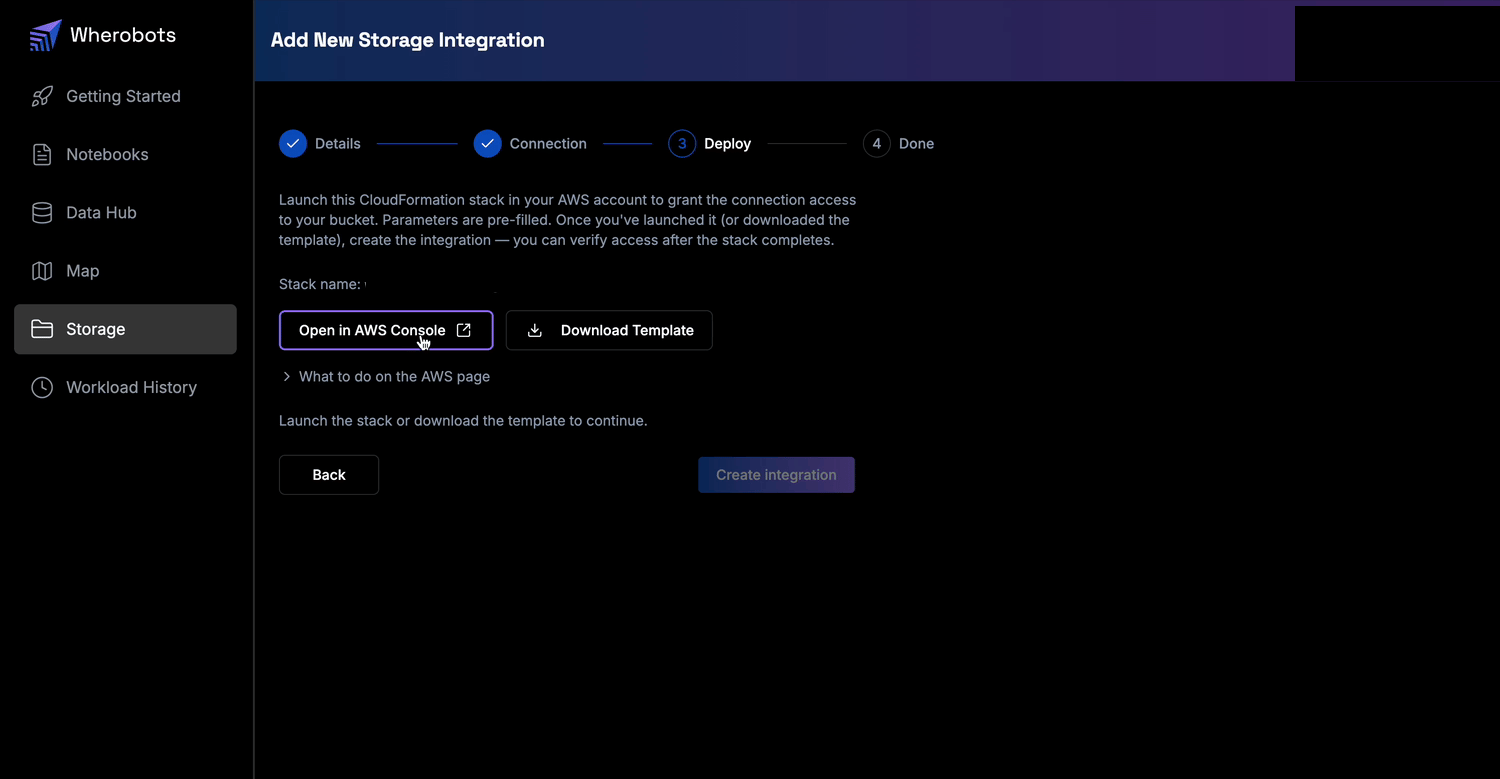
Step 3, Deploy: launch the pre-filled CloudFormation stack that grants the connection access to your bucket.
Verify access
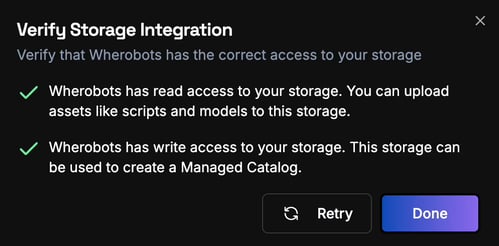
A successful verification confirms read and (for Read & Write) write access.
- Browse your files in Storage opens the Storage browser with the new integration selected.
- Organization Settings > Storage is where Admins manage the integration later.
Add a CORS policy for browser visualization
Manage storage integrations
After creating S3 storage integrations, Admins can manage them from Organization Settings.Verify Access
Verify Access
View All
View All
Delete
Delete
View a specific integration’s contents
Open Storage
Select your storage source
Browse your files
Access integrated storage in a notebook
After creating a Managed Catalog from your S3 storage integration, access your data using the catalog reference format:Start a notebook
Load your data from the catalog
Managed Catalog
A Managed Catalog can be created from a Read & Write private bucket storage integration at any time, allowing for multiple catalogs per integration.What is a Managed Catalog?
A Managed Catalog is a metadata repository that is created, owned, and controlled directly within your Wherobots Organization. When you connect a data source like an S3 bucket and register it as a managed catalog, Wherobots takes on the following responsibilities:Source of Truth
Source of Truth
Data Discovery
Data Discovery
Lifecycle Management
Lifecycle Management
Optimization
Optimization
Create a Managed Catalog from an S3 bucket
To create a Managed Catalog from an S3 bucket storage integration, complete the following steps:Open Data Hub
Add a new catalog
Configure the catalog
- Name: Alphanumeric characters, spaces, special characters, or underscores (must include at least one letter). No dashes or periods allowed.
- Path (Optional): Enter the sub-folder where you’d like to store this Managed Catalog
Limitations
The following limitations apply to S3 storage integrations:Current limitations
Current limitations
- Bucket paths cannot contain periods (e.g.,
s3://my.bucket.nameis not allowed) - A bucket can only be configured with a single storage integration
- Public buckets are read-only and cannot be used for Managed Catalogs due to the write access requirements
- Creating an integration requires permission to deploy CloudFormation stacks that provision IAM resources in your AWS account
- The CloudFormation stacks grant IAM access only; they do not set the bucket’s CORS configuration. Visualizing data from your own bucket requires a CORS policy on the bucket