

mcp.json schema (mcpServers, not servers), so follow the Cursor-specific steps below to install the MCP Server and Agent Skills.
Component Overview
Wherobots’ Agentic Tools consist of the following components that work together to provide our agentic experience:MCP Server
MCP Server
Agent Skills
Agent Skills
Wherobots CLI
Wherobots CLI
Why use Wherobots’ agentic tools?
Wherobots’ agentic tools connect your AI assistant to Wherobots Cloud and your local development environment so you can interact with your spatial data, catalogs, and jobs in a more intuitive way.Explore your spatial catalog conversationally
Explore your spatial catalog conversationally
Generate Spatial SQL without memorizing functions
Generate Spatial SQL without memorizing functions
Submit and monitor Wherobots jobs from your editor
Submit and monitor Wherobots jobs from your editor
Get Wherobots-aware AI assistance
Get Wherobots-aware AI assistance
wherobots CLI commands, valid MCP tool calls, and accurate notebook code on the first try.Before you start
The following prerequisites are required:- Cursor installed.
- A Wherobots Account within a Professional, Innovation, or Enterprise Organization. See Create a Wherobots Account.
Organization Availability: Available to all Wherobots Organization Editions (Professional, Innovation, and Enterprise).
- Node.js and npm installed on your system (required for installing Agent Skills via
npx).
Install the extension
Run the following command in your terminal:ms-toolsai. If Cursor prompts that it cannot activate the extension because of a missing Jupyter dependency, click Install and Reload.

Cursor prompts to install the Jupyter dependency and reload the window after installing the Wherobots extension.
Configure the extension
After installation, connect to Wherobots Cloud by signing in from your browser (OAuth) or setting an API key.Open the Command Palette
>wherobots:.
Sign in to Wherobots
Wherobots: Sign In to start the OAuth flow. A browser window opens for you to sign in to Wherobots and select your Organization; when you’re done, return to your editor.To sign out at any time, run Wherobots: Sign Out from the Command Palette.Wherobots: Set API Key and enter your existing or newly created Wherobots API key when prompted, then press Enter. If you don’t have a key yet, click Wherobots: Generate API Key on Wherobots Cloud to create one first.Verify the installation
To confirm the extension is installed and configured correctly:Open the Command Palette
>wherobots:.Confirm available commands
Wherobots: Sign InWherobots: Sign OutWherobots: Set API KeyWherobots: Create WorkspaceWherobots: Submit JobWherobots: Refresh WorkspacesWherobots: Open SettingsWherobots: Install Jupyter Extension
Apply the extension to all profiles (optional)
If you use multiple Cursor profiles, right-click the Wherobots - Spatial AI Coding Assistant entry in the Extensions view and select Apply Extension to all Profiles so the extension is available in every profile.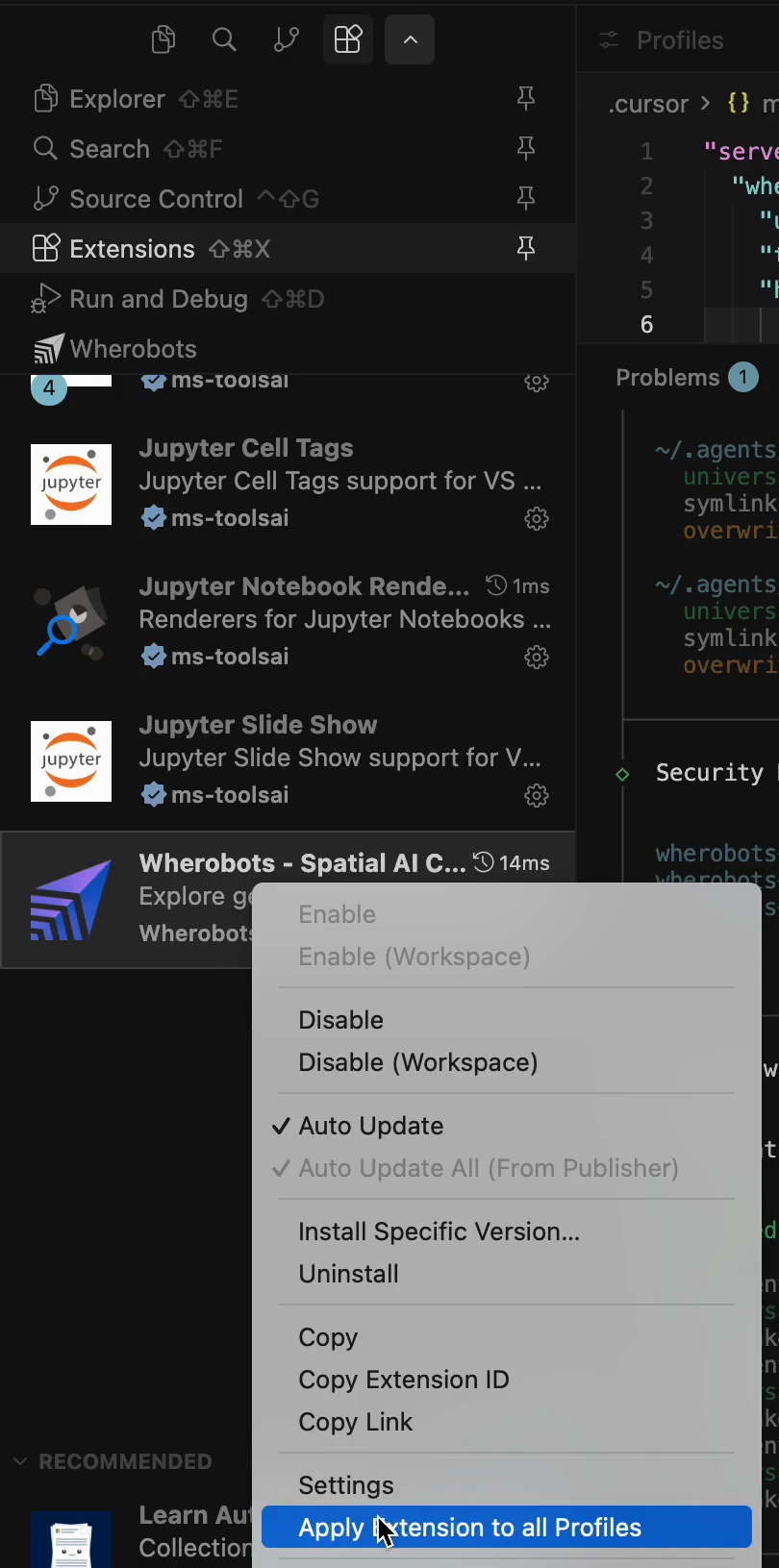
Right-click the Wherobots extension in the Extensions view and select Apply Extension to all Profiles.
Configure the MCP Server
The Wherobots MCP Server enables AI assistants to explore your spatial data catalogs, generate Spatial SQL, and execute queries. Cursor expects a project-level.cursor/mcp.json file with an mcpServers object.
Open Tools & MCPs in Cursor Settings
.cursor/mcp.json in your project root.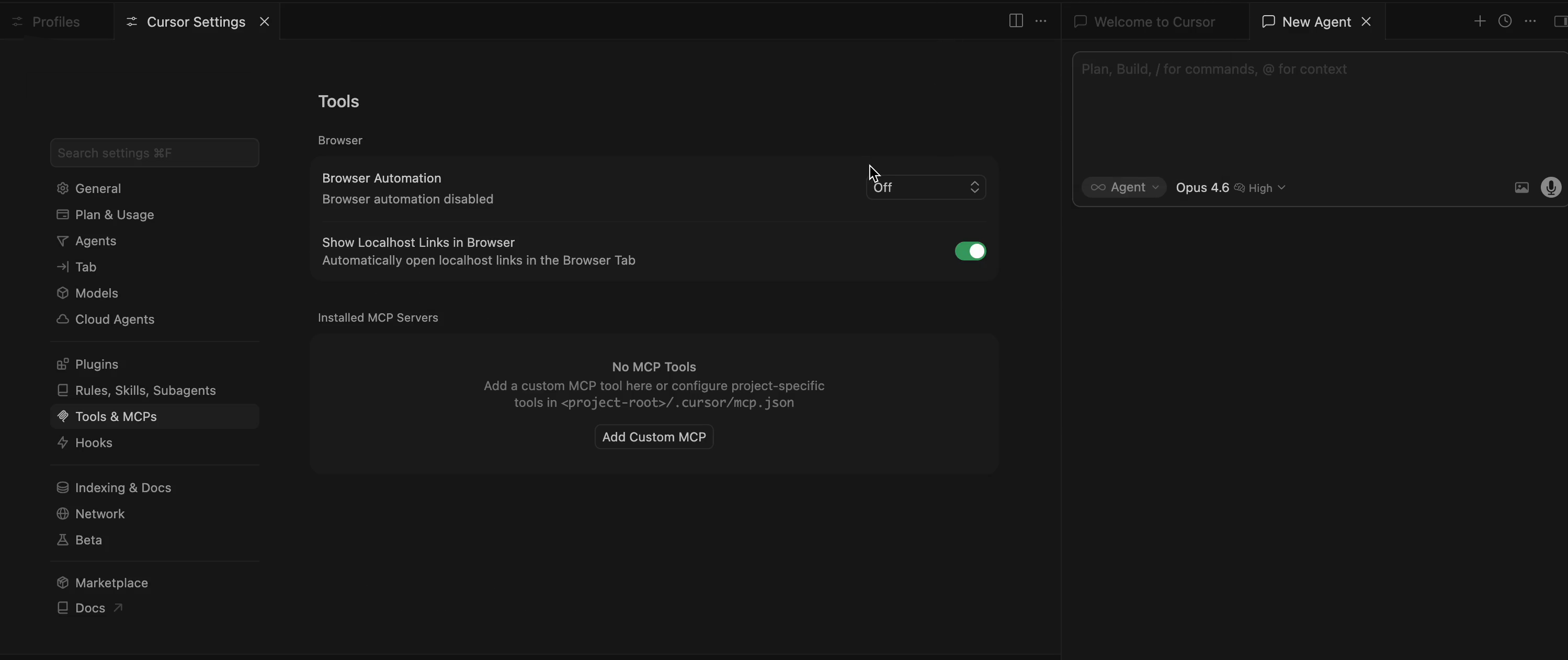
Cursor Settings → Tools & MCPs with the Add Custom MCP button before any server is configured.
Add the Wherobots MCP server
.cursor/mcp.json, then save the file:Alternative: Use an API key instead of OAuth
Alternative: Use an API key instead of OAuth
headers object with your Wherobots API key: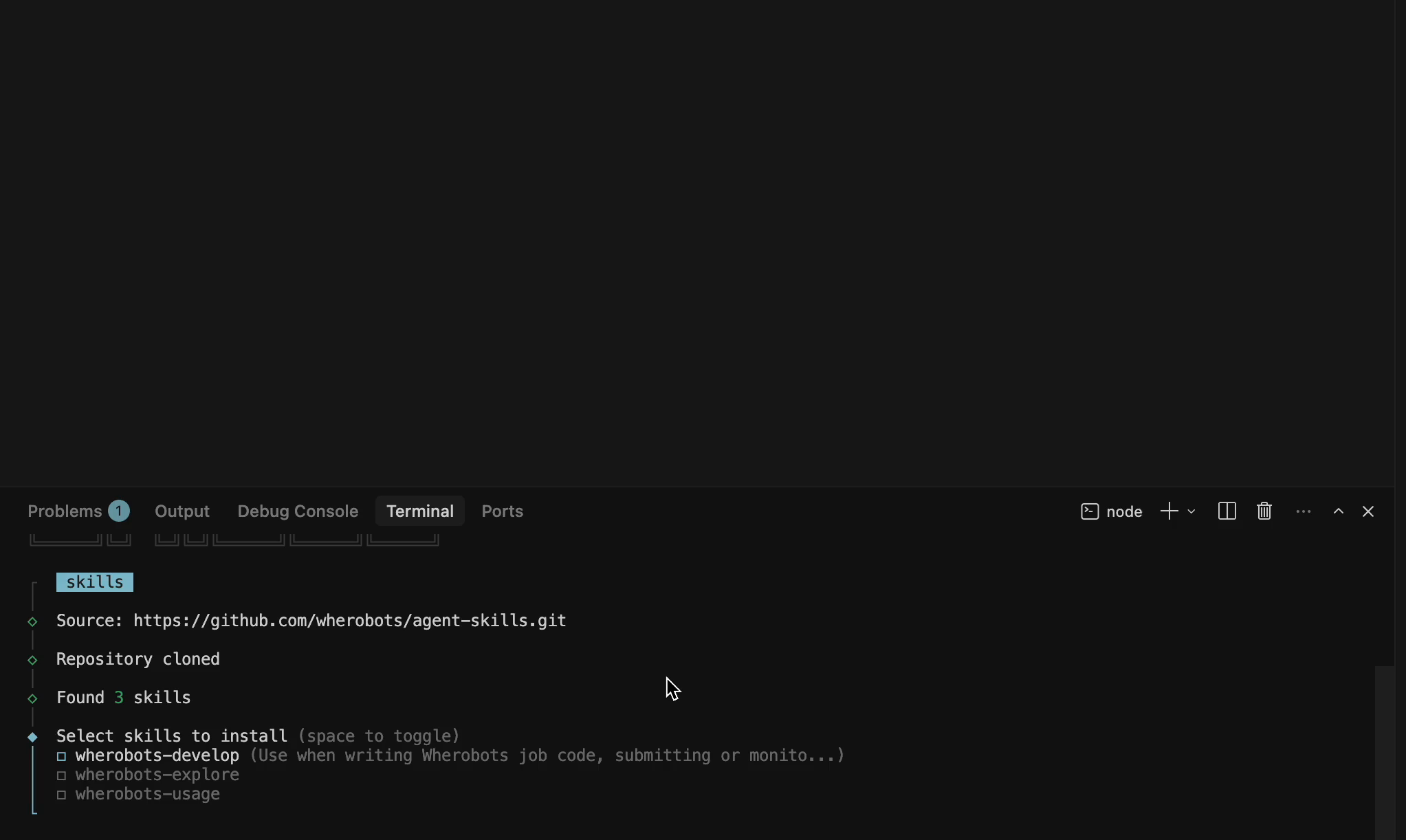
Editing .cursor/mcp.json in Cursor. The file must be wrapped in an outer object and use mcpServers.
Reload and confirm the server is enabled
- Open the Command Palette and select Developer: Reload Window.
-
Return to Cursor Settings > Tools & MCPs and confirm that
wherobots-mcp-serveris listed, has a green status dot, and lists its 16 tools (for example,list_catalogs_tool,list_tables_tool,describe_table_tool,submit_query_tool,get_query_status_tool,get_query_results_tool,search_documentation_tool) plus prompts and aget_versionresource. For the full list, see Available tools.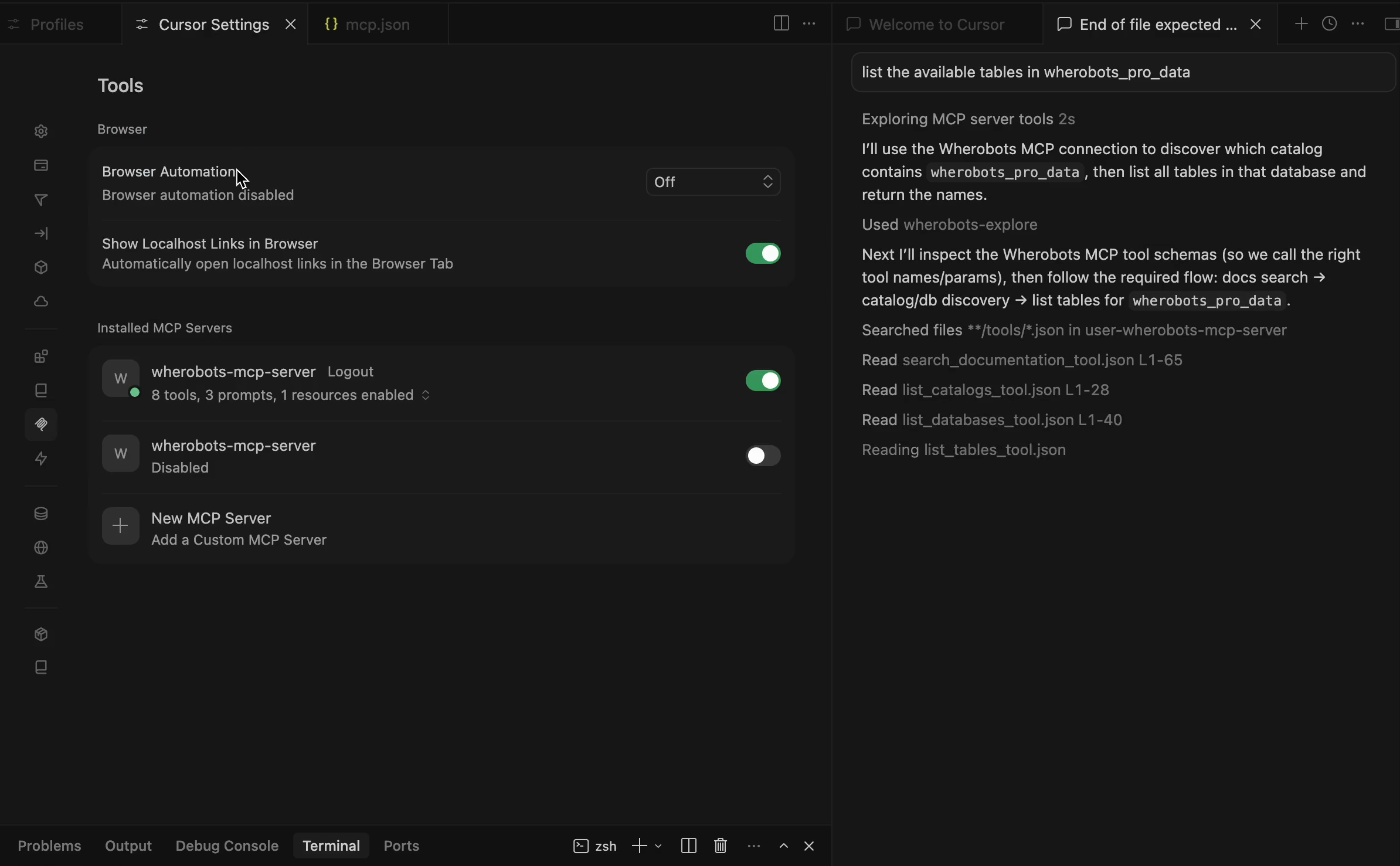
wherobots-mcp-server listed in Cursor Settings with its tools, prompts, and resource enabled.
.cursor/mcp.json. See Extension Settings.Install Agent Skills
Agent Skills give your AI assistant domain-specific knowledge about Wherobots workflows, APIs, and best practices. The Wherobots skill pack is distributed via the skills CLI.Run the skills installer
Select the Wherobots skills
wherobots-develop— guidance for writing Wherobots jobs and using the SDK/CLI.wherobots-explore— catalog discovery and spatial query generation via the MCP server.wherobots-usage— interface decision matrix, auth setup, and scheduled-job patterns.
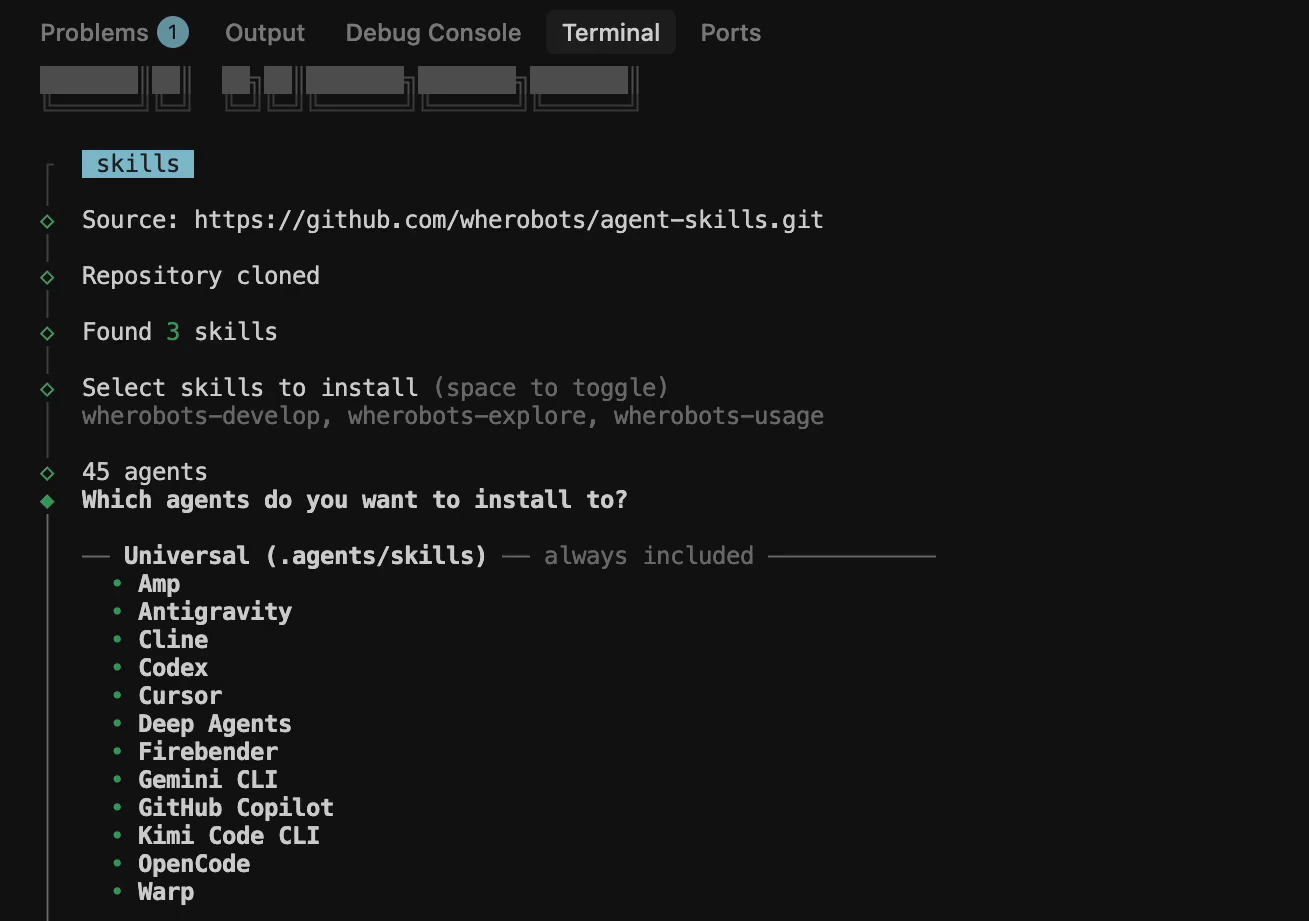
The skills installer prompts you to select which Wherobots skills to install.
Select Cursor as a target agent
~/.claude/skills).Press Enter to continue.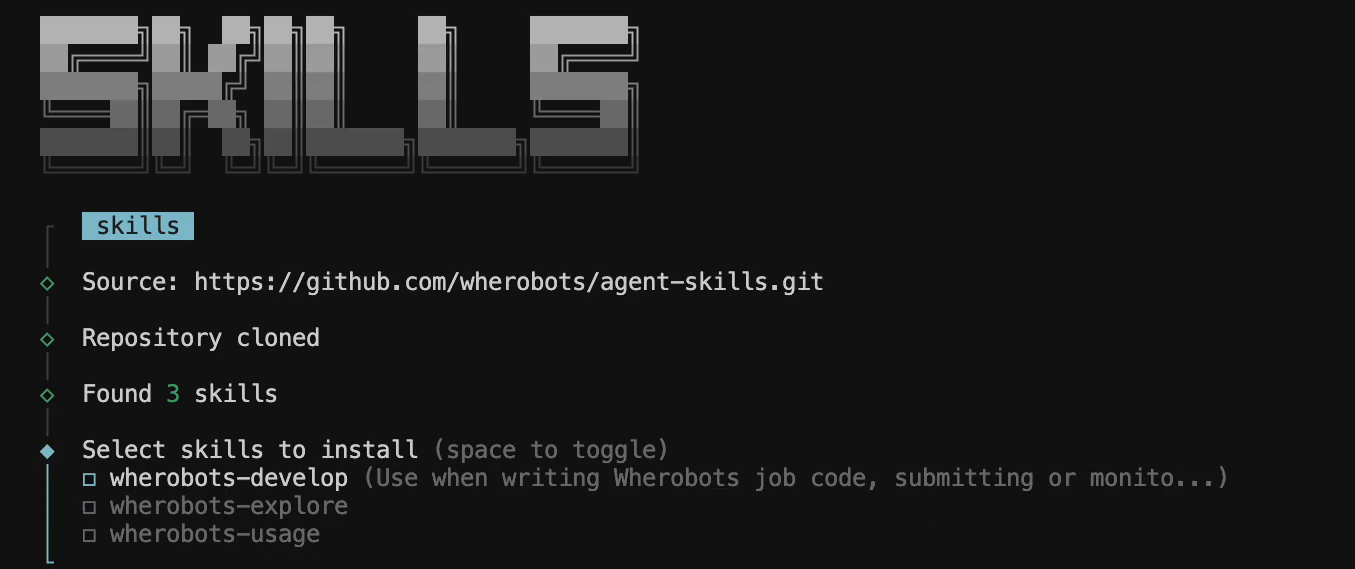
Choose which agents receive the skills. Cursor is included in the Universal list.
Review and confirm installation
Yes and press Enter.Verify your setup
- Open a New Agent chat in Cursor (the chat panel on the right).
- Confirm Agent is selected as the chat mode.
-
Ask a test question, for example:
-
If everything is configured, Cursor’s agent calls
search_documentation_tool,list_catalogs_tool,list_databases_tool, andlist_tables_toolonwherobots-mcp-serverand returns the catalogs, databases, and tables in your Organization.Cursor's agent answering a catalog exploration question by calling tools on wherobots-mcp-server.
-
Re-open Cursor Settings → Tools & MCPs and confirm
wherobots-mcp-servershows a green dot with all tools enabled.
Pin the extension for easy access
If the Wherobots VS Code Extension is pinned to your sidebar, you can also create a new workspace by clicking the Create Workspace button.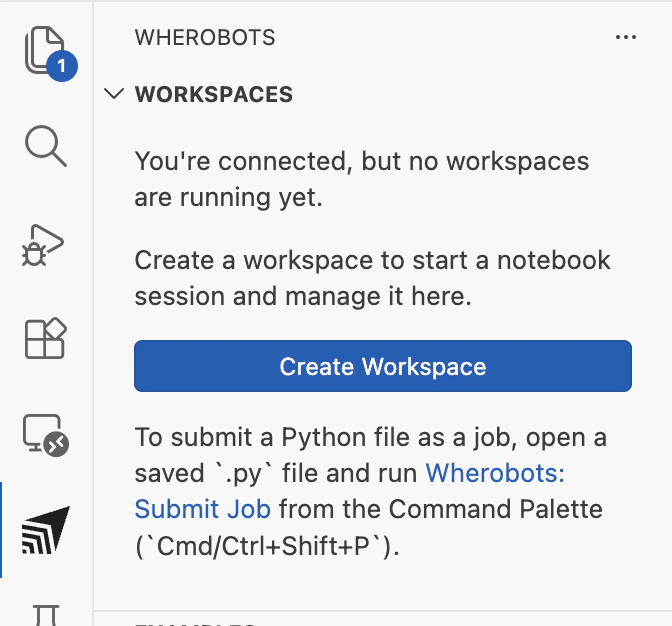
The Wherobots extension sidebar showing the Create Workspace button. Specific UI details vary by editor.
Pin the extension
Select the extension
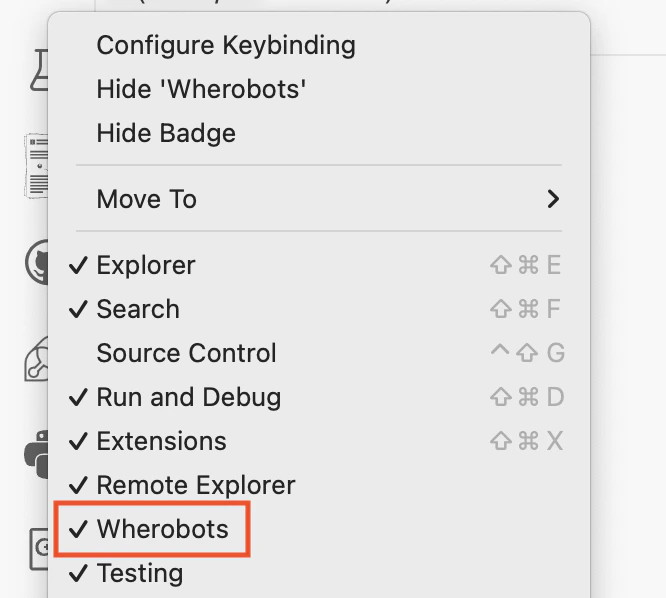
The Activity Bar context menu with the Wherobots extension checked. Specific UI details vary by editor.
Troubleshooting
Invalid config: mcpServers must be an object or JSON syntax error
Cursor validates .cursor/mcp.json against its own schema and will display these errors in Cursor Settings → Tools & MCPs when the file is malformed.
Common causes:
- Missing the outer
{ ... }wrapper around the config — the JSON parser fails with “End of file expected.” - Using the VS Code key
"servers"instead of Cursor’s"mcpServers". - Including a
"type": "http"field — Cursor does not use it.