

mcpServers schema.Why use Wherobots’ agentic tools?
Wherobots’ agentic tools connect your AI assistant to Wherobots Cloud and your local development environment so you can interact with your spatial data, catalogs, and jobs in a more intuitive way.Explore your spatial catalog conversationally
Explore your spatial catalog conversationally
Generate Spatial SQL without memorizing functions
Generate Spatial SQL without memorizing functions
Submit and monitor Wherobots jobs from your editor
Submit and monitor Wherobots jobs from your editor
Get Wherobots-aware AI assistance
Get Wherobots-aware AI assistance
wherobots CLI commands, valid MCP tool calls, and accurate notebook code on the first try.What you’ll do
Here’s a high-level overview of the steps to set up Wherobots in Kiro:1. Install the extension
1. Install the extension
2. Enable MCP support
2. Enable MCP support
3. Configure the MCP Server
3. Configure the MCP Server
mcp.json. Jump to section.4. Install Agent Skills
4. Install Agent Skills
5. Verify your setup
5. Verify your setup
Before you start
Prior to installing the Wherobots VS Code extension, make sure you have:- Kiro installed.
- For more information on Kiro Plans see Kiro Pricing.
- A Wherobots Account within a Professional, Innovation, or Enterprise Organization.
- For more information, see Create a Wherobots Account.
Organization Availability: Available to all Wherobots Organization Editions (Professional, Innovation, and Enterprise).
- For more information, see Create a Wherobots Account.
Install the extension
Run the following command in your terminal:Configure the extension
After installation, connect to Wherobots Cloud by signing in from your browser (OAuth) or setting an API key.Open the Command Palette
>wherobots.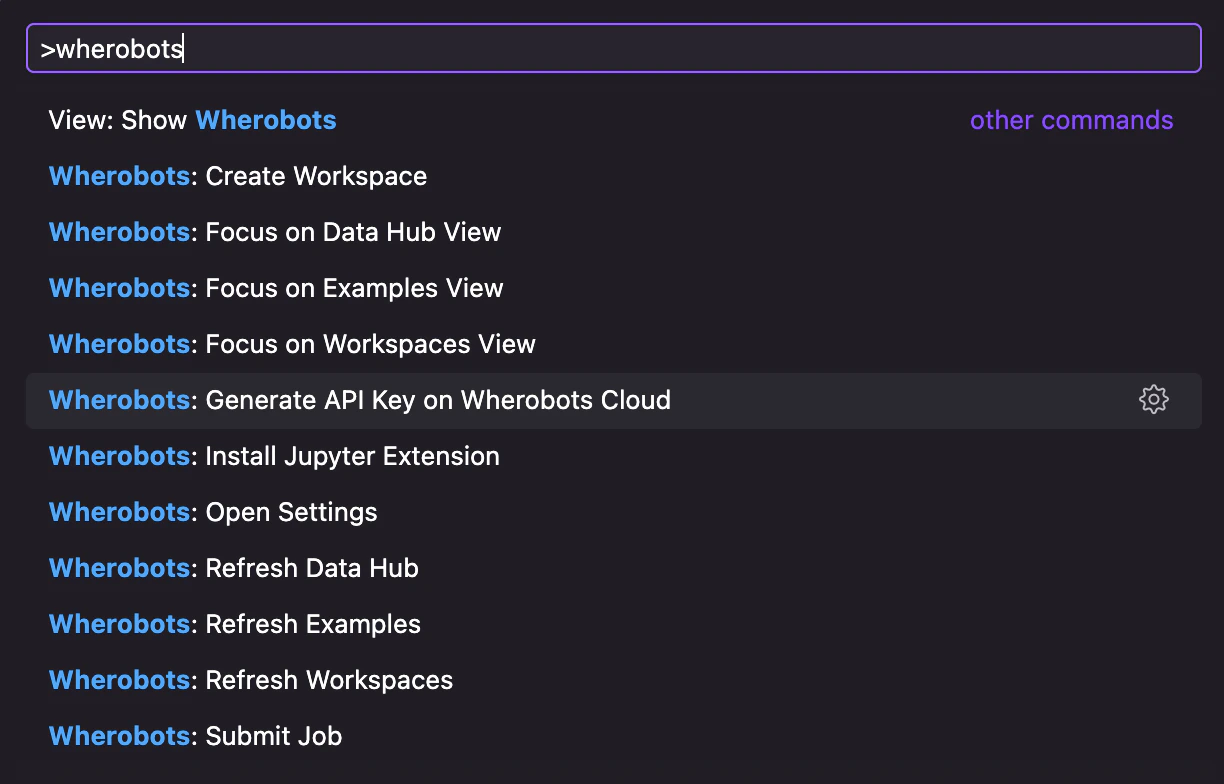
Sign in to Wherobots
Wherobots: Sign In to start the OAuth flow. A browser window opens for you to sign in to Wherobots and select your Organization; when you’re done, return to your editor.To sign out at any time, run Wherobots: Sign Out from the Command Palette.Wherobots: Set API Key and enter your existing or newly created Wherobots API key when prompted, then press Enter. If you don’t have a key yet, click Wherobots: Generate API Key on Wherobots Cloud to create one first.Verify the installation
To confirm the extension is installed and configured correctly:Open the Command Palette
>wherobots.Confirm available commands
Wherobots: Sign InWherobots: Sign OutWherobots: Set API KeyWherobots: Create WorkspaceWherobots: Submit JobWherobots: Refresh WorkspacesWherobots: Open SettingsWherobots: Install Jupyter Extension
Enable MCP support
Kiro requires MCP to be explicitly enabled before it will connect to any MCP server.Open Kiro Settings
wherobotsjobsubmit.mcpServerEnabledkiroAgent.configureMCP
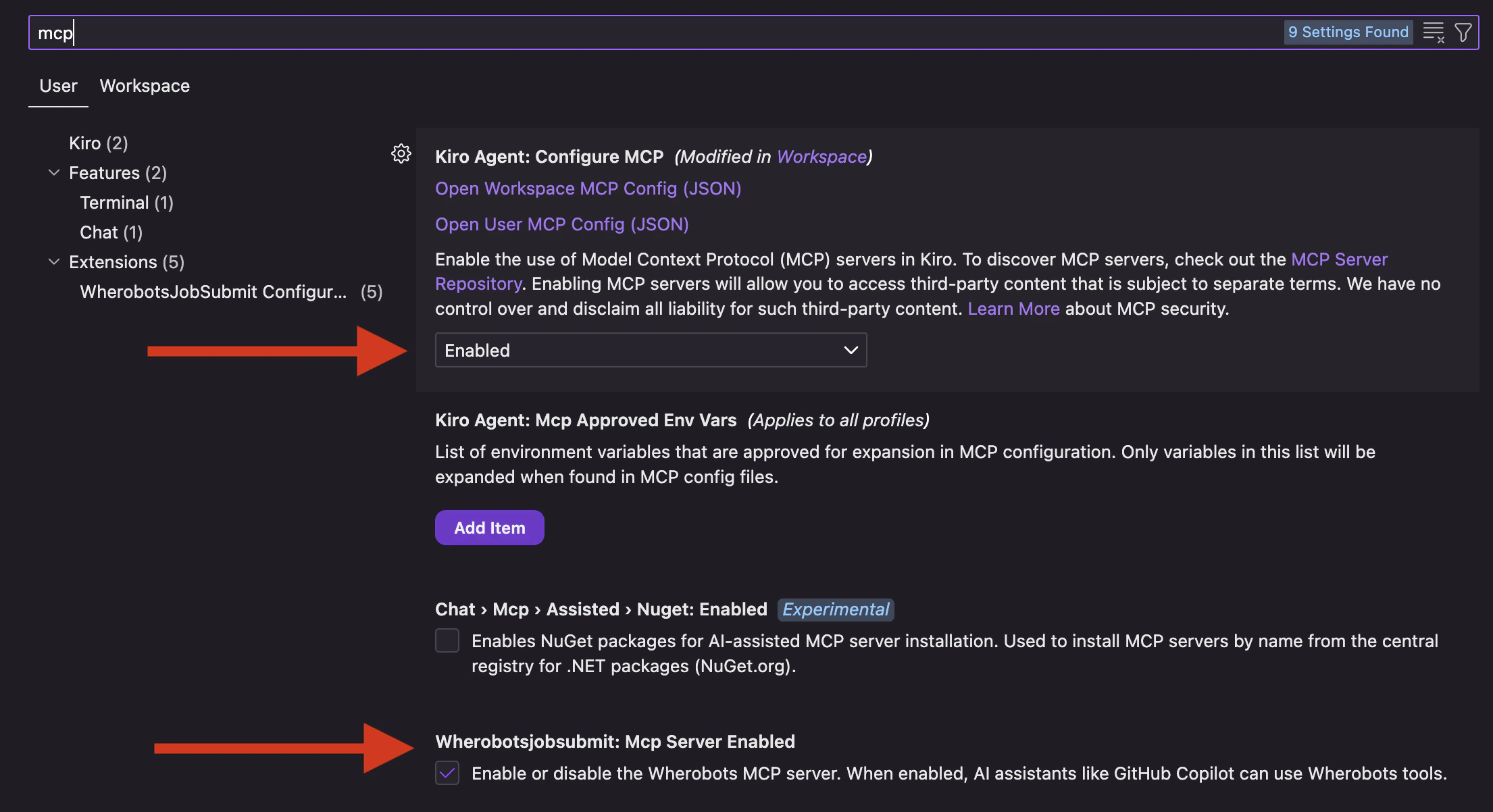
Kiro Settings showing wherobotsjobsubmit.mcpServerEnabled and kiroAgent.configureMCP both turned on.
Enable MCP
kiro: open MCP Config.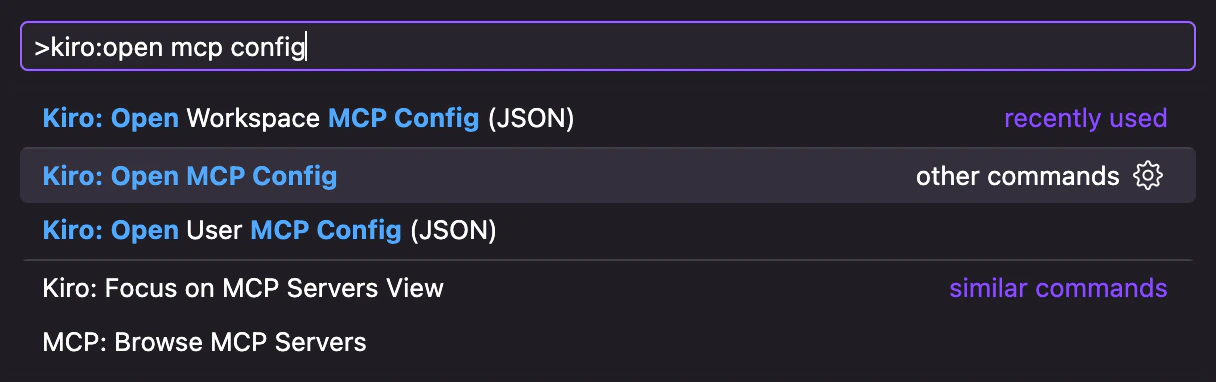
Configure the MCP Server
The Wherobots MCP Server enables AI assistants to explore your spatial data catalogs, generate Spatial SQL, and execute queries. Kiro stores MCP configuration inmcp.json using a mcpServers object. Choose the appropriate level for your use case:
.kiro/settings/mcp.json in your project root with the same content.Open your MCP config file
~/.kiro/settings/mcp.json.
Choose between the User Config and Workspace Config tabs in the Kiro MCP config editor.
Add the Wherobots MCP server
-
Copy and paste the following snippet into your
mcp.json, replacingYOUR_WHEROBOTS_API_KEYwith your Wherobots API key: If the file already contains other servers, add the new entry alongside them. -
Save the file.
Kiro automatically detects the change and may add
disabled,autoApprove, anddisabledToolsfields to the entry.
Confirm the server connected
- Open the Output panel (⌘ + Shift + U)
-
Look for the following message in the Kiro - MCP Logs output stream:
If you see this message, the server is connected and ready to use.
mcp.json. See Extension Settings.Agent Skills
The Wherobots Agent Skills give your AI assistant domain-specific knowledge about Wherobots workflows, APIs, and best practices. Install all three Wherobots skills for comprehensive AI assistance across your Wherobots development workflow. These Skills enable your AI assistant to provide accurate, Wherobots-specific guidance in chat and notebooks.Import Agent Skills
Kiro can import skills directly from GitHub through the Agent Steering & Skills panel in the sidebar.Open the skill import dialog
- Click the
 Kiro icon in the Activity Bar to open the sidebar.
 - Open the AGENT STEERING & SKILLS section.
- Click the + button to add a new skill.
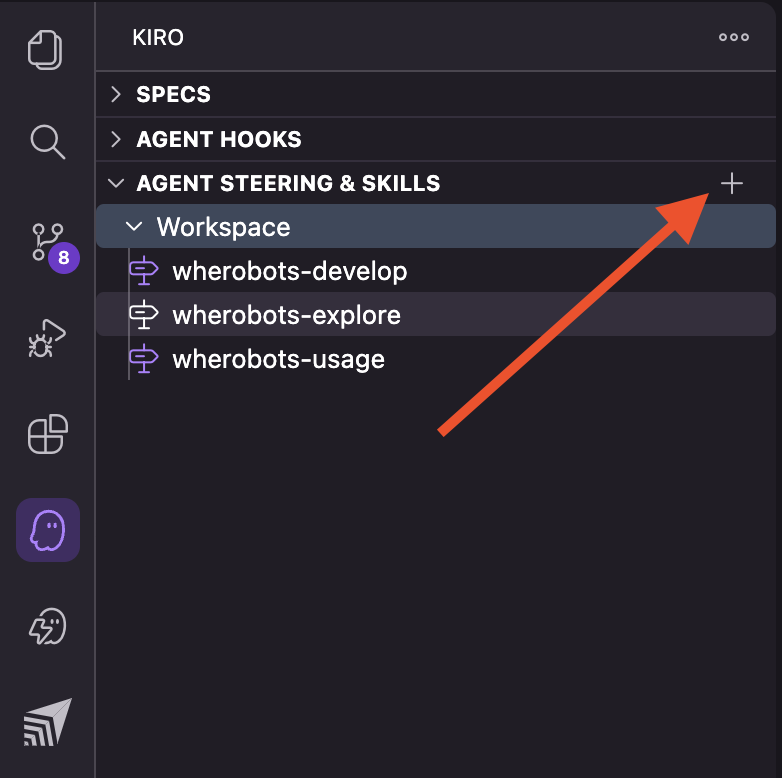
Select Import skill from GitHub
- Type Agent Skills in the search bar that appears.
- Select either Global agent skills or Project-specific agent skills from the dropdown.
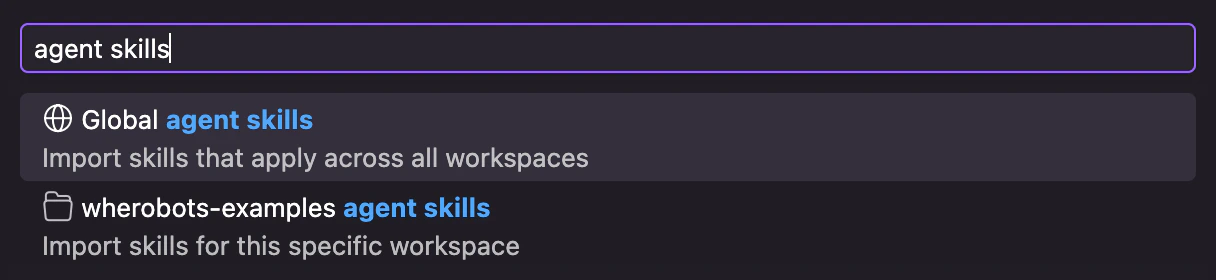
- Click Import skill from GitHub.
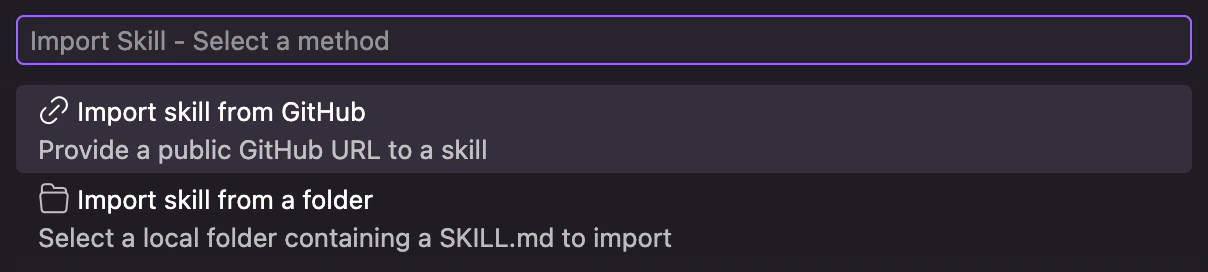
- This opens a dialog where you can paste the URL of the skill’s GitHub repository.

Import each Wherobots skill
-
For each URL below, hover over the URL and click on the right-hand side to copy the URL to your clipboard.
- Paste the URL into Kiro’s import dialog and press Enter.
SKILL.md file and adds the skill to the AGENT STEERING & SKILLS section in the sidebar.Confirm the skills are installed
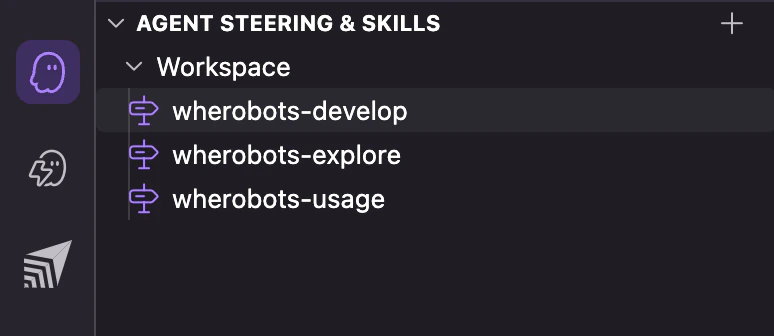
The Kiro sidebar showing wherobots-develop, wherobots-explore, and wherobots-usage installed under Agent Steering & Skills.
Verify your setup
-
Check the MCP SERVERS section in Kiro’s sidebar (left panel).
You should see
wherobotswith Connected (16 tools) and a list of tools includinglist_catalogs_tool,list_tables_tool,describe_table_tool,submit_query_tool,get_query_status_tool,get_query_results_tool, andsearch_documentation_tool. For the full list, see Available tools.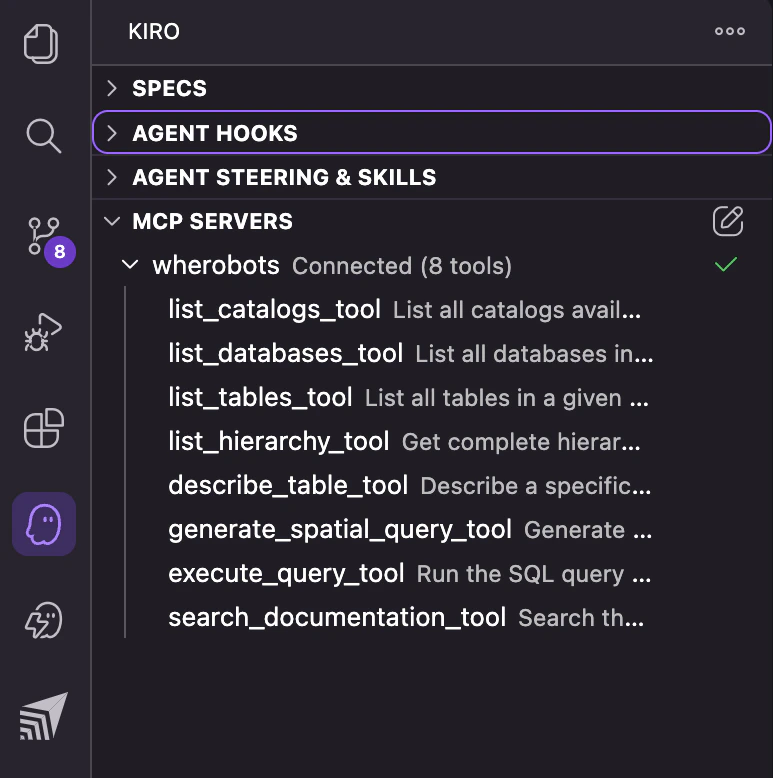
The MCP SERVERS section in Kiro's sidebar showing the wherobots MCP server connected.
- Open a New Session chat panel.
-
Ask a test question, for example:
List the catalogs I have access to in Wherobots
-
Kiro’s agent calls
list_catalogs_toolon thewherobotsMCP server. You may be prompted to Trust or Run the tool call.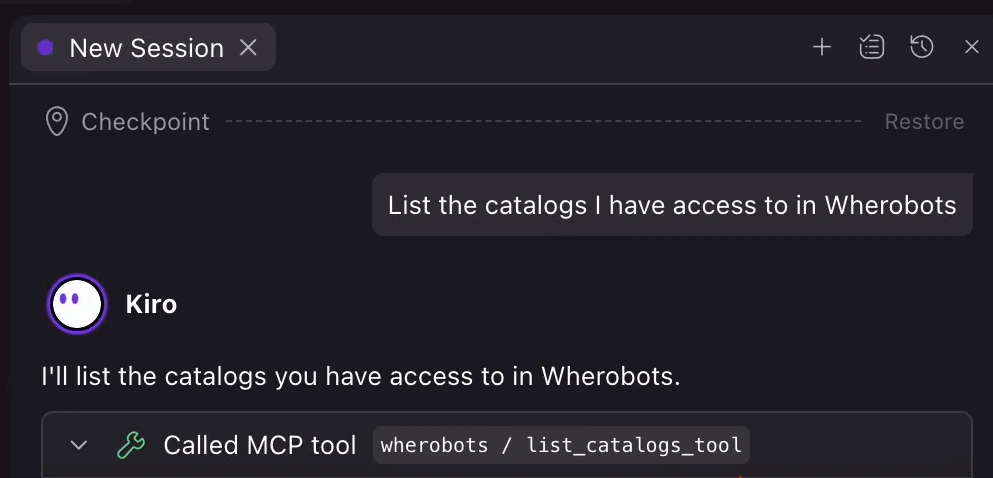
Kiro's agent calling
list_catalogs_toolto list available Wherobots catalogs. -
If successful, the agent returns your available catalogs, which includes
wherobots_open_data,wherobots_pro_data(for Professional, Innovation, and Enterprise Organizations), and any private catalogs in your Organization.
Pin the extension for easy access
If the Wherobots VS Code Extension is pinned to your sidebar, you can also create a new workspace by clicking the Create Workspace button. To pin the Wherobots extension to the sidebar:Pin the extension
Select the extension
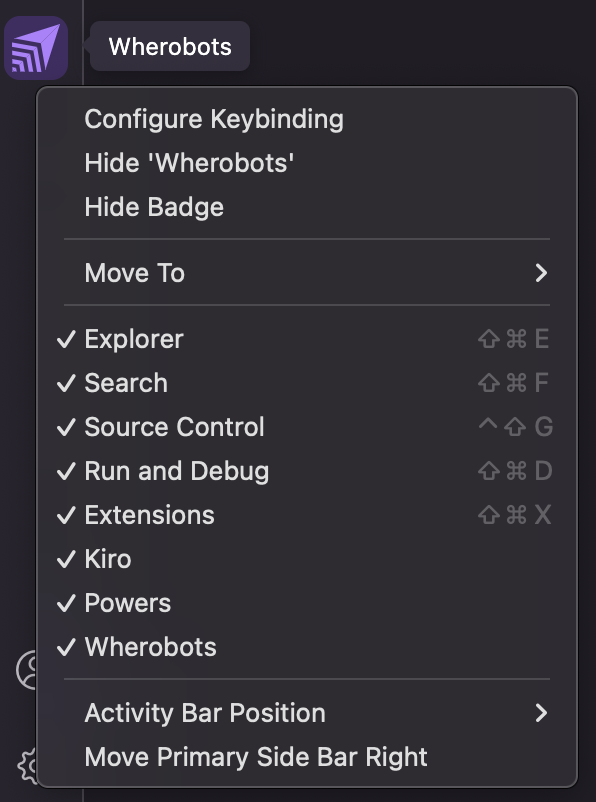
The context menu for the Activity Bar with the Wherobots extension checked in Kiro.
Troubleshooting
MCP: Browse MCP Servers results in an error
Kiro does not implement the VS Code workbench.mcp.browseServers command. Running MCP: Browse MCP Servers from the Command Palette will display “command ‘workbench.mcp.browseServers’ not found”.
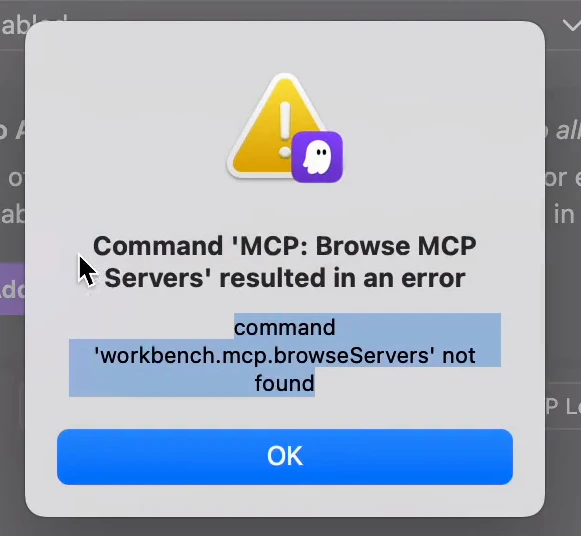
Kiro error dialog: 'command workbench.mcp.browseServers not found' after running MCP: Browse MCP Servers.
- Check the MCP SERVERS section in Kiro’s sidebar for a green Connected status.
- Check the Output panel → Kiro - MCP Logs for the “Successfully connected” message.
-
Test the server directly in chat by asking a question like:
Error loading powers config: Unexpected token
This error appears in the Output panel and as a notification when mcp.json contains invalid JSON or uses the wrong schema.
Common causes:
- Using the VS Code key
"servers"instead of Kiro’s"mcpServers". - Including a
"type": "http"field. Kiro does not use this field and it will cause an error. - Missing the outer
{ ... }wrapper or a trailing comma.