

- Wherobots version
- Spark configuration
- Dependencies
-
Click Environment.

Start notebook
- Click + next to Environment Preset.
-
Fill in the required information.
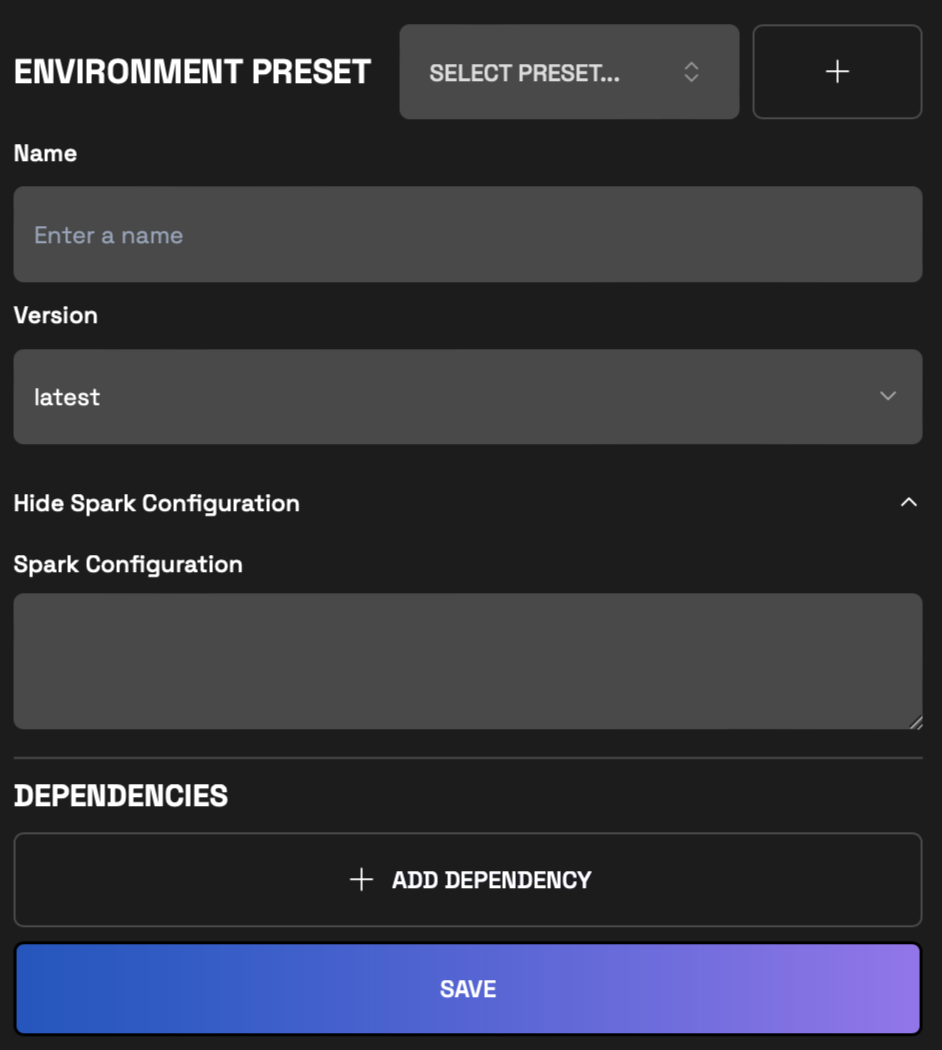
Fill in environment preset
- Click Save.
Change Wherobots Version
You can customize the Wherobots version for your notebook instance. The default Wherobots version is the latest version.Change Spark Configuration
Add any custom spark configurations you want before starting the notebook instance.Adding Dependencies
We support both FILE and PYPI as sources for dependencies inside Wherobots Notebooks. Below you will find the directions for adding dependencies from each source.Adding Dependencies from a File
Wherobots Cloud allows you to add dependencies from the Wherobots File system.Supported file types Only Python Wheel (.whl), JAR (.jar), ZIP (.zip), and JSON (.json) files are supported.
Please refer to storage layer management page to upload the files in the correct directory.
/opt/wherobots/<file name>.json).
PYPI Source
You can add dependencies from the PYPI source by providing the library name and version.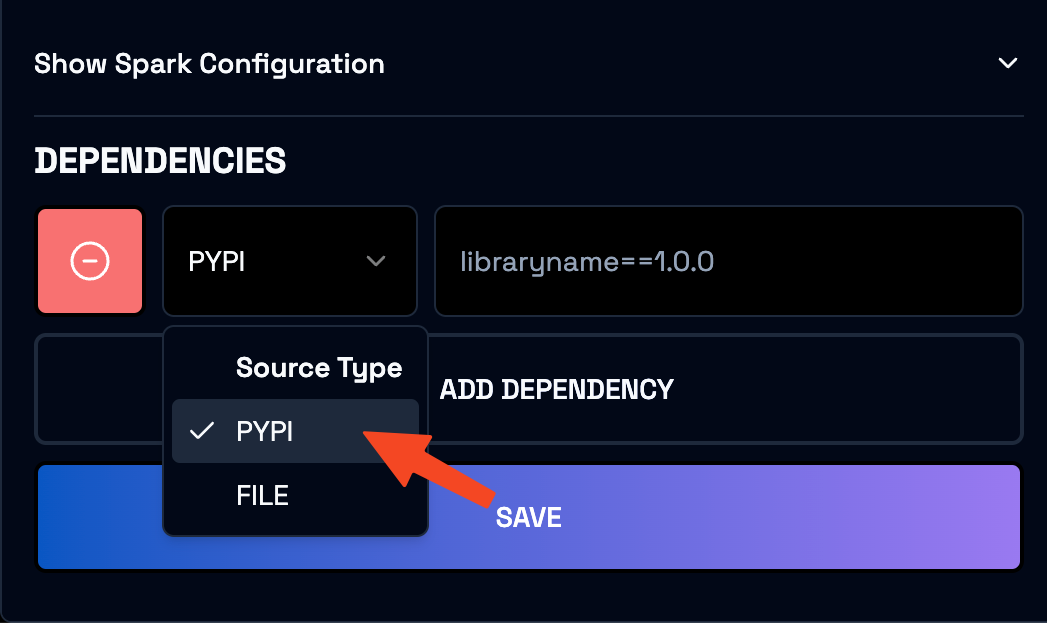
Select source type
Environment Override Presets
Configurations present in Environment Override Presets are subject to change. Configurations may be added or removed as the product evolves.
- Driver disk size
- Executor disk size
- Spark configuration
- Go to Start a Notebook
- Click Environment.
- Click Show Environment Overrides.
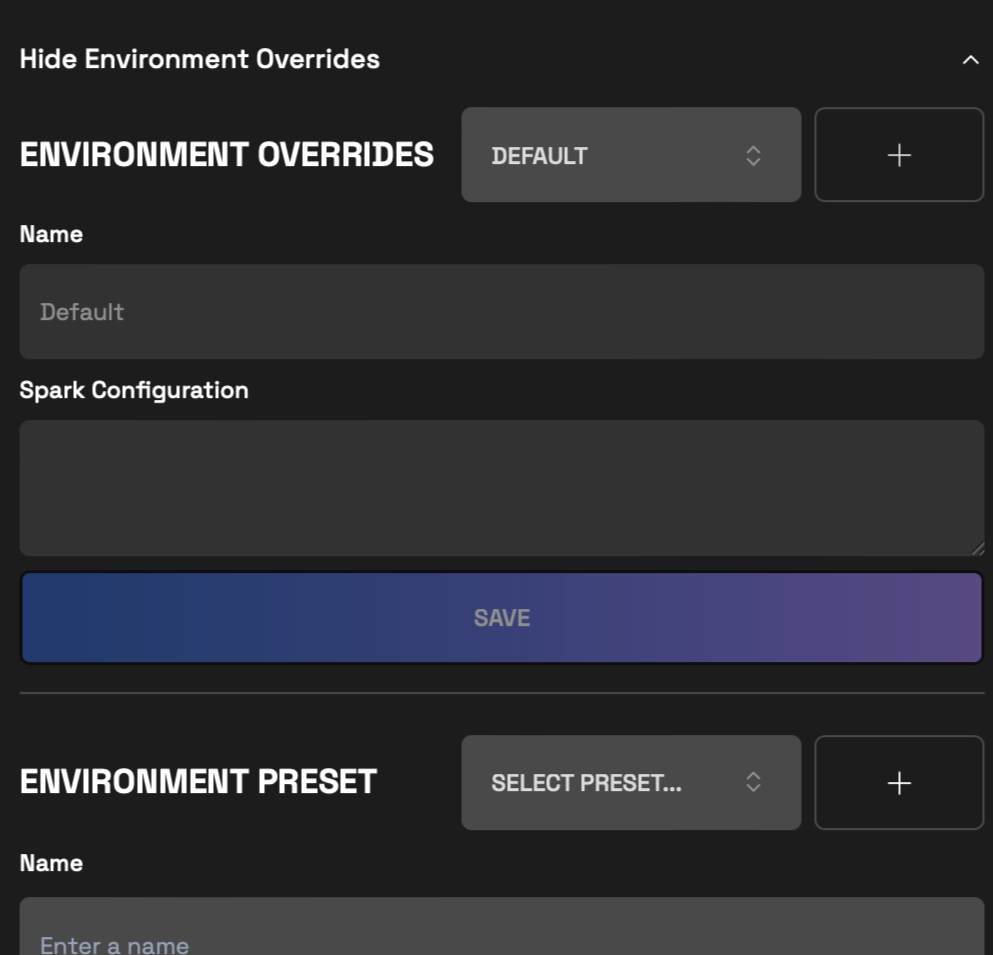
View Environment overrides and Environment presets
- Click a previously created override from the dropdown.
- Click Environment.
- Click Show Environment Overrides.

Create custom environment override preset
- Click +.
- Enter the necessary information.
- Click Save.