

All Wherobots Managed Storage is located in
us-west-2. We currently don’t provide separate managed storage instances for different regions. For optimal performance and greater control over data locality, we recommend that customers manage their own S3 buckets and use storage integrations.Benefits
You can store a variety of file formats in Managed Storage, including:- Shapefiles (.shp)
- GeoJSON (.geojson)
- CSV (.csv)
- Parquet (.parquet)
- GeoParquet (.parquet)
- Raster formats (e.g., .tif, .geotiff)
- WherobotsDB: Access and query your data using WherobotsDB, leveraging its geospatial capabilities for analysis.
- Jupyter Notebooks: Within Wherobots Cloud, load and process your data within Jupyter notebooks for interactive exploration and visualization.
- Wherobots API(s): Programmatically access and manage your data through the Wherobots API(s).
Before you start
Before using Managed Storage, ensure that you have the following required resources:- An account within a Professional, Innovation, or Enterprise Edition Wherobots Organization. For more information, see Create a Wherobots Account
Upload your data
You can upload data through the Wherobots Cloud web interface or the Amazon Web Services (AWS) CLI.Web interface
- Log in to Wherobots Cloud.
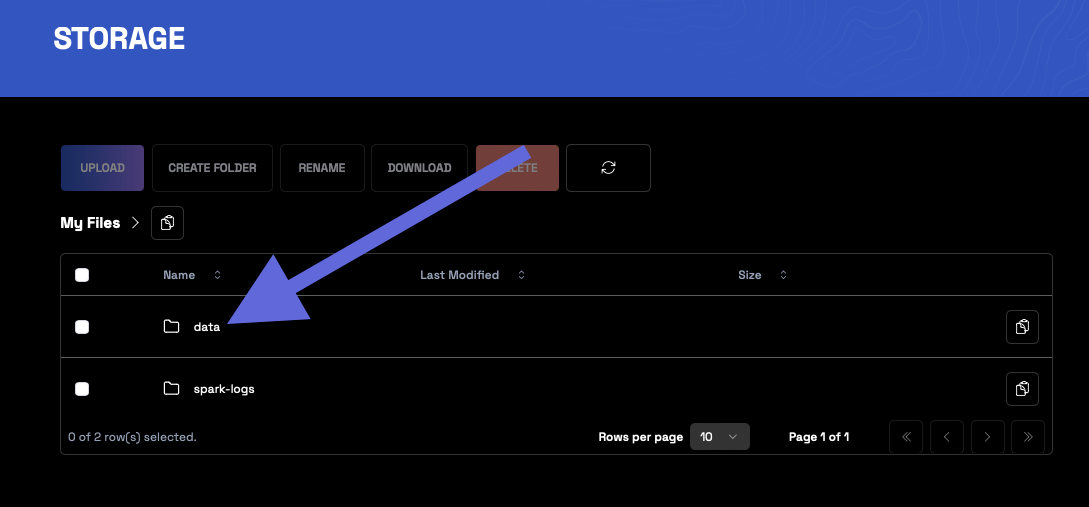
- Go to Storage.
-
Click data.
-
Navigate to your
customer-folder or thesharedfolder.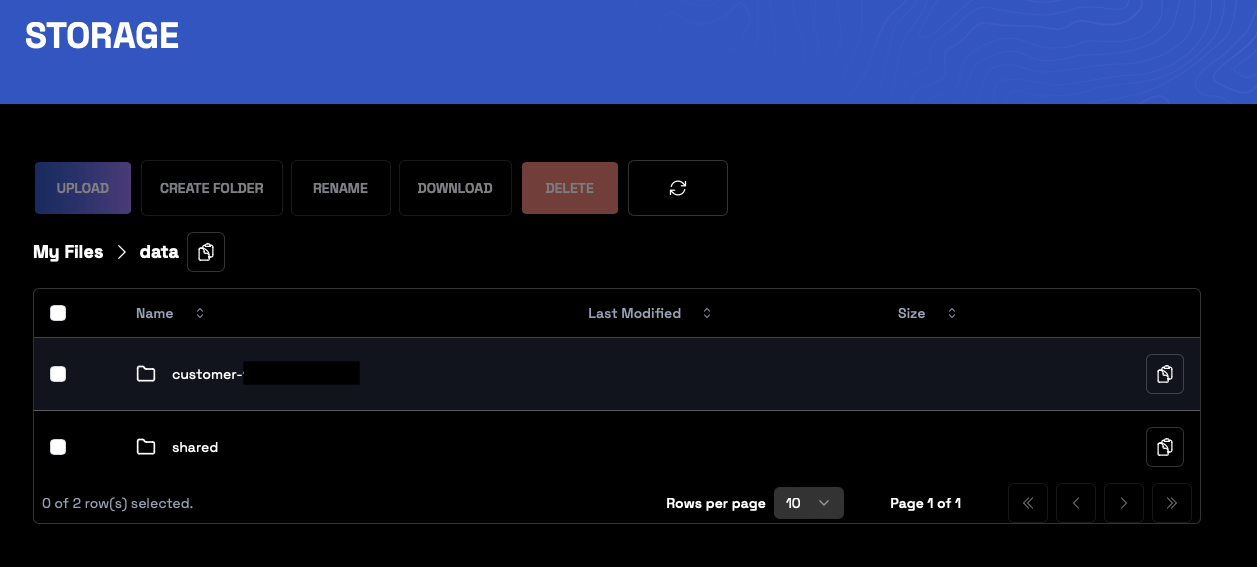
Items stored in thesharedstorage visibilitysharedfolder are available to your entire Wherobots Organization. For more information, see Wherobots File System. - (Optional) Click Create folder, to create a new folder.
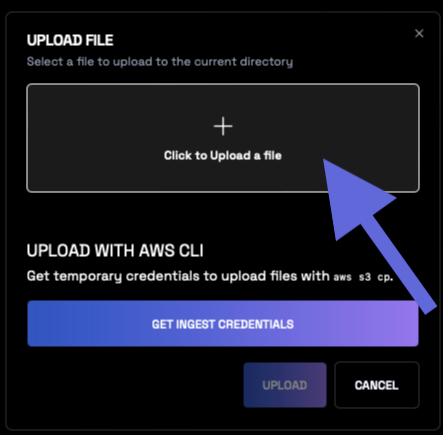
- Click Upload.
-
Click + Click to Upload a file to open the file browser.
- Select your desired file.
- Click Upload.
AWS CLI
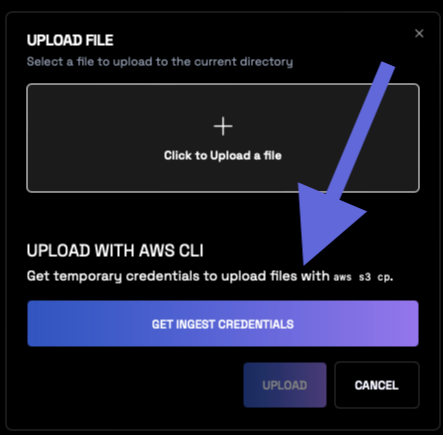
For larger datasets or bulk uploads, leverage the AWS CLI, which allows you to upload to Managed Storage with AWS CLI. Follow these instructions, to obtain temporary ingest credentials and upload files withaws s3 cp.
- Generate temporary ingest credentials through the web interface.
- Go to Storage
-
Click data.
-
Navigate to your
customer-folder or thesharedfolder.Note
Items stored in thesharedfolder are available to your entire Organization. For more information, see Wherobots File System. - (Optional) Click Create folder, to create a new folder.
- Click Upload.
-
Click Get ingest credentials.
-
Click Create ingest credentials to generate credentials.
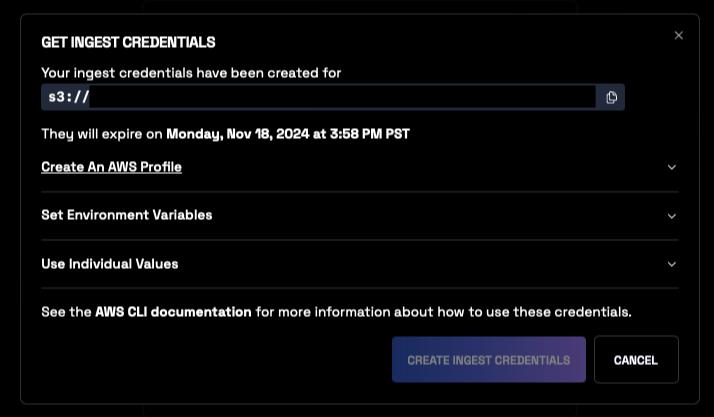
- Configure your AWS CLI with these credentials. For more information, see Authenticating with short-term credentials for the AWS CLI in the AWS documentation.
aws s3 cp to upload your data to the provided S3 URL.