

The Wherobots MCP server is hosted in
us-west-2. When used, MCP clients communicate with this service.If you need the MCP server to be hosted in alternative regions, please file a request at support@wherobots.com.Use cases for the MCP server
The MCP server is optimized for tasks such as:Catalog exploration
Catalog exploration
Understand what datasets are available across your organization’s catalogs, databases, and tables.
Notebook generation
Notebook generation
Generate geospatial analysis workflows as ready-to-run notebooks.
Data quality assessment
Data quality assessment
Perform initial dataset analysis and assess data quality.
SQL query assistance
SQL query assistance
Get help writing and optimizing spatial SQL operations.
General geospatial questions
General geospatial questions
Receive guidance on geospatial concepts, functions, and best practices.
Common tasks
The MCP server excels at helping you understand and work with your spatial data through:- Schema Discovery: Prompt to understand table structures and relationships.
- Query Optimization: Get suggestions for improving spatial query performance.
- Best Practices: Receive guidance on spatial data analysis techniques based on your datasets and the Wherobots documentation.
Example prompts
Exploring Overture dataset schema
For example, you can ask about the details in a specific dataset, such as: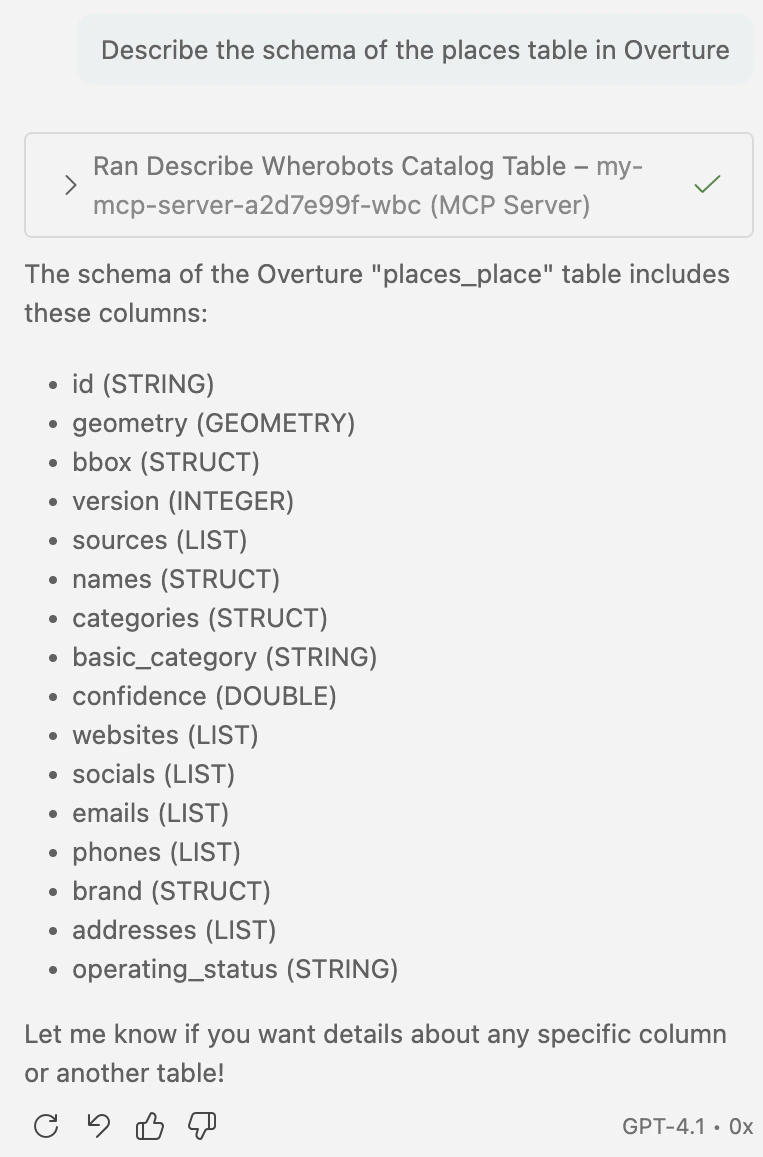
Start a SQL session before longer work
Queries from the MCP server run on a SQL session in Wherobots Cloud. If no session is running, the first query starts one, and a cold SQL session can take several minutes to start. Later queries use the running session until it shuts down after a period of inactivity. To have the session running before longer work, start with a small query, for example:“How many rows are in the Overture buildings table?”While the session starts, the query runs as a background job:
submit_query_toolwaits up to about 20 seconds, then returns aquery_idif the query is still running.- Your AI assistant polls
get_query_status_tooluntil the query finishes. - Your AI assistant fetches the rows with
get_query_results_tool.
Usage considerations
Consider the following best practices and limitations when using the Wherobots MCP server integration:- Models dictate query success: Performance improves significantly with the latest advanced AI models available in Copilot (for example, the latest version of Claude Opus, Gemini Pro, or GPT Codex models)
- Read-only queries: The MCP server only runs read-only SQL, and query results are capped by a byte budget per response. See Limits.
- Compute constraints: Queries run on your Organization’s default runtime unless your client sets a different one, and stop when they reach the query time limit.
- VS Code Extension settings: If the Wherobots VS Code Extension configures your MCP server, you can change these values from
Wherobots: Open Settingsin the Command Palette. Editwherobotsjobsubmit.mcpServerQueryTimeoutto change the query timeout,wherobotsjobsubmit.mcpServerRuntimeIdto use a larger runtime if queries stall, andwherobotsjobsubmit.mcpServerRuntimeRegionto change the region. - Clients configured by hand: The extension’s MCP settings don’t apply to MCP clients that you configure by hand, such as Claude Code, Codex, or Cursor.
- VS Code Extension settings: If the Wherobots VS Code Extension configures your MCP server, you can change these values from
- Complex operations: Large-scale operations like planetary-scale analysis or isochrones may timeout.
Cost considerations
- Professional, Innovation, and Enterprise Organizations
- You are only billed for MCP server usage when you execute a query on Wherobots from the MCP server. The charges come from the SQL Session runtime that the query starts.
- When executing queries on Wherobots from the MCP server, a SQL Session starts on your Organization’s default runtime, or on the runtime your client sets.
- SQL Sessions terminate after 5 minutes of inactivity.
- Query execution contributes to Spatial Unit (SU) consumption and will be categorized as SQL Session consumption.
- Usage tracking: Query execution activity appears in Workload History as SQL Session usage.
- Copilot requests: Usage counts toward your GitHub Copilot usage limits. For more information, see Requests in GitHub Copilot in the GitHub Documentation.
Stop the MCP Server
MCP server charges come from the SQL Session runtime that a query starts, and the SQL Session shuts down after a period of inactivity. You don’t need to stop the MCP server to end those charges. To stop a query you no longer need, ask your AI assistant to cancel it withcancel_query_tool.
You can still stop the MCP server when you are finished, for example to disconnect your editor from Wherobots. To stop the MCP server in VS Code:
- Open the Command Palette (
Cmd+Shift+Pon Mac,Ctrl+Shift+Pon Windows/Linux). - Type and select MCP: List Servers.
- Select the name of your server from the list.
- Click Stop Server.