

Benefits
The Workload History section of Wherobots Cloud allows you to view all executed workloads within your Wherobots Organization and manage job runs.Visualize resource consumption
Visualize resource consumption
Identify usage patterns and trends
Identify usage patterns and trends
Track quota usage
Track quota usage
Investigate usage spikes
Investigate usage spikes
Analyze individual activity
Analyze individual activity
Make informed decisions about resource allocation and cost optimization
Make informed decisions about resource allocation and cost optimization
Before you start
Before using this feature, ensure that you have the following required resources:View Notebook, Job Run, and SQL Session workloads
For insight into your workload trends and individual Job Runs, go to Workload History in the left sidebar of Wherobots Cloud.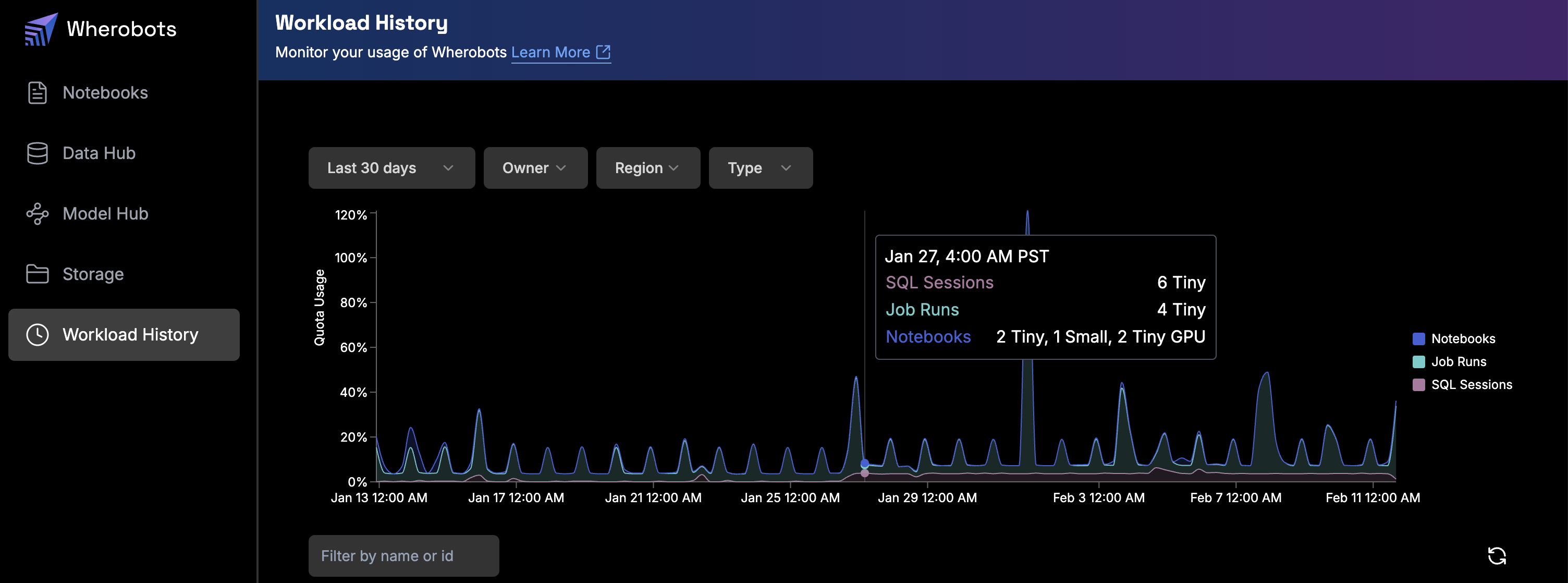
Workload History overview
Workload history overview
Workload History provides two main views to analyze your workloads: Chart and Table.Chart view
In chart view, you can see an overview of all your workloads, including Notebooks, Job Runs, and SQL Sessions. The chart displays quota usage as a percentage of your organization’s total computing power over time. In Wherobots Cloud, go to Workload History. The chart displays Quota Usage as a percentage on the y-axis over the selected time range on the x-axis. Each area on the chart is color-coded by workload type: The legend on the right side of the chart identifies each workload type by color.Time Range Filter
Time Range Filter
Owner Filter
Owner Filter
Region Filter
Region Filter
Type Filter
Type Filter
Status Filter
Status Filter
- (blue)
- (purple)
- (green)
Table view
The table view provides a detailed list of all workloads executed within your Wherobots Organization, along with key information about each workload.
Workload History table view
Name
Name
Owner
Owner
Duration
Duration
Time Completed
Time Completed
Status
Status
Region
Region
Runtime
Runtime
Cost ($)
Cost ($)
< $0.01.SUs
SUs
< 0.01. This information can be delayed by up to 20 minutes.Filter workloads
To locate specific workloads, you can use multiple filters:- Navigate to Workload History.
- Use the Filter by name or id field to search for specific workloads.
- Apply filters for Time Range, Owner, Region, Type, or Status as needed.
Manage Job Runs
In the Workload History view, click on any Job Run workload row to view more information about that specific execution. The detail page includes two tabs: Details and Logs.Details tab
The Details tab provides an overview of the Job Run’s configuration, runtime environment, and execution metadata so you can:- Review Spark version, runtime size, and environment details
- Verify scheduling, trigger source, and timeout configuration
- Understand when the Job Run started, ended, and how long it ran
Job Run Name
Job Run Name
Job Run ID
Job Run ID
Status
Status
Pending), in progress (Running), finished (Completed), unable to be executed (Failed), manually stopped (Cancelled), or stopped because it exceeded its configured timeout (Timed Out).Start Time
Start Time
End Time
End Time
Duration
Duration
Triggered By
Triggered By
Runtime
Runtime
Runtime Version
Runtime Version
latest or preview, the resolved concrete version is shown in parentheses (for example, latest (1.5.1)).Timeout
Timeout
Region
Region
Python File
Python File
Environment
Environment
Consumption metrics
Each Job Run Details page specifies the consumption metrics and details associated with a specific workload execution, including the following:
Job Run consumption metrics
Cost ($)
Cost ($)
< $0.01.Spatial Units Consumed
Spatial Units Consumed
< 0.01.Max CPU Utilization
Max CPU Utilization
Max Memory Utilization
Max Memory Utilization
Configuration information
Each Job Run Details page specifies the Configuration information associated with a specific workload execution, including the following:Runtime
Runtime
Timeout
Timeout
3600.Region
Region
URI
URI
Logs tab
The Logs tab provides real-time access to execution logs for your Job Run including information about:- File downloads and uploads
- Spark submit commands
- Spark version and environment details
- Warnings and error messages
- Application execution progress
Job Run Name
Job Run Name
Job Run ID
Job Run ID
Status
Status
Pending), in progress (Running), finished (Completed), unable to be executed (Failed), manually stopped (Cancelled), or stopped because it exceeded its configured timeout (Timed Out).Spark UI
Spark UI
Running state.Spark event logs
Spark event logs
Search Logs
Search Logs
Cmd/Ctrl + F.Log Timeline
Log Timeline
Copy Logs
Copy Logs
Download Logs
Download Logs
Compare workload performance
To compare workload performance with different runtime types:- Run a workload. For more information on initializing a job and runtime selection, see WherobotsRunOperator.
- Run that same workload again with either a larger or smaller runtime type.
-
Review the Detail pages for each executed Job Run to compare performance metrics, specifically:
- Duration
- Max CPU Utilization
- Max Memory Utilization
- Cost($)
- SUs (Spatial Units)
Cancel a workload
Wherobots cancels workloads based on your specification oftimeoutseconds in the Job Runs REST API Schema, which defaults to 3600, but you can also cancel a workload in Wherobots Cloud.
To cancel a workload within Wherobots Cloud, do the following:
- In Workload History, locate the Job Run you wish to cancel.
- Click on the Job Run to open its detail page.
- Click the Cancel button.
Limitations
The following limitations apply to the Workload History feature:90-day data retention
90-day data retention
Slightly delayed cost and SU data
Slightly delayed cost and SU data
Quota usage is percentage-based
Quota usage is percentage-based