Run Wherobots workloads inside your own AWS account and region so your data never leaves your cloud, while still using Wherobots as the spatial engine.
Bring Your Own Cloud (BYOC) lets your Organization run Wherobots workloads — Job Runs, SQL Sessions, notebooks, and the SDK(s) — inside your own AWS account and region.In Wherobots, every workload runs in a region, and a region is one of two types. A Hosted region maps to serverless compute in Wherobots’ own AWS account. A BYOC region maps to infrastructure that Wherobots manages inside a VPC in your account.With BYOC, your data stays in your cloud and is processed by runtimes provisioned in your account, while you continue to use Wherobots workloads exactly as you would in a Hosted region.
When BYOC is enabled, Wherobots provisions a dedicated BYOC region for your Organization that maps to a region in your AWS account. Where a Hosted region runs your workloads on serverless compute in Wherobots’ account, a BYOC region runs them on infrastructure Wherobots manages inside your VPC. Workloads you target at this region run on compute inside your account.
The BYOC region identifier
Your BYOC region appears as a region identifier in the format:
aws-<aws-region>-<org-suffix>
For example, a BYOC region in us-east-1 might appear as aws-us-east-1-abcd123ef.You’ll select this region when starting notebooks and pass it explicitly when submitting Job Runs or starting SQL Sessions.
Storage in BYOC
BYOC workloads must read and write data through S3 Storage Integrations that point at buckets in your own AWS account.
BYOC workloads cannot access Wherobots Managed Storage.Wherobots Managed Storage lives in the Wherobots-managed account (us-west-2) and is intentionally unreachable from BYOC regions. Use an S3 Storage Integration for all BYOC data — input data, job scripts, and output destinations.
Data isolation
BYOC enforces a boundary between your cloud and the Wherobots Hosted platform:
Data processed in your BYOC region stays in your AWS account.
A bucket whose trust policy allows only your BYOC account cannot be reached from Hosted regions.
Sufficient Amazon EC2 (Elastic Compute Cloud) service quotas in the target region (Wherobots recommends a quota of at least 128 vCPUs for Running On-Demand Standard A/C/D/H/I/M/R/T/Z instances).
New accounts often have low default quotas, which can block workload startup and leave sessions stuck in the PENDING state.
To start BYOC provisioning, the customer only needs to provide three items:
Target AWS region
AWS account ID (12 digits)
Wherobots Organization ID
Process overview diagram
Everything else happens after kickoff, guided by Wherobots.The sequence below shows what happens in order and what each side provides at each phase.
1
Request BYOC enablement
Contact your Wherobots account team via Slack/email or the general Wherobots support team at support@wherobots.com to enable BYOC for your Organization for next steps and timelines regarding your BYOC environment provisioning.
2
Provide details for provisioning
To provision your BYOC environment, send your Wherobots account team the following details about your AWS account and target region:
Target AWS region: The region where you want your BYOC environment provisioned (for example, us-east-1).
AWS account ID: The 12-digit account where the BYOC environment will be provisioned. Wherobots strongly recommends a new, dedicated AWS account; if that isn’t possible, tell the Wherobots contact handling your request.
Wherobots will provide you with the necessary CloudFormation templates and instructions to run in your AWS account.This sets up the infrastructure for your BYOC environment (including creating an IAM role and Role Actions), including the compute resources and permissions Wherobots needs to operate within your account.For more information about CloudFormation, see What is CloudFormation? in the AWS documentation.
Once you’ve been given the CloudFormation template, click Create stack in the AWS CloudFormation console.This stack creates an IAM Role which will grant Wherobots permission to deploy infra into the BYOC account.Once successfully created, the IAM role will appear as CREATE_COMPLETE in the CloudFormation console.
4
Whitelist egress traffic
Wherobots will provide you with a list of IP address ranges and FQDNs to whitelist for egress traffic from your BYOC environment. This allows the runtimes in your BYOC region to communicate with Wherobots Cloud and other necessary services.
5
(Optional) Allow MCP access to your BYOC compute
Complete this step only if you want the Wherobots MCP server to operate on compute in your BYOC environment. Currently, the MCP server runs in the Wherobots Hosted us-west-2 region — see MCP & agentic tools.
The Wherobots MCP server currently runs in a Wherobots Hosted us-west-2 region. Its SQL is executed against the runtime within the customer specified region (BYOC or Hosted, as specified), but responses are routed back to the MCP server.
Wherobots needs inbound (ingress) access from its control plane to the compute it runs in your account. When users request the MCP server to execute SQL Queries, the MCP server opens a WebSocket connection to the SQL-session workload pod in the BYOC compute plane to relay queries and stream results between the customer’s agent and the SQL engine.To allow this, Wherobots will provide you with a list of IP address ranges to whitelist for inbound traffic. You will
add the Wherobots IP ranges to the relevant security groups so the control plane can reach the load balancer Wherobots provisions in front of those compute endpoints.
6
Wherobots provisions your BYOC environment
Wherobots will create AWS resources, including but not limited to the following:
Amazon Virtual Private Cloud (VPC)
Amazon Elastic Kubernetes Service (EKS)
Amazon Elastic Compute Cloud (EC2) compute
Amazon EC2 networking
Elastic Load Balancing (ELB)
AWS Identity and Access Management (IAM)
AWS Key Management Service (KMS)
Amazon CloudWatch Logs
Amazon Route 53
Amazon Simple Queue Service (SQS) and Amazon EventBridge
7
Confirm BYOC is enabled
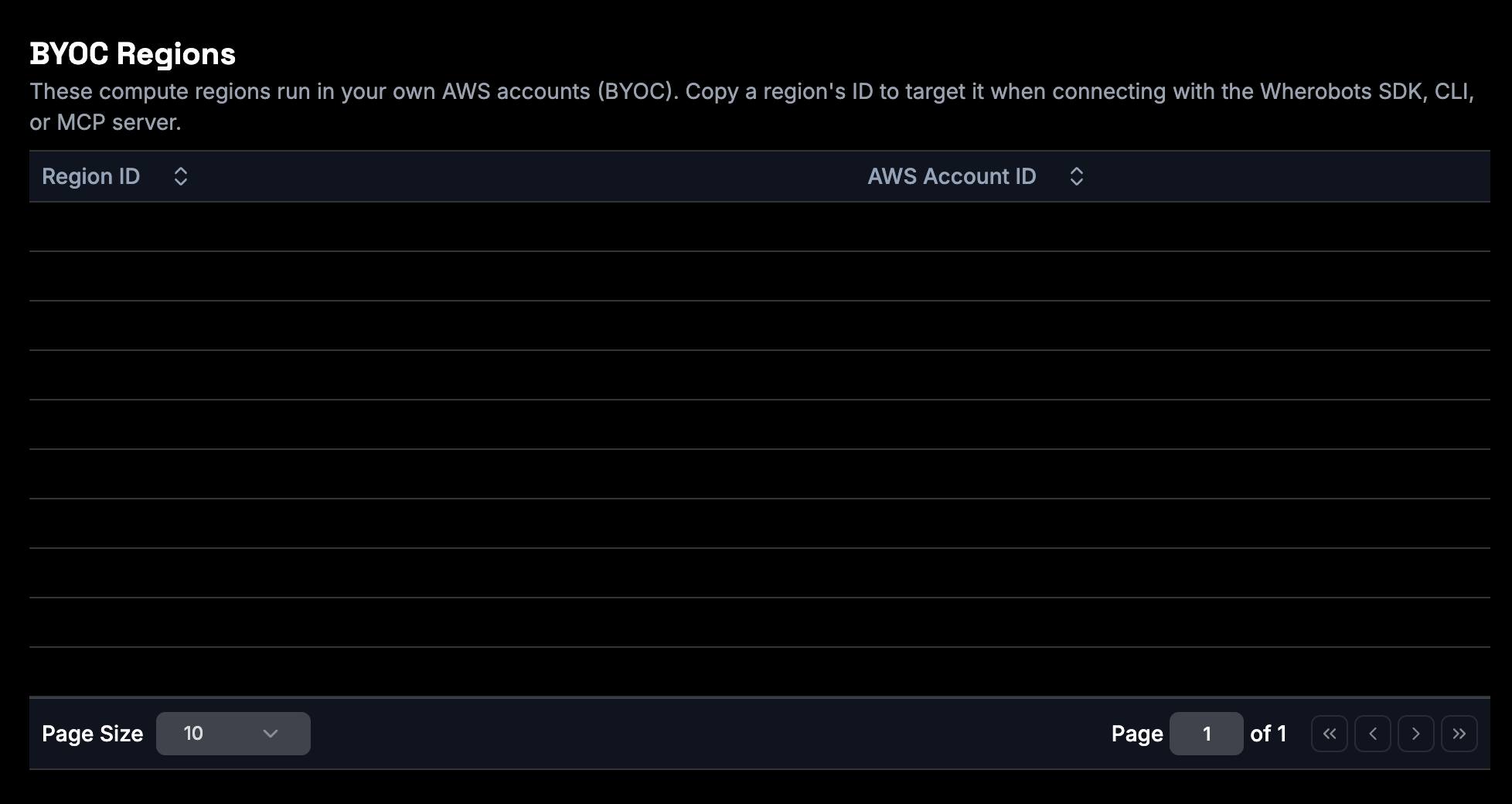
After Wherobots enables BYOC for your Organization, you can confirm your BYOC region is available.
Default Region applies to notebooks only. Setting a Default Region does not apply to Job Runs or SQL Sessions — you must select the BYOC region explicitly when you start those workloads. See Organization Preferences.
9
Create an S3 Storage Integration
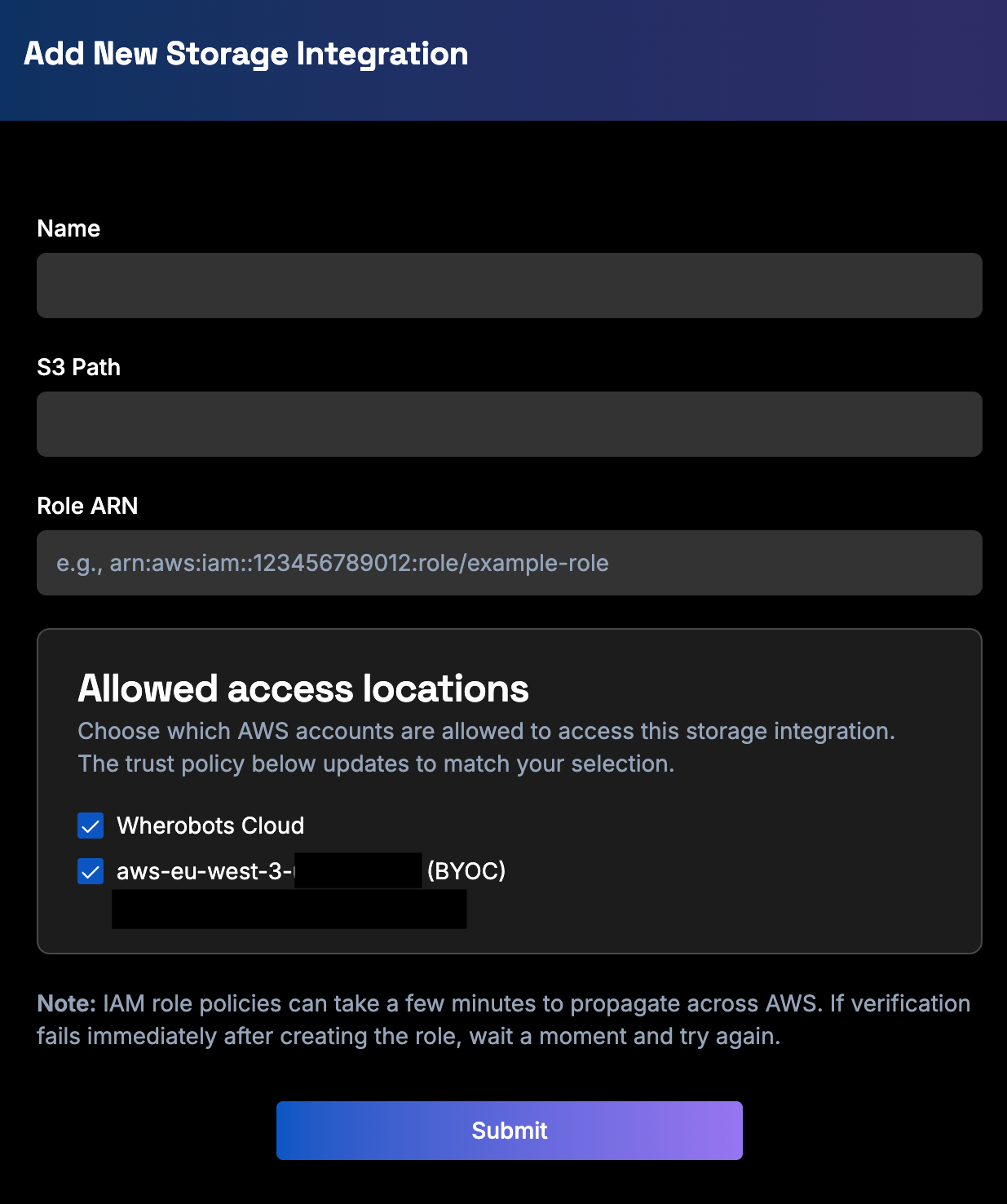
Because BYOC workloads can’t use Wherobots’ Managed Storage, create at least one S3 Storage Integration pointing at a bucket in your AWS account. This bucket holds your input data, job scripts, and output.Follow the S3 Storage Integration guide — a guided wizard provisions the access with AWS CloudFormation, so there’s no manual IAM role or trust policy to configure. Choose Read & Write if you’ll create catalogs on the bucket.The integration uses a Cloud Connection, the reusable IAM role Wherobots assumes in your account. Allowed compute is a Cloud Connection setting that controls which compute environments may use the connection. The storage integration wizard shows it while you create the integration.To keep a bucket reachable only from your BYOC region, set the Cloud Connection’s Allowed compute to that region and uncheck the Wherobots Hosted platform. See Data isolation & access boundaries.
Under Allowed compute, choose which AWS accounts may use the Cloud Connection; the trust policy updates to match your selection.
A storage integration is not a catalog. Creating a storage integration connects Wherobots to your S3 bucket, but it doesn’t expose your data as a queryable catalog. To query the data, create a catalog from the bucket in the Data Hub: click Add Catalog, then choose your storage under Catalog in. See Create a Managed Catalog.
Once BYOC is set up, target the BYOC region from your Wherobots workloads.The core rule for BYOC compute is the same everywhere: point the workload at your BYOC region and read/write through an S3 Storage Integration.
The Wherobots MCP server itself runs in the Wherobots Hosted us-west-2 region, even when it executes your SQL against a BYOC runtime. See the MCP & agentic tools tab below.
Set Region to your BYOC region. A BYOC-enabled region will be denoted with (BYOC) in the Start a Notebook dropdown.
(If you set it as the Default Region, it’s already selected.)
Launch the notebook and run your cells. Load and save data using your Storage Integration catalog.
To use a Storage Integration or catalog created after a notebook started, launch a new notebook. Runtimes only see integrations that existed when they started.
A SQL Session starts when you connect to the Spatial SQL API — through the Python or Java SDK’s connect() call, or a tool built on it such as the Harlequin SQL IDE. To run the session in BYOC, pass your BYOC region identifier (for example, aws-us-east-1-<org-suffix>) as the connection’s region. The Default Region does not auto-apply to SQL Sessions, so set it explicitly every time. See Runtime and region selection and the Region values reference for how regions are passed.Run queries against tables in catalogs backed by your Storage Integration bucket. Temporary results persist for the life of the session.
Submit a Job Run targeting your BYOC region. Pass the region identifier you copied from the notebook Region dropdown, for example:
aws-us-east-1-abcd123ef
Upload your job script to a Storage Integration bucket. BYOC Job Runs can’t read scripts from Wherobots’ Managed Storage. Place your script in a bucket covered by a Storage Integration before submitting the run.
Watch status transitions and review logs and outputs as usual. See the Runs REST API and the Wherobots CLI for submitting and monitoring runs.
When using the Python SDK or Wherobots CLI, specify your BYOC region identifier (for example, aws-us-east-1-<org-suffix>) wherever a region is accepted, and reference data via your Storage Integration. See the Region values reference for how regions are passed in the APIs and SDKs.
Set your API key in the VS Code Extension. When you use the Wherobots MCP server through the VS Code Extension (or another Code OSS editor), authenticate it with your Wherobots API key: open the Command Palette and run Wherobots: Set API Key, then enter your key and press Enter. For full steps, see Configure the extension.
If you need the MCP server hosted in an alternative region, file a request at support@wherobots.com.
BYOC is designed so that your data stays in your cloud. The following boundaries are enforced:
Data Relationship
Behavior
BYOC → Wherobots Managed Storage
BYOC regions cannot read from or write to Wherobots Managed Storage.
Hosted → restricted bucket
A bucket served by a Cloud Connection scoped to only your BYOC region cannot be accessed from Hosted regions.
You control the second boundary through the Cloud Connection’s Allowed compute setting: scope a connection to only your BYOC region to make its buckets reachable exclusively from your BYOC account. See Create an S3 Storage Integration.
You can create and operate catalogs on your Storage Integration bucket from BYOC regions the same way you would on the Wherobots Hosted platform. For example:
Create a catalog on your Storage Integration bucket in Data Hub, then run programmatic operations on that table as you would on any other table on the Wherobots Hosted platform. These operations work on BYOC the same way they do on the Wherobots Hosted platform. For more information, see Querying Datasets.
Open Data catalogs are readable from BYOC workloads — your runtimes can read from Wherobots Open Data catalogs (such as Overture Maps) as usual.
The Wherobots MCP server is not yet deployed in BYOC regions; it runs in us-west-2. Your SQL still executes against the runtime in your selected region (BYOC or Hosted), but the MCP server relays queries and routes responses back through us-west-2. See Run workloads in BYOC.
The Default Region preference applies only to notebooks. Select the BYOC region explicitly for Job Runs and SQL Sessions.
Standard S3 Storage Integration limitations apply (for example, bucket paths cannot contain periods, and a bucket can have a single storage integration).