

Component Overview
Wherobots’ Agentic Tools consist of the following components that work together to provide our agentic experience:MCP Server
MCP Server
Connects your AI assistant to Wherobots Cloud for catalog exploration, documentation search, read-only Spatial SQL queries, and workload and Spark execution details.
Agent Skills
Agent Skills
Gives your AI assistant domain-specific Wherobots knowledge for more accurate commands and fewer errors.
Wherobots CLI
Wherobots CLI
Wraps the full Wherobots API into a single binary for job submission, log streaming, and automation.
Why use Wherobots’ agentic tools?
Wherobots’ agentic tools connect your AI assistant to Wherobots Cloud and your local development environment so you can interact with your spatial data, catalogs, and jobs in a more intuitive way.Explore your spatial catalog conversationally
Explore your spatial catalog conversationally
The MCP Server connects your AI assistant to Wherobots Cloud so you can browse catalogs, databases, and table schemas (including Overture Maps and your own datasets) by asking questions in plain language instead of navigating the console.
Generate Spatial SQL without memorizing functions
Generate Spatial SQL without memorizing functions
Describe a geospatial task (e.g. “find buildings within 500m of this point”) and your AI assistant writes Spatial SQL with WherobotsDB’s ST functions, using the table schemas and documentation that the MCP Server provides, then runs it on Wherobots Cloud.
Submit and monitor Wherobots jobs from your editor
Submit and monitor Wherobots jobs from your editor
Use the CLI or the extension to submit Spark job runs, stream logs in real time, check resource metrics, and cancel jobs without leaving your editor or terminal.
Get Wherobots-aware AI assistance
Get Wherobots-aware AI assistance
Agent Skills teach your AI assistant Wherobots-specific APIs, query patterns, and workflow sequences so it produces correct
wherobots CLI commands, valid MCP tool calls, and accurate notebook code on the first try.Before you start
The following prerequisites are required:- OpenCode installed with a modern terminal emulator.
- A Wherobots Account within a Professional, Innovation, or Enterprise Organization. See Create a Wherobots Account.
- A browser to sign in to Wherobots. OpenCode signs in to the MCP server with OAuth, and the Wherobots CLI signs in with
wherobots auth login.- For CI, scripts, or editors that don’t support OAuth, use a Wherobots API key instead. For more information, see API Keys.
- Node.js and npm installed on your system (required for installing Agent Skills via
npx).
Install Wherobots MCP Server in OpenCode
These steps connect OpenCode to the Wherobots MCP Server, giving your AI assistant access to your Wherobots Organization’s catalogs, datasets, and tools.1
Configure the MCP Server
Choose one of two methods to add the Wherobots MCP server to OpenCode.
- Use opencode mcp add (recommended)
- Edit configuration JSON manually
-
In your terminal, start the OpenCode MCP setup wizard:
-
Respond to each prompt as follows:
OpenCode writes the entry to
~/.config/opencode/opencode.jsoncand printsMCP server "YOUR-WHEROBOTS-MCP-SERVER-NAME" added successfully.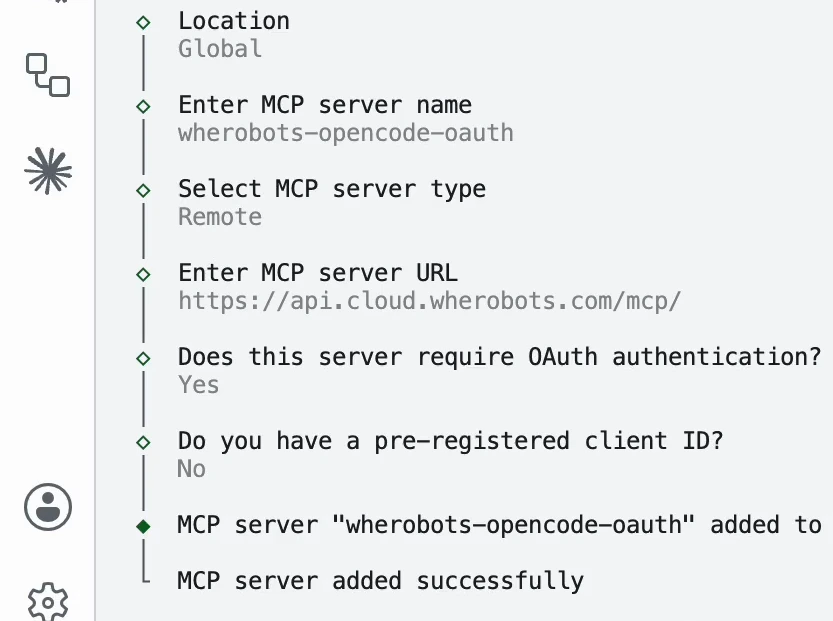
Completed opencode mcp add wizard.
-
Authenticate the new server with OAuth, replacing
<YOUR-WHEROBOTS-MCP-SERVER-NAME>with your desired name for the Wherobots MCP server (e.g.wherobots-mcp-server-opencode):This opens a browser window prompting you to log in to your Wherobots account and authorize OpenCode to access your account information. -
In the browser, select the Wherobots Organization that you want OpenCode to access, then click Allow Access.
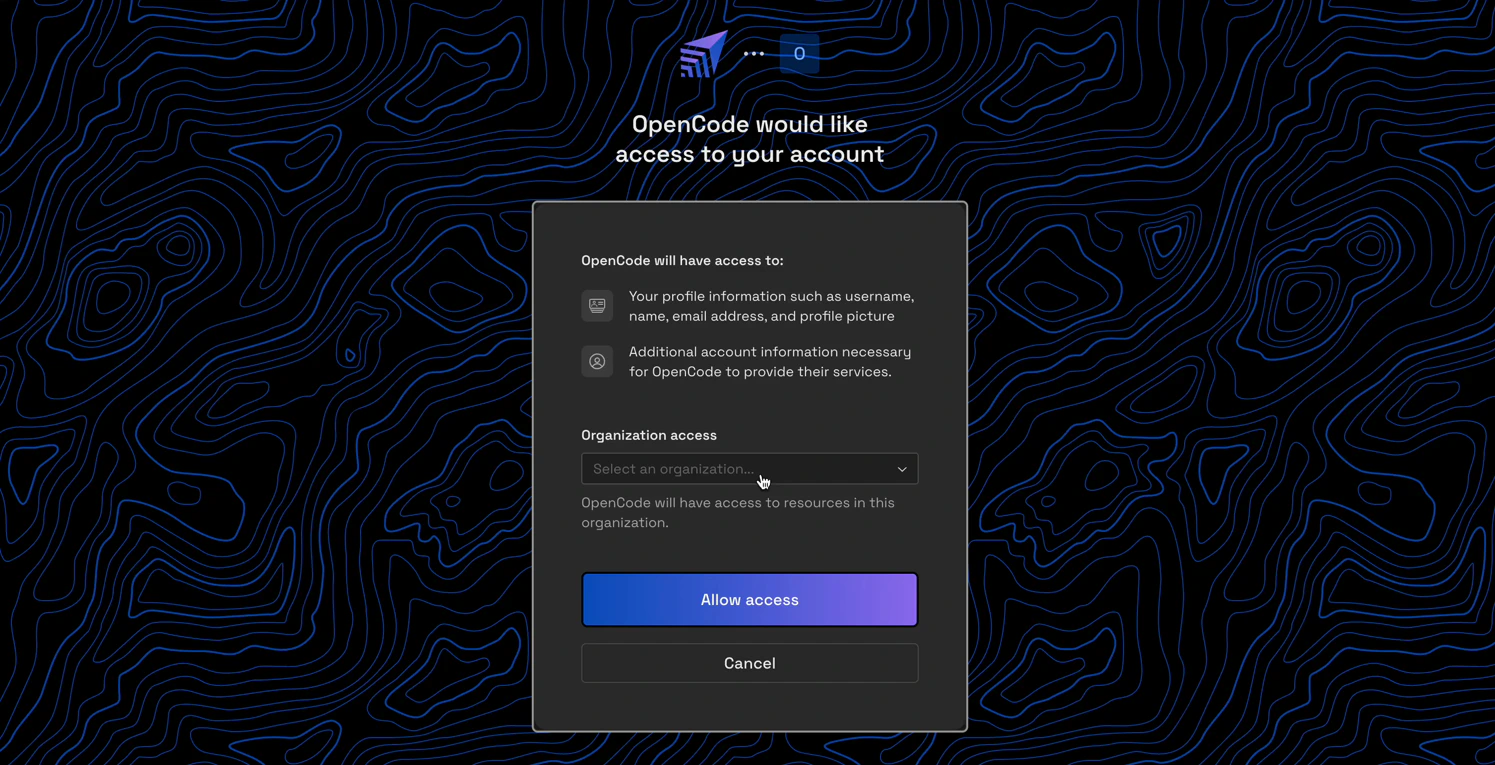
OpenCode OAuth consent screen.
-
Once the browser shows Authorization Successful, close the tab and return to your terminal. OpenCode prints
Authentication successful!.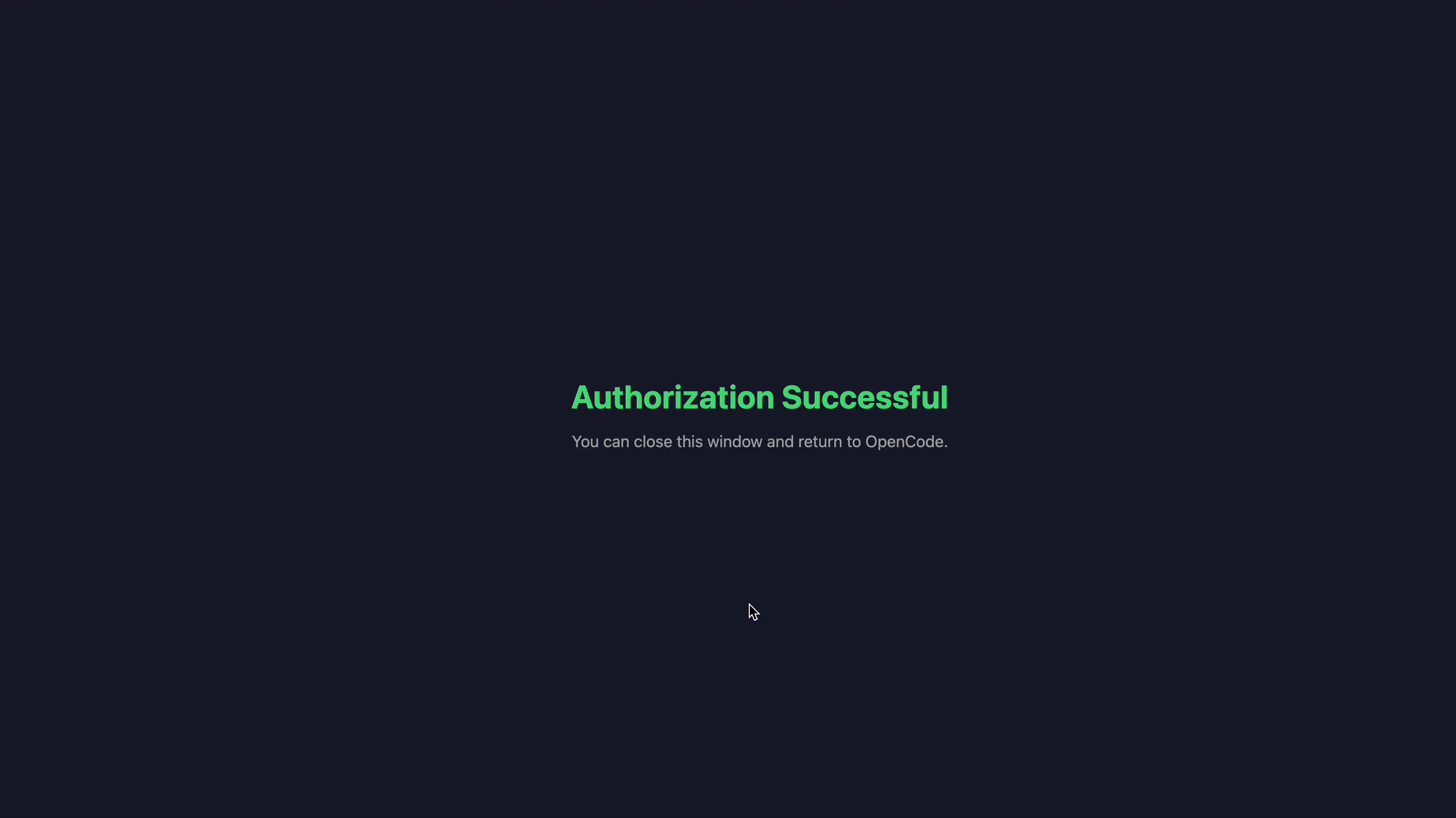
Authorization Successful confirmation page.
-
Verify the server is connected:
You should see something similar to the following,
YOUR-WHEROBOTS-MCP-SERVER-NAME connected (OAuth)along with the server URL.
Alternative: Use an API key instead of OAuth
Alternative: Use an API key instead of OAuth
For CI, scripts, or other environments where browser sign-in isn’t possible, turn off OAuth for the server entry and add an
x-api-key header that contains your Wherobots API key:2
Install Agent Skills
Agent Skills give your AI assistant structured context about Wherobots workflows, APIs, and best practices.
3
Install the CLI (optional)
The Wherobots CLI wraps the full Wherobots API into a single binary for job submission, log streaming, and automation.Sign in with your browser (OAuth):Confirm that the code in the browser matches the one printed in the terminal, select your Organization, and authorize the CLI.Verify the connection:
Verify installation
The following steps confirm that OpenCode is properly connected to the Wherobots MCP server and that your AI assistant can access your Wherobots data and tools.Test the MCP Server connection
To confirm that OpenCode can communicate with the Wherobots MCP server, ask a question in your AI assistant within OpenCode:list_catalogs_tool) and return the catalogs available in your Organization.
Next steps
Explore the following resources to learn how to use Wherobots in OpenCode and get ideas for using your AI assistant to automate geospatial workflows.MCP Server Best Practices
Common tasks, example prompts, and cost considerations for the MCP Server.
MCP Server Demo Videos
Watch the MCP Server automate catalog discovery, spatial queries, and notebook generation.
Agent Skills
Learn more about available skills and installation options.
Agentic Terminal Usage
Use the CLI with OpenCode for natural language job management.
CLI Reference
Submit jobs, stream logs, and access the full Wherobots API.
MCP Server vs CLI
Understand when to use the MCP Server vs. the CLI.