

Read run history
A task run records an execution attempt or an outcome without execution, such as a skipped or missed time. Script execution uses a Job Run for compute. Open a schedule in Scheduled Tasks and inspect its run history. Review the time and window, source, outcome, execution details, and cost. Expand an entry to see earlier attempts.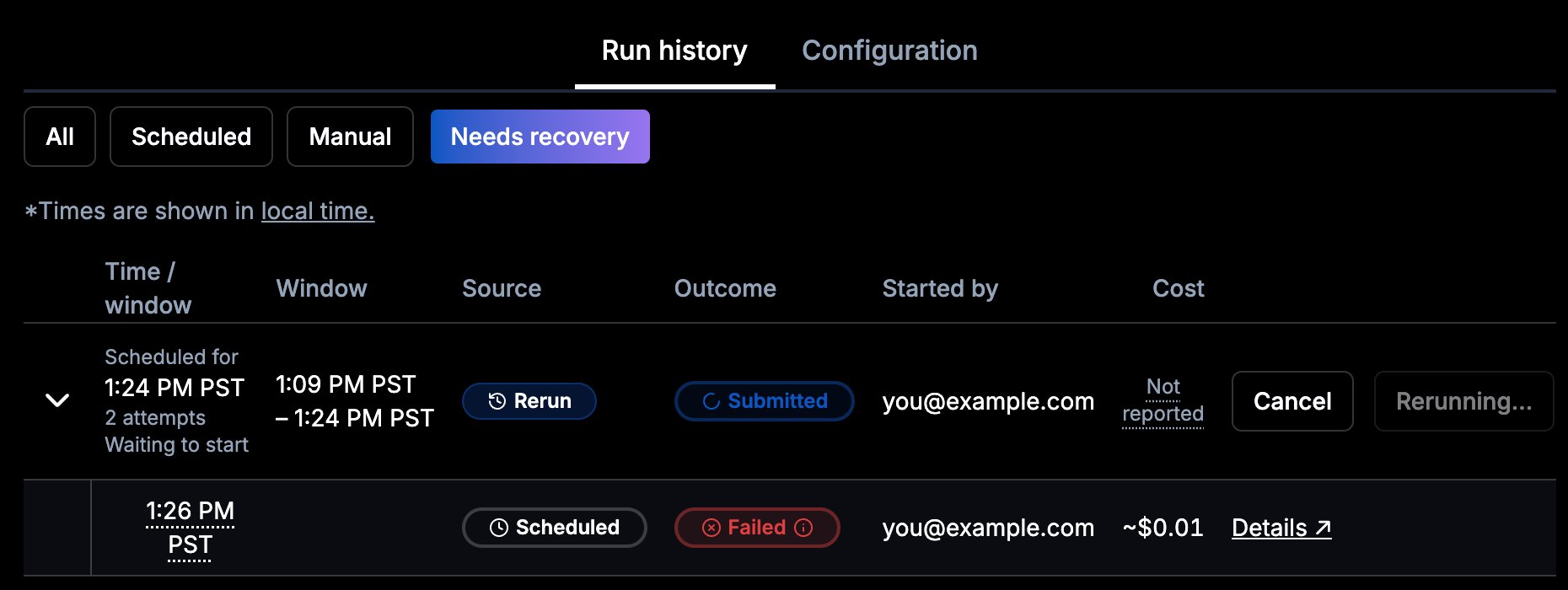
Needs recovery, with a rerun in progress above the failed scheduled attempt
A scheduled time that passes without a run appears as
MISSED after a delay. Missed-time detection doesn’t run while a schedule is paused, auto-disabled, or archived.
Who can manage a schedule
Only the schedule’s execution identity or an Organization administrator can use Run now, Rerun, Pause, Resume, or Archive. Other Organization members can view the schedule, but these controls are unavailable to them. New schedules run as you unless an administrator selects a service principal. A service principal is recommended for production work so execution does not depend on an employee’s account remaining active. Only Organization administrators can select a service principal, and the Organization must have service principal access. You cannot assign another human as the execution identity. You can’t edit a schedule that runs as another person. An administrator can reassign it to a service principal and then edit it. An administrator can also reassign a service-principal schedule to themselves. If the script is in a person’s My Files, reassigning the schedule to a service principal also requires changing its script location todata/shared/ or a storage integration in the same edit. The Select script file picker opens on My Files even when Run as is a service principal; the ownership check happens on save. Saving with a person’s My Files script fails with:
The script (definition.uri) must be in the My Files of the principal that runs it. Service principals can’t run scripts from a person’s My Files.See Store the script for storage choices.
Edit or stop scheduling
Open the schedule’s configuration and choose Edit configuration, then Save changes. See Processing windows for which edits change execution and how they affect the next window. For the API, usePATCH /triggers/{triggerId} with the current version.
Use Pause to stop future scheduled execution while allowing active runs to finish. The API request is POST /triggers/{triggerId}/pause; it needs no version. Use Resume (POST /triggers/{triggerId}/resume with the current version) to begin future scheduling again. Resume clears the failure counter and auto-disable state and starts a new epoch. It does not replay a deliberately paused period. Runs dispatched before the reset cannot change the new failure streak.
Read schedule status
The API returns these fields fromGET /triggers/{triggerId}. In the Cloud UI, the status badge shows Active for an active schedule, and Next run shows its next scheduled time.
Handle version conflicts
Before a versioned update, resume, or archive request, readGET /triggers/{triggerId} and review the current configuration and version. Send that version with your request. Treat the version as an opaque concurrency token: lifecycle actions and failure-counter updates can change it too. It is not a version of the script’s contents.
If the request returns 409, read the schedule again. Compare it with the configuration you intended to change, re-evaluate the action, and retry with the latest version only if it is still appropriate. Avoid an unconditional retry loop that overwrites another person’s edits.
Recover a window
See Who can manage a schedule for access requirements.1
Find the window
Select Needs recovery in run history to find unprocessed work, including failed, timed-out, rejected, missed, or skipped entries, plus reruns still in progress. Use All to inspect the rest of the history.
2
Fix the cause
Inspect the reason and fix the script, permissions, or configuration before retrying.
3
Rerun the window
Choose Rerun on a terminal entry. Review the original window and confirm.
4
Verify the new attempt
Follow the new attempt to completion. Earlier attempts remain in history.
Failure emails
Scheduled failures caused by user code, timeout, rejected configuration, or an unclassified failure send notifications. Platform failures, quota rejections, cancellations, and skipped ticks do not send these failure emails. Manual-run and rerun failures do not send them either. Wherobots sends these emails to the schedule’s explicit notification contacts and its active human execution identity. If neither provides a recipient, it uses Organization administrators. A failure that disables the schedule sends a combined failure and auto-disable notice with a link to review it.Automatic disabling
Wherobots automatically disables a schedule after 5 consecutive counted failures. The counter counts scheduled user-code, timeout, configuration, and unclassified failures in completion order. Platform failures, quota rejections, and cancellations leave it unchanged. Among runs, only scheduled runs affect the counter. A successful scheduled run clears it. Manual runs and reruns leave it unchanged, whether they succeed or fail. No successful run resumes a paused or auto-disabled schedule. See Edit or stop scheduling for how Resume resets scheduling and the counter. To recover an auto-disabled schedule, inspect its failing run, correct the problem, and test with Run now if needed. Then choose Resume to restart scheduled execution. Unlike a deliberate pause, the time the schedule spent auto-disabled is recorded as a gap after you resume, so you can rerun it. Rerun any recorded windows that still need recovery.Cancel or archive
Use Cancel on an active run to request cancellation, then check its terminal status. Cancellation does not itself pause future scheduling. Use Archive (DELETE /triggers/{triggerId}?version=N in the API) to stop future scheduling and request cancellation of active runs, including manual runs and reruns. Configuration and run history remain available in the Archived view. An archived schedule cannot be edited, resumed, or rerun. Create a new schedule if the work needs to restart.
Troubleshooting
- Run now, Rerun, or Resume is unavailable: check the execution identity and the displayed reason. A deleted execution identity or unavailable service-principal execution prevents these actions. Ask an Organization administrator to review access and the schedule’s Run as setting. Archived schedules cannot be resumed.
- The script path was accepted, but the run failed: create-time validation does not prove that the object exists. Check the file at the saved S3 location and confirm the execution identity can read it. A missing path can fail at run time as a user-code error.
- The next scheduled time is unavailable after a change: allow the scheduler to apply the configuration. The API exposes this as
converged. - A run was rejected for quota: inspect Organization capacity before rerunning the window. Quota rejections do not increment the failure counter.
- A successful Run now didn’t restart an auto-disabled schedule: manual runs don’t change the failure counter or the auto-disable state. Choose Resume to restart scheduling.
Next steps
Scripts and processing windows
Make scripts safe to rerun for the same window.
Create a schedule
Set up a new schedule in Cloud or through the API.