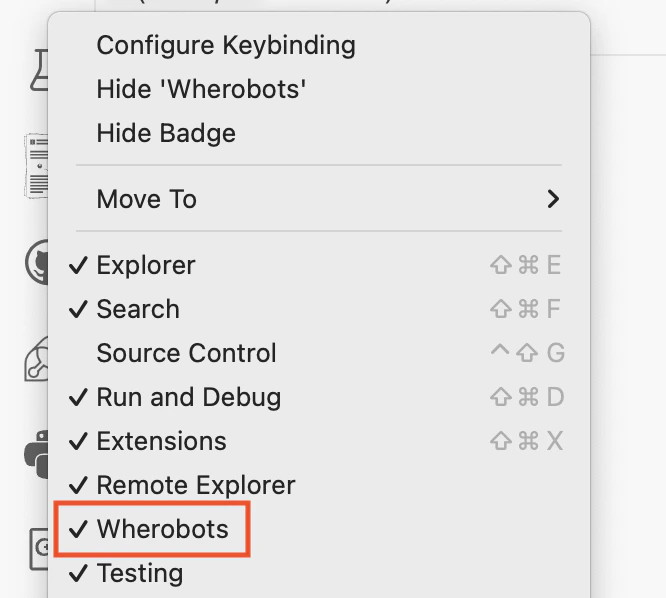
Install the Wherobots VS Code Extension in VS Code, Cursor, Kiro, Windsurf, Positron, Antigravity, Trae, or VS Codium, and connect the MCP Server and Agent Skills.
Public PreviewThe Wherobots VS Code Extension runs in VS Code and other Code OSS editors. In VS Code, it configures the MCP Server and includes Agent Skills for you. In other editors, you install the extension the same way, then add the MCP Server and Agent Skills yourself once.For what each Wherobots component does, see What each component does. To use Wherobots from a terminal agent or a chat app instead, see Set Up Wherobots in an AI Assistant.
Windsurf, Positron, Antigravity, Trae, or VS Codium; an AI assistant (in Windsurf, an active Windsurf AI subscription; in the others, an AI assistant extension); and Node.js with npm to install Agent Skills with npx.
Choose your editor. Each tab covers installing the extension, signing in, connecting the MCP Server and Agent Skills, and opening your editor’s agent chat.
Or install from the Visual Studio Marketplace.If VS Code prompts you to install a missing dependency extension (e.g., Jupyter), click Install and Reload.
2
Sign in to Wherobots
Open the Command Palette (⌘ + Shift + P on macOS, Ctrl + Shift + P on Windows/Linux) and run Wherobots: Sign In. A browser window opens for you to sign in to Wherobots and select your Organization; when you’re done, return to your editor.
Prefer an API key? Run Wherobots: Set API Key and enter your existing or newly created Wherobots API key when prompted, then press Enter. If you don’t have a key yet, run Wherobots: Generate API Key on Wherobots Cloud to create one first.
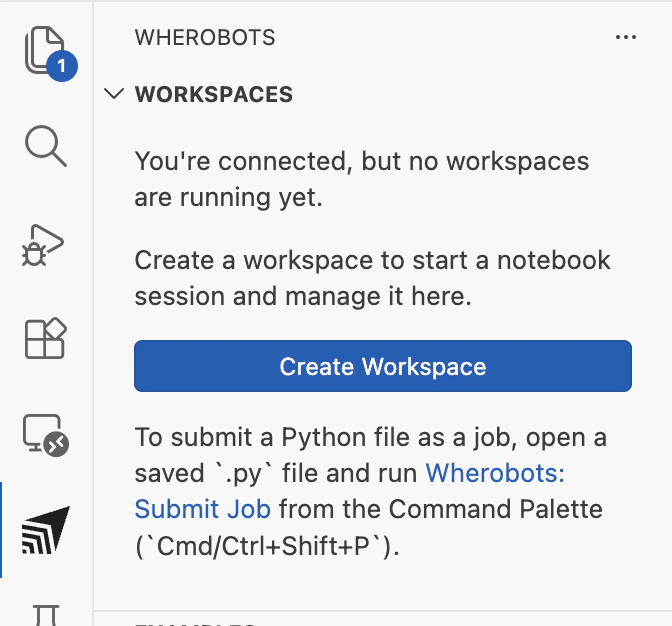
To confirm the extension is installed, type Wherobots in the Command Palette. You should see its commands, including Wherobots: Create Workspace, Wherobots: Submit Job, and Wherobots: Open Settings. To sign out at any time, run Wherobots: Sign Out.
3
MCP Server and Agent Skills
The extension configures the Wherobots MCP Server and includes Agent Skills in VS Code. No manual setup is needed.The extension also exposes optional settings for the MCP server, including query timeout, runtime size, and cloud region. See Extension Settings.
4
Open the agent chat
Open GitHub Copilot Chat via View > Chat.
Select Agent as the chat mode from the dropdown at the top of the chat panel.
Select an advanced model (Claude Opus, Claude Sonnet, GPT Codex, or Gemini Pro) for best results.
Cursor installs the extension from the Open VSX Registry, and you add the MCP Server and Agent Skills yourself. Cursor uses its own mcp.json schema (mcpServers, not servers).
Or install from the Open VSX Registry.The Wherobots extension depends on the Jupyter extension from ms-toolsai. If Cursor prompts that it cannot activate the extension because of a missing Jupyter dependency, click Install and Reload.
Cursor prompts to install the Jupyter dependency and reload the window after installing the Wherobots extension.
If you use multiple Cursor profiles, right-click the Wherobots - Spatial AI Coding Assistant entry in the Extensions view and select Apply Extension to all Profiles so the extension is available in every profile.
Right-click the Wherobots extension in the Extensions view and select Apply Extension to all Profiles.
2
Sign in to Wherobots
Open the Command Palette (⌘ + Shift + P on macOS, Ctrl + Shift + P on Windows/Linux) and run Wherobots: Sign In. A browser window opens for you to sign in to Wherobots and select your Organization; when you’re done, return to your editor.
Prefer an API key? Run Wherobots: Set API Key and enter your existing or newly created Wherobots API key when prompted, then press Enter. If you don’t have a key yet, run Wherobots: Generate API Key on Wherobots Cloud to create one first.
To confirm the extension is installed, type Wherobots in the Command Palette. You should see its commands, including Wherobots: Create Workspace, Wherobots: Submit Job, and Wherobots: Open Settings. To sign out at any time, run Wherobots: Sign Out.
3
Add the MCP Server
Cursor expects a project-level .cursor/mcp.json file with an mcpServers object.
Open the Command Palette, type Cursor Settings: Tools & MCPs, and press Enter. Under Installed MCP Servers, click Add Custom MCP. Cursor opens (or creates) .cursor/mcp.json in your project root.
Cursor Settings → Tools & MCPs with the Add Custom MCP button before any server is configured.
Paste the following into .cursor/mcp.json, then save the file:
When you first use the MCP server, Cursor starts an OAuth flow: a browser window opens for you to sign in to Wherobots and select your organization.
Cursor requires the top-level key mcpServers (plural, camel-case) and does not accept the VS Code–style servers key or the "type": "http" field. If the file has either, Cursor shows “Invalid config: mcpServers must be an object” in Settings.
Editing .cursor/mcp.json in Cursor. The file must be wrapped in an outer object and use mcpServers.
Open the Command Palette and select Developer: Reload Window.
Return to Cursor Settings > Tools & MCPs and confirm that wherobots-mcp-server is listed, has a green status dot, and lists its 16 tools (for example, list_catalogs_tool, list_tables_tool, describe_table_tool, submit_query_tool, get_query_status_tool, get_query_results_tool, search_documentation_tool) plus prompts and a get_version resource. For the full list, see Available tools.
wherobots-mcp-server listed in Cursor Settings with its tools, prompts, and resource enabled.
The Wherobots skill pack is distributed through the skills CLI.
From a terminal in your project root, run:
npx skills add -g wherobots/agent-skills
The installer clones the Wherobots skills repository and launches an interactive wizard.
When prompted with Select skills to install, press Space to toggle each skill and Enter to confirm. Select all three: wherobots-develop, wherobots-explore, and wherobots-usage.
The skills installer prompts you to select which Wherobots skills to install.
On the Which agents do you want to install to? screen, make sure Cursor is selected under Universal (it is included by default). You can optionally add other agents from the Additional agents list (for example, Claude Code at ~/.claude/skills). Press Enter to continue.
Choose which agents receive the skills. Cursor is included in the Universal list.
The installer prints an installation summary and security risk assessments (Gen, Socket, Snyk). When prompted Proceed with installation?, type Yes and press Enter.
5
Open the agent chat
Open a New Agent chat in Cursor (the chat panel on the right) and confirm Agent is selected as the chat mode. Then verify your setup.
Kiro installs the extension from the Open VSX Registry. You then enable MCP in Kiro’s settings, add the MCP Server to an mcp.json file that uses Kiro’s mcpServers schema, and import Agent Skills.
Or install from the Open VSX Registry.If Kiro prompts you to install a missing dependency extension (e.g., Jupyter), click Install and Reload.
In Kiro, you can also open the Command Palette by clicking the search bar at the top of the editor and typing >wherobots.
2
Sign in to Wherobots
Open the Command Palette (⌘ + Shift + P on macOS, Ctrl + Shift + P on Windows/Linux) and run Wherobots: Sign In. A browser window opens for you to sign in to Wherobots and select your Organization; when you’re done, return to your editor.
Prefer an API key? Run Wherobots: Set API Key and enter your existing or newly created Wherobots API key when prompted, then press Enter. If you don’t have a key yet, run Wherobots: Generate API Key on Wherobots Cloud to create one first.
To confirm the extension is installed, type Wherobots in the Command Palette. You should see its commands, including Wherobots: Create Workspace, Wherobots: Submit Job, and Wherobots: Open Settings. To sign out at any time, run Wherobots: Sign Out.
3
Enable MCP support
Kiro connects to MCP servers only after MCP is enabled.
Press ⌘ + , on macOS or Ctrl + , on Windows/Linux to open Settings, and make sure the following are enabled:
wherobotsjobsubmit.mcpServerEnabled
kiroAgent.configureMCP
Kiro Settings showing wherobotsjobsubmit.mcpServerEnabled and kiroAgent.configureMCP both turned on.
In Kiro’s Command Palette, search for kiro: open MCP Config.
4
Add the MCP Server
Kiro stores MCP configuration in mcp.json using a mcpServers object, at one of two levels:
Config level
File path & When to use
User Config
~/.kiro/settings/mcp.json — Applies to every Kiro workspace; use when you want the Wherobots MCP server available globally.
Workspace Config
.kiro/settings/mcp.json (project root) — Applies only to the current workspace; use when projects need different API keys or server configurations.
These steps use the User Config. To use the Workspace Config instead, create .kiro/settings/mcp.json in your project root with the same content.
In the same MCP Settings view, click Open User MCP Config (JSON), or run Kiro: Open User MCP Config (JSON) from the Command Palette. Kiro opens ~/.kiro/settings/mcp.json.
Choose between the User Config and Workspace Config tabs in the Kiro MCP config editor.
Paste the following into mcp.json, replacing YOUR_WHEROBOTS_API_KEY with your Wherobots API key. If the file already contains other servers, add the new entry alongside them.
Kiro requires the top-level key mcpServers and does not accept the VS Code-style servers key or the "type": "http" field. Using either produces an “Error loading powers config: Unexpected token” message in the Output panel.
Save the file. Kiro detects the change and may add disabled, autoApprove, and disabledTools fields to the entry.
Open the Output panel (⌘ + Shift + U) and look for the following message in the Kiro - MCP Logs output stream:
[info] [wherobots-mcp-server] Successfully connected and synced tools and resources for MCP server
If you see this message, the server is connected and ready to use.
5
Import Agent Skills
Kiro imports skills directly from GitHub through the Agent Steering & Skills panel in the sidebar. Install all three Wherobots skills: wherobots-develop, wherobots-explore, and wherobots-usage.
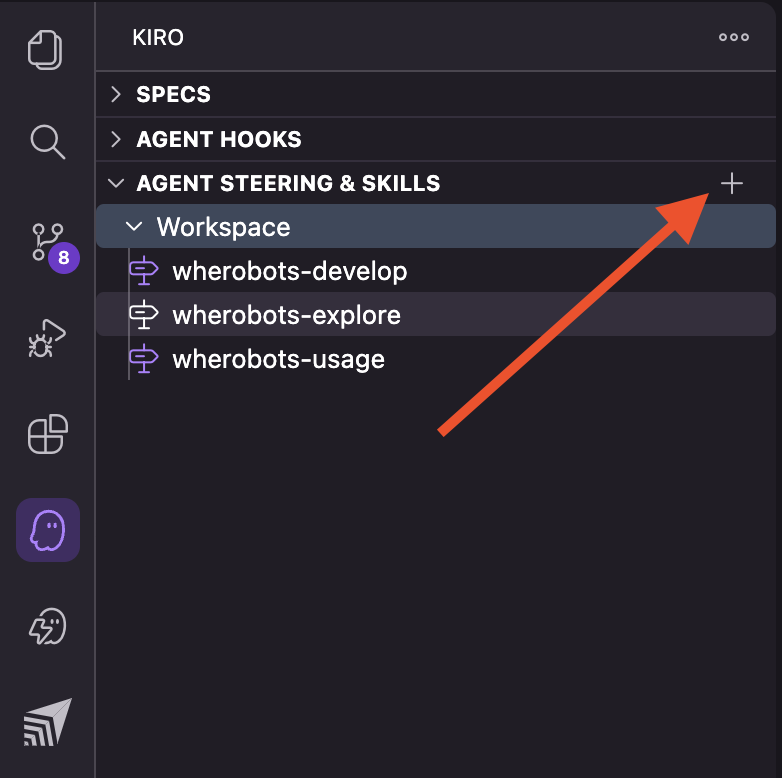
Click the Kiro icon in the Activity Bar, open the AGENT STEERING & SKILLS section, and click + to add a new skill.
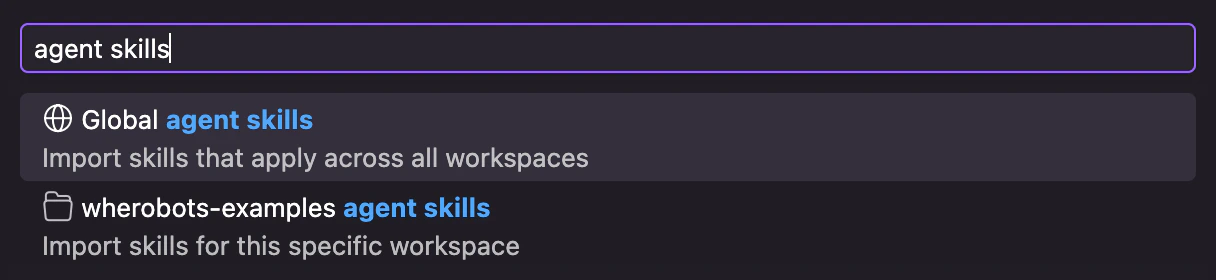
Type Agent Skills in the search bar that appears, and select either Global agent skills or Project-specific agent skills from the dropdown.
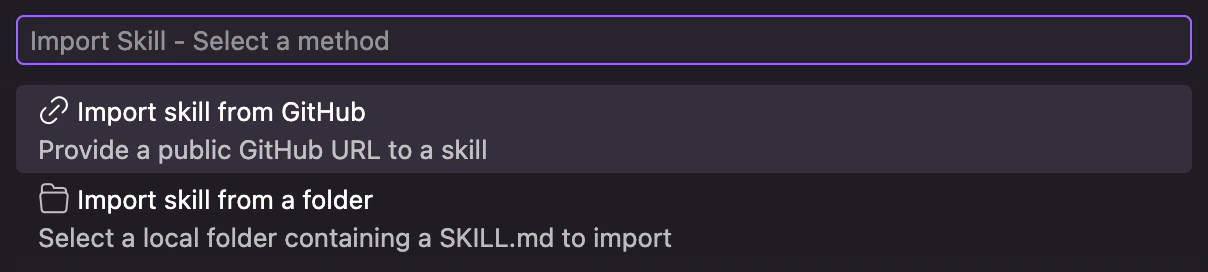
Click Import skill from GitHub. A dialog opens where you can paste the URL of the skill’s GitHub repository.
For each URL below, copy the URL, paste it into Kiro’s import dialog, and press Enter:
After each import, Kiro downloads the SKILL.md file and adds the skill to the AGENT STEERING & SKILLS section.
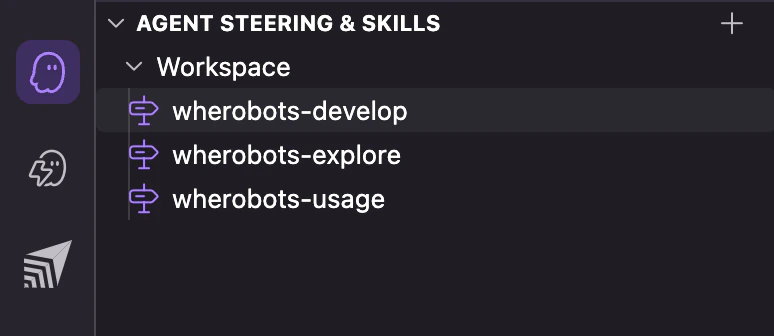
Confirm that all three skills appear under AGENT STEERING & SKILLS in the sidebar.
The Kiro sidebar showing wherobots-develop, wherobots-explore, and wherobots-usage installed under Agent Steering & Skills.
6
Open the agent chat
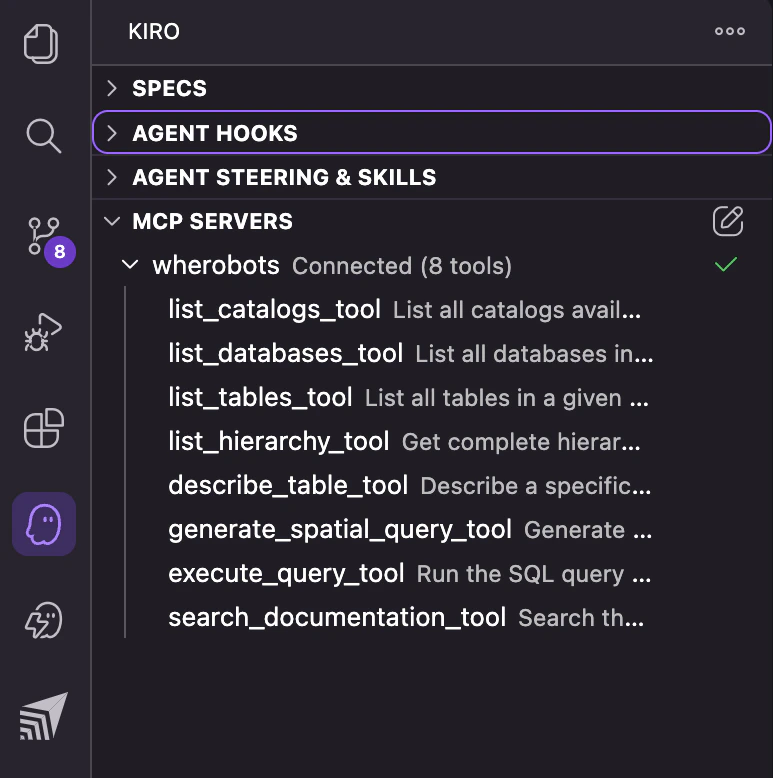
Check the MCP SERVERS section in Kiro’s sidebar. You should see wherobots with Connected (16 tools) and a list of tools including list_catalogs_tool, list_tables_tool, and search_documentation_tool. For the full list, see Available tools.
The MCP SERVERS section in Kiro's sidebar showing the wherobots MCP server connected.
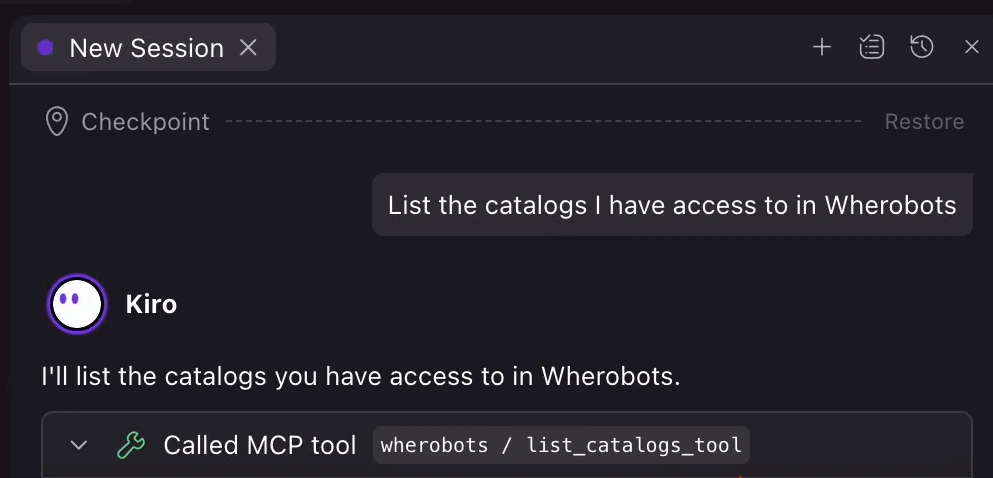
Open a New Session chat panel. When the agent calls a Wherobots tool, you may be prompted to Trust or Run the tool call.
Kiro's agent calling list_catalogs_tool to list available Wherobots catalogs.
The extension installs from the Open VSX Registry in each of these editors, and you add the MCP Server and Agent Skills yourself. Installing the extension and Agent Skills works the same way in every editor; where you add the MCP Server differs by editor.
Community-driven, freely-licensed distribution of VS Code
codium
Using a Code OSS editor not listed here? Follow these steps and substitute your editor’s CLI command.
These instructions are a preliminary adaptation of the standard VS Code Extension within the Windsurf, Positron, Antigravity, Trae, or VS Codium environment. Users may encounter steps that require manual adjustment. Should you experience any technical difficulties, please contact Wherobots Support for assistance.
Or install from the Open VSX Registry.If your editor prompts you to install a missing dependency extension (e.g., Jupyter), click Install and Reload.
2
Sign in to Wherobots
Open the Command Palette (⌘ + Shift + P on macOS, Ctrl + Shift + P on Windows/Linux) and run Wherobots: Sign In. A browser window opens for you to sign in to Wherobots and select your Organization; when you’re done, return to your editor.
Prefer an API key? Run Wherobots: Set API Key and enter your existing or newly created Wherobots API key when prompted, then press Enter. If you don’t have a key yet, run Wherobots: Generate API Key on Wherobots Cloud to create one first.
To confirm the extension is installed, type Wherobots in the Command Palette. You should see its commands, including Wherobots: Create Workspace, Wherobots: Submit Job, and Wherobots: Open Settings. To sign out at any time, run Wherobots: Sign Out.
3
Add the MCP Server
Each editor needs the same two values: the server URL, https://api.cloud.wherobots.com/mcp/, and an x-api-key header with your Wherobots API key. Where you add them depends on the editor:
Open the Command Palette and select Reload Window.
Windsurf and Antigravity:mcp_config.json uses an mcpServers object and a serverUrl field instead of the servers object and url field of VS Code’s mcp.json. Add the Wherobots server inside the existing mcpServers object if the file already lists other servers, then save the file:
Confirm the server appears in the editor’s list of MCP servers. In Positron and VS Codium, open the Command Palette and run MCP: List Servers. In Windsurf, check the MCPs section of the Cascade panel’s … menu. In Antigravity, open Manage MCP Servers.
Open your AI assistant’s chat panel (Cascade in Windsurf) and select Agent as the chat mode, if available.
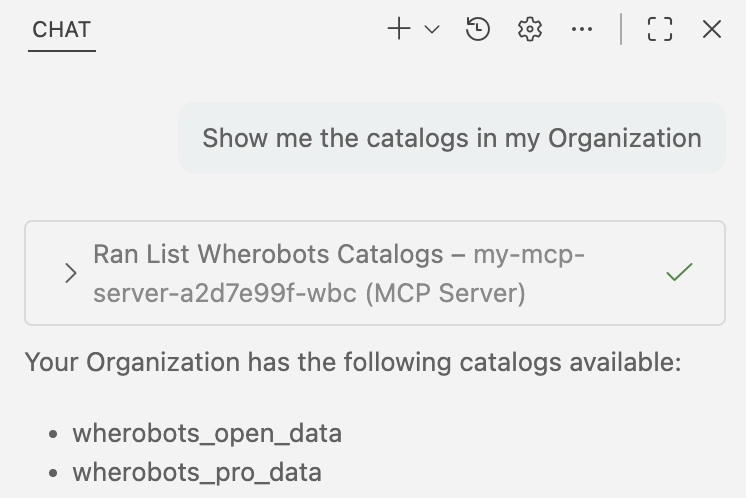
If everything is configured, the assistant calls a Wherobots MCP tool such as list_catalogs_tool and returns the catalogs available in your Organization, including wherobots_open_data, wherobots_pro_data, and any private catalogs.
Cursor: Invalid config: mcpServers must be an object, or JSON syntax error
Cursor validates .cursor/mcp.json against its own schema and displays these errors in Cursor Settings → Tools & MCPs when the file is malformed. Common causes:
Missing the outer { ... } wrapper around the config. The JSON parser fails with “End of file expected.”
Using the VS Code key "servers" instead of Cursor’s "mcpServers".
Including a "type": "http" field, which Cursor does not use.
Re-paste the snippet from the Cursor steps exactly as shown, save the file, and reload the window.
Kiro: MCP: Browse MCP Servers results in an error
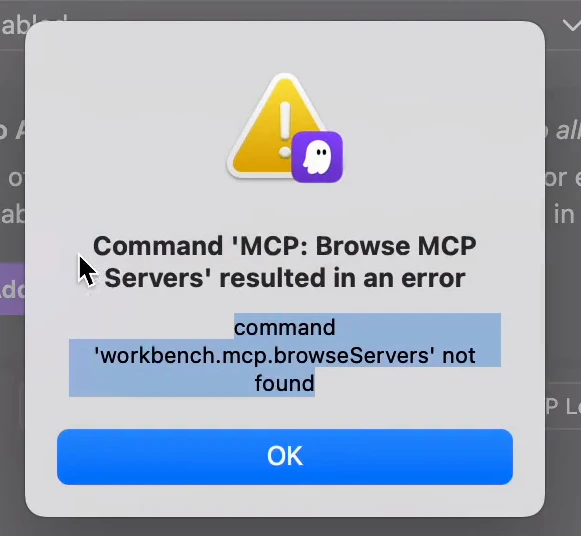
Kiro does not implement the VS Code workbench.mcp.browseServers command. Running MCP: Browse MCP Servers from the Command Palette displays “command ‘workbench.mcp.browseServers’ not found”. This does not mean the MCP server is broken.
Kiro error dialog: 'command workbench.mcp.browseServers not found' after running MCP: Browse MCP Servers.
To verify the server is working, check the MCP SERVERS section in Kiro’s sidebar for a green Connected status, check Output → Kiro - MCP Logs for the “Successfully connected” message, or ask the test question in chat.
This error appears in the Output panel and as a notification when mcp.json contains invalid JSON or uses the wrong schema. Common causes:
Using the VS Code key "servers" instead of Kiro’s "mcpServers".
Including a "type": "http" field, which Kiro does not use.
Missing the outer { ... } wrapper, or a trailing comma.
Re-paste the snippet from the Kiro steps exactly as shown, save the file, and check the Output panel for a successful connection.
Kiro: MCP is currently disabled
If you see a banner saying “MCP is currently disabled. To start using MCP, please enable it in the settings.”, follow the Enable MCP support step in the Kiro tab to turn on MCP in Kiro’s settings.
Browse catalogs, schemas, and tables in the Data Hub sidebar.
AI-Assisted Notebooks
Create and connect local notebooks to remote Wherobots compute.
Submit Job Runs
Submit Python scripts as Wherobots job runs from your editor.
Workspaces & Usage
Create, start, stop, and manage notebook workspaces.
MCP Server Best Practices
Common tasks, example prompts, and cost considerations for the MCP Server.
Install the CLI
Submit jobs and access the full Wherobots API from your terminal.
Was this page helpful?
{"docsConfig":{"theme":"aspen","$schema":"https://www.mintlify.com/docs.json","name":"Wherobots","colors":{"primary":"#6612c5","light":"#6612c5","dark":"#6612c5"},"logo":{"light":"https://mintcdn.com/wherobots/q2h_5BmXeWMz6JRH/logo/light.png?fit=max\u0026auto=format\u0026n=q2h_5BmXeWMz6JRH\u0026q=85\u0026s=5a1512dbd3547c3df4e8f4779a1e4cfa","dark":"https://mintcdn.com/wherobots/q2h_5BmXeWMz6JRH/logo/dark.png?fit=max\u0026auto=format\u0026n=q2h_5BmXeWMz6JRH\u0026q=85\u0026s=8d84ac8734585eb38f09b1ea4c0d8e5c","href":"/"},"favicon":"https://mintcdn.com/wherobots/q2h_5BmXeWMz6JRH/favicon.png?fit=max\u0026auto=format\u0026n=q2h_5BmXeWMz6JRH\u0026q=85\u0026s=aa88d68dcd661ed008af0d0a8c4bcd47","api":{"playground":{"display":"interactive"},"examples":{"defaults":"required","languages":["curl","python","javascript","go","java"],"prefill":true}},"appearance":{"default":"light"},"navbar":{"links":[{"href":"/changelog","label":"Changelog"},{"href":"/support","label":"Support"}],"primary":{"type":"button","label":"Open Wherobots Cloud","href":"https://cloud.wherobots.com"}},"footer":{"socials":{"linkedin":"https://www.linkedin.com/company/wherobots","x":"https://x.com/wherobots","github":"https://github.com/wherobots","youtube":"https://www.youtube.com/channel/UCFC5QjLyQ3wanshI5xUH0aw","discord":"https://sedona.apache.org/1.5.2/community/contact"},"links":[{"header":"Resources","items":[{"label":"Support","href":"/support"},{"label":"Changelog","href":"/changelog"},{"label":"Cloud availability","href":"/availability"}]},{"header":"Legal","items":[{"label":"Terms of service","href":"/terms-of-service"},{"label":"Privacy policy","href":"/privacy-policy"}]}]},"seo":{"metatags":{"canonical":"https://docs.wherobots.com","googlebot":"index, follow","robots":"index, follow","keywords":"Managed Apache Sedona, Apache Sedona, Wherobots docs, Wherobots documentation, Iceberg tables, Spatial SQL API, Wherobots Python SDK, RasterFlow, Map Matching, Spatial Data Catalog, Wherobots Airflow Provider","description":"Official Wherobots Documentation. Learn how to conduct scalable spatial analysis with WherobotsDB—the serverless cloud platform from the creators of Apache Sedona.","google-site-verification":"CN6rS8bQ0T0qVXswDOc12YyKdEE_tnmlk97_Qr6Ui_A","indexing":"all"}},"fonts":{"heading":{"family":"Figtree"},"body":{"family":"Figtree"}},"styling":{"codeblocks":"system","latex":false},"integrations":{"amplitude":{"apiKey":"ee314e073a5b08c12a78aef591a50bc1"},"ga4":{"measurementId":"G-D4ED50QSVC"}},"contextual":{"options":["copy","view","download-spec"],"display":"header"},"navigation":{"pages":[]}},"deployment":{"deploymentMetadataValue":{"subdomain":"wherobots","hasAudioNarration":false,"actualSubdomain":"wherobots","customDomains":["docs.wherobots.com"],"gitSource":{"type":"github","owner":"wherobots","repo":"docs","deployBranch":"main","contentDirectory":"","isPrivate":true,"mountPath":"","label":""},"chroma":{"liveDeploymentHistoryId":"6ae18b432d934b62375efc56","collectionId":"0925aee6-428b-42cc-b38d-684c806cff03","schemaVersion":"v3","latestBuiltDeploymentHistoryId":"6ae18b432d934b62375efc56"},"feedback":{"thumbs":true},"entitlements":{"AI_CHAT":{"status":"ENABLED"},"CONTEXTUAL_FEEDBACK":{"status":"ENABLED"},"CODE_SNIPPET_FEEDBACK":{"status":"ENABLED"},"WEB_MCP":{"status":"ENABLED"},"NARRATION":{"status":"ENABLED"}},"buildId":"6ae18fe4b1379b05fe36bb07","clientVersion":"0.0.3990","searchFilterCounts":[{"language":"default","tag":"Reference","count":1792},{"language":"default","tag":"WherobotsDB","count":879},{"language":"default","tag":"Python","count":449},{"language":"default","tag":"SQL","count":422},{"language":"default","tag":"Geometry Functions","count":267},{"language":"default","tag":"DataFrame functions","count":209},{"language":"default","tag":"GeoPandas API","count":159},{"language":"default","tag":"GeoSeries","count":130},{"language":"default","tag":"Raster Functions","count":109},{"language":"default","tag":"Accessors","count":94}]},"assistantConfig":{"enableAskAiButton":true,"enableAskAiSearchBar":false},"basePath":"","hasChatPermissions":true,"hasWebMcpPermissions":true,"toggles":[{"name":"kill-isr","enabled":true,"variant":{"name":"disabled","enabled":false,"feature_enabled":true},"impressionData":false},{"name":"agent-mintlify-slack","enabled":true,"variant":{"name":"disabled","enabled":false,"feature_enabled":true},"impressionData":false},{"name":"editor-v7-file-tree","enabled":true,"variant":{"name":"disabled","enabled":false,"feature_enabled":true},"impressionData":false},{"name":"agent-integrations-settings","enabled":true,"variant":{"name":"disabled","enabled":false,"feature_enabled":true},"impressionData":false},{"name":"automations-pr-grouping","enabled":true,"variant":{"name":"disabled","enabled":false,"feature_enabled":true},"impressionData":false},{"name":"custom-prefix","enabled":true,"variant":{"name":"disabled","enabled":false,"feature_enabled":true},"impressionData":false},{"name":"analytics-v7","enabled":true,"variant":{"name":"disabled","enabled":false,"feature_enabled":true},"impressionData":false},{"name":"user-flows-analytics","enabled":true,"variant":{"name":"disabled","enabled":false,"feature_enabled":true},"impressionData":false},{"name":"no-publish-flow","enabled":true,"variant":{"name":"disabled","enabled":false,"feature_enabled":true},"impressionData":false},{"name":"workos-onboarding","enabled":true,"variant":{"name":"disabled","enabled":false,"feature_enabled":true},"impressionData":false},{"name":"llms-txt-v2","enabled":true,"variant":{"name":"disabled","enabled":false,"feature_enabled":true},"impressionData":false},{"name":"pause-universal-search-reconcile","enabled":true,"variant":{"name":"disabled","enabled":false,"feature_enabled":true},"impressionData":false},{"name":"snapshot-serving-live","enabled":true,"variant":{"name":"disabled","enabled":false,"feature_enabled":true},"impressionData":false},{"name":"stripTemperatureMiddleware","enabled":true,"variant":{"name":"disabled","enabled":false,"feature_enabled":true},"impressionData":false},{"name":"per-site-search-delta","enabled":true,"variant":{"name":"disabled","enabled":false,"feature_enabled":true},"impressionData":false},{"name":"support-platform-pylon-zendesk","enabled":true,"variant":{"name":"disabled","enabled":false,"feature_enabled":true},"impressionData":false},{"name":"snapshot-serving","enabled":true,"variant":{"name":"disabled","enabled":false,"feature_enabled":true},"impressionData":false},{"name":"instant-rollback","enabled":true,"variant":{"name":"disabled","enabled":false,"feature_enabled":true},"impressionData":false},{"name":"granular-notifications-server","enabled":true,"variant":{"name":"disabled","enabled":false,"feature_enabled":true},"impressionData":false},{"name":"granular-notifications","enabled":true,"variant":{"name":"disabled","enabled":false,"feature_enabled":true},"impressionData":false},{"name":"editor-private-page-search","enabled":true,"variant":{"name":"disabled","enabled":false,"feature_enabled":true},"impressionData":false},{"name":"automations-fable","enabled":true,"variant":{"name":"disabled","enabled":false,"feature_enabled":true},"impressionData":false},{"name":"fixed-ai-action-pricing","enabled":true,"variant":{"name":"disabled","enabled":false,"feature_enabled":true},"impressionData":false},{"name":"automation-resolve-merge-conflict","enabled":true,"variant":{"name":"disabled","enabled":false,"feature_enabled":true},"impressionData":false},{"name":"scoped-publishing","enabled":true,"variant":{"name":"disabled","enabled":false,"feature_enabled":true},"impressionData":false},{"name":"mintql","enabled":true,"variant":{"name":"disabled","enabled":false,"feature_enabled":true},"impressionData":false},{"name":"page-level-analytics","enabled":true,"variant":{"name":"disabled","enabled":false,"feature_enabled":true},"impressionData":false},{"name":"editor-version-history-v2","enabled":true,"variant":{"name":"disabled","enabled":false,"feature_enabled":true},"impressionData":false},{"name":"editor-nav-generations","enabled":true,"variant":{"name":"disabled","enabled":false,"feature_enabled":true},"impressionData":false},{"name":"billing-page-v2","enabled":true,"variant":{"name":"disabled","enabled":false,"feature_enabled":true},"impressionData":false},{"name":"workspace-projects","enabled":true,"variant":{"name":"disabled","enabled":false,"feature_enabled":true},"impressionData":false},{"name":"assistant-v5","enabled":true,"variant":{"name":"disabled","enabled":false,"feature_enabled":true},"impressionData":false},{"name":"byok-sep-25","enabled":true,"variant":{"name":"disabled","enabled":false,"feature_enabled":true},"impressionData":false},{"name":"fork-pr-previews","enabled":true,"variant":{"name":"disabled","enabled":false,"feature_enabled":true},"impressionData":false},{"name":"revalidation-jwt","enabled":true,"variant":{"name":"disabled","enabled":false,"feature_enabled":true},"impressionData":false},{"name":"vite-origin","enabled":true,"variant":{"name":"disabled","enabled":false,"feature_enabled":true},"impressionData":false},{"name":"editor-agent-model-picker","enabled":true,"variant":{"name":"disabled","enabled":false,"feature_enabled":true},"impressionData":false},{"name":"billing-updated-9-15","enabled":true,"variant":{"name":"disabled","enabled":false,"feature_enabled":true},"impressionData":false},{"name":"workos-sso-scim","enabled":true,"variant":{"name":"disabled","enabled":false,"feature_enabled":true},"impressionData":false},{"name":"hobby-abuse-scan","enabled":true,"variant":{"name":"disabled","enabled":false,"feature_enabled":true},"impressionData":false},{"name":"dashboard-inbox","enabled":true,"variant":{"name":"disabled","enabled":false,"feature_enabled":true},"impressionData":false},{"name":"workos-signup","enabled":true,"variant":{"name":"disabled","enabled":false,"feature_enabled":true},"impressionData":false},{"name":"workos-enabled","enabled":true,"variant":{"name":"disabled","enabled":false,"feature_enabled":true},"impressionData":false}],"isAtlas":false,"googleFontsInlined":true},"customCss":[],"page":{"pagePath":"develop/agentic-tools/editors","slug":"/develop/agentic-tools/editors","pageMetadata":{"title":"Set Up Wherobots in Your Editor","description":"Install the Wherobots VS Code Extension in VS Code, Cursor, Kiro, Windsurf, Positron, Antigravity, Trae, or VS Codium, and connect the MCP Server and Agent Skills.","sidebarTitle":"Editors","keywords":["VS Code","Visual Studio Code","Cursor","Kiro","Windsurf","Positron","Antigravity","Trae","VS Codium","Code OSS","Open VSX","mcp.json"],"href":"/develop/agentic-tools/editors"},"description":{"compiledSource":"\"use strict\";\nconst {jsx: _jsx} = arguments[0];\nconst {useMDXComponents: _provideComponents} = arguments[0];\nfunction _createMdxContent(props) {\n const _components = {\n p: \"p\",\n ..._provideComponents(),\n ...props.components\n };\n return _jsx(_components.p, {\n children: \"Install the Wherobots VS Code Extension in VS Code, Cursor, Kiro, Windsurf, Positron, Antigravity, Trae, or VS Codium, and connect the MCP Server and Agent Skills.\"\n });\n}\nfunction MDXContent(props = {}) {\n const {wrapper: MDXLayout} = {\n ..._provideComponents(),\n ...props.components\n };\n return MDXLayout ? _jsx(MDXLayout, {\n ...props,\n children: _jsx(_createMdxContent, {\n ...props\n })\n }) : _createMdxContent(props);\n}\nreturn {\n default: MDXContent\n};\n","frontmatter":{},"scope":{}},"pageType":"default","mdx":{"mdxSource":{"compiledSource":"\"use strict\";const{Fragment:_Fragment,jsx:_jsx,jsxs:_jsxs}=arguments[0];const{useMDXComponents:_provideComponents}=arguments[0];const AgenticDraftNotice=({editor})=>{const _components={a:`a`,..._provideComponents()},{Note}=_components;if(!Note)_missingMdxReference(`Note`,true);return _jsxs(Note,{children:[`These instructions are a preliminary adaptation of the standard VS Code Extension within the `,editor,` environment. Users may encounter steps that require manual adjustment. Should you experience any technical difficulties, please `,_jsx(_components.a,{href:`/support`,children:`contact Wherobots Support`}),` for assistance.`]})};function _createMdxContent(props){const _components={a:`a`,code:`code`,em:`em`,li:`li`,ol:`ol`,p:`p`,pre:`pre`,span:`span`,strong:`strong`,tbody:`tbody`,td:`td`,th:`th`,thead:`thead`,tr:`tr`,ul:`ul`,..._provideComponents(),...props.components},{Accordion,AccordionGroup,Badge,Card,CardGroup,CodeBlock,CodeGroup,Frame,Heading,Info,Note,OptimizedImage,Step,Steps,Tab,Table,Tabs,Tip,Warning,_MdxComponentBoundary}=_components;if(!Accordion)_missingMdxReference(`Accordion`,true);if(!AccordionGroup)_missingMdxReference(`AccordionGroup`,true);if(!Badge)_missingMdxReference(`Badge`,true);if(!Card)_missingMdxReference(`Card`,true);if(!CardGroup)_missingMdxReference(`CardGroup`,true);if(!CodeBlock)_missingMdxReference(`CodeBlock`,true);if(!CodeGroup)_missingMdxReference(`CodeGroup`,true);if(!Frame)_missingMdxReference(`Frame`,true);if(!Heading)_missingMdxReference(`Heading`,true);if(!Info)_missingMdxReference(`Info`,true);if(!Note)_missingMdxReference(`Note`,true);if(!OptimizedImage)_missingMdxReference(`OptimizedImage`,true);if(!Step)_missingMdxReference(`Step`,true);if(!Steps)_missingMdxReference(`Steps`,true);if(!Tab)_missingMdxReference(`Tab`,true);if(!Table)_missingMdxReference(`Table`,true);if(!Tabs)_missingMdxReference(`Tabs`,true);if(!Tip)_missingMdxReference(`Tip`,true);if(!Warning)_missingMdxReference(`Warning`,true);if(!_MdxComponentBoundary)_missingMdxReference(`_MdxComponentBoundary`,true);return _jsxs(_Fragment,{children:[_jsx(Badge,{color:`purple`,children:`Public Preview`}),`\n`,_jsxs(_components.p,{children:[`The `,_jsx(_components.a,{href:`https://marketplace.visualstudio.com/items?itemName=wherobots.wherobotsjobsubmit`,children:`Wherobots VS Code Extension`}),` runs in VS Code and other Code OSS editors. In VS Code, it configures the `,_jsx(_components.a,{href:`/develop/mcp/mcp-server-overview`,children:`MCP Server`}),` and includes `,_jsx(_components.a,{href:`/develop/agent-skills`,children:`Agent Skills`}),` for you. In other editors, you install the extension the same way, then add the MCP Server and Agent Skills yourself once.`]}),`\n`,_jsxs(_components.p,{children:[`For what each Wherobots component does, see `,_jsx(_components.a,{href:`/develop/agentic-tools#what-each-component-does`,children:`What each component does`}),`. To use Wherobots from a terminal agent or a chat app instead, see `,_jsx(_components.a,{href:`/develop/agentic-tools/ai-assistants`,children:`Set Up Wherobots in an AI Assistant`}),`.`]}),`\n`,_jsx(Heading,{level:`2`,id:`before-you-start`,children:`Before you start`}),`\n`,_jsx(_components.p,{children:`You need:`}),`\n`,_jsxs(_components.ul,{children:[`\n`,_jsxs(_components.li,{children:[`A `,_jsx(_components.strong,{children:`Wherobots Account`}),`. See `,_jsx(_components.a,{href:`/get-started/wherobots-cloud/create-account`,children:`Create a Wherobots Account`}),`.`,`\n`,_jsx(Info,{children:_jsxs(_components.p,{children:[_jsx(_components.strong,{children:`Organization Availability:`}),` Available to all Wherobots Organization Editions (Professional, Innovation, and Enterprise).`]})}),`\n`]}),`\n`,_jsx(_components.li,{children:`One of the editors below, with an AI assistant for the AI-assisted features:`}),`\n`]}),`\n`,_jsxs(Table,{children:[_jsx(_components.thead,{children:_jsxs(_components.tr,{children:[_jsx(_components.th,{children:`Editor`}),_jsx(_components.th,{children:`Requirements`})]})}),_jsxs(_components.tbody,{children:[_jsxs(_components.tr,{children:[_jsx(_components.td,{children:_jsx(_components.strong,{children:`VS Code`})}),_jsxs(_components.td,{children:[_jsx(_components.a,{href:`https://code.visualstudio.com/`,children:`Visual Studio Code`}),` 1.93 or later, and an active `,_jsx(_components.a,{href:`https://github.com/features/copilot`,children:`GitHub Copilot`}),` subscription.`]})]}),_jsxs(_components.tr,{children:[_jsx(_components.td,{children:_jsx(_components.strong,{children:`Cursor`})}),_jsxs(_components.td,{children:[_jsx(_components.a,{href:`https://www.cursor.com/`,children:`Cursor`}),`, and `,_jsx(_components.a,{href:`https://nodejs.org/`,children:`Node.js`}),` with npm to install Agent Skills with `,_jsx(_components.code,{children:`npx`}),`.`]})]}),_jsxs(_components.tr,{children:[_jsx(_components.td,{children:_jsx(_components.strong,{children:`Kiro`})}),_jsxs(_components.td,{children:[_jsx(_components.a,{href:`https://kiro.dev/`,children:`Kiro`}),`. For plans, see `,_jsx(_components.a,{href:`https://kiro.dev/pricing/`,children:`Kiro Pricing`}),`.`]})]}),_jsxs(_components.tr,{children:[_jsx(_components.td,{children:_jsx(_components.strong,{children:`Other Code OSS editors`})}),_jsxs(_components.td,{children:[_jsx(_components.a,{href:`https://windsurf.com/`,children:`Windsurf`}),`, `,_jsx(_components.a,{href:`https://positron.posit.co/`,children:`Positron`}),`, `,_jsx(_components.a,{href:`https://antigravity.google/`,children:`Antigravity`}),`, `,_jsx(_components.a,{href:`https://www.trae.ai/`,children:`Trae`}),`, or `,_jsx(_components.a,{href:`https://vscodium.com/`,children:`VS Codium`}),`; an AI assistant (in Windsurf, an active Windsurf AI subscription; in the others, an AI assistant extension); and `,_jsx(_components.a,{href:`https://nodejs.org/`,children:`Node.js`}),` with npm to install Agent Skills with `,_jsx(_components.code,{children:`npx`}),`.`]})]})]})]}),`\n`,_jsx(Heading,{level:`2`,id:`set-up-your-editor`,children:`Set up your editor`}),`\n`,_jsx(_components.p,{children:`Choose your editor. Each tab covers installing the extension, signing in, connecting the MCP Server and Agent Skills, and opening your editor’s agent chat.`}),`\n`,_jsxs(Tabs,{children:[_jsx(Tab,{title:`VS Code`,id:`vs-code`,children:_jsxs(Steps,{children:[_jsxs(Step,{title:`Install the extension`,children:[_jsx(_components.p,{children:`Run the following command in your terminal:`}),_jsx(CodeBlock,{filename:``,numberOfLines:`1`,language:`shellscript`,children:_jsx(_components.pre,{className:`shiki shiki-themes github-light-default dark-plus`,style:{backgroundColor:`#ffffff`,\"--shiki-dark-bg\":`#0B0C0E`,color:`#1f2328`,\"--shiki-dark\":`#D4D4D4`},language:`shellscript`,children:_jsxs(_components.code,{language:`shellscript`,numberOfLines:`1`,children:[_jsxs(_components.span,{className:`line`,children:[_jsx(_components.span,{style:{color:`#953800`,\"--shiki-dark\":`#DCDCAA`},children:`code`}),_jsx(_components.span,{style:{color:`#0550AE`,\"--shiki-dark\":`#569CD6`},children:` --install-extension`}),_jsx(_components.span,{style:{color:`#0A3069`,\"--shiki-dark\":`#CE9178`},children:` wherobots.wherobotsjobsubmit`})]}),`\n`]})})}),_jsxs(_components.p,{children:[`Or install from the `,_jsx(_components.a,{href:`https://marketplace.visualstudio.com/items?itemName=wherobots.wherobotsjobsubmit`,children:`Visual Studio Marketplace`}),`.`]}),_jsxs(_components.p,{children:[`If VS Code prompts you to install a missing dependency extension (e.g., Jupyter), click `,_jsx(_components.strong,{children:`Install and Reload`}),`.`]})]}),_jsxs(Step,{title:`Sign in to Wherobots`,children:[_jsxs(_components.p,{children:[`Open the `,_jsx(_components.strong,{children:`Command Palette`}),` (`,_jsx(`kbd`,{children:`⌘`}),` + `,_jsx(`kbd`,{children:`Shift`}),` + `,_jsx(`kbd`,{children:`P`}),` on macOS, `,_jsx(`kbd`,{children:`Ctrl`}),` + `,_jsx(`kbd`,{children:`Shift`}),` + `,_jsx(`kbd`,{children:`P`}),` on Windows/Linux) and run `,_jsx(_components.code,{children:`Wherobots: Sign In`}),`. A browser window opens for you to sign in to Wherobots and select your Organization; when you’re done, return to your editor.`]}),_jsx(OptimizedImage,{src:`https://mintcdn.com/wherobots/DMnWqML8c8j1wZKT/develop/vscode-extension/images/sign-in-oauth.png?fit=max\u0026auto=format\u0026n=DMnWqML8c8j1wZKT\u0026q=85\u0026s=c35c7d940895cdbc9766ba7bc4f0a5d1`,alt:`Sign in through OAuth`,\"data-og-width\":`1188`,width:`1188`,\"data-og-height\":`510`,height:`510`,\"data-path\":`develop/vscode-extension/images/sign-in-oauth.png`,\"data-optimize\":`true`,\"data-opv\":`3`,srcset:`https://mintcdn.com/wherobots/DMnWqML8c8j1wZKT/develop/vscode-extension/images/sign-in-oauth.png?w=280\u0026fit=max\u0026auto=format\u0026n=DMnWqML8c8j1wZKT\u0026q=85\u0026s=11530a4748e062db8fc3678a20029e67 280w, https://mintcdn.com/wherobots/DMnWqML8c8j1wZKT/develop/vscode-extension/images/sign-in-oauth.png?w=560\u0026fit=max\u0026auto=format\u0026n=DMnWqML8c8j1wZKT\u0026q=85\u0026s=82c47aa12d4a993265ac3d09e1efbd94 560w, https://mintcdn.com/wherobots/DMnWqML8c8j1wZKT/develop/vscode-extension/images/sign-in-oauth.png?w=840\u0026fit=max\u0026auto=format\u0026n=DMnWqML8c8j1wZKT\u0026q=85\u0026s=f6f3ba2f50263b707c8747f75131edee 840w, https://mintcdn.com/wherobots/DMnWqML8c8j1wZKT/develop/vscode-extension/images/sign-in-oauth.png?w=1100\u0026fit=max\u0026auto=format\u0026n=DMnWqML8c8j1wZKT\u0026q=85\u0026s=f80d4f559ecf8d70e5ea6dc5db214802 1100w, https://mintcdn.com/wherobots/DMnWqML8c8j1wZKT/develop/vscode-extension/images/sign-in-oauth.png?w=1650\u0026fit=max\u0026auto=format\u0026n=DMnWqML8c8j1wZKT\u0026q=85\u0026s=bc6b7025477efc27637b203f7ea14ea4 1650w, https://mintcdn.com/wherobots/DMnWqML8c8j1wZKT/develop/vscode-extension/images/sign-in-oauth.png?w=2500\u0026fit=max\u0026auto=format\u0026n=DMnWqML8c8j1wZKT\u0026q=85\u0026s=c07b2d821eea7523a9967373cb91da61 2500w`}),_jsx(Note,{children:_jsxs(_components.p,{children:[_jsx(_components.strong,{children:`Prefer an API key?`}),` Run `,_jsx(_components.code,{children:`Wherobots: Set API Key`}),` and enter your existing or newly created `,_jsx(_components.a,{href:`/get-started/wherobots-cloud/api-keys/`,children:`Wherobots API key`}),` when prompted, then press `,_jsx(`kbd`,{children:`Enter`}),`. If you don’t have a key yet, run `,_jsx(_components.code,{children:`Wherobots: Generate API Key on Wherobots Cloud`}),` to create one first.`]})}),_jsxs(_components.p,{children:[`To confirm the extension is installed, type `,_jsx(_components.strong,{children:`Wherobots`}),` in the Command Palette. You should see its commands, including `,_jsx(_components.code,{children:`Wherobots: Create Workspace`}),`, `,_jsx(_components.code,{children:`Wherobots: Submit Job`}),`, and `,_jsx(_components.code,{children:`Wherobots: Open Settings`}),`. To sign out at any time, run `,_jsx(_components.code,{children:`Wherobots: Sign Out`}),`.`]})]}),_jsxs(Step,{title:`MCP Server and Agent Skills`,children:[_jsxs(_components.p,{children:[`The extension configures the `,_jsx(_components.a,{href:`/develop/mcp/mcp-server-overview`,children:`Wherobots MCP Server`}),` and includes `,_jsx(_components.a,{href:`/develop/agent-skills`,children:`Agent Skills`}),` in VS Code. No manual setup is needed.`]}),_jsxs(_components.p,{children:[`The extension also exposes optional settings for the MCP server, including query timeout, runtime size, and cloud region. See `,_jsx(_components.a,{href:`/develop/vscode-extension/settings`,children:`Extension Settings`}),`.`]})]}),_jsxs(Step,{title:`Open the agent chat`,children:[_jsxs(_components.ol,{children:[`\n`,_jsxs(_components.li,{children:[`Open `,_jsx(_components.strong,{children:`GitHub Copilot Chat`}),` via `,_jsx(_components.strong,{children:`View > Chat`}),`.`]}),`\n`,_jsxs(_components.li,{children:[`Select `,_jsx(_components.strong,{children:`Agent`}),` as the chat mode from the dropdown at the top of the chat panel.`,`\n`,_jsx(OptimizedImage,{src:`https://mintcdn.com/wherobots/sQRlg2xOr4yRMlZ8/develop/vscode-extension/images/agent-mode.png?fit=max\u0026auto=format\u0026n=sQRlg2xOr4yRMlZ8\u0026q=85\u0026s=f27cc427fa03df0fb0cf1111480fc64b`,style:{width:`450px`,height:`auto`},alt:`Screenshot showing the Agent mode dropdown`,\"data-og-width\":`846`,width:`846`,\"data-og-height\":`206`,height:`206`,\"data-path\":`develop/vscode-extension/images/agent-mode.png`,\"data-optimize\":`true`,\"data-opv\":`3`,srcset:`https://mintcdn.com/wherobots/sQRlg2xOr4yRMlZ8/develop/vscode-extension/images/agent-mode.png?w=280\u0026fit=max\u0026auto=format\u0026n=sQRlg2xOr4yRMlZ8\u0026q=85\u0026s=306fee216fb25b40ccf1db433430f067 280w, https://mintcdn.com/wherobots/sQRlg2xOr4yRMlZ8/develop/vscode-extension/images/agent-mode.png?w=560\u0026fit=max\u0026auto=format\u0026n=sQRlg2xOr4yRMlZ8\u0026q=85\u0026s=04e84e511be6cd27e3304ecff1119da1 560w, https://mintcdn.com/wherobots/sQRlg2xOr4yRMlZ8/develop/vscode-extension/images/agent-mode.png?w=840\u0026fit=max\u0026auto=format\u0026n=sQRlg2xOr4yRMlZ8\u0026q=85\u0026s=a7692c42d6df10647271abd52e83df19 840w, https://mintcdn.com/wherobots/sQRlg2xOr4yRMlZ8/develop/vscode-extension/images/agent-mode.png?w=1100\u0026fit=max\u0026auto=format\u0026n=sQRlg2xOr4yRMlZ8\u0026q=85\u0026s=5240bb9c27bd4956e4b9703f3bd23e84 1100w, https://mintcdn.com/wherobots/sQRlg2xOr4yRMlZ8/develop/vscode-extension/images/agent-mode.png?w=1650\u0026fit=max\u0026auto=format\u0026n=sQRlg2xOr4yRMlZ8\u0026q=85\u0026s=97506aa55f7ce710f1ed436aaab74987 1650w, https://mintcdn.com/wherobots/sQRlg2xOr4yRMlZ8/develop/vscode-extension/images/agent-mode.png?w=2500\u0026fit=max\u0026auto=format\u0026n=sQRlg2xOr4yRMlZ8\u0026q=85\u0026s=a551535d36e82d2c12cb4da1dcdb80d0 2500w`}),`\n`]}),`\n`,_jsx(_components.li,{children:`Select an advanced model (Claude Opus, Claude Sonnet, GPT Codex, or Gemini Pro) for best results.`}),`\n`]}),_jsxs(_components.p,{children:[`Then `,_jsx(_components.a,{href:`#verify-your-setup`,children:`verify your setup`}),`.`]})]})]})}),_jsxs(Tab,{title:`Cursor`,id:`cursor`,children:[_jsxs(_components.p,{children:[`Cursor installs the extension from the Open VSX Registry, and you add the MCP Server and Agent Skills yourself. Cursor uses its own `,_jsx(_components.code,{children:`mcp.json`}),` schema (`,_jsx(_components.code,{children:`mcpServers`}),`, not `,_jsx(_components.code,{children:`servers`}),`).`]}),_jsxs(Steps,{children:[_jsxs(Step,{title:`Install the extension`,children:[_jsx(_components.p,{children:`Run the following command in your terminal:`}),_jsx(CodeBlock,{filename:``,numberOfLines:`1`,language:`shellscript`,children:_jsx(_components.pre,{className:`shiki shiki-themes github-light-default dark-plus`,style:{backgroundColor:`#ffffff`,\"--shiki-dark-bg\":`#0B0C0E`,color:`#1f2328`,\"--shiki-dark\":`#D4D4D4`},language:`shellscript`,children:_jsxs(_components.code,{language:`shellscript`,numberOfLines:`1`,children:[_jsxs(_components.span,{className:`line`,children:[_jsx(_components.span,{style:{color:`#953800`,\"--shiki-dark\":`#DCDCAA`},children:`cursor`}),_jsx(_components.span,{style:{color:`#0550AE`,\"--shiki-dark\":`#569CD6`},children:` --install-extension`}),_jsx(_components.span,{style:{color:`#0A3069`,\"--shiki-dark\":`#CE9178`},children:` Wherobots.wherobotsjobsubmit`})]}),`\n`]})})}),_jsxs(_components.p,{children:[`Or install from the `,_jsx(_components.a,{href:`https://open-vsx.org/extension/Wherobots/wherobotsjobsubmit`,children:`Open VSX Registry`}),`.`]}),_jsxs(_components.p,{children:[`The Wherobots extension depends on the Jupyter extension from `,_jsx(_components.code,{children:`ms-toolsai`}),`. If Cursor prompts that it cannot activate the extension because of a missing Jupyter dependency, click `,_jsx(_components.strong,{children:`Install and Reload`}),`.`]}),_jsx(Frame,{caption:`Cursor prompts to install the Jupyter dependency and reload the window after installing the Wherobots extension.`,children:_jsx(OptimizedImage,{src:`https://mintcdn.com/wherobots/1VPaQX-8_3pkVU6l/develop/agentic-tools/images/cursor/install-reload-jupyter.png?fit=max\u0026auto=format\u0026n=1VPaQX-8_3pkVU6l\u0026q=85\u0026s=afec0f928ff84449f15224b0d16f202c`,alt:`Cursor dialog prompting to install the Jupyter dependency and reload`,\"data-og-width\":`2977`,width:`2977`,\"data-og-height\":`401`,height:`401`,\"data-path\":`develop/agentic-tools/images/cursor/install-reload-jupyter.png`,\"data-optimize\":`true`,\"data-opv\":`3`,srcset:`https://mintcdn.com/wherobots/1VPaQX-8_3pkVU6l/develop/agentic-tools/images/cursor/install-reload-jupyter.png?w=280\u0026fit=max\u0026auto=format\u0026n=1VPaQX-8_3pkVU6l\u0026q=85\u0026s=4834efd4db50901590ed2d70f7464b9d 280w, https://mintcdn.com/wherobots/1VPaQX-8_3pkVU6l/develop/agentic-tools/images/cursor/install-reload-jupyter.png?w=560\u0026fit=max\u0026auto=format\u0026n=1VPaQX-8_3pkVU6l\u0026q=85\u0026s=6db9f1b1ebc19bdfb7192a1c997ecf74 560w, https://mintcdn.com/wherobots/1VPaQX-8_3pkVU6l/develop/agentic-tools/images/cursor/install-reload-jupyter.png?w=840\u0026fit=max\u0026auto=format\u0026n=1VPaQX-8_3pkVU6l\u0026q=85\u0026s=e898be844ab9137d20e02acd0ed9e4a2 840w, https://mintcdn.com/wherobots/1VPaQX-8_3pkVU6l/develop/agentic-tools/images/cursor/install-reload-jupyter.png?w=1100\u0026fit=max\u0026auto=format\u0026n=1VPaQX-8_3pkVU6l\u0026q=85\u0026s=92d94413c629d40f18d750cf8f349e15 1100w, https://mintcdn.com/wherobots/1VPaQX-8_3pkVU6l/develop/agentic-tools/images/cursor/install-reload-jupyter.png?w=1650\u0026fit=max\u0026auto=format\u0026n=1VPaQX-8_3pkVU6l\u0026q=85\u0026s=ce1e224fbb43cbe1d4794a52b780fb4a 1650w, https://mintcdn.com/wherobots/1VPaQX-8_3pkVU6l/develop/agentic-tools/images/cursor/install-reload-jupyter.png?w=2500\u0026fit=max\u0026auto=format\u0026n=1VPaQX-8_3pkVU6l\u0026q=85\u0026s=e65974603489621ba1277da36ca8f89d 2500w`})}),_jsxs(_components.p,{children:[`If you use multiple Cursor profiles, right-click the `,_jsx(_components.strong,{children:`Wherobots - Spatial AI Coding Assistant`}),` entry in the Extensions view and select `,_jsx(_components.strong,{children:`Apply Extension to all Profiles`}),` so the extension is available in every profile.`]}),_jsx(Frame,{caption:`Right-click the Wherobots extension in the Extensions view and select Apply Extension to all Profiles.`,children:_jsx(OptimizedImage,{src:`https://mintcdn.com/wherobots/1VPaQX-8_3pkVU6l/develop/agentic-tools/images/cursor/apply-extension-all-profiles.png?fit=max\u0026auto=format\u0026n=1VPaQX-8_3pkVU6l\u0026q=85\u0026s=9e0ffda0b73a79d5b11f148d50653b80`,alt:`Cursor extension context menu with Apply Extension to all Profiles highlighted`,style:{display:`block`,margin:`0 auto`,height:`400px`,width:`auto`},\"data-og-width\":`810`,width:`810`,\"data-og-height\":`1631`,height:`1631`,\"data-path\":`develop/agentic-tools/images/cursor/apply-extension-all-profiles.png`,\"data-optimize\":`true`,\"data-opv\":`3`,srcset:`https://mintcdn.com/wherobots/1VPaQX-8_3pkVU6l/develop/agentic-tools/images/cursor/apply-extension-all-profiles.png?w=280\u0026fit=max\u0026auto=format\u0026n=1VPaQX-8_3pkVU6l\u0026q=85\u0026s=d2ef670d7c9de6f955daf151f7a8f308 280w, https://mintcdn.com/wherobots/1VPaQX-8_3pkVU6l/develop/agentic-tools/images/cursor/apply-extension-all-profiles.png?w=560\u0026fit=max\u0026auto=format\u0026n=1VPaQX-8_3pkVU6l\u0026q=85\u0026s=edf8035194f4cf10ce9f1bfb9bd41e10 560w, https://mintcdn.com/wherobots/1VPaQX-8_3pkVU6l/develop/agentic-tools/images/cursor/apply-extension-all-profiles.png?w=840\u0026fit=max\u0026auto=format\u0026n=1VPaQX-8_3pkVU6l\u0026q=85\u0026s=707dd96e921bd5e5d31a497264552c9f 840w, https://mintcdn.com/wherobots/1VPaQX-8_3pkVU6l/develop/agentic-tools/images/cursor/apply-extension-all-profiles.png?w=1100\u0026fit=max\u0026auto=format\u0026n=1VPaQX-8_3pkVU6l\u0026q=85\u0026s=75beef3a75c04ea7635a062173aa718f 1100w, https://mintcdn.com/wherobots/1VPaQX-8_3pkVU6l/develop/agentic-tools/images/cursor/apply-extension-all-profiles.png?w=1650\u0026fit=max\u0026auto=format\u0026n=1VPaQX-8_3pkVU6l\u0026q=85\u0026s=4db49a6d3e79a1d5371ac809db554581 1650w, https://mintcdn.com/wherobots/1VPaQX-8_3pkVU6l/develop/agentic-tools/images/cursor/apply-extension-all-profiles.png?w=2500\u0026fit=max\u0026auto=format\u0026n=1VPaQX-8_3pkVU6l\u0026q=85\u0026s=ec2edaef364ae89fb0360c0f64e622b3 2500w`})})]}),_jsxs(Step,{title:`Sign in to Wherobots`,children:[_jsxs(_components.p,{children:[`Open the `,_jsx(_components.strong,{children:`Command Palette`}),` (`,_jsx(`kbd`,{children:`⌘`}),` + `,_jsx(`kbd`,{children:`Shift`}),` + `,_jsx(`kbd`,{children:`P`}),` on macOS, `,_jsx(`kbd`,{children:`Ctrl`}),` + `,_jsx(`kbd`,{children:`Shift`}),` + `,_jsx(`kbd`,{children:`P`}),` on Windows/Linux) and run `,_jsx(_components.code,{children:`Wherobots: Sign In`}),`. A browser window opens for you to sign in to Wherobots and select your Organization; when you’re done, return to your editor.`]}),_jsx(OptimizedImage,{src:`https://mintcdn.com/wherobots/DMnWqML8c8j1wZKT/develop/vscode-extension/images/sign-in-oauth.png?fit=max\u0026auto=format\u0026n=DMnWqML8c8j1wZKT\u0026q=85\u0026s=c35c7d940895cdbc9766ba7bc4f0a5d1`,alt:`Sign in through OAuth`,\"data-og-width\":`1188`,width:`1188`,\"data-og-height\":`510`,height:`510`,\"data-path\":`develop/vscode-extension/images/sign-in-oauth.png`,\"data-optimize\":`true`,\"data-opv\":`3`,srcset:`https://mintcdn.com/wherobots/DMnWqML8c8j1wZKT/develop/vscode-extension/images/sign-in-oauth.png?w=280\u0026fit=max\u0026auto=format\u0026n=DMnWqML8c8j1wZKT\u0026q=85\u0026s=11530a4748e062db8fc3678a20029e67 280w, https://mintcdn.com/wherobots/DMnWqML8c8j1wZKT/develop/vscode-extension/images/sign-in-oauth.png?w=560\u0026fit=max\u0026auto=format\u0026n=DMnWqML8c8j1wZKT\u0026q=85\u0026s=82c47aa12d4a993265ac3d09e1efbd94 560w, https://mintcdn.com/wherobots/DMnWqML8c8j1wZKT/develop/vscode-extension/images/sign-in-oauth.png?w=840\u0026fit=max\u0026auto=format\u0026n=DMnWqML8c8j1wZKT\u0026q=85\u0026s=f6f3ba2f50263b707c8747f75131edee 840w, https://mintcdn.com/wherobots/DMnWqML8c8j1wZKT/develop/vscode-extension/images/sign-in-oauth.png?w=1100\u0026fit=max\u0026auto=format\u0026n=DMnWqML8c8j1wZKT\u0026q=85\u0026s=f80d4f559ecf8d70e5ea6dc5db214802 1100w, https://mintcdn.com/wherobots/DMnWqML8c8j1wZKT/develop/vscode-extension/images/sign-in-oauth.png?w=1650\u0026fit=max\u0026auto=format\u0026n=DMnWqML8c8j1wZKT\u0026q=85\u0026s=bc6b7025477efc27637b203f7ea14ea4 1650w, https://mintcdn.com/wherobots/DMnWqML8c8j1wZKT/develop/vscode-extension/images/sign-in-oauth.png?w=2500\u0026fit=max\u0026auto=format\u0026n=DMnWqML8c8j1wZKT\u0026q=85\u0026s=c07b2d821eea7523a9967373cb91da61 2500w`}),_jsx(Note,{children:_jsxs(_components.p,{children:[_jsx(_components.strong,{children:`Prefer an API key?`}),` Run `,_jsx(_components.code,{children:`Wherobots: Set API Key`}),` and enter your existing or newly created `,_jsx(_components.a,{href:`/get-started/wherobots-cloud/api-keys/`,children:`Wherobots API key`}),` when prompted, then press `,_jsx(`kbd`,{children:`Enter`}),`. If you don’t have a key yet, run `,_jsx(_components.code,{children:`Wherobots: Generate API Key on Wherobots Cloud`}),` to create one first.`]})}),_jsxs(_components.p,{children:[`To confirm the extension is installed, type `,_jsx(_components.strong,{children:`Wherobots`}),` in the Command Palette. You should see its commands, including `,_jsx(_components.code,{children:`Wherobots: Create Workspace`}),`, `,_jsx(_components.code,{children:`Wherobots: Submit Job`}),`, and `,_jsx(_components.code,{children:`Wherobots: Open Settings`}),`. To sign out at any time, run `,_jsx(_components.code,{children:`Wherobots: Sign Out`}),`.`]})]}),_jsxs(Step,{title:`Add the MCP Server`,children:[_jsxs(_components.p,{children:[`Cursor expects a project-level `,_jsx(_components.code,{children:`.cursor/mcp.json`}),` file with an `,_jsx(_components.code,{children:`mcpServers`}),` object.`]}),_jsxs(_components.ol,{children:[`\n`,_jsxs(_components.li,{children:[`\n`,_jsxs(_components.p,{children:[`Open the `,_jsx(_components.strong,{children:`Command Palette`}),`, type `,_jsx(_components.strong,{children:`Cursor Settings: Tools \u0026 MCPs`}),`, and press `,_jsx(`kbd`,{children:`Enter`}),`. Under `,_jsx(_components.strong,{children:`Installed MCP Servers`}),`, click `,_jsx(_components.strong,{children:`Add Custom MCP`}),`. Cursor opens (or creates) `,_jsx(_components.code,{children:`.cursor/mcp.json`}),` in your project root.`]}),`\n`,_jsx(Frame,{caption:`Cursor Settings → Tools \u0026 MCPs with the Add Custom MCP button before any server is configured.`,children:_jsx(OptimizedImage,{src:`https://mintcdn.com/wherobots/1VPaQX-8_3pkVU6l/develop/agentic-tools/images/cursor/cursor-settings-tools-mcps-empty.png?fit=max\u0026auto=format\u0026n=1VPaQX-8_3pkVU6l\u0026q=85\u0026s=0fce46f5b80f2fb3cce51588b0d7cc71`,alt:`Cursor Settings Tools \u0026 MCPs empty state with Add Custom MCP button`,\"data-og-width\":`2998`,width:`2998`,\"data-og-height\":`1262`,height:`1262`,\"data-path\":`develop/agentic-tools/images/cursor/cursor-settings-tools-mcps-empty.png`,\"data-optimize\":`true`,\"data-opv\":`3`,srcset:`https://mintcdn.com/wherobots/1VPaQX-8_3pkVU6l/develop/agentic-tools/images/cursor/cursor-settings-tools-mcps-empty.png?w=280\u0026fit=max\u0026auto=format\u0026n=1VPaQX-8_3pkVU6l\u0026q=85\u0026s=f16b0b6aa4118064875627f4c0dff22f 280w, https://mintcdn.com/wherobots/1VPaQX-8_3pkVU6l/develop/agentic-tools/images/cursor/cursor-settings-tools-mcps-empty.png?w=560\u0026fit=max\u0026auto=format\u0026n=1VPaQX-8_3pkVU6l\u0026q=85\u0026s=de4695ae5322e6f641ec897f91d2efdb 560w, https://mintcdn.com/wherobots/1VPaQX-8_3pkVU6l/develop/agentic-tools/images/cursor/cursor-settings-tools-mcps-empty.png?w=840\u0026fit=max\u0026auto=format\u0026n=1VPaQX-8_3pkVU6l\u0026q=85\u0026s=6cd56bae6f618de3c81c8ce743bc0bfd 840w, https://mintcdn.com/wherobots/1VPaQX-8_3pkVU6l/develop/agentic-tools/images/cursor/cursor-settings-tools-mcps-empty.png?w=1100\u0026fit=max\u0026auto=format\u0026n=1VPaQX-8_3pkVU6l\u0026q=85\u0026s=c8b70e8ad4cf5e4861157a936da48184 1100w, https://mintcdn.com/wherobots/1VPaQX-8_3pkVU6l/develop/agentic-tools/images/cursor/cursor-settings-tools-mcps-empty.png?w=1650\u0026fit=max\u0026auto=format\u0026n=1VPaQX-8_3pkVU6l\u0026q=85\u0026s=4ccb9ea59ba014e80383de4a801235b3 1650w, https://mintcdn.com/wherobots/1VPaQX-8_3pkVU6l/develop/agentic-tools/images/cursor/cursor-settings-tools-mcps-empty.png?w=2500\u0026fit=max\u0026auto=format\u0026n=1VPaQX-8_3pkVU6l\u0026q=85\u0026s=af8414bdaa743082a0eaa1ef941e07b0 2500w`})}),`\n`]}),`\n`,_jsxs(_components.li,{children:[`\n`,_jsxs(_components.p,{children:[`Paste the following into `,_jsx(_components.code,{children:`.cursor/mcp.json`}),`, then save the file:`]}),`\n`,_jsx(CodeBlock,{filename:``,numberOfLines:`7`,language:`json`,children:_jsx(_components.pre,{className:`shiki shiki-themes github-light-default dark-plus`,style:{backgroundColor:`#ffffff`,\"--shiki-dark-bg\":`#0B0C0E`,color:`#1f2328`,\"--shiki-dark\":`#D4D4D4`},language:`json`,children:_jsxs(_components.code,{language:`json`,numberOfLines:`7`,children:[_jsx(_components.span,{className:`line`,children:_jsx(_components.span,{style:{color:`#1F2328`,\"--shiki-dark\":`#D4D4D4`},children:`{`})}),`\n`,_jsxs(_components.span,{className:`line`,children:[_jsx(_components.span,{style:{color:`#116329`,\"--shiki-dark\":`#9CDCFE`},children:` \"mcpServers\"`}),_jsx(_components.span,{style:{color:`#1F2328`,\"--shiki-dark\":`#D4D4D4`},children:`: {`})]}),`\n`,_jsxs(_components.span,{className:`line`,children:[_jsx(_components.span,{style:{color:`#116329`,\"--shiki-dark\":`#9CDCFE`},children:` \"wherobots-mcp-server\"`}),_jsx(_components.span,{style:{color:`#1F2328`,\"--shiki-dark\":`#D4D4D4`},children:`: {`})]}),`\n`,_jsxs(_components.span,{className:`line`,children:[_jsx(_components.span,{style:{color:`#116329`,\"--shiki-dark\":`#9CDCFE`},children:` \"url\"`}),_jsx(_components.span,{style:{color:`#1F2328`,\"--shiki-dark\":`#D4D4D4`},children:`: `}),_jsx(_components.span,{style:{color:`#0A3069`,\"--shiki-dark\":`#CE9178`},children:`\"https://api.cloud.wherobots.com/mcp/\"`})]}),`\n`,_jsx(_components.span,{className:`line`,children:_jsx(_components.span,{style:{color:`#1F2328`,\"--shiki-dark\":`#D4D4D4`},children:` }`})}),`\n`,_jsx(_components.span,{className:`line`,children:_jsx(_components.span,{style:{color:`#1F2328`,\"--shiki-dark\":`#D4D4D4`},children:` }`})}),`\n`,_jsx(_components.span,{className:`line`,children:_jsx(_components.span,{style:{color:`#1F2328`,\"--shiki-dark\":`#D4D4D4`},children:`}`})}),`\n`]})})}),`\n`,_jsx(_components.p,{children:`When you first use the MCP server, Cursor starts an OAuth flow: a browser window opens for you to sign in to Wherobots and select your organization.`}),`\n`,_jsx(Warning,{children:_jsxs(_components.p,{children:[`Cursor requires the top-level key `,_jsx(_components.code,{children:`mcpServers`}),` (plural, camel-case) and `,_jsx(_components.strong,{children:`does not`}),` accept the VS Code–style `,_jsx(_components.code,{children:`servers`}),` key or the `,_jsx(_components.code,{children:`\"type\": \"http\"`}),` field. If the file has either, Cursor shows `,_jsx(_components.em,{children:`“Invalid config: mcpServers must be an object”`}),` in Settings.`]})}),`\n`,_jsx(Frame,{caption:`Editing .cursor/mcp.json in Cursor. The file must be wrapped in an outer object and use mcpServers.`,children:_jsx(OptimizedImage,{src:`https://mintcdn.com/wherobots/1VPaQX-8_3pkVU6l/develop/agentic-tools/images/cursor/mcp-json-file.png?fit=max\u0026auto=format\u0026n=1VPaQX-8_3pkVU6l\u0026q=85\u0026s=64be6ecab4ef85c8cdf0feaa48c93c57`,alt:`Cursor editing .cursor/mcp.json`,\"data-og-width\":`2045`,width:`2045`,\"data-og-height\":`1222`,height:`1222`,\"data-path\":`develop/agentic-tools/images/cursor/mcp-json-file.png`,\"data-optimize\":`true`,\"data-opv\":`3`,srcset:`https://mintcdn.com/wherobots/1VPaQX-8_3pkVU6l/develop/agentic-tools/images/cursor/mcp-json-file.png?w=280\u0026fit=max\u0026auto=format\u0026n=1VPaQX-8_3pkVU6l\u0026q=85\u0026s=3b806b91cf38c7c38ca3c9dab757290a 280w, https://mintcdn.com/wherobots/1VPaQX-8_3pkVU6l/develop/agentic-tools/images/cursor/mcp-json-file.png?w=560\u0026fit=max\u0026auto=format\u0026n=1VPaQX-8_3pkVU6l\u0026q=85\u0026s=0629b3b2636e042e461b53c7d5d789a2 560w, https://mintcdn.com/wherobots/1VPaQX-8_3pkVU6l/develop/agentic-tools/images/cursor/mcp-json-file.png?w=840\u0026fit=max\u0026auto=format\u0026n=1VPaQX-8_3pkVU6l\u0026q=85\u0026s=ef751affce5721b871c5358e0cf303ed 840w, https://mintcdn.com/wherobots/1VPaQX-8_3pkVU6l/develop/agentic-tools/images/cursor/mcp-json-file.png?w=1100\u0026fit=max\u0026auto=format\u0026n=1VPaQX-8_3pkVU6l\u0026q=85\u0026s=97ddbd0aeb8be7758ca5d3585598bd0f 1100w, https://mintcdn.com/wherobots/1VPaQX-8_3pkVU6l/develop/agentic-tools/images/cursor/mcp-json-file.png?w=1650\u0026fit=max\u0026auto=format\u0026n=1VPaQX-8_3pkVU6l\u0026q=85\u0026s=e0b468abf61474d381df537e80229e5e 1650w, https://mintcdn.com/wherobots/1VPaQX-8_3pkVU6l/develop/agentic-tools/images/cursor/mcp-json-file.png?w=2500\u0026fit=max\u0026auto=format\u0026n=1VPaQX-8_3pkVU6l\u0026q=85\u0026s=f8a54d0a23672f12f573d862b354e1d7 2500w`})}),`\n`]}),`\n`,_jsxs(_components.li,{children:[`\n`,_jsxs(_components.p,{children:[`Open the `,_jsx(_components.strong,{children:`Command Palette`}),` and select `,_jsx(_components.strong,{children:`Developer: Reload Window`}),`.`]}),`\n`]}),`\n`,_jsxs(_components.li,{children:[`\n`,_jsxs(_components.p,{children:[`Return to `,_jsx(_components.strong,{children:`Cursor Settings > Tools \u0026 MCPs`}),` and confirm that `,_jsx(_components.code,{children:`wherobots-mcp-server`}),` is listed, has a green status dot, and lists its 16 tools (for example, `,_jsx(_components.code,{children:`list_catalogs_tool`}),`, `,_jsx(_components.code,{children:`list_tables_tool`}),`, `,_jsx(_components.code,{children:`describe_table_tool`}),`, `,_jsx(_components.code,{children:`submit_query_tool`}),`, `,_jsx(_components.code,{children:`get_query_status_tool`}),`, `,_jsx(_components.code,{children:`get_query_results_tool`}),`, `,_jsx(_components.code,{children:`search_documentation_tool`}),`) plus prompts and a `,_jsx(_components.code,{children:`get_version`}),` resource. For the full list, see `,_jsx(_components.a,{href:`/develop/mcp/mcp-server-overview#available-tools`,children:`Available tools`}),`.`]}),`\n`,_jsx(Frame,{caption:`wherobots-mcp-server listed in Cursor Settings with its tools, prompts, and resource enabled.`,children:_jsx(OptimizedImage,{src:`https://mintcdn.com/wherobots/1VPaQX-8_3pkVU6l/develop/agentic-tools/images/cursor/verify-chat-result.png?fit=max\u0026auto=format\u0026n=1VPaQX-8_3pkVU6l\u0026q=85\u0026s=d9051985a7bb2e4b55157c4efd884ac9`,alt:`wherobots-mcp-server enabled in Cursor Settings Tools \u0026 MCPs`,\"data-og-width\":`2388`,width:`2388`,\"data-og-height\":`1477`,height:`1477`,\"data-path\":`develop/agentic-tools/images/cursor/verify-chat-result.png`,\"data-optimize\":`true`,\"data-opv\":`3`,srcset:`https://mintcdn.com/wherobots/1VPaQX-8_3pkVU6l/develop/agentic-tools/images/cursor/verify-chat-result.png?w=280\u0026fit=max\u0026auto=format\u0026n=1VPaQX-8_3pkVU6l\u0026q=85\u0026s=57a7e5e6746a452744d0b67697ce7f61 280w, https://mintcdn.com/wherobots/1VPaQX-8_3pkVU6l/develop/agentic-tools/images/cursor/verify-chat-result.png?w=560\u0026fit=max\u0026auto=format\u0026n=1VPaQX-8_3pkVU6l\u0026q=85\u0026s=14e3524b5ecb1e61699e1cf8e388ea0b 560w, https://mintcdn.com/wherobots/1VPaQX-8_3pkVU6l/develop/agentic-tools/images/cursor/verify-chat-result.png?w=840\u0026fit=max\u0026auto=format\u0026n=1VPaQX-8_3pkVU6l\u0026q=85\u0026s=b407c370be0f3590a2715fc3d61137e9 840w, https://mintcdn.com/wherobots/1VPaQX-8_3pkVU6l/develop/agentic-tools/images/cursor/verify-chat-result.png?w=1100\u0026fit=max\u0026auto=format\u0026n=1VPaQX-8_3pkVU6l\u0026q=85\u0026s=2930103500edbbc8a0376f460e274425 1100w, https://mintcdn.com/wherobots/1VPaQX-8_3pkVU6l/develop/agentic-tools/images/cursor/verify-chat-result.png?w=1650\u0026fit=max\u0026auto=format\u0026n=1VPaQX-8_3pkVU6l\u0026q=85\u0026s=836a1eb87bba0d537351b3be80beed5d 1650w, https://mintcdn.com/wherobots/1VPaQX-8_3pkVU6l/develop/agentic-tools/images/cursor/verify-chat-result.png?w=2500\u0026fit=max\u0026auto=format\u0026n=1VPaQX-8_3pkVU6l\u0026q=85\u0026s=4c3570170efc64062ce7b5b0a83c57b6 2500w`})}),`\n`]}),`\n`]}),_jsxs(Accordion,{title:`Alternative: Use an API key instead of OAuth`,id:`alternative-use-an-api-key-instead-of-oauth`,children:[_jsxs(_components.p,{children:[`Add a `,_jsx(_components.code,{children:`headers`}),` object with your `,_jsx(_components.a,{href:`/get-started/wherobots-cloud/api-keys/`,children:`Wherobots API key`}),`:`]}),_jsx(CodeBlock,{filename:``,numberOfLines:`10`,language:`json`,children:_jsx(_components.pre,{className:`shiki shiki-themes github-light-default dark-plus`,style:{backgroundColor:`#ffffff`,\"--shiki-dark-bg\":`#0B0C0E`,color:`#1f2328`,\"--shiki-dark\":`#D4D4D4`},language:`json`,children:_jsxs(_components.code,{language:`json`,numberOfLines:`10`,children:[_jsx(_components.span,{className:`line`,children:_jsx(_components.span,{style:{color:`#1F2328`,\"--shiki-dark\":`#D4D4D4`},children:`{`})}),`\n`,_jsxs(_components.span,{className:`line`,children:[_jsx(_components.span,{style:{color:`#116329`,\"--shiki-dark\":`#9CDCFE`},children:` \"mcpServers\"`}),_jsx(_components.span,{style:{color:`#1F2328`,\"--shiki-dark\":`#D4D4D4`},children:`: {`})]}),`\n`,_jsxs(_components.span,{className:`line`,children:[_jsx(_components.span,{style:{color:`#116329`,\"--shiki-dark\":`#9CDCFE`},children:` \"wherobots-mcp-server\"`}),_jsx(_components.span,{style:{color:`#1F2328`,\"--shiki-dark\":`#D4D4D4`},children:`: {`})]}),`\n`,_jsxs(_components.span,{className:`line`,children:[_jsx(_components.span,{style:{color:`#116329`,\"--shiki-dark\":`#9CDCFE`},children:` \"url\"`}),_jsx(_components.span,{style:{color:`#1F2328`,\"--shiki-dark\":`#D4D4D4`},children:`: `}),_jsx(_components.span,{style:{color:`#0A3069`,\"--shiki-dark\":`#CE9178`},children:`\"https://api.cloud.wherobots.com/mcp/\"`}),_jsx(_components.span,{style:{color:`#1F2328`,\"--shiki-dark\":`#D4D4D4`},children:`,`})]}),`\n`,_jsxs(_components.span,{className:`line`,children:[_jsx(_components.span,{style:{color:`#116329`,\"--shiki-dark\":`#9CDCFE`},children:` \"headers\"`}),_jsx(_components.span,{style:{color:`#1F2328`,\"--shiki-dark\":`#D4D4D4`},children:`: {`})]}),`\n`,_jsxs(_components.span,{className:`line`,children:[_jsx(_components.span,{style:{color:`#116329`,\"--shiki-dark\":`#9CDCFE`},children:` \"x-api-key\"`}),_jsx(_components.span,{style:{color:`#1F2328`,\"--shiki-dark\":`#D4D4D4`},children:`: `}),_jsx(_components.span,{style:{color:`#0A3069`,\"--shiki-dark\":`#CE9178`},children:`\"\u003cYOUR_WHEROBOTS_API_KEY>\"`})]}),`\n`,_jsx(_components.span,{className:`line`,children:_jsx(_components.span,{style:{color:`#1F2328`,\"--shiki-dark\":`#D4D4D4`},children:` }`})}),`\n`,_jsx(_components.span,{className:`line`,children:_jsx(_components.span,{style:{color:`#1F2328`,\"--shiki-dark\":`#D4D4D4`},children:` }`})}),`\n`,_jsx(_components.span,{className:`line`,children:_jsx(_components.span,{style:{color:`#1F2328`,\"--shiki-dark\":`#D4D4D4`},children:` }`})}),`\n`,_jsx(_components.span,{className:`line`,children:_jsx(_components.span,{style:{color:`#1F2328`,\"--shiki-dark\":`#D4D4D4`},children:`}`})}),`\n`]})})})]})]}),_jsxs(Step,{title:`Install Agent Skills`,children:[_jsxs(_components.p,{children:[`The Wherobots skill pack is distributed through the `,_jsx(_components.a,{href:`https://skills.sh/`,children:`skills CLI`}),`.`]}),_jsxs(_components.ol,{children:[`\n`,_jsxs(_components.li,{children:[`\n`,_jsx(_components.p,{children:`From a terminal in your project root, run:`}),`\n`,_jsx(CodeBlock,{filename:``,numberOfLines:`1`,language:`shellscript`,children:_jsx(_components.pre,{className:`shiki shiki-themes github-light-default dark-plus`,style:{backgroundColor:`#ffffff`,\"--shiki-dark-bg\":`#0B0C0E`,color:`#1f2328`,\"--shiki-dark\":`#D4D4D4`},language:`shellscript`,children:_jsxs(_components.code,{language:`shellscript`,numberOfLines:`1`,children:[_jsxs(_components.span,{className:`line`,children:[_jsx(_components.span,{style:{color:`#953800`,\"--shiki-dark\":`#DCDCAA`},children:`npx`}),_jsx(_components.span,{style:{color:`#0A3069`,\"--shiki-dark\":`#CE9178`},children:` skills`}),_jsx(_components.span,{style:{color:`#0A3069`,\"--shiki-dark\":`#CE9178`},children:` add`}),_jsx(_components.span,{style:{color:`#0550AE`,\"--shiki-dark\":`#569CD6`},children:` -g`}),_jsx(_components.span,{style:{color:`#0A3069`,\"--shiki-dark\":`#CE9178`},children:` wherobots/agent-skills`})]}),`\n`]})})}),`\n`,_jsx(_components.p,{children:`The installer clones the Wherobots skills repository and launches an interactive wizard.`}),`\n`]}),`\n`,_jsxs(_components.li,{children:[`\n`,_jsxs(_components.p,{children:[`When prompted with `,_jsx(_components.strong,{children:`Select skills to install`}),`, press `,_jsx(`kbd`,{children:`Space`}),` to toggle each skill and `,_jsx(`kbd`,{children:`Enter`}),` to confirm. Select all three: `,_jsx(_components.code,{children:`wherobots-develop`}),`, `,_jsx(_components.code,{children:`wherobots-explore`}),`, and `,_jsx(_components.code,{children:`wherobots-usage`}),`.`]}),`\n`,_jsx(Frame,{caption:`The skills installer prompts you to select which Wherobots skills to install.`,children:_jsx(OptimizedImage,{src:`https://mintcdn.com/wherobots/1VPaQX-8_3pkVU6l/develop/agentic-tools/images/cursor/skills-select-skills.png?fit=max\u0026auto=format\u0026n=1VPaQX-8_3pkVU6l\u0026q=85\u0026s=b6121642051ab70eff0994d9d249d05f`,alt:`skills CLI select skills prompt`,\"data-og-width\":`1309`,width:`1309`,\"data-og-height\":`921`,height:`921`,\"data-path\":`develop/agentic-tools/images/cursor/skills-select-skills.png`,\"data-optimize\":`true`,\"data-opv\":`3`,srcset:`https://mintcdn.com/wherobots/1VPaQX-8_3pkVU6l/develop/agentic-tools/images/cursor/skills-select-skills.png?w=280\u0026fit=max\u0026auto=format\u0026n=1VPaQX-8_3pkVU6l\u0026q=85\u0026s=0799a519ec34205b80a0840de06a1913 280w, https://mintcdn.com/wherobots/1VPaQX-8_3pkVU6l/develop/agentic-tools/images/cursor/skills-select-skills.png?w=560\u0026fit=max\u0026auto=format\u0026n=1VPaQX-8_3pkVU6l\u0026q=85\u0026s=9a694a559f3b4968db7aabd66410be8a 560w, https://mintcdn.com/wherobots/1VPaQX-8_3pkVU6l/develop/agentic-tools/images/cursor/skills-select-skills.png?w=840\u0026fit=max\u0026auto=format\u0026n=1VPaQX-8_3pkVU6l\u0026q=85\u0026s=200241ffbe104f5394a35cdbd701ee64 840w, https://mintcdn.com/wherobots/1VPaQX-8_3pkVU6l/develop/agentic-tools/images/cursor/skills-select-skills.png?w=1100\u0026fit=max\u0026auto=format\u0026n=1VPaQX-8_3pkVU6l\u0026q=85\u0026s=e3b0557bd986da48c59154f9176750e6 1100w, https://mintcdn.com/wherobots/1VPaQX-8_3pkVU6l/develop/agentic-tools/images/cursor/skills-select-skills.png?w=1650\u0026fit=max\u0026auto=format\u0026n=1VPaQX-8_3pkVU6l\u0026q=85\u0026s=8925483d167effc9f0f955a5558810f5 1650w, https://mintcdn.com/wherobots/1VPaQX-8_3pkVU6l/develop/agentic-tools/images/cursor/skills-select-skills.png?w=2500\u0026fit=max\u0026auto=format\u0026n=1VPaQX-8_3pkVU6l\u0026q=85\u0026s=b30f70092bcc6b0e394dfb63e2f15aba 2500w`})}),`\n`]}),`\n`,_jsxs(_components.li,{children:[`\n`,_jsxs(_components.p,{children:[`On the `,_jsx(_components.strong,{children:`Which agents do you want to install to?`}),` screen, make sure `,_jsx(_components.strong,{children:`Cursor`}),` is selected under `,_jsx(_components.strong,{children:`Universal`}),` (it is included by default). You can optionally add other agents from the `,_jsx(_components.strong,{children:`Additional agents`}),` list (for example, Claude Code at `,_jsx(_components.code,{children:`~/.claude/skills`}),`). Press `,_jsx(`kbd`,{children:`Enter`}),` to continue.`]}),`\n`,_jsx(Frame,{caption:`Choose which agents receive the skills. Cursor is included in the Universal list.`,children:_jsx(OptimizedImage,{src:`https://mintcdn.com/wherobots/1VPaQX-8_3pkVU6l/develop/agentic-tools/images/cursor/skills-select-agents.png?fit=max\u0026auto=format\u0026n=1VPaQX-8_3pkVU6l\u0026q=85\u0026s=c2e17f103862d3d3d6f0b1986b5196dc`,alt:`skills CLI agent selection prompt showing Cursor in the Universal list`,\"data-og-width\":`1355`,width:`1355`,\"data-og-height\":`569`,height:`569`,\"data-path\":`develop/agentic-tools/images/cursor/skills-select-agents.png`,\"data-optimize\":`true`,\"data-opv\":`3`,srcset:`https://mintcdn.com/wherobots/1VPaQX-8_3pkVU6l/develop/agentic-tools/images/cursor/skills-select-agents.png?w=280\u0026fit=max\u0026auto=format\u0026n=1VPaQX-8_3pkVU6l\u0026q=85\u0026s=24570d5fb6cf1d549c573136134ccc97 280w, https://mintcdn.com/wherobots/1VPaQX-8_3pkVU6l/develop/agentic-tools/images/cursor/skills-select-agents.png?w=560\u0026fit=max\u0026auto=format\u0026n=1VPaQX-8_3pkVU6l\u0026q=85\u0026s=a9a3d9cf7d9e01e2bfea03f1c6b45c67 560w, https://mintcdn.com/wherobots/1VPaQX-8_3pkVU6l/develop/agentic-tools/images/cursor/skills-select-agents.png?w=840\u0026fit=max\u0026auto=format\u0026n=1VPaQX-8_3pkVU6l\u0026q=85\u0026s=5ea79ae9eb4bb758189593ffb77fe71f 840w, https://mintcdn.com/wherobots/1VPaQX-8_3pkVU6l/develop/agentic-tools/images/cursor/skills-select-agents.png?w=1100\u0026fit=max\u0026auto=format\u0026n=1VPaQX-8_3pkVU6l\u0026q=85\u0026s=a6792728a53591989332217d3d2ca87a 1100w, https://mintcdn.com/wherobots/1VPaQX-8_3pkVU6l/develop/agentic-tools/images/cursor/skills-select-agents.png?w=1650\u0026fit=max\u0026auto=format\u0026n=1VPaQX-8_3pkVU6l\u0026q=85\u0026s=44a790a04bbc1ca7e4be863147e04384 1650w, https://mintcdn.com/wherobots/1VPaQX-8_3pkVU6l/develop/agentic-tools/images/cursor/skills-select-agents.png?w=2500\u0026fit=max\u0026auto=format\u0026n=1VPaQX-8_3pkVU6l\u0026q=85\u0026s=22ebd75e81b94d1d88b08b9ccad73801 2500w`})}),`\n`]}),`\n`,_jsxs(_components.li,{children:[`\n`,_jsxs(_components.p,{children:[`The installer prints an installation summary and security risk assessments (Gen, Socket, Snyk). When prompted `,_jsx(_components.strong,{children:`Proceed with installation?`}),`, type `,_jsx(_components.code,{children:`Yes`}),` and press `,_jsx(`kbd`,{children:`Enter`}),`.`]}),`\n`]}),`\n`]})]}),_jsx(Step,{title:`Open the agent chat`,children:_jsxs(_components.p,{children:[`Open a `,_jsx(_components.strong,{children:`New Agent`}),` chat in Cursor (the chat panel on the right) and confirm `,_jsx(_components.strong,{children:`Agent`}),` is selected as the chat mode. Then `,_jsx(_components.a,{href:`#verify-your-setup`,children:`verify your setup`}),`.`]})})]})]}),_jsxs(Tab,{title:`Kiro`,id:`kiro`,children:[_jsxs(_components.p,{children:[`Kiro installs the extension from the Open VSX Registry. You then enable MCP in Kiro’s settings, add the MCP Server to an `,_jsx(_components.code,{children:`mcp.json`}),` file that uses Kiro’s `,_jsx(_components.code,{children:`mcpServers`}),` schema, and import Agent Skills.`]}),_jsxs(Steps,{children:[_jsxs(Step,{title:`Install the extension`,children:[_jsx(_components.p,{children:`Run the following command in your terminal:`}),_jsx(CodeBlock,{filename:``,numberOfLines:`1`,language:`shellscript`,children:_jsx(_components.pre,{className:`shiki shiki-themes github-light-default dark-plus`,style:{backgroundColor:`#ffffff`,\"--shiki-dark-bg\":`#0B0C0E`,color:`#1f2328`,\"--shiki-dark\":`#D4D4D4`},language:`shellscript`,children:_jsxs(_components.code,{language:`shellscript`,numberOfLines:`1`,children:[_jsxs(_components.span,{className:`line`,children:[_jsx(_components.span,{style:{color:`#953800`,\"--shiki-dark\":`#DCDCAA`},children:`kiro`}),_jsx(_components.span,{style:{color:`#0550AE`,\"--shiki-dark\":`#569CD6`},children:` --install-extension`}),_jsx(_components.span,{style:{color:`#0A3069`,\"--shiki-dark\":`#CE9178`},children:` Wherobots.wherobotsjobsubmit`})]}),`\n`]})})}),_jsxs(_components.p,{children:[`Or install from the `,_jsx(_components.a,{href:`https://open-vsx.org/extension/Wherobots/wherobotsjobsubmit`,children:`Open VSX Registry`}),`.`]}),_jsxs(_components.p,{children:[`If Kiro prompts you to install a missing dependency extension (e.g., Jupyter), click `,_jsx(_components.strong,{children:`Install and Reload`}),`.`]}),_jsx(Tip,{children:_jsxs(_components.p,{children:[`In Kiro, you can also open the `,_jsx(_components.strong,{children:`Command Palette`}),` by clicking the search bar at the top of the editor and typing `,_jsx(_components.code,{children:`>wherobots`}),`.`]})})]}),_jsxs(Step,{title:`Sign in to Wherobots`,children:[_jsxs(_components.p,{children:[`Open the `,_jsx(_components.strong,{children:`Command Palette`}),` (`,_jsx(`kbd`,{children:`⌘`}),` + `,_jsx(`kbd`,{children:`Shift`}),` + `,_jsx(`kbd`,{children:`P`}),` on macOS, `,_jsx(`kbd`,{children:`Ctrl`}),` + `,_jsx(`kbd`,{children:`Shift`}),` + `,_jsx(`kbd`,{children:`P`}),` on Windows/Linux) and run `,_jsx(_components.code,{children:`Wherobots: Sign In`}),`. A browser window opens for you to sign in to Wherobots and select your Organization; when you’re done, return to your editor.`]}),_jsx(OptimizedImage,{src:`https://mintcdn.com/wherobots/DMnWqML8c8j1wZKT/develop/vscode-extension/images/sign-in-oauth.png?fit=max\u0026auto=format\u0026n=DMnWqML8c8j1wZKT\u0026q=85\u0026s=c35c7d940895cdbc9766ba7bc4f0a5d1`,alt:`Sign in through OAuth`,\"data-og-width\":`1188`,width:`1188`,\"data-og-height\":`510`,height:`510`,\"data-path\":`develop/vscode-extension/images/sign-in-oauth.png`,\"data-optimize\":`true`,\"data-opv\":`3`,srcset:`https://mintcdn.com/wherobots/DMnWqML8c8j1wZKT/develop/vscode-extension/images/sign-in-oauth.png?w=280\u0026fit=max\u0026auto=format\u0026n=DMnWqML8c8j1wZKT\u0026q=85\u0026s=11530a4748e062db8fc3678a20029e67 280w, https://mintcdn.com/wherobots/DMnWqML8c8j1wZKT/develop/vscode-extension/images/sign-in-oauth.png?w=560\u0026fit=max\u0026auto=format\u0026n=DMnWqML8c8j1wZKT\u0026q=85\u0026s=82c47aa12d4a993265ac3d09e1efbd94 560w, https://mintcdn.com/wherobots/DMnWqML8c8j1wZKT/develop/vscode-extension/images/sign-in-oauth.png?w=840\u0026fit=max\u0026auto=format\u0026n=DMnWqML8c8j1wZKT\u0026q=85\u0026s=f6f3ba2f50263b707c8747f75131edee 840w, https://mintcdn.com/wherobots/DMnWqML8c8j1wZKT/develop/vscode-extension/images/sign-in-oauth.png?w=1100\u0026fit=max\u0026auto=format\u0026n=DMnWqML8c8j1wZKT\u0026q=85\u0026s=f80d4f559ecf8d70e5ea6dc5db214802 1100w, https://mintcdn.com/wherobots/DMnWqML8c8j1wZKT/develop/vscode-extension/images/sign-in-oauth.png?w=1650\u0026fit=max\u0026auto=format\u0026n=DMnWqML8c8j1wZKT\u0026q=85\u0026s=bc6b7025477efc27637b203f7ea14ea4 1650w, https://mintcdn.com/wherobots/DMnWqML8c8j1wZKT/develop/vscode-extension/images/sign-in-oauth.png?w=2500\u0026fit=max\u0026auto=format\u0026n=DMnWqML8c8j1wZKT\u0026q=85\u0026s=c07b2d821eea7523a9967373cb91da61 2500w`}),_jsx(Note,{children:_jsxs(_components.p,{children:[_jsx(_components.strong,{children:`Prefer an API key?`}),` Run `,_jsx(_components.code,{children:`Wherobots: Set API Key`}),` and enter your existing or newly created `,_jsx(_components.a,{href:`/get-started/wherobots-cloud/api-keys/`,children:`Wherobots API key`}),` when prompted, then press `,_jsx(`kbd`,{children:`Enter`}),`. If you don’t have a key yet, run `,_jsx(_components.code,{children:`Wherobots: Generate API Key on Wherobots Cloud`}),` to create one first.`]})}),_jsxs(_components.p,{children:[`To confirm the extension is installed, type `,_jsx(_components.strong,{children:`Wherobots`}),` in the Command Palette. You should see its commands, including `,_jsx(_components.code,{children:`Wherobots: Create Workspace`}),`, `,_jsx(_components.code,{children:`Wherobots: Submit Job`}),`, and `,_jsx(_components.code,{children:`Wherobots: Open Settings`}),`. To sign out at any time, run `,_jsx(_components.code,{children:`Wherobots: Sign Out`}),`.`]})]}),_jsxs(Step,{title:`Enable MCP support`,children:[_jsx(_components.p,{children:`Kiro connects to MCP servers only after MCP is enabled.`}),_jsxs(_components.ol,{children:[`\n`,_jsxs(_components.li,{children:[`\n`,_jsxs(_components.p,{children:[`Press `,_jsx(`kbd`,{children:`⌘`}),` + `,_jsx(`kbd`,{children:`,`}),` on macOS or `,_jsx(`kbd`,{children:`Ctrl`}),` + `,_jsx(`kbd`,{children:`,`}),` on Windows/Linux to open `,_jsx(_components.strong,{children:`Settings`}),`, and make sure the following are enabled:`]}),`\n`,_jsxs(_components.ul,{children:[`\n`,_jsx(_components.li,{children:_jsx(_components.code,{children:`wherobotsjobsubmit.mcpServerEnabled`})}),`\n`,_jsx(_components.li,{children:_jsx(_components.code,{children:`kiroAgent.configureMCP`})}),`\n`]}),`\n`,_jsx(Frame,{caption:\"Kiro Settings showing `wherobotsjobsubmit.mcpServerEnabled` and `kiroAgent.configureMCP` both turned on.\",children:_jsx(OptimizedImage,{src:`https://mintcdn.com/wherobots/1VPaQX-8_3pkVU6l/develop/agentic-tools/images/kiro/kiro-enabled-mcp-and-job.png?fit=max\u0026auto=format\u0026n=1VPaQX-8_3pkVU6l\u0026q=85\u0026s=c1f3cddf2f4648bbf836370e9a78e401`,alt:`Kiro Settings panel with the Wherobots MCP server and job submission settings enabled`,\"data-og-width\":`2210`,width:`2210`,\"data-og-height\":`1202`,height:`1202`,\"data-path\":`develop/agentic-tools/images/kiro/kiro-enabled-mcp-and-job.png`,\"data-optimize\":`true`,\"data-opv\":`3`,srcset:`https://mintcdn.com/wherobots/1VPaQX-8_3pkVU6l/develop/agentic-tools/images/kiro/kiro-enabled-mcp-and-job.png?w=280\u0026fit=max\u0026auto=format\u0026n=1VPaQX-8_3pkVU6l\u0026q=85\u0026s=25b5da3c6680d67933bdabfb9733092c 280w, https://mintcdn.com/wherobots/1VPaQX-8_3pkVU6l/develop/agentic-tools/images/kiro/kiro-enabled-mcp-and-job.png?w=560\u0026fit=max\u0026auto=format\u0026n=1VPaQX-8_3pkVU6l\u0026q=85\u0026s=66e42881268ecd8325878e66bae35742 560w, https://mintcdn.com/wherobots/1VPaQX-8_3pkVU6l/develop/agentic-tools/images/kiro/kiro-enabled-mcp-and-job.png?w=840\u0026fit=max\u0026auto=format\u0026n=1VPaQX-8_3pkVU6l\u0026q=85\u0026s=eae1c67c44596971b5ea8b5e7cc0cd04 840w, https://mintcdn.com/wherobots/1VPaQX-8_3pkVU6l/develop/agentic-tools/images/kiro/kiro-enabled-mcp-and-job.png?w=1100\u0026fit=max\u0026auto=format\u0026n=1VPaQX-8_3pkVU6l\u0026q=85\u0026s=19918688bb3891cc2711232b53af886f 1100w, https://mintcdn.com/wherobots/1VPaQX-8_3pkVU6l/develop/agentic-tools/images/kiro/kiro-enabled-mcp-and-job.png?w=1650\u0026fit=max\u0026auto=format\u0026n=1VPaQX-8_3pkVU6l\u0026q=85\u0026s=128020a0e0573120970bd12f91b178bd 1650w, https://mintcdn.com/wherobots/1VPaQX-8_3pkVU6l/develop/agentic-tools/images/kiro/kiro-enabled-mcp-and-job.png?w=2500\u0026fit=max\u0026auto=format\u0026n=1VPaQX-8_3pkVU6l\u0026q=85\u0026s=39660c5a630aba2eae98300bd6775f4a 2500w`})}),`\n`]}),`\n`,_jsxs(_components.li,{children:[`\n`,_jsxs(_components.p,{children:[`In Kiro’s `,_jsx(_components.strong,{children:`Command Palette`}),`, search for `,_jsx(_components.code,{children:`kiro: open MCP Config`}),`.`]}),`\n`,_jsx(Frame,{children:_jsx(OptimizedImage,{src:`https://mintcdn.com/wherobots/1VPaQX-8_3pkVU6l/develop/agentic-tools/images/kiro/kiro-mcp-config.png?fit=max\u0026auto=format\u0026n=1VPaQX-8_3pkVU6l\u0026q=85\u0026s=6d196f276eee39071973a0de22de0b9a`,alt:`Kiro Settings with MCP enabled dropdown`,\"data-og-width\":`1216`,width:`1216`,\"data-og-height\":`382`,height:`382`,\"data-path\":`develop/agentic-tools/images/kiro/kiro-mcp-config.png`,\"data-optimize\":`true`,\"data-opv\":`3`,srcset:`https://mintcdn.com/wherobots/1VPaQX-8_3pkVU6l/develop/agentic-tools/images/kiro/kiro-mcp-config.png?w=280\u0026fit=max\u0026auto=format\u0026n=1VPaQX-8_3pkVU6l\u0026q=85\u0026s=e3cd8c09fa8993912b573414a68d9518 280w, https://mintcdn.com/wherobots/1VPaQX-8_3pkVU6l/develop/agentic-tools/images/kiro/kiro-mcp-config.png?w=560\u0026fit=max\u0026auto=format\u0026n=1VPaQX-8_3pkVU6l\u0026q=85\u0026s=64d485a0db41623b422b1049576c7d07 560w, https://mintcdn.com/wherobots/1VPaQX-8_3pkVU6l/develop/agentic-tools/images/kiro/kiro-mcp-config.png?w=840\u0026fit=max\u0026auto=format\u0026n=1VPaQX-8_3pkVU6l\u0026q=85\u0026s=cc1adda54753f0c4d153ccb94f8271e3 840w, https://mintcdn.com/wherobots/1VPaQX-8_3pkVU6l/develop/agentic-tools/images/kiro/kiro-mcp-config.png?w=1100\u0026fit=max\u0026auto=format\u0026n=1VPaQX-8_3pkVU6l\u0026q=85\u0026s=c7a9119de7d74c743346b30ad25a7ad0 1100w, https://mintcdn.com/wherobots/1VPaQX-8_3pkVU6l/develop/agentic-tools/images/kiro/kiro-mcp-config.png?w=1650\u0026fit=max\u0026auto=format\u0026n=1VPaQX-8_3pkVU6l\u0026q=85\u0026s=106d78b7b7e743afc93ab7bea5f77eb9 1650w, https://mintcdn.com/wherobots/1VPaQX-8_3pkVU6l/develop/agentic-tools/images/kiro/kiro-mcp-config.png?w=2500\u0026fit=max\u0026auto=format\u0026n=1VPaQX-8_3pkVU6l\u0026q=85\u0026s=2b0e26e16dfd54afa160b62f8c5804fc 2500w`})}),`\n`]}),`\n`]})]}),_jsxs(Step,{title:`Add the MCP Server`,children:[_jsxs(_components.p,{children:[`Kiro stores MCP configuration in `,_jsx(_components.code,{children:`mcp.json`}),` using a `,_jsx(_components.code,{children:`mcpServers`}),` object, at one of two levels:`]}),_jsxs(Table,{children:[_jsx(_components.thead,{children:_jsxs(_components.tr,{children:[_jsx(_components.th,{children:`Config level`}),_jsx(_components.th,{children:`File path \u0026 When to use`})]})}),_jsxs(_components.tbody,{children:[_jsxs(_components.tr,{children:[_jsx(_components.td,{children:_jsx(_components.strong,{children:`User Config`})}),_jsxs(_components.td,{children:[_jsx(_components.code,{children:`~/.kiro/settings/mcp.json`}),` — Applies to every Kiro workspace; use when you want the Wherobots MCP server available globally.`]})]}),_jsxs(_components.tr,{children:[_jsx(_components.td,{children:_jsx(_components.strong,{children:`Workspace Config`})}),_jsxs(_components.td,{children:[_jsx(_components.code,{children:`.kiro/settings/mcp.json`}),` (project root) — Applies only to the current workspace; use when projects need different API keys or server configurations.`]})]})]})]}),_jsxs(_components.p,{children:[`These steps use the `,_jsx(_components.strong,{children:`User Config`}),`. To use the Workspace Config instead, create `,_jsx(_components.code,{children:`.kiro/settings/mcp.json`}),` in your project root with the same content.`]}),_jsxs(_components.ol,{children:[`\n`,_jsxs(_components.li,{children:[`\n`,_jsxs(_components.p,{children:[`In the same MCP Settings view, click `,_jsx(_components.strong,{children:`Open User MCP Config (JSON)`}),`, or run `,_jsx(_components.strong,{children:`Kiro: Open User MCP Config (JSON)`}),` from the `,_jsx(_components.strong,{children:`Command Palette`}),`. Kiro opens `,_jsx(_components.code,{children:`~/.kiro/settings/mcp.json`}),`.`]}),`\n`,_jsx(Frame,{caption:`Choose between the User Config and Workspace Config tabs in the Kiro MCP config editor.`,children:_jsx(OptimizedImage,{src:`https://mintcdn.com/wherobots/1VPaQX-8_3pkVU6l/develop/agentic-tools/images/kiro/kiro-mcp-json-workspace-user.png?fit=max\u0026auto=format\u0026n=1VPaQX-8_3pkVU6l\u0026q=85\u0026s=b2a9e97a457751f15e43c09dfc759658`,alt:`Kiro MCP config editor showing User Config and Workspace Config tabs`,\"data-og-width\":`854`,width:`854`,\"data-og-height\":`157`,height:`157`,\"data-path\":`develop/agentic-tools/images/kiro/kiro-mcp-json-workspace-user.png`,\"data-optimize\":`true`,\"data-opv\":`3`,srcset:`https://mintcdn.com/wherobots/1VPaQX-8_3pkVU6l/develop/agentic-tools/images/kiro/kiro-mcp-json-workspace-user.png?w=280\u0026fit=max\u0026auto=format\u0026n=1VPaQX-8_3pkVU6l\u0026q=85\u0026s=4bb9bf89b895a744dc8761d090b6730c 280w, https://mintcdn.com/wherobots/1VPaQX-8_3pkVU6l/develop/agentic-tools/images/kiro/kiro-mcp-json-workspace-user.png?w=560\u0026fit=max\u0026auto=format\u0026n=1VPaQX-8_3pkVU6l\u0026q=85\u0026s=df8c7b3ecb3724c06e3d41ef9b6b2840 560w, https://mintcdn.com/wherobots/1VPaQX-8_3pkVU6l/develop/agentic-tools/images/kiro/kiro-mcp-json-workspace-user.png?w=840\u0026fit=max\u0026auto=format\u0026n=1VPaQX-8_3pkVU6l\u0026q=85\u0026s=01532b6f14cd6ca0902ee2dd40bd653d 840w, https://mintcdn.com/wherobots/1VPaQX-8_3pkVU6l/develop/agentic-tools/images/kiro/kiro-mcp-json-workspace-user.png?w=1100\u0026fit=max\u0026auto=format\u0026n=1VPaQX-8_3pkVU6l\u0026q=85\u0026s=931f3dec6c47129c3f26fb2c0b92d096 1100w, https://mintcdn.com/wherobots/1VPaQX-8_3pkVU6l/develop/agentic-tools/images/kiro/kiro-mcp-json-workspace-user.png?w=1650\u0026fit=max\u0026auto=format\u0026n=1VPaQX-8_3pkVU6l\u0026q=85\u0026s=b2b1d3145e7988e00324052b230a9158 1650w, https://mintcdn.com/wherobots/1VPaQX-8_3pkVU6l/develop/agentic-tools/images/kiro/kiro-mcp-json-workspace-user.png?w=2500\u0026fit=max\u0026auto=format\u0026n=1VPaQX-8_3pkVU6l\u0026q=85\u0026s=b184f4a2e9d34491b67fdac87afce7ec 2500w`})}),`\n`]}),`\n`,_jsxs(_components.li,{children:[`\n`,_jsxs(_components.p,{children:[`Paste the following into `,_jsx(_components.code,{children:`mcp.json`}),`, replacing `,_jsx(_components.code,{children:`YOUR_WHEROBOTS_API_KEY`}),` with your `,_jsx(_components.a,{href:`/get-started/wherobots-cloud/api-keys/`,children:`Wherobots API key`}),`. If the file already contains other servers, add the new entry alongside them.`]}),`\n`,_jsx(CodeBlock,{filename:``,wrap:`true`,numberOfLines:`10`,language:`json`,children:_jsx(_components.pre,{className:`shiki shiki-themes github-light-default dark-plus`,style:{backgroundColor:`#ffffff`,\"--shiki-dark-bg\":`#0B0C0E`,color:`#1f2328`,\"--shiki-dark\":`#D4D4D4`},language:`json`,children:_jsxs(_components.code,{language:`json`,numberOfLines:`10`,children:[_jsx(_components.span,{className:`line`,children:_jsx(_components.span,{style:{color:`#1F2328`,\"--shiki-dark\":`#D4D4D4`},children:`{`})}),`\n`,_jsxs(_components.span,{className:`line`,children:[_jsx(_components.span,{style:{color:`#116329`,\"--shiki-dark\":`#9CDCFE`},children:` \"mcpServers\"`}),_jsx(_components.span,{style:{color:`#1F2328`,\"--shiki-dark\":`#D4D4D4`},children:`: {`})]}),`\n`,_jsxs(_components.span,{className:`line`,children:[_jsx(_components.span,{style:{color:`#116329`,\"--shiki-dark\":`#9CDCFE`},children:` \"wherobots-mcp-server\"`}),_jsx(_components.span,{style:{color:`#1F2328`,\"--shiki-dark\":`#D4D4D4`},children:`: {`})]}),`\n`,_jsxs(_components.span,{className:`line`,children:[_jsx(_components.span,{style:{color:`#116329`,\"--shiki-dark\":`#9CDCFE`},children:` \"url\"`}),_jsx(_components.span,{style:{color:`#1F2328`,\"--shiki-dark\":`#D4D4D4`},children:`: `}),_jsx(_components.span,{style:{color:`#0A3069`,\"--shiki-dark\":`#CE9178`},children:`\"https://api.cloud.wherobots.com/mcp/\"`}),_jsx(_components.span,{style:{color:`#1F2328`,\"--shiki-dark\":`#D4D4D4`},children:`,`})]}),`\n`,_jsxs(_components.span,{className:`line`,children:[_jsx(_components.span,{style:{color:`#116329`,\"--shiki-dark\":`#9CDCFE`},children:` \"headers\"`}),_jsx(_components.span,{style:{color:`#1F2328`,\"--shiki-dark\":`#D4D4D4`},children:`: {`})]}),`\n`,_jsxs(_components.span,{className:`line`,children:[_jsx(_components.span,{style:{color:`#116329`,\"--shiki-dark\":`#9CDCFE`},children:` \"x-api-key\"`}),_jsx(_components.span,{style:{color:`#1F2328`,\"--shiki-dark\":`#D4D4D4`},children:`: `}),_jsx(_components.span,{style:{color:`#0A3069`,\"--shiki-dark\":`#CE9178`},children:`\"YOUR_WHEROBOTS_API_KEY\"`})]}),`\n`,_jsx(_components.span,{className:`line`,children:_jsx(_components.span,{style:{color:`#1F2328`,\"--shiki-dark\":`#D4D4D4`},children:` }`})}),`\n`,_jsx(_components.span,{className:`line`,children:_jsx(_components.span,{style:{color:`#1F2328`,\"--shiki-dark\":`#D4D4D4`},children:` }`})}),`\n`,_jsx(_components.span,{className:`line`,children:_jsx(_components.span,{style:{color:`#1F2328`,\"--shiki-dark\":`#D4D4D4`},children:` }`})}),`\n`,_jsx(_components.span,{className:`line`,children:_jsx(_components.span,{style:{color:`#1F2328`,\"--shiki-dark\":`#D4D4D4`},children:`}`})}),`\n`]})})}),`\n`,_jsx(Warning,{children:_jsxs(_components.p,{children:[`Kiro requires the top-level key `,_jsx(_components.code,{children:`mcpServers`}),` and `,_jsx(_components.strong,{children:`does not`}),` accept the VS Code-style `,_jsx(_components.code,{children:`servers`}),` key or the `,_jsx(_components.code,{children:`\"type\": \"http\"`}),` field. Using either produces an `,_jsx(_components.em,{children:`“Error loading powers config: Unexpected token”`}),` message in the Output panel.`]})}),`\n`]}),`\n`,_jsxs(_components.li,{children:[`\n`,_jsxs(_components.p,{children:[`Save the file. Kiro detects the change and may add `,_jsx(_components.code,{children:`disabled`}),`, `,_jsx(_components.code,{children:`autoApprove`}),`, and `,_jsx(_components.code,{children:`disabledTools`}),` fields to the entry.`]}),`\n`]}),`\n`,_jsxs(_components.li,{children:[`\n`,_jsxs(_components.p,{children:[`Open the `,_jsx(_components.strong,{children:`Output`}),` panel (`,_jsx(`kbd`,{children:`⌘`}),` + `,_jsx(`kbd`,{children:`Shift`}),` + `,_jsx(`kbd`,{children:`U`}),`) and look for the following message in the `,_jsx(_components.strong,{children:`Kiro - MCP Logs`}),` output stream:`]}),`\n`,_jsx(CodeBlock,{filename:``,wrap:`true`,numberOfLines:`1`,language:`shellscript`,children:_jsx(_components.pre,{className:`shiki shiki-themes github-light-default dark-plus`,style:{backgroundColor:`#ffffff`,\"--shiki-dark-bg\":`#0B0C0E`,color:`#1f2328`,\"--shiki-dark\":`#D4D4D4`},language:`shellscript`,children:_jsxs(_components.code,{language:`shellscript`,numberOfLines:`1`,children:[_jsxs(_components.span,{className:`line`,children:[_jsx(_components.span,{style:{color:`#1F2328`,\"--shiki-dark\":`#D4D4D4`},children:`[info] [wherobots-mcp-server] Successfully connected and synced tools and resources `}),_jsx(_components.span,{style:{color:`#CF222E`,\"--shiki-dark\":`#C586C0`},children:`for`}),_jsx(_components.span,{style:{color:`#1F2328`,\"--shiki-dark\":`#D4D4D4`},children:` MCP server`})]}),`\n`]})})}),`\n`,_jsx(_components.p,{children:`If you see this message, the server is connected and ready to use.`}),`\n`]}),`\n`]})]}),_jsxs(Step,{title:`Import Agent Skills`,children:[_jsxs(_components.p,{children:[`Kiro imports skills directly from GitHub through the `,_jsx(_components.strong,{children:`Agent Steering \u0026 Skills`}),` panel in the sidebar. Install all three Wherobots skills: `,_jsx(_components.code,{children:`wherobots-develop`}),`, `,_jsx(_components.code,{children:`wherobots-explore`}),`, and `,_jsx(_components.code,{children:`wherobots-usage`}),`.`]}),_jsxs(_components.ol,{children:[`\n`,_jsxs(_components.li,{children:[`\n`,_jsxs(_components.p,{children:[`Click the `,_jsx(`img`,{src:`https://mintcdn.com/wherobots/1VPaQX-8_3pkVU6l/develop/agentic-tools/images/kiro/kiro-icon.svg?fit=max\u0026auto=format\u0026n=1VPaQX-8_3pkVU6l\u0026q=85\u0026s=ec7fa74cc69acab1240488f9a5f7ac7c`,alt:`Kiro logo`,style:{display:`inline`,width:`1.25rem`,height:`1.25rem`,verticalAlign:`text-bottom`,margin:`0 0.25rem`},noZoom:true,\"data-og-width\":`1200`,width:`1200`,\"data-og-height\":`1200`,height:`1200`,\"data-path\":`develop/agentic-tools/images/kiro/kiro-icon.svg`,\"data-optimize\":`true`,\"data-opv\":`3`,srcset:`https://mintcdn.com/wherobots/1VPaQX-8_3pkVU6l/develop/agentic-tools/images/kiro/kiro-icon.svg?w=280\u0026fit=max\u0026auto=format\u0026n=1VPaQX-8_3pkVU6l\u0026q=85\u0026s=d9408e355dfee29744a883c75cb4d1d0 280w, https://mintcdn.com/wherobots/1VPaQX-8_3pkVU6l/develop/agentic-tools/images/kiro/kiro-icon.svg?w=560\u0026fit=max\u0026auto=format\u0026n=1VPaQX-8_3pkVU6l\u0026q=85\u0026s=c5ef35561196d60cada1857a0f29f672 560w, https://mintcdn.com/wherobots/1VPaQX-8_3pkVU6l/develop/agentic-tools/images/kiro/kiro-icon.svg?w=840\u0026fit=max\u0026auto=format\u0026n=1VPaQX-8_3pkVU6l\u0026q=85\u0026s=df6cbd43ebdf9f05b2ebe46b872b97ef 840w, https://mintcdn.com/wherobots/1VPaQX-8_3pkVU6l/develop/agentic-tools/images/kiro/kiro-icon.svg?w=1100\u0026fit=max\u0026auto=format\u0026n=1VPaQX-8_3pkVU6l\u0026q=85\u0026s=d12f0c1ca2e4881480f90a62a728b852 1100w, https://mintcdn.com/wherobots/1VPaQX-8_3pkVU6l/develop/agentic-tools/images/kiro/kiro-icon.svg?w=1650\u0026fit=max\u0026auto=format\u0026n=1VPaQX-8_3pkVU6l\u0026q=85\u0026s=d36436ee7ee2e4e82cfffc5106647937 1650w, https://mintcdn.com/wherobots/1VPaQX-8_3pkVU6l/develop/agentic-tools/images/kiro/kiro-icon.svg?w=2500\u0026fit=max\u0026auto=format\u0026n=1VPaQX-8_3pkVU6l\u0026q=85\u0026s=cc14ae5d2d7a38a24c55afb4263b39e9 2500w`}),` Kiro icon in the Activity Bar, open the `,_jsx(_components.strong,{children:`AGENT STEERING \u0026 SKILLS`}),` section, and click `,_jsx(_components.strong,{children:`+`}),` to add a new skill.`]}),`\n`,_jsx(Frame,{children:_jsx(OptimizedImage,{src:`https://mintcdn.com/wherobots/1VPaQX-8_3pkVU6l/develop/agentic-tools/images/kiro/kiro-point-plus-skills.png?fit=max\u0026auto=format\u0026n=1VPaQX-8_3pkVU6l\u0026q=85\u0026s=c11bf5fc0d006d6cebb3cccd683e2caa`,alt:`Kiro Agent Steering \u0026 Skills section with + button to add a new skill highlighted`,\"data-og-width\":`782`,width:`782`,\"data-og-height\":`778`,height:`778`,\"data-path\":`develop/agentic-tools/images/kiro/kiro-point-plus-skills.png`,\"data-optimize\":`true`,\"data-opv\":`3`,srcset:`https://mintcdn.com/wherobots/1VPaQX-8_3pkVU6l/develop/agentic-tools/images/kiro/kiro-point-plus-skills.png?w=280\u0026fit=max\u0026auto=format\u0026n=1VPaQX-8_3pkVU6l\u0026q=85\u0026s=1aafa8e41e99e5425a8c00f1319eb416 280w, https://mintcdn.com/wherobots/1VPaQX-8_3pkVU6l/develop/agentic-tools/images/kiro/kiro-point-plus-skills.png?w=560\u0026fit=max\u0026auto=format\u0026n=1VPaQX-8_3pkVU6l\u0026q=85\u0026s=b6789f0a2aa523deca0826805699bf2a 560w, https://mintcdn.com/wherobots/1VPaQX-8_3pkVU6l/develop/agentic-tools/images/kiro/kiro-point-plus-skills.png?w=840\u0026fit=max\u0026auto=format\u0026n=1VPaQX-8_3pkVU6l\u0026q=85\u0026s=f6d73be51cbd61b244f783bbe8d3ba82 840w, https://mintcdn.com/wherobots/1VPaQX-8_3pkVU6l/develop/agentic-tools/images/kiro/kiro-point-plus-skills.png?w=1100\u0026fit=max\u0026auto=format\u0026n=1VPaQX-8_3pkVU6l\u0026q=85\u0026s=0d2a846c2aef6c581e2686499f851034 1100w, https://mintcdn.com/wherobots/1VPaQX-8_3pkVU6l/develop/agentic-tools/images/kiro/kiro-point-plus-skills.png?w=1650\u0026fit=max\u0026auto=format\u0026n=1VPaQX-8_3pkVU6l\u0026q=85\u0026s=78e4a5c43f99514663f4c7dcf63fcc9f 1650w, https://mintcdn.com/wherobots/1VPaQX-8_3pkVU6l/develop/agentic-tools/images/kiro/kiro-point-plus-skills.png?w=2500\u0026fit=max\u0026auto=format\u0026n=1VPaQX-8_3pkVU6l\u0026q=85\u0026s=753094ca7b909174e4933b2c4ae7f0f5 2500w`})}),`\n`]}),`\n`,_jsxs(_components.li,{children:[`\n`,_jsxs(_components.p,{children:[`Type `,_jsx(_components.strong,{children:`Agent Skills`}),` in the search bar that appears, and select either `,_jsx(_components.strong,{children:`Global agent skills`}),` or Project-specific agent skills from the dropdown.`]}),`\n`,_jsx(Frame,{children:_jsx(OptimizedImage,{src:`https://mintcdn.com/wherobots/1VPaQX-8_3pkVU6l/develop/agentic-tools/images/kiro/kiro-agent-skills-global.png?fit=max\u0026auto=format\u0026n=1VPaQX-8_3pkVU6l\u0026q=85\u0026s=9fc561f469b88f2ebd4f151e07b02fc7`,alt:`Kiro Agent Steering \u0026 Skills section with search bar for Agent Skills highlighted`,\"data-og-width\":`1216`,width:`1216`,\"data-og-height\":`280`,height:`280`,\"data-path\":`develop/agentic-tools/images/kiro/kiro-agent-skills-global.png`,\"data-optimize\":`true`,\"data-opv\":`3`,srcset:`https://mintcdn.com/wherobots/1VPaQX-8_3pkVU6l/develop/agentic-tools/images/kiro/kiro-agent-skills-global.png?w=280\u0026fit=max\u0026auto=format\u0026n=1VPaQX-8_3pkVU6l\u0026q=85\u0026s=0bdfce521a1ca831e4ba64e974edbd66 280w, https://mintcdn.com/wherobots/1VPaQX-8_3pkVU6l/develop/agentic-tools/images/kiro/kiro-agent-skills-global.png?w=560\u0026fit=max\u0026auto=format\u0026n=1VPaQX-8_3pkVU6l\u0026q=85\u0026s=ec1561ab71e70d62e821e1abe2ca5bbb 560w, https://mintcdn.com/wherobots/1VPaQX-8_3pkVU6l/develop/agentic-tools/images/kiro/kiro-agent-skills-global.png?w=840\u0026fit=max\u0026auto=format\u0026n=1VPaQX-8_3pkVU6l\u0026q=85\u0026s=6271b4a63e333685f1dd751165e2c093 840w, https://mintcdn.com/wherobots/1VPaQX-8_3pkVU6l/develop/agentic-tools/images/kiro/kiro-agent-skills-global.png?w=1100\u0026fit=max\u0026auto=format\u0026n=1VPaQX-8_3pkVU6l\u0026q=85\u0026s=a4a7ae6992fd1404f0524877eb530f28 1100w, https://mintcdn.com/wherobots/1VPaQX-8_3pkVU6l/develop/agentic-tools/images/kiro/kiro-agent-skills-global.png?w=1650\u0026fit=max\u0026auto=format\u0026n=1VPaQX-8_3pkVU6l\u0026q=85\u0026s=346ec17025ecce0ca10d128419bcf9aa 1650w, https://mintcdn.com/wherobots/1VPaQX-8_3pkVU6l/develop/agentic-tools/images/kiro/kiro-agent-skills-global.png?w=2500\u0026fit=max\u0026auto=format\u0026n=1VPaQX-8_3pkVU6l\u0026q=85\u0026s=478ab8bf3f29f484a33b38ebaf68c2df 2500w`})}),`\n`]}),`\n`,_jsxs(_components.li,{children:[`\n`,_jsxs(_components.p,{children:[`Click `,_jsx(_components.strong,{children:`Import skill from GitHub`}),`. A dialog opens where you can paste the URL of the skill’s GitHub repository.`]}),`\n`,_jsx(Frame,{children:_jsx(OptimizedImage,{src:`https://mintcdn.com/wherobots/1VPaQX-8_3pkVU6l/develop/agentic-tools/images/kiro/kiro-import-skill-method.png?fit=max\u0026auto=format\u0026n=1VPaQX-8_3pkVU6l\u0026q=85\u0026s=12955c70ec46df870969d4bd9e479741`,alt:`Kiro import skill dialog with Import skill from GitHub option highlighted`,\"data-og-width\":`1208`,width:`1208`,\"data-og-height\":`272`,height:`272`,\"data-path\":`develop/agentic-tools/images/kiro/kiro-import-skill-method.png`,\"data-optimize\":`true`,\"data-opv\":`3`,srcset:`https://mintcdn.com/wherobots/1VPaQX-8_3pkVU6l/develop/agentic-tools/images/kiro/kiro-import-skill-method.png?w=280\u0026fit=max\u0026auto=format\u0026n=1VPaQX-8_3pkVU6l\u0026q=85\u0026s=d4479795869e9d9125df14605678ad8e 280w, https://mintcdn.com/wherobots/1VPaQX-8_3pkVU6l/develop/agentic-tools/images/kiro/kiro-import-skill-method.png?w=560\u0026fit=max\u0026auto=format\u0026n=1VPaQX-8_3pkVU6l\u0026q=85\u0026s=ebb8047538f6f5bf6fa5598bae51e8cb 560w, https://mintcdn.com/wherobots/1VPaQX-8_3pkVU6l/develop/agentic-tools/images/kiro/kiro-import-skill-method.png?w=840\u0026fit=max\u0026auto=format\u0026n=1VPaQX-8_3pkVU6l\u0026q=85\u0026s=661f82033c00cb377d46860795db8c87 840w, https://mintcdn.com/wherobots/1VPaQX-8_3pkVU6l/develop/agentic-tools/images/kiro/kiro-import-skill-method.png?w=1100\u0026fit=max\u0026auto=format\u0026n=1VPaQX-8_3pkVU6l\u0026q=85\u0026s=2aac355b19ea40a69da345c6825e6268 1100w, https://mintcdn.com/wherobots/1VPaQX-8_3pkVU6l/develop/agentic-tools/images/kiro/kiro-import-skill-method.png?w=1650\u0026fit=max\u0026auto=format\u0026n=1VPaQX-8_3pkVU6l\u0026q=85\u0026s=4d6ee6f9fcf690abc03e7fb23d51707b 1650w, https://mintcdn.com/wherobots/1VPaQX-8_3pkVU6l/develop/agentic-tools/images/kiro/kiro-import-skill-method.png?w=2500\u0026fit=max\u0026auto=format\u0026n=1VPaQX-8_3pkVU6l\u0026q=85\u0026s=51a63048ad87029d9bea3e9819d33af7 2500w`})}),`\n`,_jsx(Frame,{children:_jsx(OptimizedImage,{src:`https://mintcdn.com/wherobots/1VPaQX-8_3pkVU6l/develop/agentic-tools/images/kiro/kiro-enter-gh-url.png?fit=max\u0026auto=format\u0026n=1VPaQX-8_3pkVU6l\u0026q=85\u0026s=a339ee4671d60f00331777410b6c414a`,alt:`Kiro dialog prompting for a GitHub repository URL to import a skill`,\"data-og-width\":`1212`,width:`1212`,\"data-og-height\":`142`,height:`142`,\"data-path\":`develop/agentic-tools/images/kiro/kiro-enter-gh-url.png`,\"data-optimize\":`true`,\"data-opv\":`3`,srcset:`https://mintcdn.com/wherobots/1VPaQX-8_3pkVU6l/develop/agentic-tools/images/kiro/kiro-enter-gh-url.png?w=280\u0026fit=max\u0026auto=format\u0026n=1VPaQX-8_3pkVU6l\u0026q=85\u0026s=ac372e61341da6cd0e2e8c0221755ce4 280w, https://mintcdn.com/wherobots/1VPaQX-8_3pkVU6l/develop/agentic-tools/images/kiro/kiro-enter-gh-url.png?w=560\u0026fit=max\u0026auto=format\u0026n=1VPaQX-8_3pkVU6l\u0026q=85\u0026s=8fc08cea7b5babfad441f2dbb6019a7c 560w, https://mintcdn.com/wherobots/1VPaQX-8_3pkVU6l/develop/agentic-tools/images/kiro/kiro-enter-gh-url.png?w=840\u0026fit=max\u0026auto=format\u0026n=1VPaQX-8_3pkVU6l\u0026q=85\u0026s=4410ade675c58d8b6bcaef38dab456f0 840w, https://mintcdn.com/wherobots/1VPaQX-8_3pkVU6l/develop/agentic-tools/images/kiro/kiro-enter-gh-url.png?w=1100\u0026fit=max\u0026auto=format\u0026n=1VPaQX-8_3pkVU6l\u0026q=85\u0026s=2a56110220e1ef4cafc1ebeb7e2451e8 1100w, https://mintcdn.com/wherobots/1VPaQX-8_3pkVU6l/develop/agentic-tools/images/kiro/kiro-enter-gh-url.png?w=1650\u0026fit=max\u0026auto=format\u0026n=1VPaQX-8_3pkVU6l\u0026q=85\u0026s=2f9a0656fd76eadeab03ab1655c2ed21 1650w, https://mintcdn.com/wherobots/1VPaQX-8_3pkVU6l/develop/agentic-tools/images/kiro/kiro-enter-gh-url.png?w=2500\u0026fit=max\u0026auto=format\u0026n=1VPaQX-8_3pkVU6l\u0026q=85\u0026s=93ac79af5ee74bf92dd94023178e366f 2500w`})}),`\n`]}),`\n`,_jsxs(_components.li,{children:[`\n`,_jsxs(_components.p,{children:[`For each URL below, copy the URL, paste it into Kiro’s import dialog, and press `,_jsx(`kbd`,{children:`Enter`}),`:`]}),`\n`,_jsx(CodeBlock,{filename:``,wrap:`true`,numberOfLines:`1`,language:`shellscript`,children:_jsx(_components.pre,{className:`shiki shiki-themes github-light-default dark-plus`,style:{backgroundColor:`#ffffff`,\"--shiki-dark-bg\":`#0B0C0E`,color:`#1f2328`,\"--shiki-dark\":`#D4D4D4`},language:`shellscript`,children:_jsxs(_components.code,{language:`shellscript`,numberOfLines:`1`,children:[_jsx(_components.span,{className:`line`,children:_jsx(_components.span,{style:{color:`#953800`,\"--shiki-dark\":`#DCDCAA`},children:`https://github.com/wherobots/agent-skills/tree/main/.agents/skills/wherobots-develop`})}),`\n`]})})}),`\n`,_jsx(CodeBlock,{filename:``,wrap:`true`,numberOfLines:`1`,language:`shellscript`,children:_jsx(_components.pre,{className:`shiki shiki-themes github-light-default dark-plus`,style:{backgroundColor:`#ffffff`,\"--shiki-dark-bg\":`#0B0C0E`,color:`#1f2328`,\"--shiki-dark\":`#D4D4D4`},language:`shellscript`,children:_jsxs(_components.code,{language:`shellscript`,numberOfLines:`1`,children:[_jsx(_components.span,{className:`line`,children:_jsx(_components.span,{style:{color:`#953800`,\"--shiki-dark\":`#DCDCAA`},children:`https://github.com/wherobots/agent-skills/tree/main/.agents/skills/wherobots-explore`})}),`\n`]})})}),`\n`,_jsx(CodeBlock,{filename:``,wrap:`true`,numberOfLines:`1`,language:`shellscript`,children:_jsx(_components.pre,{className:`shiki shiki-themes github-light-default dark-plus`,style:{backgroundColor:`#ffffff`,\"--shiki-dark-bg\":`#0B0C0E`,color:`#1f2328`,\"--shiki-dark\":`#D4D4D4`},language:`shellscript`,children:_jsxs(_components.code,{language:`shellscript`,numberOfLines:`1`,children:[_jsx(_components.span,{className:`line`,children:_jsx(_components.span,{style:{color:`#953800`,\"--shiki-dark\":`#DCDCAA`},children:`https://github.com/wherobots/agent-skills/tree/main/.agents/skills/wherobots-usage`})}),`\n`]})})}),`\n`,_jsxs(_components.p,{children:[`After each import, Kiro downloads the `,_jsx(_components.code,{children:`SKILL.md`}),` file and adds the skill to the `,_jsx(_components.strong,{children:`AGENT STEERING \u0026 SKILLS`}),` section.`]}),`\n`]}),`\n`,_jsxs(_components.li,{children:[`\n`,_jsxs(_components.p,{children:[`Confirm that all three skills appear under `,_jsx(_components.strong,{children:`AGENT STEERING \u0026 SKILLS`}),` in the sidebar.`]}),`\n`,_jsx(Frame,{caption:`The Kiro sidebar showing wherobots-develop, wherobots-explore, and wherobots-usage installed under Agent Steering \u0026 Skills.`,children:_jsx(OptimizedImage,{src:`https://mintcdn.com/wherobots/1VPaQX-8_3pkVU6l/develop/agentic-tools/images/kiro/kiro-agent-steering-skills.png?fit=max\u0026auto=format\u0026n=1VPaQX-8_3pkVU6l\u0026q=85\u0026s=67234152e584c50e6ee78ea62b2c5cf7`,alt:`Kiro sidebar with all three Wherobots skills installed under Agent Steering \u0026 Skills`,\"data-og-width\":`774`,width:`774`,\"data-og-height\":`336`,height:`336`,\"data-path\":`develop/agentic-tools/images/kiro/kiro-agent-steering-skills.png`,\"data-optimize\":`true`,\"data-opv\":`3`,srcset:`https://mintcdn.com/wherobots/1VPaQX-8_3pkVU6l/develop/agentic-tools/images/kiro/kiro-agent-steering-skills.png?w=280\u0026fit=max\u0026auto=format\u0026n=1VPaQX-8_3pkVU6l\u0026q=85\u0026s=7215eebb6f02ca2699518d755495de81 280w, https://mintcdn.com/wherobots/1VPaQX-8_3pkVU6l/develop/agentic-tools/images/kiro/kiro-agent-steering-skills.png?w=560\u0026fit=max\u0026auto=format\u0026n=1VPaQX-8_3pkVU6l\u0026q=85\u0026s=17582ea8be42d8a23714a284a33e1628 560w, https://mintcdn.com/wherobots/1VPaQX-8_3pkVU6l/develop/agentic-tools/images/kiro/kiro-agent-steering-skills.png?w=840\u0026fit=max\u0026auto=format\u0026n=1VPaQX-8_3pkVU6l\u0026q=85\u0026s=70ddf4a48135f478edcb98436505edc6 840w, https://mintcdn.com/wherobots/1VPaQX-8_3pkVU6l/develop/agentic-tools/images/kiro/kiro-agent-steering-skills.png?w=1100\u0026fit=max\u0026auto=format\u0026n=1VPaQX-8_3pkVU6l\u0026q=85\u0026s=bf019e7a3f733580754f8ea34d6b7d5e 1100w, https://mintcdn.com/wherobots/1VPaQX-8_3pkVU6l/develop/agentic-tools/images/kiro/kiro-agent-steering-skills.png?w=1650\u0026fit=max\u0026auto=format\u0026n=1VPaQX-8_3pkVU6l\u0026q=85\u0026s=c3a20d9d4afb01e7a368df1ffb6e7129 1650w, https://mintcdn.com/wherobots/1VPaQX-8_3pkVU6l/develop/agentic-tools/images/kiro/kiro-agent-steering-skills.png?w=2500\u0026fit=max\u0026auto=format\u0026n=1VPaQX-8_3pkVU6l\u0026q=85\u0026s=279d5ded6f1c9f1df5b79d831635bdb6 2500w`})}),`\n`]}),`\n`]})]}),_jsxs(Step,{title:`Open the agent chat`,children:[_jsxs(_components.ol,{children:[`\n`,_jsxs(_components.li,{children:[`\n`,_jsxs(_components.p,{children:[`Check the `,_jsx(_components.strong,{children:`MCP SERVERS`}),` section in Kiro’s sidebar. You should see `,_jsx(_components.code,{children:`wherobots`}),` with `,_jsx(_components.strong,{children:`Connected (16 tools)`}),` and a list of tools including `,_jsx(_components.code,{children:`list_catalogs_tool`}),`, `,_jsx(_components.code,{children:`list_tables_tool`}),`, and `,_jsx(_components.code,{children:`search_documentation_tool`}),`. For the full list, see `,_jsx(_components.a,{href:`/develop/mcp/mcp-server-overview#available-tools`,children:`Available tools`}),`.`]}),`\n`,_jsx(Frame,{caption:`The MCP SERVERS section in Kiro's sidebar showing the wherobots MCP server connected.`,children:_jsx(OptimizedImage,{src:`https://mintcdn.com/wherobots/1VPaQX-8_3pkVU6l/develop/agentic-tools/images/kiro/kiro-mcp-servers-activity-bar.png?fit=max\u0026auto=format\u0026n=1VPaQX-8_3pkVU6l\u0026q=85\u0026s=39c51d0df710f2d6487600b9a205679c`,alt:`Kiro sidebar showing the wherobots MCP server connected`,style:{float:`none`,marginLeft:`1rem`,maxWidth:`350px`},\"data-og-width\":`773`,width:`773`,\"data-og-height\":`778`,height:`778`,\"data-path\":`develop/agentic-tools/images/kiro/kiro-mcp-servers-activity-bar.png`,\"data-optimize\":`true`,\"data-opv\":`3`,srcset:`https://mintcdn.com/wherobots/1VPaQX-8_3pkVU6l/develop/agentic-tools/images/kiro/kiro-mcp-servers-activity-bar.png?w=280\u0026fit=max\u0026auto=format\u0026n=1VPaQX-8_3pkVU6l\u0026q=85\u0026s=0c654eff4339dc4e80f3f322aa737a1f 280w, https://mintcdn.com/wherobots/1VPaQX-8_3pkVU6l/develop/agentic-tools/images/kiro/kiro-mcp-servers-activity-bar.png?w=560\u0026fit=max\u0026auto=format\u0026n=1VPaQX-8_3pkVU6l\u0026q=85\u0026s=f3a314f24c38939742ca4b45c2bfb525 560w, https://mintcdn.com/wherobots/1VPaQX-8_3pkVU6l/develop/agentic-tools/images/kiro/kiro-mcp-servers-activity-bar.png?w=840\u0026fit=max\u0026auto=format\u0026n=1VPaQX-8_3pkVU6l\u0026q=85\u0026s=813c302fbc00abae2c74bb4c743deaef 840w, https://mintcdn.com/wherobots/1VPaQX-8_3pkVU6l/develop/agentic-tools/images/kiro/kiro-mcp-servers-activity-bar.png?w=1100\u0026fit=max\u0026auto=format\u0026n=1VPaQX-8_3pkVU6l\u0026q=85\u0026s=d779e2cb8b4275d32dc11a201e1d9416 1100w, https://mintcdn.com/wherobots/1VPaQX-8_3pkVU6l/develop/agentic-tools/images/kiro/kiro-mcp-servers-activity-bar.png?w=1650\u0026fit=max\u0026auto=format\u0026n=1VPaQX-8_3pkVU6l\u0026q=85\u0026s=8a0002b8de8aa664856303e9be2ef35f 1650w, https://mintcdn.com/wherobots/1VPaQX-8_3pkVU6l/develop/agentic-tools/images/kiro/kiro-mcp-servers-activity-bar.png?w=2500\u0026fit=max\u0026auto=format\u0026n=1VPaQX-8_3pkVU6l\u0026q=85\u0026s=9c30d773e3acd9e445b3c796cae6675a 2500w`})}),`\n`]}),`\n`,_jsxs(_components.li,{children:[`\n`,_jsxs(_components.p,{children:[`Open a `,_jsx(_components.strong,{children:`New Session`}),` chat panel. When the agent calls a Wherobots tool, you may be prompted to `,_jsx(_components.strong,{children:`Trust`}),` or `,_jsx(_components.strong,{children:`Run`}),` the tool call.`]}),`\n`,_jsx(Frame,{caption:`Kiro's agent calling list_catalogs_tool to list available Wherobots catalogs.`,children:_jsx(OptimizedImage,{src:`https://mintcdn.com/wherobots/1VPaQX-8_3pkVU6l/develop/agentic-tools/images/kiro/verify-chat-tool-call-list.png?fit=max\u0026auto=format\u0026n=1VPaQX-8_3pkVU6l\u0026q=85\u0026s=128e59a4dcfeaab2fa69178dfd82693a`,alt:`Kiro chat calling list_catalogs_tool via MCP`,\"data-og-width\":`993`,width:`993`,\"data-og-height\":`478`,height:`478`,\"data-path\":`develop/agentic-tools/images/kiro/verify-chat-tool-call-list.png`,\"data-optimize\":`true`,\"data-opv\":`3`,srcset:`https://mintcdn.com/wherobots/1VPaQX-8_3pkVU6l/develop/agentic-tools/images/kiro/verify-chat-tool-call-list.png?w=280\u0026fit=max\u0026auto=format\u0026n=1VPaQX-8_3pkVU6l\u0026q=85\u0026s=64e1a3de1818058ec1e33b273742e47d 280w, https://mintcdn.com/wherobots/1VPaQX-8_3pkVU6l/develop/agentic-tools/images/kiro/verify-chat-tool-call-list.png?w=560\u0026fit=max\u0026auto=format\u0026n=1VPaQX-8_3pkVU6l\u0026q=85\u0026s=beabf31dffd0fb00d04ce7dfff6ad488 560w, https://mintcdn.com/wherobots/1VPaQX-8_3pkVU6l/develop/agentic-tools/images/kiro/verify-chat-tool-call-list.png?w=840\u0026fit=max\u0026auto=format\u0026n=1VPaQX-8_3pkVU6l\u0026q=85\u0026s=370d553558b4247e9745a358eefe8585 840w, https://mintcdn.com/wherobots/1VPaQX-8_3pkVU6l/develop/agentic-tools/images/kiro/verify-chat-tool-call-list.png?w=1100\u0026fit=max\u0026auto=format\u0026n=1VPaQX-8_3pkVU6l\u0026q=85\u0026s=8aa214cb1f60c974ce0e52f78fcb58c8 1100w, https://mintcdn.com/wherobots/1VPaQX-8_3pkVU6l/develop/agentic-tools/images/kiro/verify-chat-tool-call-list.png?w=1650\u0026fit=max\u0026auto=format\u0026n=1VPaQX-8_3pkVU6l\u0026q=85\u0026s=5faf358cfb621e592a07b1057f63a4bd 1650w, https://mintcdn.com/wherobots/1VPaQX-8_3pkVU6l/develop/agentic-tools/images/kiro/verify-chat-tool-call-list.png?w=2500\u0026fit=max\u0026auto=format\u0026n=1VPaQX-8_3pkVU6l\u0026q=85\u0026s=4d7536e6d7b9be5d02c6a4492f9dc477 2500w`})}),`\n`]}),`\n`]}),_jsxs(_components.p,{children:[`Then `,_jsx(_components.a,{href:`#verify-your-setup`,children:`verify your setup`}),`.`]})]})]})]}),_jsxs(Tab,{title:`Other Code OSS editors`,id:`other-code-oss-editors`,children:[_jsx(_components.p,{children:`The extension installs from the Open VSX Registry in each of these editors, and you add the MCP Server and Agent Skills yourself. Installing the extension and Agent Skills works the same way in every editor; where you add the MCP Server differs by editor.`}),_jsxs(Table,{children:[_jsx(_components.thead,{children:_jsxs(_components.tr,{children:[_jsx(_components.th,{children:`Editor`}),_jsx(_components.th,{children:`Description`}),_jsx(_components.th,{children:`CLI command`})]})}),_jsxs(_components.tbody,{children:[_jsxs(_components.tr,{children:[_jsx(_components.td,{children:_jsx(_components.a,{href:`https://windsurf.com/`,children:`Windsurf`})}),_jsx(_components.td,{children:`Code OSS-based editor by Cognition AI with AI-powered development features`}),_jsx(_components.td,{children:_jsx(_components.code,{children:`windsurf`})})]}),_jsxs(_components.tr,{children:[_jsx(_components.td,{children:_jsx(_components.a,{href:`https://positron.posit.co/`,children:`Positron`})}),_jsx(_components.td,{children:`Code OSS-based editor by Posit designed for data science workflows`}),_jsx(_components.td,{children:_jsx(_components.code,{children:`positron`})})]}),_jsxs(_components.tr,{children:[_jsx(_components.td,{children:_jsx(_components.a,{href:`https://antigravity.google/`,children:`Antigravity`})}),_jsx(_components.td,{children:`Code OSS-based editor by Google`}),_jsx(_components.td,{children:_jsx(_components.code,{children:`antigravity`})})]}),_jsxs(_components.tr,{children:[_jsx(_components.td,{children:_jsx(_components.a,{href:`https://www.trae.ai/`,children:`Trae`})}),_jsx(_components.td,{children:`Code OSS-based editor by ByteDance with AI-powered development features`}),_jsx(_components.td,{children:_jsx(_components.code,{children:`trae`})})]}),_jsxs(_components.tr,{children:[_jsx(_components.td,{children:_jsx(_components.a,{href:`https://vscodium.com/`,children:`VS Codium`})}),_jsx(_components.td,{children:`Community-driven, freely-licensed distribution of VS Code`}),_jsx(_components.td,{children:_jsx(_components.code,{children:`codium`})})]})]})]}),_jsx(_components.p,{children:`Using a Code OSS editor not listed here? Follow these steps and substitute your editor’s CLI command.`}),_jsx(_MdxComponentBoundary,{name:`AgenticDraftNotice`,children:_jsx(AgenticDraftNotice,{editor:`Windsurf, Positron, Antigravity, Trae, or VS Codium`})}),_jsxs(Steps,{children:[_jsxs(Step,{title:`Install the extension`,children:[_jsx(_components.p,{children:`Run the command for your editor in your terminal:`}),_jsxs(CodeGroup,{children:[_jsx(CodeBlock,{filename:`Windsurf`,numberOfLines:`1`,language:`shellscript`,children:_jsx(_components.pre,{className:`shiki shiki-themes github-light-default dark-plus`,style:{backgroundColor:`#ffffff`,\"--shiki-dark-bg\":`#0B0C0E`,color:`#1f2328`,\"--shiki-dark\":`#D4D4D4`},language:`shellscript`,children:_jsxs(_components.code,{language:`shellscript`,numberOfLines:`1`,children:[_jsxs(_components.span,{className:`line`,children:[_jsx(_components.span,{style:{color:`#953800`,\"--shiki-dark\":`#DCDCAA`},children:`windsurf`}),_jsx(_components.span,{style:{color:`#0550AE`,\"--shiki-dark\":`#569CD6`},children:` --install-extension`}),_jsx(_components.span,{style:{color:`#0A3069`,\"--shiki-dark\":`#CE9178`},children:` Wherobots.wherobotsjobsubmit`})]}),`\n`]})})}),_jsx(CodeBlock,{filename:`Positron`,numberOfLines:`1`,language:`shellscript`,children:_jsx(_components.pre,{className:`shiki shiki-themes github-light-default dark-plus`,style:{backgroundColor:`#ffffff`,\"--shiki-dark-bg\":`#0B0C0E`,color:`#1f2328`,\"--shiki-dark\":`#D4D4D4`},language:`shellscript`,children:_jsxs(_components.code,{language:`shellscript`,numberOfLines:`1`,children:[_jsxs(_components.span,{className:`line`,children:[_jsx(_components.span,{style:{color:`#953800`,\"--shiki-dark\":`#DCDCAA`},children:`positron`}),_jsx(_components.span,{style:{color:`#0550AE`,\"--shiki-dark\":`#569CD6`},children:` --install-extension`}),_jsx(_components.span,{style:{color:`#0A3069`,\"--shiki-dark\":`#CE9178`},children:` Wherobots.wherobotsjobsubmit`})]}),`\n`]})})}),_jsx(CodeBlock,{filename:`Antigravity`,numberOfLines:`1`,language:`shellscript`,children:_jsx(_components.pre,{className:`shiki shiki-themes github-light-default dark-plus`,style:{backgroundColor:`#ffffff`,\"--shiki-dark-bg\":`#0B0C0E`,color:`#1f2328`,\"--shiki-dark\":`#D4D4D4`},language:`shellscript`,children:_jsxs(_components.code,{language:`shellscript`,numberOfLines:`1`,children:[_jsxs(_components.span,{className:`line`,children:[_jsx(_components.span,{style:{color:`#953800`,\"--shiki-dark\":`#DCDCAA`},children:`antigravity`}),_jsx(_components.span,{style:{color:`#0550AE`,\"--shiki-dark\":`#569CD6`},children:` --install-extension`}),_jsx(_components.span,{style:{color:`#0A3069`,\"--shiki-dark\":`#CE9178`},children:` Wherobots.wherobotsjobsubmit`})]}),`\n`]})})}),_jsx(CodeBlock,{filename:`Trae`,numberOfLines:`1`,language:`shellscript`,children:_jsx(_components.pre,{className:`shiki shiki-themes github-light-default dark-plus`,style:{backgroundColor:`#ffffff`,\"--shiki-dark-bg\":`#0B0C0E`,color:`#1f2328`,\"--shiki-dark\":`#D4D4D4`},language:`shellscript`,children:_jsxs(_components.code,{language:`shellscript`,numberOfLines:`1`,children:[_jsxs(_components.span,{className:`line`,children:[_jsx(_components.span,{style:{color:`#953800`,\"--shiki-dark\":`#DCDCAA`},children:`trae`}),_jsx(_components.span,{style:{color:`#0550AE`,\"--shiki-dark\":`#569CD6`},children:` --install-extension`}),_jsx(_components.span,{style:{color:`#0A3069`,\"--shiki-dark\":`#CE9178`},children:` Wherobots.wherobotsjobsubmit`})]}),`\n`]})})}),_jsx(CodeBlock,{filename:`VS Codium`,numberOfLines:`1`,language:`shellscript`,children:_jsx(_components.pre,{className:`shiki shiki-themes github-light-default dark-plus`,style:{backgroundColor:`#ffffff`,\"--shiki-dark-bg\":`#0B0C0E`,color:`#1f2328`,\"--shiki-dark\":`#D4D4D4`},language:`shellscript`,children:_jsxs(_components.code,{language:`shellscript`,numberOfLines:`1`,children:[_jsxs(_components.span,{className:`line`,children:[_jsx(_components.span,{style:{color:`#953800`,\"--shiki-dark\":`#DCDCAA`},children:`codium`}),_jsx(_components.span,{style:{color:`#0550AE`,\"--shiki-dark\":`#569CD6`},children:` --install-extension`}),_jsx(_components.span,{style:{color:`#0A3069`,\"--shiki-dark\":`#CE9178`},children:` Wherobots.wherobotsjobsubmit`})]}),`\n`]})})})]}),_jsxs(_components.p,{children:[`Or install from the `,_jsx(_components.a,{href:`https://open-vsx.org/extension/Wherobots/wherobotsjobsubmit`,children:`Open VSX Registry`}),`.`]}),_jsxs(_components.p,{children:[`If your editor prompts you to install a missing dependency extension (e.g., Jupyter), click `,_jsx(_components.strong,{children:`Install and Reload`}),`.`]})]}),_jsxs(Step,{title:`Sign in to Wherobots`,children:[_jsxs(_components.p,{children:[`Open the `,_jsx(_components.strong,{children:`Command Palette`}),` (`,_jsx(`kbd`,{children:`⌘`}),` + `,_jsx(`kbd`,{children:`Shift`}),` + `,_jsx(`kbd`,{children:`P`}),` on macOS, `,_jsx(`kbd`,{children:`Ctrl`}),` + `,_jsx(`kbd`,{children:`Shift`}),` + `,_jsx(`kbd`,{children:`P`}),` on Windows/Linux) and run `,_jsx(_components.code,{children:`Wherobots: Sign In`}),`. A browser window opens for you to sign in to Wherobots and select your Organization; when you’re done, return to your editor.`]}),_jsx(OptimizedImage,{src:`https://mintcdn.com/wherobots/DMnWqML8c8j1wZKT/develop/vscode-extension/images/sign-in-oauth.png?fit=max\u0026auto=format\u0026n=DMnWqML8c8j1wZKT\u0026q=85\u0026s=c35c7d940895cdbc9766ba7bc4f0a5d1`,alt:`Sign in through OAuth`,\"data-og-width\":`1188`,width:`1188`,\"data-og-height\":`510`,height:`510`,\"data-path\":`develop/vscode-extension/images/sign-in-oauth.png`,\"data-optimize\":`true`,\"data-opv\":`3`,srcset:`https://mintcdn.com/wherobots/DMnWqML8c8j1wZKT/develop/vscode-extension/images/sign-in-oauth.png?w=280\u0026fit=max\u0026auto=format\u0026n=DMnWqML8c8j1wZKT\u0026q=85\u0026s=11530a4748e062db8fc3678a20029e67 280w, https://mintcdn.com/wherobots/DMnWqML8c8j1wZKT/develop/vscode-extension/images/sign-in-oauth.png?w=560\u0026fit=max\u0026auto=format\u0026n=DMnWqML8c8j1wZKT\u0026q=85\u0026s=82c47aa12d4a993265ac3d09e1efbd94 560w, https://mintcdn.com/wherobots/DMnWqML8c8j1wZKT/develop/vscode-extension/images/sign-in-oauth.png?w=840\u0026fit=max\u0026auto=format\u0026n=DMnWqML8c8j1wZKT\u0026q=85\u0026s=f6f3ba2f50263b707c8747f75131edee 840w, https://mintcdn.com/wherobots/DMnWqML8c8j1wZKT/develop/vscode-extension/images/sign-in-oauth.png?w=1100\u0026fit=max\u0026auto=format\u0026n=DMnWqML8c8j1wZKT\u0026q=85\u0026s=f80d4f559ecf8d70e5ea6dc5db214802 1100w, https://mintcdn.com/wherobots/DMnWqML8c8j1wZKT/develop/vscode-extension/images/sign-in-oauth.png?w=1650\u0026fit=max\u0026auto=format\u0026n=DMnWqML8c8j1wZKT\u0026q=85\u0026s=bc6b7025477efc27637b203f7ea14ea4 1650w, https://mintcdn.com/wherobots/DMnWqML8c8j1wZKT/develop/vscode-extension/images/sign-in-oauth.png?w=2500\u0026fit=max\u0026auto=format\u0026n=DMnWqML8c8j1wZKT\u0026q=85\u0026s=c07b2d821eea7523a9967373cb91da61 2500w`}),_jsx(Note,{children:_jsxs(_components.p,{children:[_jsx(_components.strong,{children:`Prefer an API key?`}),` Run `,_jsx(_components.code,{children:`Wherobots: Set API Key`}),` and enter your existing or newly created `,_jsx(_components.a,{href:`/get-started/wherobots-cloud/api-keys/`,children:`Wherobots API key`}),` when prompted, then press `,_jsx(`kbd`,{children:`Enter`}),`. If you don’t have a key yet, run `,_jsx(_components.code,{children:`Wherobots: Generate API Key on Wherobots Cloud`}),` to create one first.`]})}),_jsxs(_components.p,{children:[`To confirm the extension is installed, type `,_jsx(_components.strong,{children:`Wherobots`}),` in the Command Palette. You should see its commands, including `,_jsx(_components.code,{children:`Wherobots: Create Workspace`}),`, `,_jsx(_components.code,{children:`Wherobots: Submit Job`}),`, and `,_jsx(_components.code,{children:`Wherobots: Open Settings`}),`. To sign out at any time, run `,_jsx(_components.code,{children:`Wherobots: Sign Out`}),`.`]})]}),_jsxs(Step,{title:`Add the MCP Server`,children:[_jsxs(_components.p,{children:[`Each editor needs the same two values: the server URL, `,_jsx(_components.code,{children:`https://api.cloud.wherobots.com/mcp/`}),`, and an `,_jsx(_components.code,{children:`x-api-key`}),` header with your `,_jsx(_components.a,{href:`/get-started/wherobots-cloud/api-keys/`,children:`Wherobots API key`}),`. Where you add them depends on the editor:`]}),_jsxs(Table,{children:[_jsx(_components.thead,{children:_jsxs(_components.tr,{children:[_jsx(_components.th,{children:`Editor`}),_jsx(_components.th,{children:`Where to add the MCP Server`})]})}),_jsxs(_components.tbody,{children:[_jsxs(_components.tr,{children:[_jsx(_components.td,{children:`Positron`}),_jsxs(_components.td,{children:[`The `,_jsx(_components.strong,{children:`MCP: Add Server`}),` command, as described below. See `,_jsx(_components.a,{href:`https://docs.posit.co/rspm/admin/ai/mcp.html`,children:`Posit’s Positron example`}),`.`]})]}),_jsxs(_components.tr,{children:[_jsx(_components.td,{children:`VS Codium`}),_jsxs(_components.td,{children:[`The `,_jsx(_components.strong,{children:`MCP: Add Server`}),` command, if your build has it, as described below. Otherwise, the MCP settings of your AI assistant extension.`]})]}),_jsxs(_components.tr,{children:[_jsx(_components.td,{children:`Windsurf`}),_jsxs(_components.td,{children:[_jsx(_components.code,{children:`mcp_config.json`}),`, which you open from the Cascade panel: the `,_jsx(_components.strong,{children:`…`}),` menu, then `,_jsx(_components.strong,{children:`Open MCP config file`}),` in the MCPs section. See the `,_jsx(_components.a,{href:`https://docs.devin.ai/desktop/cascade/mcp`,children:`Windsurf MCP documentation`}),`.`]})]}),_jsxs(_components.tr,{children:[_jsx(_components.td,{children:`Antigravity`}),_jsxs(_components.td,{children:[_jsx(_components.code,{children:`mcp_config.json`}),`, which you open from the agent panel: `,_jsx(_components.strong,{children:`…`}),` > `,_jsx(_components.strong,{children:`MCP Servers`}),` > `,_jsx(_components.strong,{children:`Manage MCP Servers`}),` > `,_jsx(_components.strong,{children:`View raw config`}),`. See the `,_jsx(_components.a,{href:`https://antigravity.google/docs/mcp`,children:`Antigravity MCP documentation`}),`.`]})]}),_jsxs(_components.tr,{children:[_jsx(_components.td,{children:`Trae`}),_jsxs(_components.td,{children:[`Trae’s MCP settings. See the `,_jsx(_components.a,{href:`https://docs.trae.ai/ide/model-context-protocol`,children:`Trae MCP documentation`}),`.`]})]})]})]}),_jsx(_components.p,{children:_jsx(_components.strong,{children:`Positron and VS Codium:`})}),_jsxs(_components.ol,{children:[`\n`,_jsxs(_components.li,{children:[`\n`,_jsxs(_components.p,{children:[`Open the `,_jsx(_components.strong,{children:`Command Palette`}),`, type `,_jsx(_components.strong,{children:`MCP: Add Server`}),`, and select it.`]}),`\n`]}),`\n`,_jsxs(_components.li,{children:[`\n`,_jsxs(_components.p,{children:[`Select `,_jsx(_components.strong,{children:`HTTP (HTTP or Server-Sent Events)`}),` as the server type.`]}),`\n`]}),`\n`,_jsxs(_components.li,{children:[`\n`,_jsxs(_components.p,{children:[`Enter the URL `,_jsx(_components.code,{children:`https://api.cloud.wherobots.com/mcp/`}),` and a name for the server (e.g., `,_jsx(_components.code,{children:`wherobots-mcp-server`}),`).`]}),`\n`]}),`\n`,_jsxs(_components.li,{children:[`\n`,_jsxs(_components.p,{children:[`Your `,_jsx(_components.code,{children:`mcp.json`}),` file opens. Add a `,_jsx(_components.code,{children:`headers`}),` object with your Wherobots API key, then save the file:`]}),`\n`,_jsx(CodeBlock,{filename:``,numberOfLines:`9`,language:`json`,children:_jsx(_components.pre,{className:`shiki shiki-themes github-light-default dark-plus`,style:{backgroundColor:`#ffffff`,\"--shiki-dark-bg\":`#0B0C0E`,color:`#1f2328`,\"--shiki-dark\":`#D4D4D4`},language:`json`,children:_jsxs(_components.code,{language:`json`,numberOfLines:`9`,children:[_jsxs(_components.span,{className:`line`,children:[_jsx(_components.span,{style:{color:`#0A3069`,\"--shiki-dark\":`#CE9178`},children:`\"servers\"`}),_jsx(_components.span,{style:{color:`#1F2328`,\"--shiki-dark\":`#D4D4D4`},children:`: {`})]}),`\n`,_jsxs(_components.span,{className:`line`,children:[_jsx(_components.span,{style:{color:`#116329`,\"--shiki-dark\":`#9CDCFE`},children:` \"wherobots-mcp-server\"`}),_jsx(_components.span,{style:{color:`#1F2328`,\"--shiki-dark\":`#D4D4D4`},children:`: {`})]}),`\n`,_jsxs(_components.span,{className:`line`,children:[_jsx(_components.span,{style:{color:`#116329`,\"--shiki-dark\":`#9CDCFE`},children:` \"url\"`}),_jsx(_components.span,{style:{color:`#1F2328`,\"--shiki-dark\":`#D4D4D4`},children:`: `}),_jsx(_components.span,{style:{color:`#0A3069`,\"--shiki-dark\":`#CE9178`},children:`\"https://api.cloud.wherobots.com/mcp/\"`}),_jsx(_components.span,{style:{color:`#1F2328`,\"--shiki-dark\":`#D4D4D4`},children:`,`})]}),`\n`,_jsxs(_components.span,{className:`line`,children:[_jsx(_components.span,{style:{color:`#116329`,\"--shiki-dark\":`#9CDCFE`},children:` \"type\"`}),_jsx(_components.span,{style:{color:`#1F2328`,\"--shiki-dark\":`#D4D4D4`},children:`: `}),_jsx(_components.span,{style:{color:`#0A3069`,\"--shiki-dark\":`#CE9178`},children:`\"http\"`}),_jsx(_components.span,{style:{color:`#1F2328`,\"--shiki-dark\":`#D4D4D4`},children:`,`})]}),`\n`,_jsxs(_components.span,{className:`line`,children:[_jsx(_components.span,{style:{color:`#116329`,\"--shiki-dark\":`#9CDCFE`},children:` \"headers\"`}),_jsx(_components.span,{style:{color:`#1F2328`,\"--shiki-dark\":`#D4D4D4`},children:`: {`})]}),`\n`,_jsxs(_components.span,{className:`line`,children:[_jsx(_components.span,{style:{color:`#116329`,\"--shiki-dark\":`#9CDCFE`},children:` \"x-api-key\"`}),_jsx(_components.span,{style:{color:`#1F2328`,\"--shiki-dark\":`#D4D4D4`},children:`: `}),_jsx(_components.span,{style:{color:`#0A3069`,\"--shiki-dark\":`#CE9178`},children:`\"\u003cYOUR_WHEROBOTS_API_KEY>\"`})]}),`\n`,_jsx(_components.span,{className:`line`,children:_jsx(_components.span,{style:{color:`#1F2328`,\"--shiki-dark\":`#D4D4D4`},children:` }`})}),`\n`,_jsx(_components.span,{className:`line`,children:_jsx(_components.span,{style:{color:`#1F2328`,\"--shiki-dark\":`#D4D4D4`},children:` }`})}),`\n`,_jsx(_components.span,{className:`line`,children:_jsx(_components.span,{style:{color:`#1F2328`,\"--shiki-dark\":`#D4D4D4`},children:`}`})}),`\n`]})})}),`\n`]}),`\n`,_jsxs(_components.li,{children:[`\n`,_jsxs(_components.p,{children:[`Open the `,_jsx(_components.strong,{children:`Command Palette`}),` and select `,_jsx(_components.strong,{children:`Reload Window`}),`.`]}),`\n`]}),`\n`]}),_jsxs(_components.p,{children:[_jsx(_components.strong,{children:`Windsurf and Antigravity:`}),` `,_jsx(_components.code,{children:`mcp_config.json`}),` uses an `,_jsx(_components.code,{children:`mcpServers`}),` object and a `,_jsx(_components.code,{children:`serverUrl`}),` field instead of the `,_jsx(_components.code,{children:`servers`}),` object and `,_jsx(_components.code,{children:`url`}),` field of VS Code’s `,_jsx(_components.code,{children:`mcp.json`}),`. Add the Wherobots server inside the existing `,_jsx(_components.code,{children:`mcpServers`}),` object if the file already lists other servers, then save the file:`]}),_jsx(CodeBlock,{filename:``,numberOfLines:`10`,language:`json`,children:_jsx(_components.pre,{className:`shiki shiki-themes github-light-default dark-plus`,style:{backgroundColor:`#ffffff`,\"--shiki-dark-bg\":`#0B0C0E`,color:`#1f2328`,\"--shiki-dark\":`#D4D4D4`},language:`json`,children:_jsxs(_components.code,{language:`json`,numberOfLines:`10`,children:[_jsx(_components.span,{className:`line`,children:_jsx(_components.span,{style:{color:`#1F2328`,\"--shiki-dark\":`#D4D4D4`},children:`{`})}),`\n`,_jsxs(_components.span,{className:`line`,children:[_jsx(_components.span,{style:{color:`#116329`,\"--shiki-dark\":`#9CDCFE`},children:` \"mcpServers\"`}),_jsx(_components.span,{style:{color:`#1F2328`,\"--shiki-dark\":`#D4D4D4`},children:`: {`})]}),`\n`,_jsxs(_components.span,{className:`line`,children:[_jsx(_components.span,{style:{color:`#116329`,\"--shiki-dark\":`#9CDCFE`},children:` \"wherobots-mcp-server\"`}),_jsx(_components.span,{style:{color:`#1F2328`,\"--shiki-dark\":`#D4D4D4`},children:`: {`})]}),`\n`,_jsxs(_components.span,{className:`line`,children:[_jsx(_components.span,{style:{color:`#116329`,\"--shiki-dark\":`#9CDCFE`},children:` \"serverUrl\"`}),_jsx(_components.span,{style:{color:`#1F2328`,\"--shiki-dark\":`#D4D4D4`},children:`: `}),_jsx(_components.span,{style:{color:`#0A3069`,\"--shiki-dark\":`#CE9178`},children:`\"https://api.cloud.wherobots.com/mcp/\"`}),_jsx(_components.span,{style:{color:`#1F2328`,\"--shiki-dark\":`#D4D4D4`},children:`,`})]}),`\n`,_jsxs(_components.span,{className:`line`,children:[_jsx(_components.span,{style:{color:`#116329`,\"--shiki-dark\":`#9CDCFE`},children:` \"headers\"`}),_jsx(_components.span,{style:{color:`#1F2328`,\"--shiki-dark\":`#D4D4D4`},children:`: {`})]}),`\n`,_jsxs(_components.span,{className:`line`,children:[_jsx(_components.span,{style:{color:`#116329`,\"--shiki-dark\":`#9CDCFE`},children:` \"x-api-key\"`}),_jsx(_components.span,{style:{color:`#1F2328`,\"--shiki-dark\":`#D4D4D4`},children:`: `}),_jsx(_components.span,{style:{color:`#0A3069`,\"--shiki-dark\":`#CE9178`},children:`\"\u003cYOUR_WHEROBOTS_API_KEY>\"`})]}),`\n`,_jsx(_components.span,{className:`line`,children:_jsx(_components.span,{style:{color:`#1F2328`,\"--shiki-dark\":`#D4D4D4`},children:` }`})}),`\n`,_jsx(_components.span,{className:`line`,children:_jsx(_components.span,{style:{color:`#1F2328`,\"--shiki-dark\":`#D4D4D4`},children:` }`})}),`\n`,_jsx(_components.span,{className:`line`,children:_jsx(_components.span,{style:{color:`#1F2328`,\"--shiki-dark\":`#D4D4D4`},children:` }`})}),`\n`,_jsx(_components.span,{className:`line`,children:_jsx(_components.span,{style:{color:`#1F2328`,\"--shiki-dark\":`#D4D4D4`},children:`}`})}),`\n`]})})})]}),_jsxs(Step,{title:`Install Agent Skills`,children:[_jsx(_components.p,{children:`Run the following command in your terminal:`}),_jsx(CodeBlock,{filename:``,numberOfLines:`1`,language:`shellscript`,children:_jsx(_components.pre,{className:`shiki shiki-themes github-light-default dark-plus`,style:{backgroundColor:`#ffffff`,\"--shiki-dark-bg\":`#0B0C0E`,color:`#1f2328`,\"--shiki-dark\":`#D4D4D4`},language:`shellscript`,children:_jsxs(_components.code,{language:`shellscript`,numberOfLines:`1`,children:[_jsxs(_components.span,{className:`line`,children:[_jsx(_components.span,{style:{color:`#953800`,\"--shiki-dark\":`#DCDCAA`},children:`npx`}),_jsx(_components.span,{style:{color:`#0A3069`,\"--shiki-dark\":`#CE9178`},children:` skills`}),_jsx(_components.span,{style:{color:`#0A3069`,\"--shiki-dark\":`#CE9178`},children:` add`}),_jsx(_components.span,{style:{color:`#0550AE`,\"--shiki-dark\":`#569CD6`},children:` -g`}),_jsx(_components.span,{style:{color:`#0A3069`,\"--shiki-dark\":`#CE9178`},children:` wherobots/agent-skills`})]}),`\n`]})})})]}),_jsxs(Step,{title:`Open the agent chat`,children:[_jsxs(_components.ol,{children:[`\n`,_jsxs(_components.li,{children:[`Confirm the server appears in the editor’s list of MCP servers. In Positron and VS Codium, open the `,_jsx(_components.strong,{children:`Command Palette`}),` and run `,_jsx(_components.strong,{children:`MCP: List Servers`}),`. In Windsurf, check the MCPs section of the Cascade panel’s `,_jsx(_components.strong,{children:`…`}),` menu. In Antigravity, open `,_jsx(_components.strong,{children:`Manage MCP Servers`}),`.`]}),`\n`,_jsxs(_components.li,{children:[`Open your AI assistant’s chat panel (Cascade in Windsurf) and select `,_jsx(_components.strong,{children:`Agent`}),` as the chat mode, if available.`]}),`\n`]}),_jsxs(_components.p,{children:[`Then `,_jsx(_components.a,{href:`#verify-your-setup`,children:`verify your setup`}),`.`]})]})]})]})]}),`\n`,_jsx(Heading,{level:`2`,id:`verify-your-setup`,children:`Verify your setup`}),`\n`,_jsx(_components.p,{children:`In your editor’s agent chat, ask a test question:`}),`\n`,_jsx(CodeBlock,{filename:``,wrap:`true`,numberOfLines:`2`,language:`text`,children:_jsx(_components.pre,{className:`shiki shiki-themes github-light-default dark-plus`,style:{backgroundColor:`#ffffff`,\"--shiki-dark-bg\":`#0B0C0E`,color:`#1f2328`,\"--shiki-dark\":`#D4D4D4`},language:`text`,children:_jsxs(_components.code,{language:`text`,numberOfLines:`2`,children:[_jsx(_components.span,{className:`line`,children:_jsx(_components.span,{children:`List the catalogs in my Wherobots Organization`})}),`\n`,_jsx(_components.span,{className:`line`,children:_jsx(_components.span,{})})]})})}),`\n`,_jsxs(_components.p,{children:[`If everything is configured, the assistant calls a Wherobots MCP tool such as `,_jsx(_components.code,{children:`list_catalogs_tool`}),` and returns the catalogs available in your Organization, including `,_jsx(_components.code,{children:`wherobots_open_data`}),`, `,_jsx(_components.code,{children:`wherobots_pro_data`}),`, and any private catalogs.`]}),`\n`,_jsx(OptimizedImage,{src:`https://mintcdn.com/wherobots/IMHna5Z6Z-9kG6n0/develop/mcp/mcp-images/chat-response-catalogs.png?fit=max\u0026auto=format\u0026n=IMHna5Z6Z-9kG6n0\u0026q=85\u0026s=b8d180f349561a9d3c81b3f660a68abd`,style:{width:`450px`,height:`auto`},alt:`Screenshot showing the MCP server catalogs response`,\"data-og-width\":`746`,width:`746`,\"data-og-height\":`498`,height:`498`,\"data-path\":`develop/mcp/mcp-images/chat-response-catalogs.png`,\"data-optimize\":`true`,\"data-opv\":`3`,srcset:`https://mintcdn.com/wherobots/IMHna5Z6Z-9kG6n0/develop/mcp/mcp-images/chat-response-catalogs.png?w=280\u0026fit=max\u0026auto=format\u0026n=IMHna5Z6Z-9kG6n0\u0026q=85\u0026s=4e55eb1d80b4064dfad0abf56828a1ee 280w, https://mintcdn.com/wherobots/IMHna5Z6Z-9kG6n0/develop/mcp/mcp-images/chat-response-catalogs.png?w=560\u0026fit=max\u0026auto=format\u0026n=IMHna5Z6Z-9kG6n0\u0026q=85\u0026s=cce619326eff1c88fb77e7d9b627d958 560w, https://mintcdn.com/wherobots/IMHna5Z6Z-9kG6n0/develop/mcp/mcp-images/chat-response-catalogs.png?w=840\u0026fit=max\u0026auto=format\u0026n=IMHna5Z6Z-9kG6n0\u0026q=85\u0026s=b9e3e0a298c9a4f4cd683bc25beeac62 840w, https://mintcdn.com/wherobots/IMHna5Z6Z-9kG6n0/develop/mcp/mcp-images/chat-response-catalogs.png?w=1100\u0026fit=max\u0026auto=format\u0026n=IMHna5Z6Z-9kG6n0\u0026q=85\u0026s=bfac271f37df75669f49222b15aff332 1100w, https://mintcdn.com/wherobots/IMHna5Z6Z-9kG6n0/develop/mcp/mcp-images/chat-response-catalogs.png?w=1650\u0026fit=max\u0026auto=format\u0026n=IMHna5Z6Z-9kG6n0\u0026q=85\u0026s=ea1b9eab4950980ac1ae9793824af5a2 1650w, https://mintcdn.com/wherobots/IMHna5Z6Z-9kG6n0/develop/mcp/mcp-images/chat-response-catalogs.png?w=2500\u0026fit=max\u0026auto=format\u0026n=IMHna5Z6Z-9kG6n0\u0026q=85\u0026s=56541ffce3172a14eeb5265748f10a46 2500w`}),`\n`,_jsx(Heading,{level:`2`,id:`pin-the-extension-for-easy-access`,children:`Pin the extension for easy access`}),`\n`,_jsxs(_components.p,{children:[`If the Wherobots VS Code Extension is pinned to your sidebar, you can also create a new workspace by clicking the `,_jsx(_components.strong,{children:`Create Workspace`}),` button.`]}),`\n`,_jsx(Frame,{caption:`The Wherobots extension sidebar showing the Create Workspace button. Specific UI details vary by editor.`,children:_jsx(OptimizedImage,{src:`https://mintcdn.com/wherobots/sQRlg2xOr4yRMlZ8/develop/vscode-extension/images/create-workspace-button.png?fit=max\u0026auto=format\u0026n=sQRlg2xOr4yRMlZ8\u0026q=85\u0026s=e332886b053f117e25344181c1066f30`,alt:`Create Workspace button in the Wherobots sidebar`,style:{float:`none`,marginLeft:`1rem`,maxWidth:`300px`},\"data-og-width\":`672`,width:`672`,\"data-og-height\":`626`,height:`626`,\"data-path\":`develop/vscode-extension/images/create-workspace-button.png`,\"data-optimize\":`true`,\"data-opv\":`3`,srcset:`https://mintcdn.com/wherobots/sQRlg2xOr4yRMlZ8/develop/vscode-extension/images/create-workspace-button.png?w=280\u0026fit=max\u0026auto=format\u0026n=sQRlg2xOr4yRMlZ8\u0026q=85\u0026s=02d1a8c3b0e65f4203e372bf2198dace 280w, https://mintcdn.com/wherobots/sQRlg2xOr4yRMlZ8/develop/vscode-extension/images/create-workspace-button.png?w=560\u0026fit=max\u0026auto=format\u0026n=sQRlg2xOr4yRMlZ8\u0026q=85\u0026s=fe062711da41ce8e367973c042926c12 560w, https://mintcdn.com/wherobots/sQRlg2xOr4yRMlZ8/develop/vscode-extension/images/create-workspace-button.png?w=840\u0026fit=max\u0026auto=format\u0026n=sQRlg2xOr4yRMlZ8\u0026q=85\u0026s=c92e2e73e154f66366abe04a1ebaadde 840w, https://mintcdn.com/wherobots/sQRlg2xOr4yRMlZ8/develop/vscode-extension/images/create-workspace-button.png?w=1100\u0026fit=max\u0026auto=format\u0026n=sQRlg2xOr4yRMlZ8\u0026q=85\u0026s=002f0760d358fb2af7f035e04c7ca2de 1100w, https://mintcdn.com/wherobots/sQRlg2xOr4yRMlZ8/develop/vscode-extension/images/create-workspace-button.png?w=1650\u0026fit=max\u0026auto=format\u0026n=sQRlg2xOr4yRMlZ8\u0026q=85\u0026s=c7b34a901c5b37eb424341ed22abc922 1650w, https://mintcdn.com/wherobots/sQRlg2xOr4yRMlZ8/develop/vscode-extension/images/create-workspace-button.png?w=2500\u0026fit=max\u0026auto=format\u0026n=sQRlg2xOr4yRMlZ8\u0026q=85\u0026s=878b801981fd3a4facb2cf5bdd3509bd 2500w`})}),`\n`,_jsx(_components.p,{children:`To pin the Wherobots extension to the sidebar:`}),`\n`,_jsxs(Steps,{children:[_jsxs(Step,{title:`Pin the extension`,children:[_jsxs(_components.p,{children:[`Right-click the `,_jsx(_components.strong,{children:`Activity Bar`}),` (the vertical icon bar on the left side of your editor).`]}),_jsx(_components.p,{children:`A menu will appear showing all available extensions.`})]}),_jsxs(Step,{title:`Select the extension`,children:[_jsxs(_components.p,{children:[`To pin the extension, find `,_jsx(_components.strong,{children:`Wherobots`}),` in the list and click on it to ensure it’s checked.`]}),_jsx(Frame,{caption:`The Activity Bar context menu with the Wherobots extension checked. Specific UI details vary by editor.`,children:_jsx(OptimizedImage,{src:`https://mintcdn.com/wherobots/sQRlg2xOr4yRMlZ8/develop/vscode-extension/images/check-wherobots.png?fit=max\u0026auto=format\u0026n=sQRlg2xOr4yRMlZ8\u0026q=85\u0026s=e9b67e126c0b6eb539490848027b9514`,alt:`Wherobots extension checked in the Activity Bar`,style:{float:`none`,marginLeft:`1rem`,maxWidth:`300px`},\"data-og-width\":`666`,width:`666`,\"data-og-height\":`598`,height:`598`,\"data-path\":`develop/vscode-extension/images/check-wherobots.png`,\"data-optimize\":`true`,\"data-opv\":`3`,srcset:`https://mintcdn.com/wherobots/sQRlg2xOr4yRMlZ8/develop/vscode-extension/images/check-wherobots.png?w=280\u0026fit=max\u0026auto=format\u0026n=sQRlg2xOr4yRMlZ8\u0026q=85\u0026s=921d6cc13987c2778f5ad20d375d3f1d 280w, https://mintcdn.com/wherobots/sQRlg2xOr4yRMlZ8/develop/vscode-extension/images/check-wherobots.png?w=560\u0026fit=max\u0026auto=format\u0026n=sQRlg2xOr4yRMlZ8\u0026q=85\u0026s=e5ad0a3d6a311bf3e968a1508d92efbb 560w, https://mintcdn.com/wherobots/sQRlg2xOr4yRMlZ8/develop/vscode-extension/images/check-wherobots.png?w=840\u0026fit=max\u0026auto=format\u0026n=sQRlg2xOr4yRMlZ8\u0026q=85\u0026s=28388ec9b1f8c2545825675d3b47befa 840w, https://mintcdn.com/wherobots/sQRlg2xOr4yRMlZ8/develop/vscode-extension/images/check-wherobots.png?w=1100\u0026fit=max\u0026auto=format\u0026n=sQRlg2xOr4yRMlZ8\u0026q=85\u0026s=16d8e417304eec216dd5be30b4eb3867 1100w, https://mintcdn.com/wherobots/sQRlg2xOr4yRMlZ8/develop/vscode-extension/images/check-wherobots.png?w=1650\u0026fit=max\u0026auto=format\u0026n=sQRlg2xOr4yRMlZ8\u0026q=85\u0026s=4087f416c79f6bf1ddca57aba3b776a0 1650w, https://mintcdn.com/wherobots/sQRlg2xOr4yRMlZ8/develop/vscode-extension/images/check-wherobots.png?w=2500\u0026fit=max\u0026auto=format\u0026n=sQRlg2xOr4yRMlZ8\u0026q=85\u0026s=9de321b0f42f2d8dc23d913726d53ef2 2500w`})}),_jsx(_components.p,{children:`Now you’ll have easy access to the extension in your editor’s sidebar.`})]})]}),`\n`,_jsx(Heading,{level:`2`,id:`troubleshooting`,children:`Troubleshooting`}),`\n`,_jsxs(AccordionGroup,{children:[_jsxs(Accordion,{title:`Cursor: Invalid config: mcpServers must be an object, or JSON syntax error`,id:`cursor-invalid-config-mcpservers-must-be-an-object-or-json-syntax-error`,children:[_jsxs(_components.p,{children:[`Cursor validates `,_jsx(_components.code,{children:`.cursor/mcp.json`}),` against its own schema and displays these errors in `,_jsx(_components.strong,{children:`Cursor Settings → Tools \u0026 MCPs`}),` when the file is malformed. Common causes:`]}),_jsxs(_components.ul,{children:[`\n`,_jsxs(_components.li,{children:[`Missing the outer `,_jsx(_components.code,{children:`{ ... }`}),` wrapper around the config. The JSON parser fails with `,_jsx(_components.em,{children:`“End of file expected.”`})]}),`\n`,_jsxs(_components.li,{children:[`Using the VS Code key `,_jsx(_components.code,{children:`\"servers\"`}),` instead of Cursor’s `,_jsx(_components.code,{children:`\"mcpServers\"`}),`.`]}),`\n`,_jsxs(_components.li,{children:[`Including a `,_jsx(_components.code,{children:`\"type\": \"http\"`}),` field, which Cursor does not use.`]}),`\n`]}),_jsxs(_components.p,{children:[`Re-paste the snippet from the `,_jsx(_components.a,{href:`#cursor`,children:`Cursor`}),` steps exactly as shown, save the file, and reload the window.`]})]}),_jsxs(Accordion,{title:`Kiro: MCP: Browse MCP Servers results in an error`,id:`kiro-mcp-browse-mcp-servers-results-in-an-error`,children:[_jsxs(_components.p,{children:[`Kiro does not implement the VS Code `,_jsx(_components.code,{children:`workbench.mcp.browseServers`}),` command. Running `,_jsx(_components.strong,{children:`MCP: Browse MCP Servers`}),` from the Command Palette displays `,_jsx(_components.em,{children:`“command ‘workbench.mcp.browseServers’ not found”`}),`. This does `,_jsx(_components.strong,{children:`not`}),` mean the MCP server is broken.`]}),_jsx(Frame,{caption:`Kiro error dialog: 'command workbench.mcp.browseServers not found' after running MCP: Browse MCP Servers.`,children:_jsx(OptimizedImage,{src:`https://mintcdn.com/wherobots/1VPaQX-8_3pkVU6l/develop/agentic-tools/images/kiro/browse-mcp-error.png?fit=max\u0026auto=format\u0026n=1VPaQX-8_3pkVU6l\u0026q=85\u0026s=fcc28b2e29da59a50ff66c7b2c9decd8`,alt:`Kiro error dialog showing the workbench.mcp.browseServers command not found`,style:{float:`none`,marginLeft:`1rem`,maxWidth:`350px`},\"data-og-width\":`581`,width:`581`,\"data-og-height\":`536`,height:`536`,\"data-path\":`develop/agentic-tools/images/kiro/browse-mcp-error.png`,\"data-optimize\":`true`,\"data-opv\":`3`,srcset:`https://mintcdn.com/wherobots/1VPaQX-8_3pkVU6l/develop/agentic-tools/images/kiro/browse-mcp-error.png?w=280\u0026fit=max\u0026auto=format\u0026n=1VPaQX-8_3pkVU6l\u0026q=85\u0026s=f9ba57be493a855403c22db1fb6a9f3d 280w, https://mintcdn.com/wherobots/1VPaQX-8_3pkVU6l/develop/agentic-tools/images/kiro/browse-mcp-error.png?w=560\u0026fit=max\u0026auto=format\u0026n=1VPaQX-8_3pkVU6l\u0026q=85\u0026s=5da57c06a464619258a99858a8354752 560w, https://mintcdn.com/wherobots/1VPaQX-8_3pkVU6l/develop/agentic-tools/images/kiro/browse-mcp-error.png?w=840\u0026fit=max\u0026auto=format\u0026n=1VPaQX-8_3pkVU6l\u0026q=85\u0026s=fbd0ed1ab74ff031c333a6cd093bd0be 840w, https://mintcdn.com/wherobots/1VPaQX-8_3pkVU6l/develop/agentic-tools/images/kiro/browse-mcp-error.png?w=1100\u0026fit=max\u0026auto=format\u0026n=1VPaQX-8_3pkVU6l\u0026q=85\u0026s=eaa016da7b5e8716f90e38bf1fd008e2 1100w, https://mintcdn.com/wherobots/1VPaQX-8_3pkVU6l/develop/agentic-tools/images/kiro/browse-mcp-error.png?w=1650\u0026fit=max\u0026auto=format\u0026n=1VPaQX-8_3pkVU6l\u0026q=85\u0026s=d050f88fa93afa4d3202c17902fd66e1 1650w, https://mintcdn.com/wherobots/1VPaQX-8_3pkVU6l/develop/agentic-tools/images/kiro/browse-mcp-error.png?w=2500\u0026fit=max\u0026auto=format\u0026n=1VPaQX-8_3pkVU6l\u0026q=85\u0026s=e8ef98845ef21cd3b2c49c72b4e04188 2500w`})}),_jsxs(_components.p,{children:[`To verify the server is working, check the `,_jsx(_components.strong,{children:`MCP SERVERS`}),` section in Kiro’s sidebar for a green `,_jsx(_components.strong,{children:`Connected`}),` status, check `,_jsx(_components.strong,{children:`Output`}),` → `,_jsx(_components.strong,{children:`Kiro - MCP Logs`}),` for the “Successfully connected” message, or ask the test question in chat.`]})]}),_jsxs(Accordion,{title:`Kiro: Error loading powers config: Unexpected token`,id:`kiro-error-loading-powers-config-unexpected-token`,children:[_jsxs(_components.p,{children:[`This error appears in the Output panel and as a notification when `,_jsx(_components.code,{children:`mcp.json`}),` contains invalid JSON or uses the wrong schema. Common causes:`]}),_jsxs(_components.ul,{children:[`\n`,_jsxs(_components.li,{children:[`Using the VS Code key `,_jsx(_components.code,{children:`\"servers\"`}),` instead of Kiro’s `,_jsx(_components.code,{children:`\"mcpServers\"`}),`.`]}),`\n`,_jsxs(_components.li,{children:[`Including a `,_jsx(_components.code,{children:`\"type\": \"http\"`}),` field, which Kiro does not use.`]}),`\n`,_jsxs(_components.li,{children:[`Missing the outer `,_jsx(_components.code,{children:`{ ... }`}),` wrapper, or a trailing comma.`]}),`\n`]}),_jsxs(_components.p,{children:[`Re-paste the snippet from the `,_jsx(_components.a,{href:`#kiro`,children:`Kiro`}),` steps exactly as shown, save the file, and check the Output panel for a successful connection.`]})]}),_jsx(Accordion,{title:`Kiro: MCP is currently disabled`,id:`kiro-mcp-is-currently-disabled`,children:_jsxs(_components.p,{children:[`If you see a banner saying `,_jsx(_components.em,{children:`“MCP is currently disabled. To start using MCP, please enable it in the settings.”`}),`, follow the `,_jsx(_components.strong,{children:`Enable MCP support`}),` step in the `,_jsx(_components.a,{href:`#kiro`,children:`Kiro`}),` tab to turn on MCP in Kiro’s settings.`]})})]}),`\n`,_jsx(Heading,{level:`2`,id:`next-steps`,children:`Next steps`}),`\n`,_jsxs(CardGroup,{cols:2,children:[_jsx(Card,{title:`Browse Your Data`,icon:`database`,href:`/develop/vscode-extension/integrate-your-data`,children:_jsx(_components.p,{children:`Browse catalogs, schemas, and tables in the Data Hub sidebar.`})}),_jsx(Card,{title:`AI-Assisted Notebooks`,icon:`notebook`,href:`/develop/vscode-extension/notebooks`,children:_jsx(_components.p,{children:`Create and connect local notebooks to remote Wherobots compute.`})}),_jsx(Card,{title:`Submit Job Runs`,icon:`play`,href:`/develop/vscode-extension/jobs`,children:_jsx(_components.p,{children:`Submit Python scripts as Wherobots job runs from your editor.`})}),_jsx(Card,{title:`Workspaces \u0026 Usage`,icon:`server`,href:`/develop/vscode-extension/workspaces`,children:_jsx(_components.p,{children:`Create, start, stop, and manage notebook workspaces.`})}),_jsx(Card,{title:`MCP Server Best Practices`,icon:`message-bot`,href:`/develop/mcp/mcp-server-usage`,children:_jsx(_components.p,{children:`Common tasks, example prompts, and cost considerations for the MCP Server.`})}),_jsx(Card,{title:`Install the CLI`,icon:`terminal`,href:`/develop/cli`,children:_jsx(_components.p,{children:`Submit jobs and access the full Wherobots API from your terminal.`})})]})]})}function MDXContent(props={}){const{wrapper:MDXLayout}={..._provideComponents(),...props.components};return MDXLayout?_jsx(MDXLayout,{...props,children:_jsx(_createMdxContent,{...props})}):_createMdxContent(props)}return{AgenticDraftNotice,default:MDXContent};function _missingMdxReference(id,component){throw new Error(`Expected `+(component?`component`:`object`)+\" `\"+id+\"` to be defined: you likely forgot to import, pass, or provide it.\")}","frontmatter":{},"scope":{"codeStyling":"system","config":{},"pageMetadata":{"title":"Set Up Wherobots in Your Editor","description":"Install the Wherobots VS Code Extension in VS Code, Cursor, Kiro, Windsurf, Positron, Antigravity, Trae, or VS Codium, and connect the MCP Server and Agent Skills.","sidebarTitle":"Editors","keywords":["VS Code","Visual Studio Code","Cursor","Kiro","Windsurf","Positron","Antigravity","Trae","VS Codium","Code OSS","Open VSX","mcp.json"],"href":"/develop/agentic-tools/editors"}}},"mdxSourceWithNoJs":null},"mdxExtracts":{"tableOfContents":[{"title":"Before you start","slug":"before-you-start","depth":2,"children":[]},{"title":"Set up your editor","slug":"set-up-your-editor","depth":2,"children":[]},{"title":"Verify your setup","slug":"verify-your-setup","depth":2,"children":[]},{"title":"Pin the extension for easy access","slug":"pin-the-extension-for-easy-access","depth":2,"children":[]},{"title":"Troubleshooting","slug":"troubleshooting","depth":2,"children":[]},{"title":"Next steps","slug":"next-steps","depth":2,"children":[]}],"codeExamples":{}},"jsLinks":[],"subdomain":"wherobots","siteName":"Wherobots","title":"Set Up Wherobots in Your Editor - Wherobots","navMaps":{"firstHrefInVersion":{},"firstHrefInLanguage":{}},"lastModified":"2026-10-28T05:42:51.852Z","originalFileLocation":"develop/agentic-tools/editors.mdx"},"headHtml":"\u003cscript data-mint-head>(function(){var d=document.documentElement,p=null;if(!p){try{p=localStorage.getItem(\"isDarkMode\")}catch(e){}if(p==='true')p='dark';else if(p==='false')p='light';if(p!=='light'\u0026\u0026p!=='dark'\u0026\u0026p!=='system')p=\"light\"}var r=p==='system'?(matchMedia(\"(prefers-color-scheme: dark)\").matches?'dark':'light'):p;d.classList.remove(r==='dark'?'light':'dark');d.classList.add(r);d.setAttribute(\"data-theme-preference\",p)})();\u003c/script>\u003cmeta data-mint-head name=\"description\" content=\"Install the Wherobots VS Code Extension in VS Code, Cursor, Kiro, Windsurf, Positron, Antigravity, Trae, or VS Codium, and connect the MCP Server and Agent Skills.\">\u003cmeta data-mint-head name=\"keywords\" content=\"Managed Apache Sedona, Apache Sedona, Wherobots docs, Wherobots documentation, Iceberg tables, Spatial SQL API, Wherobots Python SDK, RasterFlow, Map Matching, Spatial Data Catalog, Wherobots Airflow Provider\">\u003cmeta data-mint-head name=\"application-name\" content=\"Wherobots\">\u003cmeta data-mint-head name=\"generator\" content=\"Mintlify\">\u003cmeta data-mint-head name=\"robots\" content=\"index, follow\">\u003clink data-mint-head rel=\"icon\" type=\"image/png\" sizes=\"192x192\" href=\"/mintlify-assets/_mintlify/favicons/wherobots/pvz71JLOQQJkmmD3/_generated/favicon/android-chrome-192x192.png\" media=\"(prefers-color-scheme: light)\">\u003clink data-mint-head rel=\"apple-touch-icon\" type=\"image/png\" sizes=\"180x180\" href=\"/mintlify-assets/_mintlify/favicons/wherobots/pvz71JLOQQJkmmD3/_generated/favicon/apple-touch-icon.png\">\u003clink data-mint-head rel=\"icon\" type=\"image/png\" sizes=\"16x16\" href=\"/mintlify-assets/_mintlify/favicons/wherobots/pvz71JLOQQJkmmD3/_generated/favicon/favicon-16x16.png\" media=\"(prefers-color-scheme: light)\">\u003clink data-mint-head rel=\"icon\" type=\"image/png\" sizes=\"32x32\" href=\"/mintlify-assets/_mintlify/favicons/wherobots/pvz71JLOQQJkmmD3/_generated/favicon/favicon-32x32.png\" media=\"(prefers-color-scheme: light)\">\u003clink data-mint-head rel=\"shortcut icon\" type=\"image/x-icon\" href=\"/mintlify-assets/_mintlify/favicons/wherobots/pvz71JLOQQJkmmD3/_generated/favicon/favicon.ico\" media=\"(prefers-color-scheme: light)\">\u003clink data-mint-head rel=\"icon\" type=\"image/png\" sizes=\"192x192\" href=\"/mintlify-assets/_mintlify/favicons/wherobots/pvz71JLOQQJkmmD3/_generated/favicon-dark/android-chrome-192x192.png\" media=\"(prefers-color-scheme: dark)\">\u003clink data-mint-head rel=\"icon\" type=\"image/png\" sizes=\"16x16\" href=\"/mintlify-assets/_mintlify/favicons/wherobots/pvz71JLOQQJkmmD3/_generated/favicon-dark/favicon-16x16.png\" media=\"(prefers-color-scheme: dark)\">\u003clink data-mint-head rel=\"icon\" type=\"image/png\" sizes=\"32x32\" href=\"/mintlify-assets/_mintlify/favicons/wherobots/pvz71JLOQQJkmmD3/_generated/favicon-dark/favicon-32x32.png\" media=\"(prefers-color-scheme: dark)\">\u003clink data-mint-head rel=\"shortcut icon\" type=\"image/x-icon\" href=\"/mintlify-assets/_mintlify/favicons/wherobots/pvz71JLOQQJkmmD3/_generated/favicon-dark/favicon.ico\" media=\"(prefers-color-scheme: dark)\">\u003cmeta data-mint-head property=\"og:title\" content=\"Set Up Wherobots in Your Editor - Wherobots\">\u003cmeta data-mint-head property=\"og:description\" content=\"Install the Wherobots VS Code Extension in VS Code, Cursor, Kiro, Windsurf, Positron, Antigravity, Trae, or VS Codium, and connect the MCP Server and Agent Skills.\">\u003cmeta data-mint-head property=\"og:site_name\" content=\"Wherobots\">\u003cmeta data-mint-head property=\"og:url\" content=\"https://docs.wherobots.com/develop/agentic-tools/editors\">\u003cmeta data-mint-head property=\"og:type\" content=\"website\">\u003cmeta data-mint-head property=\"og:image\" content=\"https://wherobots.mintlify.app/_mintlify/api/og/v2?division=Editors+and+AI+assistants\u0026amp;title=Set+Up+Wherobots+in+Your+Editor\u0026amp;description=Install+the+Wherobots+VS+Code+Extension+in+VS+Code%2C+Cursor%2C+Kiro%2C+Windsurf%2C+Positron%2C+Antigravity%2C+Trae%2C+or+VS+Codium%2C+and+connect+the+MCP+Server+and+Agent+Skil\u0026amp;theme=ad650514d2ff8766a2ea2396\u0026amp;signature=8d7f2025467f944296db09e2d6008361aa493ebc61dac69d5279b916b23accd8\">\u003cmeta data-mint-head property=\"og:image:width\" content=\"1200\">\u003cmeta data-mint-head property=\"og:image:height\" content=\"630\">\u003cmeta data-mint-head name=\"twitter:card\" content=\"summary_large_image\">\u003cmeta data-mint-head name=\"twitter:title\" content=\"Set Up Wherobots in Your Editor - Wherobots\">\u003cmeta data-mint-head name=\"twitter:description\" content=\"Install the Wherobots VS Code Extension in VS Code, Cursor, Kiro, Windsurf, Positron, Antigravity, Trae, or VS Codium, and connect the MCP Server and Agent Skills.\">\u003cmeta data-mint-head name=\"twitter:image\" content=\"https://wherobots.mintlify.app/_mintlify/api/og/v2?division=Editors+and+AI+assistants\u0026amp;title=Set+Up+Wherobots+in+Your+Editor\u0026amp;description=Install+the+Wherobots+VS+Code+Extension+in+VS+Code%2C+Cursor%2C+Kiro%2C+Windsurf%2C+Positron%2C+Antigravity%2C+Trae%2C+or+VS+Codium%2C+and+connect+the+MCP+Server+and+Agent+Skil\u0026amp;theme=ad650514d2ff8766a2ea2396\u0026amp;signature=8d7f2025467f944296db09e2d6008361aa493ebc61dac69d5279b916b23accd8\">\u003cmeta data-mint-head name=\"twitter:image:width\" content=\"1200\">\u003cmeta data-mint-head name=\"twitter:image:height\" content=\"630\">\u003cmeta data-mint-head name=\"msapplication-config\" content=\"/mintlify-assets/_mintlify/favicons/wherobots/pvz71JLOQQJkmmD3/_generated/favicon/browserconfig.xml\">\u003cmeta data-mint-head name=\"apple-mobile-web-app-title\" content=\"Wherobots\">\u003cmeta data-mint-head name=\"msapplication-TileColor\" content=\"#6612c5\">\u003cmeta data-mint-head name=\"googlebot\" content=\"index, follow\">\u003cmeta data-mint-head name=\"google-site-verification\" content=\"CN6rS8bQ0T0qVXswDOc12YyKdEE_tnmlk97_Qr6Ui_A\">\u003cmeta data-mint-head name=\"indexing\" content=\"all\">\u003clink data-mint-head rel=\"canonical\" href=\"https://docs.wherobots.com/develop/agentic-tools/editors\">\u003clink data-mint-head rel=\"alternate\" type=\"application/xml\" href=\"/sitemap.xml\">\u003clink data-mint-head rel=\"alternate\" type=\"text/markdown\" href=\"/develop/agentic-tools/editors.md\">\u003cscript data-mint-head type=\"application/ld+json\">{\"@context\":\"https://schema.org\",\"@graph\":[{\"@type\":\"Organization\",\"@id\":\"https://docs.wherobots.com/#organization\",\"name\":\"Wherobots\",\"url\":\"https://docs.wherobots.com\",\"logo\":{\"@type\":\"ImageObject\",\"url\":\"https://mintcdn.com/wherobots/q2h_5BmXeWMz6JRH/logo/light.png?fit=max\u0026auto=format\u0026n=q2h_5BmXeWMz6JRH\u0026q=85\u0026s=5a1512dbd3547c3df4e8f4779a1e4cfa\"}},{\"@type\":\"WebSite\",\"@id\":\"https://docs.wherobots.com#website\",\"name\":\"Wherobots\",\"url\":\"https://docs.wherobots.com\",\"publisher\":{\"@id\":\"https://docs.wherobots.com/#organization\"}},{\"@type\":\"WebPage\",\"@id\":\"https://docs.wherobots.com/develop/agentic-tools/editors#webpage\",\"url\":\"https://docs.wherobots.com/develop/agentic-tools/editors\",\"name\":\"Set Up Wherobots in Your Editor\",\"description\":\"Install the Wherobots VS Code Extension in VS Code, Cursor, Kiro, Windsurf, Positron, Antigravity, Trae, or VS Codium, and connect the MCP Server and Agent Skills.\",\"dateModified\":\"2026-10-28T05:42:51.852Z\",\"isPartOf\":{\"@id\":\"https://docs.wherobots.com#website\"},\"breadcrumb\":{\"@id\":\"https://docs.wherobots.com/develop/agentic-tools/editors#breadcrumb\"}},{\"@type\":\"BreadcrumbList\",\"@id\":\"https://docs.wherobots.com/develop/agentic-tools/editors#breadcrumb\",\"itemListElement\":[{\"@type\":\"ListItem\",\"position\":1,\"name\":\"Editors and AI assistants\",\"item\":\"https://docs.wherobots.com/develop/agentic-tools\"},{\"@type\":\"ListItem\",\"position\":2,\"name\":\"Set Up Wherobots in Your Editor\",\"item\":\"https://docs.wherobots.com/develop/agentic-tools/editors\"}]},{\"@type\":[\"Article\",\"TechArticle\"],\"@id\":\"https://docs.wherobots.com/develop/agentic-tools/editors#article\",\"headline\":\"Set Up Wherobots in Your Editor\",\"name\":\"Set Up Wherobots in Your Editor\",\"description\":\"Install the Wherobots VS Code Extension in VS Code, Cursor, Kiro, Windsurf, Positron, Antigravity, Trae, or VS Codium, and connect the MCP Server and Agent Skills.\",\"url\":\"https://docs.wherobots.com/develop/agentic-tools/editors\",\"mainEntityOfPage\":{\"@id\":\"https://docs.wherobots.com/develop/agentic-tools/editors#webpage\"},\"dateModified\":\"2026-10-28T05:42:51.852Z\",\"keywords\":\"VS Code, Visual Studio Code, Cursor, Kiro, Windsurf, Positron, Antigravity, Trae, VS Codium, Code OSS, Open VSX, mcp.json\",\"publisher\":{\"@id\":\"https://docs.wherobots.com/#organization\"},\"isPartOf\":{\"@id\":\"https://docs.wherobots.com#website\"}}]}\u003c/script>\u003cscript data-mint-head type=\"application/ld+json\">{\"@context\":\"https://schema.org\",\"@type\":\"WebSite\",\"name\":\"Wherobots\",\"creator\":{\"@type\":\"Organization\",\"name\":\"Mintlify\",\"url\":\"https://mintlify.com\"}}\u003c/script>","siteName":"Wherobots","nav":{"global":null,"tabs":[{"tab":"Get started","pages":[{"title":"Get started","href":""}]},{"tab":"Build \u0026 Deploy","groups":[{"group":"Start here","icon":"rocket","pages":[{"title":"Build \u0026 Deploy","sidebarTitle":"Overview","href":"/develop/overview"},{"title":"Runtimes","href":"/develop/runtimes"},{"title":"API Keys","href":"/get-started/wherobots-cloud/api-keys"},{"title":"Wherobots Spatial SQL API and SDKs","href":"/develop/spatial-sql-api"},{"title":"Install Wherobots CLI","href":"/develop/cli"}]},{"group":"Notebooks","icon":"laptop-code","pages":[{"title":"Jupyter Runtime Management","href":"/develop/notebook-management/notebook-instance-management"},{"title":"Jupyter Notebook Management","href":"/develop/notebook-management/jupyter-notebook-management"},{"title":"Environment Presets","href":"/develop/notebook-management/environment-presets"}]},{"group":"Editors and AI assistants","icon":"microchip","pages":[{"title":"Get Started with Agentic Development","description":"Pick your editor or terminal and set up Wherobots' AI-assisted geospatial development -- extension, MCP Server, Agent Skills, and CLI.","sidebarTitle":"Get Started","href":"/develop/agentic-tools"},{"title":"Set Up Wherobots in Your Editor","sidebarTitle":"Editors","href":"/develop/agentic-tools/editors"},{"title":"Set Up Wherobots in an AI Assistant","description":"Connect the Wherobots MCP Server to Claude Code, Codex, OpenCode, Claude, or ChatGPT, and add Agent Skills and the CLI to terminal agents.","sidebarTitle":"AI assistants","href":"/develop/agentic-tools/ai-assistants"}]},{"group":"VS Code extension","icon":"code","pages":[{"title":"Workspaces \u0026 Usage","href":"/develop/vscode-extension/workspaces"},{"title":"Browse Your Data","sidebarTitle":"Browse Your Data","href":"/develop/vscode-extension/integrate-your-data"},{"title":"AI-Assisted Notebook Development","href":"/develop/vscode-extension/notebooks"},{"title":"Submit Job Runs","href":"/develop/vscode-extension/jobs"},{"title":"Extension Settings","sidebarTitle":"Settings","href":"/develop/vscode-extension/settings"}]},{"group":"MCP server and agent skills","icon":"plug","pages":[{"title":"Wherobots MCP Server","href":"/develop/mcp/mcp-server-overview"},{"title":"MCP Server Best Practices and Usage","href":"/develop/mcp/mcp-server-usage"},{"title":"Install Agent Skills","sidebarTitle":"Agent Skills","href":"/develop/agent-skills"}]},{"group":"dbt","icon":"cubes-stacked","pages":[{"title":"Wherobots dbt Adapter","href":"/develop/dbt/index"},{"title":"Materializations and Incremental Strategies","sidebarTitle":"Materializations","href":"/develop/dbt/materializations"},{"title":"Spatial Data in dbt Models","sidebarTitle":"Spatial data","href":"/develop/dbt/spatial-data"}]},{"group":"Apache Airflow","icon":"clock","pages":[{"title":"Wherobots Apache Airflow Provider","sidebarTitle":"Wherobots Airflow Provider","href":"/develop/airflow-provider"},{"title":"WherobotsRunOperator - Job Run Constructor","sidebarTitle":"WherobotsRunOperator","href":"/develop/run-operator"},{"title":"Wherobots SQL Operator","href":"/develop/sql-operator"}]},{"group":"Storage management","icon":"hard-drive","pages":[{"title":"Notebook and Data Storage","href":"/develop/storage-management/storage"},{"title":"File Explorer","sidebarTitle":"File Explorer","href":"/develop/storage-management/file-explorer"},{"title":"Managed Storage","href":"/develop/storage-management/managed-storage"},{"title":"S3 Storage Integration","href":"/develop/storage-management/s3-storage-integration"},{"title":"Setting up CORS","href":"/tutorials/wherobotsdb/tile-generation/cors"}]},{"group":"Deployment and monitoring","icon":"server","pages":[{"title":"Bring Your Own Cloud (BYOC)","href":"/develop/storage-management/byoc"},{"title":"Bring Your Own Spark (BYOS)","sidebarTitle":"BYOS overview","href":"/develop/deployment-options/byos-overview"},{"title":"Bring Your Own Spark (AWS EMR)","href":"/develop/deployment-options/byos-aws-emr"},{"title":"Bring Your Own Spark (Databricks)","href":"/develop/deployment-options/byos-databricks"},{"title":"Usage History","href":"/develop/workload-history"}]}]},{"tab":"Spatial Data Engineering","pages":[{"title":"Spatial Data Engineering","href":"/data-engineering"}]},{"tab":"AI for Earth","pages":[{"title":"AI for Earth","href":"/ai-for-earth"}]},{"tab":"Reference","pages":[{"title":"Reference","href":"/reference/overview"}]},{"tab":"Administration","pages":[{"title":"Administration","href":"/get-started/organization-management/overview"}]},{"tab":"Examples","pages":[{"title":"Examples","href":"/examples"}]},{"tab":"Changelog","pages":[{"title":"Changelog","href":"/changelog"}]},{"tab":"Terms \u0026 Support","pages":[{"title":"Terms \u0026 Support","href":"/terms-of-service"}]}]},"title":"Set Up Wherobots in Your Editor - Wherobots","buildId":"dpl_2oYXwqkEXirXBPk8wV1FtM5USFWi","deploymentId":"dpl_2oYXwqkEXirXBPk8wV1FtM5USFWi","dynamics":["a74be98ba7","07c022d89b","a9bb46feb3"],"chunks":["zoom-image-lightbox-D7yRe3On.js","lightbox-handle-r17bVUz3.js","Frame-BbYRHtLl.js","DynamicMarkdown-DN96a4Ur.js","Markdown-CCeGv-zI.js","clsx-BGBGWFTt.js","lib--scc4DXi.js","lib-B8HbPgcC.js","html-void-elements-mCSPHezU.js","dist-Cv_O2fky.js","katex-YMM-FMeD.js","marked.esm-CZWythHk.js","AssistantPageLink-2C5OB2eV.js"]}



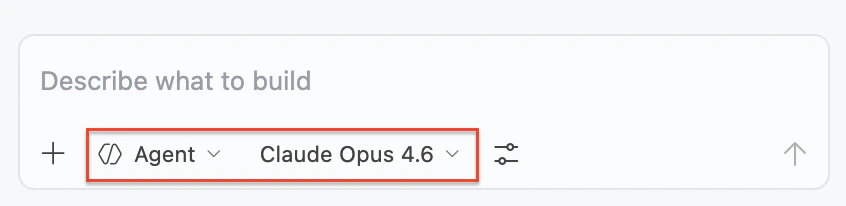

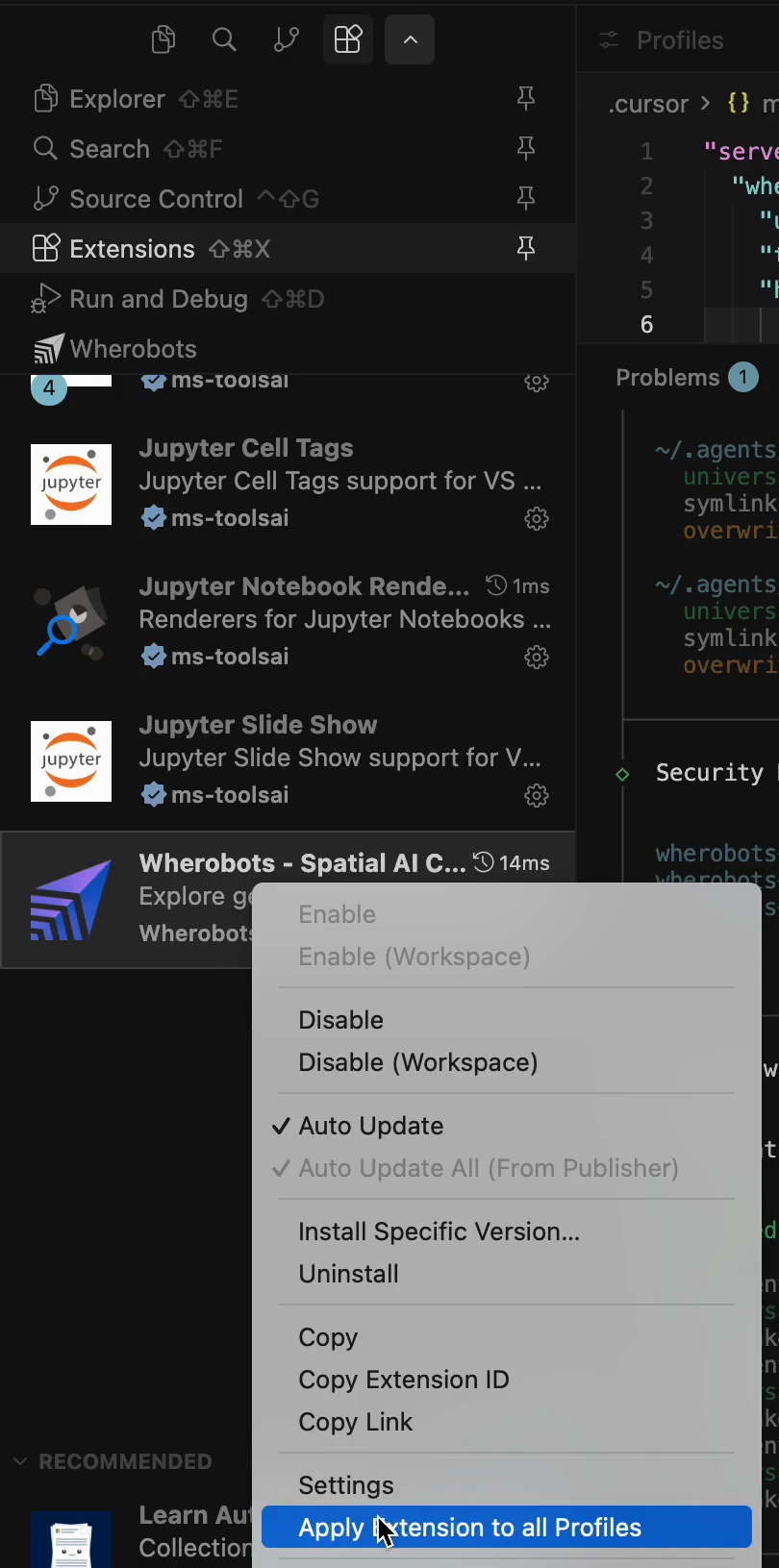
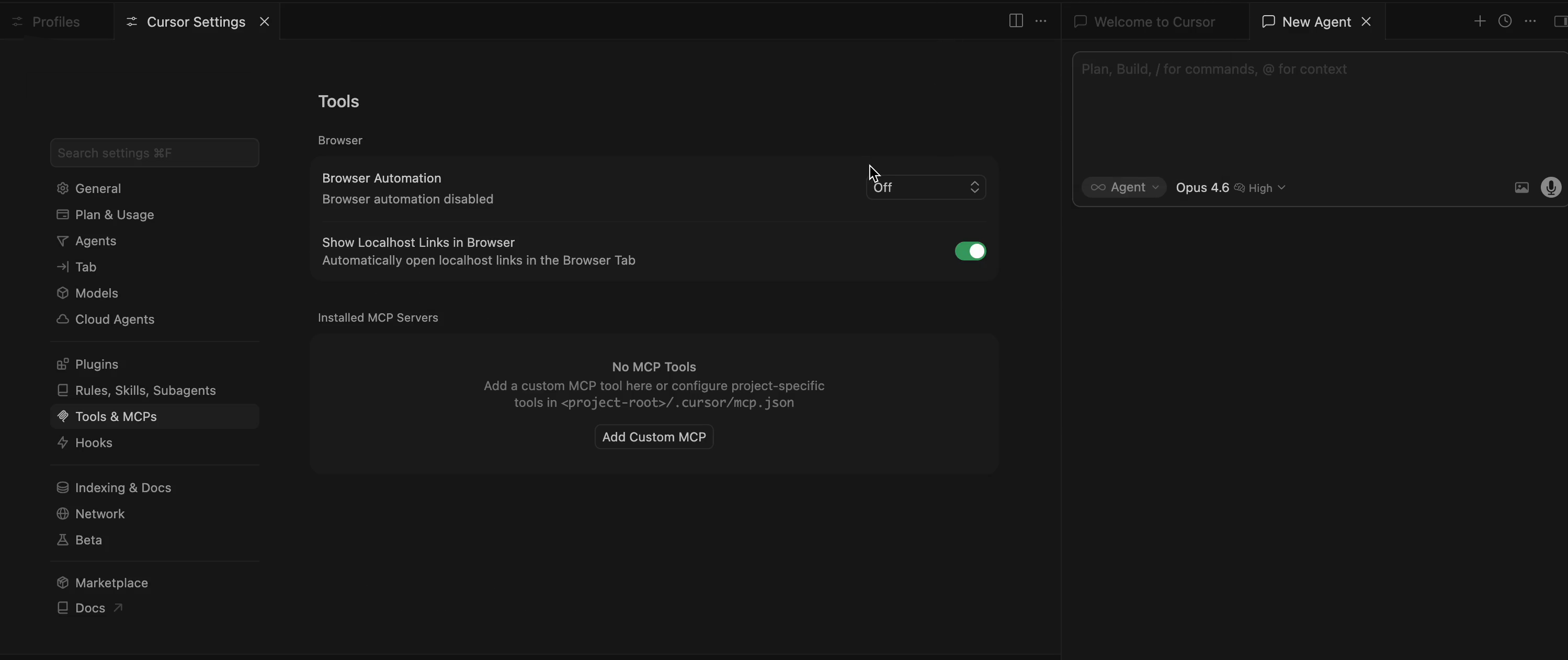
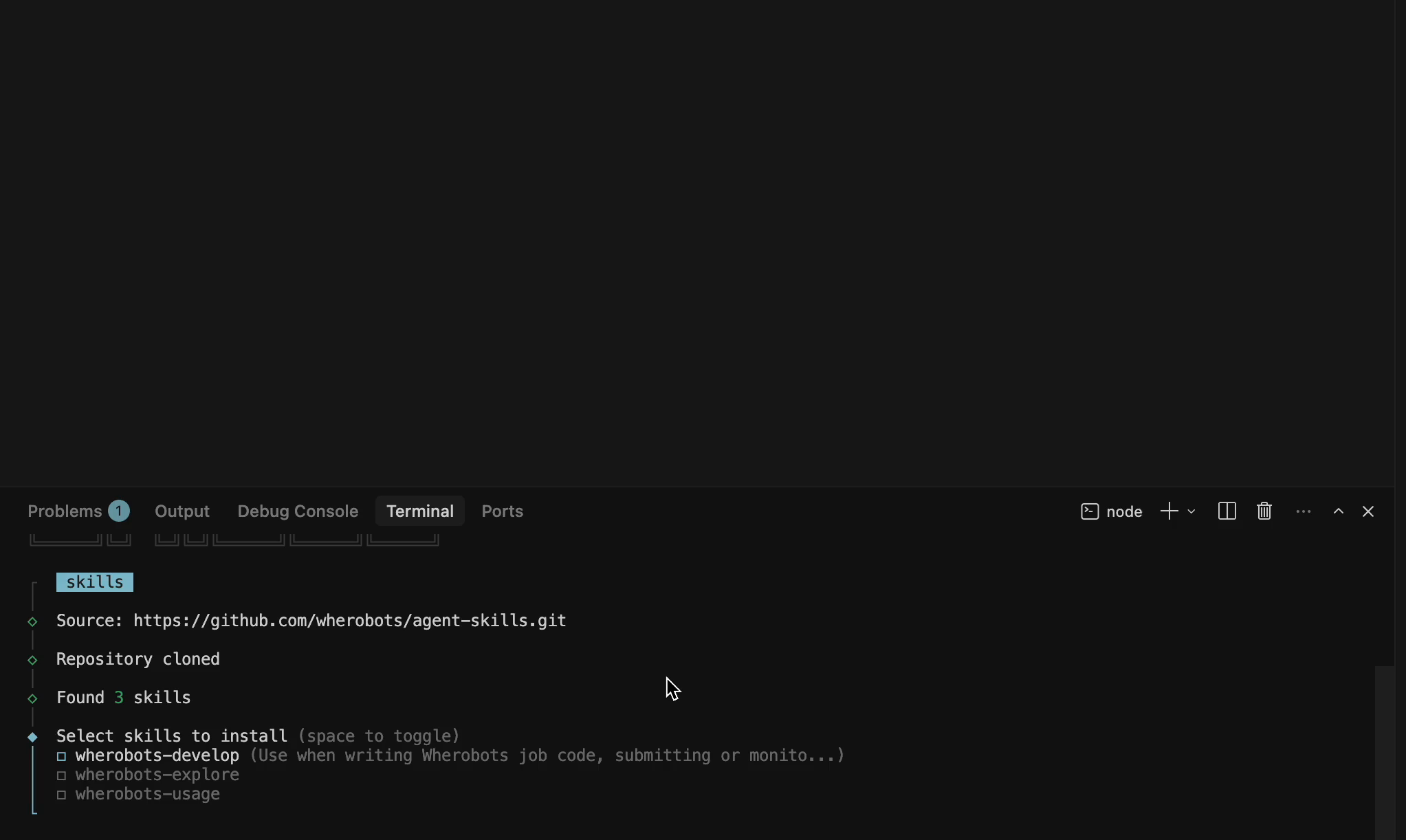
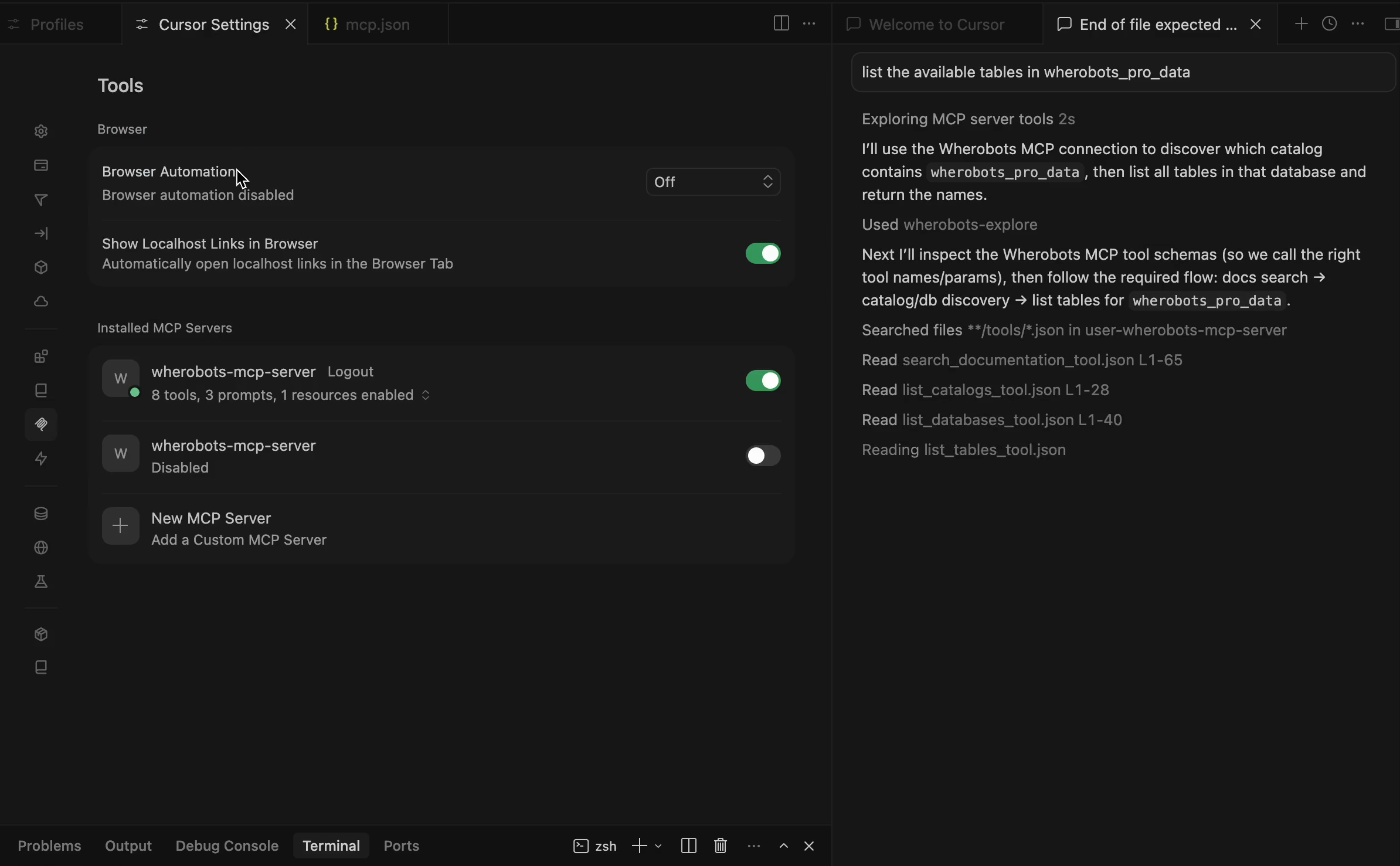
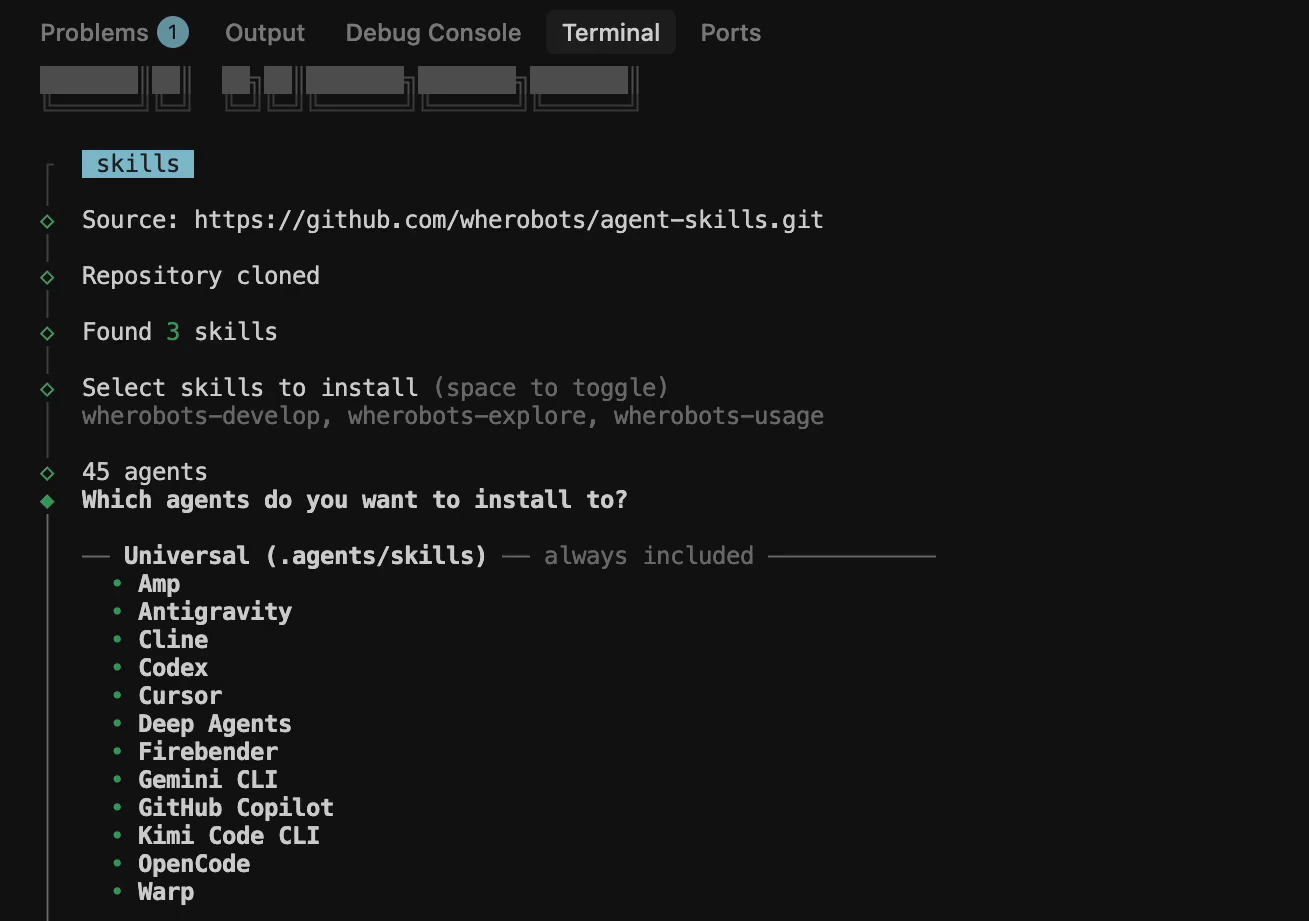
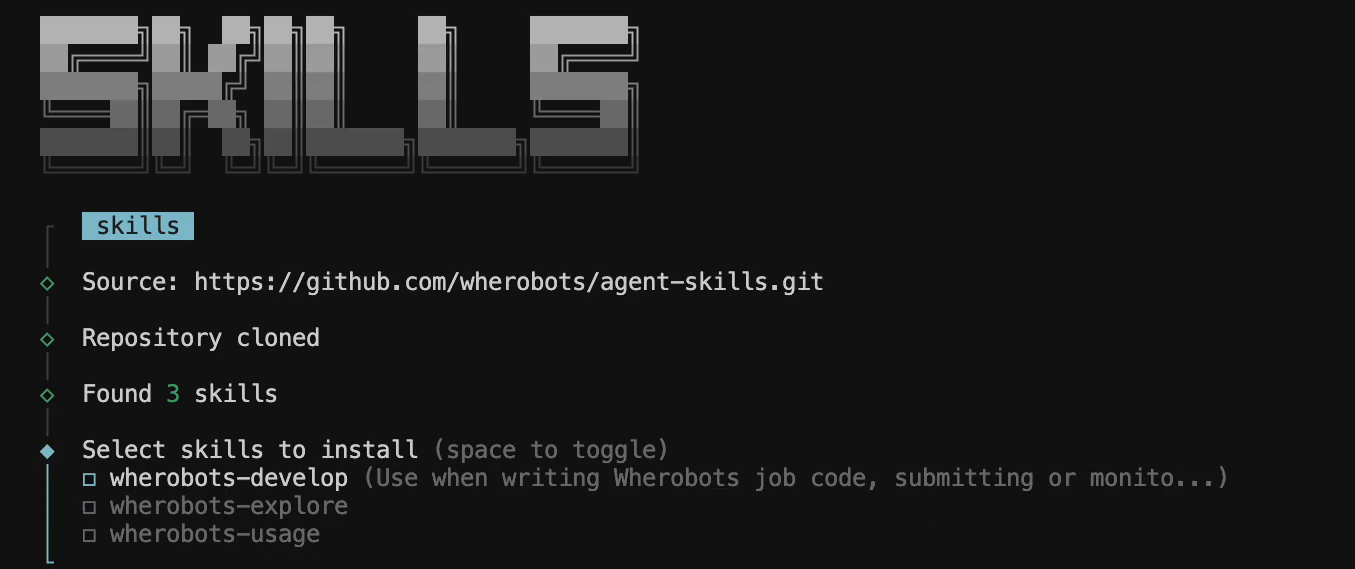
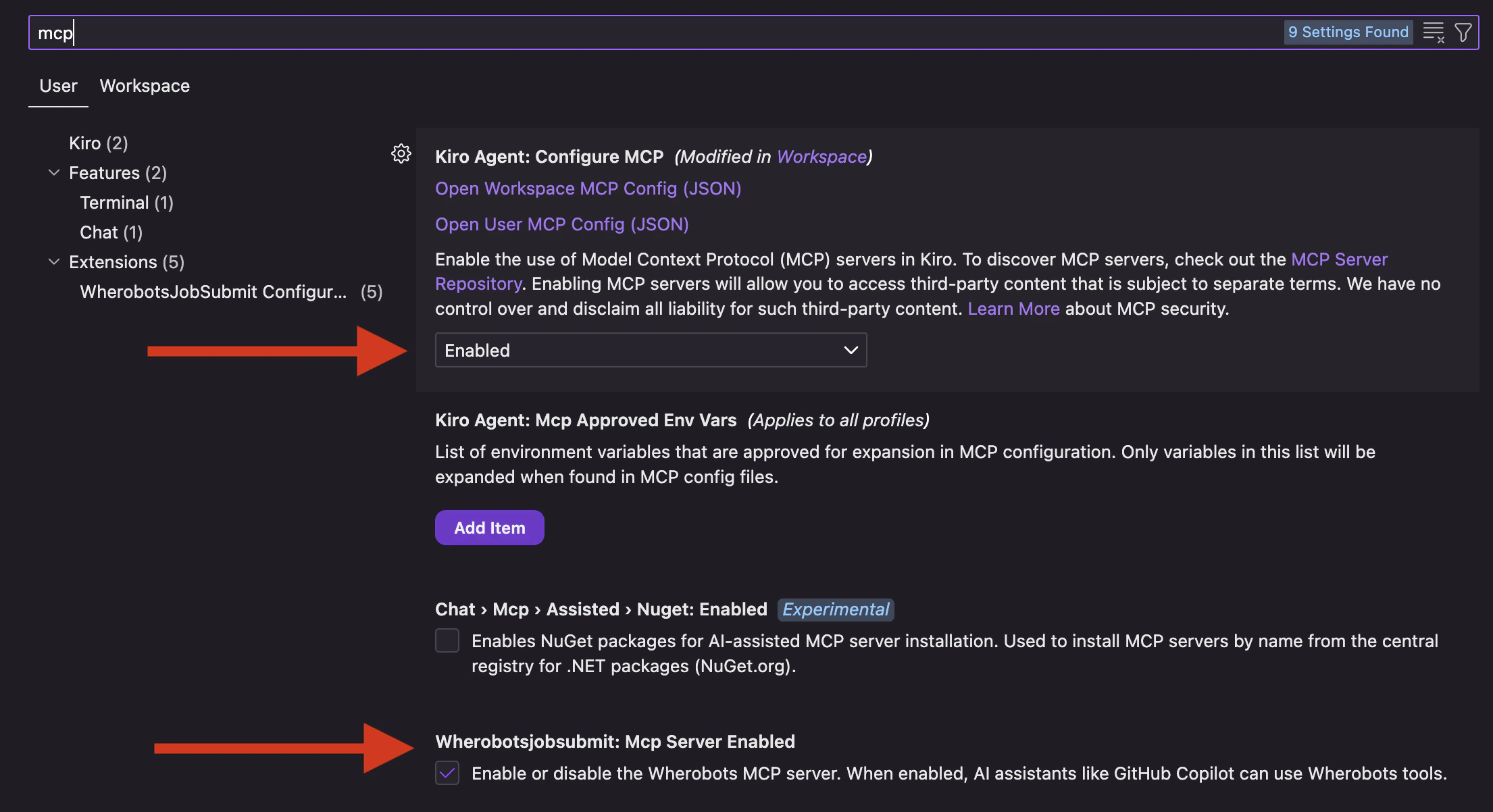
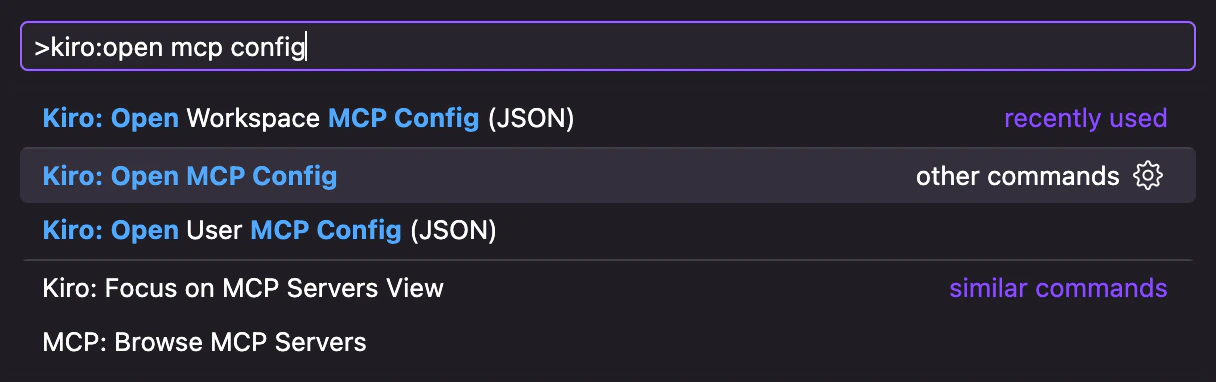

 Kiro icon in the Activity Bar, open the AGENT STEERING & SKILLS section, and click + to add a new skill.