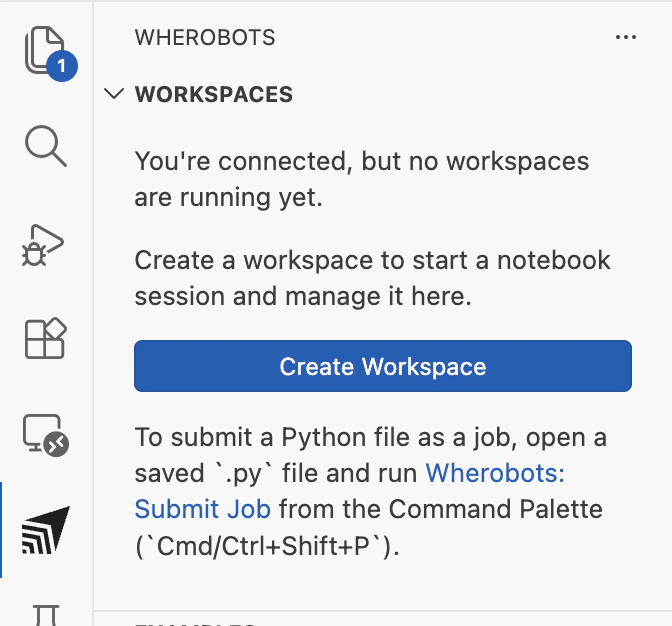
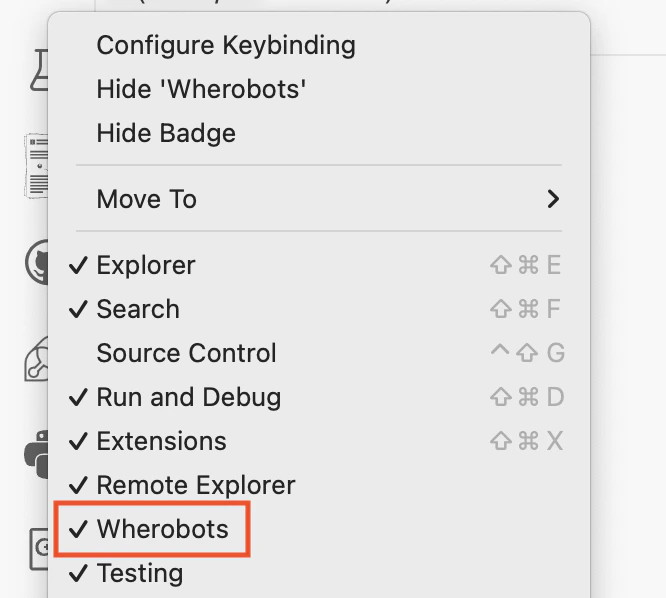
Install the Wherobots VS Code Extension in Windsurf, Positron, Antigravity, Trae, or VS Codium and manually configure the MCP Server and Agent Skills for AI-assisted geospatial development.
Public PreviewDraftThe editors on this page are based on Code OSS. The Wherobots VS Code Extension installs in each of them, but the MCP Server and Agent Skills must be configured manually. Installing the extension and Agent Skills works the same way in every editor. Where you add the MCP Server differs by editor.
Community-driven, freely-licensed distribution of VS Code
codium
These instructions are a preliminary adaptation of the standard VS Code Extension within the Windsurf, Positron, Antigravity, Trae, or VS Codium environment. Users may encounter steps that require manual adjustment. Should you experience any technical difficulties, please contact Wherobots Support for assistance.
Wherobots’ Agentic Tools consist of the following components that work together to provide our agentic experience:
MCP Server
Connects your AI assistant to Wherobots Cloud for catalog exploration, documentation search, read-only Spatial SQL queries, and workload and Spark execution details.
Agent Skills
Gives your AI assistant domain-specific Wherobots knowledge for more accurate commands and fewer errors.
Wherobots CLI
Wraps the full Wherobots API into a single binary for job submission, log streaming, and automation.
Wherobots’ agentic tools connect your AI assistant to Wherobots Cloud and your local development environment so you can interact with your spatial data, catalogs, and jobs in a more intuitive way.
Explore your spatial catalog conversationally
The MCP Server connects your AI assistant to Wherobots Cloud so you can browse catalogs, databases, and table schemas (including Overture Maps and your own datasets) by asking questions in plain language instead of navigating the console.
Generate Spatial SQL without memorizing functions
Describe a geospatial task (e.g. “find buildings within 500m of this point”) and your AI assistant writes Spatial SQL with WherobotsDB’s ST functions, using the table schemas and documentation that the MCP Server provides, then runs it on Wherobots Cloud.
Submit and monitor Wherobots jobs from your editor
Use the CLI or the extension to submit Spark job runs, stream logs in real time, check resource metrics, and cancel jobs without leaving your editor or terminal.
Get Wherobots-aware AI assistance
Agent Skills teach your AI assistant Wherobots-specific APIs, query patterns, and workflow sequences so it produces correct wherobots CLI commands, valid MCP tool calls, and accurate notebook code on the first try.
Organization Availability: Available to all Wherobots Organization Editions (Professional, Innovation, and Enterprise).
An AI assistant in your editor (for AI-assisted features). In Windsurf, that’s an active Windsurf AI subscription; in the other editors, an AI assistant extension.
Node.js and npm installed on your system (required for installing Agent Skills via npx).
After installation, connect to Wherobots Cloud by signing in from your browser (OAuth) or setting an API key.
These steps apply to VS Code, Cursor, Windsurf, Kiro, Positron, Antigravity, Trae, VS Codium, and other Code OSS editors. All use the same Command Palette and extension settings.
1
Open the Command Palette
To open the Command Palette, click the search bar at the top of your editor and type >wherobots:.
You can also press ⌘ + Shift + P on Mac, Ctrl + Shift + P on Windows/Linux to open the Command Palette.
2
Sign in to Wherobots
Click Wherobots: Sign In to start the OAuth flow. A browser window opens for you to sign in to Wherobots and select your Organization; when you’re done, return to your editor.To sign out at any time, run Wherobots: Sign Out from the Command Palette.
Prefer an API key? Click Wherobots: Set API Key and enter your existing or newly created Wherobots API key when prompted, then press Enter. If you don’t have a key yet, click Wherobots: Generate API Key on Wherobots Cloud to create one first.
The Wherobots MCP Server enables AI assistants to explore your spatial data catalogs, generate Spatial SQL, and execute queries. Configure it manually:
1
Add the MCP server
Open the Command Palette (⌘ + Shift + P on macOS, Ctrl + Shift + P on Windows/Linux).
Type MCP: Add Server and select it.
Select HTTP (HTTP or Server-Sent Events) as the server type.
Enter the URL: https://api.cloud.wherobots.com/mcp/
Enter a name for the server (e.g., wherobots-mcp-server).
2
Add your API key
Your mcp.json file opens automatically. Add a headers object with your Wherobots API key:
Open the Command Palette and select Reload Window.
The extension’s MCP settings, such as query timeout, runtime size, and cloud region, don’t apply to an MCP server that you configure by hand in mcp.json. See Extension Settings.
Windsurf and Antigravity read mcp_config.json, which uses an mcpServers object and a serverUrl field instead of the servers object and url field of VS Code’s mcp.json. Add the Wherobots server:
Open your AI assistant’s chat panel (Cascade in Windsurf).
Select Agent as the chat mode (if available).
Ask a test question:
List the catalogs in my Wherobots Data Hub
If successful, the assistant will call list_catalogs_tool and display your available tables.
Confirm the server appears in the editor’s list of MCP servers. In Positron and VS Codium, open the Command Palette and run MCP: List Servers. In Windsurf, check the MCPs section of the Cascade panel’s … menu. In Antigravity, open Manage MCP Servers.
Browse catalogs, schemas, and tables in the Data Hub sidebar.
AI-Assisted Notebooks
Create and connect local notebooks to remote Wherobots compute.
Submit Job Runs
Submit Python scripts as Wherobots job runs from your editor.
MCP Server Best Practices
Common tasks, example prompts, and cost considerations for the MCP Server.
Was this page helpful?
{"docsConfig":{"theme":"aspen","$schema":"https://www.mintlify.com/docs.json","name":"Wherobots","colors":{"primary":"#6612c5","light":"#6612c5","dark":"#6612c5"},"logo":{"light":"https://mintcdn.com/wherobots/q2h_5BmXeWMz6JRH/logo/light.png?fit=max\u0026auto=format\u0026n=q2h_5BmXeWMz6JRH\u0026q=85\u0026s=5a1512dbd3547c3df4e8f4779a1e4cfa","dark":"https://mintcdn.com/wherobots/q2h_5BmXeWMz6JRH/logo/dark.png?fit=max\u0026auto=format\u0026n=q2h_5BmXeWMz6JRH\u0026q=85\u0026s=8d84ac8734585eb38f09b1ea4c0d8e5c","href":"/"},"favicon":"https://mintcdn.com/wherobots/q2h_5BmXeWMz6JRH/favicon.png?fit=max\u0026auto=format\u0026n=q2h_5BmXeWMz6JRH\u0026q=85\u0026s=aa88d68dcd661ed008af0d0a8c4bcd47","api":{"playground":{"display":"interactive"},"examples":{"defaults":"required","languages":["curl","python","javascript","go","java"],"prefill":true}},"appearance":{"default":"light"},"navbar":{"links":[{"href":"/changelog","label":"Changelog"},{"href":"/support","label":"Support"}],"primary":{"type":"button","label":"Open Wherobots Cloud","href":"https://cloud.wherobots.com"}},"footer":{"socials":{"linkedin":"https://www.linkedin.com/company/wherobots","x":"https://x.com/wherobots","github":"https://github.com/wherobots","youtube":"https://www.youtube.com/channel/UCFC5QjLyQ3wanshI5xUH0aw","discord":"https://sedona.apache.org/1.5.2/community/contact"},"links":[{"header":"Resources","items":[{"label":"Support","href":"/support"},{"label":"Changelog","href":"/changelog"},{"label":"Cloud availability","href":"/availability"}]},{"header":"Legal","items":[{"label":"Terms of service","href":"/terms-of-service"},{"label":"Privacy policy","href":"/privacy-policy"}]}]},"seo":{"metatags":{"canonical":"https://docs.wherobots.com","googlebot":"index, follow","robots":"index, follow","keywords":"Managed Apache Sedona, Apache Sedona, Wherobots docs, Wherobots documentation, Iceberg tables, Spatial SQL API, Wherobots Python SDK, RasterFlow, Map Matching, Spatial Data Catalog, Wherobots Airflow Provider","description":"Official Wherobots Documentation. Learn how to conduct scalable spatial analysis with WherobotsDB—the serverless cloud platform from the creators of Apache Sedona.","google-site-verification":"CN6rS8bQ0T0qVXswDOc12YyKdEE_tnmlk97_Qr6Ui_A","indexing":"all"}},"fonts":{"heading":{"family":"Figtree"},"body":{"family":"Figtree"}},"styling":{"codeblocks":"system","latex":false},"integrations":{"amplitude":{"apiKey":"ee314e073a5b08c12a78aef591a50bc1"},"ga4":{"measurementId":"G-D4ED50QSVC"}},"contextual":{"options":["copy","view","download-spec"],"display":"header"},"navigation":{"pages":[]}},"deployment":{"deploymentMetadataValue":{"subdomain":"wherobots","hasAudioNarration":false,"actualSubdomain":"wherobots","customDomains":["docs.wherobots.com"],"gitSource":{"type":"github","owner":"wherobots","repo":"docs","deployBranch":"main","contentDirectory":"","isPrivate":true,"mountPath":"","label":""},"chroma":{"liveDeploymentHistoryId":"6adfdb311788d59501c54d35","collectionId":"8537d1b7-c4ff-4092-8299-09d48c1a9a0d","schemaVersion":"v3","latestBuiltDeploymentHistoryId":"6adfdb311788d59501c54d35"},"feedback":{"thumbs":true},"entitlements":{"AI_CHAT":{"status":"ENABLED"},"CONTEXTUAL_FEEDBACK":{"status":"ENABLED"},"CODE_SNIPPET_FEEDBACK":{"status":"ENABLED"},"WEB_MCP":{"status":"ENABLED"},"NARRATION":{"status":"ENABLED"}},"buildId":"6adfdb311788d59501c54d35","clientVersion":"0.0.3971","searchFilterCounts":[{"language":"default","tag":"Reference","count":1794},{"language":"default","tag":"WherobotsDB","count":880},{"language":"default","tag":"Python","count":449},{"language":"default","tag":"SQL","count":422},{"language":"default","tag":"Geometry Functions","count":267},{"language":"default","tag":"DataFrame functions","count":209},{"language":"default","tag":"GeoPandas API","count":159},{"language":"default","tag":"GeoSeries","count":130},{"language":"default","tag":"Raster Functions","count":109},{"language":"default","tag":"Accessors","count":94}]},"assistantConfig":{"enableAskAiButton":true,"enableAskAiSearchBar":false},"basePath":"","hasChatPermissions":true,"hasWebMcpPermissions":true,"toggles":[{"name":"kill-isr","enabled":true,"variant":{"name":"disabled","enabled":false,"feature_enabled":true},"impressionData":false},{"name":"agent-mintlify-slack","enabled":true,"variant":{"name":"disabled","enabled":false,"feature_enabled":true},"impressionData":false},{"name":"editor-v7-file-tree","enabled":true,"variant":{"name":"disabled","enabled":false,"feature_enabled":true},"impressionData":false},{"name":"agent-integrations-settings","enabled":true,"variant":{"name":"disabled","enabled":false,"feature_enabled":true},"impressionData":false},{"name":"automations-pr-grouping","enabled":true,"variant":{"name":"disabled","enabled":false,"feature_enabled":true},"impressionData":false},{"name":"custom-prefix","enabled":true,"variant":{"name":"disabled","enabled":false,"feature_enabled":true},"impressionData":false},{"name":"analytics-v7","enabled":true,"variant":{"name":"disabled","enabled":false,"feature_enabled":true},"impressionData":false},{"name":"user-flows-analytics","enabled":true,"variant":{"name":"disabled","enabled":false,"feature_enabled":true},"impressionData":false},{"name":"no-publish-flow","enabled":true,"variant":{"name":"disabled","enabled":false,"feature_enabled":true},"impressionData":false},{"name":"workos-onboarding","enabled":true,"variant":{"name":"disabled","enabled":false,"feature_enabled":true},"impressionData":false},{"name":"llms-txt-v2","enabled":true,"variant":{"name":"disabled","enabled":false,"feature_enabled":true},"impressionData":false},{"name":"pause-universal-search-reconcile","enabled":true,"variant":{"name":"disabled","enabled":false,"feature_enabled":true},"impressionData":false},{"name":"snapshot-serving-live","enabled":true,"variant":{"name":"disabled","enabled":false,"feature_enabled":true},"impressionData":false},{"name":"stripTemperatureMiddleware","enabled":true,"variant":{"name":"disabled","enabled":false,"feature_enabled":true},"impressionData":false},{"name":"per-site-search-delta","enabled":true,"variant":{"name":"disabled","enabled":false,"feature_enabled":true},"impressionData":false},{"name":"support-platform-pylon-zendesk","enabled":true,"variant":{"name":"disabled","enabled":false,"feature_enabled":true},"impressionData":false},{"name":"snapshot-serving","enabled":true,"variant":{"name":"disabled","enabled":false,"feature_enabled":true},"impressionData":false},{"name":"instant-rollback","enabled":true,"variant":{"name":"disabled","enabled":false,"feature_enabled":true},"impressionData":false},{"name":"granular-notifications-server","enabled":true,"variant":{"name":"disabled","enabled":false,"feature_enabled":true},"impressionData":false},{"name":"granular-notifications","enabled":true,"variant":{"name":"disabled","enabled":false,"feature_enabled":true},"impressionData":false},{"name":"editor-private-page-search","enabled":true,"variant":{"name":"disabled","enabled":false,"feature_enabled":true},"impressionData":false},{"name":"automations-fable","enabled":true,"variant":{"name":"disabled","enabled":false,"feature_enabled":true},"impressionData":false},{"name":"fixed-ai-action-pricing","enabled":true,"variant":{"name":"disabled","enabled":false,"feature_enabled":true},"impressionData":false},{"name":"automation-resolve-merge-conflict","enabled":true,"variant":{"name":"disabled","enabled":false,"feature_enabled":true},"impressionData":false},{"name":"scoped-publishing","enabled":true,"variant":{"name":"disabled","enabled":false,"feature_enabled":true},"impressionData":false},{"name":"mintql","enabled":true,"variant":{"name":"disabled","enabled":false,"feature_enabled":true},"impressionData":false},{"name":"page-level-analytics","enabled":true,"variant":{"name":"disabled","enabled":false,"feature_enabled":true},"impressionData":false},{"name":"editor-version-history-v2","enabled":true,"variant":{"name":"disabled","enabled":false,"feature_enabled":true},"impressionData":false},{"name":"editor-nav-generations","enabled":true,"variant":{"name":"disabled","enabled":false,"feature_enabled":true},"impressionData":false},{"name":"billing-page-v2","enabled":true,"variant":{"name":"disabled","enabled":false,"feature_enabled":true},"impressionData":false},{"name":"workspace-projects","enabled":true,"variant":{"name":"disabled","enabled":false,"feature_enabled":true},"impressionData":false},{"name":"assistant-v5","enabled":true,"variant":{"name":"disabled","enabled":false,"feature_enabled":true},"impressionData":false},{"name":"byok-sep-25","enabled":true,"variant":{"name":"disabled","enabled":false,"feature_enabled":true},"impressionData":false},{"name":"fork-pr-previews","enabled":true,"variant":{"name":"disabled","enabled":false,"feature_enabled":true},"impressionData":false},{"name":"revalidation-jwt","enabled":true,"variant":{"name":"disabled","enabled":false,"feature_enabled":true},"impressionData":false},{"name":"vite-origin","enabled":true,"variant":{"name":"disabled","enabled":false,"feature_enabled":true},"impressionData":false},{"name":"editor-agent-model-picker","enabled":true,"variant":{"name":"disabled","enabled":false,"feature_enabled":true},"impressionData":false},{"name":"billing-updated-9-15","enabled":true,"variant":{"name":"disabled","enabled":false,"feature_enabled":true},"impressionData":false},{"name":"workos-sso-scim","enabled":true,"variant":{"name":"disabled","enabled":false,"feature_enabled":true},"impressionData":false},{"name":"hobby-abuse-scan","enabled":true,"variant":{"name":"disabled","enabled":false,"feature_enabled":true},"impressionData":false},{"name":"dashboard-inbox","enabled":true,"variant":{"name":"disabled","enabled":false,"feature_enabled":true},"impressionData":false},{"name":"workos-signup","enabled":true,"variant":{"name":"disabled","enabled":false,"feature_enabled":true},"impressionData":false},{"name":"workos-enabled","enabled":true,"variant":{"name":"disabled","enabled":false,"feature_enabled":true},"impressionData":false}],"isAtlas":false,"googleFontsInlined":true},"customCss":[],"page":{"pagePath":"develop/agentic-tools/other-code-oss-editors","slug":"/develop/agentic-tools/other-code-oss-editors","pageMetadata":{"title":"Set Up Wherobots in Other Code OSS Editors","description":"Install the Wherobots VS Code Extension in Windsurf, Positron, Antigravity, Trae, or VS Codium and manually configure the MCP Server and Agent Skills for AI-assisted geospatial development.","sidebarTitle":"Other Code OSS editors","href":"/develop/agentic-tools/other-code-oss-editors"},"description":{"compiledSource":"\"use strict\";\nconst {jsx: _jsx} = arguments[0];\nconst {useMDXComponents: _provideComponents} = arguments[0];\nfunction _createMdxContent(props) {\n const _components = {\n p: \"p\",\n ..._provideComponents(),\n ...props.components\n };\n return _jsx(_components.p, {\n children: \"Install the Wherobots VS Code Extension in Windsurf, Positron, Antigravity, Trae, or VS Codium and manually configure the MCP Server and Agent Skills for AI-assisted geospatial development.\"\n });\n}\nfunction MDXContent(props = {}) {\n const {wrapper: MDXLayout} = {\n ..._provideComponents(),\n ...props.components\n };\n return MDXLayout ? _jsx(MDXLayout, {\n ...props,\n children: _jsx(_createMdxContent, {\n ...props\n })\n }) : _createMdxContent(props);\n}\nreturn {\n default: MDXContent\n};\n","frontmatter":{},"scope":{}},"pageType":"default","mdx":{"mdxSource":{"compiledSource":"\"use strict\";const{Fragment:_Fragment,jsx:_jsx,jsxs:_jsxs}=arguments[0];const{useMDXComponents:_provideComponents}=arguments[0];const AgenticDraftNotice=({editor})=>{const _components={a:`a`,..._provideComponents()},{Note}=_components;if(!Note)_missingMdxReference(`Note`,true);return _jsxs(Note,{children:[`These instructions are a preliminary adaptation of the standard VS Code Extension within the `,editor,` environment. Users may encounter steps that require manual adjustment. Should you experience any technical difficulties, please `,_jsx(_components.a,{href:`/support`,children:`contact Wherobots Support`}),` for assistance.`]})};function _createMdxContent(props){const _components={a:`a`,code:`code`,li:`li`,ol:`ol`,p:`p`,pre:`pre`,span:`span`,strong:`strong`,tbody:`tbody`,td:`td`,th:`th`,thead:`thead`,tr:`tr`,ul:`ul`,..._provideComponents(),...props.components},{Accordion,AccordionGroup,Badge,Card,CardGroup,CodeBlock,CodeGroup,Frame,Heading,Info,Note,OptimizedImage,Step,Steps,Table,Tip,_MdxComponentBoundary}=_components;if(!Accordion)_missingMdxReference(`Accordion`,true);if(!AccordionGroup)_missingMdxReference(`AccordionGroup`,true);if(!Badge)_missingMdxReference(`Badge`,true);if(!Card)_missingMdxReference(`Card`,true);if(!CardGroup)_missingMdxReference(`CardGroup`,true);if(!CodeBlock)_missingMdxReference(`CodeBlock`,true);if(!CodeGroup)_missingMdxReference(`CodeGroup`,true);if(!Frame)_missingMdxReference(`Frame`,true);if(!Heading)_missingMdxReference(`Heading`,true);if(!Info)_missingMdxReference(`Info`,true);if(!Note)_missingMdxReference(`Note`,true);if(!OptimizedImage)_missingMdxReference(`OptimizedImage`,true);if(!Step)_missingMdxReference(`Step`,true);if(!Steps)_missingMdxReference(`Steps`,true);if(!Table)_missingMdxReference(`Table`,true);if(!Tip)_missingMdxReference(`Tip`,true);if(!_MdxComponentBoundary)_missingMdxReference(`_MdxComponentBoundary`,true);return _jsxs(_Fragment,{children:[_jsx(Badge,{color:`purple`,children:`Public Preview`}),`\n`,_jsx(Badge,{color:`yellow`,children:`Draft`}),`\n`,_jsx(_components.p,{children:`The editors on this page are based on Code OSS. The Wherobots VS Code Extension installs in each of them, but the MCP Server and Agent Skills must be configured manually. Installing the extension and Agent Skills works the same way in every editor. Where you add the MCP Server differs by editor.`}),`\n`,_jsxs(Table,{children:[_jsx(_components.thead,{children:_jsxs(_components.tr,{children:[_jsx(_components.th,{children:`Editor`}),_jsx(_components.th,{children:`Description`}),_jsx(_components.th,{children:`CLI command`})]})}),_jsxs(_components.tbody,{children:[_jsxs(_components.tr,{children:[_jsx(_components.td,{children:_jsx(_components.a,{href:`https://windsurf.com/`,children:`Windsurf`})}),_jsx(_components.td,{children:`Code OSS-based editor by Cognition AI with AI-powered development features`}),_jsx(_components.td,{children:_jsx(_components.code,{children:`windsurf`})})]}),_jsxs(_components.tr,{children:[_jsx(_components.td,{children:_jsx(_components.a,{href:`https://positron.posit.co/`,children:`Positron`})}),_jsx(_components.td,{children:`Code OSS-based editor by Posit designed for data science workflows`}),_jsx(_components.td,{children:_jsx(_components.code,{children:`positron`})})]}),_jsxs(_components.tr,{children:[_jsx(_components.td,{children:_jsx(_components.a,{href:`https://antigravity.google/`,children:`Antigravity`})}),_jsx(_components.td,{children:`Code OSS-based editor by Google`}),_jsx(_components.td,{children:_jsx(_components.code,{children:`antigravity`})})]}),_jsxs(_components.tr,{children:[_jsx(_components.td,{children:_jsx(_components.a,{href:`https://www.trae.ai/`,children:`Trae`})}),_jsx(_components.td,{children:`Code OSS-based editor by ByteDance with AI-powered development features`}),_jsx(_components.td,{children:_jsx(_components.code,{children:`trae`})})]}),_jsxs(_components.tr,{children:[_jsx(_components.td,{children:_jsx(_components.a,{href:`https://vscodium.com/`,children:`VS Codium`})}),_jsx(_components.td,{children:`Community-driven, freely-licensed distribution of VS Code`}),_jsx(_components.td,{children:_jsx(_components.code,{children:`codium`})})]})]})]}),`\n`,_jsx(_MdxComponentBoundary,{name:`AgenticDraftNotice`,children:_jsx(AgenticDraftNotice,{editor:`Windsurf, Positron, Antigravity, Trae, or VS Codium`})}),`\n`,_jsx(Heading,{level:`2`,id:`component-overview`,children:`Component Overview`}),`\n`,_jsx(_components.p,{children:`Wherobots’ Agentic Tools consist of the following components that work together to provide our agentic experience:`}),`\n`,_jsxs(AccordionGroup,{children:[_jsx(Accordion,{title:`MCP Server`,icon:`message-bot`,id:`mcp-server`,children:_jsx(_components.p,{children:`Connects your AI assistant to Wherobots Cloud for catalog exploration, documentation search, read-only Spatial SQL queries, and workload and Spark execution details.`})}),_jsx(Accordion,{title:`Agent Skills`,icon:`brain`,id:`agent-skills`,children:_jsx(_components.p,{children:`Gives your AI assistant domain-specific Wherobots knowledge for more accurate commands and fewer errors.`})}),_jsx(Accordion,{title:`Wherobots CLI`,icon:`terminal`,id:`wherobots-cli`,children:_jsx(_components.p,{children:`Wraps the full Wherobots API into a single binary for job submission, log streaming, and automation.`})})]}),`\n`,_jsx(Heading,{level:`2`,id:`why-use-wherobots’-agentic-tools`,children:`Why use Wherobots’ agentic tools?`}),`\n`,_jsx(_components.p,{children:`Wherobots’ agentic tools connect your AI assistant to Wherobots Cloud and your local development environment so you can interact with your spatial data, catalogs, and jobs in a more intuitive way.`}),`\n`,_jsxs(AccordionGroup,{children:[_jsx(Accordion,{title:`Explore your spatial catalog conversationally`,icon:`book-open`,id:`explore-your-spatial-catalog-conversationally`,children:_jsx(_components.p,{children:`The MCP Server connects your AI assistant to Wherobots Cloud so you can browse catalogs, databases, and table schemas (including Overture Maps and your own datasets) by asking questions in plain language instead of navigating the console.`})}),_jsx(Accordion,{title:`Generate Spatial SQL without memorizing functions`,icon:`code`,id:`generate-spatial-sql-without-memorizing-functions`,children:_jsx(_components.p,{children:`Describe a geospatial task (e.g. “find buildings within 500m of this point”) and your AI assistant writes Spatial SQL with WherobotsDB’s ST functions, using the table schemas and documentation that the MCP Server provides, then runs it on Wherobots Cloud.`})}),_jsx(Accordion,{title:`Submit and monitor Wherobots jobs from your editor`,icon:`rocket`,id:`submit-and-monitor-wherobots-jobs-from-your-editor`,children:_jsx(_components.p,{children:`Use the CLI or the extension to submit Spark job runs, stream logs in real time, check resource metrics, and cancel jobs without leaving your editor or terminal.`})}),_jsx(Accordion,{title:`Get Wherobots-aware AI assistance`,icon:`brain`,id:`get-wherobots-aware-ai-assistance`,children:_jsxs(_components.p,{children:[`Agent Skills teach your AI assistant Wherobots-specific APIs, query patterns, and workflow sequences so it produces correct `,_jsx(_components.code,{children:`wherobots`}),` CLI commands, valid MCP tool calls, and accurate notebook code on the first try.`]})})]}),`\n`,_jsx(Heading,{level:`2`,id:`before-you-start`,children:`Before you start`}),`\n`,_jsxs(_components.ul,{children:[`\n`,_jsx(_components.li,{children:`One of the editors above installed.`}),`\n`,_jsxs(_components.li,{children:[`A `,_jsx(_components.strong,{children:`Wherobots Account`}),`. See `,_jsx(_components.a,{href:`/get-started/wherobots-cloud/create-account`,children:`Create a Wherobots Account`}),`.`,`\n`,_jsx(Info,{children:_jsxs(_components.p,{children:[_jsx(_components.strong,{children:`Organization Availability:`}),` Available to all Wherobots Organization Editions (Professional, Innovation, and Enterprise).`]})}),`\n`]}),`\n`,_jsx(_components.li,{children:`An AI assistant in your editor (for AI-assisted features). In Windsurf, that’s an active Windsurf AI subscription; in the other editors, an AI assistant extension.`}),`\n`,_jsxs(_components.li,{children:[_jsx(_components.a,{href:`https://nodejs.org/`,children:`Node.js`}),` and `,_jsx(_components.a,{href:`https://www.npmjs.com/`,children:`npm`}),` installed on your system (required for installing Agent Skills via `,_jsx(_components.code,{children:`npx`}),`).`]}),`\n`]}),`\n`,_jsx(Heading,{level:`2`,id:`install-the-extension`,children:`Install the extension`}),`\n`,_jsx(_components.p,{children:`Run the command for your editor in your terminal:`}),`\n`,_jsxs(CodeGroup,{children:[_jsx(CodeBlock,{filename:`Windsurf`,numberOfLines:`1`,language:`shellscript`,children:_jsx(_components.pre,{className:`shiki shiki-themes github-light-default dark-plus`,style:{backgroundColor:`#ffffff`,\"--shiki-dark-bg\":`#0B0C0E`,color:`#1f2328`,\"--shiki-dark\":`#D4D4D4`},language:`shellscript`,children:_jsxs(_components.code,{language:`shellscript`,numberOfLines:`1`,children:[_jsxs(_components.span,{className:`line`,children:[_jsx(_components.span,{style:{color:`#953800`,\"--shiki-dark\":`#DCDCAA`},children:`windsurf`}),_jsx(_components.span,{style:{color:`#0550AE`,\"--shiki-dark\":`#569CD6`},children:` --install-extension`}),_jsx(_components.span,{style:{color:`#0A3069`,\"--shiki-dark\":`#CE9178`},children:` Wherobots.wherobotsjobsubmit`})]}),`\n`]})})}),_jsx(CodeBlock,{filename:`Positron`,numberOfLines:`1`,language:`shellscript`,children:_jsx(_components.pre,{className:`shiki shiki-themes github-light-default dark-plus`,style:{backgroundColor:`#ffffff`,\"--shiki-dark-bg\":`#0B0C0E`,color:`#1f2328`,\"--shiki-dark\":`#D4D4D4`},language:`shellscript`,children:_jsxs(_components.code,{language:`shellscript`,numberOfLines:`1`,children:[_jsxs(_components.span,{className:`line`,children:[_jsx(_components.span,{style:{color:`#953800`,\"--shiki-dark\":`#DCDCAA`},children:`positron`}),_jsx(_components.span,{style:{color:`#0550AE`,\"--shiki-dark\":`#569CD6`},children:` --install-extension`}),_jsx(_components.span,{style:{color:`#0A3069`,\"--shiki-dark\":`#CE9178`},children:` Wherobots.wherobotsjobsubmit`})]}),`\n`]})})}),_jsx(CodeBlock,{filename:`Antigravity`,numberOfLines:`1`,language:`shellscript`,children:_jsx(_components.pre,{className:`shiki shiki-themes github-light-default dark-plus`,style:{backgroundColor:`#ffffff`,\"--shiki-dark-bg\":`#0B0C0E`,color:`#1f2328`,\"--shiki-dark\":`#D4D4D4`},language:`shellscript`,children:_jsxs(_components.code,{language:`shellscript`,numberOfLines:`1`,children:[_jsxs(_components.span,{className:`line`,children:[_jsx(_components.span,{style:{color:`#953800`,\"--shiki-dark\":`#DCDCAA`},children:`antigravity`}),_jsx(_components.span,{style:{color:`#0550AE`,\"--shiki-dark\":`#569CD6`},children:` --install-extension`}),_jsx(_components.span,{style:{color:`#0A3069`,\"--shiki-dark\":`#CE9178`},children:` Wherobots.wherobotsjobsubmit`})]}),`\n`]})})}),_jsx(CodeBlock,{filename:`Trae`,numberOfLines:`1`,language:`shellscript`,children:_jsx(_components.pre,{className:`shiki shiki-themes github-light-default dark-plus`,style:{backgroundColor:`#ffffff`,\"--shiki-dark-bg\":`#0B0C0E`,color:`#1f2328`,\"--shiki-dark\":`#D4D4D4`},language:`shellscript`,children:_jsxs(_components.code,{language:`shellscript`,numberOfLines:`1`,children:[_jsxs(_components.span,{className:`line`,children:[_jsx(_components.span,{style:{color:`#953800`,\"--shiki-dark\":`#DCDCAA`},children:`trae`}),_jsx(_components.span,{style:{color:`#0550AE`,\"--shiki-dark\":`#569CD6`},children:` --install-extension`}),_jsx(_components.span,{style:{color:`#0A3069`,\"--shiki-dark\":`#CE9178`},children:` Wherobots.wherobotsjobsubmit`})]}),`\n`]})})}),_jsx(CodeBlock,{filename:`VS Codium`,numberOfLines:`1`,language:`shellscript`,children:_jsx(_components.pre,{className:`shiki shiki-themes github-light-default dark-plus`,style:{backgroundColor:`#ffffff`,\"--shiki-dark-bg\":`#0B0C0E`,color:`#1f2328`,\"--shiki-dark\":`#D4D4D4`},language:`shellscript`,children:_jsxs(_components.code,{language:`shellscript`,numberOfLines:`1`,children:[_jsxs(_components.span,{className:`line`,children:[_jsx(_components.span,{style:{color:`#953800`,\"--shiki-dark\":`#DCDCAA`},children:`codium`}),_jsx(_components.span,{style:{color:`#0550AE`,\"--shiki-dark\":`#569CD6`},children:` --install-extension`}),_jsx(_components.span,{style:{color:`#0A3069`,\"--shiki-dark\":`#CE9178`},children:` Wherobots.wherobotsjobsubmit`})]}),`\n`]})})})]}),`\n`,_jsxs(_components.p,{children:[`Or install from the `,_jsx(_components.a,{href:`https://open-vsx.org/extension/Wherobots/wherobotsjobsubmit`,children:`Open VSX Registry`}),`.`]}),`\n`,_jsx(Tip,{children:_jsxs(_components.p,{children:[`If your editor prompts you to install a missing dependency extension (e.g., Jupyter), click `,_jsx(_components.strong,{children:`Install and Reload`}),`.`]})}),`\n`,_jsx(Heading,{level:`3`,id:`configure-the-extension`,children:`Configure the extension`}),`\n`,_jsx(_components.p,{children:`After installation, connect to Wherobots Cloud by signing in from your browser (OAuth) or setting an API key.`}),`\n`,_jsx(Tip,{children:_jsxs(_components.p,{children:[`These steps apply to VS Code, Cursor, Windsurf, `,_jsx(_components.a,{href:`https://kiro.dev/`,children:`Kiro`}),`, Positron, Antigravity, Trae, VS Codium, and other Code OSS editors. All use the same Command Palette and extension settings.`]})}),`\n`,_jsxs(Steps,{children:[_jsxs(Step,{title:`Open the Command Palette`,children:[_jsxs(_components.p,{children:[`To open the `,_jsx(_components.strong,{children:`Command Palette`}),`, click the search bar at the top of your editor and type `,_jsx(_components.code,{children:`>wherobots:`}),`.`]}),_jsx(OptimizedImage,{src:`https://mintcdn.com/wherobots/DMnWqML8c8j1wZKT/develop/vscode-extension/images/sign-in-oauth.png?fit=max\u0026auto=format\u0026n=DMnWqML8c8j1wZKT\u0026q=85\u0026s=c35c7d940895cdbc9766ba7bc4f0a5d1`,alt:`Command Palette`,\"data-og-width\":`1188`,width:`1188`,\"data-og-height\":`510`,height:`510`,\"data-path\":`develop/vscode-extension/images/sign-in-oauth.png`,\"data-optimize\":`true`,\"data-opv\":`3`,srcset:`https://mintcdn.com/wherobots/DMnWqML8c8j1wZKT/develop/vscode-extension/images/sign-in-oauth.png?w=280\u0026fit=max\u0026auto=format\u0026n=DMnWqML8c8j1wZKT\u0026q=85\u0026s=11530a4748e062db8fc3678a20029e67 280w, https://mintcdn.com/wherobots/DMnWqML8c8j1wZKT/develop/vscode-extension/images/sign-in-oauth.png?w=560\u0026fit=max\u0026auto=format\u0026n=DMnWqML8c8j1wZKT\u0026q=85\u0026s=82c47aa12d4a993265ac3d09e1efbd94 560w, https://mintcdn.com/wherobots/DMnWqML8c8j1wZKT/develop/vscode-extension/images/sign-in-oauth.png?w=840\u0026fit=max\u0026auto=format\u0026n=DMnWqML8c8j1wZKT\u0026q=85\u0026s=f6f3ba2f50263b707c8747f75131edee 840w, https://mintcdn.com/wherobots/DMnWqML8c8j1wZKT/develop/vscode-extension/images/sign-in-oauth.png?w=1100\u0026fit=max\u0026auto=format\u0026n=DMnWqML8c8j1wZKT\u0026q=85\u0026s=f80d4f559ecf8d70e5ea6dc5db214802 1100w, https://mintcdn.com/wherobots/DMnWqML8c8j1wZKT/develop/vscode-extension/images/sign-in-oauth.png?w=1650\u0026fit=max\u0026auto=format\u0026n=DMnWqML8c8j1wZKT\u0026q=85\u0026s=bc6b7025477efc27637b203f7ea14ea4 1650w, https://mintcdn.com/wherobots/DMnWqML8c8j1wZKT/develop/vscode-extension/images/sign-in-oauth.png?w=2500\u0026fit=max\u0026auto=format\u0026n=DMnWqML8c8j1wZKT\u0026q=85\u0026s=c07b2d821eea7523a9967373cb91da61 2500w`}),_jsx(Tip,{children:_jsxs(_components.p,{children:[`You can also press `,_jsx(`kbd`,{children:`⌘`}),` + `,_jsx(`kbd`,{children:`Shift`}),` + `,_jsx(`kbd`,{children:`P`}),` on Mac, `,_jsx(`kbd`,{children:`Ctrl`}),` + `,_jsx(`kbd`,{children:`Shift`}),` + `,_jsx(`kbd`,{children:`P`}),` on Windows/Linux to open the `,_jsx(_components.strong,{children:`Command Palette`}),`.`]})})]}),_jsxs(Step,{title:`Sign in to Wherobots`,children:[_jsxs(_components.p,{children:[`Click `,_jsx(_components.code,{children:`Wherobots: Sign In`}),` to start the OAuth flow. A browser window opens for you to sign in to Wherobots and select your Organization; when you’re done, return to your editor.`]}),_jsxs(_components.p,{children:[`To sign out at any time, run `,_jsx(_components.code,{children:`Wherobots: Sign Out`}),` from the Command Palette.`]}),_jsx(OptimizedImage,{src:`https://mintcdn.com/wherobots/DMnWqML8c8j1wZKT/develop/vscode-extension/images/sign-in-oauth.png?fit=max\u0026auto=format\u0026n=DMnWqML8c8j1wZKT\u0026q=85\u0026s=c35c7d940895cdbc9766ba7bc4f0a5d1`,alt:`Sign in through OAuth`,\"data-og-width\":`1188`,width:`1188`,\"data-og-height\":`510`,height:`510`,\"data-path\":`develop/vscode-extension/images/sign-in-oauth.png`,\"data-optimize\":`true`,\"data-opv\":`3`,srcset:`https://mintcdn.com/wherobots/DMnWqML8c8j1wZKT/develop/vscode-extension/images/sign-in-oauth.png?w=280\u0026fit=max\u0026auto=format\u0026n=DMnWqML8c8j1wZKT\u0026q=85\u0026s=11530a4748e062db8fc3678a20029e67 280w, https://mintcdn.com/wherobots/DMnWqML8c8j1wZKT/develop/vscode-extension/images/sign-in-oauth.png?w=560\u0026fit=max\u0026auto=format\u0026n=DMnWqML8c8j1wZKT\u0026q=85\u0026s=82c47aa12d4a993265ac3d09e1efbd94 560w, https://mintcdn.com/wherobots/DMnWqML8c8j1wZKT/develop/vscode-extension/images/sign-in-oauth.png?w=840\u0026fit=max\u0026auto=format\u0026n=DMnWqML8c8j1wZKT\u0026q=85\u0026s=f6f3ba2f50263b707c8747f75131edee 840w, https://mintcdn.com/wherobots/DMnWqML8c8j1wZKT/develop/vscode-extension/images/sign-in-oauth.png?w=1100\u0026fit=max\u0026auto=format\u0026n=DMnWqML8c8j1wZKT\u0026q=85\u0026s=f80d4f559ecf8d70e5ea6dc5db214802 1100w, https://mintcdn.com/wherobots/DMnWqML8c8j1wZKT/develop/vscode-extension/images/sign-in-oauth.png?w=1650\u0026fit=max\u0026auto=format\u0026n=DMnWqML8c8j1wZKT\u0026q=85\u0026s=bc6b7025477efc27637b203f7ea14ea4 1650w, https://mintcdn.com/wherobots/DMnWqML8c8j1wZKT/develop/vscode-extension/images/sign-in-oauth.png?w=2500\u0026fit=max\u0026auto=format\u0026n=DMnWqML8c8j1wZKT\u0026q=85\u0026s=c07b2d821eea7523a9967373cb91da61 2500w`}),_jsx(Note,{children:_jsxs(_components.p,{children:[_jsx(_components.strong,{children:`Prefer an API key?`}),` Click `,_jsx(_components.code,{children:`Wherobots: Set API Key`}),` and enter your existing or newly created `,_jsx(_components.a,{href:`/get-started/wherobots-cloud/api-keys/`,children:`Wherobots API key`}),` when prompted, then press `,_jsx(`kbd`,{children:`Enter`}),`. If you don’t have a key yet, click `,_jsx(_components.code,{children:`Wherobots: Generate API Key on Wherobots Cloud`}),` to create one first.`]})})]})]}),`\n`,_jsx(Heading,{level:`3`,id:`verify-the-installation`,children:`Verify the installation`}),`\n`,_jsx(_components.p,{children:`To confirm the extension is installed and configured correctly:`}),`\n`,_jsxs(Steps,{children:[_jsxs(Step,{title:`Open the Command Palette`,children:[_jsxs(_components.p,{children:[`To open the `,_jsx(_components.strong,{children:`Command Palette`}),`, click the search bar at the top of your editor and type `,_jsx(_components.code,{children:`>wherobots:`}),`.`]}),_jsx(OptimizedImage,{src:`https://mintcdn.com/wherobots/DMnWqML8c8j1wZKT/develop/vscode-extension/images/sign-in-oauth.png?fit=max\u0026auto=format\u0026n=DMnWqML8c8j1wZKT\u0026q=85\u0026s=c35c7d940895cdbc9766ba7bc4f0a5d1`,alt:`Command Palette`,\"data-og-width\":`1188`,width:`1188`,\"data-og-height\":`510`,height:`510`,\"data-path\":`develop/vscode-extension/images/sign-in-oauth.png`,\"data-optimize\":`true`,\"data-opv\":`3`,srcset:`https://mintcdn.com/wherobots/DMnWqML8c8j1wZKT/develop/vscode-extension/images/sign-in-oauth.png?w=280\u0026fit=max\u0026auto=format\u0026n=DMnWqML8c8j1wZKT\u0026q=85\u0026s=11530a4748e062db8fc3678a20029e67 280w, https://mintcdn.com/wherobots/DMnWqML8c8j1wZKT/develop/vscode-extension/images/sign-in-oauth.png?w=560\u0026fit=max\u0026auto=format\u0026n=DMnWqML8c8j1wZKT\u0026q=85\u0026s=82c47aa12d4a993265ac3d09e1efbd94 560w, https://mintcdn.com/wherobots/DMnWqML8c8j1wZKT/develop/vscode-extension/images/sign-in-oauth.png?w=840\u0026fit=max\u0026auto=format\u0026n=DMnWqML8c8j1wZKT\u0026q=85\u0026s=f6f3ba2f50263b707c8747f75131edee 840w, https://mintcdn.com/wherobots/DMnWqML8c8j1wZKT/develop/vscode-extension/images/sign-in-oauth.png?w=1100\u0026fit=max\u0026auto=format\u0026n=DMnWqML8c8j1wZKT\u0026q=85\u0026s=f80d4f559ecf8d70e5ea6dc5db214802 1100w, https://mintcdn.com/wherobots/DMnWqML8c8j1wZKT/develop/vscode-extension/images/sign-in-oauth.png?w=1650\u0026fit=max\u0026auto=format\u0026n=DMnWqML8c8j1wZKT\u0026q=85\u0026s=bc6b7025477efc27637b203f7ea14ea4 1650w, https://mintcdn.com/wherobots/DMnWqML8c8j1wZKT/develop/vscode-extension/images/sign-in-oauth.png?w=2500\u0026fit=max\u0026auto=format\u0026n=DMnWqML8c8j1wZKT\u0026q=85\u0026s=c07b2d821eea7523a9967373cb91da61 2500w`}),_jsx(Tip,{children:_jsxs(_components.p,{children:[`You can also press `,_jsx(`kbd`,{children:`⌘`}),` + `,_jsx(`kbd`,{children:`Shift`}),` + `,_jsx(`kbd`,{children:`P`}),` on Mac, `,_jsx(`kbd`,{children:`Ctrl`}),` + `,_jsx(`kbd`,{children:`Shift`}),` + `,_jsx(`kbd`,{children:`P`}),` on Windows/Linux to open the `,_jsx(_components.strong,{children:`Command Palette`}),`.`]})})]}),_jsxs(Step,{title:`Confirm available commands`,children:[_jsxs(_components.p,{children:[`Type `,_jsx(_components.strong,{children:`Wherobots`}),` to see the available extension commands.\nAt this point, you should see commands, including:`]}),_jsxs(_components.ul,{children:[`\n`,_jsx(_components.li,{children:_jsx(_components.code,{children:`Wherobots: Sign In`})}),`\n`,_jsx(_components.li,{children:_jsx(_components.code,{children:`Wherobots: Sign Out`})}),`\n`,_jsx(_components.li,{children:_jsx(_components.code,{children:`Wherobots: Set API Key`})}),`\n`,_jsx(_components.li,{children:_jsx(_components.code,{children:`Wherobots: Create Workspace`})}),`\n`,_jsx(_components.li,{children:_jsx(_components.code,{children:`Wherobots: Submit Job`})}),`\n`,_jsx(_components.li,{children:_jsx(_components.code,{children:`Wherobots: Refresh Workspaces`})}),`\n`,_jsx(_components.li,{children:_jsx(_components.code,{children:`Wherobots: Open Settings`})}),`\n`,_jsx(_components.li,{children:_jsx(_components.code,{children:`Wherobots: Install Jupyter Extension`})}),`\n`]})]})]}),`\n`,_jsx(Heading,{level:`2`,id:`configure-the-mcp-server`,children:`Configure the MCP Server`}),`\n`,_jsx(_components.p,{children:`Where you add the MCP Server depends on the editor:`}),`\n`,_jsxs(Table,{children:[_jsx(_components.thead,{children:_jsxs(_components.tr,{children:[_jsx(_components.th,{children:`Editor`}),_jsx(_components.th,{children:`Where to add the MCP Server`})]})}),_jsxs(_components.tbody,{children:[_jsxs(_components.tr,{children:[_jsx(_components.td,{children:`Positron`}),_jsxs(_components.td,{children:[`The `,_jsx(_components.strong,{children:`MCP: Add Server`}),` command, as described in `,_jsx(_components.a,{href:`#positron-and-vs-codium`,children:`Positron and VS Codium`}),`. See `,_jsx(_components.a,{href:`https://docs.posit.co/rspm/admin/ai/mcp.html`,children:`Posit’s Positron example`}),`.`]})]}),_jsxs(_components.tr,{children:[_jsx(_components.td,{children:`VS Codium`}),_jsxs(_components.td,{children:[`The `,_jsx(_components.strong,{children:`MCP: Add Server`}),` command, if your build has it, as described in `,_jsx(_components.a,{href:`#positron-and-vs-codium`,children:`Positron and VS Codium`}),`. Otherwise, the MCP settings of your AI assistant extension.`]})]}),_jsxs(_components.tr,{children:[_jsx(_components.td,{children:`Windsurf`}),_jsxs(_components.td,{children:[_jsx(_components.code,{children:`mcp_config.json`}),`, which you open from the Cascade panel: the `,_jsx(_components.strong,{children:`…`}),` menu, then `,_jsx(_components.strong,{children:`Open MCP config file`}),` in the MCPs section. See `,_jsx(_components.a,{href:`#windsurf-and-antigravity`,children:`Windsurf and Antigravity`}),` and the `,_jsx(_components.a,{href:`https://docs.devin.ai/desktop/cascade/mcp`,children:`Windsurf MCP documentation`}),`.`]})]}),_jsxs(_components.tr,{children:[_jsx(_components.td,{children:`Antigravity`}),_jsxs(_components.td,{children:[_jsx(_components.code,{children:`mcp_config.json`}),`, which you open from the agent panel: `,_jsx(_components.strong,{children:`…`}),` > `,_jsx(_components.strong,{children:`MCP Servers`}),` > `,_jsx(_components.strong,{children:`Manage MCP Servers`}),` > `,_jsx(_components.strong,{children:`View raw config`}),`. See `,_jsx(_components.a,{href:`#windsurf-and-antigravity`,children:`Windsurf and Antigravity`}),` and the `,_jsx(_components.a,{href:`https://antigravity.google/docs/mcp`,children:`Antigravity MCP documentation`}),`.`]})]}),_jsxs(_components.tr,{children:[_jsx(_components.td,{children:`Trae`}),_jsxs(_components.td,{children:[`Trae’s MCP settings. See the `,_jsx(_components.a,{href:`https://docs.trae.ai/ide/model-context-protocol`,children:`Trae MCP documentation`}),`.`]})]})]})]}),`\n`,_jsxs(_components.p,{children:[`Each editor needs the same two values: the server URL, `,_jsx(_components.code,{children:`https://api.cloud.wherobots.com/mcp/`}),`, and an `,_jsx(_components.code,{children:`x-api-key`}),` header with your Wherobots API key.`]}),`\n`,_jsx(Heading,{level:`3`,id:`positron-and-vs-codium`,children:`Positron and VS Codium`}),`\n`,_jsxs(_components.p,{children:[`The `,_jsx(_components.a,{href:`/develop/mcp/mcp-server-overview`,children:`Wherobots MCP Server`}),` enables AI assistants to explore your spatial data catalogs, generate Spatial SQL, and execute queries. Configure it manually:`]}),`\n`,_jsxs(Steps,{children:[_jsxs(Step,{title:`Add the MCP server`,children:[_jsxs(_components.p,{children:[`Open the `,_jsx(_components.strong,{children:`Command Palette`}),` (`,_jsx(`kbd`,{children:`⌘`}),` + `,_jsx(`kbd`,{children:`Shift`}),` + `,_jsx(`kbd`,{children:`P`}),` on macOS, `,_jsx(`kbd`,{children:`Ctrl`}),` + `,_jsx(`kbd`,{children:`Shift`}),` + `,_jsx(`kbd`,{children:`P`}),` on Windows/Linux).`]}),_jsxs(_components.ol,{children:[`\n`,_jsxs(_components.li,{children:[`Type `,_jsx(_components.strong,{children:`MCP: Add Server`}),` and select it.`]}),`\n`,_jsxs(_components.li,{children:[`Select `,_jsx(_components.strong,{children:`HTTP (HTTP or Server-Sent Events)`}),` as the server type.`]}),`\n`,_jsxs(_components.li,{children:[`Enter the URL: `,_jsx(_components.code,{children:`https://api.cloud.wherobots.com/mcp/`})]}),`\n`,_jsxs(_components.li,{children:[`Enter a name for the server (e.g., `,_jsx(_components.code,{children:`wherobots-mcp-server`}),`).`]}),`\n`]})]}),_jsxs(Step,{title:`Add your API key`,children:[_jsxs(_components.p,{children:[`Your `,_jsx(_components.code,{children:`mcp.json`}),` file opens automatically. Add a `,_jsx(_components.code,{children:`headers`}),` object with your Wherobots API key:`]}),_jsx(CodeBlock,{filename:``,numberOfLines:`9`,language:`json`,children:_jsx(_components.pre,{className:`shiki shiki-themes github-light-default dark-plus`,style:{backgroundColor:`#ffffff`,\"--shiki-dark-bg\":`#0B0C0E`,color:`#1f2328`,\"--shiki-dark\":`#D4D4D4`},language:`json`,children:_jsxs(_components.code,{language:`json`,numberOfLines:`9`,children:[_jsxs(_components.span,{className:`line`,children:[_jsx(_components.span,{style:{color:`#0A3069`,\"--shiki-dark\":`#CE9178`},children:`\"servers\"`}),_jsx(_components.span,{style:{color:`#1F2328`,\"--shiki-dark\":`#D4D4D4`},children:`: {`})]}),`\n`,_jsxs(_components.span,{className:`line`,children:[_jsx(_components.span,{style:{color:`#116329`,\"--shiki-dark\":`#9CDCFE`},children:` \"wherobots-mcp-server\"`}),_jsx(_components.span,{style:{color:`#1F2328`,\"--shiki-dark\":`#D4D4D4`},children:`: {`})]}),`\n`,_jsxs(_components.span,{className:`line`,children:[_jsx(_components.span,{style:{color:`#116329`,\"--shiki-dark\":`#9CDCFE`},children:` \"url\"`}),_jsx(_components.span,{style:{color:`#1F2328`,\"--shiki-dark\":`#D4D4D4`},children:`: `}),_jsx(_components.span,{style:{color:`#0A3069`,\"--shiki-dark\":`#CE9178`},children:`\"https://api.cloud.wherobots.com/mcp/\"`}),_jsx(_components.span,{style:{color:`#1F2328`,\"--shiki-dark\":`#D4D4D4`},children:`,`})]}),`\n`,_jsxs(_components.span,{className:`line`,children:[_jsx(_components.span,{style:{color:`#116329`,\"--shiki-dark\":`#9CDCFE`},children:` \"type\"`}),_jsx(_components.span,{style:{color:`#1F2328`,\"--shiki-dark\":`#D4D4D4`},children:`: `}),_jsx(_components.span,{style:{color:`#0A3069`,\"--shiki-dark\":`#CE9178`},children:`\"http\"`}),_jsx(_components.span,{style:{color:`#1F2328`,\"--shiki-dark\":`#D4D4D4`},children:`,`})]}),`\n`,_jsxs(_components.span,{className:`line`,children:[_jsx(_components.span,{style:{color:`#116329`,\"--shiki-dark\":`#9CDCFE`},children:` \"headers\"`}),_jsx(_components.span,{style:{color:`#1F2328`,\"--shiki-dark\":`#D4D4D4`},children:`: {`})]}),`\n`,_jsxs(_components.span,{className:`line`,children:[_jsx(_components.span,{style:{color:`#116329`,\"--shiki-dark\":`#9CDCFE`},children:` \"x-api-key\"`}),_jsx(_components.span,{style:{color:`#1F2328`,\"--shiki-dark\":`#D4D4D4`},children:`: `}),_jsx(_components.span,{style:{color:`#0A3069`,\"--shiki-dark\":`#CE9178`},children:`\"\u003cYOUR_WHEROBOTS_API_KEY>\"`})]}),`\n`,_jsx(_components.span,{className:`line`,children:_jsx(_components.span,{style:{color:`#1F2328`,\"--shiki-dark\":`#D4D4D4`},children:` }`})}),`\n`,_jsx(_components.span,{className:`line`,children:_jsx(_components.span,{style:{color:`#1F2328`,\"--shiki-dark\":`#D4D4D4`},children:` }`})}),`\n`,_jsx(_components.span,{className:`line`,children:_jsx(_components.span,{style:{color:`#1F2328`,\"--shiki-dark\":`#D4D4D4`},children:`}`})}),`\n`]})})}),_jsx(_components.p,{children:`Save the file.`})]}),_jsx(Step,{title:`Reload your editor`,children:_jsxs(_components.p,{children:[`Open the `,_jsx(_components.strong,{children:`Command Palette`}),` and select `,_jsx(_components.strong,{children:`Reload Window`}),`.`]})})]}),`\n`,_jsx(Note,{children:_jsxs(_components.p,{children:[`The extension’s MCP settings, such as query timeout, runtime size, and cloud region, don’t apply to an MCP server that you configure by hand in `,_jsx(_components.code,{children:`mcp.json`}),`. See `,_jsx(_components.a,{href:`/develop/vscode-extension/settings`,children:`Extension Settings`}),`.`]})}),`\n`,_jsx(Heading,{level:`3`,id:`windsurf-and-antigravity`,children:`Windsurf and Antigravity`}),`\n`,_jsxs(_components.p,{children:[`Windsurf and Antigravity read `,_jsx(_components.code,{children:`mcp_config.json`}),`, which uses an `,_jsx(_components.code,{children:`mcpServers`}),` object and a `,_jsx(_components.code,{children:`serverUrl`}),` field instead of the `,_jsx(_components.code,{children:`servers`}),` object and `,_jsx(_components.code,{children:`url`}),` field of VS Code’s `,_jsx(_components.code,{children:`mcp.json`}),`. Add the Wherobots server:`]}),`\n`,_jsx(CodeBlock,{filename:``,numberOfLines:`10`,language:`json`,children:_jsx(_components.pre,{className:`shiki shiki-themes github-light-default dark-plus`,style:{backgroundColor:`#ffffff`,\"--shiki-dark-bg\":`#0B0C0E`,color:`#1f2328`,\"--shiki-dark\":`#D4D4D4`},language:`json`,children:_jsxs(_components.code,{language:`json`,numberOfLines:`10`,children:[_jsx(_components.span,{className:`line`,children:_jsx(_components.span,{style:{color:`#1F2328`,\"--shiki-dark\":`#D4D4D4`},children:`{`})}),`\n`,_jsxs(_components.span,{className:`line`,children:[_jsx(_components.span,{style:{color:`#116329`,\"--shiki-dark\":`#9CDCFE`},children:` \"mcpServers\"`}),_jsx(_components.span,{style:{color:`#1F2328`,\"--shiki-dark\":`#D4D4D4`},children:`: {`})]}),`\n`,_jsxs(_components.span,{className:`line`,children:[_jsx(_components.span,{style:{color:`#116329`,\"--shiki-dark\":`#9CDCFE`},children:` \"wherobots-mcp-server\"`}),_jsx(_components.span,{style:{color:`#1F2328`,\"--shiki-dark\":`#D4D4D4`},children:`: {`})]}),`\n`,_jsxs(_components.span,{className:`line`,children:[_jsx(_components.span,{style:{color:`#116329`,\"--shiki-dark\":`#9CDCFE`},children:` \"serverUrl\"`}),_jsx(_components.span,{style:{color:`#1F2328`,\"--shiki-dark\":`#D4D4D4`},children:`: `}),_jsx(_components.span,{style:{color:`#0A3069`,\"--shiki-dark\":`#CE9178`},children:`\"https://api.cloud.wherobots.com/mcp/\"`}),_jsx(_components.span,{style:{color:`#1F2328`,\"--shiki-dark\":`#D4D4D4`},children:`,`})]}),`\n`,_jsxs(_components.span,{className:`line`,children:[_jsx(_components.span,{style:{color:`#116329`,\"--shiki-dark\":`#9CDCFE`},children:` \"headers\"`}),_jsx(_components.span,{style:{color:`#1F2328`,\"--shiki-dark\":`#D4D4D4`},children:`: {`})]}),`\n`,_jsxs(_components.span,{className:`line`,children:[_jsx(_components.span,{style:{color:`#116329`,\"--shiki-dark\":`#9CDCFE`},children:` \"x-api-key\"`}),_jsx(_components.span,{style:{color:`#1F2328`,\"--shiki-dark\":`#D4D4D4`},children:`: `}),_jsx(_components.span,{style:{color:`#0A3069`,\"--shiki-dark\":`#CE9178`},children:`\"\u003cYOUR_WHEROBOTS_API_KEY>\"`})]}),`\n`,_jsx(_components.span,{className:`line`,children:_jsx(_components.span,{style:{color:`#1F2328`,\"--shiki-dark\":`#D4D4D4`},children:` }`})}),`\n`,_jsx(_components.span,{className:`line`,children:_jsx(_components.span,{style:{color:`#1F2328`,\"--shiki-dark\":`#D4D4D4`},children:` }`})}),`\n`,_jsx(_components.span,{className:`line`,children:_jsx(_components.span,{style:{color:`#1F2328`,\"--shiki-dark\":`#D4D4D4`},children:` }`})}),`\n`,_jsx(_components.span,{className:`line`,children:_jsx(_components.span,{style:{color:`#1F2328`,\"--shiki-dark\":`#D4D4D4`},children:`}`})}),`\n`]})})}),`\n`,_jsxs(_components.p,{children:[`If the file already lists other servers, add the `,_jsx(_components.code,{children:`wherobots-mcp-server`}),` entry inside the existing `,_jsx(_components.code,{children:`mcpServers`}),` object. Save the file.`]}),`\n`,_jsx(Heading,{level:`2`,id:`install-agent-skills`,children:`Install Agent Skills`}),`\n`,_jsxs(_components.p,{children:[_jsx(_components.a,{href:`/develop/agent-skills`,children:`Agent Skills`}),` give your AI assistant domain-specific knowledge about Wherobots workflows, APIs, and best practices.`]}),`\n`,_jsx(CodeBlock,{filename:``,numberOfLines:`1`,language:`shellscript`,children:_jsx(_components.pre,{className:`shiki shiki-themes github-light-default dark-plus`,style:{backgroundColor:`#ffffff`,\"--shiki-dark-bg\":`#0B0C0E`,color:`#1f2328`,\"--shiki-dark\":`#D4D4D4`},language:`shellscript`,children:_jsxs(_components.code,{language:`shellscript`,numberOfLines:`1`,children:[_jsxs(_components.span,{className:`line`,children:[_jsx(_components.span,{style:{color:`#953800`,\"--shiki-dark\":`#DCDCAA`},children:`npx`}),_jsx(_components.span,{style:{color:`#0A3069`,\"--shiki-dark\":`#CE9178`},children:` skills`}),_jsx(_components.span,{style:{color:`#0A3069`,\"--shiki-dark\":`#CE9178`},children:` add`}),_jsx(_components.span,{style:{color:`#0550AE`,\"--shiki-dark\":`#569CD6`},children:` -g`}),_jsx(_components.span,{style:{color:`#0A3069`,\"--shiki-dark\":`#CE9178`},children:` wherobots/agent-skills`})]}),`\n`]})})}),`\n`,_jsxs(_components.p,{children:[`If the Wherobots VS Code Extension is pinned to your sidebar, you can also create a new workspace by clicking the `,_jsx(_components.strong,{children:`Create Workspace`}),` button.`]}),`\n`,_jsx(Frame,{caption:`The Wherobots extension sidebar showing the Create Workspace button. Specific UI details vary by editor.`,children:_jsx(OptimizedImage,{src:`https://mintcdn.com/wherobots/sQRlg2xOr4yRMlZ8/develop/vscode-extension/images/create-workspace-button.png?fit=max\u0026auto=format\u0026n=sQRlg2xOr4yRMlZ8\u0026q=85\u0026s=e332886b053f117e25344181c1066f30`,alt:`Create Workspace button in the Wherobots sidebar`,style:{float:`none`,marginLeft:`1rem`,maxWidth:`300px`},\"data-og-width\":`672`,width:`672`,\"data-og-height\":`626`,height:`626`,\"data-path\":`develop/vscode-extension/images/create-workspace-button.png`,\"data-optimize\":`true`,\"data-opv\":`3`,srcset:`https://mintcdn.com/wherobots/sQRlg2xOr4yRMlZ8/develop/vscode-extension/images/create-workspace-button.png?w=280\u0026fit=max\u0026auto=format\u0026n=sQRlg2xOr4yRMlZ8\u0026q=85\u0026s=02d1a8c3b0e65f4203e372bf2198dace 280w, https://mintcdn.com/wherobots/sQRlg2xOr4yRMlZ8/develop/vscode-extension/images/create-workspace-button.png?w=560\u0026fit=max\u0026auto=format\u0026n=sQRlg2xOr4yRMlZ8\u0026q=85\u0026s=fe062711da41ce8e367973c042926c12 560w, https://mintcdn.com/wherobots/sQRlg2xOr4yRMlZ8/develop/vscode-extension/images/create-workspace-button.png?w=840\u0026fit=max\u0026auto=format\u0026n=sQRlg2xOr4yRMlZ8\u0026q=85\u0026s=c92e2e73e154f66366abe04a1ebaadde 840w, https://mintcdn.com/wherobots/sQRlg2xOr4yRMlZ8/develop/vscode-extension/images/create-workspace-button.png?w=1100\u0026fit=max\u0026auto=format\u0026n=sQRlg2xOr4yRMlZ8\u0026q=85\u0026s=002f0760d358fb2af7f035e04c7ca2de 1100w, https://mintcdn.com/wherobots/sQRlg2xOr4yRMlZ8/develop/vscode-extension/images/create-workspace-button.png?w=1650\u0026fit=max\u0026auto=format\u0026n=sQRlg2xOr4yRMlZ8\u0026q=85\u0026s=c7b34a901c5b37eb424341ed22abc922 1650w, https://mintcdn.com/wherobots/sQRlg2xOr4yRMlZ8/develop/vscode-extension/images/create-workspace-button.png?w=2500\u0026fit=max\u0026auto=format\u0026n=sQRlg2xOr4yRMlZ8\u0026q=85\u0026s=878b801981fd3a4facb2cf5bdd3509bd 2500w`})}),`\n`,_jsx(_components.p,{children:`To pin the Wherobots extension to the sidebar:`}),`\n`,_jsxs(Steps,{children:[_jsxs(Step,{title:`Pin the extension`,children:[_jsxs(_components.p,{children:[`Right-click the `,_jsx(_components.strong,{children:`Activity Bar`}),` (the vertical icon bar on the left side of your editor).`]}),_jsx(_components.p,{children:`A menu will appear showing all available extensions.`})]}),_jsxs(Step,{title:`Select the extension`,children:[_jsxs(_components.p,{children:[`To pin the extension, find `,_jsx(_components.strong,{children:`Wherobots`}),` in the list and click on it to ensure it’s checked.`]}),_jsx(Frame,{caption:`The Activity Bar context menu with the Wherobots extension checked. Specific UI details vary by editor.`,children:_jsx(OptimizedImage,{src:`https://mintcdn.com/wherobots/sQRlg2xOr4yRMlZ8/develop/vscode-extension/images/check-wherobots.png?fit=max\u0026auto=format\u0026n=sQRlg2xOr4yRMlZ8\u0026q=85\u0026s=e9b67e126c0b6eb539490848027b9514`,alt:`Wherobots extension checked in the Activity Bar`,style:{float:`none`,marginLeft:`1rem`,maxWidth:`300px`},\"data-og-width\":`666`,width:`666`,\"data-og-height\":`598`,height:`598`,\"data-path\":`develop/vscode-extension/images/check-wherobots.png`,\"data-optimize\":`true`,\"data-opv\":`3`,srcset:`https://mintcdn.com/wherobots/sQRlg2xOr4yRMlZ8/develop/vscode-extension/images/check-wherobots.png?w=280\u0026fit=max\u0026auto=format\u0026n=sQRlg2xOr4yRMlZ8\u0026q=85\u0026s=921d6cc13987c2778f5ad20d375d3f1d 280w, https://mintcdn.com/wherobots/sQRlg2xOr4yRMlZ8/develop/vscode-extension/images/check-wherobots.png?w=560\u0026fit=max\u0026auto=format\u0026n=sQRlg2xOr4yRMlZ8\u0026q=85\u0026s=e5ad0a3d6a311bf3e968a1508d92efbb 560w, https://mintcdn.com/wherobots/sQRlg2xOr4yRMlZ8/develop/vscode-extension/images/check-wherobots.png?w=840\u0026fit=max\u0026auto=format\u0026n=sQRlg2xOr4yRMlZ8\u0026q=85\u0026s=28388ec9b1f8c2545825675d3b47befa 840w, https://mintcdn.com/wherobots/sQRlg2xOr4yRMlZ8/develop/vscode-extension/images/check-wherobots.png?w=1100\u0026fit=max\u0026auto=format\u0026n=sQRlg2xOr4yRMlZ8\u0026q=85\u0026s=16d8e417304eec216dd5be30b4eb3867 1100w, https://mintcdn.com/wherobots/sQRlg2xOr4yRMlZ8/develop/vscode-extension/images/check-wherobots.png?w=1650\u0026fit=max\u0026auto=format\u0026n=sQRlg2xOr4yRMlZ8\u0026q=85\u0026s=4087f416c79f6bf1ddca57aba3b776a0 1650w, https://mintcdn.com/wherobots/sQRlg2xOr4yRMlZ8/develop/vscode-extension/images/check-wherobots.png?w=2500\u0026fit=max\u0026auto=format\u0026n=sQRlg2xOr4yRMlZ8\u0026q=85\u0026s=9de321b0f42f2d8dc23d913726d53ef2 2500w`})}),_jsx(_components.p,{children:`Now you’ll have easy access to the extension in your editor’s sidebar.`})]})]}),`\n`,_jsx(Heading,{level:`2`,id:`verify-installation`,children:`Verify installation`}),`\n`,_jsxs(_components.ol,{children:[`\n`,_jsx(_components.li,{children:`Open your AI assistant’s chat panel (Cascade in Windsurf).`}),`\n`,_jsxs(_components.li,{children:[`Select `,_jsx(_components.strong,{children:`Agent`}),` as the chat mode (if available).`]}),`\n`,_jsxs(_components.li,{children:[`Ask a test question:`,`\n`,_jsx(CodeBlock,{filename:``,wrap:`true`,numberOfLines:`2`,language:`text`,children:_jsx(_components.pre,{className:`shiki shiki-themes github-light-default dark-plus`,style:{backgroundColor:`#ffffff`,\"--shiki-dark-bg\":`#0B0C0E`,color:`#1f2328`,\"--shiki-dark\":`#D4D4D4`},language:`text`,children:_jsxs(_components.code,{language:`text`,numberOfLines:`2`,children:[_jsx(_components.span,{className:`line`,children:_jsx(_components.span,{children:`List the catalogs in my Wherobots Data Hub`})}),`\n`,_jsx(_components.span,{className:`line`,children:_jsx(_components.span,{})})]})})}),`\n`]}),`\n`,_jsxs(_components.li,{children:[`If successful, the assistant will call `,_jsx(_components.code,{children:`list_catalogs_tool`}),` and display your available tables.`]}),`\n`,_jsxs(_components.li,{children:[`Confirm the server appears in the editor’s list of MCP servers. In Positron and VS Codium, open the `,_jsx(_components.strong,{children:`Command Palette`}),` and run `,_jsx(_components.strong,{children:`MCP: List Servers`}),`. In Windsurf, check the MCPs section of the Cascade panel’s `,_jsx(_components.strong,{children:`…`}),` menu. In Antigravity, open `,_jsx(_components.strong,{children:`Manage MCP Servers`}),`.`]}),`\n`]}),`\n`,_jsx(Heading,{level:`2`,id:`next-steps`,children:`Next steps`}),`\n`,_jsxs(CardGroup,{cols:2,children:[_jsx(Card,{title:`Browse Your Data`,icon:`database`,href:`/develop/vscode-extension/integrate-your-data`,children:_jsx(_components.p,{children:`Browse catalogs, schemas, and tables in the Data Hub sidebar.`})}),_jsx(Card,{title:`AI-Assisted Notebooks`,icon:`notebook`,href:`/develop/vscode-extension/notebooks`,children:_jsx(_components.p,{children:`Create and connect local notebooks to remote Wherobots compute.`})}),_jsx(Card,{title:`Submit Job Runs`,icon:`play`,href:`/develop/vscode-extension/jobs`,children:_jsx(_components.p,{children:`Submit Python scripts as Wherobots job runs from your editor.`})}),_jsx(Card,{title:`MCP Server Best Practices`,icon:`message-bot`,href:`/develop/mcp/mcp-server-usage`,children:_jsx(_components.p,{children:`Common tasks, example prompts, and cost considerations for the MCP Server.`})})]})]})}function MDXContent(props={}){const{wrapper:MDXLayout}={..._provideComponents(),...props.components};return MDXLayout?_jsx(MDXLayout,{...props,children:_jsx(_createMdxContent,{...props})}):_createMdxContent(props)}return{AgenticDraftNotice,default:MDXContent};function _missingMdxReference(id,component){throw new Error(`Expected `+(component?`component`:`object`)+\" `\"+id+\"` to be defined: you likely forgot to import, pass, or provide it.\")}","frontmatter":{},"scope":{"codeStyling":"system","config":{},"pageMetadata":{"title":"Set Up Wherobots in Other Code OSS Editors","description":"Install the Wherobots VS Code Extension in Windsurf, Positron, Antigravity, Trae, or VS Codium and manually configure the MCP Server and Agent Skills for AI-assisted geospatial development.","sidebarTitle":"Other Code OSS editors","href":"/develop/agentic-tools/other-code-oss-editors"}}},"mdxSourceWithNoJs":null},"mdxExtracts":{"tableOfContents":[{"title":"Component Overview","slug":"component-overview","depth":2,"children":[]},{"title":"Why use Wherobots’ agentic tools?","slug":"why-use-wherobots’-agentic-tools","depth":2,"children":[]},{"title":"Before you start","slug":"before-you-start","depth":2,"children":[]},{"title":"Install the extension","slug":"install-the-extension","depth":2,"children":[{"title":"Configure the extension","slug":"configure-the-extension","depth":3,"children":[]},{"title":"Verify the installation","slug":"verify-the-installation","depth":3,"children":[]}]},{"title":"Configure the MCP Server","slug":"configure-the-mcp-server","depth":2,"children":[{"title":"Positron and VS Codium","slug":"positron-and-vs-codium","depth":3,"children":[]},{"title":"Windsurf and Antigravity","slug":"windsurf-and-antigravity","depth":3,"children":[]}]},{"title":"Install Agent Skills","slug":"install-agent-skills","depth":2,"children":[]},{"title":"Verify installation","slug":"verify-installation","depth":2,"children":[]},{"title":"Next steps","slug":"next-steps","depth":2,"children":[]}],"codeExamples":{}},"jsLinks":[],"subdomain":"wherobots","siteName":"Wherobots","title":"Set Up Wherobots in Other Code OSS Editors - Wherobots","navMaps":{"firstHrefInVersion":{},"firstHrefInLanguage":{}},"lastModified":"2026-10-26T22:59:23.228Z","originalFileLocation":"develop/agentic-tools/other-code-oss-editors.mdx"},"headHtml":"\u003cscript data-mint-head>(function(){var d=document.documentElement,p=null;if(!p){try{p=localStorage.getItem(\"isDarkMode\")}catch(e){}if(p==='true')p='dark';else if(p==='false')p='light';if(p!=='light'\u0026\u0026p!=='dark'\u0026\u0026p!=='system')p=\"light\"}var r=p==='system'?(matchMedia(\"(prefers-color-scheme: dark)\").matches?'dark':'light'):p;d.classList.remove(r==='dark'?'light':'dark');d.classList.add(r);d.setAttribute(\"data-theme-preference\",p)})();\u003c/script>\u003cmeta data-mint-head name=\"description\" content=\"Install the Wherobots VS Code Extension in Windsurf, Positron, Antigravity, Trae, or VS Codium and manually configure the MCP Server and Agent Skills for AI-assisted geospatial development.\">\u003cmeta data-mint-head name=\"keywords\" content=\"Managed Apache Sedona, Apache Sedona, Wherobots docs, Wherobots documentation, Iceberg tables, Spatial SQL API, Wherobots Python SDK, RasterFlow, Map Matching, Spatial Data Catalog, Wherobots Airflow Provider\">\u003cmeta data-mint-head name=\"application-name\" content=\"Wherobots\">\u003cmeta data-mint-head name=\"generator\" content=\"Mintlify\">\u003cmeta data-mint-head name=\"robots\" content=\"index, follow\">\u003clink data-mint-head rel=\"icon\" type=\"image/png\" sizes=\"192x192\" href=\"/mintlify-assets/_mintlify/favicons/wherobots/pvz71JLOQQJkmmD3/_generated/favicon/android-chrome-192x192.png\" media=\"(prefers-color-scheme: light)\">\u003clink data-mint-head rel=\"apple-touch-icon\" type=\"image/png\" sizes=\"180x180\" href=\"/mintlify-assets/_mintlify/favicons/wherobots/pvz71JLOQQJkmmD3/_generated/favicon/apple-touch-icon.png\">\u003clink data-mint-head rel=\"icon\" type=\"image/png\" sizes=\"16x16\" href=\"/mintlify-assets/_mintlify/favicons/wherobots/pvz71JLOQQJkmmD3/_generated/favicon/favicon-16x16.png\" media=\"(prefers-color-scheme: light)\">\u003clink data-mint-head rel=\"icon\" type=\"image/png\" sizes=\"32x32\" href=\"/mintlify-assets/_mintlify/favicons/wherobots/pvz71JLOQQJkmmD3/_generated/favicon/favicon-32x32.png\" media=\"(prefers-color-scheme: light)\">\u003clink data-mint-head rel=\"shortcut icon\" type=\"image/x-icon\" href=\"/mintlify-assets/_mintlify/favicons/wherobots/pvz71JLOQQJkmmD3/_generated/favicon/favicon.ico\" media=\"(prefers-color-scheme: light)\">\u003clink data-mint-head rel=\"icon\" type=\"image/png\" sizes=\"192x192\" href=\"/mintlify-assets/_mintlify/favicons/wherobots/pvz71JLOQQJkmmD3/_generated/favicon-dark/android-chrome-192x192.png\" media=\"(prefers-color-scheme: dark)\">\u003clink data-mint-head rel=\"icon\" type=\"image/png\" sizes=\"16x16\" href=\"/mintlify-assets/_mintlify/favicons/wherobots/pvz71JLOQQJkmmD3/_generated/favicon-dark/favicon-16x16.png\" media=\"(prefers-color-scheme: dark)\">\u003clink data-mint-head rel=\"icon\" type=\"image/png\" sizes=\"32x32\" href=\"/mintlify-assets/_mintlify/favicons/wherobots/pvz71JLOQQJkmmD3/_generated/favicon-dark/favicon-32x32.png\" media=\"(prefers-color-scheme: dark)\">\u003clink data-mint-head rel=\"shortcut icon\" type=\"image/x-icon\" href=\"/mintlify-assets/_mintlify/favicons/wherobots/pvz71JLOQQJkmmD3/_generated/favicon-dark/favicon.ico\" media=\"(prefers-color-scheme: dark)\">\u003cmeta data-mint-head property=\"og:title\" content=\"Set Up Wherobots in Other Code OSS Editors - Wherobots\">\u003cmeta data-mint-head property=\"og:description\" content=\"Install the Wherobots VS Code Extension in Windsurf, Positron, Antigravity, Trae, or VS Codium and manually configure the MCP Server and Agent Skills for AI-assisted geospatial development.\">\u003cmeta data-mint-head property=\"og:site_name\" content=\"Wherobots\">\u003cmeta data-mint-head property=\"og:url\" content=\"https://docs.wherobots.com/develop/agentic-tools/other-code-oss-editors\">\u003cmeta data-mint-head property=\"og:type\" content=\"website\">\u003cmeta data-mint-head property=\"og:image\" content=\"https://wherobots.mintlify.app/_mintlify/api/og/v2?division=Editors+and+AI+assistants\u0026amp;title=Set+Up+Wherobots+in+Other+Code+OSS+Editors\u0026amp;description=Install+the+Wherobots+VS+Code+Extension+in+Windsurf%2C+Positron%2C+Antigravity%2C+Trae%2C+or+VS+Codium+and+manually+configure+the+MCP+Server+and+Agent+Skills+for+AI-ass\u0026amp;theme=ad650514d2ff8766a2ea2396\u0026amp;signature=518804b6b77274f4eaa0a6216960e107301101392647c03d697daeefdd699e0e\">\u003cmeta data-mint-head property=\"og:image:width\" content=\"1200\">\u003cmeta data-mint-head property=\"og:image:height\" content=\"630\">\u003cmeta data-mint-head name=\"twitter:card\" content=\"summary_large_image\">\u003cmeta data-mint-head name=\"twitter:title\" content=\"Set Up Wherobots in Other Code OSS Editors - Wherobots\">\u003cmeta data-mint-head name=\"twitter:description\" content=\"Install the Wherobots VS Code Extension in Windsurf, Positron, Antigravity, Trae, or VS Codium and manually configure the MCP Server and Agent Skills for AI-assisted geospatial development.\">\u003cmeta data-mint-head name=\"twitter:image\" content=\"https://wherobots.mintlify.app/_mintlify/api/og/v2?division=Editors+and+AI+assistants\u0026amp;title=Set+Up+Wherobots+in+Other+Code+OSS+Editors\u0026amp;description=Install+the+Wherobots+VS+Code+Extension+in+Windsurf%2C+Positron%2C+Antigravity%2C+Trae%2C+or+VS+Codium+and+manually+configure+the+MCP+Server+and+Agent+Skills+for+AI-ass\u0026amp;theme=ad650514d2ff8766a2ea2396\u0026amp;signature=518804b6b77274f4eaa0a6216960e107301101392647c03d697daeefdd699e0e\">\u003cmeta data-mint-head name=\"twitter:image:width\" content=\"1200\">\u003cmeta data-mint-head name=\"twitter:image:height\" content=\"630\">\u003cmeta data-mint-head name=\"msapplication-config\" content=\"/mintlify-assets/_mintlify/favicons/wherobots/pvz71JLOQQJkmmD3/_generated/favicon/browserconfig.xml\">\u003cmeta data-mint-head name=\"apple-mobile-web-app-title\" content=\"Wherobots\">\u003cmeta data-mint-head name=\"msapplication-TileColor\" content=\"#6612c5\">\u003cmeta data-mint-head name=\"googlebot\" content=\"index, follow\">\u003cmeta data-mint-head name=\"google-site-verification\" content=\"CN6rS8bQ0T0qVXswDOc12YyKdEE_tnmlk97_Qr6Ui_A\">\u003cmeta data-mint-head name=\"indexing\" content=\"all\">\u003clink data-mint-head rel=\"canonical\" href=\"https://docs.wherobots.com/develop/agentic-tools/other-code-oss-editors\">\u003clink data-mint-head rel=\"alternate\" type=\"application/xml\" href=\"/sitemap.xml\">\u003clink data-mint-head rel=\"alternate\" type=\"text/markdown\" href=\"/develop/agentic-tools/other-code-oss-editors.md\">\u003cscript data-mint-head type=\"application/ld+json\">{\"@context\":\"https://schema.org\",\"@graph\":[{\"@type\":\"Organization\",\"@id\":\"https://docs.wherobots.com/#organization\",\"name\":\"Wherobots\",\"url\":\"https://docs.wherobots.com\",\"logo\":{\"@type\":\"ImageObject\",\"url\":\"https://mintcdn.com/wherobots/q2h_5BmXeWMz6JRH/logo/light.png?fit=max\u0026auto=format\u0026n=q2h_5BmXeWMz6JRH\u0026q=85\u0026s=5a1512dbd3547c3df4e8f4779a1e4cfa\"}},{\"@type\":\"WebSite\",\"@id\":\"https://docs.wherobots.com#website\",\"name\":\"Wherobots\",\"url\":\"https://docs.wherobots.com\",\"publisher\":{\"@id\":\"https://docs.wherobots.com/#organization\"}},{\"@type\":\"WebPage\",\"@id\":\"https://docs.wherobots.com/develop/agentic-tools/other-code-oss-editors#webpage\",\"url\":\"https://docs.wherobots.com/develop/agentic-tools/other-code-oss-editors\",\"name\":\"Set Up Wherobots in Other Code OSS Editors\",\"description\":\"Install the Wherobots VS Code Extension in Windsurf, Positron, Antigravity, Trae, or VS Codium and manually configure the MCP Server and Agent Skills for AI-assisted geospatial development.\",\"dateModified\":\"2026-10-26T22:59:23.228Z\",\"isPartOf\":{\"@id\":\"https://docs.wherobots.com#website\"},\"breadcrumb\":{\"@id\":\"https://docs.wherobots.com/develop/agentic-tools/other-code-oss-editors#breadcrumb\"}},{\"@type\":\"BreadcrumbList\",\"@id\":\"https://docs.wherobots.com/develop/agentic-tools/other-code-oss-editors#breadcrumb\",\"itemListElement\":[{\"@type\":\"ListItem\",\"position\":1,\"name\":\"Editors and AI assistants\",\"item\":\"https://docs.wherobots.com/develop/agentic-tools\"},{\"@type\":\"ListItem\",\"position\":2,\"name\":\"Set Up Wherobots in Other Code OSS Editors\",\"item\":\"https://docs.wherobots.com/develop/agentic-tools/other-code-oss-editors\"}]},{\"@type\":[\"Article\",\"TechArticle\"],\"@id\":\"https://docs.wherobots.com/develop/agentic-tools/other-code-oss-editors#article\",\"headline\":\"Set Up Wherobots in Other Code OSS Editors\",\"name\":\"Set Up Wherobots in Other Code OSS Editors\",\"description\":\"Install the Wherobots VS Code Extension in Windsurf, Positron, Antigravity, Trae, or VS Codium and manually configure the MCP Server and Agent Skills for AI-assisted geospatial development.\",\"url\":\"https://docs.wherobots.com/develop/agentic-tools/other-code-oss-editors\",\"mainEntityOfPage\":{\"@id\":\"https://docs.wherobots.com/develop/agentic-tools/other-code-oss-editors#webpage\"},\"dateModified\":\"2026-10-26T22:59:23.228Z\",\"publisher\":{\"@id\":\"https://docs.wherobots.com/#organization\"},\"isPartOf\":{\"@id\":\"https://docs.wherobots.com#website\"}}]}\u003c/script>\u003cscript data-mint-head type=\"application/ld+json\">{\"@context\":\"https://schema.org\",\"@type\":\"WebSite\",\"name\":\"Wherobots\",\"creator\":{\"@type\":\"Organization\",\"name\":\"Mintlify\",\"url\":\"https://mintlify.com\"}}\u003c/script>","siteName":"Wherobots","nav":{"global":null,"tabs":[{"tab":"Get started","pages":[{"title":"Get started","href":""}]},{"tab":"Build \u0026 Deploy","groups":[{"group":"Start here","icon":"rocket","pages":[{"title":"Build \u0026 Deploy","sidebarTitle":"Overview","href":"/develop/overview"},{"title":"Runtimes","href":"/develop/runtimes"},{"title":"API Keys","href":"/get-started/wherobots-cloud/api-keys"},{"title":"Wherobots Spatial SQL API and SDKs","href":"/develop/spatial-sql-api"},{"title":"Install Wherobots CLI","href":"/develop/cli"}]},{"group":"Notebooks","icon":"laptop-code","pages":[{"title":"Notebook Instance Management","href":"/develop/notebook-management/notebook-instance-management"},{"title":"Jupyter Notebook Management","href":"/develop/notebook-management/jupyter-notebook-management"},{"title":"Environment Presets","href":"/develop/notebook-management/environment-presets"}]},{"group":"Editors and AI assistants","icon":"microchip","pages":[{"title":"Get Started with Agentic Development","sidebarTitle":"Get Started","href":"/develop/agentic-tools"},{"title":"Set Up Wherobots in VS Code","sidebarTitle":"VS Code","href":"/develop/agentic-tools/vscode"},{"title":"Set Up Wherobots in Kiro","sidebarTitle":"Kiro","href":"/develop/agentic-tools/kiro"},{"title":"Set Up Wherobots in Cursor","sidebarTitle":"Cursor","href":"/develop/agentic-tools/cursor"},{"title":"Set Up Wherobots in OpenCode","sidebarTitle":"OpenCode","href":"/develop/agentic-tools/opencode"},{"title":"Set Up Wherobots in Claude Code","sidebarTitle":"Claude Code","href":"/develop/agentic-tools/claude-code"},{"title":"Add Wherobots as an Official Connector in Claude","sidebarTitle":"Claude Official Connector","href":"/develop/agentic-tools/claude-official-connector"},{"title":"Set Up Wherobots in ChatGPT","sidebarTitle":"ChatGPT","href":"/develop/agentic-tools/chatgpt"},{"title":"Set Up Wherobots in Codex","description":"Configure the Wherobots MCP Server, Agent Skills, and CLI in OpenAI Codex — in the desktop app or terminal — for AI-assisted geospatial development.","sidebarTitle":"Codex","href":"/develop/agentic-tools/codex"},{"title":"Set Up Wherobots in Other Code OSS Editors","sidebarTitle":"Other Code OSS editors","href":"/develop/agentic-tools/other-code-oss-editors"}]},{"group":"VS Code extension","icon":"code","pages":[{"title":"Workspaces \u0026 Usage","description":"Create, start, stop, and destroy Wherobots workspaces from the Wherobots VS Code Extension. Manage costs and connect to remote kernels.","href":"/develop/vscode-extension/workspaces"},{"title":"Browse Your Data","sidebarTitle":"Browse Your Data","href":"/develop/vscode-extension/integrate-your-data"},{"title":"AI-Assisted Notebook Development","href":"/develop/vscode-extension/notebooks"},{"title":"Submit Job Runs","href":"/develop/vscode-extension/jobs"},{"title":"Extension Settings","sidebarTitle":"Settings","href":"/develop/vscode-extension/settings"}]},{"group":"MCP server and agent skills","icon":"plug","pages":[{"title":"Wherobots MCP Server","href":"/develop/mcp/mcp-server-overview"},{"title":"MCP Server Best Practices and Usage","href":"/develop/mcp/mcp-server-usage"},{"title":"Install Agent Skills","sidebarTitle":"Agent Skills","href":"/develop/agent-skills"}]},{"group":"dbt","icon":"cubes-stacked","pages":[{"title":"Wherobots dbt Adapter","href":"/develop/dbt/index"},{"title":"Materializations and Incremental Strategies","sidebarTitle":"Materializations","href":"/develop/dbt/materializations"},{"title":"Spatial Data in dbt Models","sidebarTitle":"Spatial data","href":"/develop/dbt/spatial-data"}]},{"group":"Apache Airflow","icon":"clock","pages":[{"title":"Wherobots Apache Airflow Provider","sidebarTitle":"Wherobots Airflow Provider","href":"/develop/airflow-provider"},{"title":"WherobotsRunOperator - Job Run Constructor","sidebarTitle":"WherobotsRunOperator","href":"/develop/run-operator"},{"title":"Wherobots SQL Operator","href":"/develop/sql-operator"}]},{"group":"Storage management","icon":"hard-drive","pages":[{"title":"Notebook and Data Storage","href":"/develop/storage-management/storage"},{"title":"File Explorer","sidebarTitle":"File Explorer","href":"/develop/storage-management/file-explorer"},{"title":"Managed Storage","href":"/develop/storage-management/managed-storage"},{"title":"S3 Storage Integration","href":"/develop/storage-management/s3-storage-integration"},{"title":"Setting up CORS","href":"/tutorials/wherobotsdb/tile-generation/cors"}]},{"group":"Deployment and monitoring","icon":"server","pages":[{"title":"Bring Your Own Cloud (BYOC)","href":"/develop/storage-management/byoc"},{"title":"Bring Your Own Spark (BYOS)","sidebarTitle":"BYOS overview","href":"/develop/deployment-options/byos-overview"},{"title":"Bring Your Own Spark (AWS EMR)","href":"/develop/deployment-options/byos-aws-emr"},{"title":"Bring Your Own Spark (Databricks)","href":"/develop/deployment-options/byos-databricks"},{"title":"Usage History","href":"/develop/workload-history"}]}]},{"tab":"Data engineering","pages":[{"title":"Data engineering","href":"/data-engineering"}]},{"tab":"Earth imagery ML","pages":[{"title":"Earth imagery ML","href":"/earth-imagery-ml"}]},{"tab":"Reference","pages":[{"title":"Reference","href":"/reference/overview"}]},{"tab":"Administration","pages":[{"title":"Administration","href":"/get-started/organization-management/overview"}]},{"tab":"Examples","pages":[{"title":"Examples","href":"/examples"}]},{"tab":"Changelog","pages":[{"title":"Changelog","href":"/changelog"}]},{"tab":"Terms \u0026 Support","pages":[{"title":"Terms \u0026 Support","href":"/terms-of-service"}]}]},"title":"Set Up Wherobots in Other Code OSS Editors - Wherobots","buildId":"dpl_DFJrtvUi8HS5F9nkooKuDJsuD5BM","deploymentId":"dpl_DFJrtvUi8HS5F9nkooKuDJsuD5BM","dynamics":["a74be98ba7","07c022d89b"],"chunks":["zoom-image-lightbox-BZxD9MAj.js","lightbox-handle-r17bVUz3.js","Frame-COGkNuA6.js","DynamicMarkdown-85clUA0i.js"]}