

How the free trial works
Your free Professional Edition trial ends after 14 days or when you use up your trial usage allowance, whichever comes first.For the current trial length and usage allowance, see Wherobots Pricing.
Apart from runtimes and quota, the trial includes every Professional Edition feature, with or without a payment method. That includes all five regions, Audit Logs, service principals, SAML-based SSO, the Wherobots MCP Server, Job Runs, storage integrations, foreign catalogs, and the
wherobots_pro_data catalog.
When your trial ends with a payment method on file, your Organization is invoiced the Professional Edition monthly minimum ($95) and receives an equivalent amount of account credit to draw down against your usage.
For current pricing and a detailed comparison of what’s available on each plan, see Wherobots Pricing.
Before you start
Adding a payment method requires the following:- A Wherobots account with the Admin role. You must have the credentials to log in to the Organization you’re adding the payment method to. For more information on Roles, see Organization Roles.
- A Billing Contact Email for your Organization, which is used to receive invoices and payment notifications. You’ll add this as part of the Direct Billing steps below.
Choose a payment method
- Direct Billing: Pay with a credit card or bank account directly through Wherobots Cloud. See the Direct Billing tab below for steps.
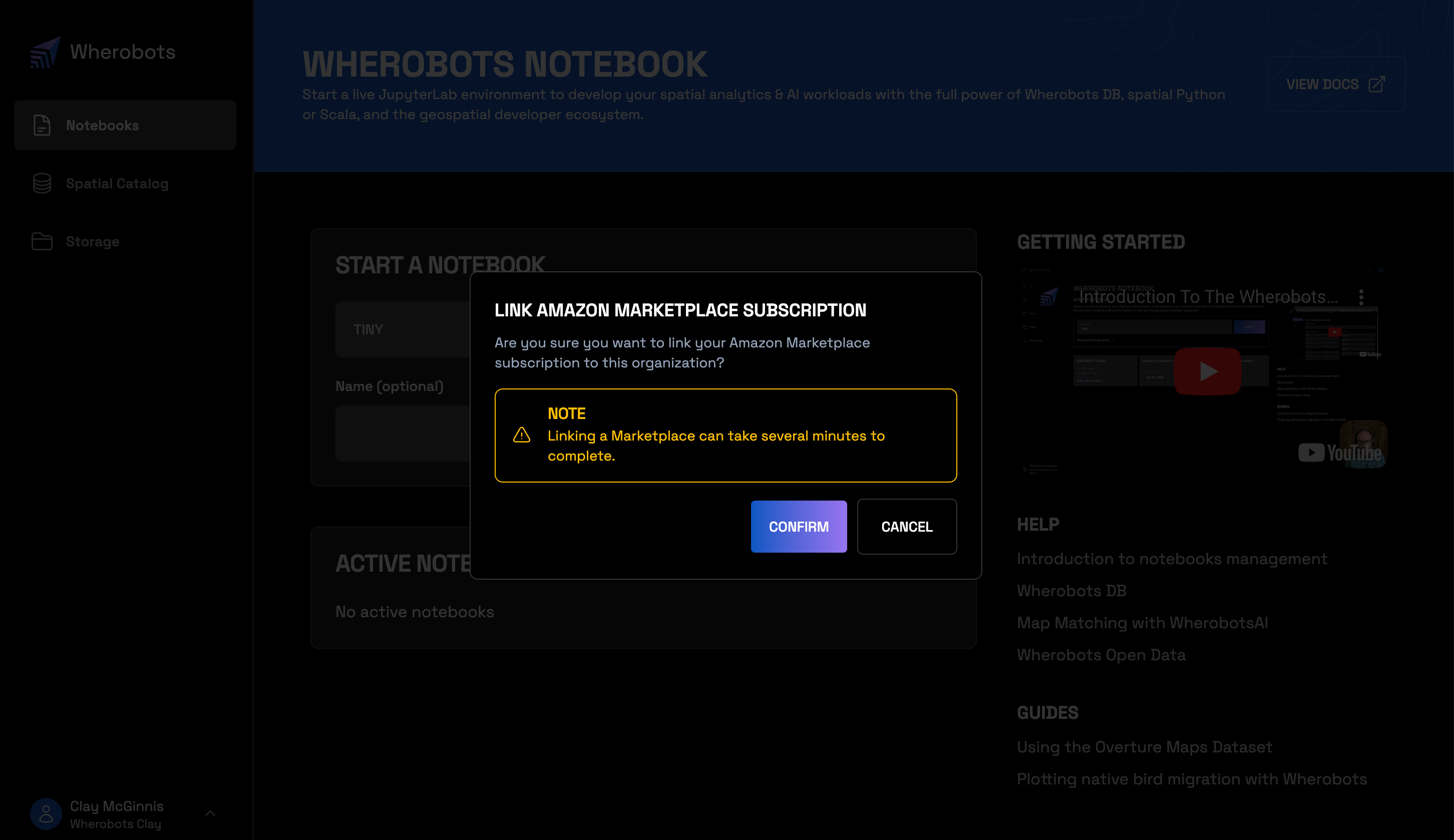
- AWS Marketplace: Bill through your existing AWS account. See the AWS Marketplace tab below for steps.
- Direct Billing
- AWS Marketplace
With Direct Billing, you add a credit card or bank account directly in Wherobots Cloud and are billed by Wherobots (not AWS).To add a payment method via Direct Billing, do the following:
Admin requiredAdding a payment method requires Admin access to your Wherobots Organization. If you can’t log in as an Admin, reach out to your Wherobots Organization Administrator for assistance. For more information on Roles, see Organization Roles.
1
Log in
Log in to Wherobots Cloud.
2
Go to Billing
3
Add a Billing Contact Email
Add a Billing Contact Email. This is required before you can add a payment method, and is used to receive invoices and payment notifications.
4
Open the payment method form
Start the add-payment-method flow from the Billing section. You can also go directly to cloud.wherobots.com/upgrade.
5
Select Direct Billing
Select the Direct Billing tab.
6
Enter payment and billing details
Enter your credit card or bank account details on the left, and your billing address on the right.
7
Submit your payment details
Submit the form to save the payment method to your Organization. The full set of Professional Edition runtimes becomes available once it’s saved.
Pending stateIf something goes wrong while your payment method is being saved, a Pending state will appear in the Billing section of Organization Settings. If you see this status, try again or contact support@wherobots.com for assistance.

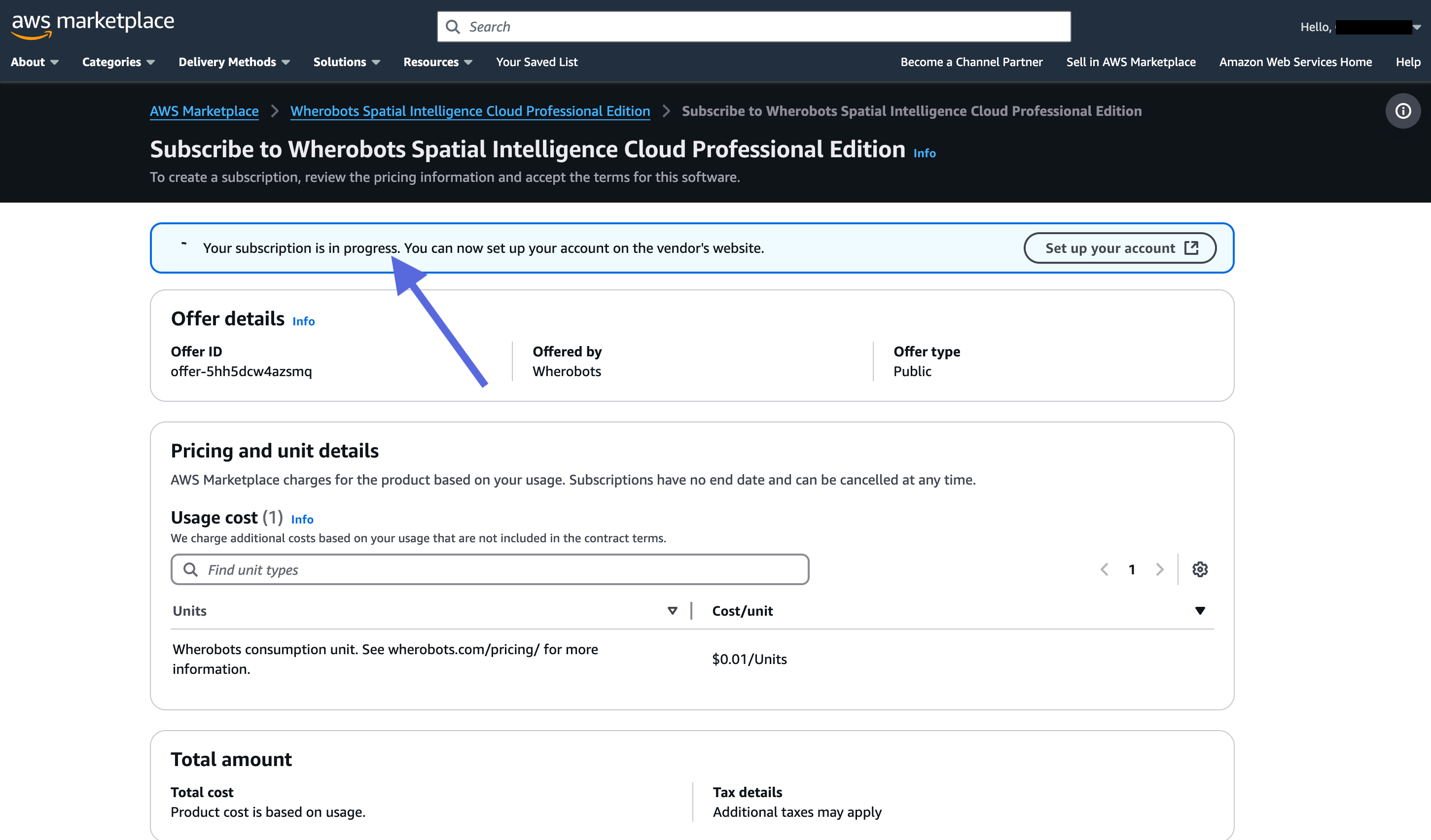
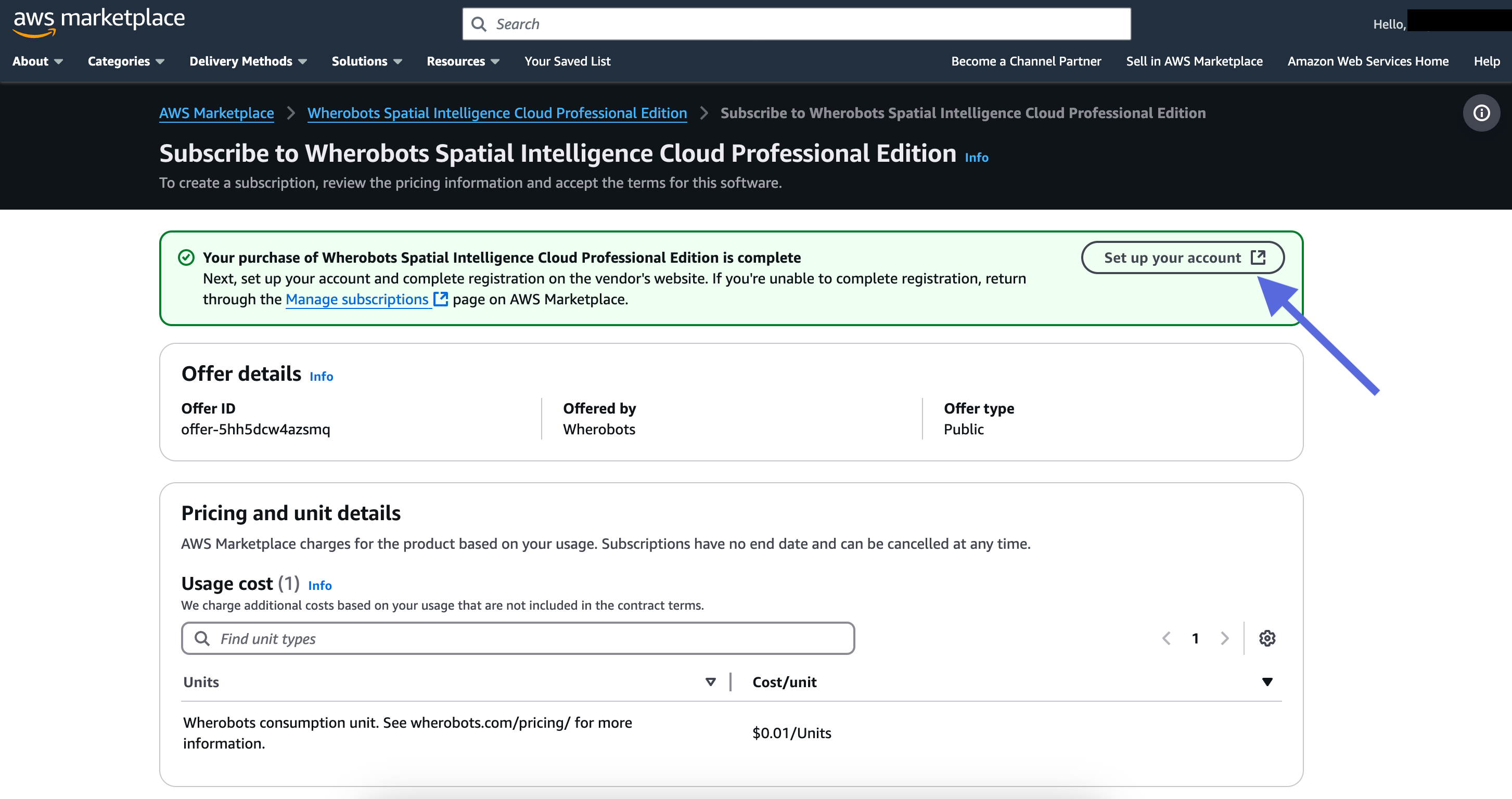
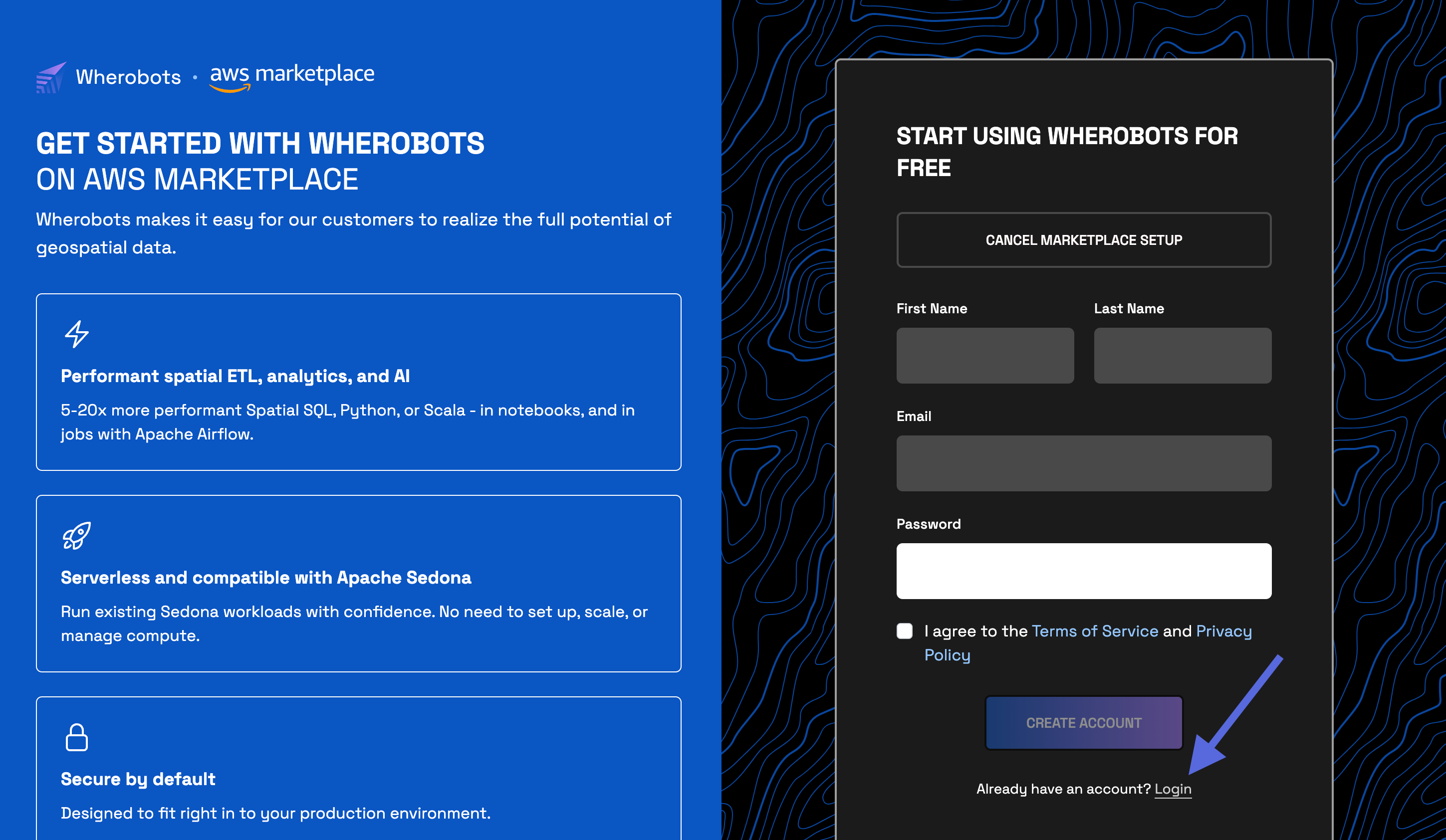
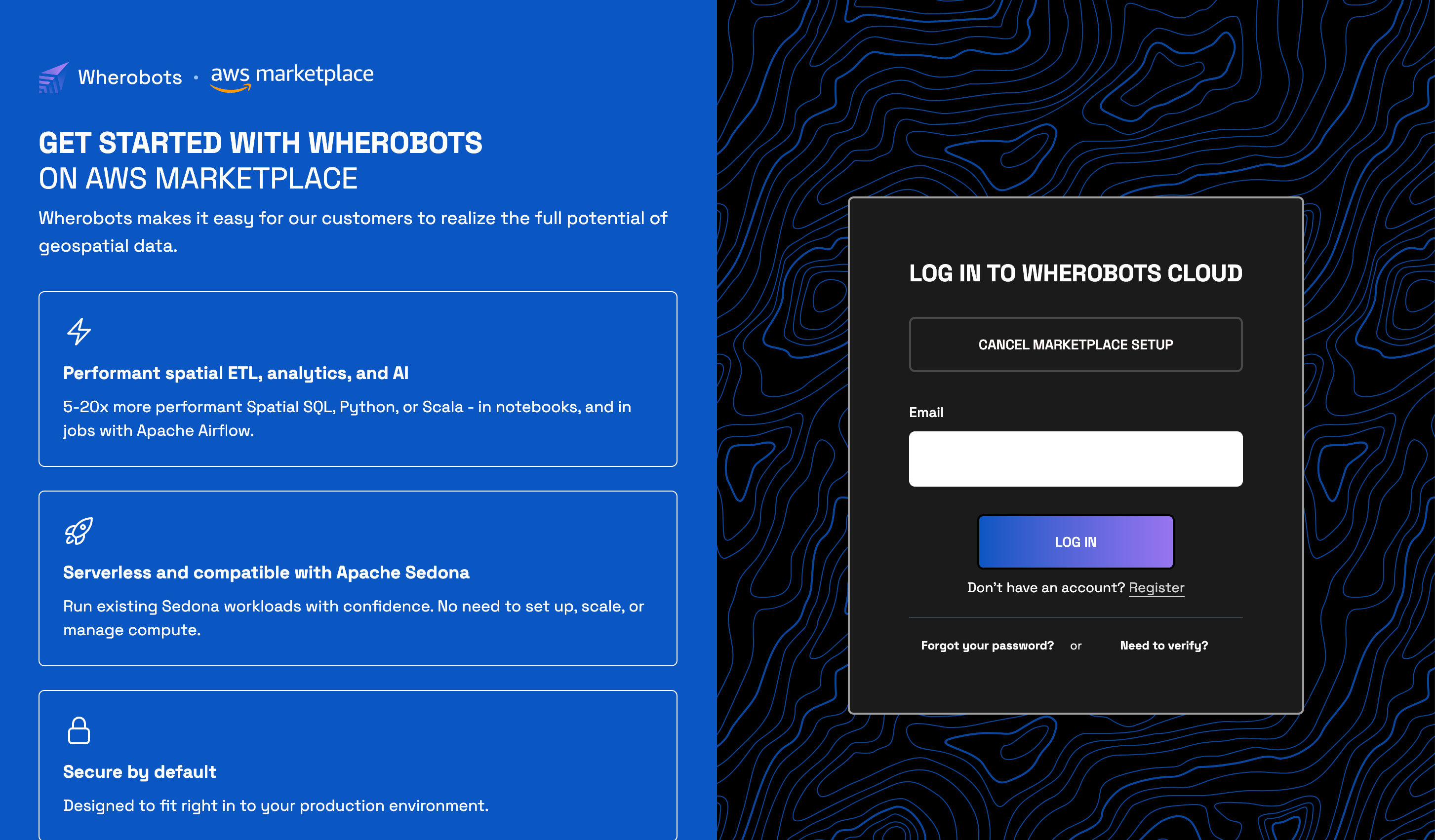
Confirm your payment method
To confirm that your payment method was saved, do the following:1
Navigate to Billing
2
Verify your payment method
Confirm that your payment method appears on the Billing page and that your Organization shows the Professional Edition. 
Applying the change to active runtimes
After adding a payment method, you must stop and restart any active runtimes before you can use the larger runtimes and higher quota it unlocks. To apply the change to a workload like a Notebook, Job Run, or SQL Session:1
Save your work
Stopping a runtime will discard any unsaved changes.
2
Stop the current runtime
Go to Organization Settings and click Destroy on any active runtime.
3
Start a new runtime
Go to Organization Settings and start a new runtime. Your new runtime will have access to the full set of Professional Edition runtimes and resources.
If your trial ends without a payment method
If your trial period ends or you use up your trial allowance and no payment method is on file, your Organization moves to a zero-compute state. You can still log in, browse your Organization, and manage your settings, but you can’t start runtimes or run workloads. Your data, notebooks, catalogs, settings, and users are kept. Adding a payment method restores access. Follow the steps in Choose a payment method, then stop and restart any runtimes as described in Applying the change to active runtimes.Unable to subscribe through the AWS Marketplace?
If you are unable to subscribe through the AWS Marketplace, you can add a payment method via Direct Billing using a credit card or bank account instead. If you need further assistance, contact us at support@wherobots.com.Manage your payment method
Change Your Billing Method
Switch between Direct Billing and AWS Marketplace billing
Cancel Your Subscription
End your Wherobots Organization subscription
Next steps
Add Members to an Organization
Invite team members to join your Organization
Install the Wherobots VS Code Extension
Set up the Wherobots VS Code Extension to create notebooks with our MCP server right from your code editor