

Before you start
In order to use service principals, ensure that you have the following:- A Wherobots account.
- An Admin role within your Organization.
- To confirm that you’re an Administrator, review your role in Organization Settings > Users.
- Those with a User role can’t manage service principals or their associated API keys.
- While Organization Administrators can give those in the User role access to the API keys associated with a service principal, those in a User role cannot create, modify, or delete service principals or their related API keys.
Use service principals as an Administrator
Administrators have the ability to create, modify, or delete service principals.Create a service principal
To create a service principal, do the following:1
Log in to your Wherobots Organization.
3
Click Create Service Principal.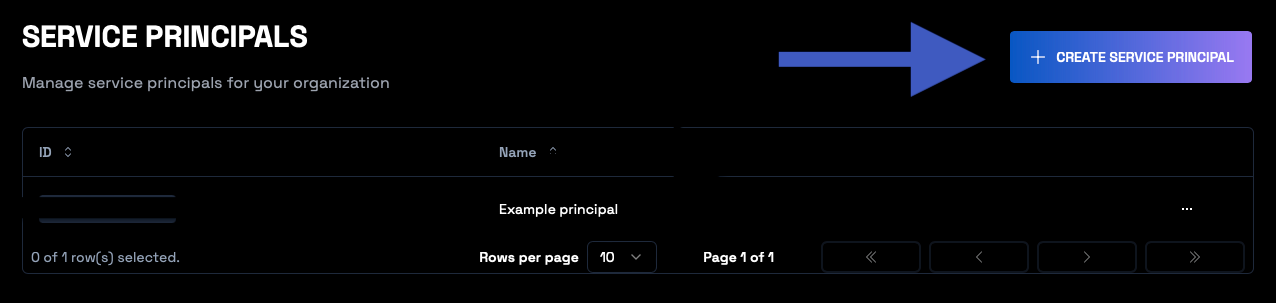
4
Assign a Name to your service principal. Your service principal’s name can only include alphanumeric characters.
5
Click Submit.
Manage a service principal
As an Administrator, you can:Find your service principal
To modify your service principal first find your service principal by doing the following:1
Log in to your Wherobots Organization.
3
Click the service principal that you want to modify. You will be taken to that service principal’s detail page.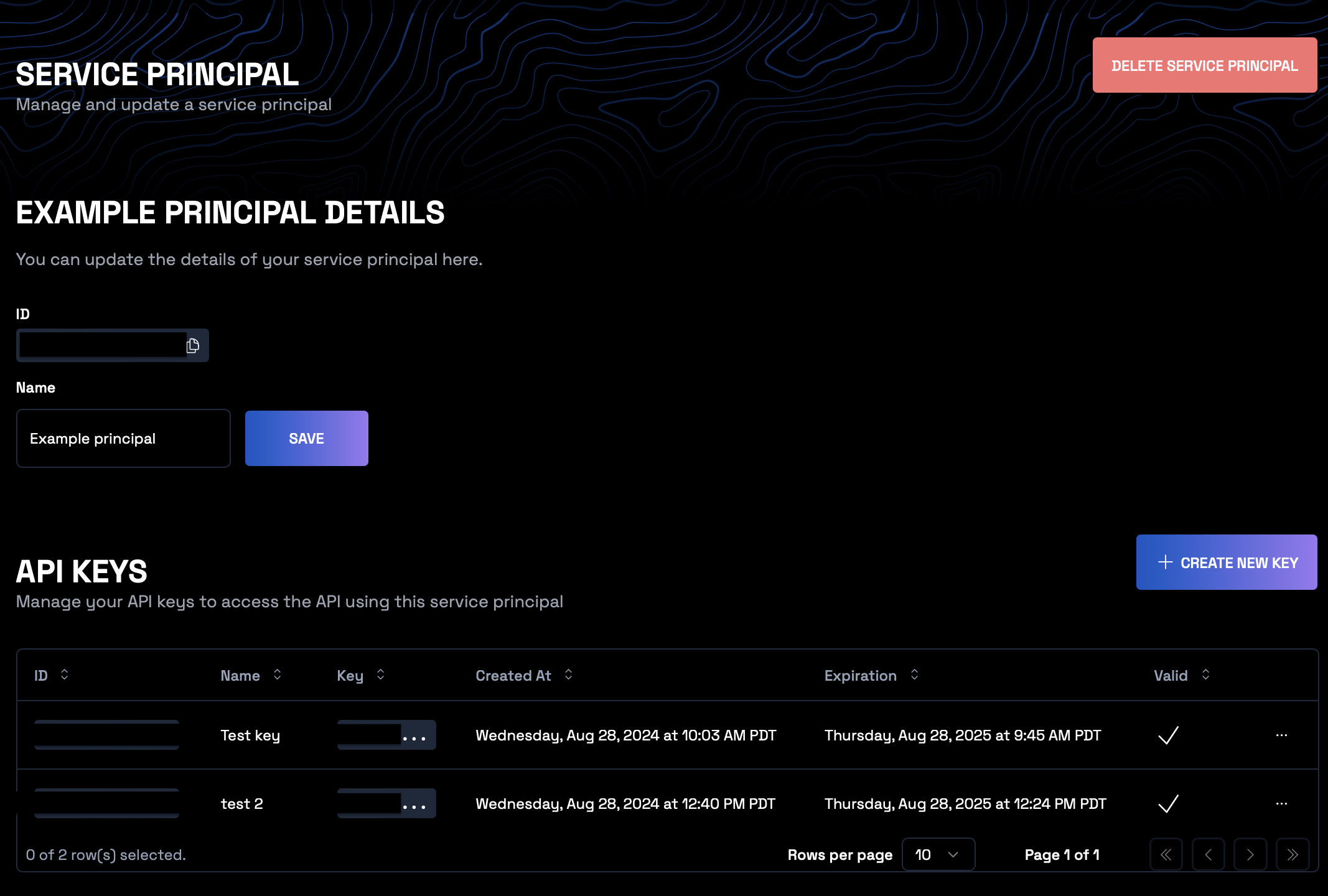
Rename service principal
To change the name of your service principal, do the following:Add an API key to a service principal
1
Follow the steps in Find your service principal.
2
Scroll to API keys.
3
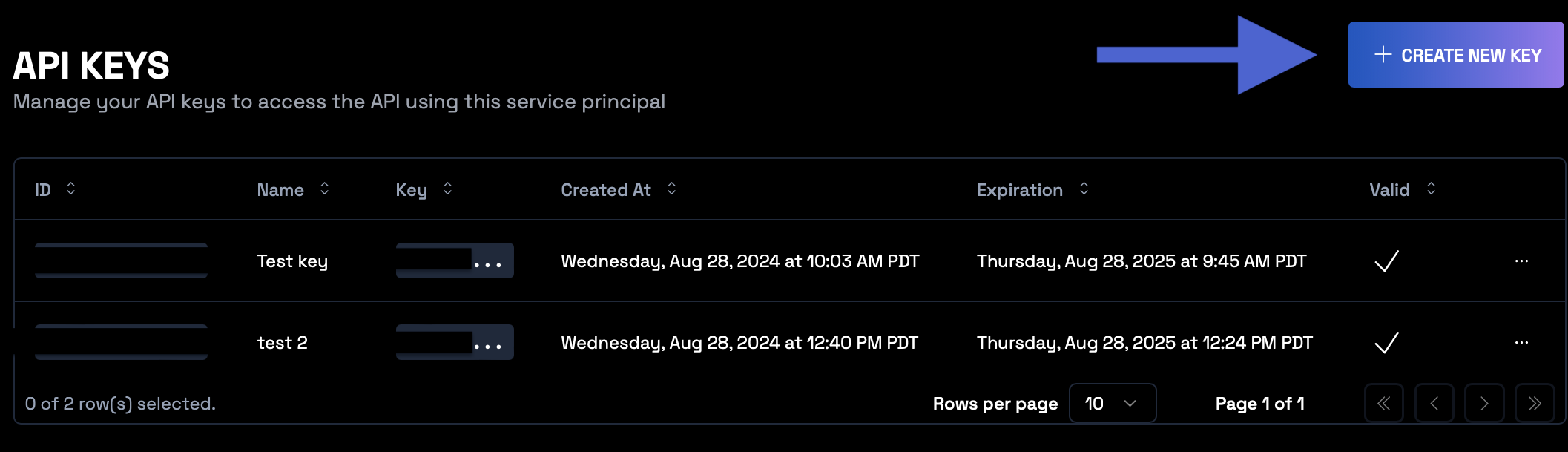
Click Create New Key. 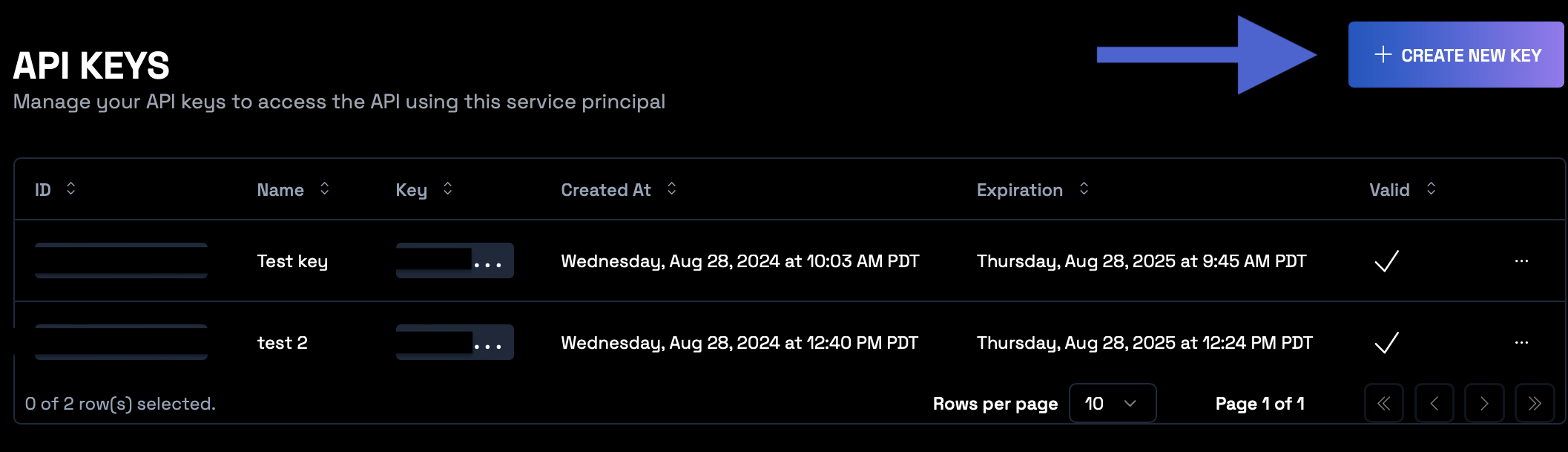
4
Enter a value in the Name field.
5
Choose an Expiration Date for your API key. This value defaults to 1 year from when the API key is created.
6
Click Submit.
Note
Copy and store your API key securely, as Wherobots will not show you this API key again.Delete a service principal
As an Administrator, you can delete a service principal. Deleting a service principal also revokes the API keys associated with that service principal. To delete a service principal, do the following:1
Follow the steps in Find your service principal.
2
Review the service principal’s associated API keys. Deleting the service principal will also revoke its API keys.
3
Click Delete service principal.
4
When asked to confirm if you want to delete the service principal, click Delete.
API keys for members with the User role
Any member of your Organization, including members with the User role, can manage their own API keys in Settings > API Keys. There, you can create your own keys, list them, change their expiration dates, and revoke them. For steps, see API Keys. Only Admins can:- View or revoke other members’ API keys.
- Create API keys for service principals.
- Create, rename, or delete service principals.
1
2
Find the email address associated with the Admin in your Organization.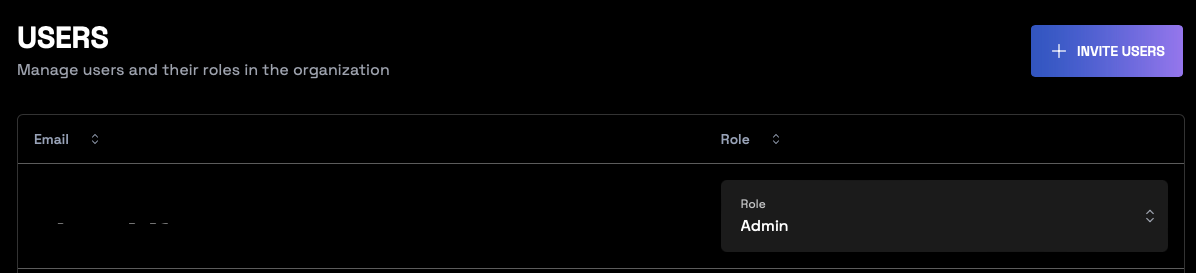
Switching to service principal-managed API keys
Existing API keys that are not already associated with a service principal cannot be migrated to one. Instead, you’ll need to create new API keys under a service principal. If you want to use service principal-managed API keys instead of unattached API keys, do the following:1
Manually revoke those initial API keys from your Organization.
1
Log in to your Wherobots Organization.
2
3
Find API Keys section.
4
Locate the Owned by column.
5
Identify API keys owned by individuals rather than a service principal.
6
Scroll to the right and click … > Revoke.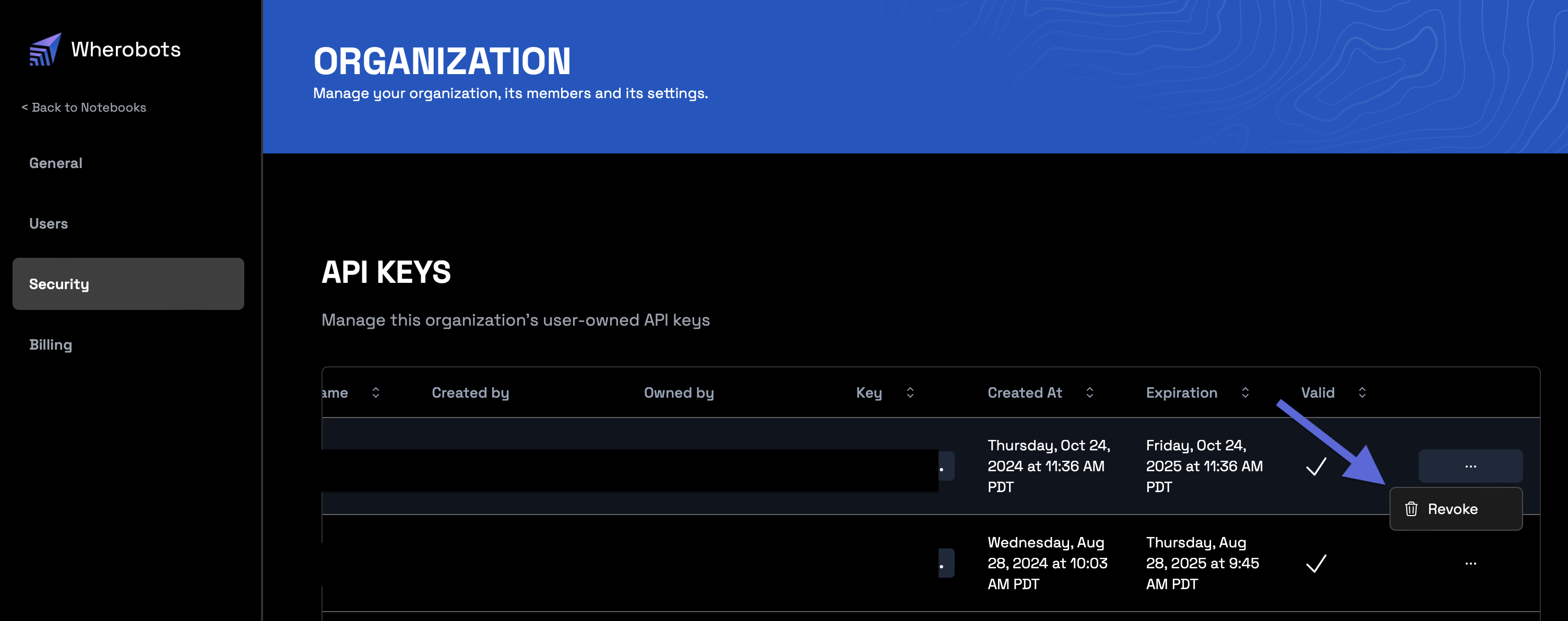
7
Click Revoke to confirm that you want to remove this API key from your Organization.