

.py file to Wherobots Cloud from the Command Palette with configurable runtime,
region, timeout, and arguments. Monitor progress and review results alongside your code.
TL;DR — Quickstart
TL;DR — Quickstart
- Open a saved
.pyfile that contains your Job configuration in your desired code editor. - Open the Command Palette by clicking the search bar and typing
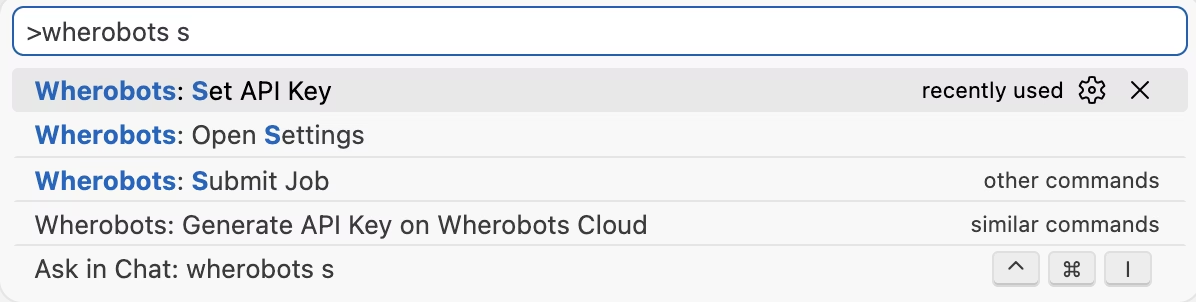
>(or pressing ⌘ + Shift + P on Mac or Ctrl + Shift + P on Windows/Linux) and runWherobots: Submit Job. - Confirm Runtime, Region, and Timeout in the submission form, then submit.
- Click Open Job in the success notification to track the run in the Wherobots Cloud Console.
Benefits
The Spatial AI Coding Assistant’s job submission feature streamlines the workflow of running jobs on Wherobots Cloud, offering several key benefits:No context switching
No context switching
Submit jobs without leaving your editor or switching to the Wherobots Cloud Console.
Stay in your editor while Wherobots Cloud handles execution.
Inline configuration
Inline configuration
Define runtime, region, timeout, and arguments directly in your Python files using
special comments. The extension reads these inline defaults and pre-fills the
submission form automatically.
Immediate feedback
Immediate feedback
Get submission status and a direct link to job tracking right in the editor.
Click Open Job from the success notification to view progress in the
Wherobots Cloud Console.
Reproducible defaults
Reproducible defaults
Inline configuration comments live alongside your code, making job settings
portable, version-controllable, and shareable across your team.
Before you start
Ensure you have the following:- An Account within a Professional or Enterprise Wherobots Organization.
- Job submission is not available for Community Edition Organizations.
- For information on upgrading your Organization, see Upgrade Organization.
- Job submission is not available for Community Edition Organizations.
- The Spatial AI Coding Assistant installed and configured (compatible with VS Code, Cursor, Windsurf, Kiro, and other editors)
- A saved Python script (
.pyfile) with your Job configuration. For more information on configuring your script, see Inline job configuration.
Submit a job
Open a Python file. This file will be submitted as a job run.
Open a saved Python file (
.py) in your editor that contains the code you want to run as a job. This file can also include inline job configuration comments to pre-fill submission defaults.Open the Command Palette
To open the Command Palette, click the search bar at the top of your editor and type 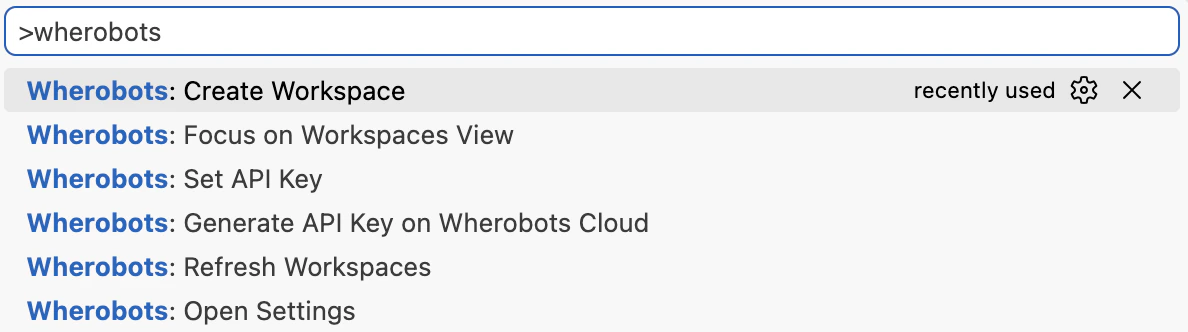
>.
Confirm job options
Confirm job options in the submission form — including Runtime, Region, Arguments, and Timeout.You can pass the local path to your Python file as an Argument.
Inline job configuration
You can provide job defaults directly in your Python file using special comments. The extension reads these comments and pre-fills the submission form:Supported keys
The following comment keys are supported for inline job configuration:| Comment key | Description |
|---|---|
# wvsc-region: <region> | Cloud region for the job run |
# wvsc-instanceSize: <size> | Runtime size (also supports wvsc-runtime-size) |
# wvsc-timeout: <seconds> | Job timeout in seconds |
# wvsc-args: <arg1>,<arg2>,... | Comma-separated arguments passed to the script |
Cost considerations
Job runs are billed based on runtime size and duration. See Runtimes for pricing details. Confirm your Organization has sufficient Spatial Unit allocation before submitting jobs.Troubleshooting
If you encounter issues submitting jobs from the Spatial AI Coding Assistant, refer to the following troubleshooting tips:Job submission fails
Job submission fails
- Verify that you have a Professional or Enterprise Wherobots Organization.
- Community Edition Organizations do not have access to job submission features.
- Ensure the Spatial AI Coding Assistant is installed and configured with your API key.
- Check that the script path is valid and the file is accessible.
- Review the Output panel for error details.
- Confirm your Organization has sufficient Spatial Unit allocation.
'The current file is not a Python file'
'The current file is not a Python file'
- Job submission only supports saved
.pyfiles - Save untitled files and confirm the file extension is
.pybefore runningWherobots: Submit Job
'No script path configured' warning
'No script path configured' warning
- Set
wherobotsjobsubmit.scriptPathin your editor’s Settings to an explicit managed path if needed - If left empty, the extension derives a managed default path for your user