

TL;DR — Quickstart
TL;DR — Quickstart
- Install the Wherobots VS Code Extension and set your API key via
Wherobots: Set API Keyin the Command Palette. - Run
Wherobots: Create Workspacefrom the Command Palette and click Create & Start. - Open Chat in Agent mode with a high-performance model (e.g. Gemini Pro, Claude Opus, or GPT Codex).
- Warm up the MCP server by asking a simple question, e.g. List the available tables in wherobots_pro_data.
- Prompt the AI assistant to build and run your notebook, e.g.:
Create a notebook that finds all parks within 1 mile of subway stations in Manhattan using Overture Maps. Run each cell.
- Allow the Wherobots MCP server if prompted.
The Wherobots MCP Server requires a Professional or Enterprise Organization Edition. Community Edition Organizations do not have access to the Wherobots MCP server.
Benefits of AI-assisted notebook development
The steps below use GitHub Copilot Chat in VS Code. Other editors have an equivalent feature — Cursor (Chat / Composer), Windsurf (Cascade), Kiro (AI Chat), Positron (Copilot Chat), Trae (Side chat).Consult your editor’s documentation for details on accessing chat, switching modes, and selecting models.
Faster notebook creation
Faster notebook creation
Generate code, data loading, and analysis steps with natural language prompts.Work within your editor without needing to switch contexts between different tools for notebook development and Wherobots interaction.
Enhanced productivity
Enhanced productivity
Focus on analysis and insights while the AI assistant handles code generation and execution details.
Learning and discovery
Learning and discovery
Explore datasets and analysis techniques with AI guidance, making it easier to get started with new data or methods.
Full use of Wherobots ecosystem
Full use of Wherobots ecosystem
Leverage the Wherobots MCP server for dataset discovery and execution, unlocking the full potential of Wherobots Cloud in your notebooks and then turn those notebooks into repeatable workflows and jobs.
Before you start
Ensure you have the following:- The Wherobots VS Code Extension installed and configured (also compatible with Cursor, Windsurf, Kiro, and other editors)
-
A Wherobots Account. For more information, see Create a Wherobots Account.
- Community Edition Organizations can run local notebooks against the Tiny and Micro runtimes.
- Professional or Enterprise Organizations are required for job submission, the Wherobots MCP server, and additional compute tiers. For more information, see Upgrade Organization or Organization Editions.
- An active GitHub Copilot subscription (or your editor’s equivalent AI assistant). For more information about Copilot, see Microsoft’s GitHub Copilot.
Create and run a notebook with your AI assistant
To create and run a Jupyter notebook connected to Wherobots compute using your editor’s AI assistant:Open the Command Palette
To open the Command Palette, click the search bar at the top of your editor and type 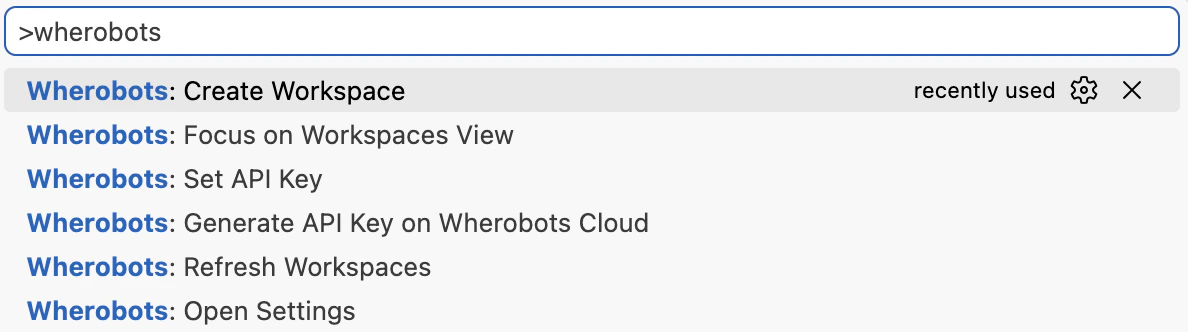
>wherobots:.Set your API key
If you haven’t already, set up your API Key:
- Type
Wherobots: Set API Keyand click Enter. - Enter your Wherobots API key when prompted.
Create a workspace
Open the Command Palette and type
Wherobots: Create Workspace.Click Enter to run the command.Choose a runtime
- Choose the runtime configuration for your workspace, including Region, Runtime Size, and Idle Timeout.
- Click Create & Start.
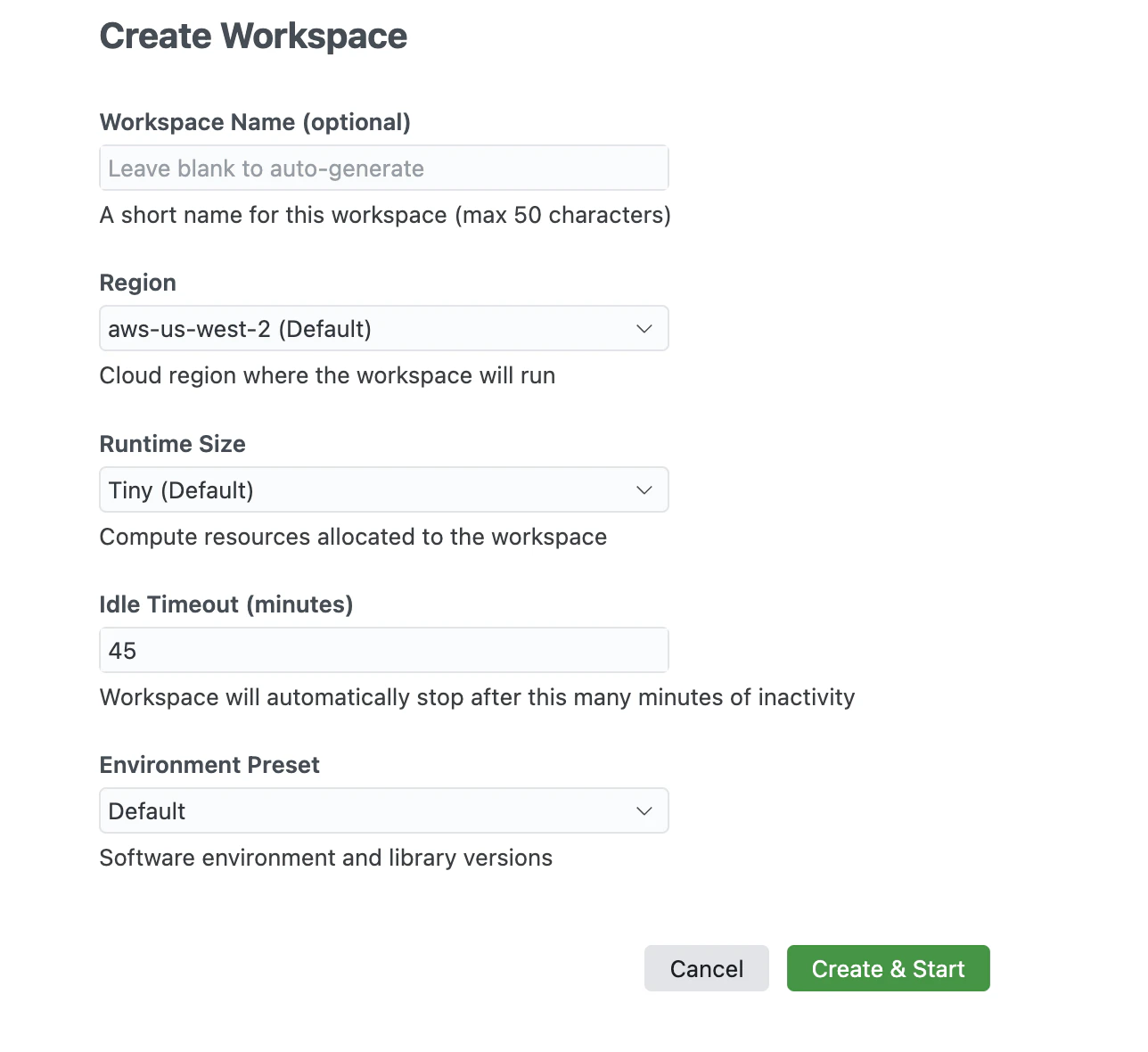
Community Edition Organizations are limited to the Tiny and Micro runtimes. Professional and Enterprise Organizations can select from additional compute tiers.
Open the chat panel
Open your editor’s AI assistant. In VS Code, open GitHub Copilot Chat via View > Chat.
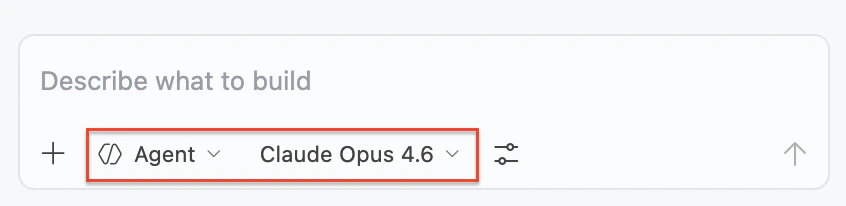
Choose a high-performance model
Select a high-performance AI model for optimal results. This includes the latest versions of advanced models such as Gemini Pro, Claude Opus, Claude Sonnet, or GPT Codex.
Warm up the MCP server (Professional and Enterprise only)
Ask a simple question to confirm the MCP server is connected:
List the available tables in wherobots_pro_data.The MCP server may take a moment to warm up if this is your first query since starting the workspace.Shortly, you should see a response listing available tables in the
wherobots_pro_data dataset.The Wherobots MCP Server requires a Professional or Enterprise Organization Edition. Community Edition Organizations do not have access to the Wherobots MCP server.
Prompt the AI assistant to build your notebook
Enter a natural language prompt describing the notebook you want. For example:
Create a notebook that finds all parks within 1 mile of subway stations in Manhattan using the Overture Maps dataset. Run each cell.At this point, the AI assistant will locally generate a notebook (an
.ipynb file) based on your prompt. You can open and run this notebook in your editor.Run a local notebook against Wherobots compute
Now that your notebook is generated from the previous step, you can run it and see the results of each cell directly within your editor.Open the Command Palette
To open the Command Palette, click the search bar at the top of your editor and type
>wherobots:.Create a workspace
Click Create Workspace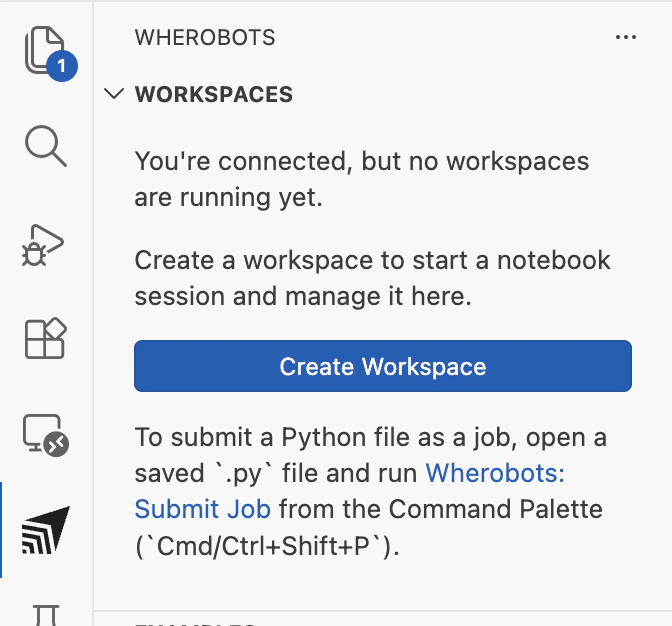
Open the local notebook
If the notebook is already open in your editor, skip to the next step.Otherwise, do the following: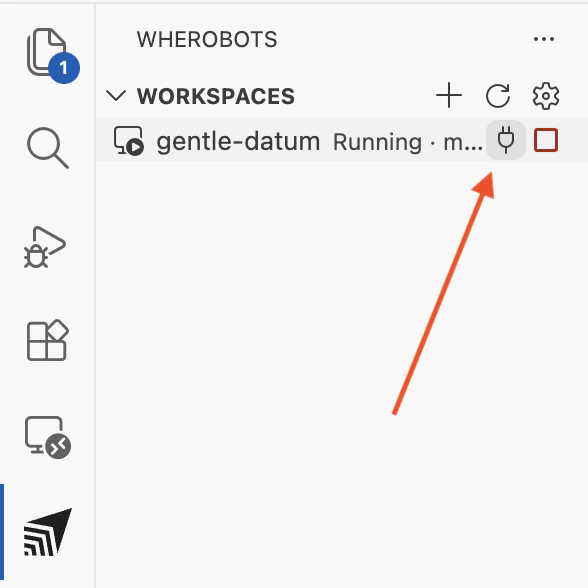
- Hover over the running workspace you started and a plug icon () will appear.
- Click the plug icon to find and open the notebook file on your local machine. The notebook will open in a new tab in your editor.
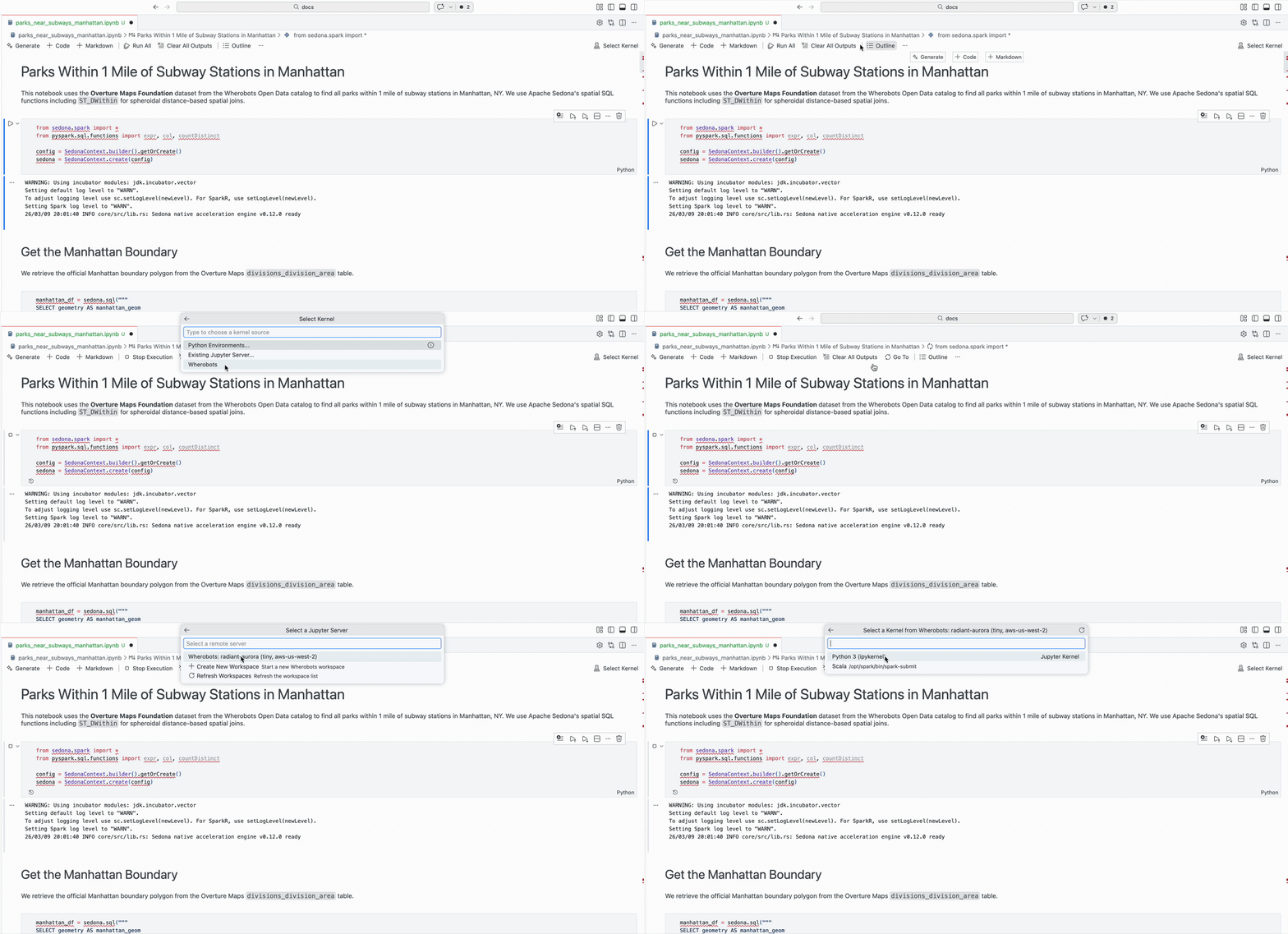
Select a running workspace
Select a running workspace from the list. Each workspace corresponds to a runtime provisioned in Wherobots Cloud.
Effective prompting strategies
The quality of AI-generated notebooks depends heavily on the prompts you provide. Use the following strategies for best results:| Strategy | Example prompt |
|---|---|
| Be specific about the dataset | ”Use the Overture Maps buildings dataset to find all hospitals in Chicago” |
| Request validation | ”Check that each query works at a small scale before adding it to the notebook” |
| Request iteration on failures | ”If a query fails, debug and fix it, then try again” |
| Specify output format | ”Display the results on a map” |
AI-assisted development is meant to be iterative. You may need to refine your prompts or guide the AI assistant
through multi-step analyses. The experience improves as you develop prompting patterns
that work well with your datasets.
Model selection tips
Use advanced AI models like the latest versions of the following for optimal results with AI-assisted notebook development:- Claude Sonnet
- Claude Opus
- Gemini Pro
- GPT Codex
Next steps
Browse Your Data
Browse catalogs, schemas, and tables in the Data Hub sidebar. Create notebooks from your data with AI.
Submit Job Runs
Submit Python scripts as Wherobots job runs. Available to Professional and Enterprise Organizations only.
Workspaces & Usage
Create, start, stop, and destroy notebook workspaces.