

What is a workspace?
In the Wherobots VS Code Extension, a workspace provisions and manages a runtime in Wherobots Cloud. A runtime is a dedicated, serverless computing cluster. When you create a workspace, you are starting a runtime in the cloud that your local Jupyter notebooks can connect to and execute against. Creating a workspace provisions a runtime. Stopping a workspace tears down, or destroys, that runtime and halts further Spatial Unit consumption for that runtime. Most importantly, the notebook files you create in your editor stay local on your machine — the workspace simply provides the bridge to remote compute.A workspace in the Wherobots VS Code Extension is the local equivalent of a
notebook instance in the
Wherobots Cloud web console. Both provision and connect to the same underlying runtimes.
Organization Availability: Available to all Wherobots Organization Editions.
- Community Edition Organizations can create and run local notebooks against the Tiny and Micro runtimes.
- Professional or Enterprise Organizations are required for job submission, the Wherobots MCP server, and additional compute tiers. For more information, see Upgrade Organization or Organization Editions.
Installation & Setup
Install the Wherobots VS Code Extension for VS Code, Cursor, Windsurf, Kiro, and other editors. Set up your API key.
Browse Your Data
Browse catalogs, schemas, and tables in the Data Hub sidebar. Use AI to create notebooks from your data.
AI-Assisted Notebook Development
Create Jupyter notebooks with AI assistance and connect those notebooks to remote Wherobots compute.
Submit Job Runs
Submit Python scripts as Wherobots job runs directly from your editor, with configurable runtime, region, timeout, and arguments.
Start a workspace
Starting a workspace provisions a runtime in Wherobots Cloud and makes its Jupyter kernels available to your local notebooks. You choose the runtime size, region, and idle timeout during creation — these determine the compute resources allocated and where they run.Open the Command Palette
To open the Command Palette, click the search bar at the top of your editor and type 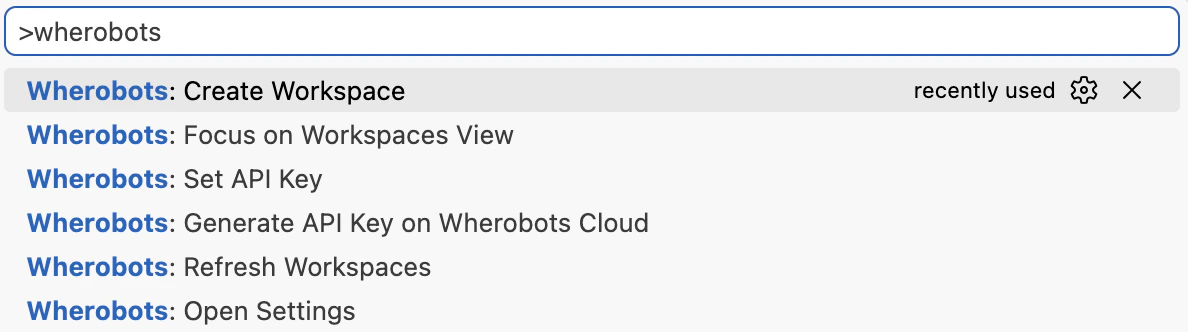
>.Choose a runtime
- Choose the runtime configuration for your workspace, including Region, Runtime Size, and Idle Timeout.
- Click Create & Start.
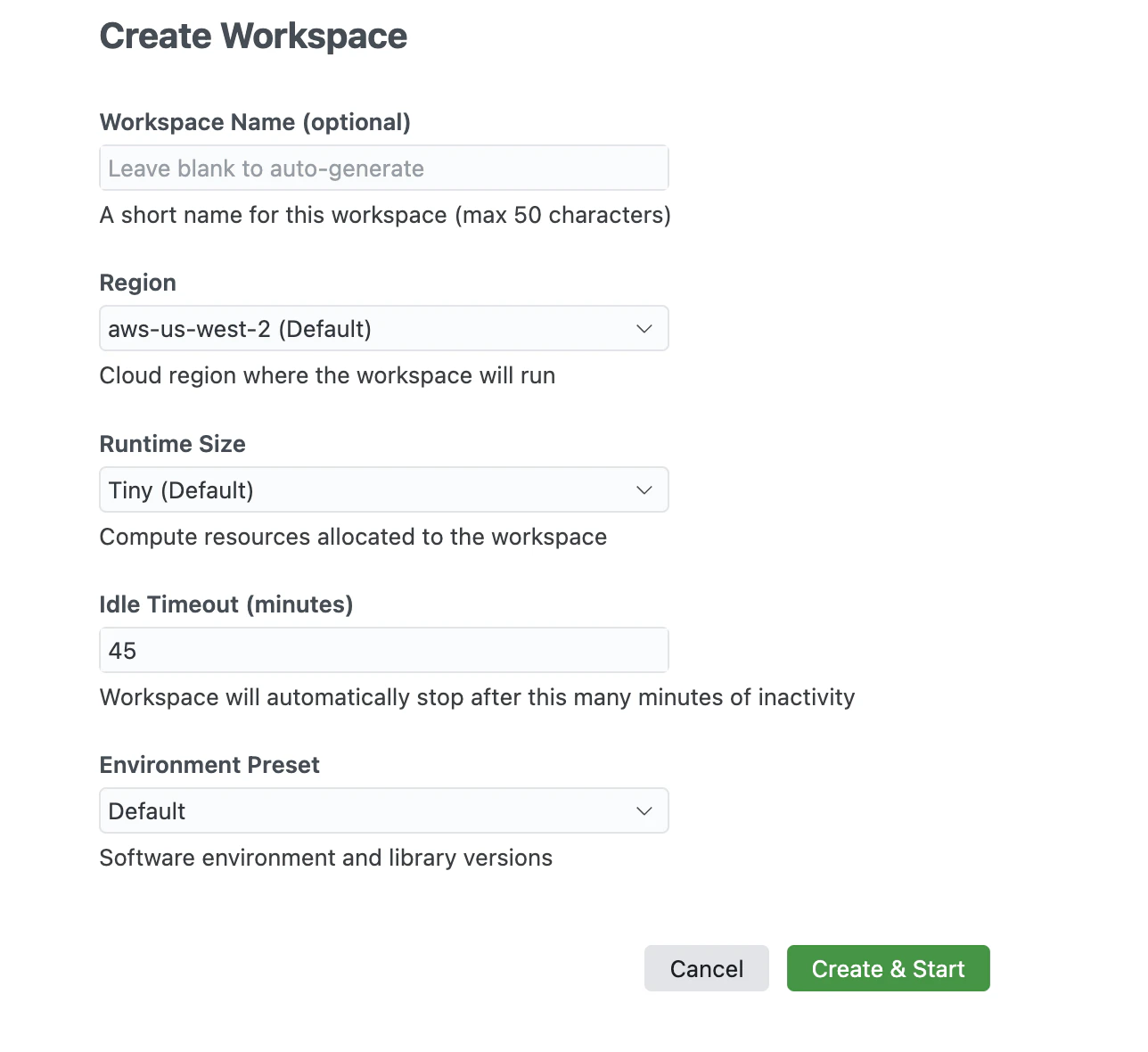
Workspace startup time varies by runtime size. Larger runtimes may take several minutes to provision.
Pin the Extension for easy access
If the Wherobots VS Code Extension is pinned to your sidebar, you can also create a new workspace by clicking the Create Workspace button.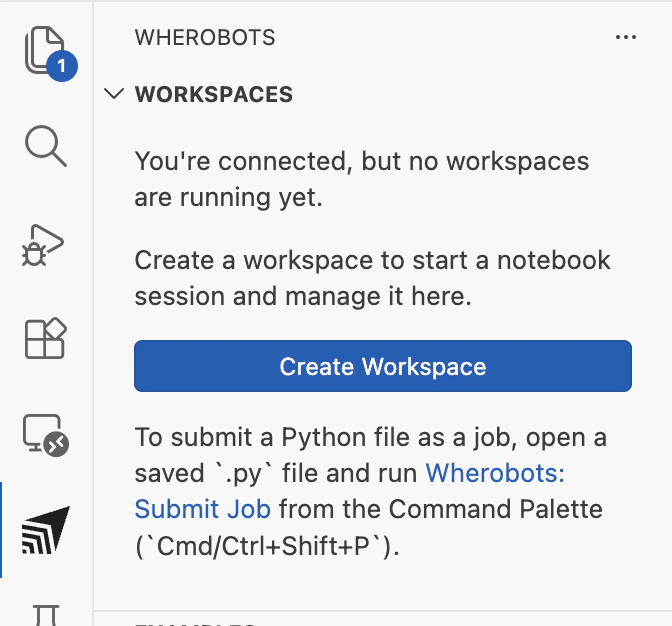
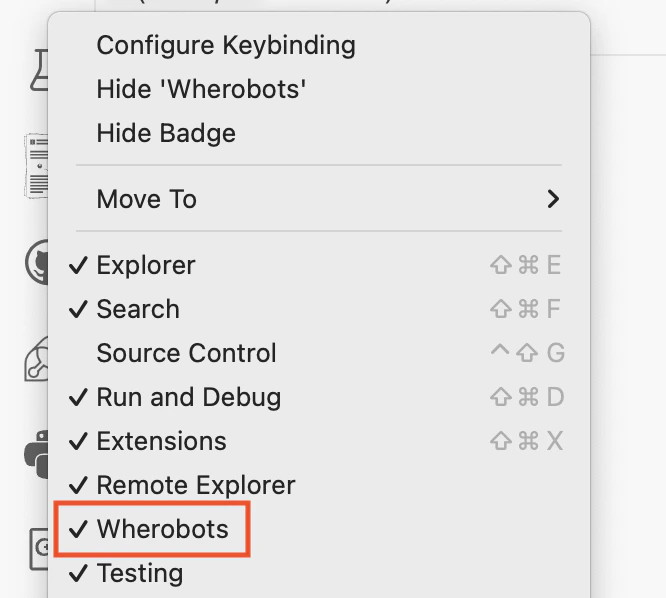
Pin the extension
Right-click the Activity Bar (the vertical icon bar on the left side of your editor).A menu will appear showing all available extensions.
Destroy a workspace
Stopping a workspace tears down the runtime it provisioned in Wherobots Cloud, releasing all compute resources and halting billing. Your local notebook files are unaffected — only the remote runtime is destroyed. You can start a new workspace at any time to provision a fresh runtime. To stop running workspaces:Open the Command Palette
To open the Command Palette, click the search bar at the top of your editor and type
>.Click the stop button
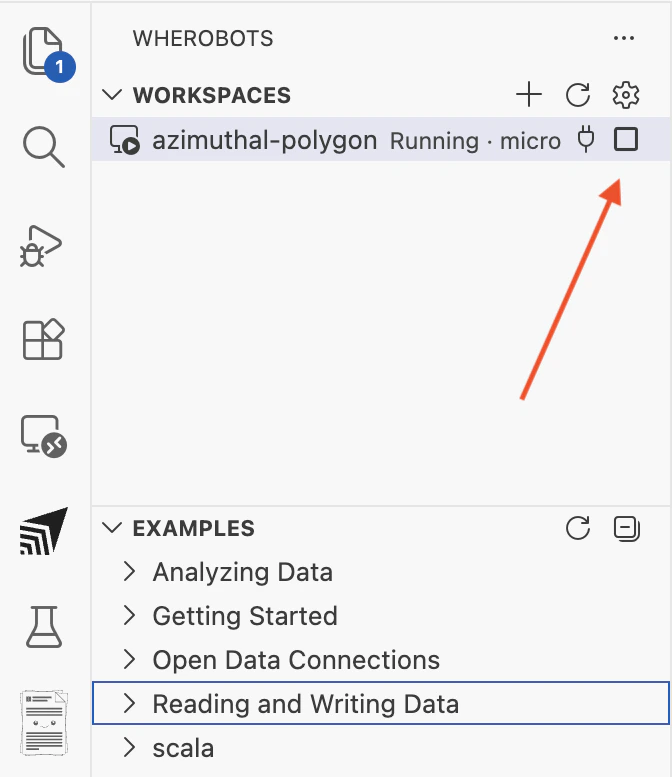
To stop the workspace, do the following:
- Hover over the running workspace you started and a square icon () will appear.
-
Click the square icon to stop the workspace.
Restart a workspace
Restarting a workspace means stopping the current workspace and starting a new one with a different runtime configuration. This is useful when your current workspace runtime is too small for your notebook workload.Restarting a workspace does not affect MCP server Chat queries. MCP queries
run on their own compute, separate from your workspace. If MCP queries are stalling or timing
out, see MCP Server Usage Considerations
for timeout and runtime configuration options for increasing the runtime allocated to MCP server Chat queries.
Stop the current workspace
Follow the steps in Destroy a workspace to stop the running workspace.
Start a new workspace with the desired runtime
Follow the steps in Start a workspace to create a new workspace. When
choosing the runtime configuration, select the Runtime Size that matches your workload.
Other actions
The following actions are available for each workspace in the sidebar by right clicking on a running notebook workspace:| Action | Description |
|---|---|
| Connect Kernel | Connect the selected running workspace to a notebook kernel |
| Stop Workspace | Stop a running or starting workspace |
| Open in Browser | Open the workspace in the Wherobots Cloud Console |
| Open Spark UI | Open the Spark UI for a running workspace (when available) |
| Copy Jupyter URL | Copy the workspace Jupyter endpoint |
| Dismiss | Hide a failed workspace entry from the sidebar |
Wherobots: Refresh Workspaces from the Command Palette to refresh the workspace list.
Stopping a workspace tears down its runtime in Wherobots Cloud, releasing compute resources and halting billing. Your local notebook files are preserved. You can start a new workspace later to provision a fresh runtime.
You can also manage workspaces from the Wherobots Cloud Console.
Automatic MCP server configuration
The Wherobots MCP Server requires a Professional or Enterprise Organization Edition. Community Edition Organizations do not have access to the Wherobots MCP server.
- Explore spatial data catalogs through your editor’s AI assistant
- Generate, validate, and execute Spatial SQL queries using natural language
- Discover dataset schemas without writing code
Cost considerations
Consider the following cost implications when using the Wherobots VS Code Extension:- Workspaces and kernels: Each running workspace has a runtime provisioned in Wherobots Cloud that consumes Spatial Units (SUs) for as long as it is active. Stop workspaces when not in use to halt billing. Community Edition is limited to the Tiny and Micro runtimes.
- Job runs (Professional and Enterprise only): Billed based on runtime size and duration. See Runtimes for pricing details.
- MCP server queries (Professional and Enterprise only): SQL Sessions started by MCP queries run on a Tiny runtime and terminate after 5 minutes of inactivity. See MCP Usage Considerations.
- Copilot usage: AI interactions count toward your GitHub Copilot usage limits. See Copilot Requests in the GitHub Documentation.
Troubleshooting
If you encounter issues with the Wherobots VS Code Extension, try the following troubleshooting steps:Extension commands not appearing
Extension commands not appearing
- Verify the extension was installed successfully by checking the Extensions view for Wherobots VS Code Extension
- Reload your editor (Command Palette > Reload Window)
- Reinstall the extension from the VS Code Marketplace or the Open VSX Registry (for Cursor, Windsurf, Kiro, Positron, Antigravity, VS Codium, and other editors)
Cannot connect to remote kernel
Cannot connect to remote kernel
- Confirm the workspace status is running
- Try
Wherobots: Refresh Workspacesfrom the Command Palette and reconnect from the kernel picker - Ensure Jupyter integration is enabled: open
Wherobots: Open Settingsfrom the Command Palette and confirmwherobotsjobsubmit.jupyterIntegrationEnabledis true - Review the Output panel for connection error details
Job submission fails
Job submission fails
- Verify that you have a Professional or Enterprise Wherobots Organization.
- Community Edition Organizations do not have access to job submission features.
- Ensure the Wherobots VS Code Extension is installed and configured with your API key.
- Check that the script path is valid and the file is accessible.
- Review the Output panel for error details.
- Confirm your Organization has sufficient Spatial Unit allocation.
MCP server Chat query stalled or timed out
MCP server Chat query stalled or timed out
- If an MCP server Chat query runs for too long, it may appear stalled or time out, depending on your configured MCP timeout (15 minutes by default). For timeout configuration and MCP runtime settings, see MCP Server Usage Considerations.
- If appropriate, review or increase the configured MCP timeout. You can also configure a larger MCP runtime via
mcpServerRuntimeIdinWherobots: Open Settings. - Restarting the workspace with a larger Runtime Size does not change the runtime used for MCP server Chat queries.
- For guidance on MCP runtime and timeout settings, see Runtimes.
AI assistant not using MCP server tools
AI assistant not using MCP server tools
- Ensure Agent mode is selected in the chat panel
- Verify the MCP server is running (Command Palette > MCP: List Servers)
- Confirm
wherobotsjobsubmit.mcpServerEnabledis true: openWherobots: Open Settingsfrom the Command Palette to check - Check that your API key is valid and re-check optional MCP runtime/region/timeout settings
- Start a new chat session if tools are not being discovered