

TL;DR — Quickstart
TL;DR — Quickstart
-
Run the following
codecommand to install the extension or click Install from the VS Code Extensions Marketplace: - In VS Code, open the Command Palette (⌘ + Shift + P on macOS, Ctrl + Shift + P on Windows/Linux).
-
Enter
Wherobots: Set API Key. - Enter your Wherobots API key.
-
Verify installation by typing
Wherobotsin the Command Palette. You should see commands likeCreate Workspace,Submit Job, andOpen Settings. Post-install, consult AI-Assisted Notebook Development to get started. Professional and Enterprise Organizations can also Submit Job Runs from VS Code.
Key capabilities
The Wherobots VS Code extension provides the following core capabilities:Agentic notebook engineering
Agentic notebook engineering
Start a Wherobots workspace, connect to a kernel, ask Copilot Chat to generate notebook code,
and run it against cloud-backed resources. Create and connect local Jupyter notebooks to remote
Wherobots compute with automatic kernel selection.
See AI-Assisted Notebook Development.
Natural language prompting
Natural language prompting
Instead of starting from scratch, ask your AI assistant to generate entire notebooks with natural language prompts.The extension automatically configures the Wherobots MCP Server in VS Code to empower your AI assistants to perform geospatial Q&A and execute spatial SQL and Python workflows.
Requires a Professional or Enterprise Organization Edition.
MCP-powered spatial Q&A and SQL execution
MCP-powered spatial Q&A and SQL execution
Query your data catalogs and more by empowering your AI assistants to perform geospatial Q&A
and execute spatial SQL and Python workflows. The extension automatically configures the
Wherobots MCP Server in VS Code with no manual configuration required.
Requires a Professional or Enterprise Organization Edition.
Workspace lifecycle management
Workspace lifecycle management
Create, start, stop, and dismiss workspaces directly from the VS Code sidebar.
Open related surfaces like the Wherobots Cloud Console, Spark UI, and Jupyter URLs
without switching away from your editor.
See Workspaces & Usage.
Python job submission
Python job submission
Submit the current
.py file to Wherobots Cloud with configurable runtime, region, timeout,
and arguments. Supports inline job configuration via Python comments.
See Submit Job Runs.Requires a Professional or Enterprise Organization Edition.
Before you start
Ensure you have the following:- Visual Studio Code (VS Code) version 1.85 or later
-
A Wherobots Account within a Community, Professional, or Enterprise Edition Organization.
Organization Availability: Available to all Wherobots Organization Editions.
- Community Edition Organizations can create and run local notebooks against the Tiny and Micro runtimes.
- Professional or Enterprise Organizations are required for job submission, the Wherobots MCP server, and additional compute tiers. For more information, see Upgrade Organization or Organization Editions.
-
Active GitHub Copilot subscription.
- For more information see Microsoft’s GitHub Copilot and Set up GitHub Copilot in VS Code.
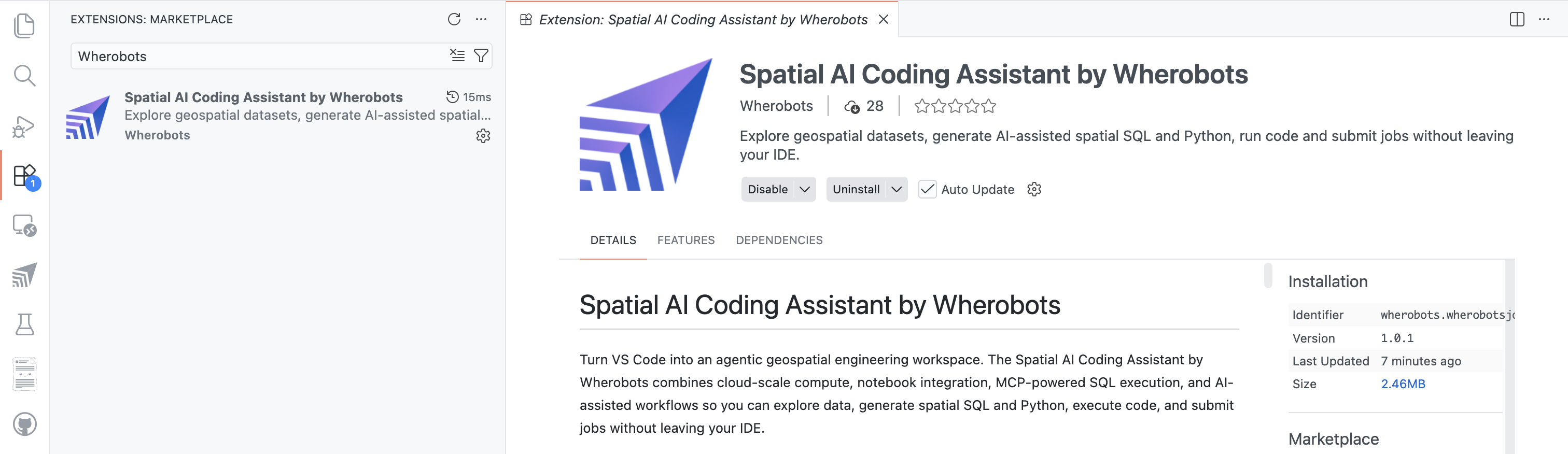
Install Spatial AI Coding Assistant extension
To use the extension, install it from the Extensions Marketplace in one of the following ways:- Command Line
- VS Code Extensions Marketplace
- Marketplace Link
To install from the command line, run the following command in your terminal:
Configure the extension and verify the installation
Configure the extension
After installation, set your API key to connect to Wherobots Cloud.Enter
Wherobots: Set API Key and enter your Wherobots API key when prompted.If you haven’t created an API key yet, enter Wherobots: Generate API Key on Wherobots Cloud to create an API key within the Wherobots Cloud UI.API keys are stored securely in VS Code Secret Storage. The extension connects to the Wherobots Cloud
production API by default. To use a custom API endpoint, set the
wherobotsjobsubmit.apiBaseUrl
setting in VS Code Settings.Verify the installation
To confirm the extension is installed and configured correctly:Settings reference
All settings are under thewherobotsjobsubmit section in VS Code Settings.
To access these settings, enter Wherobots: Open Settings from the Command Palette.
Cloud storage path for submitted scripts. If empty, the extension uses a managed default path. Available to Professional and Enterprise Organizations only.
Default cloud region for job submission. If empty, organization default is used. Available to Professional and Enterprise Organizations only.
Default runtime size for job submissions. If empty, organization default is used. Available to Professional and Enterprise Organizations only.
Default job timeout in seconds for submissions. Available to Professional and Enterprise Organizations only.
Enables or disables Wherobots MCP server exposure to AI assistants. Available to Professional and Enterprise Organizations only.
Overrides the Wherobots API base URL. Leave empty for production default.
Optional runtime ID header for MCP queries. Available to Professional and Enterprise Organizations only.
Optional runtime region header for MCP queries. Available to Professional and Enterprise Organizations only.
Optional timeout (seconds) header for MCP queries. Available to Professional and Enterprise Organizations only.
Enables or disables Wherobots in the Jupyter kernel picker.
Next steps
After installing and configuring the extension, explore its capabilities:- AI-Assisted Notebook Development — Create and connect local notebooks to remote Wherobots compute and develop with GitHub Copilot.
- Workspaces & Usage — Create, start, stop, and destroy notebook workspaces.
- Submit Job Runs — Submit Python scripts as Wherobots job runs from VS Code. Available to Professional and Enterprise Organizations only.