

Before you start
The following requirements must be met before you can query an S3 Tables catalog in a Wherobots Jupyter Notebook.- An Admin or User Wherobots account.
Only Admins can create S3 Tables catalog connections, but a User can query the tables bound to those connections. If you are not an Admin, ask your Admin to create a Cloud Connection for you.
- An existing S3 Tables catalog connection in Data Catalogs, or permission to create one. To create one, see Connect to Amazon S3 Tables Catalog.
Runtime Restart Required After Data IntegrationTo use new storage integrations or catalogs in your notebooks, destroy the existing runtime and start a new one.
Notebooks can only access storage integrations or catalogs that were created before the runtime started.
Adapt this guide with AI
This section provides instructions for using AI tools to adapt this guide to your own environment.The following prompts are designed for use with Claude Code, Codex, or the Wherobots VS Code Extension with the Wherobots MCP server enabled.For optimal results, ensure that the Wherobots MCP server and/or VS Code extension are installed and active before execution. For more information, see Get Started with Agentic Development in Wherobots.
- Click the v button at the top-right corner of this page (next to Copy page) to open the contextual menu for AI tools.
-
Load this page into your AI tool of choice (VS Code, Claude Code, Codex, etc.). This works for any Wherobots documentation page.
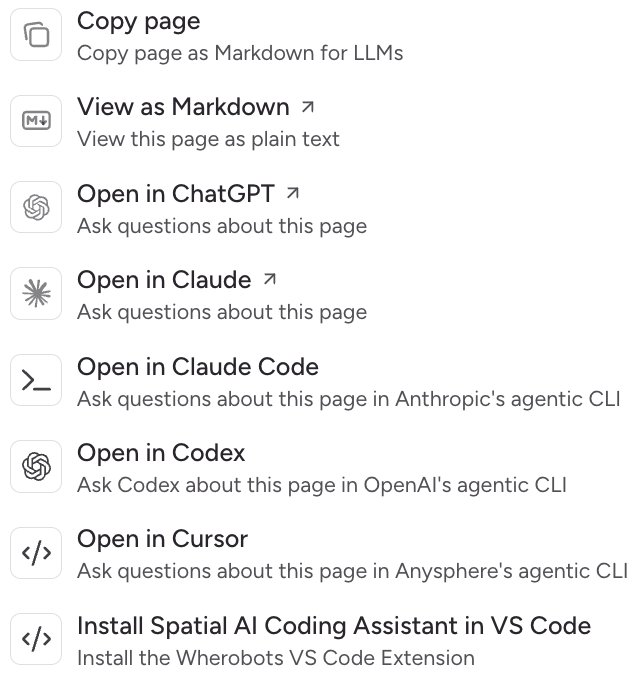
Contextual menu for AI tools
-
Open the dropdown to do either of the following:
- Open in Claude Code or Open in Codex: Start a conversation preloaded telling the model to read this page, then add your own prompt that includes a scenario or question specific to your environment.
Example prompt
Success of the following prompts requires that you completed the Connect to Amazon S3 Tables Catalog guide and have an S3 Tables catalog connection in Data Catalogs. Once the page is loaded into an LLM or AI tool, include your values in a prompt like the following to get a runnable notebook for your S3 Tables catalog:Notebook generation prompt
The following prompt can be used to generate a runnable notebook. Make sure to adapt this prompt’s variables and goals to your own values.Referencing S3 Tables in a notebook
Reference tables with the fully qualified nameCATALOG_NAME.DATABASE_NAME.TABLE_NAME, where CATALOG_NAME is the name you gave the catalog in Data Catalogs and DATABASE_NAME is the S3 Tables namespace:
If your catalog name contains anything other than letters, numbers, or underscores — such as a space, dash, or period — wrap it in backticks wherever you reference it. For example, a catalog named
My-Catalog is referenced as `My-Catalog`.namespace.table. The same applies to namespace and table names.The example below backticks each part of the name, so it runs as-is with names like My-Catalog.Example: Querying an S3 Tables-backed Iceberg table in a notebook
This section details an end-to-end example of connecting, transforming, writing, and validating data in an S3 Tables-backed Iceberg table from a notebook. At a high level, the following example code does 3 main things:- Creates a Sedona/Spark session. Your S3 Tables catalog is already registered by Wherobots, so no Iceberg or authentication configuration is needed.
- Runs a small ETL flow on a Comma-separated values (CSV) file in S3: reading data, normalizing column names, trimming text, and removing duplicates.
- Writes the result to an Iceberg table in your S3 table bucket, then verifies the write by selecting sample rows and checking file formats.
Unlike a general purpose S3 bucket, a table bucket manages storage for its Iceberg tables. There’s no warehouse path to configure and no
LOCATION clause on CREATE TABLE — S3 Tables places the data and metadata for you.Set your variables and create a Sedona session
The following code imports libraries that are used in the example, sets variables for your S3 Tables catalog and source data, and creates a Sedona session.Set variables and create a Sedona session
Once you’ve connected your S3 table bucket in Data Catalogs, Wherobots handles the Iceberg, authentication, and storage configuration for you. A standard
SedonaContext can query the catalog like any other Wherobots catalog — reference its tables as CATALOG_NAME.DATABASE_NAME.TABLE_NAME.Basic ETL and writing the table
The following code reads the source file, cleans it, and writes the result to a new Iceberg table in your S3 table bucket.S3 Tables doesn’t support
DROP TABLE from Spark or staged creates, so the example pairs CREATE TABLE IF NOT EXISTS with INSERT OVERWRITE to stay re-runnable. Because the table is only created on the first run, a later run whose columns no longer match it will fail — delete the table with the AWS CLI or console to start over. See Limitations for the aws s3tables delete-table command.Normalize, clean, and write the source data