

Before you start
The following requirements must be met within both your Wherobots Organization and AWS account before you can connect to a Glue catalog.Wherobots Requirements
Wherobots Requirements
- An Admin account within a Professional, Innovation, or Enterprise Edition Organization to create catalogs and Cloud Connections.
Wherobots Organization members with the User role can use existing catalogs and Cloud Connections set up by Admins but cannot create new ones. See Organization Roles.
- An existing Cloud Connection to your AWS account, or permission to create one. For more information, see Cloud Connections.
- Your Organization ID, found at cloud.wherobots.com/organization.
AWS Requirements
AWS Requirements
- An AWS account with an existing Glue database and an S3 bucket that holds your Glue table data.
-
Permission to create CloudFormation stacks that provision IAM resources (typically
AdministratorAccess), so Wherobots can set up the Cloud Connection and grant it Glue access. CloudFormation creates the IAM role and policies for you, so you don’t edit them by hand.What CloudFormation provisions
The pre-filled templates create or modify IAM resources on your behalf. The actions they perform typically requireAdministratorAccess:For a complete list of IAM Actions, see Actions defined by AWS Identity and Access Management in the AWS Documentation.
Cloud Connections
Before you can connect to an AWS Glue catalog, Wherobots needs a Cloud Connection to your AWS account.What is a Cloud Connection?
What is a Cloud Connection?
Manage Cloud Connections
Cloud Connections live in Organization Settings under Cloud Connections, where Admins can create, list, verify, and delete them.- Verify: Confirms Wherobots can assume your IAM role through the two-hop AWS STS
AssumeRolechain. - Delete: Blocked while any storage integration or Glue catalog is still bound to the connection. You must remove any resources bound to that Cloud Connection prior to its deletion.
Connect to the AWS Glue catalog
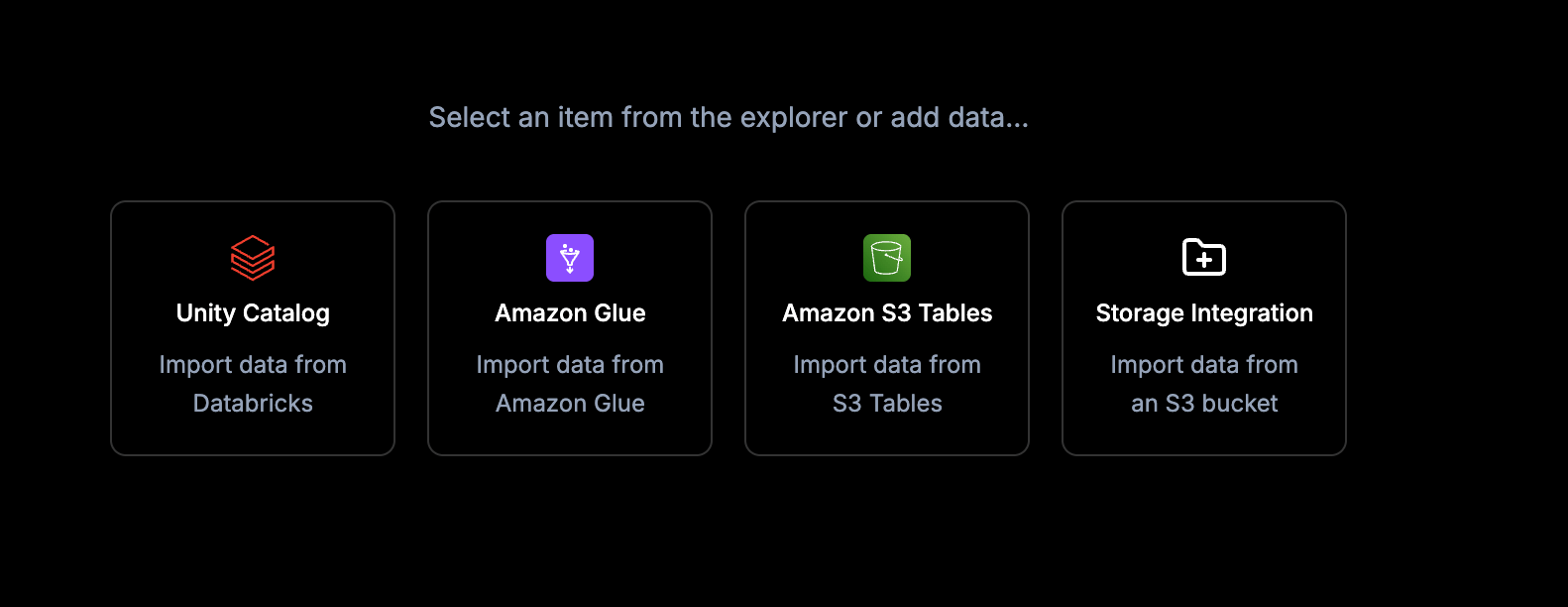
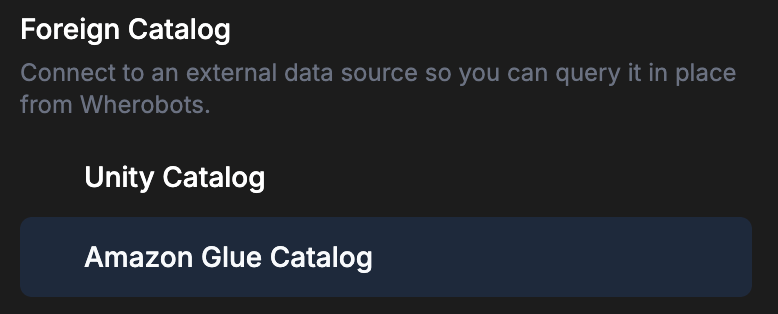
Connect your AWS Glue Catalog to your Wherobots Organization in order to read and write to it from your Wherobots workloads. The Data Hub wizard provisions the connection with a CloudFormation stack, so you don’t have to write IAM policies or Spark configs by hand.Open the Add Amazon Glue Catalog wizard
- Data Hub explorer
Enter the catalog details
- Name: The name of the catalog in Wherobots.
- This affects the Fully Qualified Name (FQN) used to reference this catalog in Wherobots:
CATALOG_NAME.DATABASE_NAME.TABLE_NAME - A name can contain any character. But if it includes anything other than letters, numbers, or underscores — such as a space, dash, or period — you must wrap the name in backticks wherever you reference it in the FQN. For example, a catalog named
My-Catalogis referenced as`My-Catalog`.database.table.
- This affects the Fully Qualified Name (FQN) used to reference this catalog in Wherobots:
- AWS Region: The region your Glue catalog is in.
- S3 Path: The bucket (and optional prefix) that holds your Glue table data.
- Access level: The level of access Wherobots has to the catalog.
- Choose Read-only to allow Wherobots to read tables in your Glue catalog, but not create or modify them.
- Choose Read-write to allow Wherobots to read, create, and modify tables in your Glue catalog.
- Click Continue.
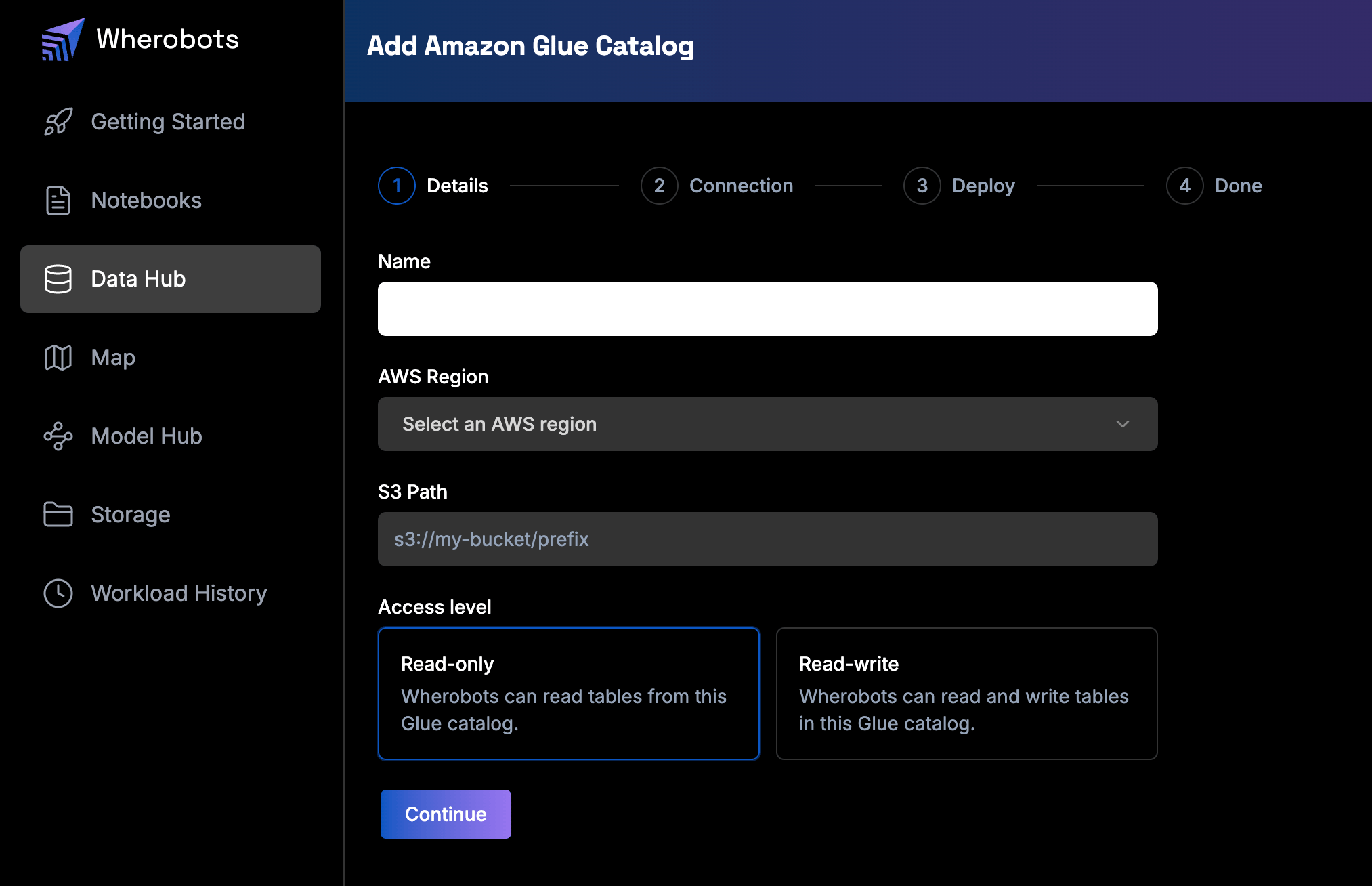
Step 1, Details: name the catalog, then set the AWS region, S3 path, and access level.
Choose a Cloud Connection
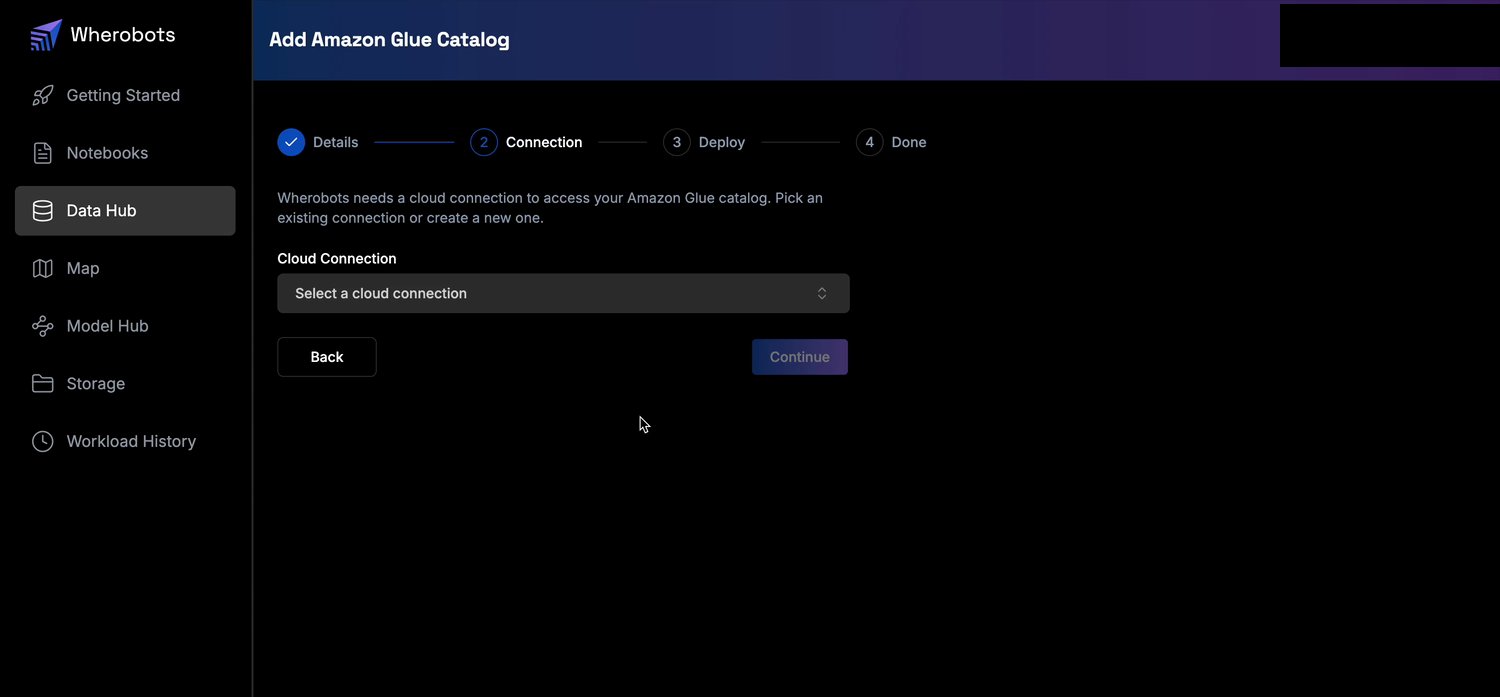
Step 2, Connection: select the Cloud Connection Wherobots uses to reach Glue.
Create a new Cloud Connection
Create a new Cloud Connection
Enter the connection details
- Connection Name — a label that identifies the trust relationship in Wherobots.
- AWS Account ID — the 12-digit AWS account you’re connecting to.
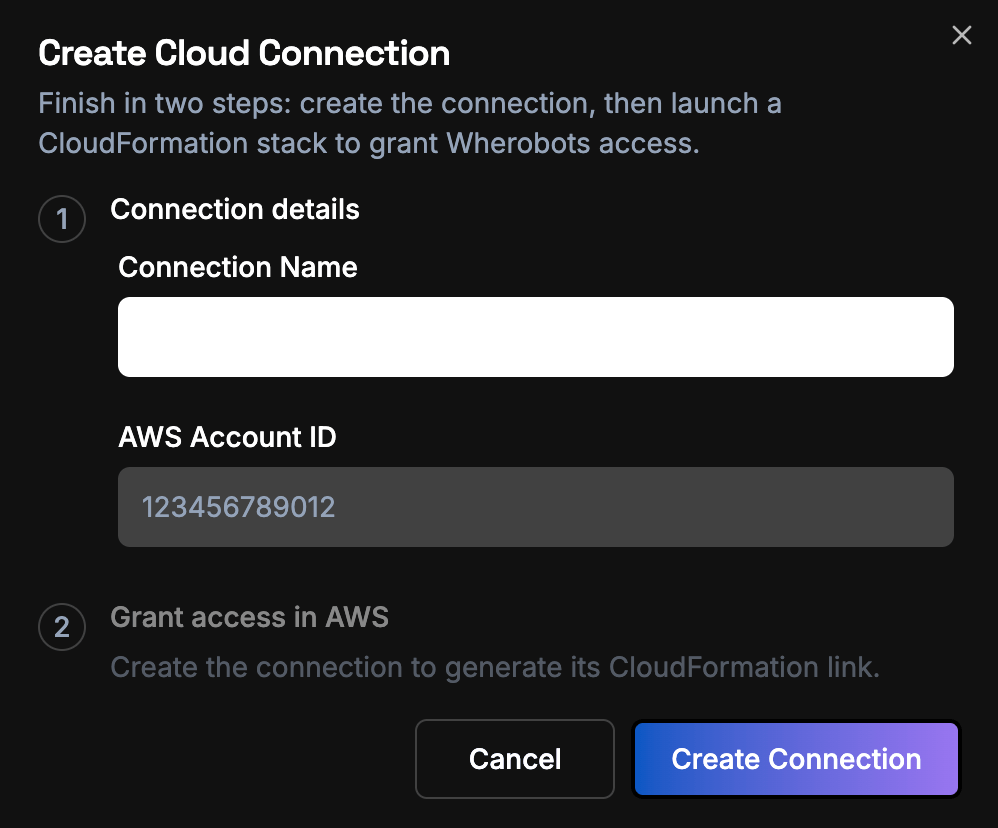
Connection details: name the connection and enter your AWS Account ID.
Grant access in AWS
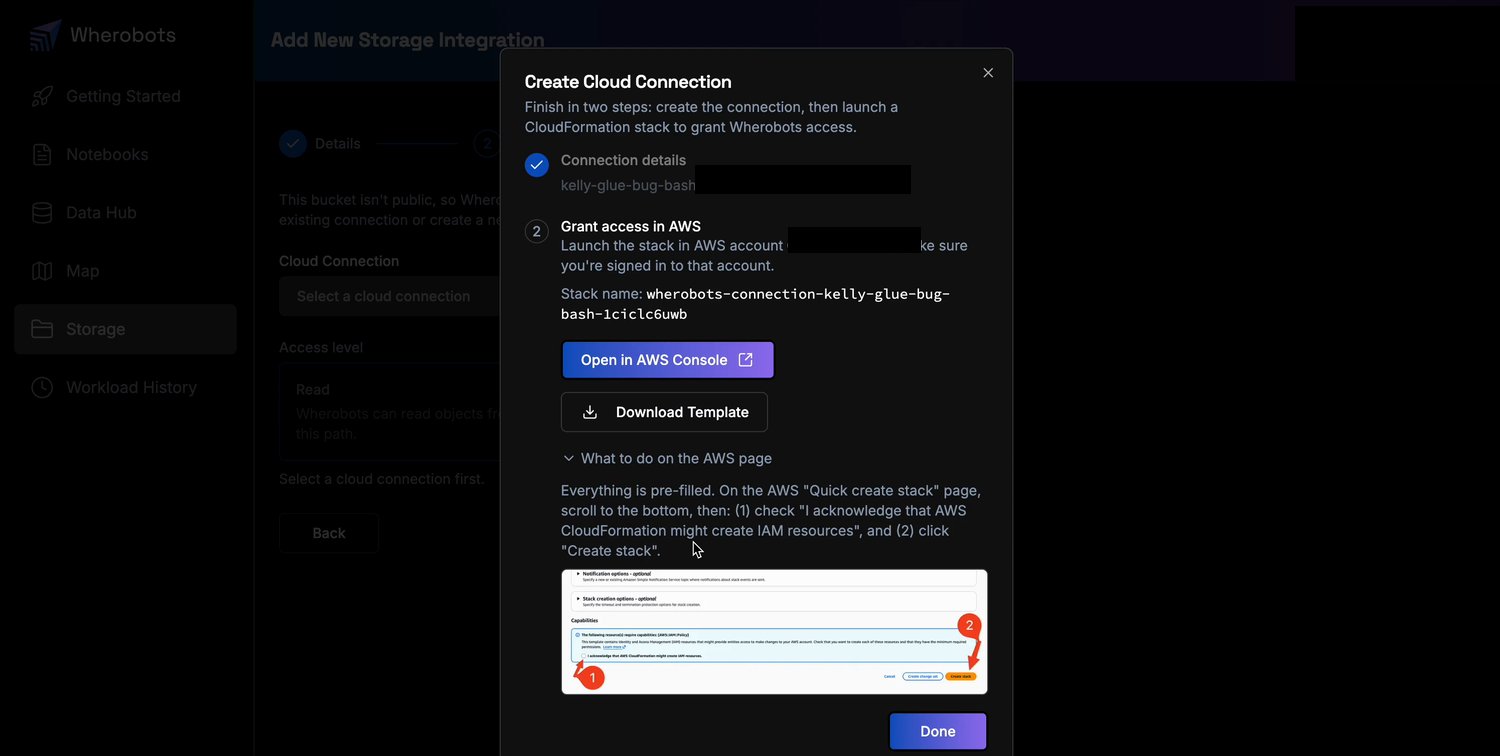
Grant access in AWS: launch the pre-filled CloudFormation stack that creates the Cloud Connection role.
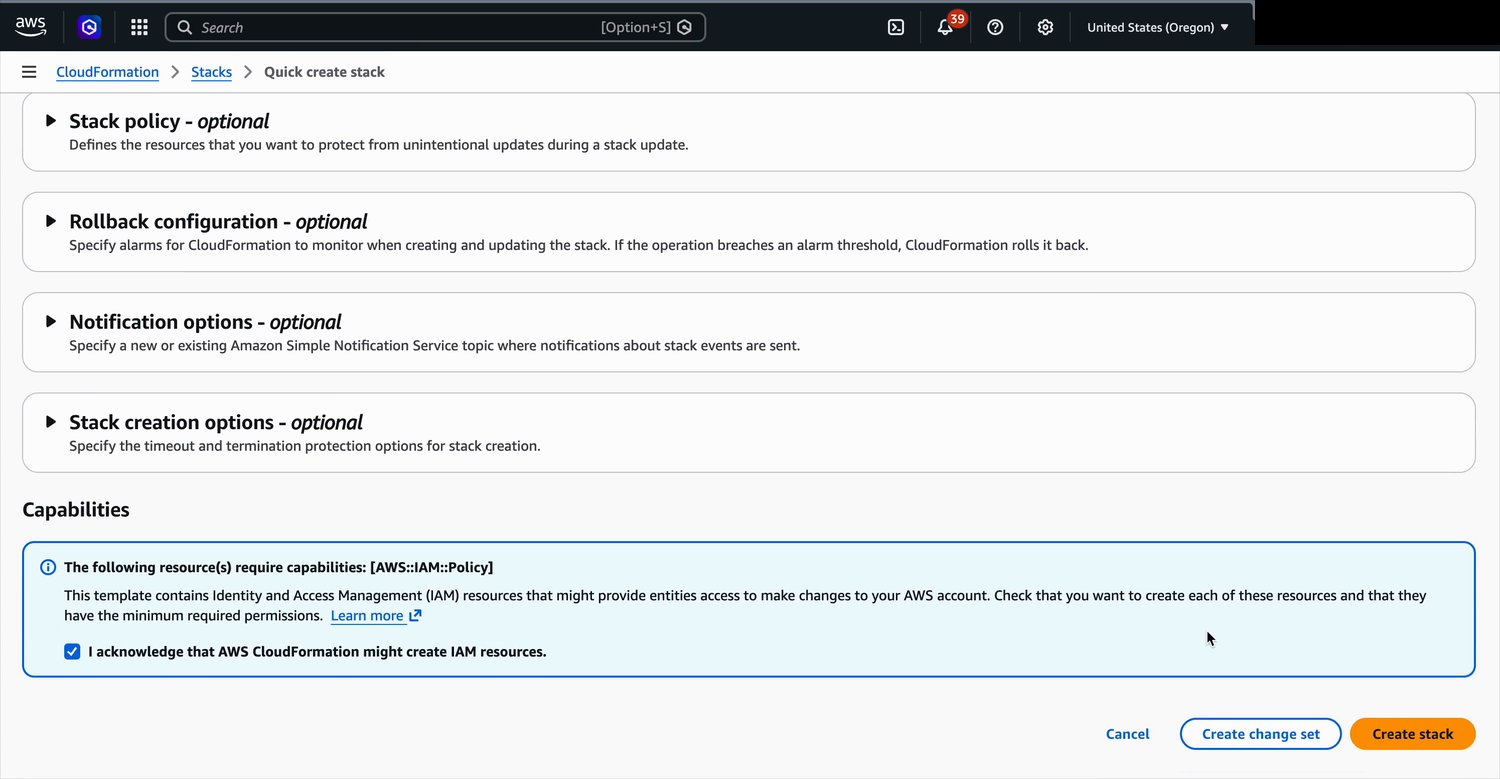
On the AWS Quick create stack page, acknowledge the IAM capability and click Create stack.
Deploy the catalog stack
wherobots-glue-readonly-<name> or wherobots-glue-readwrite-<name>). It attaches Glue and S3 access to your Cloud Connection.- Click Open in AWS Console (or Download Template to manually paste it into the AWS CloudFormation console).
- On the AWS Quick create stack page, select I acknowledge that AWS CloudFormation might create IAM resources, and click Create stack.
- Return to Wherobots and click Create catalog.
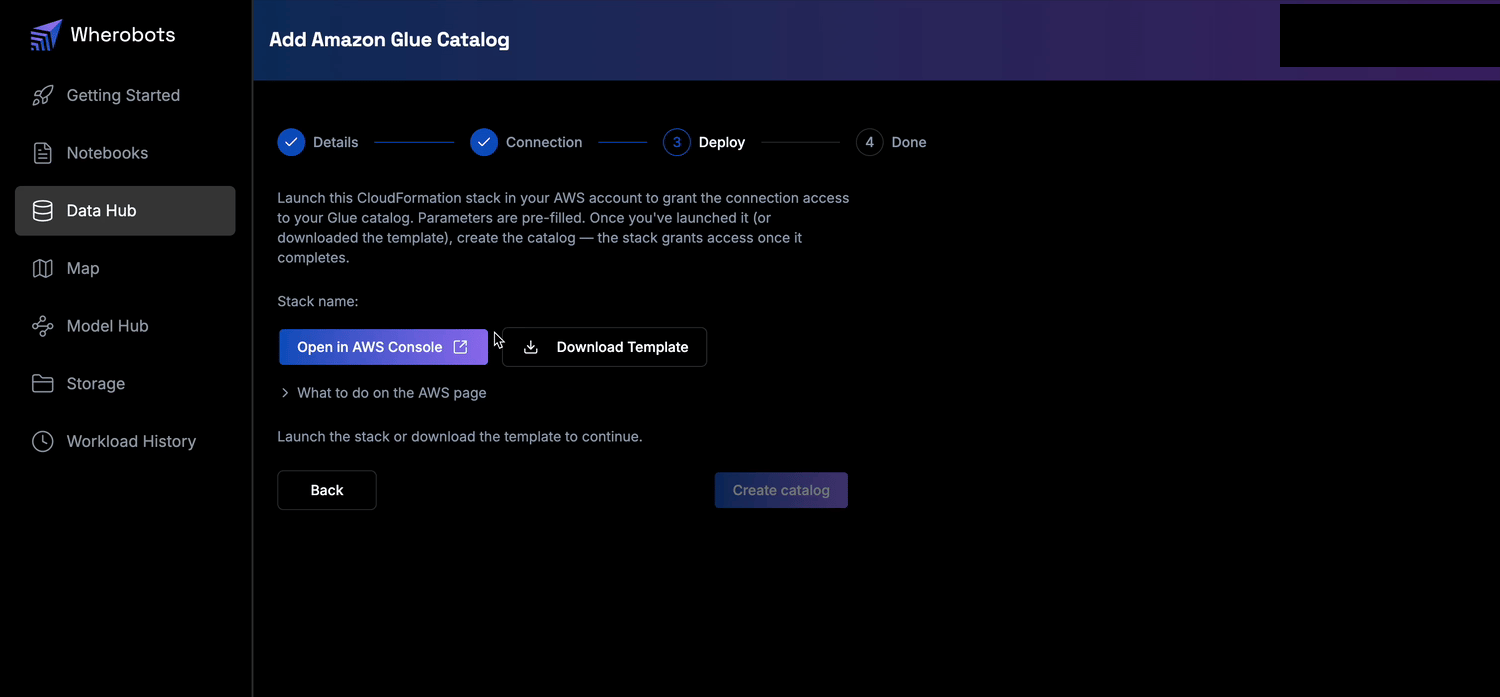
Step 3, Deploy: launch the CloudFormation stack, then create the catalog.
Verify and finish
Next Steps
After you connect your Glue catalog, you can query its tables from a Wherobots notebook. See Query AWS Glue Catalog in a Notebook for guidance and starter code.Known Limitations
The following limitations apply to Glue catalogs connected to Wherobots:- Glue REST API doesn’t support staged creates, i.e. no
CREATE TABLE foo AS SELECT ...-
Glue can’t create a new table from a query result. These all fail with
Malformed request: Stage create is not supported:CREATE TABLE ... AS SELECT(CTAS)CREATE OR REPLACE TABLE ... AS SELECT, when the table doesn’t exist yet- The DataFrame equivalents
.writeTo(...).create()and.writeTo(...).createOrReplace(), when the table doesn’t exist yet df.write.mode("overwrite").saveAsTable(...), when the table doesn’t exist yet
LOCATIONdoesn’t help — the request is rejected before any data files are written. -
Once the table exists, replacing it works normally:
REPLACE TABLE ... AS SELECT,CREATE OR REPLACE TABLE ... AS SELECT,.replace(), and.createOrReplace()all succeed, including when the new query changes the schema. Use one of these when the query’s columns no longer line up with the table’s, since they rebuild the table;INSERT OVERWRITEbelow keeps the existing schema and fails if the columns don’t match. -
To create a table, declare the schema first, then load it with
INSERT OVERWRITE:Written this way the pair is safe to re-run: the create is a no-op once the table exists, and the overwrite replaces whatever an earlier attempt left behind.Create a Glue table in place of CTASLOCATIONis required. Without it, the create fails withMalformed request: Location information cannot be null while creating an iceberg table. For a worked example, see Query AWS Glue Catalog in a Notebook. -
To replace the contents of a table that already exists, use
INSERT OVERWRITEfor an atomic swap:The query’s columns must match the table’s schema. To change the schema, useReplace the contents of an existing Glue tableREPLACE TABLE ... AS SELECTinstead. This replaces the whole table under the defaultspark.sql.sources.partitionOverwriteModeofSTATIC. On a partitioned table in a session that sets it toDYNAMIC,INSERT OVERWRITEreplaces only the partitions the query produces and leaves the rest in place.
-
Glue can’t create a new table from a query result. These all fail with
- Glue REST API doesn’t support reading or writing views
- Glue REST API doesn’t support
ALTER TABLE … RENAME TO - Iceberg V3 Tables can be read, but ONLY if they don’t have any of the new column types (
geometry/geography,variant,timestamp_ns)