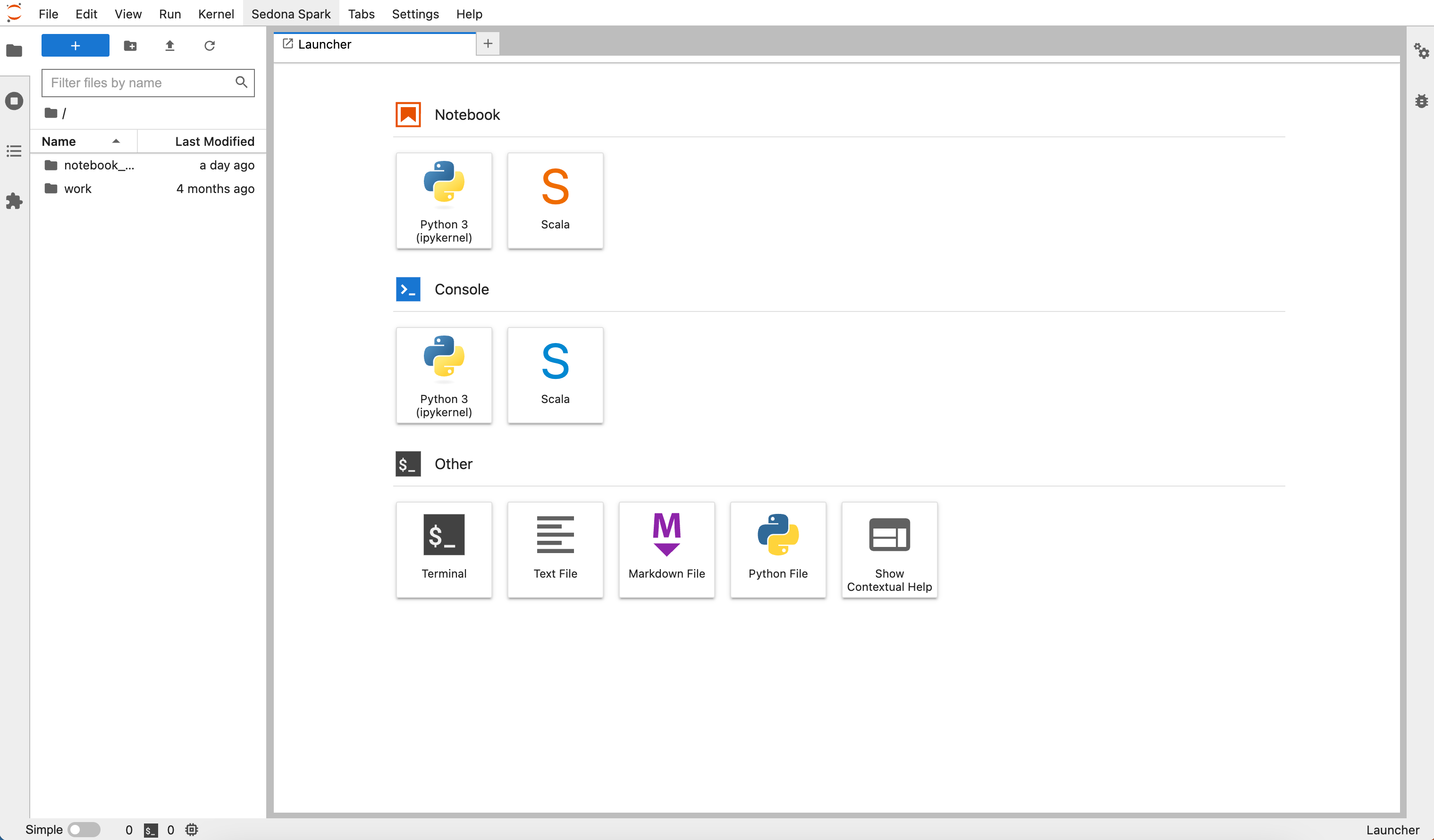
The introductory notebook appears when you first open a Wherobots Cloud Notebook. After that, you will see the JupyterLab Launcher.
Before you start
The following is required to manage a Wherobots Notebook:- An account within a Community, Professional, or Enterprise Edition Organization. For more information, see Create an Account.
Available kernels
Wherobots Cloud provides two kernels for your Jupyter Notebooks:- Python kernel (ipykernel) — for Python-based spatial workflows using Apache Sedona and WherobotsDB.
- Scala kernel (Scala) — for Scala-based spatial workflows.
Execute notebook cells
Run all cells
To execute all code cells in a notebook, do the following:- Click Run in the JupyterLab toolbar.
- Click Run All Cells.

When you first execute a WherobotsDB code cell, you may see the following warning:This is expected behavior. Executors take 1-5 minutes to start depending on the runtime size.
Monitor jobs with the Spark Web UI
The Spark Web UI helps you monitor running jobs, analyze query performance, and identify bottlenecks. To access it, click Sedona Spark in JupyterLab and select the correct port number.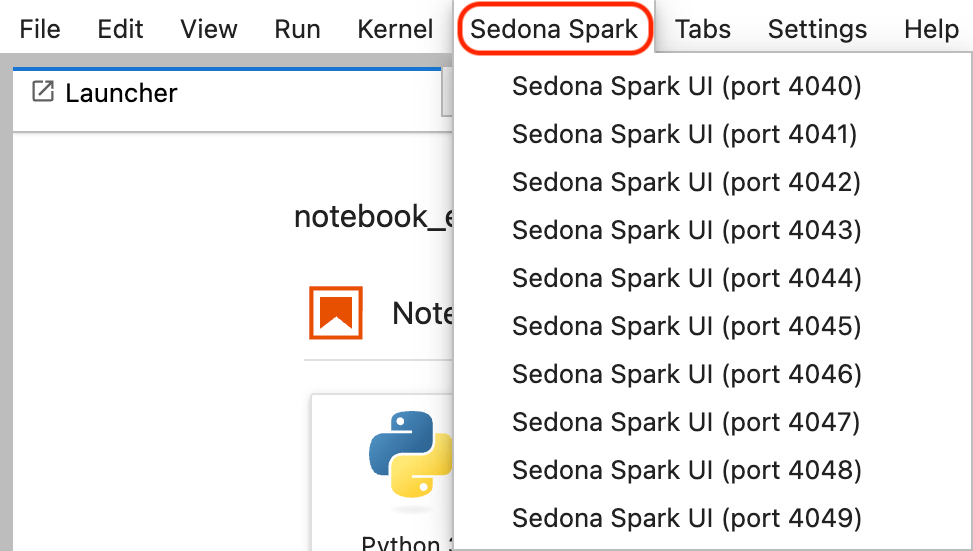
Import custom Python modules
You can package custom Python modules as a zip file and import them into your notebook. This is useful for reusing shared utility functions across notebooks and job submissions.Create and upload a module
-
On your local machine, create a directory for your module:
-
Create a Python file with your module code. For example, create
zipmoduletest/hellosedona.py: -
Add an empty
__init__.pyfile to make the directory a valid Python package: -
Verify the directory structure:
The output should show:
-
Zip the module files:
-
Upload
zipmoduletest.zipto Wherobots Managed Storage or your integrated Amazon S3 bucket. For more information, see Notebook and Data Storage.
Use the module in a notebook
After uploading, add the zip file to the Spark context and import your module:Access data from Amazon S3
For information on reading and writing data from an integrated Amazon S3 bucket, see Access Integrated Storage in a Notebook.To use new storage integrations or catalogs in your notebooks, you must start a new runtime. Notebooks can only access storage integrations or catalogs that were created before the runtime started.
Open a notebook by path
To open a specific notebook file, do the following:- Click File > Open from path.
- Enter the notebook path.
- Click Open.
Export notebooks
You can export notebooks as executable scripts for use with WherobotsRunOperator job submissions.Export a Python notebook
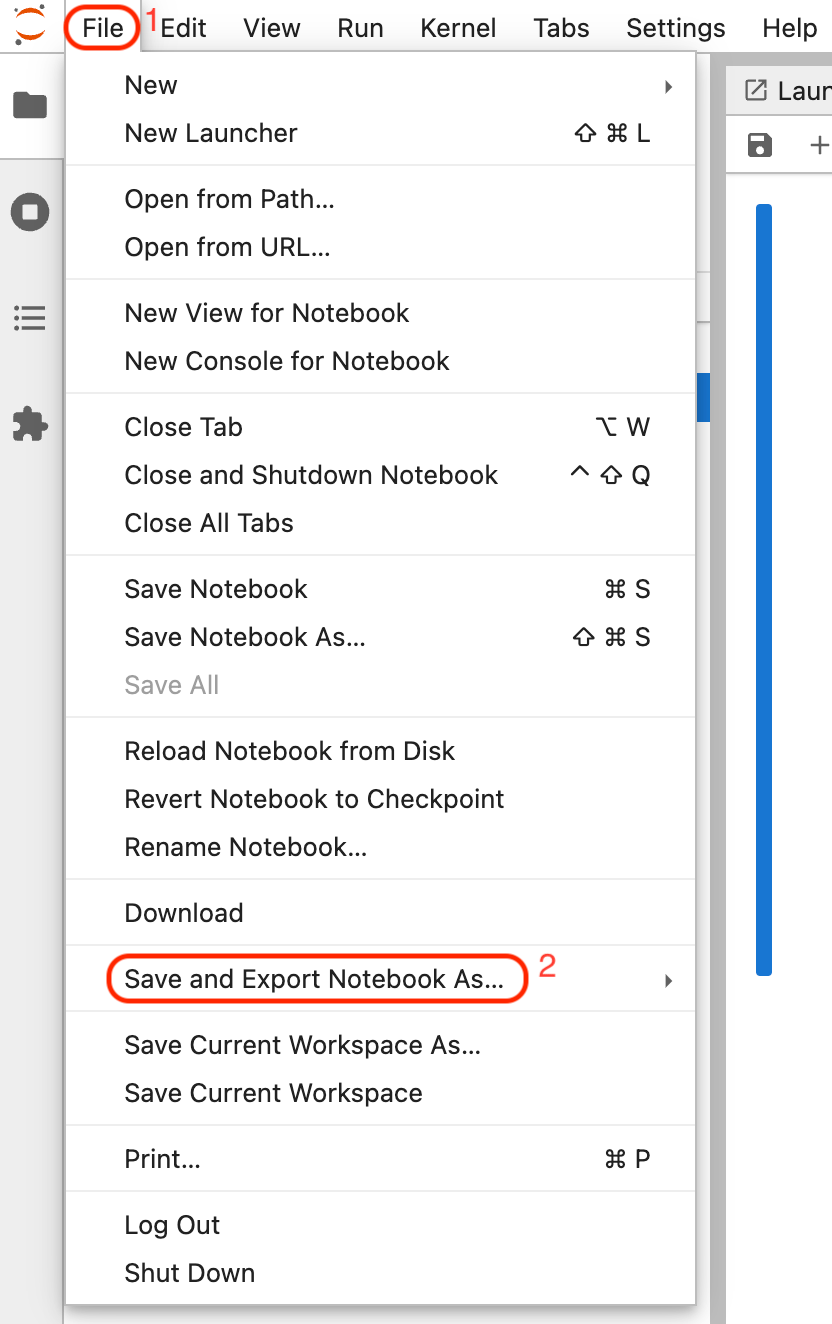
To export a Python notebook as an executable script, do the following:- Click File in the JupyterLab toolbar.
-
Hover over Save and Export Notebook As…
-
Select Executable Script.
The
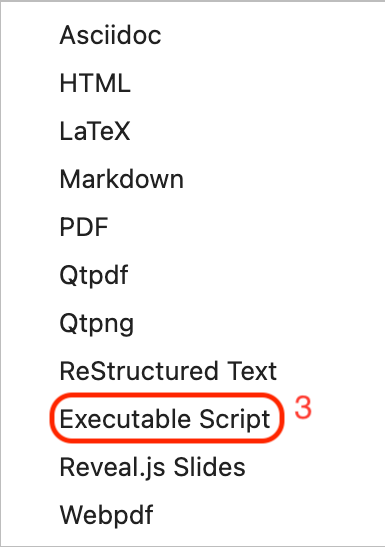
.pyfile will download to your machine.
Export a Scala notebook
To export a Scala notebook as an executable script, do the following:- Click File in the JupyterLab toolbar.
-
Hover over Save and Export Notebook As…
-
Select Executable Script.
The
.scalafile will download to your machine.
The exported Scala file does not include a
main class. To make it runnable, wrap your code (excluding import statements) in an App object:You cannot execute
.scala files in a Python kernel. Use the Scala kernel to run Scala code.sedona-maven-example/src/main/scala/com/wherobots/sedona/ for job submission.
Build a JAR file from a Scala notebook
To package your Scala notebook as a JAR file for job submission, do the following:-
Click File > New Launcher in JupyterLab.

-
Open Terminal.
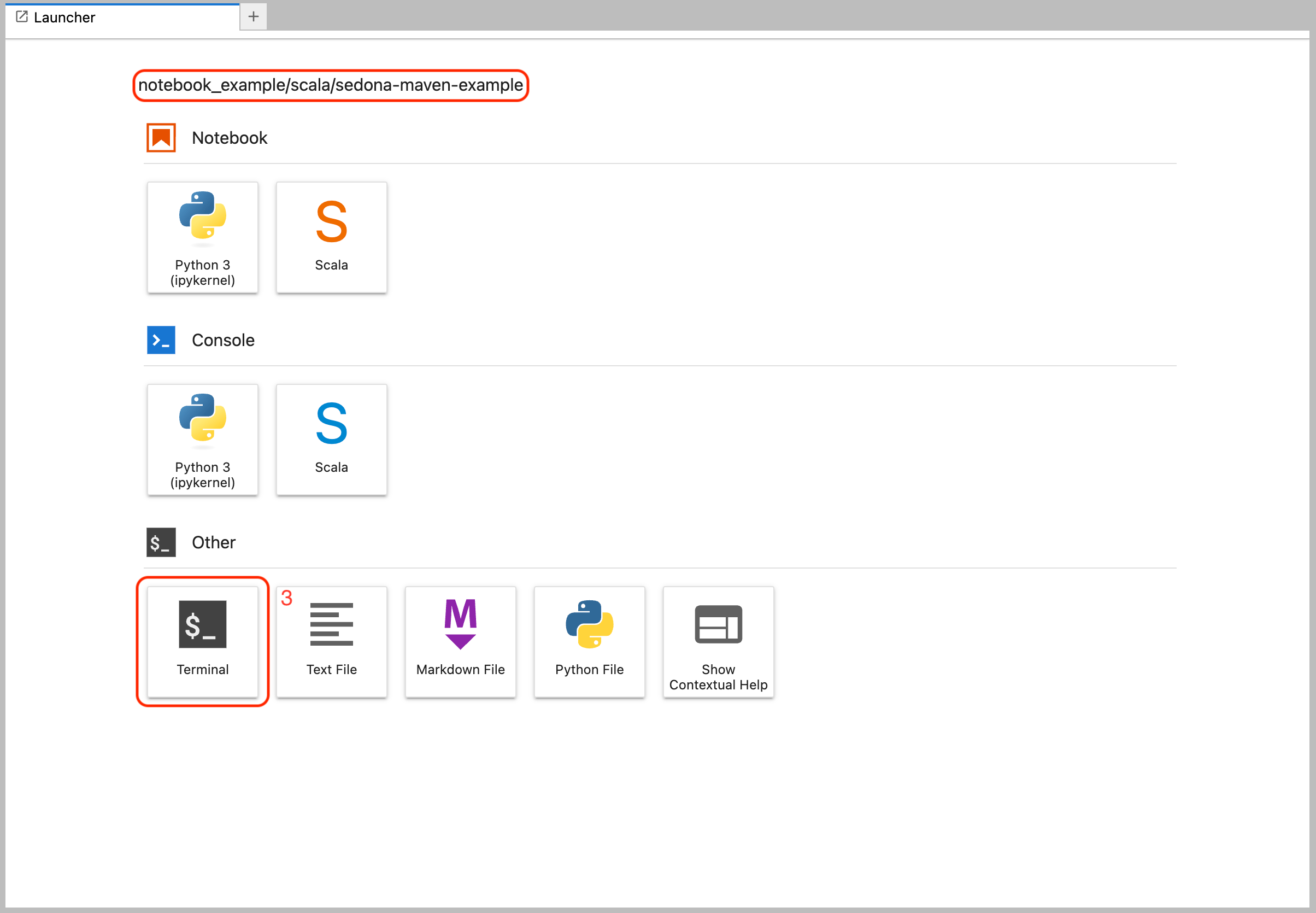
-
Navigate to the
sedona-maven-exampledirectory and build the project: -
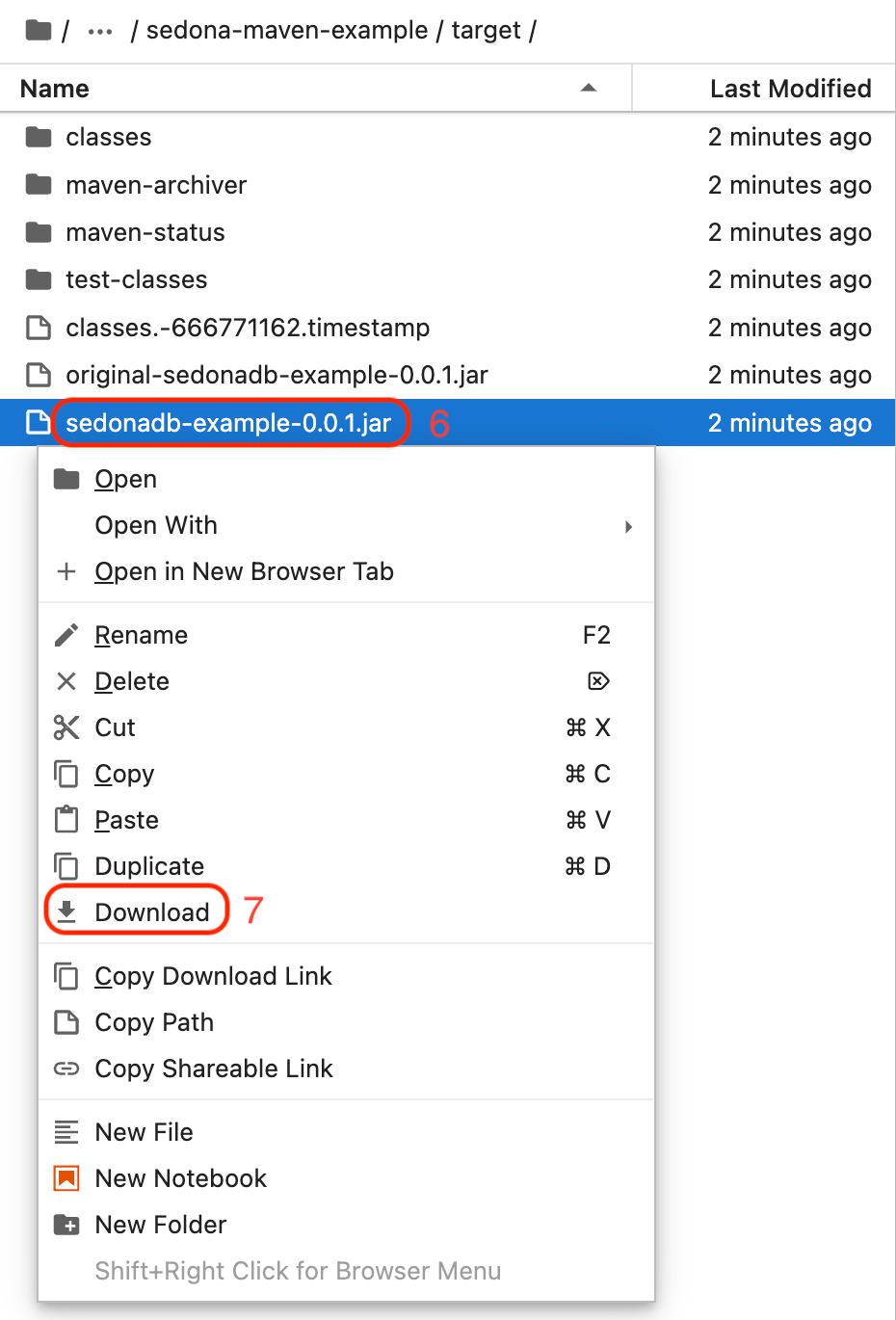
In the JupyterLab file browser, locate the
targetfolder.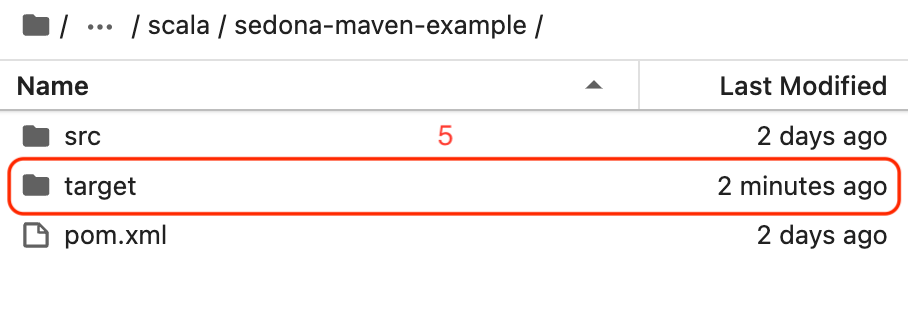
-
Right-click
sedonadb-example-0.0.1.jarand select Download.