> ## Documentation Index
> Fetch the complete documentation index at: https://docs.wherobots.com/llms.txt
> Use this file to discover all available pages before exploring further.
# Visualize Data with Felt
You can connect [**Felt**](https://felt.com/) to Wherobots to analyze and visualize your data lake
insights directly in Felt's collaborative mapping platform.
This feature is only available to customers on a [Felt Enterprise plan](https://felt.com/pricing). To upgrade, [contact Felt sales](https://felt.com/sales).
## Benefits
The Felt integration allows you to:
* **Visualize Wherobots Data:** Query and render your Wherobots data directly in Felt's interactive mapping interface.
* **Collaborative Mapping:** Share interactive maps and spatial dashboards with your team.
## Before you start
Before using this feature, ensure that you have the following:
* An **Account** within a Community, Professional, Innovation, or Enterprise Edition Wherobots Organization. For more information, see [Create a Wherobots Account](/get-started/wherobots-cloud/create-account/).
* A [Wherobots API Key](/get-started/wherobots-cloud/api-keys/).
* A Felt Enterprise account. For more information, see [Felt Pricing](https://felt.com/pricing).
## Connecting Felt to Wherobots
In your [**Felt**](https://felt.com/) workspace, click **New Map** or open an existing map.
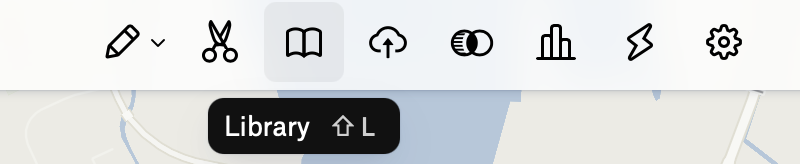 Click on the **Library** icon in the toolbar.
Click **+ New Source**.
Select **Wherobots** from the list of data sources.
In the connection dialog, enter the following:
| Field | Description |
| :--------------------------- | :-------------------------------------------------------------------------- |
| **Source Name** | A descriptive name for this data source in Felt. |
| **Region** | The cloud region where Wherobots will launch the runtime compute resources. |
| **Runtime** | The size of the compute runtime for processing queries. |
| **Who can see this source?** | Control access to this data source within your Felt organization. |
In the **Credentials** section, enter the following:
| Field | Description |
| :---------- | :--------------------------------------------------------------------------------------------------------------------------------- |
| **API Key** | Your Wherobots API Key. You can create and manage API keys in [Wherobots Settings](https://cloud.wherobots.com/settings#api-keys). |
Click **Connect**.
Once connected, you will see a catalog of your data with previews for your new source. From here, you can add any of these layers to your spatial dashboards.
## Next steps
After connecting Felt to Wherobots, you can:
* Add data layers to your maps for visualization.
* Create collaborative spatial dashboards with your team.
* Share interactive maps with stakeholders.
For more information on using Felt, see the [Felt Help Center](https://help.felt.com/).
Click on the **Library** icon in the toolbar.
Click **+ New Source**.
Select **Wherobots** from the list of data sources.
In the connection dialog, enter the following:
| Field | Description |
| :--------------------------- | :-------------------------------------------------------------------------- |
| **Source Name** | A descriptive name for this data source in Felt. |
| **Region** | The cloud region where Wherobots will launch the runtime compute resources. |
| **Runtime** | The size of the compute runtime for processing queries. |
| **Who can see this source?** | Control access to this data source within your Felt organization. |
In the **Credentials** section, enter the following:
| Field | Description |
| :---------- | :--------------------------------------------------------------------------------------------------------------------------------- |
| **API Key** | Your Wherobots API Key. You can create and manage API keys in [Wherobots Settings](https://cloud.wherobots.com/settings#api-keys). |
Click **Connect**.
Once connected, you will see a catalog of your data with previews for your new source. From here, you can add any of these layers to your spatial dashboards.
## Next steps
After connecting Felt to Wherobots, you can:
* Add data layers to your maps for visualization.
* Create collaborative spatial dashboards with your team.
* Share interactive maps with stakeholders.
For more information on using Felt, see the [Felt Help Center](https://help.felt.com/).