> ## Documentation Index
> Fetch the complete documentation index at: https://docs.wherobots.com/llms.txt
> Use this file to discover all available pages before exploring further.
# Start Your First Notebook
> [**Wherobots Cloud**](https://cloud.wherobots.com/) allows you to quickly start pre-configured JupyterLab instances for spatial computing, eliminating the need for manual infrastructure setup and software configuration.
export const Button = ({href, children}) => {
return
;
};
Wherobots Cloud offers: No installation, scalable processing, enhanced collaboration, pre-built geospatial tools, cost-effectiveness, and easy S3 data integration.
## What will you learn?
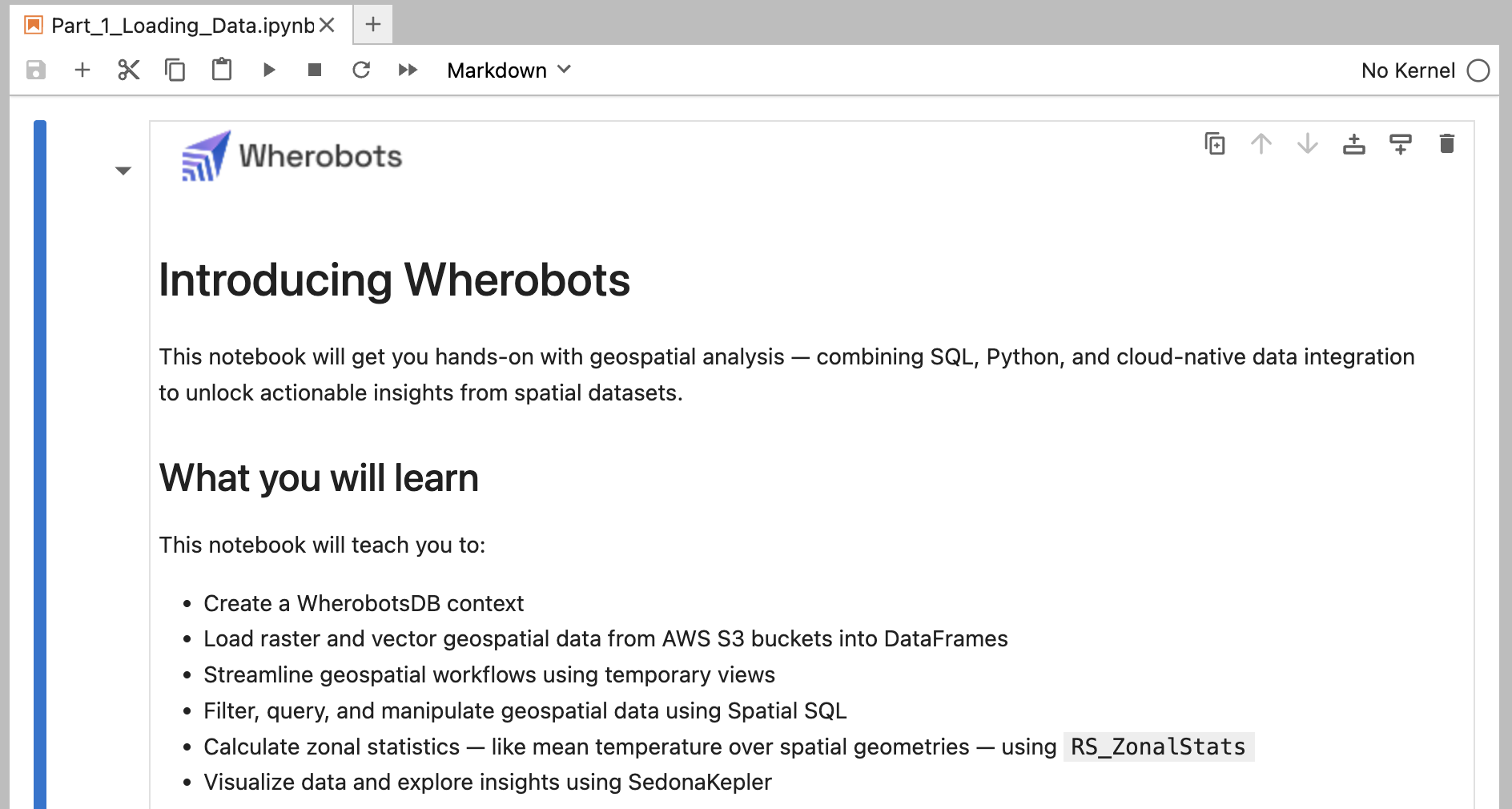
This notebook offers a hands-on guide to geospatial analysis using Apache Sedona within Wherobots.
You'll learn how to:
1. Load vector (NYC buildings) and raster (Central Park elevation) data from S3.
2. Perform SQL-based analyses, like calculating building elevations using zonal statistics.
3. Visualize your findings with SedonaKepler.
## Before you start
You will need a **Wherobots Community Edition Organization** to follow this tutorial. Community Edition Organizations are free.
| Register new Organization or Login to Wherobots Cloud | |
| ------------------------------------------------------------------------------------- | ---------------------------------------------------------- |
| | |
For more information on setting up your Community Organization, see [Create a Community Edition Organization](/get-started/wherobots-cloud/create-account/#create-a-community-edition-organization).
## Run the Introducing Wherobots Notebook
Let's open the Introducing Wherobots Notebook – your initial hands-on guide to Wherobots.
### Start the runtime
Log in to [Wherobots Cloud](https://cloud.wherobots.com/).
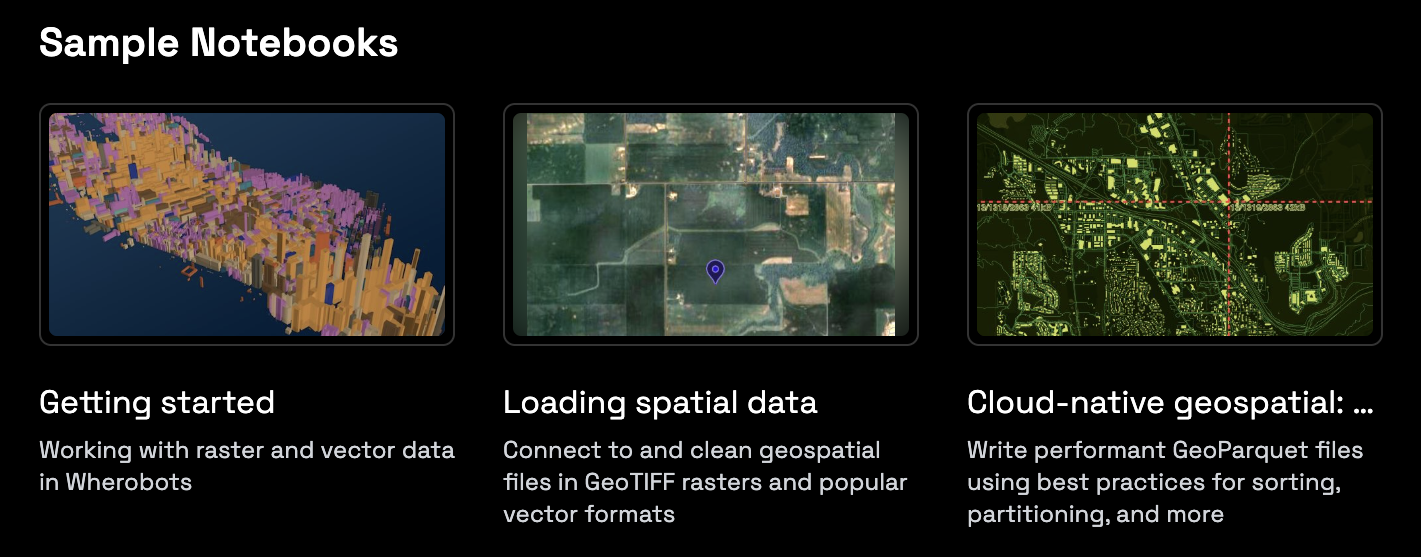
Click **Getting Started**
A new window will open. Once your runtime has loaded, your Jupyter Instance will appear in this window.
### Run the example notebook
A new Jupyter Notebook tab will open, displaying **Part\_1\_Loading\_Data.ipynb**.
If the notebook doesn't open automatically, use the file browser to find and open **/examples/Getting\_Started/Part\_1\_Loading\_Data.ipynb**.
Click (**Play**) to run each cell indiviudally.
 A new window will open. Once your runtime has loaded, your Jupyter Instance will appear in this window.