> ## Documentation Index
> Fetch the complete documentation index at: https://docs.wherobots.com/llms.txt
> Use this file to discover all available pages before exploring further.
# Service Principals
> Paid Organization administrators can create and manage service principals in Wherobots Cloud. Service principals enable authentication to APIs through long-lived tokens.
Administrators can create and manage tokens for applications and services, eliminating the need for **User** role members within your Organization to handle API keys. This detaches authentication from an individual **User**, improving security and simplifying API access management.
Service principals can enable the usage of Wherobots APIs including the [Spatial SQL API](/develop/spatial-sql-api), CI/CD pipelines, and automated workflows like [Apache Airflow ETLs](/develop/airflow-provider).
## Before you start
In order to use service principals, ensure that you have the following:
* A Wherobots Professional, Innovation, or Enterprise Edition Organization. Only paid Organization Editions can use service principals.
* For more information on paid plans, see [Wherobots Pricing](https://wherobots.com/pricing/).
* To create a new Professional Edition Organization, see [Create a Professional Edition Organization](/get-started/wherobots-cloud/create-account/#create-a-professional-edition-organization).
* To create a new Innovation Edition Organization, see [Create an Innovation Edition Organization](/get-started/wherobots-cloud/create-account/#create-an-innovation-edition-organization).
* To upgrade your Community Edition Organization to a Professional Edition Organization, see [Upgrade Organization](/get-started/upgrade-organization/).
* To create a new Enterprise Edition Organization, see [Create an Enterprise Edition Organization](/get-started/wherobots-cloud/create-account/#create-an-enterprise-edition-organization).
* An **Admin** role within your Organization.
* To confirm that you're an Administrator, review your role in [**Organization Settings > Users**](https://cloud.wherobots.com/organization#users).
* Those with a **User** role can't manage service principals or their associated API keys.
* While Organization Administrators can give those in the **User** role access to the API keys associated with a service principal, those in a **User** role cannot create, modify, or delete service principals or their related API keys.
## Use service principals as an Administrator
Administrators have the ability to create, modify, or delete service principals.
### Create a service principal
To create a service principal, do the following:
Login to your paid-edition [Wherobots Organization](https://cloud.wherobots.com/).
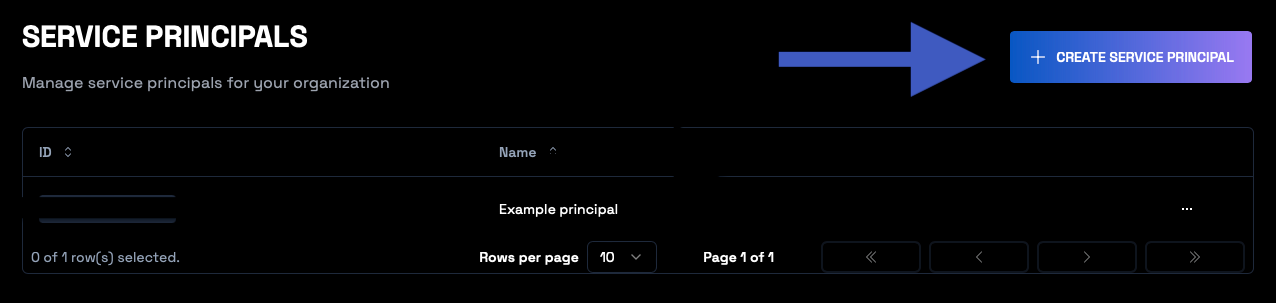
Go to [**Organization Settings > Service Principals**](https://cloud.wherobots.com/organization#service-principals).
Click **Create Service Principal**.
 Assign a **Name** to your service principal. Your service principal's name can only include alphanumeric characters.
Click **Submit**.
When you successfully create a service principal, you will be redirected to your service principal's detail page.
### Manage a service principal
As an Administrator, you can:
* [Rename a service principal](/get-started/wherobots-cloud/service-principals#rename-service-principal)
* [Assign API keys to a service principal](/get-started/wherobots-cloud/service-principals#add-an-api-key-to-a-service-principal)
* [Delete a service principal](/get-started/wherobots-cloud/service-principals#delete-a-service-principal)
#### Find your service principal
To modify your service principal first find your service principal by doing the following:
Login to your paid-edition [Wherobots Organization](https://cloud.wherobots.com/).
Go to [**Organization Settings > Service Principals**](https://cloud.wherobots.com/organization#service-principals).
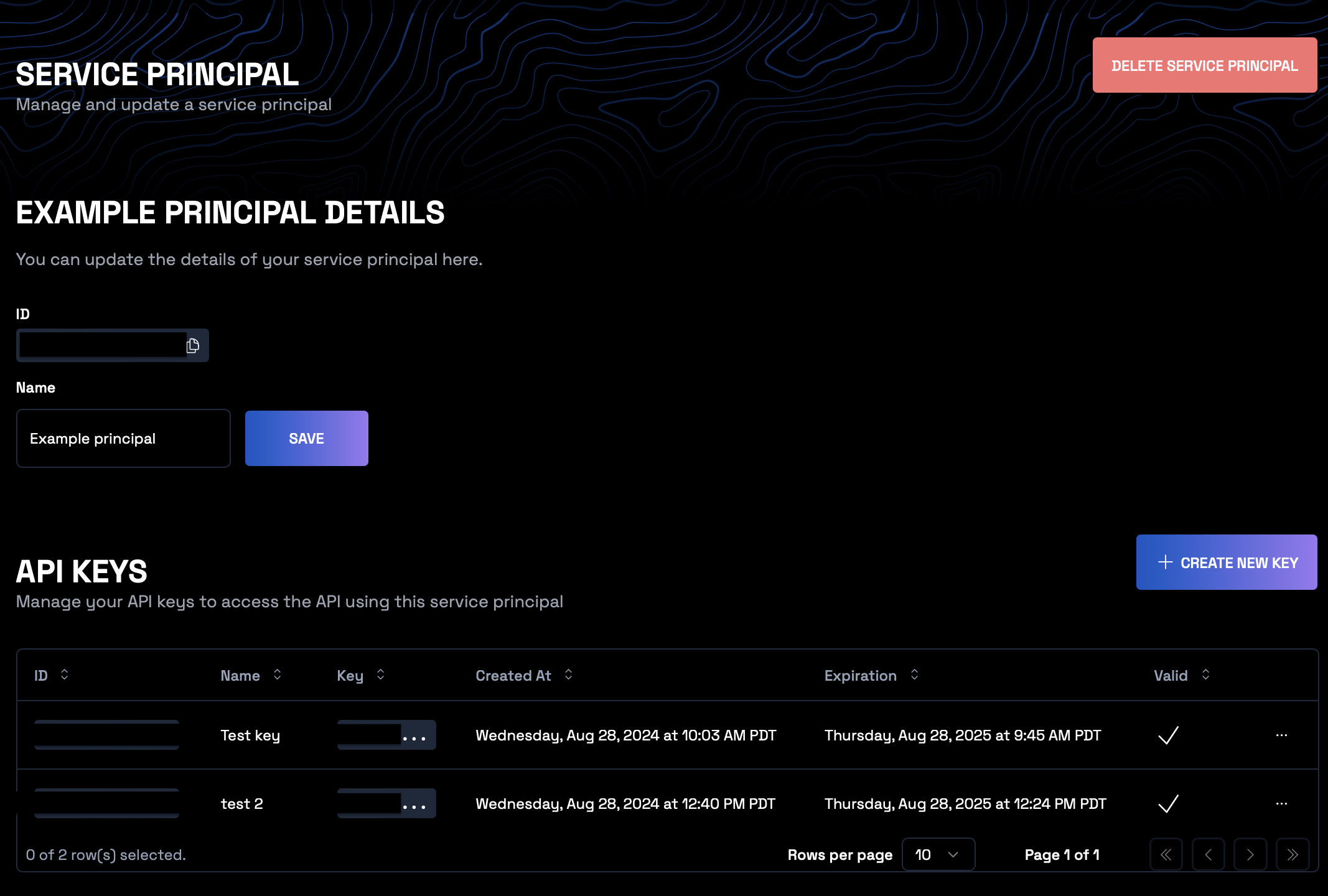
Click the service principal that you want to modify. You will be taken to that service principal's detail page.
Assign a **Name** to your service principal. Your service principal's name can only include alphanumeric characters.
Click **Submit**.
When you successfully create a service principal, you will be redirected to your service principal's detail page.
### Manage a service principal
As an Administrator, you can:
* [Rename a service principal](/get-started/wherobots-cloud/service-principals#rename-service-principal)
* [Assign API keys to a service principal](/get-started/wherobots-cloud/service-principals#add-an-api-key-to-a-service-principal)
* [Delete a service principal](/get-started/wherobots-cloud/service-principals#delete-a-service-principal)
#### Find your service principal
To modify your service principal first find your service principal by doing the following:
Login to your paid-edition [Wherobots Organization](https://cloud.wherobots.com/).
Go to [**Organization Settings > Service Principals**](https://cloud.wherobots.com/organization#service-principals).
Click the service principal that you want to modify. You will be taken to that service principal's detail page.
 #### Rename service principal
To change the name of your service principal, do the following:
Follow the steps in [Find your service principal](/get-started/wherobots-cloud/service-principals#find-your-service-principal).
Edit the **Name** field.
Click **Save**.
#### Add an API key to a service principal
Follow the steps in [Find your service principal](/get-started/wherobots-cloud/service-principals#find-your-service-principal).
Scroll to **API keys**.
Click **Create New Key**. [
#### Rename service principal
To change the name of your service principal, do the following:
Follow the steps in [Find your service principal](/get-started/wherobots-cloud/service-principals#find-your-service-principal).
Edit the **Name** field.
Click **Save**.
#### Add an API key to a service principal
Follow the steps in [Find your service principal](/get-started/wherobots-cloud/service-principals#find-your-service-principal).
Scroll to **API keys**.
Click **Create New Key**. [ 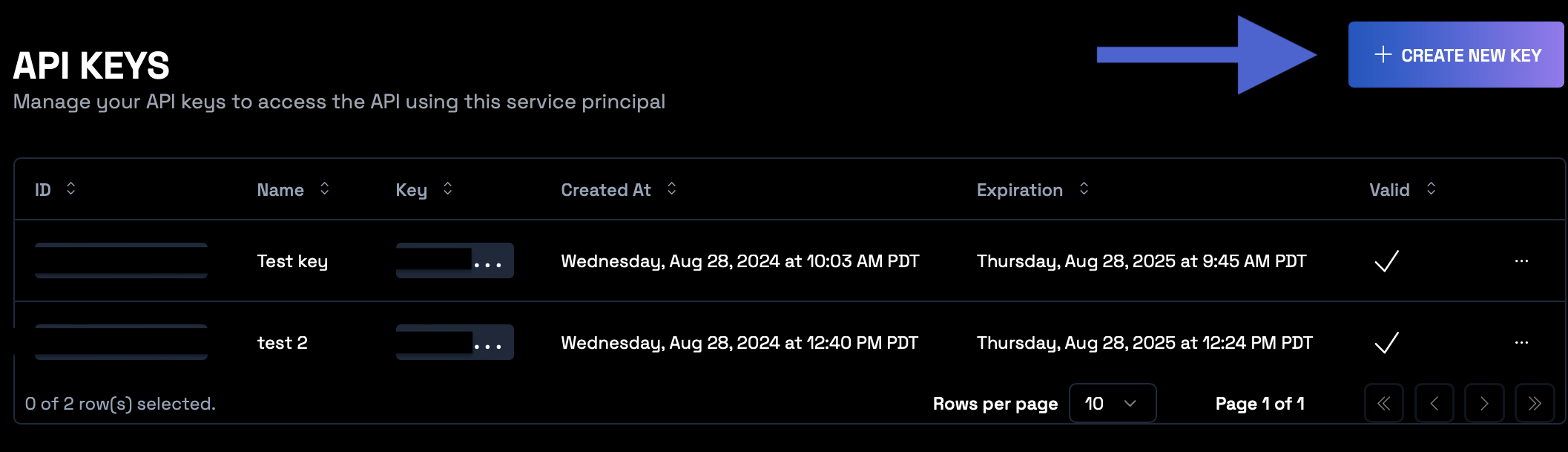 ](/images/get-started/service-principals/api-keys-arrow.png)
Enter a value in the **Name** field.
Choose an Expiration Date for your API key. This value defaults to 1 year from when the API key is created.
Click **Submit**.
After clicking **Submit**, Wherobots generates an API key.
### Note
Copy and store your API key securely, as Wherobots will not show you this API key again.
#### Delete a service principal
As an Administrator, you can delete a service principal. Deleting a service principal also revokes the API keys associated with that service principal.
To delete a service principal, do the following:
Follow the steps in [Find your service principal](/get-started/wherobots-cloud/service-principals#find-your-service-principal).
Review the service principal's associated API keys. Deleting the service principal will also revoke its API keys.
Click **Delete service principal**.
](/images/get-started/service-principals/api-keys-arrow.png)
Enter a value in the **Name** field.
Choose an Expiration Date for your API key. This value defaults to 1 year from when the API key is created.
Click **Submit**.
After clicking **Submit**, Wherobots generates an API key.
### Note
Copy and store your API key securely, as Wherobots will not show you this API key again.
#### Delete a service principal
As an Administrator, you can delete a service principal. Deleting a service principal also revokes the API keys associated with that service principal.
To delete a service principal, do the following:
Follow the steps in [Find your service principal](/get-started/wherobots-cloud/service-principals#find-your-service-principal).
Review the service principal's associated API keys. Deleting the service principal will also revoke its API keys.
Click **Delete service principal**.
 When asked to confirm if you want to delete the service principal, click **Delete**.
## Access API keys from an Admin
If you're configured as a **User** in your Organization, you won't be able to view or manage API keys or service principals in your Organization.
In order to gain access to any needed API keys, an **Admin** from your Organization must share the necessary credentials with you.
Contact your Wherobots Organization Administrator if you have further questions regarding your Organization's service principals or API keys.
To find the **Admin** associated with your Organization, do the following:
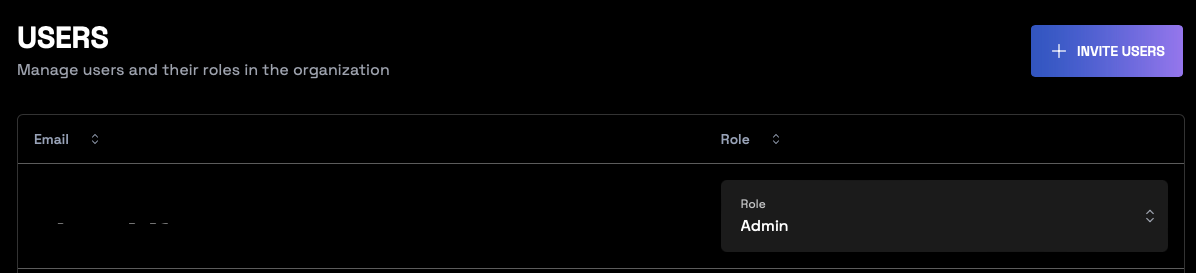
Go to [**Organization Settings > Users**](https://cloud.wherobots.com/organization#users).
Find the email address associated with the **Admin** in your Organization.
When asked to confirm if you want to delete the service principal, click **Delete**.
## Access API keys from an Admin
If you're configured as a **User** in your Organization, you won't be able to view or manage API keys or service principals in your Organization.
In order to gain access to any needed API keys, an **Admin** from your Organization must share the necessary credentials with you.
Contact your Wherobots Organization Administrator if you have further questions regarding your Organization's service principals or API keys.
To find the **Admin** associated with your Organization, do the following:
Go to [**Organization Settings > Users**](https://cloud.wherobots.com/organization#users).
Find the email address associated with the **Admin** in your Organization.
 ## Switching to service principal-managed API keys
Existing API keys that are not already associated with a service principal cannot be migrated to one. Instead, you'll need to create new API keys under a service principal.
If you want to use service principal-managed API keys instead of unattached API keys, do the following:
Manually revoke those initial API keys from your Organization.
Log in to your [Wherobots Organization](https://cloud.wherobots.com/).
Go to [**Organization Settings > Security**](https://cloud.wherobots.com/organization#security).
Find **API Keys** section.
Locate the **Owned by** column.
Identify API keys owned by individuals rather than a service principal.
Scroll to the right and click **... > Revoke**.
## Switching to service principal-managed API keys
Existing API keys that are not already associated with a service principal cannot be migrated to one. Instead, you'll need to create new API keys under a service principal.
If you want to use service principal-managed API keys instead of unattached API keys, do the following:
Manually revoke those initial API keys from your Organization.
Log in to your [Wherobots Organization](https://cloud.wherobots.com/).
Go to [**Organization Settings > Security**](https://cloud.wherobots.com/organization#security).
Find **API Keys** section.
Locate the **Owned by** column.
Identify API keys owned by individuals rather than a service principal.
Scroll to the right and click **... > Revoke**.
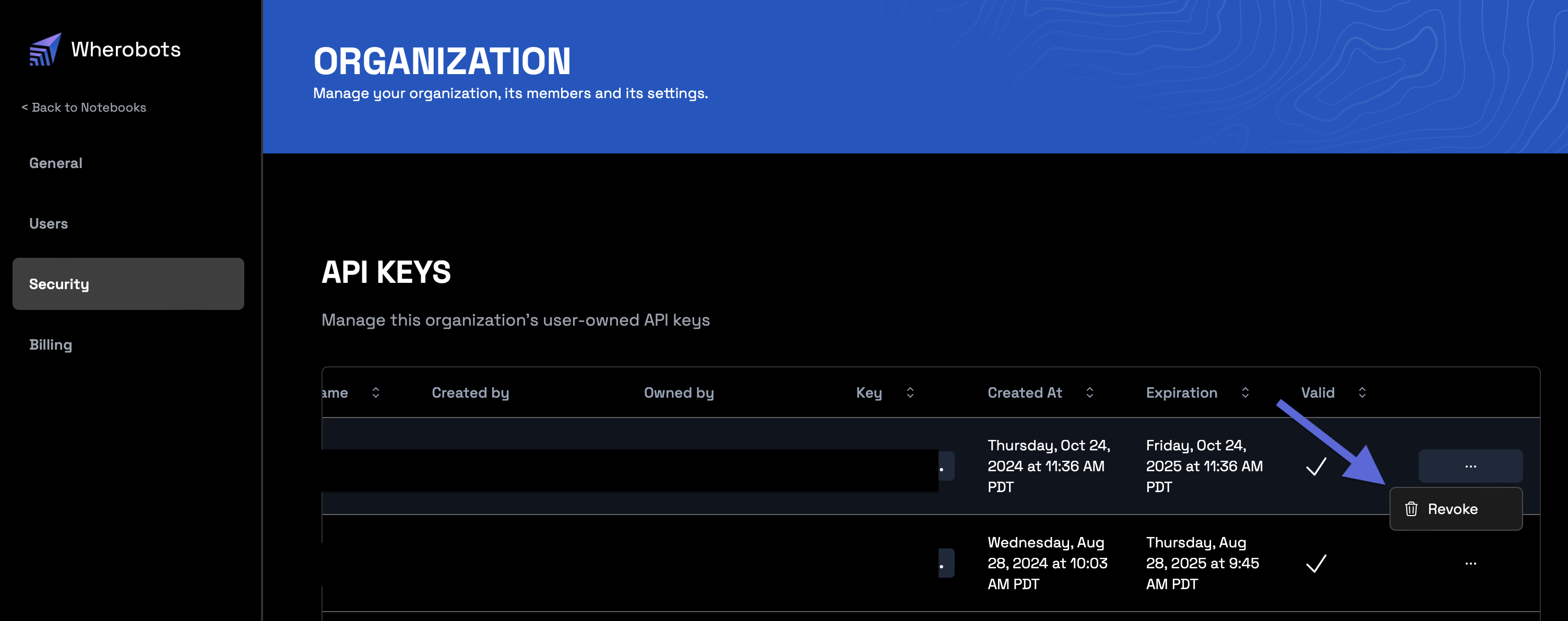 Click **Revoke** to confirm that you want to remove this API key from your Organization.
[Create a new service principal](/get-started/wherobots-cloud/service-principals#create-a-service-principal).
[Add an API key to that service principal](/get-started/wherobots-cloud/service-principals#add-an-api-key-to-a-service-principal).
Click **Revoke** to confirm that you want to remove this API key from your Organization.
[Create a new service principal](/get-started/wherobots-cloud/service-principals#create-a-service-principal).
[Add an API key to that service principal](/get-started/wherobots-cloud/service-principals#add-an-api-key-to-a-service-principal).