> ## Documentation Index
> Fetch the complete documentation index at: https://docs.wherobots.com/llms.txt
> Use this file to discover all available pages before exploring further.
# API Keys
> Learn how to create and manage API keys for Wherobots Cloud.
Wherobots API Keys allow you to authenticate with Wherobots Cloud for programmatic access to Wherobots APIs and services.
They can be created by any Wherobots Organization member and ensure that requests are executed as though they were made by that member.
This enables usage of Wherobots APIs like the [Spatial SQL API](/develop/spatial-sql-api) in scripts, CI/CD pipelines, or with [Apache Airflow ETLs](/develop/airflow-provider) and other automated workflows.
If you want to create your API key under a service principal, see [Service Principals](/get-started/wherobots-cloud/service-principals).
## Before you start
Before using API keys, ensure that you have the following required resources:
* An account within a Community, Professional, Innovation, or Enterprise Edition Organization. For more information, see [Create a Wherobots Account](/get-started/wherobots-cloud/create-account/).
## Create an API Key
To create an API key, do the following:
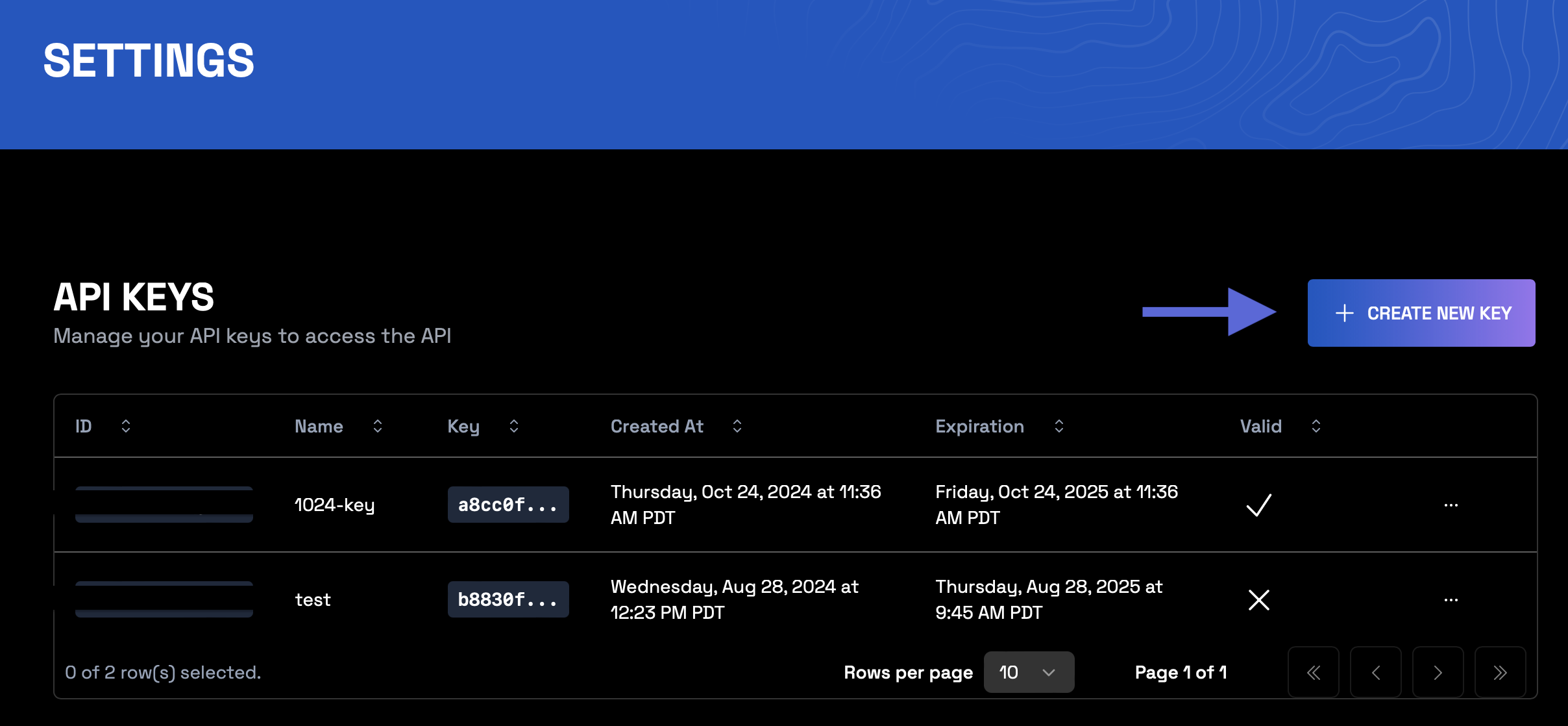
Go to [**Settings > API Keys**](https://cloud.wherobots.com/settings#api-keys).
Click **Create new key**.
 Enter a value in the **Name** field.
Choose an Expiration Date for your API key. This value defaults to 1 year from when the API key is created.
You can pick an exact date or use a preset. Short-duration presets (1 hour, 1 day, 7 days, 30 days) are available for temporary or test keys, alongside longer presets (6 months, 1 year, 2 years, 4 years).
Click **Submit**.
After clicking **Submit**, Wherobots generates an API key.
### Note
Copy and store your API key securely, as Wherobots will not show you this API key again.
## Filter API keys by status
The API keys list in [**Settings > API Keys**](https://cloud.wherobots.com/settings#api-keys), [**Organization Settings > Security > API Keys**](https://cloud.wherobots.com/organization#api-keys), and on service principal detail pages includes a **Status** column and a status filter. Use the filter to show only keys matching a given state:
* **Active**: The key has not been revoked and has not passed its expiration date.
* **Revoked**: An Administrator or key owner manually revoked the key.
* **Expired**: The key passed its expiration date.
## Revoke an API Key
Organization Administrators have the ability to revoke any API key within their Wherobots Organization, including those belonging to other Organization members.
Members configured to the **User** Role can only revoke their own API keys.
### Warning
To avoid service interruptions, it's crucial to identify any dependencies on an API key before you revoke it. Thoroughly investigate and understand what systems or processes rely on that key before revoking an API key.
1. Go to [**Organization Settings > Security > API Keys**](https://cloud.wherobots.com/organization#api-keys).
2. Locate the API key you wish to revoke.
3. Scroll to the right and click **... > Revoke**.
4. Click **Revoke** to confirm that you want to remove this API key from your Organization.
1. Go to [**Settings > API Keys**](https://cloud.wherobots.com/settings#api-keys).
2. Locate the API key you wish to revoke.
3. Scroll to the right and click **... > Revoke**.
4. Click **Revoke** to confirm that you want to remove this API key from your Organization.
## HTTP Requests
To use an API key in an HTTP request, you must include it in the `X-API-KEY` header.
Example API key usage
```bash theme={"system"}
curl -H "X-API-KEY: YOUR_API_KEY_HERE" https://api.cloud.wherobots.com/users/me
```
Enter a value in the **Name** field.
Choose an Expiration Date for your API key. This value defaults to 1 year from when the API key is created.
You can pick an exact date or use a preset. Short-duration presets (1 hour, 1 day, 7 days, 30 days) are available for temporary or test keys, alongside longer presets (6 months, 1 year, 2 years, 4 years).
Click **Submit**.
After clicking **Submit**, Wherobots generates an API key.
### Note
Copy and store your API key securely, as Wherobots will not show you this API key again.
## Filter API keys by status
The API keys list in [**Settings > API Keys**](https://cloud.wherobots.com/settings#api-keys), [**Organization Settings > Security > API Keys**](https://cloud.wherobots.com/organization#api-keys), and on service principal detail pages includes a **Status** column and a status filter. Use the filter to show only keys matching a given state:
* **Active**: The key has not been revoked and has not passed its expiration date.
* **Revoked**: An Administrator or key owner manually revoked the key.
* **Expired**: The key passed its expiration date.
## Revoke an API Key
Organization Administrators have the ability to revoke any API key within their Wherobots Organization, including those belonging to other Organization members.
Members configured to the **User** Role can only revoke their own API keys.
### Warning
To avoid service interruptions, it's crucial to identify any dependencies on an API key before you revoke it. Thoroughly investigate and understand what systems or processes rely on that key before revoking an API key.
1. Go to [**Organization Settings > Security > API Keys**](https://cloud.wherobots.com/organization#api-keys).
2. Locate the API key you wish to revoke.
3. Scroll to the right and click **... > Revoke**.
4. Click **Revoke** to confirm that you want to remove this API key from your Organization.
1. Go to [**Settings > API Keys**](https://cloud.wherobots.com/settings#api-keys).
2. Locate the API key you wish to revoke.
3. Scroll to the right and click **... > Revoke**.
4. Click **Revoke** to confirm that you want to remove this API key from your Organization.
## HTTP Requests
To use an API key in an HTTP request, you must include it in the `X-API-KEY` header.
Example API key usage
```bash theme={"system"}
curl -H "X-API-KEY: YOUR_API_KEY_HERE" https://api.cloud.wherobots.com/users/me
```