> ## Documentation Index
> Fetch the complete documentation index at: https://docs.wherobots.com/llms.txt
> Use this file to discover all available pages before exploring further.
# Upgrade Your Organization
> Upgrade your Wherobots Organization to access additional features and resources, including increased compute capacity, enhanced collaboration, additional datasets, and more.
If you have an existing Community Edition Organization, you can upgrade to a Professional Edition Organization through **Direct Billing** (credit card or bank account) or through the **Amazon Web Services (AWS) Marketplace**.
**Creating a new Professional Edition Organization?** If you're creating a **new** Professional Edition Organization (rather than upgrading an existing Community Edition Organization), see [Create a Wherobots Account](/get-started/wherobots-cloud/create-account/) instead.
You can also upgrade to an [Enterprise Edition Organization](#upgrade-to-an-enterprise-edition-organization), which is only available through contract.
For a detailed comparison of available plans, see [Wherobots Pricing](https://wherobots.com/pricing/).
## Benefits
When you upgrade to a Paid Wherobots organization, you get access to additional features including the following:
* Memory-Optimized Runtimes
* Larger General Purpose Runtimes
* Service Principals
* Audit Logs
* Job Runs and related REST API
* Travel Isochrones Functionality & Related Dataset
* Access to RasterFlow Private Preview
* Support for additional AWS regions beyond `us-west-2`.
* For a full list of supported regions, see *Cloud and Cloud Region Availability* section in [Availability](/availability#amazon-web-services-aws).
* S3 Storage Integration
For more information see, [Wherobots Pricing](https://wherobots.com/pricing).
## Before you start
Upgrading a Community Edition Organization requires the following:
* A Wherobots account configured to the **Admin** role. You must have the credentials to log in to the Community Edition Organization that you wish to upgrade.
* If you are consolidating existing accounts you must be the primary account holder for your group. For more information see, [Consolidate Existing Accounts](#consolidate-existing-organizations).
As their needs evolve, teams often transition from multiple individual
Wherobots Community Edition Organizations to a unified Professional
Edition for better features and collaboration.
This transition should start with designating one team member to lead the Professional upgrade.
All other team members must have their existing Organizations/accounts deleted before
they can be added to the new Professional Organization.
To consolidate multiple team members under a new single Wherobots Professional Organization, do the following:
This step is necessary because, currently, an email address can only be associated with
*one* Wherobots Organization.
1. Designate one team member to lead the Professional upgrade, this person will be known as the **Primary Account Holder**.
This person's Wherobots Organization is the Organization that will exist going forward. Ideally, the person leading the upgrade has the
required AWS IAM role permissions (`aws-marketplace:Subscribe`, `aws-marketplace:ViewSubscriptions`, `aws-marketplace:ManageSubscriptions`).
2. **Primary Account Holder:** Inform your team members to download resources from their Community Edition
Organizations (e.g., Wherobots Notebooks), as these will be inaccessible after account deletion.
3. **Primary Account Holder:** Complete the Wherobots Organization Upgrade procedure.
4. **Secondary Account Holder(s):** Follow the steps in [Delete Your Account](/get-started/organization-info/delete-organization/).
Once those Organizations are deleted, these team members can then be added to the new Professional Organization.
## Choose upgrade starting point
Your upgrade path depends on whether you need to consolidate existing Community Edition accounts. There are two options:
* **Single Organization Upgrade**: Upgrade one Community Edition Organization directly to Professional.
* **Consolidate Existing Organizations**: Merge multiple Community Edition accounts into a single Organization before upgrading. If you need help, use the upgrade flowchart. Otherwise, select a path below to get started:
```mermaid theme={"system"}
graph TD
A[Decide to Upgrade
from Community to
Professional Edition] --> B{Do you Need to
Consolidate Accounts?};
B -- **No**-There are no
pre-existing Accounts that
need to be addressed. --> C[Standard Upgrade];
C --> Z[Professional Edition
Organization Upgrade
Successful];
B -- **Yes**-There will be at least
1 existing account
that needs to be merged
into the newly
upgraded Organization. --> D[**Secondary Account Holders**
Backup Data
_Optional but Encouraged_];
D --> E[**Secondary Account Holders**
Delete their Community
Organizations via
Organization Settings];
E --> F[**Primary Account Holder**
Upgrades to Professional
Organization];
F --> G[**Primary Account Holder**
Invites team members
to New Professional
Organization];
G --> Z;
```
Upgrade a single Community Edition Organization to Professional with no other accounts involved.
Click to proceed to the next section, Choose upgrade method.
Merge multiple Community Edition accounts into one Professional Organization before upgrading.
Click to go to Consolidate Existing Organizations.
## Choose upgrade method
Wherobots offers two ways to upgrade to a Professional Edition Organization: **Direct Billing** or **AWS Marketplace**.
Both provide the same features and resources — choose the tab below based on your preferred billing method.
* [**Direct Billing**](#direct-billing): Pay with a credit card or bank account directly through Wherobots Cloud. See the **Direct Billing** tab below for steps.
* [**AWS Marketplace**](#aws-marketplace): Integrate billing with your existing AWS account through the AWS Marketplace. See the **AWS Marketplace** tab below for steps.
With Direct Billing, you can upgrade your Organization by adding a credit card or bank account directly in Wherobots Cloud. You will be billed by Wherobots directly (not AWS).
**Admin required to complete upgrade**
Upgrading requires Admin access to the Wherobots Community Edition Organization. If you can't log in as an Admin, reach out to your Wherobots Organization Administrator for assistance. For more information on Roles, see [Organization Roles](/get-started/organization-info/organization-roles/).
To upgrade via Direct Billing, do the following:
Log in to [Wherobots Cloud](https://cloud.wherobots.com/).
Go to [**Organization Settings > Billing**](https://cloud.wherobots.com/organization#billing) and add a **Billing Contact Email**. This is required before you can upgrade and will be used to receive invoices and payment notifications.
Click **Upgrade Plan**. You will be taken to the upgrade page.
You can also navigate directly to the upgrade page at [cloud.wherobots.com/upgrade](https://cloud.wherobots.com/upgrade).
On the upgrade page, select the **Direct Billing** tab.
Enter your credit card or bank account details on the left, and your billing address on the right.
Click **Start Trial** to activate your Professional Edition trial.
**Pending state**
If something goes wrong during the upgrade process, a **Pending** state will appear in the Billing section of Organization Settings. If you see this status, try again or contact [support@wherobots.com](mailto:support@wherobots.com) for assistance.
If you prefer to integrate billing with your existing AWS account, you can upgrade through the AWS Marketplace.
**Make your team member with `aws-marketplace:Subscribe` permissions in AWS Marketplace Admin your Wherobots Organization Admin**
As a best practice, assign your AWS Marketplace Admin the Admin role within your Wherobots Organization in order to process the upgrade to the Professional Organization plan. Once the upgrade is complete, their Admin permissions can be modified according to your company's policy.
In addition to Admin access in Wherobots Cloud, upgrading via AWS Marketplace requires AWS IAM role or policy permissions that allow you to subscribe to SaaS products.
This *can* include the following permissions:
| IAM Permission/AWS Managed Policy | Description |
| ------------------------------------- | ---------------------------------------------------------------------------------------------------------------------------------------------------------------------------------------------------------------------------------------------------------------------------------------------------------------------------------------------------------------------------------------------------------------------------------------------------------------------------------------------------------------------------------------------------------------------------------------------------------------------------------------------------------------------------------------------------------------------------------------------- |
| `aws-marketplace:Subscribe` | This is the fundamental permission for subscribing to any offering on AWS Marketplace. |
| `aws-marketplace:ViewSubscriptions` | This allows you to view your existing AWS Marketplace subscriptions, which helps manage and track your subscription. |
| `aws-marketplace:ManageSubscriptions` | This provides broader control, allowing you to both subscribe and unsubscribe from offerings. |
| `AWSMarketplaceManageSubscriptions` | This extensive [AWS managed policy](https://docs.aws.amazon.com/IAM/latest/UserGuide/access_policies_managed-vs-inline.html#aws-managed-policies) encompasses several permissions that lets you manage software subscriptions from the AWS Marketplace, request products for their organization's private catalog, and handle the associated purchase agreements. For more information see [`AWSMarketplaceManageSubscriptions`](https://docs.aws.amazon.com/aws-managed-policy/latest/reference/AWSMarketplaceManageSubscriptions.html). If you have `AWSMarketplaceManageSubscriptions` you don't need to be separately assigned `aws-marketplace:Subscribe`, `aws-marketplace:ViewSubscriptions`, or `aws-marketplace:ManageSubscriptions`. |
For more information on IAM permissions, see [Actions, resources, and condition keys for AWS Marketplace](https://docs.aws.amazon.com/service-authorization/latest/reference/list_awsmarketplace.html) in the AWS Documentation.
#### Initiate the upgrade via AWS Marketplace
To upgrade from a Community Edition Organization to a Professional Edition Organization via AWS Marketplace, do the following:
Log in to [Wherobots Cloud](https://cloud.wherobots.com/).
Click **Upgrade Plan** from Organization Settings, or navigate directly to [cloud.wherobots.com/upgrade](https://cloud.wherobots.com/upgrade).
On the upgrade page, select the **AWS Marketplace** tab, then click **Subscribe via AWS Marketplace**.
You will be taken to the [**Wherobots Spatial Intelligence Cloud Professional Edition**](https://aws.amazon.com/marketplace/pp/prodview-ndy62v6hhwrne) listing on the AWS Marketplace to complete your upgrade.
#### Complete the upgrade on AWS Marketplace
On the Wherobots Spatial Intelligence Cloud Professional Edition's AWS Marketplace page, you can read the Product Overview and review the accompanying Pricing, Usage, and Support information.
To complete your upgrade, do the following:
Go to the [**Wherobots Spatial Intelligence Cloud Professional Edition**](https://aws.amazon.com/marketplace/pp/prodview-ndy62v6hhwrne) listing on AWS Marketplace.
Click **View purchase options**.  Review the details, scroll down, and click **Subscribe**.
Your subscription is being processed.
Review the details, scroll down, and click **Subscribe**.
Your subscription is being processed. 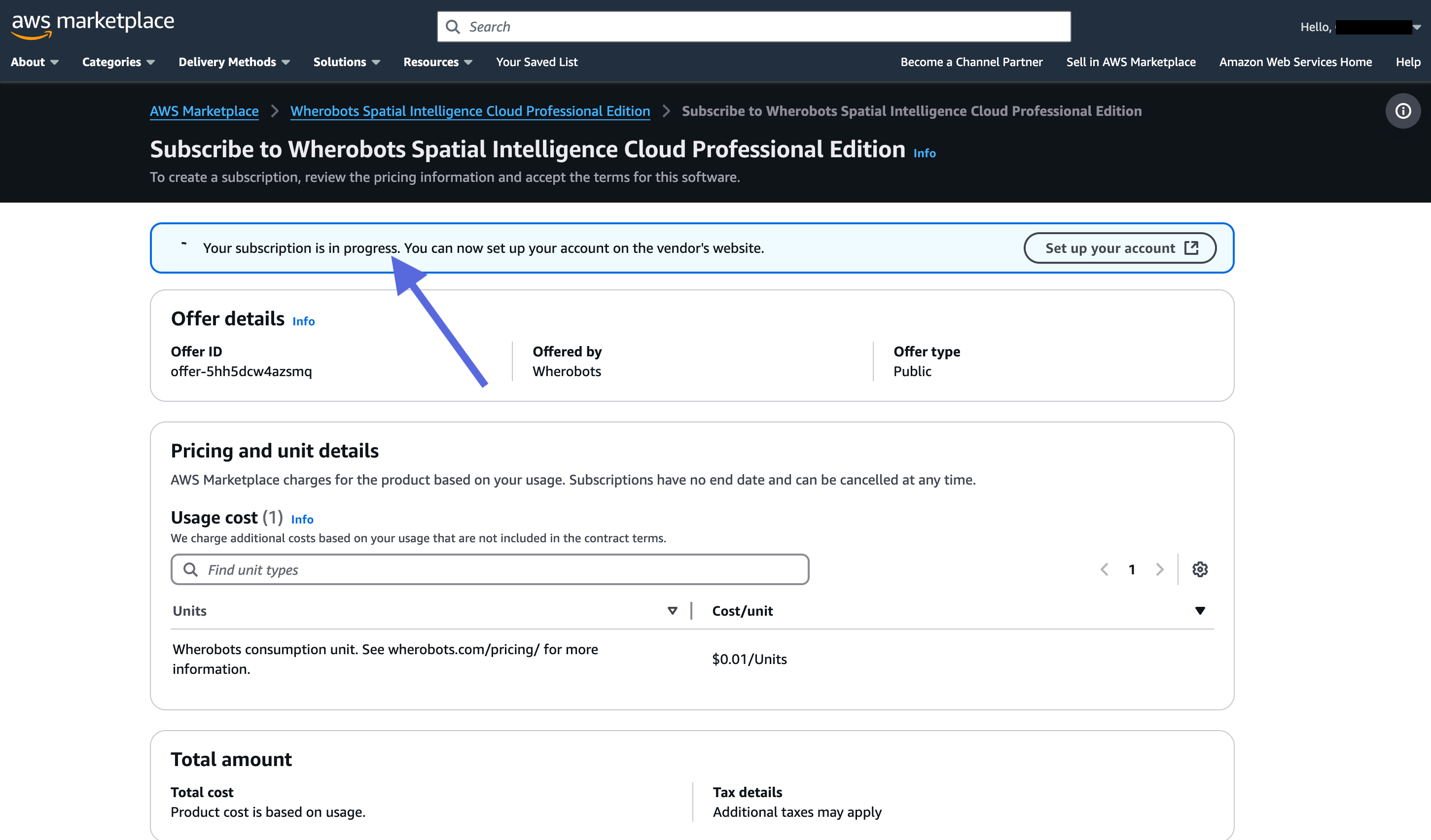 Once your subscription has finished processing, you'll see the following:
 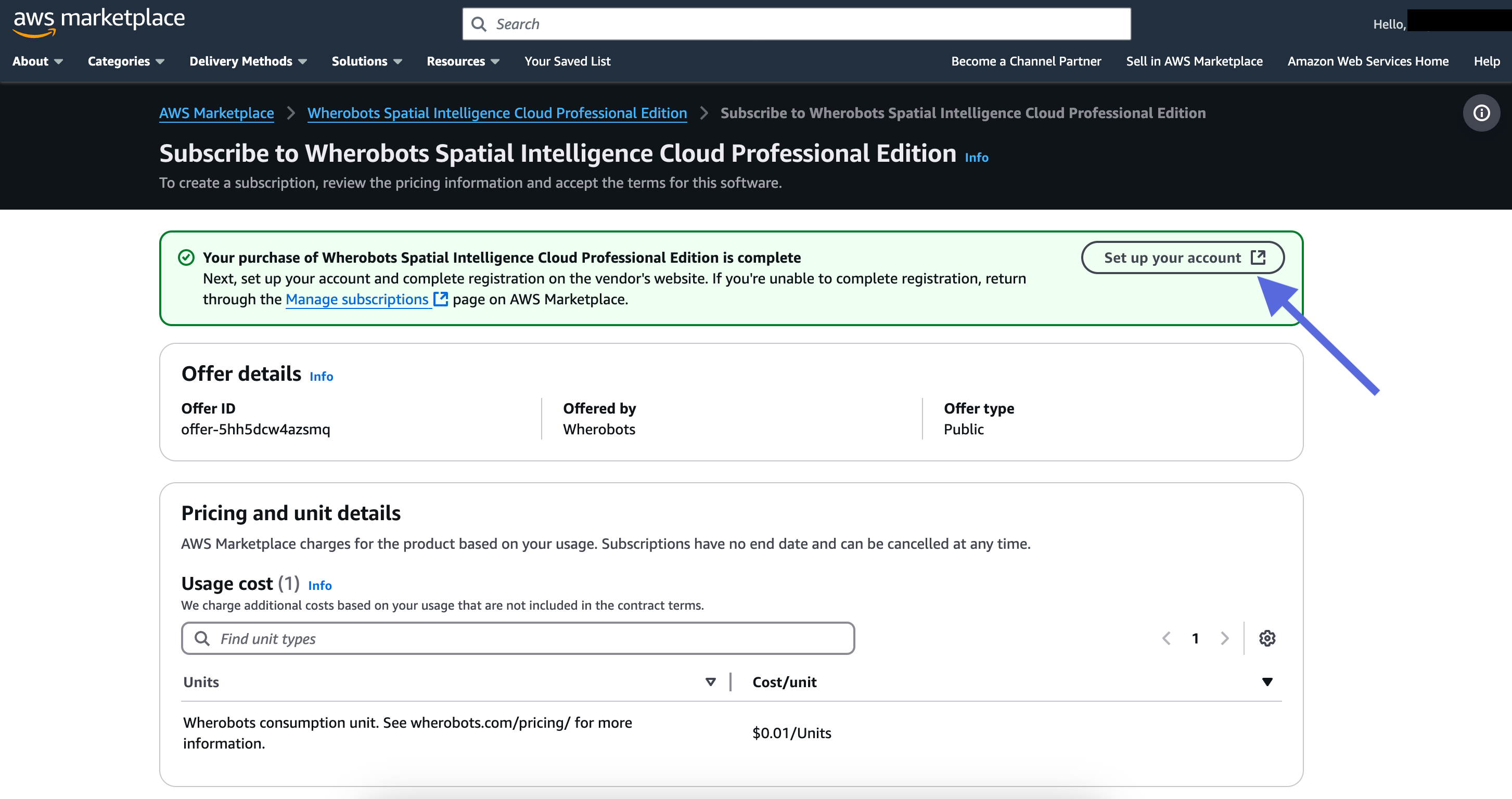 Click **Set up your account**. You will be redirected to Wherobots Cloud to log in and complete the upgrade.
#### Complete the upgrade in Wherobots Cloud
After finishing the steps in the AWS Marketplace, you'll be redirected to Wherobots Cloud to complete the upgrade:
You will be redirected to the Wherobots Cloud registration screen.
Click **Login** (do not create a new account).
Click **Set up your account**. You will be redirected to Wherobots Cloud to log in and complete the upgrade.
#### Complete the upgrade in Wherobots Cloud
After finishing the steps in the AWS Marketplace, you'll be redirected to Wherobots Cloud to complete the upgrade:
You will be redirected to the Wherobots Cloud registration screen.
Click **Login** (do not create a new account). 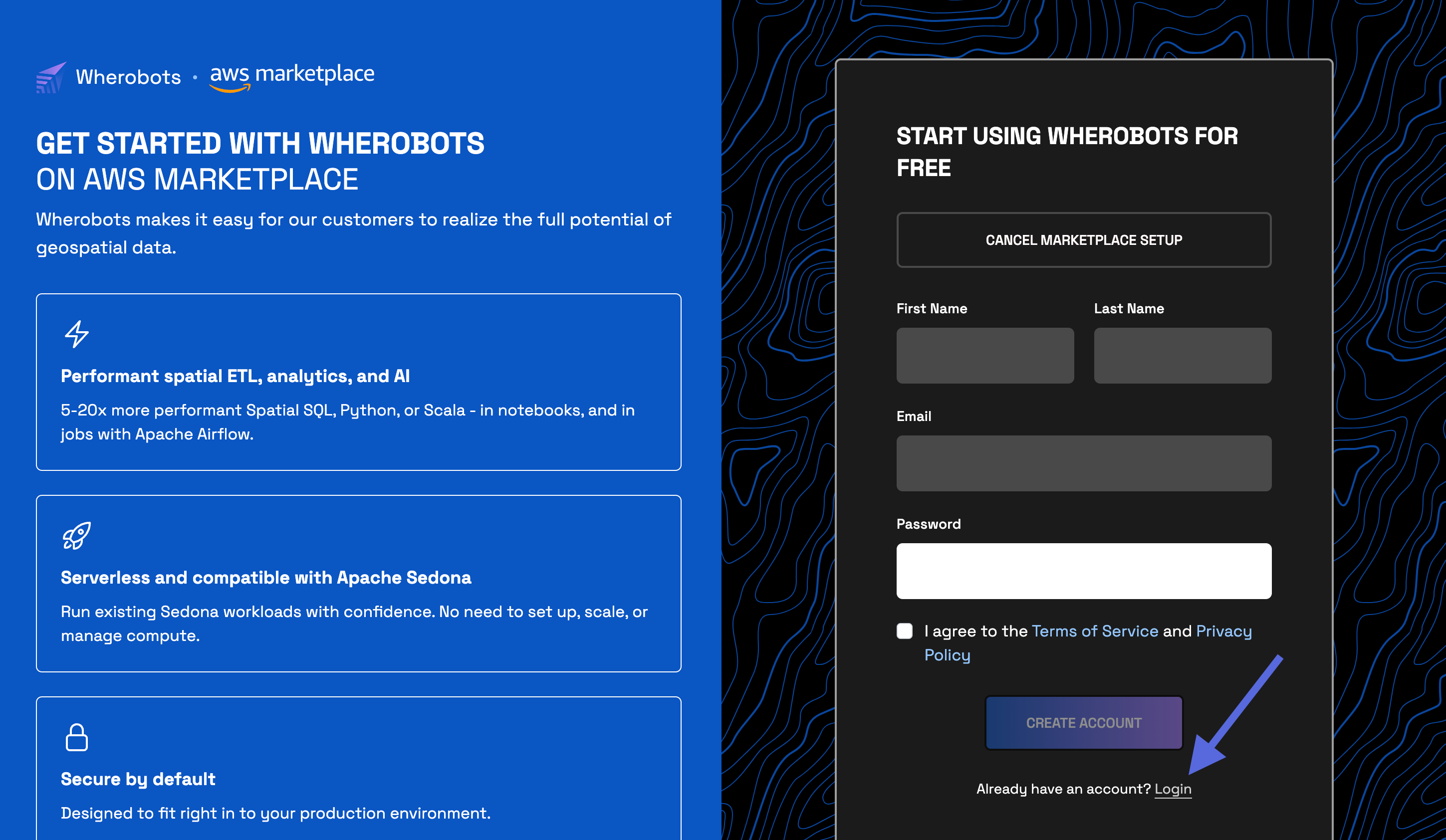 Log in to Wherobots Cloud with an existing **Admin** account. Use the **Email** and **Password** for the Community Edition Organization that you're upgrading.
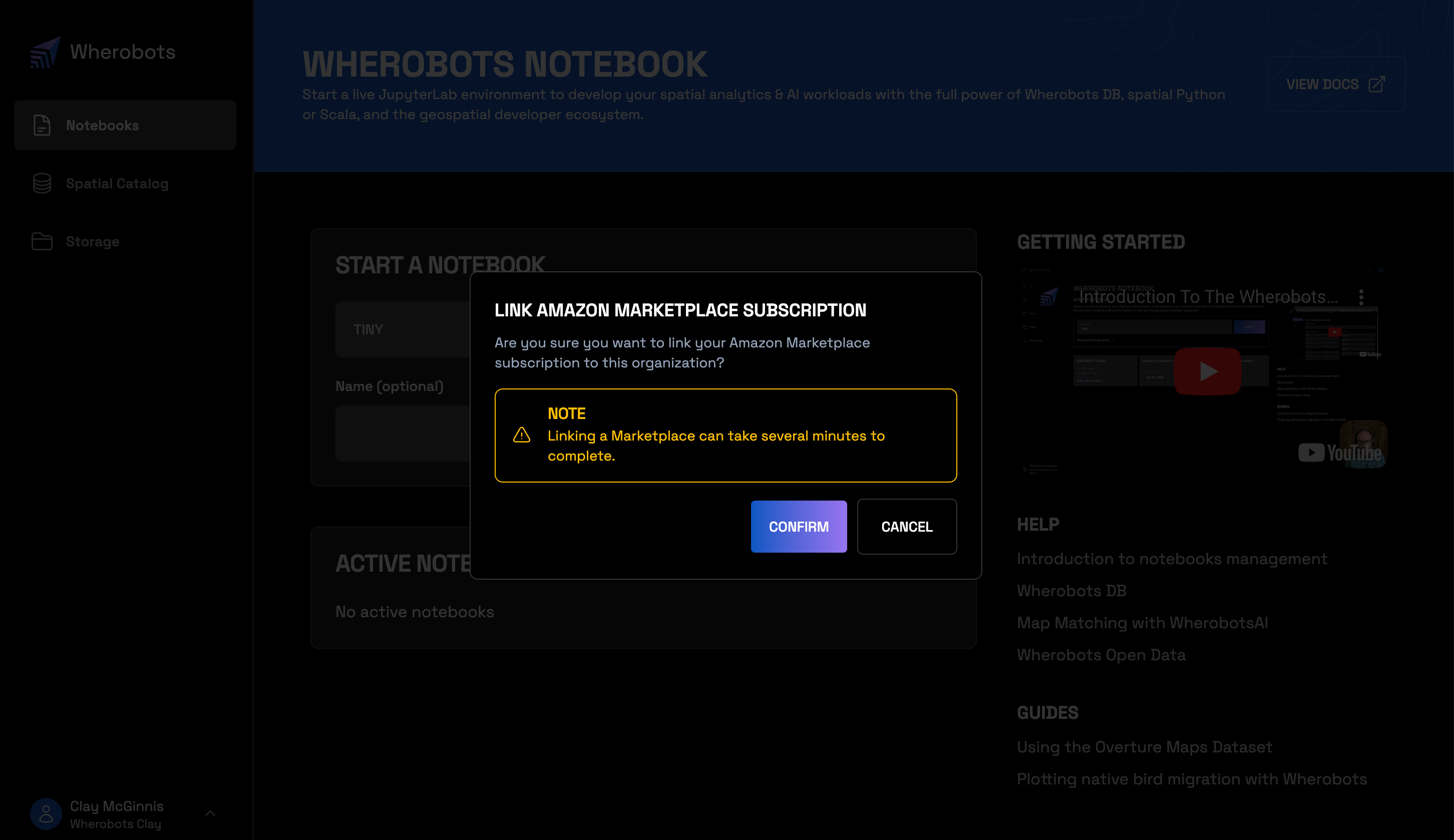
 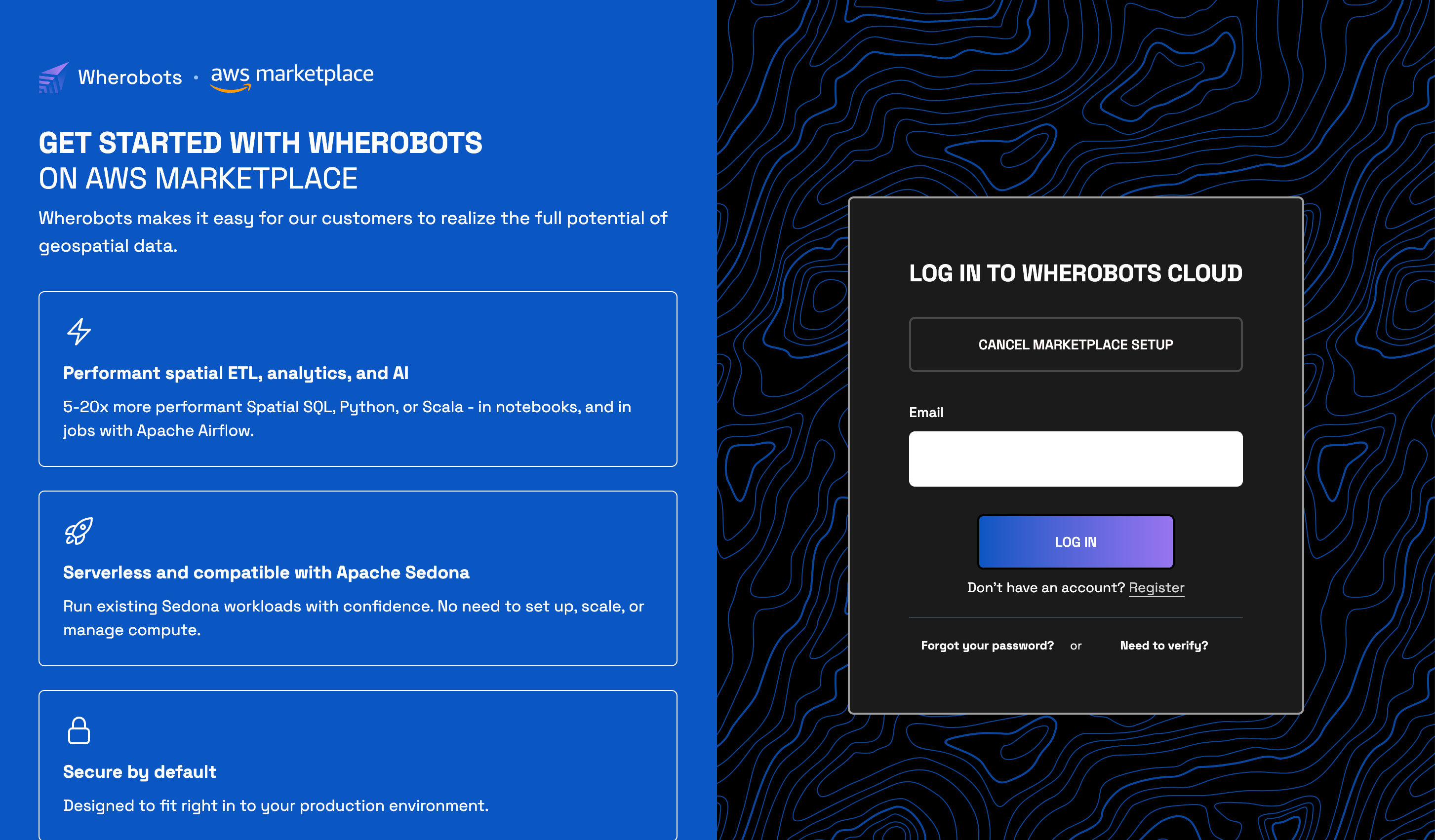 Click **Confirm** to link your Amazon Marketplace subscription to this Organization.
  ### Confirm your upgrade
To confirm that you've successfully upgraded to a Professional Edition Organization, do the following:
Go to [**Organization Settings > Billing**](https://cloud.wherobots.com/organization#billing).
Confirm that you now have the **Professional Edition** icon on your Billing page.
### Confirm your upgrade
To confirm that you've successfully upgraded to a Professional Edition Organization, do the following:
Go to [**Organization Settings > Billing**](https://cloud.wherobots.com/organization#billing).
Confirm that you now have the **Professional Edition** icon on your Billing page.  ### Applying an Organization upgrade to active runtimes
After upgrading your Wherobots organization plan, you must **stop and restart** any active runtimes to access your new resources (e.g., [paid datasets](/develop/spatial-catalog/spatial-catalog/) after upgrading from Community to Professional).
To apply the upgrade to a workload like a Notebook, Job Run, or SQL Session:
Stopping a runtime will discard any unsaved changes.
Go to [Organization Settings](https://cloud.wherobots.com/organization) and click **Destroy** on any active runtime.
Go to [Organization Settings](https://cloud.wherobots.com/organization) and start a new runtime. Your new runtime will now have access to the features and resources associated with your upgraded Organization.
You will now have all the features and access rights associated with your upgraded Organization.
## Next steps
Now that you've upgraded your Organization, here are some recommended next steps to get the most out of your new features and resources:
Invite team members to join your upgraded Organization
Set up the Wherobots VS Code Extension to create notebooks with our MCP server right from your code editor
## Unable to sign up through the AWS Marketplace?
If you are unable to subscribe through the AWS Marketplace, you can [upgrade via Direct Billing](#direct-billing) using a credit card or bank account instead. If you need further assistance, contact us at [support@wherobots.com](mailto:support@wherobots.com).
## Upgrade to an Enterprise Edition Organization
An Enterprise Edition is only available through contract with Wherobots. Enterprise subscriptions are not self-service—in the **Billing** section of **Organization Settings**, contract subscribers will see a **"Contact Sales to Manage Subscription"** link instead of self-serve billing controls.
To upgrade to an Enterprise Edition Organization, see [Create an Enterprise Edition Organization](/get-started/wherobots-cloud/create-account/#create-an-enterprise-edition-organization).
### Applying an Organization upgrade to active runtimes
After upgrading your Wherobots organization plan, you must **stop and restart** any active runtimes to access your new resources (e.g., [paid datasets](/develop/spatial-catalog/spatial-catalog/) after upgrading from Community to Professional).
To apply the upgrade to a workload like a Notebook, Job Run, or SQL Session:
Stopping a runtime will discard any unsaved changes.
Go to [Organization Settings](https://cloud.wherobots.com/organization) and click **Destroy** on any active runtime.
Go to [Organization Settings](https://cloud.wherobots.com/organization) and start a new runtime. Your new runtime will now have access to the features and resources associated with your upgraded Organization.
You will now have all the features and access rights associated with your upgraded Organization.
## Next steps
Now that you've upgraded your Organization, here are some recommended next steps to get the most out of your new features and resources:
Invite team members to join your upgraded Organization
Set up the Wherobots VS Code Extension to create notebooks with our MCP server right from your code editor
## Unable to sign up through the AWS Marketplace?
If you are unable to subscribe through the AWS Marketplace, you can [upgrade via Direct Billing](#direct-billing) using a credit card or bank account instead. If you need further assistance, contact us at [support@wherobots.com](mailto:support@wherobots.com).
## Upgrade to an Enterprise Edition Organization
An Enterprise Edition is only available through contract with Wherobots. Enterprise subscriptions are not self-service—in the **Billing** section of **Organization Settings**, contract subscribers will see a **"Contact Sales to Manage Subscription"** link instead of self-serve billing controls.
To upgrade to an Enterprise Edition Organization, see [Create an Enterprise Edition Organization](/get-started/wherobots-cloud/create-account/#create-an-enterprise-edition-organization).