> ## Documentation Index
> Fetch the complete documentation index at: https://docs.wherobots.com/llms.txt
> Use this file to discover all available pages before exploring further.
# Configuring SAML-based SSO
## Prerequisite: Verify a domain with Wherobots
SAML-based SSO is tied to your domain. To configure SAML-based SSO with Wherobots, you must have access to edit your domain's DNS records.
Navigate to [your organization's settings page](https://cloud.wherobots.com/organization#domain) and scroll to the Domain section.
Below are the steps to verify your domain with Wherobots.
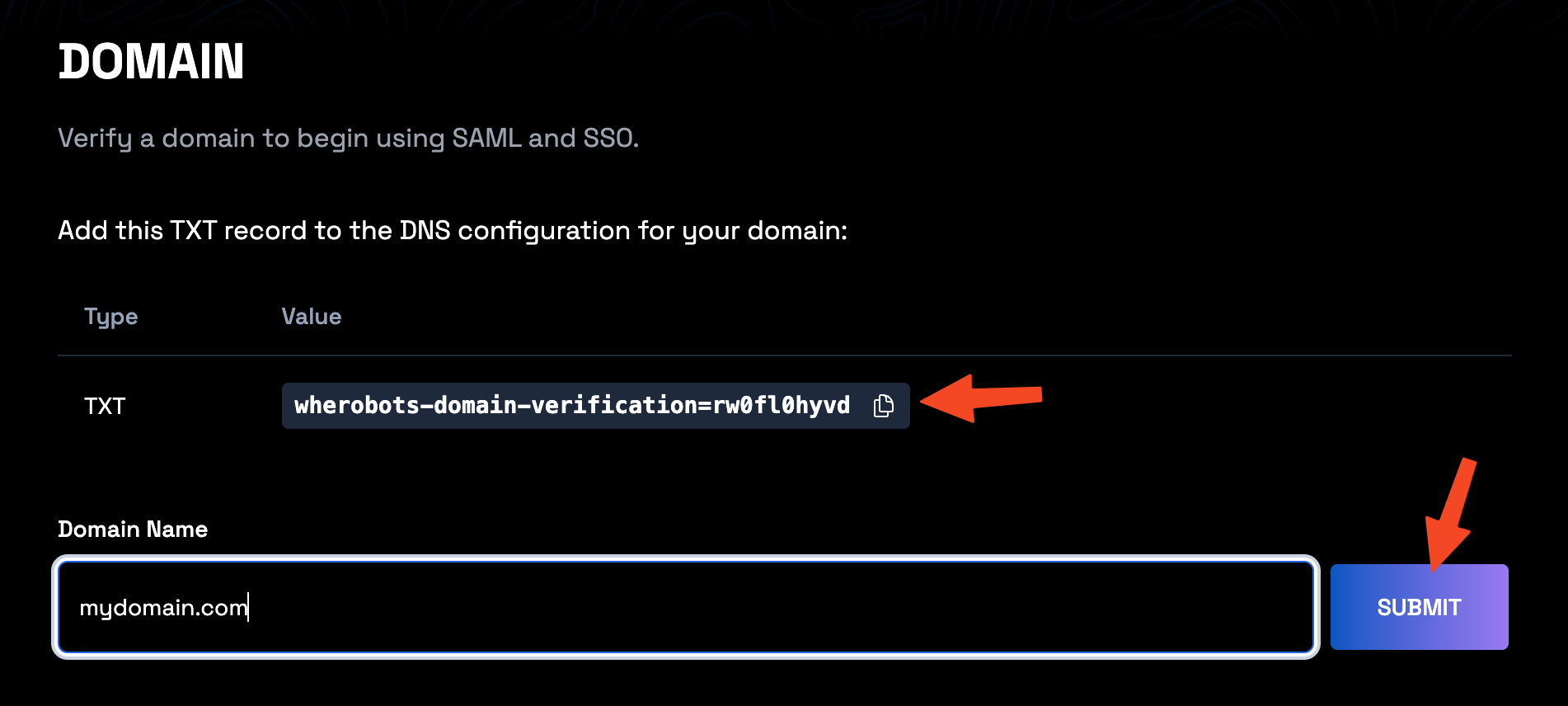 ### Set up your DNS records
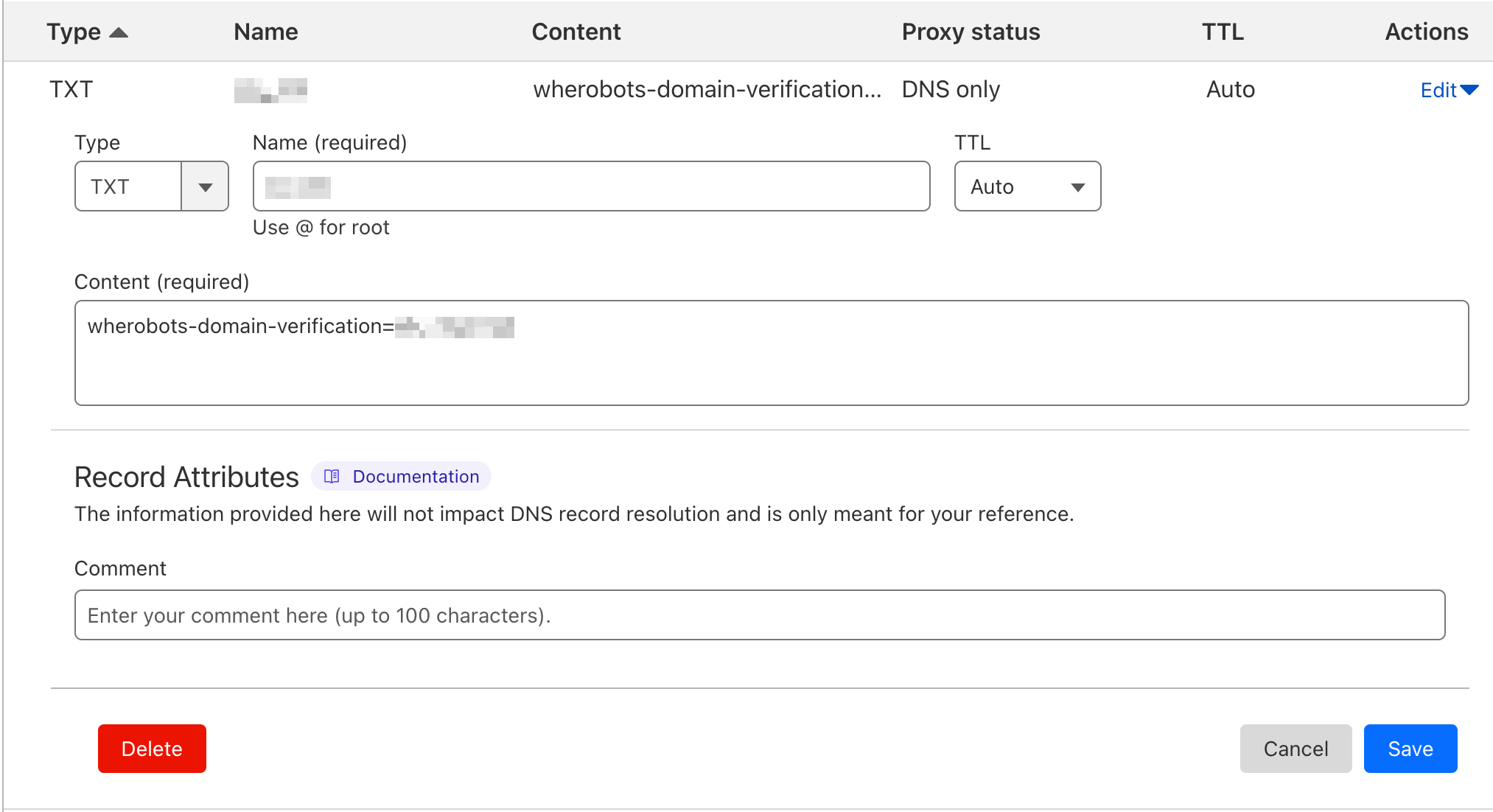
Copy the required TXT DNS record from your organization's settings page (as shown in the image above) and configure them in your domain provider's DNS management portal.
**Example**
### Set up your DNS records
Copy the required TXT DNS record from your organization's settings page (as shown in the image above) and configure them in your domain provider's DNS management portal.
**Example**
An example using Cloudflare DNS:
 ### Set and verify your domain
1. Enter your domain name in the `Domain Name` field.
2. Click the `Change Domain` button to tell Wherobots about your new domain.
3. (Not required if [Set up your DNS records](#set-up-your-dns-records) is complete) Click the Verify Button after you have properly completed [Set up your DNS records](#set-up-your-dns-records).
**Example**
### Set and verify your domain
1. Enter your domain name in the `Domain Name` field.
2. Click the `Change Domain` button to tell Wherobots about your new domain.
3. (Not required if [Set up your DNS records](#set-up-your-dns-records) is complete) Click the Verify Button after you have properly completed [Set up your DNS records](#set-up-your-dns-records).
**Example**
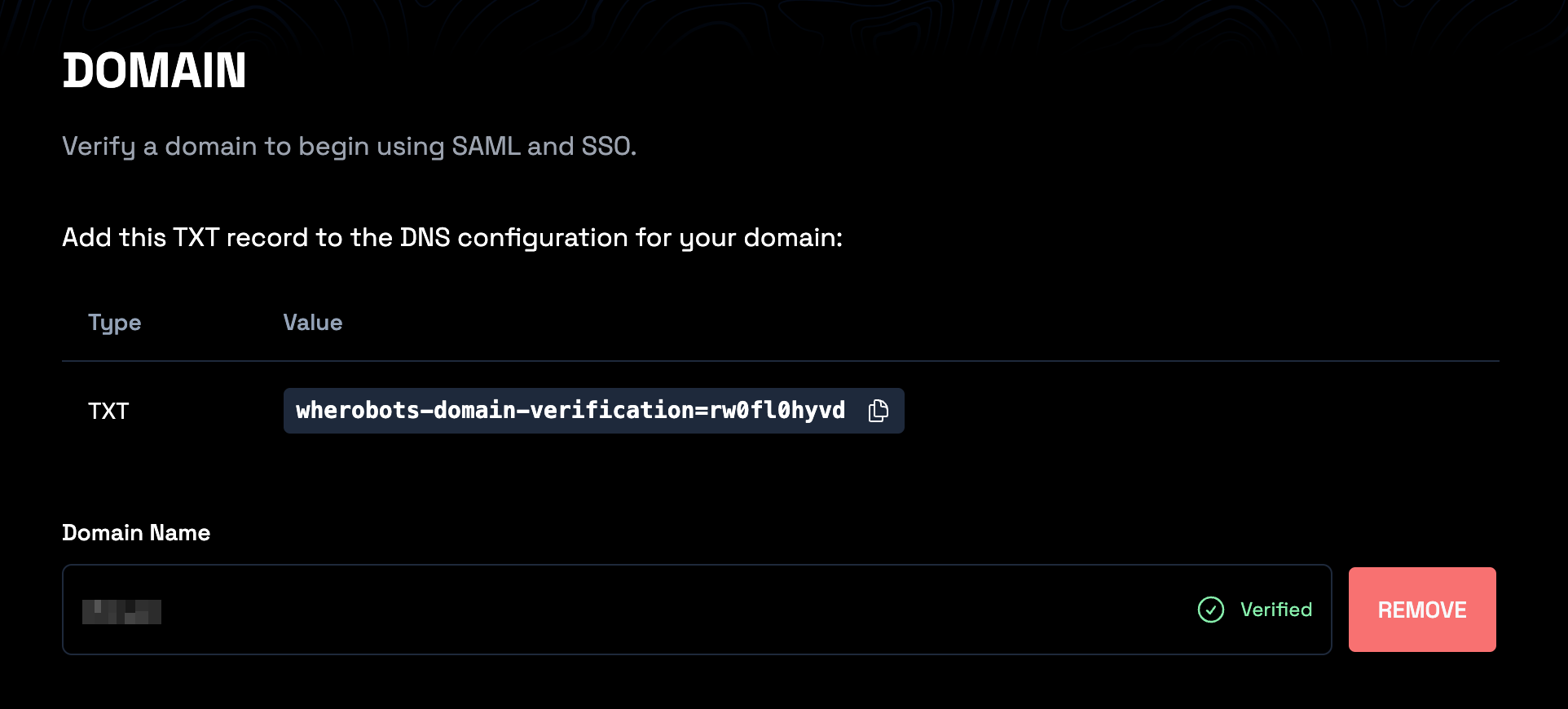
A successful verification will look like this:
 ## Configure SAML
### Configure your Identity Provider
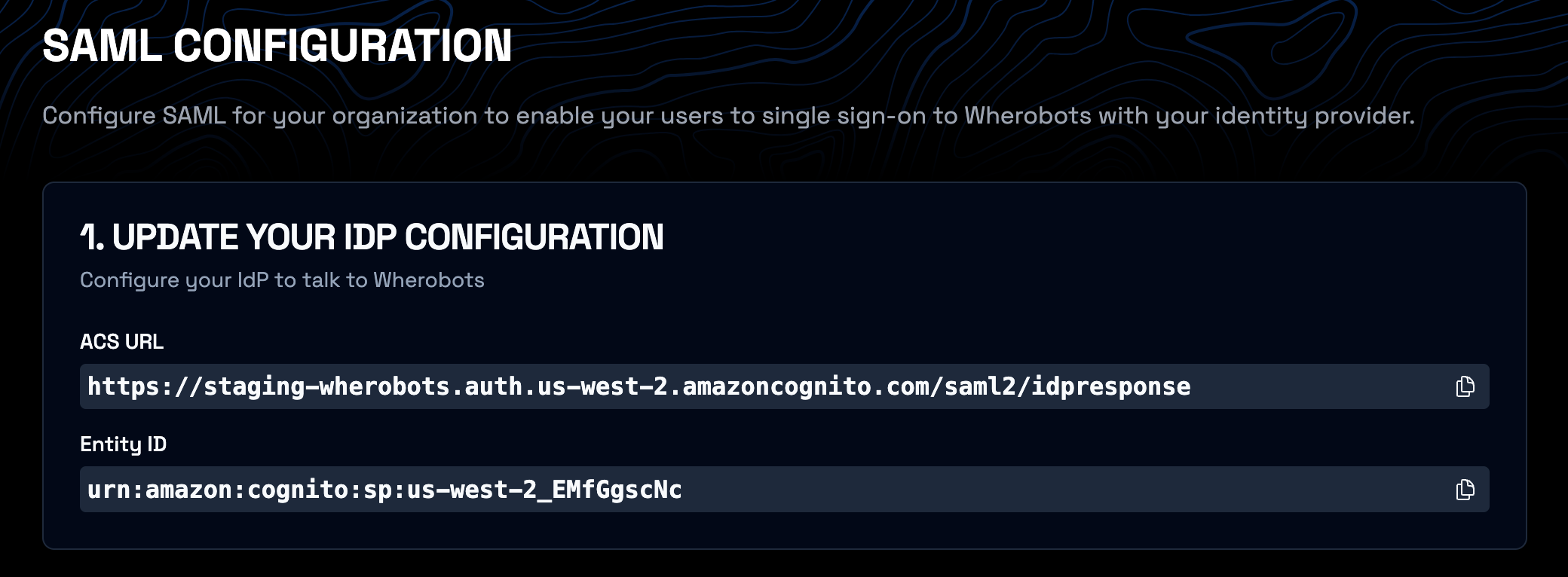
The exact steps will depend on your specific Identity Provider. You will need to enter the details provided in the [SAML section of the Wherobots Organization settings](https://cloud.wherobots.com/organization#saml) into your Identity Provider's configuration panel for SAML-based apps.
Wherobots Cloud requires the following SAML Attribute Statements to be configured via your Identity Provider in order to work correctly:
* `firstName` - the given name of the authenticated user
* `lastName` - the family name of the authenticated user
* `email` - the email address of the authenticated user
**Example**
## Configure SAML
### Configure your Identity Provider
The exact steps will depend on your specific Identity Provider. You will need to enter the details provided in the [SAML section of the Wherobots Organization settings](https://cloud.wherobots.com/organization#saml) into your Identity Provider's configuration panel for SAML-based apps.
Wherobots Cloud requires the following SAML Attribute Statements to be configured via your Identity Provider in order to work correctly:
* `firstName` - the given name of the authenticated user
* `lastName` - the family name of the authenticated user
* `email` - the email address of the authenticated user
**Example**
Links to some common Identity Provider documentation sites:
* [Google Workspace](https://support.google.com/a/answer/6087519)
* [Okta](https://help.okta.com/en-us/content/topics/apps/apps_app_integration_wizard_saml.htm)
* [OneLogin](https://developers.onelogin.com/saml)
* [AzureAD](https://learn.microsoft.com/en-us/azure/active-directory-b2c/saml-service-provider)
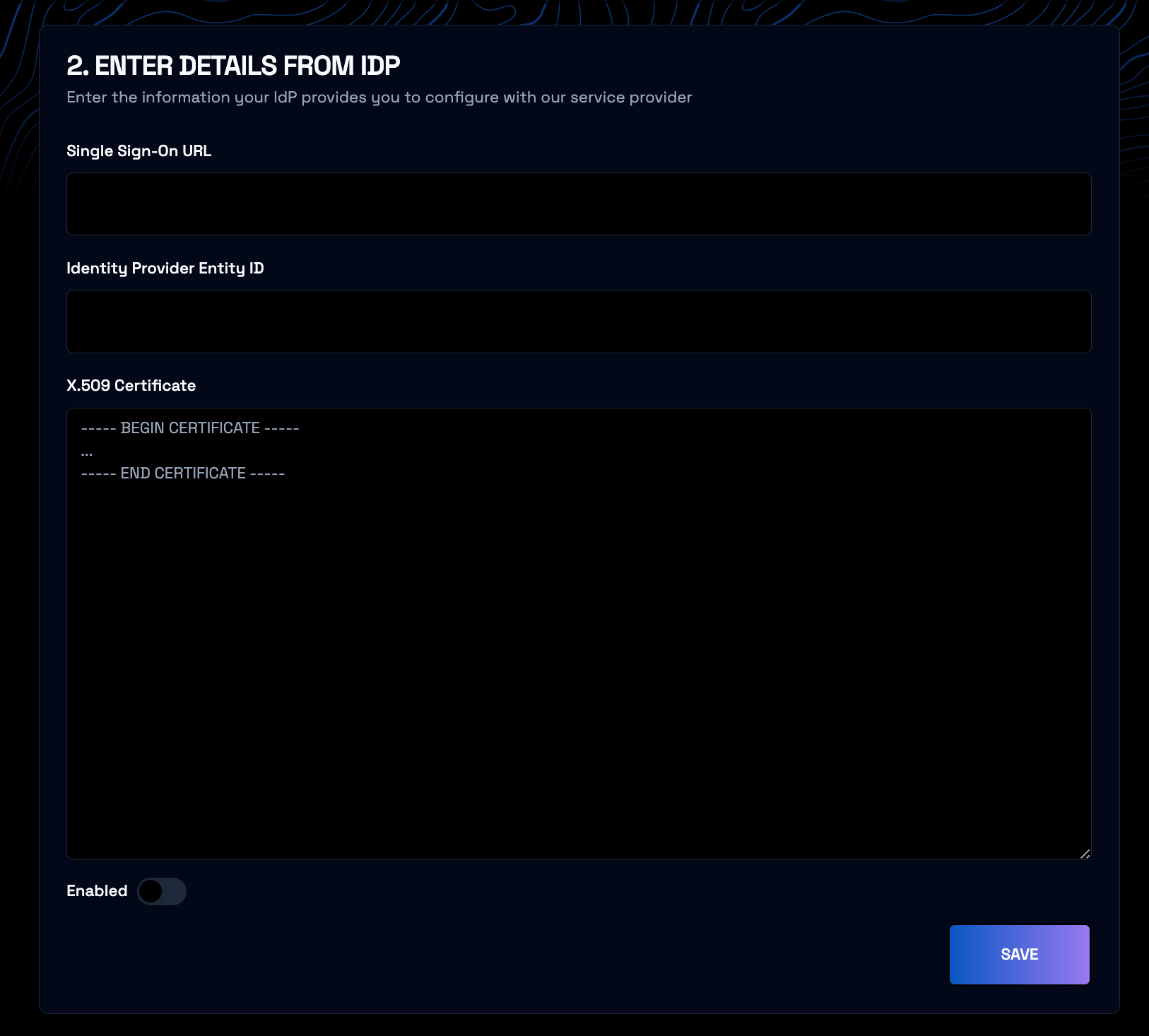
 ### Enter your Identity Provider details into Wherobots Cloud
Take the values from your Identity Provider and enter them into the [SAML section of the Wherobots Organization settings](https://cloud.wherobots.com/organization#saml).
### Enter your Identity Provider details into Wherobots Cloud
Take the values from your Identity Provider and enter them into the [SAML section of the Wherobots Organization settings](https://cloud.wherobots.com/organization#saml).
 ### Enable SAML-based SSO
Ensure you have invited, accepted, and promoted a user to admin whose email is in the same domain as the one you are configuring SAML for. If you do not, you will be unable to do admin actions once you enable SAML-based SSO. Please contact us to disable SAML-based SSO if you run into any issues.
Enable SAML-based SSO by clicking the `Enabled` switch in the [SAML section of the Wherobots Organization settings](https://cloud.wherobots.com/organization#saml).
### Test your SAML integration
Navigate to the login page and enter your email (with the domain you configured). Click `Log In` and you should be redirected to your Identity Provider. Once you complete the login process, you should be redirected back to Wherobots Cloud and see the dashboard.
Wherobots Cloud does not support Identity Provider-initiated SSO logins. You must login directly from the [Wherobots Cloud login page](https://cloud.wherobots.com/).
## Disable SAML-based SSO
When you disable SAML-based SSO, users from your organization will be unable to login with your IdP.
* **Users from before SAML-based SSO was enforced** will be able to log in with email and password.
* **Users who signed up with SAML-based SSO** will have to manually [register their email with Wherobots Cloud](https://cloud.wherobots.com/auth/signup). Afterwards, they will be able to log in with email and password and their account will be linked to their existing user data.
### Option 1: Disable SAML
Disable SAML by clicking the `Enabled` switch in the [SAML section of the Wherobots Organization settings](https://cloud.wherobots.com/organization#saml) to turn it to the off position.
### Option 2: Remove your domain
In the [domain section of the Wherobots Organization settings](https://cloud.wherobots.com/organization#domain), remove your domain.
## Frequently Asked Questions
### What is SAML?
SAML, or Security Assertion Markup Language, is a standard for exchanging authentication and authorization information between an application and an identity provider. It is commonly used in enterprise environments to authenticate users and authorize access to resources. In the context of Wherobots, SAML is used to enable users to log in to the platform using their existing identity provider.
### What happens to another user's organization at `example.com` when I configure SAML for `example.com`?
When you configure SAML for an organization and domain, any users who have previously created an account and an organization with an email from that domain will be unable to log in to those organizations. Please contact us to merge organizations and their data if required.
### Enable SAML-based SSO
Ensure you have invited, accepted, and promoted a user to admin whose email is in the same domain as the one you are configuring SAML for. If you do not, you will be unable to do admin actions once you enable SAML-based SSO. Please contact us to disable SAML-based SSO if you run into any issues.
Enable SAML-based SSO by clicking the `Enabled` switch in the [SAML section of the Wherobots Organization settings](https://cloud.wherobots.com/organization#saml).
### Test your SAML integration
Navigate to the login page and enter your email (with the domain you configured). Click `Log In` and you should be redirected to your Identity Provider. Once you complete the login process, you should be redirected back to Wherobots Cloud and see the dashboard.
Wherobots Cloud does not support Identity Provider-initiated SSO logins. You must login directly from the [Wherobots Cloud login page](https://cloud.wherobots.com/).
## Disable SAML-based SSO
When you disable SAML-based SSO, users from your organization will be unable to login with your IdP.
* **Users from before SAML-based SSO was enforced** will be able to log in with email and password.
* **Users who signed up with SAML-based SSO** will have to manually [register their email with Wherobots Cloud](https://cloud.wherobots.com/auth/signup). Afterwards, they will be able to log in with email and password and their account will be linked to their existing user data.
### Option 1: Disable SAML
Disable SAML by clicking the `Enabled` switch in the [SAML section of the Wherobots Organization settings](https://cloud.wherobots.com/organization#saml) to turn it to the off position.
### Option 2: Remove your domain
In the [domain section of the Wherobots Organization settings](https://cloud.wherobots.com/organization#domain), remove your domain.
## Frequently Asked Questions
### What is SAML?
SAML, or Security Assertion Markup Language, is a standard for exchanging authentication and authorization information between an application and an identity provider. It is commonly used in enterprise environments to authenticate users and authorize access to resources. In the context of Wherobots, SAML is used to enable users to log in to the platform using their existing identity provider.
### What happens to another user's organization at `example.com` when I configure SAML for `example.com`?
When you configure SAML for an organization and domain, any users who have previously created an account and an organization with an email from that domain will be unable to log in to those organizations. Please contact us to merge organizations and their data if required.