> ## Documentation Index
> Fetch the complete documentation index at: https://docs.wherobots.com/llms.txt
> Use this file to discover all available pages before exploring further.
# Add Members to an Organization
> Admins can invite others to join their Wherobots Organization. Each Organization must have at least one Admin. Learn how to send invitations and how invitees can sign up and verify their accounts.
If you're an **Admin**, you can invite others to join your Wherobots Organization.
Each Organization must have at least one Admin.
* Professional Edition Organizations have a default limit of 10 members. Community Organizations have a limit of 5 members. This limit can include a
mix of User Role and Admin Role accounts.
* An Admin can invite others to join the Organization.
* Enterprise Edition Organizations can have an unlimited number of members. To learn more about available plans, including paid options, see [Wherobots Pricing](https://wherobots.com/pricing/).
## Admin instructions
The following are instructions for the Organization's Admin. To invite new members, an
Admin must initiate the invitation process.
### Send Invitation
1. Go to [**Organization Settings > Users**](https://cloud.wherobots.com/organization#users).
2. Click **Invite Users**.
3. Enter the email address of the intended recipient. Click **Invite**.
## Invitee instructions
The following are instructions for the invitee. Invitees must create and verify their accounts.
### Invitee Sign-up and Verification
1. After the Admin sends your invitation, you will receive it via email.
Do not share this invitation link with anyone. It is unique to your Organization and should remain confidential.
2. Click the invitation link in the email.
3. Enter your details to create your account.
1. Input your **First Name**, **Last Name**, **Email**, and choose a **Password**.
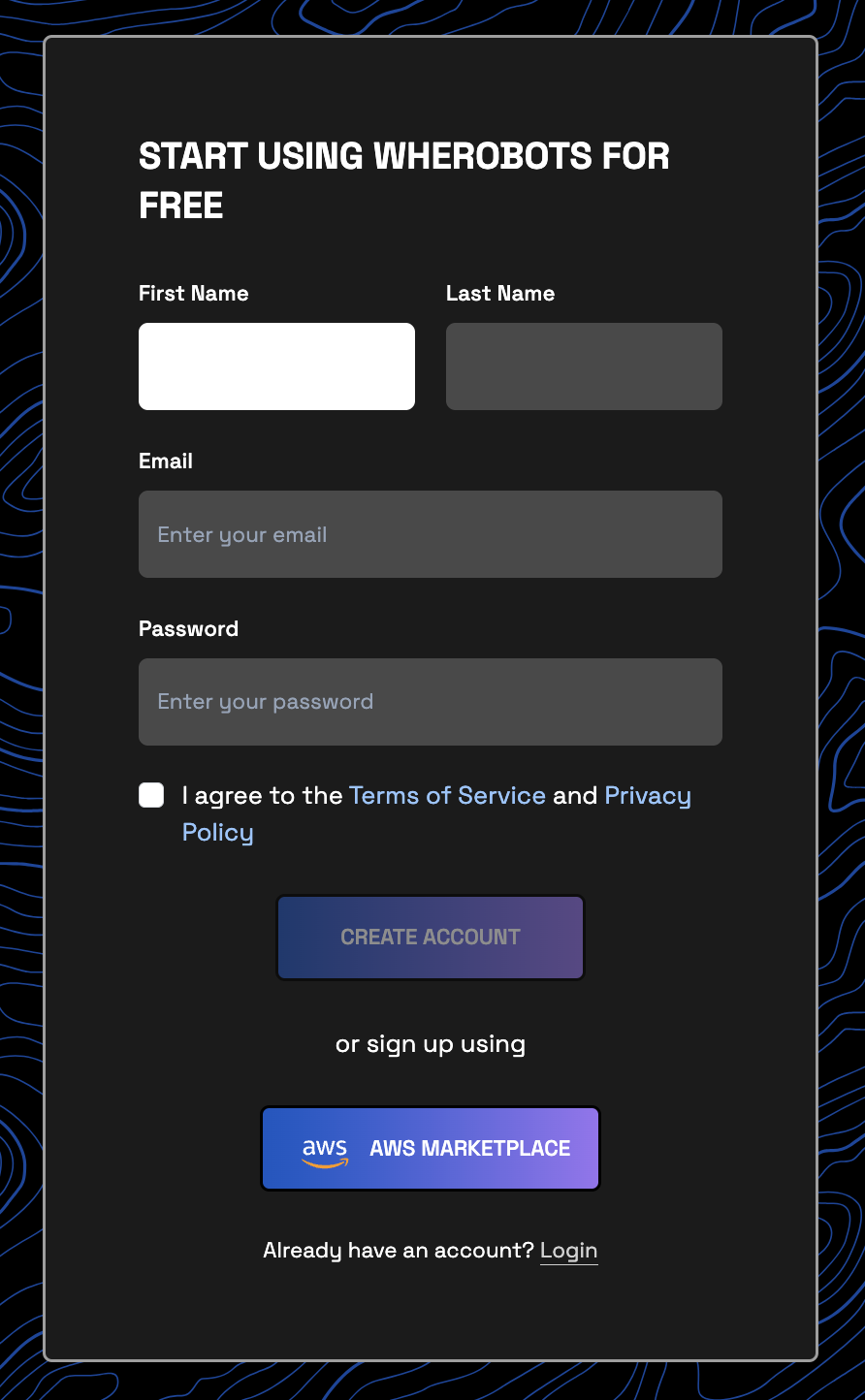 2. Review and accept the **Terms of Service** and **Privacy Policy**.
3. Click **Create Account**
4. After signing up, you will receive an email with a verification code. When prompted, enter the verification code in Wherobots.
After successful verification, you can log in and explore Wherobots.
### Explore Wherobots
Your account is verified!
Learn the essentials of WherobotsDB and WherobotsAI with our Wherobots Fundamentals series.
* [Learn about WherobotsDB](/get-started/wherobots-fundamentals/platform-overview#wherobotsdb-in-depth)
* [Learn about WherobotsAI](/get-started/wherobots-fundamentals/platform-overview#geostats-and-map-matching-in-depth)
2. Review and accept the **Terms of Service** and **Privacy Policy**.
3. Click **Create Account**
4. After signing up, you will receive an email with a verification code. When prompted, enter the verification code in Wherobots.
After successful verification, you can log in and explore Wherobots.
### Explore Wherobots
Your account is verified!
Learn the essentials of WherobotsDB and WherobotsAI with our Wherobots Fundamentals series.
* [Learn about WherobotsDB](/get-started/wherobots-fundamentals/platform-overview#wherobotsdb-in-depth)
* [Learn about WherobotsAI](/get-started/wherobots-fundamentals/platform-overview#geostats-and-map-matching-in-depth)