> ## Documentation Index
> Fetch the complete documentation index at: https://docs.wherobots.com/llms.txt
> Use this file to discover all available pages before exploring further.
# Connect to Databricks Unity Catalog
> Connect Wherobots to Databricks Unity Catalog to read your lakehouse data directly in Wherobots without replication or migration.
Wherobots now connects to Databricks Unity Catalog, allowing you to build spatial solutions with data directly from your lakehouse without replication or migration.
This integration empowers data teams working on Databricks to use Wherobots's best in-class geospatial capabilities while continuing to benefit from data governance capabilities of Unity Catalog.
## Benefits
* **Zero-Copy architecture:** Read tables managed by Databricks Unity Catalog without moving or duplicating data.
* **Maintained governance:** Databricks Workspace Admins can retain catalog- and table-level access control when reading their Databricks catalogs.
* **Secure federation:** Connect securely using Databricks authentication credentials.
* **Accelerated innovation on the lakehouse:** Take spatial ideas to market faster using Wherobots' 300+ spatial functions, raster inference, and compute for physical world data on your Unity Catalog data.
## Supported workflows
Wherobots' integration with Databricks Unity Catalog supports the following workflows:
| Read Source (Unity Catalog) | Write Destination | Required Databricks Authentication | Documentation |
| :-------------------------- | :------------------------------------------- | :--------------------------------------------------------------------------- | :-------------------------------------------------------------------------------------------- |
| Managed **Delta** Table | Wherobots-Managed Catalog | Personal Access Token (PAT) (assigned to an individual or Service Principal) | [Workflow Configuration](/get-started/initial-storage/connect-to-unity-catalog/#__tabbed_3_1) |
| Managed **Delta** Table | External **Delta** Table (in Unity Catalog) | Personal Access Token (PAT) (assigned to an individual or Service Principal) | [Workflow Configuration](/get-started/initial-storage/connect-to-unity-catalog/#__tabbed_3_2) |
| Managed **Iceberg** Table | Wherobots-Managed Catalog | **Service Principal** with OAuth | [Workflow Configuration](/get-started/initial-storage/connect-to-unity-catalog/#__tabbed_4_1) |
| Managed **Iceberg** Table | Managed **Iceberg** Table (in Unity Catalog) | **Service Principal** with OAuth | [Workflow Configuration](/get-started/initial-storage/connect-to-unity-catalog/#__tabbed_4_2) |
## Setup and configuration
### Before you start
Before you can use this feature, make sure you have the following:
* A Wherobots **Account** within a Professional, Innovation, or Enterprise Edition Organization. Your Account needs to be assigned an **Admin** role to create a Connection.
* A **pre-existing Managed Delta or Managed Iceberg table** within the Databricks platform.
* A **pre-existing Unity Catalog** in Databricks.
* The necessary permissions in Databricks, [as described below](#databricks-permissions).
### Creating the Connection
#### Databricks permissions
The permissions you need depend on your read/write workflow.
* **If you're reading from a Managed Delta Table and writing to a Wherobots-managed Catalog**:
* Create a **Personal Access Token (PAT)**.
**Best practice: Use a Databricks Service Principal**
To mitigate security concerns, you should adhere to the principle of least privilege by attaching the PAT to a Databricks service principal instead of an individual user and granting it only the minimum permissions required.
* The following permissions are required:
| Permission | Granted On (Object Type) | Target / Scope |
| :------------ | :------------------------------ | :------------------------------------------------ |
| `USE CATALOG` | Catalog | The catalog containing the **source** Delta table |
| `USE SCHEMA` | Schema | The schema containing the **source** Delta table |
| `SELECT` | Table | The **source** Delta table being read |
| `CAN USE` | Service principal or individual | |
* **If you're reading from a Managed Iceberg Table and writing to a Wherobots-managed Catalog**:
* Use a **Service Principal with OAuth**. For more information, see [Authorize service principal access to Databricks with OAuth](https://docs.databricks.com/aws/en/dev-tools/auth/oauth-m2m) in the Official Databricks Documentation.
* Record the ``, ``, ``, and `` for the Wherobots UI.
* The following permissions are required:
| Permission | Granted On (Object Type) | Target / Scope |
| :-------------------- | :----------------------- | :------------------------------------------------------- |
| `USE CATALOG` | Catalog | The catalog containing the **source** Iceberg table |
| `USE SCHEMA` | Schema | The schema containing the **source** Iceberg table |
| `SELECT` | Table | The **source** Iceberg table being read |
| `EXTERNAL USE SCHEMA` | Schema | The schema containing the **source** Iceberg table |
| `READ VOLUME` | External Volume | The volume where the **source** table's files are stored |
* **If you're reading from a Managed Delta Table and writing to an External Delta Table**:
* **Authentication:** You must use a **Personal Access Token (PAT)**.
* The following permissions are required:
| Permission | Granted On (Object Type) | Target / Scope |
| :---------------------- | :----------------------- | :--------------------------------------------------------- |
| `USE CATALOG` | Catalog | Both the **source** and **destination** catalogs |
| `USE SCHEMA` | Schema | Both the **source** and **destination** schemas |
| `SELECT` | Table | The **source** Delta table being read |
| `CREATE TABLE` | Schema | The **destination** schema where the output is written |
| `MODIFY` | Table | The **destination** table where the output is written |
| `CREATE EXTERNAL TABLE` | External Location | The external location for the **destination** table's data |
| `EXTERNAL USE LOCATION` | External Location | The external location for the **destination** table's data |
* **If you're reading from a Managed Iceberg Table and writing to a new Managed Iceberg Table**:
* **Authentication:** You must use a **Service Principal with OAuth**.
* The following permissions are required:
| Permission | Granted On (Object Type) | Target / Scope |
| :-------------------- | :----------------------- | :------------------------------------------------------- |
| `USE CATALOG` | Catalog | The catalog containing the **source** Iceberg table |
| `USE SCHEMA` | Schema | The schema containing the **source** Iceberg table |
| `SELECT` | Table | The **source** Iceberg table being read |
| `EXTERNAL USE SCHEMA` | Schema | The schema containing the **source** Iceberg table |
| `READ VOLUME` | External Volume | The volume where the **source** table's files are stored |
### Add the catalog in Wherobots
1. Navigate to the [**Data Hub**](https://cloud.wherobots.com/data-hub) in your Wherobots Organization.
2. Click **Add Catalog**.
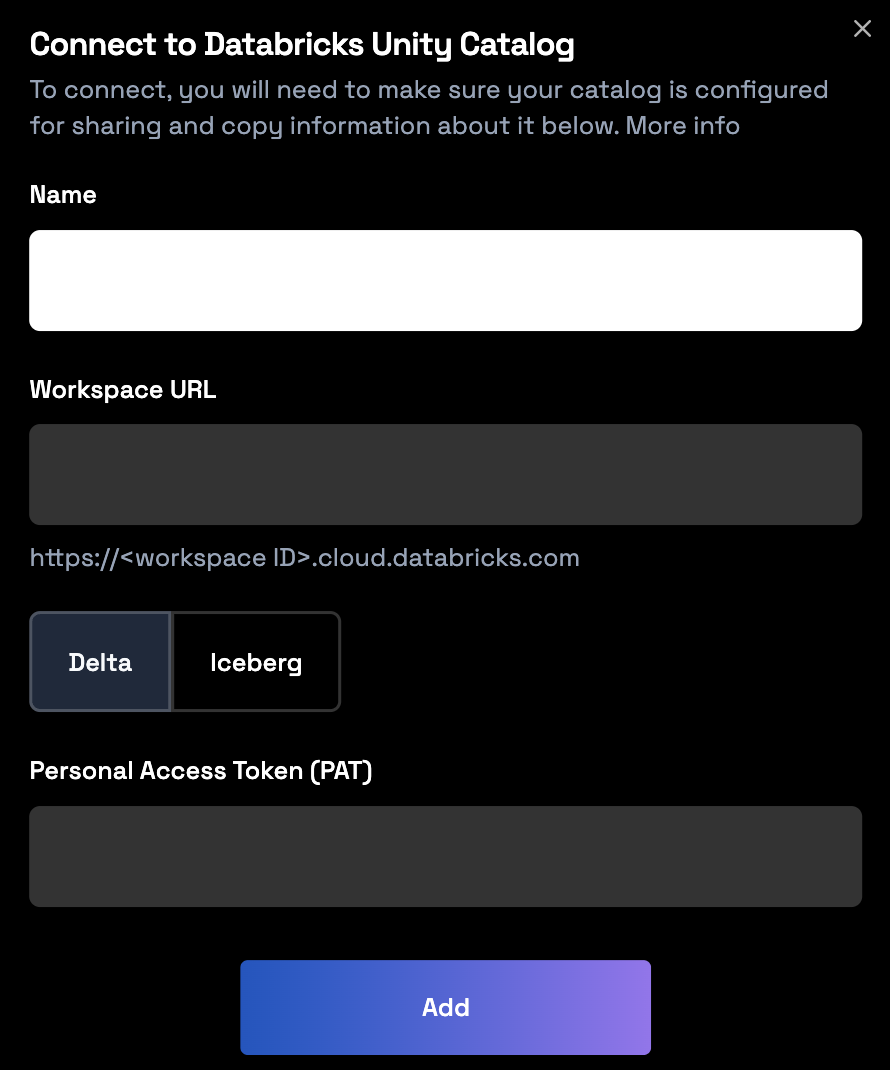
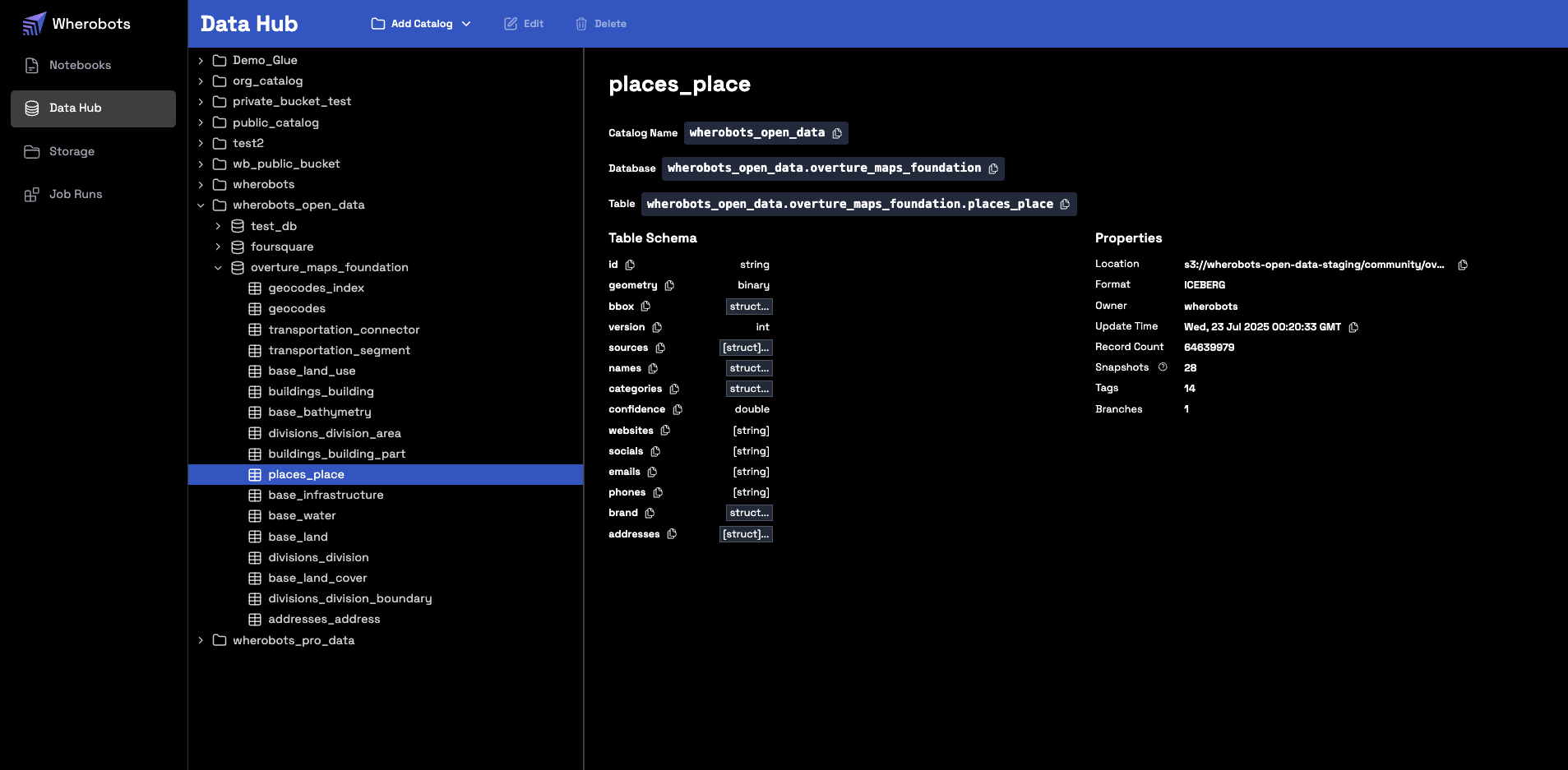 3. Select either **Delta** or **Iceberg**, depending on the format of the source table you are connecting to.
4. Enter the required information. The **Name** must exactly match the catalog name in your Databricks Workspace.
* Enter your **Personal Access Token (PAT)** and **Workspace URL**.
3. Select either **Delta** or **Iceberg**, depending on the format of the source table you are connecting to.
4. Enter the required information. The **Name** must exactly match the catalog name in your Databricks Workspace.
* Enter your **Personal Access Token (PAT)** and **Workspace URL**.
 * Enter your **Workspace URL**, **OAuth Client ID**, and **OAuth Client Secret**.
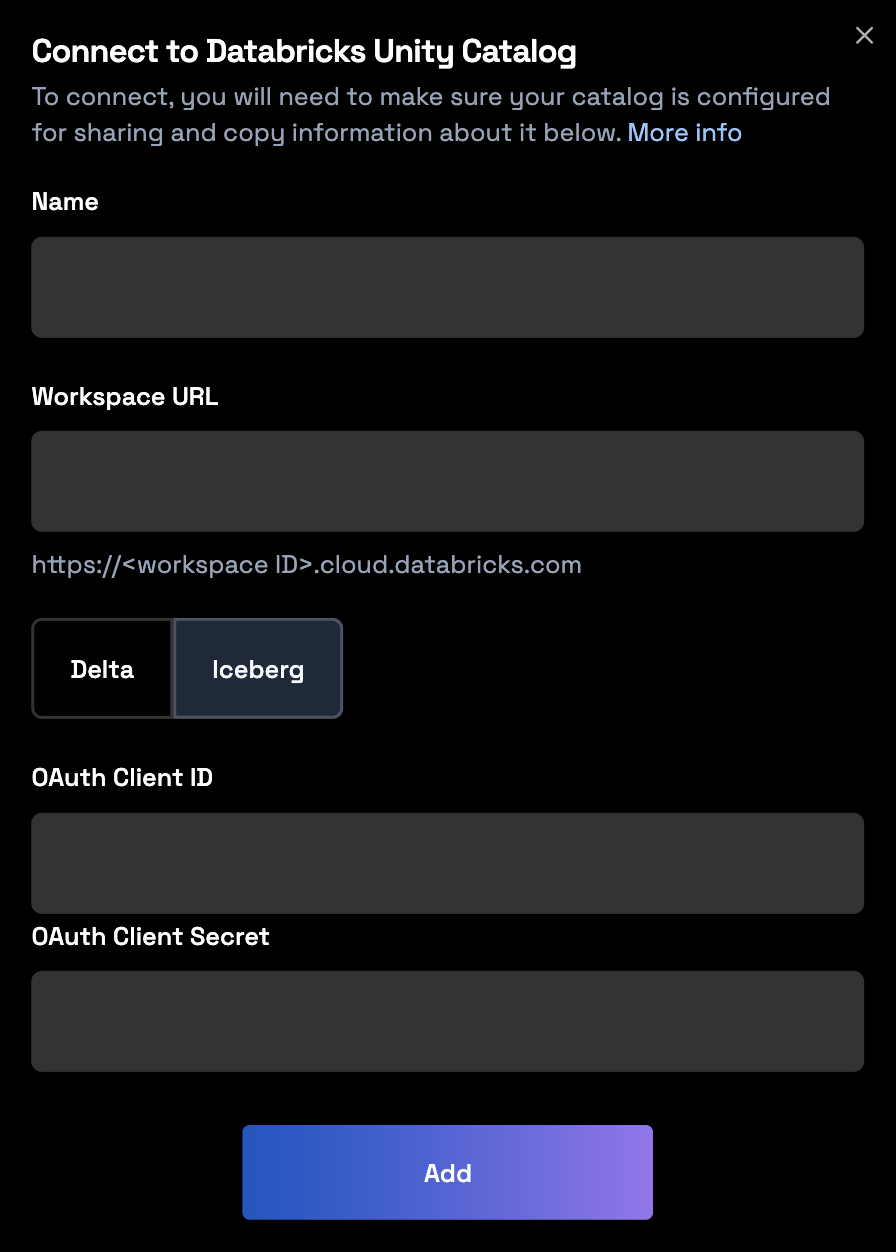 * Click **Add**.
**Runtime Restart Required After Data Integration**
To use new storage integrations or catalogs in your notebooks, you must start a new runtime.
Notebooks can only access storage integrations or catalogs that were created before the runtime started.
## Reading and writing Unity Catalog tables
You can access your Unity Catalog Tables in a Wherobots Notebook, Job Run, or SQL Session. The following sections
detail how to work with your Unity Catalog tables in a Wherobots Notebook.
### Set the SedonaContext
In a Wherobots Notebook, create the `SedonaContext` and import any other necessary libraries for your analysis.
The following imports the necessary modules from the Sedona library, creates a `SedonaContext` object, and
imports [`expr`](https://spark.apache.org/docs/latest/api/python/reference/pyspark.sql/api/pyspark.sql.functions.expr.html).
```python theme={"system"}
from sedona.spark import *
from pyspark.sql.functions import expr
config = SedonaContext.builder().getOrCreate()
sedona = SedonaContext.create(config)
```
### Set your Databricks Resource Variables
Define the resources that point to your Databricks resources:
```python theme={"system"}
CATALOG = "YOUR-CATALOG" # Change this to your catalog
SCHEMA = "YOUR-SCHEMA" # Change this to your schema name
SOURCE_TABLE = "YOUR-SOURCE-TABLE" # Change this to the table you're reading into Wherobots
OUTPUT_TABLE = "YOUR-OUTPUT-TABLE" # Change this to the table you're writing to from Wherobots
SOURCE_TABLE_FQN = f"`{CATALOG}`.`{SCHEMA}`.`{SOURCE_TABLE}`"
OUTPUT_TABLE_FQN = f"`{CATALOG}`.`{SCHEMA}`.`{OUTPUT_TABLE}`"
```
### Reading from a Delta Table
```python theme={"system"}
# Read from a Unity Catalog Databricks Managed Delta table
df = sedona.read.table(SOURCE_TABLE_FQN)
# Assuming the table has a column named "geom_wkb" that stores geometries in WKB format,
# use Wherobots to convert those to an equivalent GEOMETRY column.
df_parsed = df.withColumn("geom", expr("ST_GeomFromWKB(geom_wkb)"))
# Perform spatial analysis in Wherobots, which creates a new GEOMETRY column.
# For example, create a 100-meter buffer around an existing geometry.
df_analyzed = df_parsed.withColumn("buffered_geom", expr("ST_Buffer(geom, 100)"))
# Write the enriched table, preserving the new GEOMETRY column,
# to your Wherobots-managed catalog.
sedona.sql("CREATE SCHEMA IF NOT EXISTS org_catalog.default")
df_analyzed.writeTo(f"org_catalog.default.`{OUTPUT_TABLE}`") \
.createOrReplace()
```
To write to an external Delta table, you must specify an **external location** in a Wherobots Notebook.
An external location is a Unity Catalog object that links a cloud storage path to a **storage credential** to manage data access. You can manage them in the **Catalog Explorer**.
Finding an External Location
1. In the **Catalog Explorer**, navigate to **External Data** > **External Locations**.
2. A list of registered locations will appear. Click on a location to view its details.
Creating an External Location
Creation is a two-step process: first create a **storage credential** that grants Databricks access to your cloud storage, then create the external location itself.
1. Go to **Catalog Explorer** > **External Data** > **External Locations** and click **Create location**.
2. Enter a name, provide the cloud storage URL, and select the storage credential you created.
For detailed instructions, see [Manage external locations and storage credentials](https://docs.databricks.com/en/data-governance/unity-catalog/manage-external-locations-and-credentials.html).
```python theme={"system"}
# Define the external location for the output Delta table.
# Replace this with the actual path in your cloud storage.
OUTPUT_TABLE_EXTERNAL_LOCATION = 's3://your-bucket-name/path/to/external/location/'
# Read the source table using the fully qualified name variable.
df = sedona.read.table(SOURCE_TABLE_FQN)
# Assuming the table has a column named "geom_wkb" that stores geometries in WKB format,
# use Wherobots to convert those to an equivalent GEOMETRY column.
df_parsed = df.withColumn("geom", expr("ST_GeomFromWKB(geom_wkb)"))
# Perform spatial analysis in Wherobots, which creates a new GEOMETRY column.
# For example, create a 100-meter buffer around an existing geometry.
df_analyzed = df_parsed.withColumn("buffered_geom", expr("ST_Buffer(geom, 100)"))
# To write back to a standard Databricks Delta table, convert any GEOMETRY
# columns to a binary format like Well-Known Binary (WKB).
# Here, we convert both the original and the new buffered geometry columns.
df_for_databricks = df_analyzed.withColumn(
"geom_wkb", expr("ST_AsBinary(geom)")
).withColumn(
"buffered_geom_wkb", expr("ST_AsBinary(buffered_geom)")
).drop("geom", "buffered_geom")
# Create a temporary view to reference in the final SQL command.
df_for_databricks.createOrReplaceTempView("temp_final_df_view")
# Use a SQL command to create the external table in Unity Catalog.
# The LOCATION keyword ensures the data is written to your specified cloud storage path.
sedona.sql(f"""
CREATE OR REPLACE TABLE {OUTPUT_TABLE_FQN}
USING delta
LOCATION '{OUTPUT_TABLE_EXTERNAL_LOCATION}'
AS SELECT * FROM temp_final_df_view
""")
```
### Reading from an Iceberg Table
```python theme={"system"}
# Read an Iceberg table from your Databricks catalog
df = sedona.read.table(SOURCE_TABLE_FQN)
# Assuming the table has a column named "geom_wkb" that stores geometries in WKB format,
# use Wherobots to convert those to an equivalent GEOMETRY column.
df_parsed = df.withColumn("geom", expr("ST_GeomFromWKB(geom_wkb)"))
# Perform spatial analysis, which creates a new GEOMETRY column.
# For example, create a 100-meter buffer around an existing geometry.
df_analyzed = df_parsed.withColumn("buffered_geom", expr("ST_Buffer(geom, 100)"))
# Write the enriched table, preserving the new GEOMETRY column,
# to your Wherobots-managed catalog.
sedona.sql("CREATE SCHEMA IF NOT EXISTS org_catalog.default")
df_analyzed.writeTo(f"org_catalog.default.`{OUTPUT_TABLE}`") \
.createOrReplace()
```
```python theme={"system"}
# Read the source table using the fully qualified name variable.
df = sedona.read.table(SOURCE_TABLE_FQN)
# Assuming the table has a column named "geom_wkb" that stores geometries in WKB format,
# use Wherobots to convert those to an equivalent GEOMETRY column.
df_parsed = df.withColumn("geom", expr("ST_GeomFromWKB(geom_wkb)"))
# Perform spatial analysis in Wherobots, which creates a new GEOMETRY column.
# For example, create a 100-meter buffer around an existing geometry.
df_analyzed = df_parsed.withColumn("buffered_geom", expr("ST_Buffer(geom, 100)"))
# To write back to a new Managed Iceberg table in Databricks, convert any GEOMETRY
# columns to a binary format like Well-Known Binary (WKB).
# Here, we convert both the original and the new buffered geometry columns.
df_for_databricks = df_analyzed.withColumn(
"geom_wkb", expr("ST_AsBinary(geom)")
).withColumn(
"buffered_geom_wkb", expr("ST_AsBinary(buffered_geom)")
).drop("geom", "buffered_geom")
# Write the results back to a new Managed Iceberg table in Databricks
df_for_databricks.writeTo(OUTPUT_TABLE_FQN) \
.createOrReplace()
```
## Usage and limitations
* **Catalog Naming:** You cannot use a local alias for a catalog. If you have a pre-existing catalog in your Wherobots Organization named `wherobots`, trying to connect a Databricks catalog with the name `wherobots` will cause a permanent naming conflict and must be avoided.
* **Catalog Limit:** The integration supports a limit of 10 foreign catalogs per Organization.
* **UniForm:** If you use Databricks' Universal Format (UniForm) to enable Iceberg reads on a Delta table, that table will be **read-only**.
### Workflows explained
The following table provides a detailed summary of each workflow and its intended use case.
| Use Case | Read Source (Unity Catalog) | Write Destination |
| :------------------------------------------------------------------------------------------------------------------------------------------------------------------------------------------------------------------------------- | :-------------------------- | :------------------------------------------- |
| **Preserve `GEOMETRY` columns** for continued complex spatial analysis and visualization within the Wherobots environment. | Managed **Delta** Table | Wherobots-Managed Catalog |
| **Generate spatial features for AI and BI in Databricks.** Complete complex spatial analysis in Wherobots and write spatially-enriched feature columns back to Unity Catalog for use in Databricks' ML models and BI dashboards. | Managed **Delta** Table | External **Delta** Table (in Unity Catalog) |
| **Preserve `GEOMETRY` columns** for continued complex spatial analysis and visualization within the Wherobots environment. | Managed **Iceberg** Table | Wherobots-Managed Catalog |
| **Generate spatial features for AI and BI in Databricks.** Complete complex spatial analysis in Wherobots and write spatially-enriched feature columns back to Unity Catalog for use in Databricks' ML models and BI dashboards. | Managed **Iceberg** Table | Managed **Iceberg** Table (in Unity Catalog) |
* Click **Add**.
**Runtime Restart Required After Data Integration**
To use new storage integrations or catalogs in your notebooks, you must start a new runtime.
Notebooks can only access storage integrations or catalogs that were created before the runtime started.
## Reading and writing Unity Catalog tables
You can access your Unity Catalog Tables in a Wherobots Notebook, Job Run, or SQL Session. The following sections
detail how to work with your Unity Catalog tables in a Wherobots Notebook.
### Set the SedonaContext
In a Wherobots Notebook, create the `SedonaContext` and import any other necessary libraries for your analysis.
The following imports the necessary modules from the Sedona library, creates a `SedonaContext` object, and
imports [`expr`](https://spark.apache.org/docs/latest/api/python/reference/pyspark.sql/api/pyspark.sql.functions.expr.html).
```python theme={"system"}
from sedona.spark import *
from pyspark.sql.functions import expr
config = SedonaContext.builder().getOrCreate()
sedona = SedonaContext.create(config)
```
### Set your Databricks Resource Variables
Define the resources that point to your Databricks resources:
```python theme={"system"}
CATALOG = "YOUR-CATALOG" # Change this to your catalog
SCHEMA = "YOUR-SCHEMA" # Change this to your schema name
SOURCE_TABLE = "YOUR-SOURCE-TABLE" # Change this to the table you're reading into Wherobots
OUTPUT_TABLE = "YOUR-OUTPUT-TABLE" # Change this to the table you're writing to from Wherobots
SOURCE_TABLE_FQN = f"`{CATALOG}`.`{SCHEMA}`.`{SOURCE_TABLE}`"
OUTPUT_TABLE_FQN = f"`{CATALOG}`.`{SCHEMA}`.`{OUTPUT_TABLE}`"
```
### Reading from a Delta Table
```python theme={"system"}
# Read from a Unity Catalog Databricks Managed Delta table
df = sedona.read.table(SOURCE_TABLE_FQN)
# Assuming the table has a column named "geom_wkb" that stores geometries in WKB format,
# use Wherobots to convert those to an equivalent GEOMETRY column.
df_parsed = df.withColumn("geom", expr("ST_GeomFromWKB(geom_wkb)"))
# Perform spatial analysis in Wherobots, which creates a new GEOMETRY column.
# For example, create a 100-meter buffer around an existing geometry.
df_analyzed = df_parsed.withColumn("buffered_geom", expr("ST_Buffer(geom, 100)"))
# Write the enriched table, preserving the new GEOMETRY column,
# to your Wherobots-managed catalog.
sedona.sql("CREATE SCHEMA IF NOT EXISTS org_catalog.default")
df_analyzed.writeTo(f"org_catalog.default.`{OUTPUT_TABLE}`") \
.createOrReplace()
```
To write to an external Delta table, you must specify an **external location** in a Wherobots Notebook.
An external location is a Unity Catalog object that links a cloud storage path to a **storage credential** to manage data access. You can manage them in the **Catalog Explorer**.
Finding an External Location
1. In the **Catalog Explorer**, navigate to **External Data** > **External Locations**.
2. A list of registered locations will appear. Click on a location to view its details.
Creating an External Location
Creation is a two-step process: first create a **storage credential** that grants Databricks access to your cloud storage, then create the external location itself.
1. Go to **Catalog Explorer** > **External Data** > **External Locations** and click **Create location**.
2. Enter a name, provide the cloud storage URL, and select the storage credential you created.
For detailed instructions, see [Manage external locations and storage credentials](https://docs.databricks.com/en/data-governance/unity-catalog/manage-external-locations-and-credentials.html).
```python theme={"system"}
# Define the external location for the output Delta table.
# Replace this with the actual path in your cloud storage.
OUTPUT_TABLE_EXTERNAL_LOCATION = 's3://your-bucket-name/path/to/external/location/'
# Read the source table using the fully qualified name variable.
df = sedona.read.table(SOURCE_TABLE_FQN)
# Assuming the table has a column named "geom_wkb" that stores geometries in WKB format,
# use Wherobots to convert those to an equivalent GEOMETRY column.
df_parsed = df.withColumn("geom", expr("ST_GeomFromWKB(geom_wkb)"))
# Perform spatial analysis in Wherobots, which creates a new GEOMETRY column.
# For example, create a 100-meter buffer around an existing geometry.
df_analyzed = df_parsed.withColumn("buffered_geom", expr("ST_Buffer(geom, 100)"))
# To write back to a standard Databricks Delta table, convert any GEOMETRY
# columns to a binary format like Well-Known Binary (WKB).
# Here, we convert both the original and the new buffered geometry columns.
df_for_databricks = df_analyzed.withColumn(
"geom_wkb", expr("ST_AsBinary(geom)")
).withColumn(
"buffered_geom_wkb", expr("ST_AsBinary(buffered_geom)")
).drop("geom", "buffered_geom")
# Create a temporary view to reference in the final SQL command.
df_for_databricks.createOrReplaceTempView("temp_final_df_view")
# Use a SQL command to create the external table in Unity Catalog.
# The LOCATION keyword ensures the data is written to your specified cloud storage path.
sedona.sql(f"""
CREATE OR REPLACE TABLE {OUTPUT_TABLE_FQN}
USING delta
LOCATION '{OUTPUT_TABLE_EXTERNAL_LOCATION}'
AS SELECT * FROM temp_final_df_view
""")
```
### Reading from an Iceberg Table
```python theme={"system"}
# Read an Iceberg table from your Databricks catalog
df = sedona.read.table(SOURCE_TABLE_FQN)
# Assuming the table has a column named "geom_wkb" that stores geometries in WKB format,
# use Wherobots to convert those to an equivalent GEOMETRY column.
df_parsed = df.withColumn("geom", expr("ST_GeomFromWKB(geom_wkb)"))
# Perform spatial analysis, which creates a new GEOMETRY column.
# For example, create a 100-meter buffer around an existing geometry.
df_analyzed = df_parsed.withColumn("buffered_geom", expr("ST_Buffer(geom, 100)"))
# Write the enriched table, preserving the new GEOMETRY column,
# to your Wherobots-managed catalog.
sedona.sql("CREATE SCHEMA IF NOT EXISTS org_catalog.default")
df_analyzed.writeTo(f"org_catalog.default.`{OUTPUT_TABLE}`") \
.createOrReplace()
```
```python theme={"system"}
# Read the source table using the fully qualified name variable.
df = sedona.read.table(SOURCE_TABLE_FQN)
# Assuming the table has a column named "geom_wkb" that stores geometries in WKB format,
# use Wherobots to convert those to an equivalent GEOMETRY column.
df_parsed = df.withColumn("geom", expr("ST_GeomFromWKB(geom_wkb)"))
# Perform spatial analysis in Wherobots, which creates a new GEOMETRY column.
# For example, create a 100-meter buffer around an existing geometry.
df_analyzed = df_parsed.withColumn("buffered_geom", expr("ST_Buffer(geom, 100)"))
# To write back to a new Managed Iceberg table in Databricks, convert any GEOMETRY
# columns to a binary format like Well-Known Binary (WKB).
# Here, we convert both the original and the new buffered geometry columns.
df_for_databricks = df_analyzed.withColumn(
"geom_wkb", expr("ST_AsBinary(geom)")
).withColumn(
"buffered_geom_wkb", expr("ST_AsBinary(buffered_geom)")
).drop("geom", "buffered_geom")
# Write the results back to a new Managed Iceberg table in Databricks
df_for_databricks.writeTo(OUTPUT_TABLE_FQN) \
.createOrReplace()
```
## Usage and limitations
* **Catalog Naming:** You cannot use a local alias for a catalog. If you have a pre-existing catalog in your Wherobots Organization named `wherobots`, trying to connect a Databricks catalog with the name `wherobots` will cause a permanent naming conflict and must be avoided.
* **Catalog Limit:** The integration supports a limit of 10 foreign catalogs per Organization.
* **UniForm:** If you use Databricks' Universal Format (UniForm) to enable Iceberg reads on a Delta table, that table will be **read-only**.
### Workflows explained
The following table provides a detailed summary of each workflow and its intended use case.
| Use Case | Read Source (Unity Catalog) | Write Destination |
| :------------------------------------------------------------------------------------------------------------------------------------------------------------------------------------------------------------------------------- | :-------------------------- | :------------------------------------------- |
| **Preserve `GEOMETRY` columns** for continued complex spatial analysis and visualization within the Wherobots environment. | Managed **Delta** Table | Wherobots-Managed Catalog |
| **Generate spatial features for AI and BI in Databricks.** Complete complex spatial analysis in Wherobots and write spatially-enriched feature columns back to Unity Catalog for use in Databricks' ML models and BI dashboards. | Managed **Delta** Table | External **Delta** Table (in Unity Catalog) |
| **Preserve `GEOMETRY` columns** for continued complex spatial analysis and visualization within the Wherobots environment. | Managed **Iceberg** Table | Wherobots-Managed Catalog |
| **Generate spatial features for AI and BI in Databricks.** Complete complex spatial analysis in Wherobots and write spatially-enriched feature columns back to Unity Catalog for use in Databricks' ML models and BI dashboards. | Managed **Iceberg** Table | Managed **Iceberg** Table (in Unity Catalog) |