> ## Documentation Index
> Fetch the complete documentation index at: https://docs.wherobots.com/llms.txt
> Use this file to discover all available pages before exploring further.
# Add a Payment Method
> Add a credit card, bank account, or AWS Marketplace subscription to your Wherobots Organization to unlock the full set of Professional Edition runtimes and continue after your free trial.
Every new Wherobots Organization starts on a free **Professional Edition trial**. Adding a payment method unlocks the full set of Professional Edition runtimes right away, and keeps your Organization on the Professional Edition once the trial ends.
You can pay through **Direct Billing** (credit card or bank account) or through the **Amazon Web Services (AWS) Marketplace**. Both give you the same features and resources — choose the one that fits how your team buys software.
**New to Wherobots?** To create an Organization and start a Professional Edition trial, see [Create a Wherobots Account](/get-started/wherobots-cloud/create-account/) first.
## How the free trial works
Your free Professional Edition trial ends after **14 days** or when you use up your **trial usage allowance**, whichever comes first.
For the current trial length and usage allowance, see [Wherobots Pricing](https://wherobots.com/pricing/).
The allowance covers your usage during the trial — it isn't a credit balance. You can't spend it later, and any part of it you don't use isn't carried over.
Adding a payment method **does not end your trial**. Your Organization stays on the trial until you reach the end of the trial period or use up the allowance — you just get the full set of runtimes in the meantime.
| | Trial without a payment method | Trial with a payment method |
| ------------------------------ | -------------------------------------------------------------------------------------- | ------------------------------------------------------- |
| **Runtimes** | A reduced set of runtimes | The full set of Professional Edition runtimes |
| **Usage beyond the allowance** | Compute stops | Billed to your payment method |
| **When the trial ends** | Your Organization is downgraded to a zero-compute state until you add a payment method | Your Organization continues on the Professional Edition |
When your trial ends with a payment method on file, your Organization is invoiced the Professional Edition monthly minimum and receives an equivalent amount of account credit to draw down against your usage.
For current pricing and a detailed comparison of what's available on each plan, see [Wherobots Pricing](https://wherobots.com/pricing/).
## Before you start
Adding a payment method requires the following:
* A Wherobots account with the **Admin** role. You must have the credentials to log in to the Organization you're adding the payment method to. For more information on Roles, see [Organization Roles](/get-started/organization-info/organization-roles/).
* A **Billing Contact Email** for your Organization, which is used to receive invoices and payment notifications. You'll add this as part of the Direct Billing steps below.
**Adding a payment method through the AWS Marketplace?**
As a best practice, assign the team member who holds `aws-marketplace:Subscribe` permissions in AWS the Admin role within your Wherobots Organization so they can complete the subscription. Once the subscription is linked, their Admin permissions can be modified according to your company's policy.
## Choose a payment method
* [**Direct Billing**](#direct-billing): Pay with a credit card or bank account directly through Wherobots Cloud. See the **Direct Billing** tab below for steps.
* [**AWS Marketplace**](#aws-marketplace): Bill through your existing AWS account. See the **AWS Marketplace** tab below for steps.
With Direct Billing, you add a credit card or bank account directly in Wherobots Cloud and are billed by Wherobots (not AWS).
**Admin required**
Adding a payment method requires Admin access to your Wherobots Organization. If you can't log in as an Admin, reach out to your Wherobots Organization Administrator for assistance. For more information on Roles, see [Organization Roles](/get-started/organization-info/organization-roles/).
To add a payment method via Direct Billing, do the following:
Log in to [Wherobots Cloud](https://cloud.wherobots.com/).
Go to [**Organization Settings > Billing**](https://cloud.wherobots.com/organization#billing).
Add a **Billing Contact Email**. This is required before you can add a payment method, and is used to receive invoices and payment notifications.
Start the add-payment-method flow from the Billing section. You can also go directly to [cloud.wherobots.com/upgrade](https://cloud.wherobots.com/upgrade).
Select the **Direct Billing** tab.
Enter your credit card or bank account details on the left, and your billing address on the right.
Submit the form to save the payment method to your Organization. The full set of Professional Edition runtimes becomes available once it's saved.
**Pending state**
If something goes wrong while your payment method is being saved, a **Pending** state will appear in the Billing section of Organization Settings. If you see this status, try again or contact [support@wherobots.com](mailto:support@wherobots.com) for assistance.
If you prefer to bill through your existing AWS account, you can subscribe through the AWS Marketplace and link that subscription to your Wherobots Organization.
In addition to Admin access in Wherobots Cloud, subscribing via AWS Marketplace requires AWS IAM role or policy permissions that allow you to subscribe to SaaS products.
This *can* include the following permissions:
| IAM Permission/AWS Managed Policy | Description |
| ------------------------------------- | ---------------------------------------------------------------------------------------------------------------------------------------------------------------------------------------------------------------------------------------------------------------------------------------------------------------------------------------------------------------------------------------------------------------------------------------------------------------------------------------------------------------------------------------------------------------------------------------------------------------------------------------------------------------------------------------------------------------------------------------------- |
| `aws-marketplace:Subscribe` | This is the fundamental permission for subscribing to any offering on AWS Marketplace. |
| `aws-marketplace:ViewSubscriptions` | This allows you to view your existing AWS Marketplace subscriptions, which helps manage and track your subscription. |
| `aws-marketplace:ManageSubscriptions` | This provides broader control, allowing you to both subscribe and unsubscribe from offerings. |
| `AWSMarketplaceManageSubscriptions` | This extensive [AWS managed policy](https://docs.aws.amazon.com/IAM/latest/UserGuide/access_policies_managed-vs-inline.html#aws-managed-policies) encompasses several permissions that lets you manage software subscriptions from the AWS Marketplace, request products for their organization's private catalog, and handle the associated purchase agreements. For more information see [`AWSMarketplaceManageSubscriptions`](https://docs.aws.amazon.com/aws-managed-policy/latest/reference/AWSMarketplaceManageSubscriptions.html). If you have `AWSMarketplaceManageSubscriptions` you don't need to be separately assigned `aws-marketplace:Subscribe`, `aws-marketplace:ViewSubscriptions`, or `aws-marketplace:ManageSubscriptions`. |
For more information on IAM permissions, see [Actions, resources, and condition keys for AWS Marketplace](https://docs.aws.amazon.com/service-authorization/latest/reference/list_awsmarketplace.html) in the AWS Documentation.
#### Start from Wherobots Cloud
To begin, do the following:
Log in to [Wherobots Cloud](https://cloud.wherobots.com/).
Go to [**Organization Settings > Billing**](https://cloud.wherobots.com/organization#billing), or go directly to [cloud.wherobots.com/upgrade](https://cloud.wherobots.com/upgrade).
Select the **AWS Marketplace** tab, then click **Subscribe via AWS Marketplace**.
You will be taken to the [**Wherobots Spatial Intelligence Cloud Professional Edition**](https://aws.amazon.com/marketplace/pp/prodview-ndy62v6hhwrne) listing on the AWS Marketplace to complete your subscription.
#### Subscribe on AWS Marketplace
On the Wherobots Spatial Intelligence Cloud Professional Edition's AWS Marketplace page, you can read the Product Overview and review the accompanying Pricing, Usage, and Support information.
To subscribe, do the following:
Go to the [**Wherobots Spatial Intelligence Cloud Professional Edition**](https://aws.amazon.com/marketplace/pp/prodview-ndy62v6hhwrne) listing on AWS Marketplace.
Click **View purchase options**.  Review the details, scroll down, and click **Subscribe**.
Your subscription is being processed.
Review the details, scroll down, and click **Subscribe**.
Your subscription is being processed. 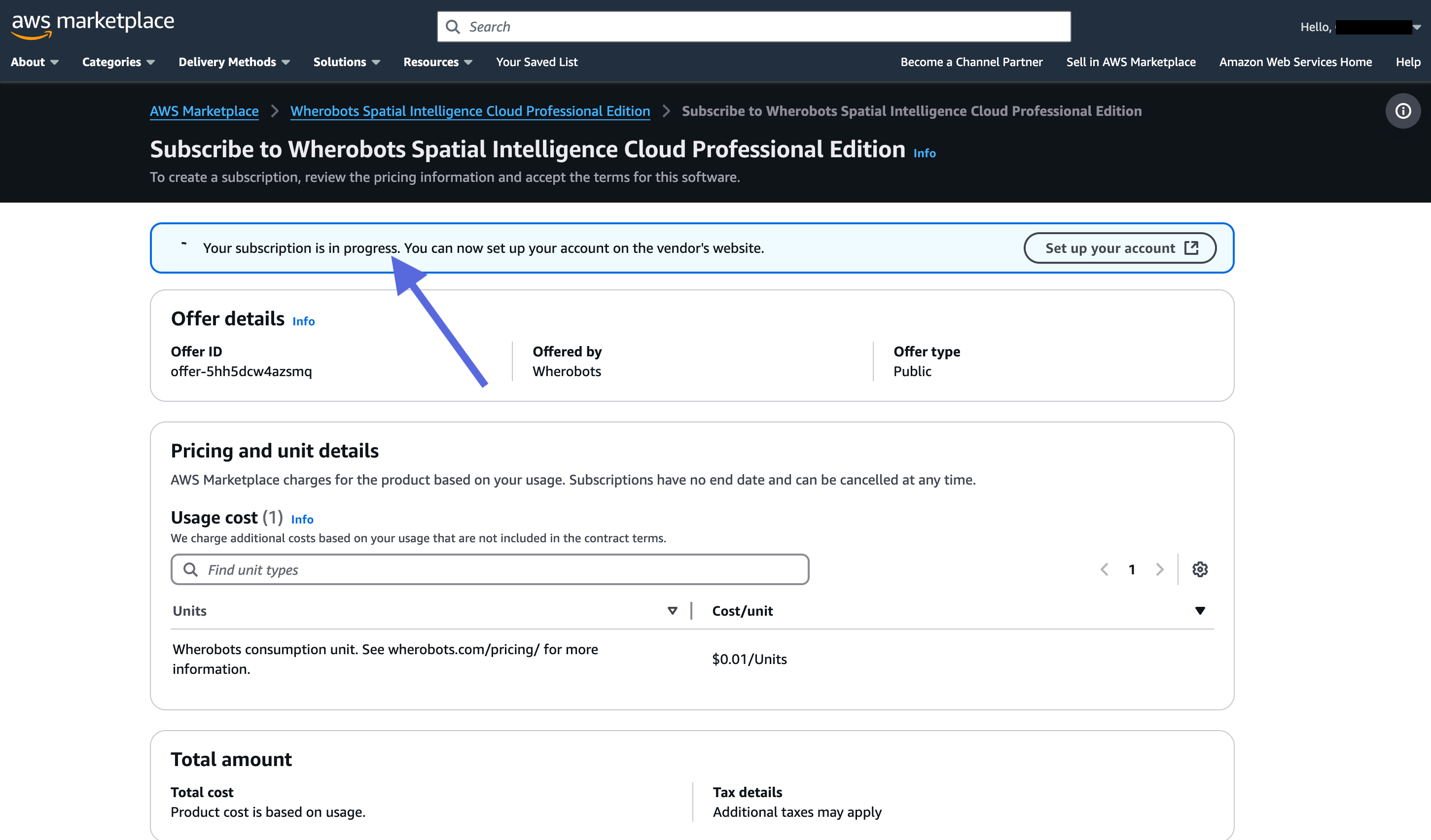 Once your subscription has finished processing, you'll see the following:
 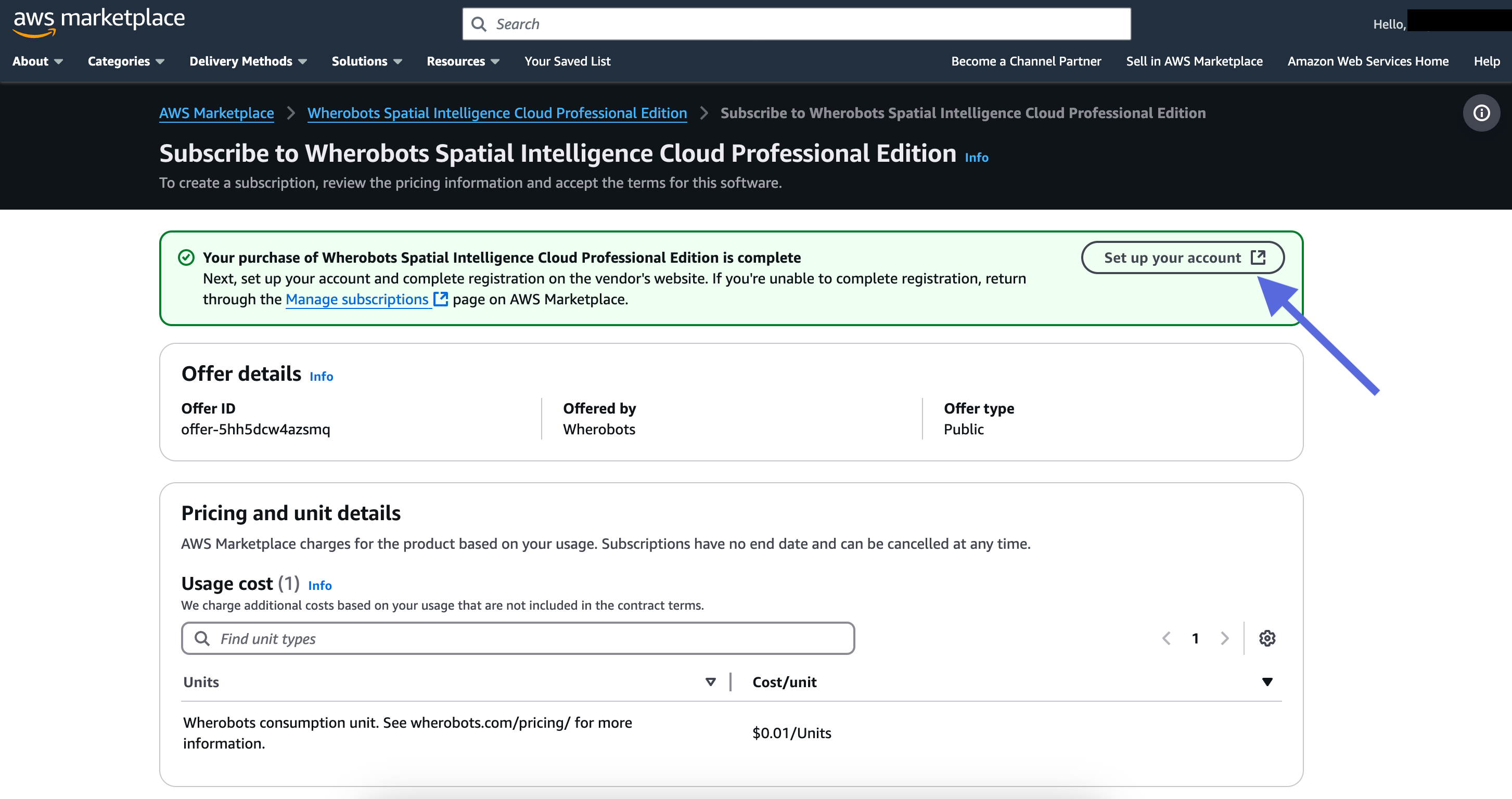 Click **Set up your account**. You will be redirected to Wherobots Cloud to log in and link the subscription.
#### Link your subscription in Wherobots Cloud
After finishing the steps in the AWS Marketplace, you'll be redirected to Wherobots Cloud to link the subscription to your Organization:
You will be redirected to the Wherobots Cloud registration screen.
Click **Login** (do not create a new account).
Click **Set up your account**. You will be redirected to Wherobots Cloud to log in and link the subscription.
#### Link your subscription in Wherobots Cloud
After finishing the steps in the AWS Marketplace, you'll be redirected to Wherobots Cloud to link the subscription to your Organization:
You will be redirected to the Wherobots Cloud registration screen.
Click **Login** (do not create a new account). 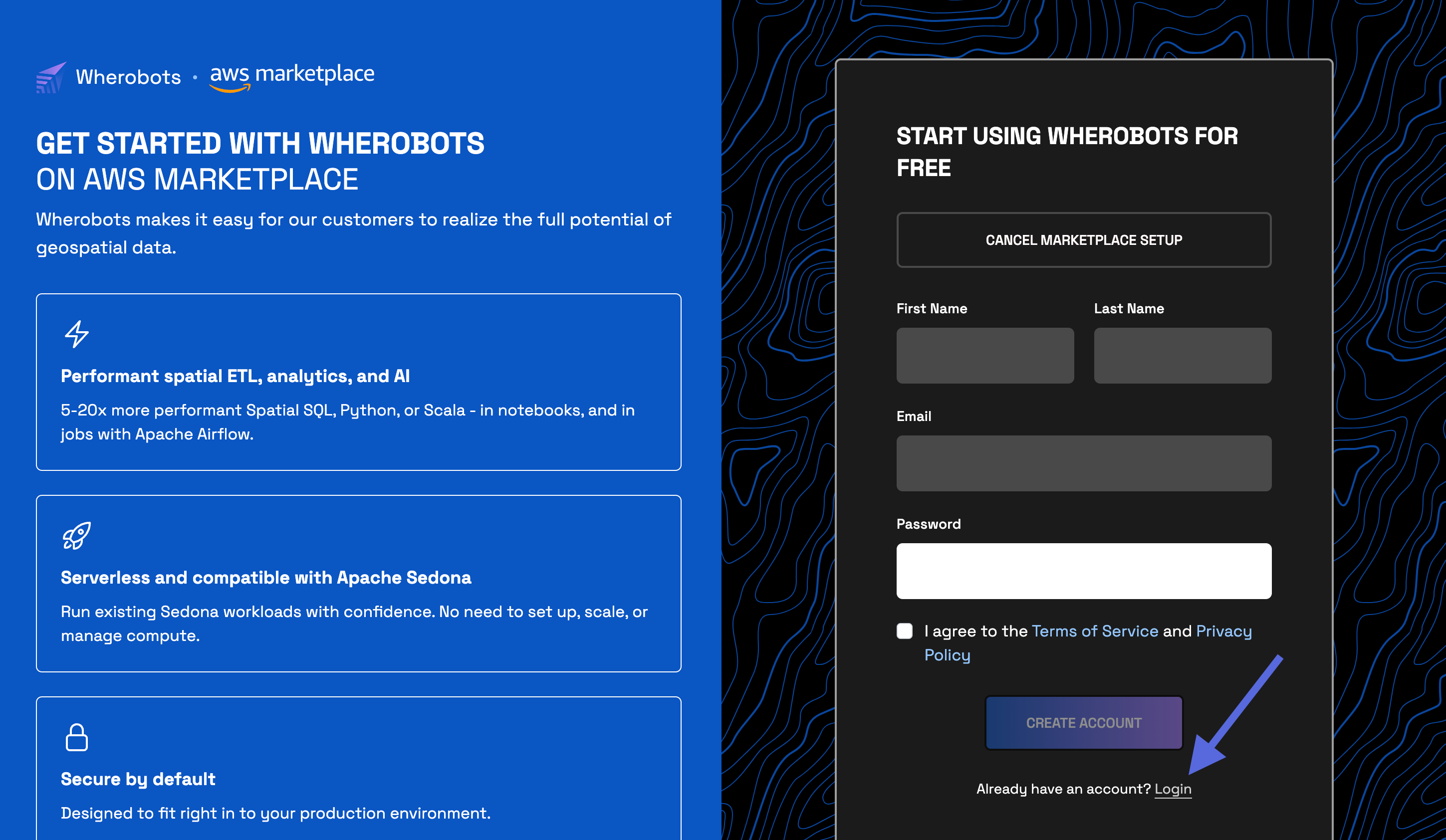 Log in to Wherobots Cloud with an existing **Admin** account. Use the **Email** and **Password** for the Organization you're adding the payment method to.
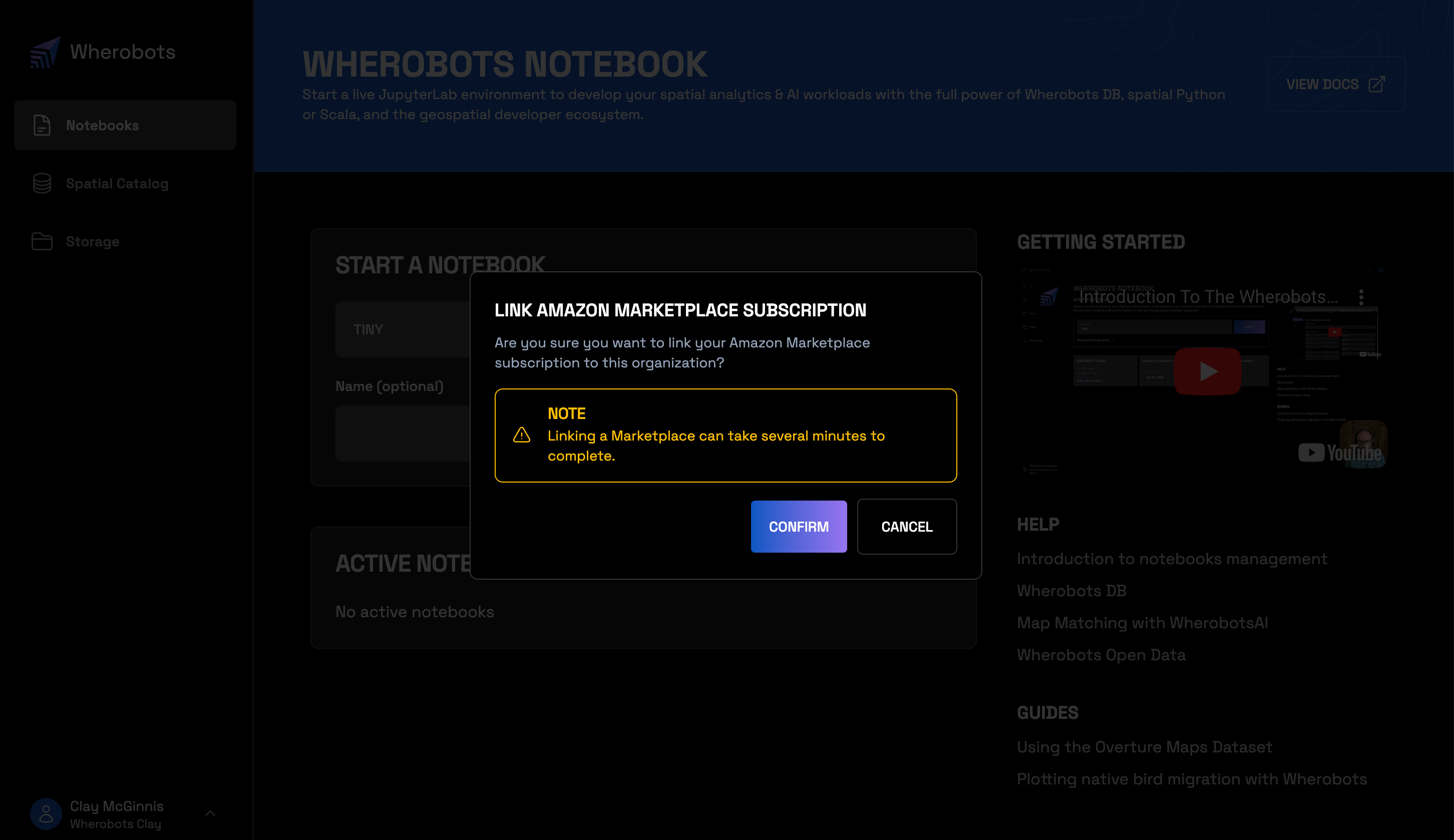
 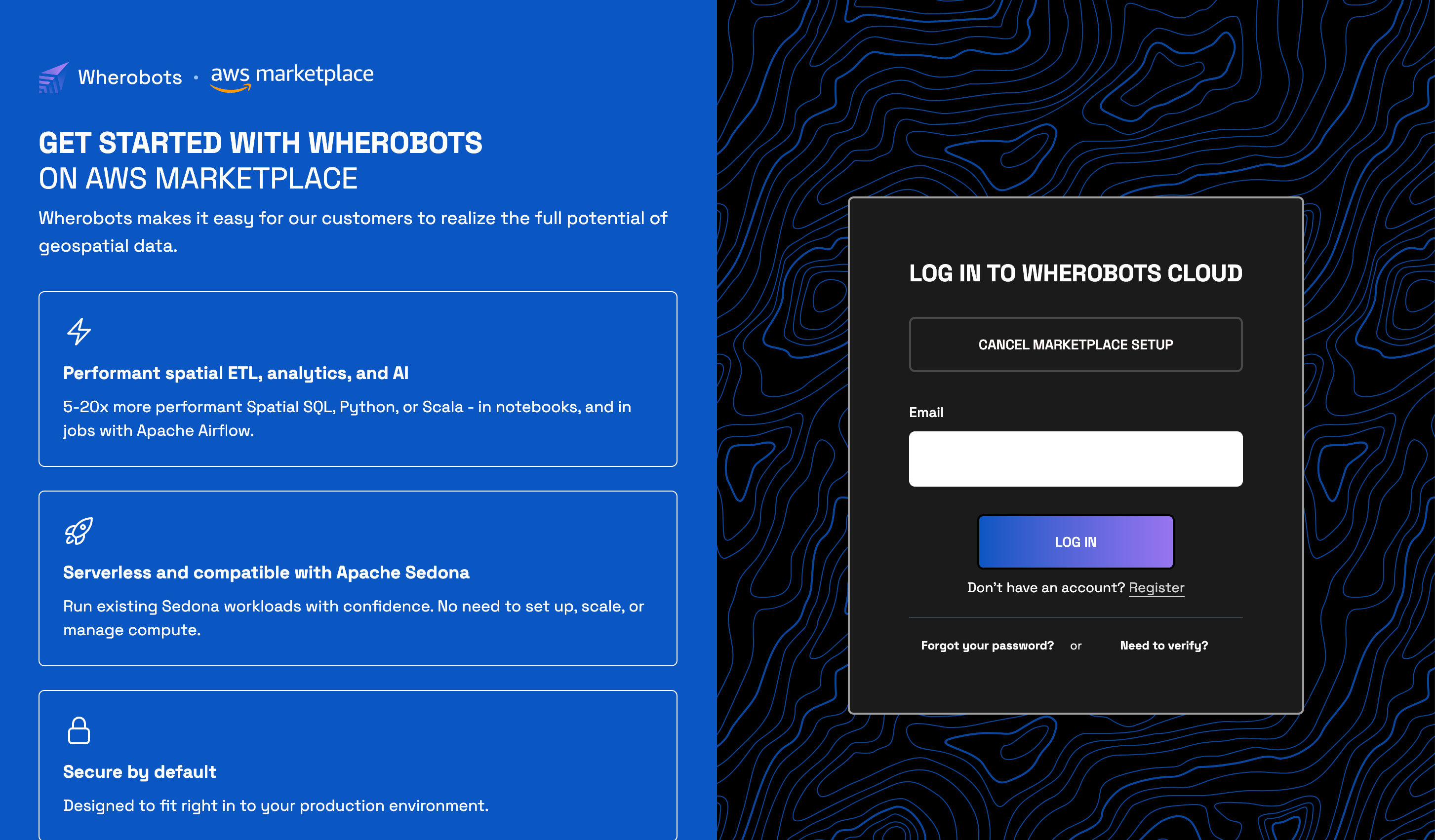 Click **Confirm** to link your Amazon Marketplace subscription to this Organization.
  ### Confirm your payment method
To confirm that your payment method was saved, do the following:
Go to [**Organization Settings > Billing**](https://cloud.wherobots.com/organization#billing).
Confirm that your payment method appears on the Billing page and that your Organization shows the **Professional Edition**.
### Confirm your payment method
To confirm that your payment method was saved, do the following:
Go to [**Organization Settings > Billing**](https://cloud.wherobots.com/organization#billing).
Confirm that your payment method appears on the Billing page and that your Organization shows the **Professional Edition**.  ### Applying the change to active runtimes
After adding a payment method, you must **stop and restart** any active runtimes before you can use the runtimes and resources it unlocks (for example, [paid datasets](/develop/spatial-catalog/spatial-catalog/)).
To apply the change to a workload like a Notebook, Job Run, or SQL Session:
Stopping a runtime will discard any unsaved changes.
Go to [Organization Settings](https://cloud.wherobots.com/organization) and click **Destroy** on any active runtime.
Go to [Organization Settings](https://cloud.wherobots.com/organization) and start a new runtime. Your new runtime will have access to the full set of Professional Edition runtimes and resources.
## If your trial ends without a payment method
If your trial period ends or you use up your trial allowance and no payment method is on file, your Organization moves to a zero-compute state. You can still log in, browse your Organization, and manage your settings, but you can't start runtimes or run workloads.
Adding a payment method restores access. Follow the steps in [Choose a payment method](#choose-a-payment-method), then stop and restart any runtimes as described in [Applying the change to active runtimes](#applying-the-change-to-active-runtimes).
## Unable to subscribe through the AWS Marketplace?
If you are unable to subscribe through the AWS Marketplace, you can [add a payment method via Direct Billing](#direct-billing) using a credit card or bank account instead. If you need further assistance, contact us at [support@wherobots.com](mailto:support@wherobots.com).
## Manage your payment method
Switch between Direct Billing and AWS Marketplace billing
End your paid Wherobots Organization subscription
## Next steps
Invite team members to join your Organization
Set up the Wherobots VS Code Extension to create notebooks with our MCP server right from your code editor
## Need more than the Professional Edition?
The Innovation and Enterprise Editions add higher member limits, dedicated support, and additional deployment options through a contract with Wherobots. See [Upgrade Your Organization](/get-started/upgrade-organization/).
### Applying the change to active runtimes
After adding a payment method, you must **stop and restart** any active runtimes before you can use the runtimes and resources it unlocks (for example, [paid datasets](/develop/spatial-catalog/spatial-catalog/)).
To apply the change to a workload like a Notebook, Job Run, or SQL Session:
Stopping a runtime will discard any unsaved changes.
Go to [Organization Settings](https://cloud.wherobots.com/organization) and click **Destroy** on any active runtime.
Go to [Organization Settings](https://cloud.wherobots.com/organization) and start a new runtime. Your new runtime will have access to the full set of Professional Edition runtimes and resources.
## If your trial ends without a payment method
If your trial period ends or you use up your trial allowance and no payment method is on file, your Organization moves to a zero-compute state. You can still log in, browse your Organization, and manage your settings, but you can't start runtimes or run workloads.
Adding a payment method restores access. Follow the steps in [Choose a payment method](#choose-a-payment-method), then stop and restart any runtimes as described in [Applying the change to active runtimes](#applying-the-change-to-active-runtimes).
## Unable to subscribe through the AWS Marketplace?
If you are unable to subscribe through the AWS Marketplace, you can [add a payment method via Direct Billing](#direct-billing) using a credit card or bank account instead. If you need further assistance, contact us at [support@wherobots.com](mailto:support@wherobots.com).
## Manage your payment method
Switch between Direct Billing and AWS Marketplace billing
End your paid Wherobots Organization subscription
## Next steps
Invite team members to join your Organization
Set up the Wherobots VS Code Extension to create notebooks with our MCP server right from your code editor
## Need more than the Professional Edition?
The Innovation and Enterprise Editions add higher member limits, dedicated support, and additional deployment options through a contract with Wherobots. See [Upgrade Your Organization](/get-started/upgrade-organization/).