> ## Documentation Index
> Fetch the complete documentation index at: https://docs.wherobots.com/llms.txt
> Use this file to discover all available pages before exploring further.
# Workspaces & Usage
> Create, start, stop, and destroy Wherobots workspaces from the Wherobots VS Code Extension. Manage costs and connect to remote kernels.
Public Preview
Manage the full lifecycle of Wherobots workspaces without leaving your editor.
The Wherobots VS Code Extension lets you create, start, stop, and dismiss workspaces from
the sidebar, and automatically connects your local Jupyter notebooks to
remote Wherobots compute with kernel selection.
## What is a workspace?
In the Wherobots VS Code Extension, a **workspace** provisions and manages
a [runtime](/develop/runtimes) in Wherobots Cloud.
A [**runtime**](/develop/runtimes) is a dedicated,
serverless computing cluster. When you create a workspace, you are starting a runtime
in the cloud that your local Jupyter notebooks can connect to and execute against.
**Think of it this way:**
* A **Runtime** is the remote compute cluster running in Wherobots Cloud.
* A **Workspace** is the editor session that wraps that runtime, giving you a local interface to manage its lifecycle and connect notebooks to it.
Creating a workspace provisions a runtime. Stopping a workspace tears down, or destroys, that runtime
and halts further Spatial Unit consumption for that runtime.
Most importantly, the notebook files you create in your editor stay local on your machine -- the workspace
simply provides the bridge to remote compute.
A workspace in the Wherobots VS Code Extension is the local equivalent of a
[notebook instance](/develop/notebook-management/notebook-instance-management) in the
Wherobots Cloud web console. Both provision and connect to the same underlying runtimes.
**Organization Availability:** Available to all Wherobots Organization Editions.
* **Community Edition Organizations** can create and run local notebooks against the [Tiny and Micro runtimes](/develop/runtimes).
* **Professional, Innovation, or Enterprise Organizations** are required for job submission, the Wherobots MCP server, and additional compute tiers. For more information, see [Upgrade Organization](/get-started/upgrade-organization) or [Organization Editions](/get-started/organization-management/organization-editions).
Install the Wherobots VS Code Extension for VS Code, Cursor, Windsurf, Kiro, and other editors. Set up your API key.
Browse catalogs, schemas, and tables in the Data Hub sidebar. Use AI to create notebooks from your data.
Create Jupyter notebooks with AI assistance and connect those notebooks to remote Wherobots compute.
Submit Python scripts as Wherobots job runs directly from your editor, with configurable runtime, region, timeout, and arguments.
## Start a workspace
Starting a workspace provisions a runtime in Wherobots Cloud and makes its Jupyter kernels
available to your local notebooks. You choose the runtime size, region, and idle timeout
during creation -- these determine the compute resources allocated and where they run.
To open the **Command Palette**, click the search bar at the top of your editor and type `>wherobots:`.
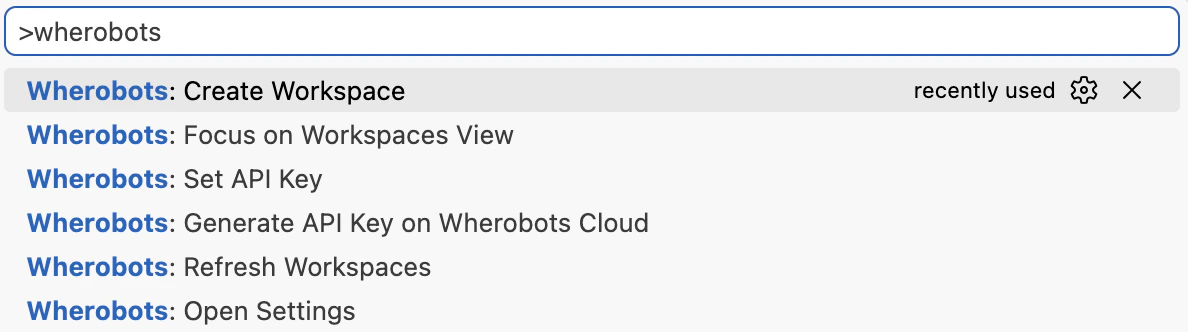 You can also press ⌘ + Shift + P on Mac, Ctrl + Shift + P on Windows/Linux.
Type `Wherobots: Create Workspace`.
Click Enter to run the command to create a new workspace.
1. Choose the runtime configuration for your workspace, including **Region**, **Runtime Size**, and **Idle Timeout**.
2. Click **Create & Start**.
You can also press ⌘ + Shift + P on Mac, Ctrl + Shift + P on Windows/Linux.
Type `Wherobots: Create Workspace`.
Click Enter to run the command to create a new workspace.
1. Choose the runtime configuration for your workspace, including **Region**, **Runtime Size**, and **Idle Timeout**.
2. Click **Create & Start**.
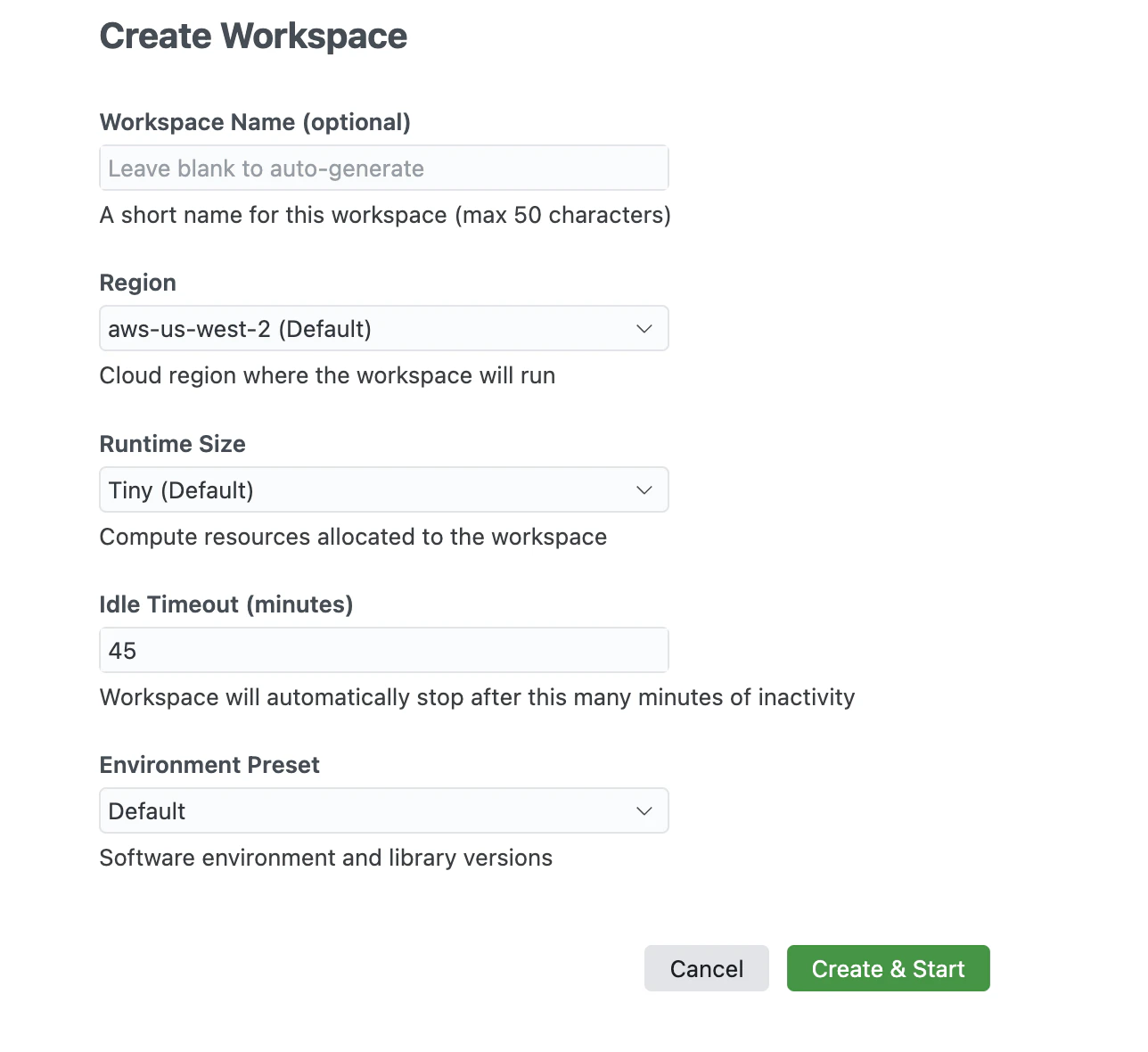 Wait for the workspace to provision. The extension displays status updates as the workspace starts.
Once the workspace is running, the runtime is active in Wherobots Cloud and the extension
automatically detects its available kernels. You can then
create and connect local Jupyter notebooks to the remote runtime for execution.
Workspace startup time varies by runtime size. Larger runtimes may take several minutes to provision.
## Pin the Extension for easy access
If the Wherobots VS Code Extension is pinned to your sidebar, you can also create a new workspace by clicking the **Create Workspace** button.
Wait for the workspace to provision. The extension displays status updates as the workspace starts.
Once the workspace is running, the runtime is active in Wherobots Cloud and the extension
automatically detects its available kernels. You can then
create and connect local Jupyter notebooks to the remote runtime for execution.
Workspace startup time varies by runtime size. Larger runtimes may take several minutes to provision.
## Pin the Extension for easy access
If the Wherobots VS Code Extension is pinned to your sidebar, you can also create a new workspace by clicking the **Create Workspace** button.
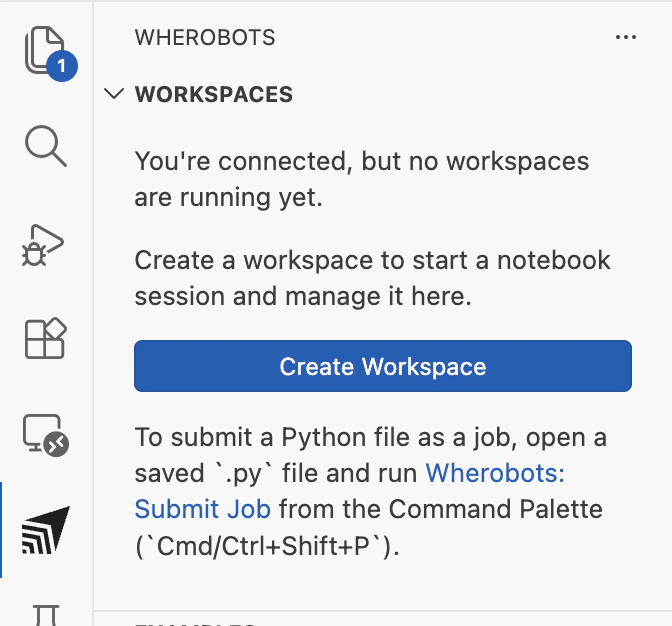 To pin the Wherobots extension to the sidebar:
Right-click the **Activity Bar** (the vertical icon bar on the left side of your editor).
A menu will appear showing all available extensions.
To pin the extension, find **Wherobots** in the list and click on it to ensure it's checked.
To pin the Wherobots extension to the sidebar:
Right-click the **Activity Bar** (the vertical icon bar on the left side of your editor).
A menu will appear showing all available extensions.
To pin the extension, find **Wherobots** in the list and click on it to ensure it's checked.
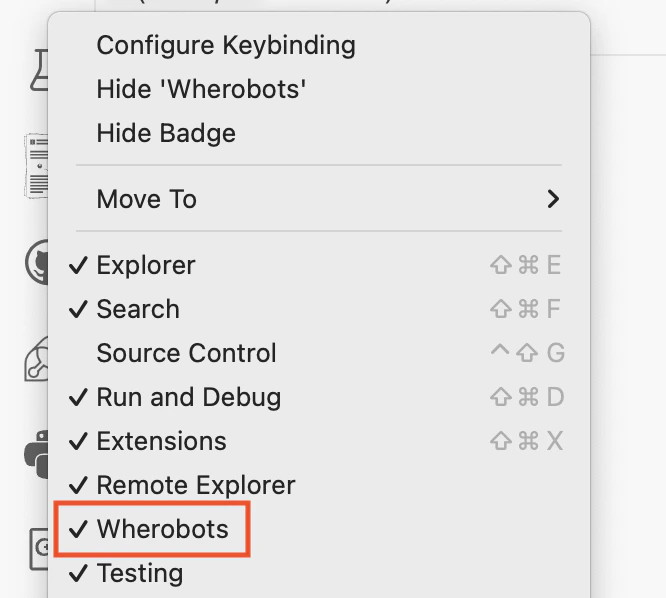 Now you'll have easy access to the extension in your editor's sidebar.
## Destroy a workspace
Stopping a workspace tears down the runtime it provisioned in Wherobots Cloud, releasing all
compute resources and halting billing. Your local notebook files are unaffected -- only the
remote runtime is destroyed. You can start a new workspace at any time to provision a fresh runtime.
As a general rule, always make sure to save any local notebook files before ceasing working.
To stop running workspaces:
To open the **Command Palette**, click the search bar at the top of your editor and type `>wherobots:`.
You can also press ⌘ + Shift + P on Mac, Ctrl + Shift + P on Windows/Linux.
Run `Wherobots: Focus on Workspaces View`.
Find the workspace you want to destroy.
To stop the workspace, do the following:
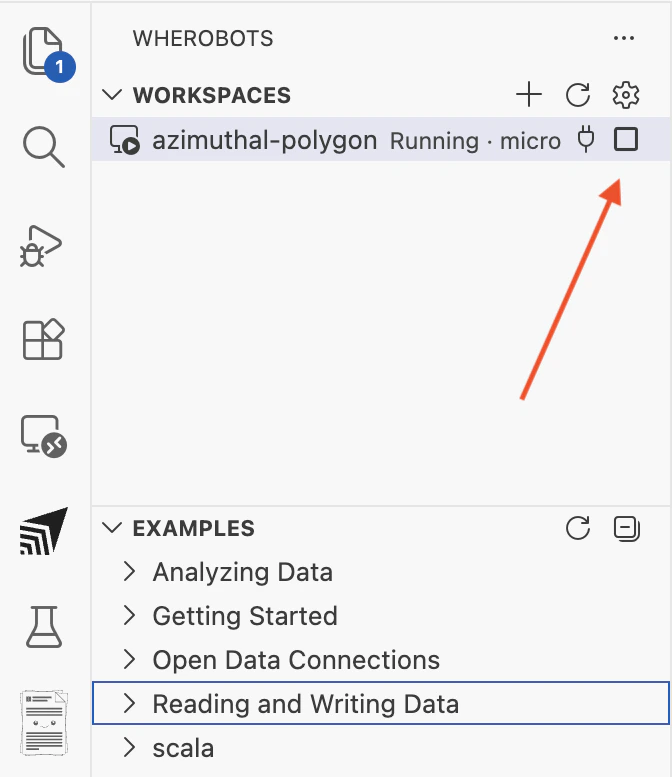
1. Hover over the running workspace you started and a square icon () will appear.
2. Click the square icon to stop the workspace.
Now you'll have easy access to the extension in your editor's sidebar.
## Destroy a workspace
Stopping a workspace tears down the runtime it provisioned in Wherobots Cloud, releasing all
compute resources and halting billing. Your local notebook files are unaffected -- only the
remote runtime is destroyed. You can start a new workspace at any time to provision a fresh runtime.
As a general rule, always make sure to save any local notebook files before ceasing working.
To stop running workspaces:
To open the **Command Palette**, click the search bar at the top of your editor and type `>wherobots:`.
You can also press ⌘ + Shift + P on Mac, Ctrl + Shift + P on Windows/Linux.
Run `Wherobots: Focus on Workspaces View`.
Find the workspace you want to destroy.
To stop the workspace, do the following:
1. Hover over the running workspace you started and a square icon () will appear.
2. Click the square icon to stop the workspace.
 Confirm that you want to stop the workspace.
Stopping a workspace tears down the remote runtime and halts compute billing. You can start a new workspace later to provision a new runtime.
As a general rule, always make sure to save any local notebook files before ceasing working.
## Restart a workspace
Restarting a workspace means stopping the current workspace and starting a new one with a
different runtime configuration. This is useful when your current workspace runtime is too small
for your notebook workload.
Restarting a workspace does not affect MCP server Chat queries. MCP queries
run on their own compute, separate from your workspace. If MCP queries are stalling or timing
out, see [MCP Server Usage Considerations](/develop/mcp/mcp-server-usage#usage-considerations)
for timeout and runtime configuration options for increasing the runtime allocated to MCP server Chat queries.
To restart a workspace:
Follow the steps in [Destroy a workspace](#destroy-a-workspace) to stop the running workspace.
Follow the steps in [Start a workspace](#start-a-workspace) to create a new workspace. When
choosing the runtime configuration, select the **Runtime Size** that matches your workload.
See [Runtimes](/develop/runtimes) for available sizes and guidance on choosing the right
runtime for your workload.
## Other actions
The following actions are available for each workspace in the sidebar by right clicking on a running notebook workspace:
| Action | Description |
| -------------------- | ----------------------------------------------------------- |
| **Connect Kernel** | Connect the selected running workspace to a notebook kernel |
| **Stop Workspace** | Stop a running or starting workspace |
| **Open in Browser** | Open the workspace in the Wherobots Cloud Console |
| **Open Spark UI** | Open the Spark UI for a running workspace (when available) |
| **Copy Jupyter URL** | Copy the workspace Jupyter endpoint |
| **Dismiss** | Hide a failed workspace entry from the sidebar |
You can also run `Wherobots: Refresh Workspaces` from the Command Palette to refresh the workspace list.
Stopping a workspace tears down its runtime in Wherobots Cloud, releasing compute resources and halting billing. Your local notebook files are preserved. You can start a new workspace later to provision a fresh runtime.
As a general rule, always make sure to save any local notebook files before ceasing working.
You can also manage workspaces from the [Wherobots Cloud Console](https://cloud.wherobots.com).
## Automatic MCP server configuration
The Wherobots MCP Server requires a [Professional, Innovation, or Enterprise](/get-started/organization-management/organization-editions) Organization Edition. Community Edition Organizations do not have access to the Wherobots MCP server.
The Wherobots VS Code Extension automatically configures the [Wherobots MCP Server](/develop/mcp/mcp-server-overview)
in VS Code, providing one-click setup for AI-assisted development. In Cursor and other Code OSS editors, [configure the MCP Server manually](/develop/agentic-tools/#pick-your-tool). Once configured, you can:
* Explore spatial data catalogs through your editor's AI assistant
* Generate, validate, and execute Spatial SQL queries using natural language
* Discover dataset schemas without writing code
No manual MCP server configuration is required when using the extension in VS Code. For Cursor and other Code OSS editors, or for advanced MCP server
options, see [Configure Wherobots MCP Server](/develop/mcp/mcp-server-overview).
## Cost considerations
Consider the following cost implications when using the Wherobots VS Code Extension:
* **Workspaces and kernels**: Each running workspace has a runtime provisioned in Wherobots Cloud that consumes [Spatial Units (SUs)](/develop/runtimes#what-are-spatial-units) for as long as it is active. Stop workspaces when not in use to halt billing. Community Edition is limited to the Tiny and Micro runtimes.
* **Job runs** *(Professional, Innovation, and Enterprise only)*: Billed based on runtime size and duration. See [Runtimes](/develop/runtimes) for pricing details.
* **MCP server queries** *(Professional, Innovation, and Enterprise only)*: SQL Sessions started by MCP queries run on a Tiny runtime and terminate after 5 minutes of inactivity. See [MCP Usage Considerations](/develop/mcp/mcp-server-usage#cost-considerations).
* **Copilot usage**: AI interactions count toward your GitHub Copilot usage limits. See [Copilot Requests](https://docs.github.com/en/copilot/concepts/billing/copilot-requests) in the GitHub Documentation.
## Troubleshooting
If you encounter issues with the Wherobots VS Code Extension, try the following troubleshooting steps:
* Verify the extension was installed successfully by checking the Extensions view for **Wherobots VS Code Extension**
* Reload your editor (**Command Palette > Reload Window**)
* Reinstall the extension from the [VS Code Marketplace](https://marketplace.visualstudio.com/items?itemName=wherobots.wherobotsjobsubmit) or the [Open VSX Registry](https://open-vsx.org/extension/Wherobots/wherobotsjobsubmit) (for Cursor, Windsurf, Kiro, Positron, Antigravity, VS Codium, and other editors)
* Confirm the workspace status is running
* Try `Wherobots: Refresh Workspaces` from the Command Palette and reconnect from the kernel picker
* Ensure Jupyter integration is enabled: open `Wherobots: Open Settings` from the Command Palette and confirm `wherobotsjobsubmit.jupyterIntegrationEnabled` is true
* Review the **Output** panel for connection error details
* Verify that you have a [Professional, Innovation, or Enterprise](/get-started/upgrade-organization) Wherobots Organization.
* Community Edition Organizations do not have access to job submission features.
* Ensure the [Wherobots VS Code Extension is installed](/develop/agentic-tools) and configured with your API key.
* Check that the script path is valid and the file is accessible.
* Review the **Output** panel for error details.
* Confirm your Organization has sufficient Spatial Unit allocation.
* If an MCP server Chat query runs for too long, it may appear stalled or time out, depending on your configured MCP timeout (15 minutes by default). For timeout configuration and MCP runtime settings, see [MCP Server Usage Considerations](/develop/mcp/mcp-server-usage#usage-considerations).
* If appropriate, review or increase the configured MCP timeout. You can also configure a larger MCP runtime via `mcpServerRuntimeId` in `Wherobots: Open Settings`.
* Restarting the workspace with a larger **Runtime Size** does not change the runtime used for MCP server Chat queries.
* For guidance on MCP runtime and timeout settings, see [Runtimes](/develop/runtimes).
* Ensure **Agent** mode is selected in the chat panel
* Verify the MCP server is running (**Command Palette > MCP: List Servers**)
* Confirm `wherobotsjobsubmit.mcpServerEnabled` is true: open `Wherobots: Open Settings` from the Command Palette to check
* Check that your API key is valid and re-check optional MCP runtime/region/timeout settings
* Start a new chat session if tools are not being discovered
Confirm that you want to stop the workspace.
Stopping a workspace tears down the remote runtime and halts compute billing. You can start a new workspace later to provision a new runtime.
As a general rule, always make sure to save any local notebook files before ceasing working.
## Restart a workspace
Restarting a workspace means stopping the current workspace and starting a new one with a
different runtime configuration. This is useful when your current workspace runtime is too small
for your notebook workload.
Restarting a workspace does not affect MCP server Chat queries. MCP queries
run on their own compute, separate from your workspace. If MCP queries are stalling or timing
out, see [MCP Server Usage Considerations](/develop/mcp/mcp-server-usage#usage-considerations)
for timeout and runtime configuration options for increasing the runtime allocated to MCP server Chat queries.
To restart a workspace:
Follow the steps in [Destroy a workspace](#destroy-a-workspace) to stop the running workspace.
Follow the steps in [Start a workspace](#start-a-workspace) to create a new workspace. When
choosing the runtime configuration, select the **Runtime Size** that matches your workload.
See [Runtimes](/develop/runtimes) for available sizes and guidance on choosing the right
runtime for your workload.
## Other actions
The following actions are available for each workspace in the sidebar by right clicking on a running notebook workspace:
| Action | Description |
| -------------------- | ----------------------------------------------------------- |
| **Connect Kernel** | Connect the selected running workspace to a notebook kernel |
| **Stop Workspace** | Stop a running or starting workspace |
| **Open in Browser** | Open the workspace in the Wherobots Cloud Console |
| **Open Spark UI** | Open the Spark UI for a running workspace (when available) |
| **Copy Jupyter URL** | Copy the workspace Jupyter endpoint |
| **Dismiss** | Hide a failed workspace entry from the sidebar |
You can also run `Wherobots: Refresh Workspaces` from the Command Palette to refresh the workspace list.
Stopping a workspace tears down its runtime in Wherobots Cloud, releasing compute resources and halting billing. Your local notebook files are preserved. You can start a new workspace later to provision a fresh runtime.
As a general rule, always make sure to save any local notebook files before ceasing working.
You can also manage workspaces from the [Wherobots Cloud Console](https://cloud.wherobots.com).
## Automatic MCP server configuration
The Wherobots MCP Server requires a [Professional, Innovation, or Enterprise](/get-started/organization-management/organization-editions) Organization Edition. Community Edition Organizations do not have access to the Wherobots MCP server.
The Wherobots VS Code Extension automatically configures the [Wherobots MCP Server](/develop/mcp/mcp-server-overview)
in VS Code, providing one-click setup for AI-assisted development. In Cursor and other Code OSS editors, [configure the MCP Server manually](/develop/agentic-tools/#pick-your-tool). Once configured, you can:
* Explore spatial data catalogs through your editor's AI assistant
* Generate, validate, and execute Spatial SQL queries using natural language
* Discover dataset schemas without writing code
No manual MCP server configuration is required when using the extension in VS Code. For Cursor and other Code OSS editors, or for advanced MCP server
options, see [Configure Wherobots MCP Server](/develop/mcp/mcp-server-overview).
## Cost considerations
Consider the following cost implications when using the Wherobots VS Code Extension:
* **Workspaces and kernels**: Each running workspace has a runtime provisioned in Wherobots Cloud that consumes [Spatial Units (SUs)](/develop/runtimes#what-are-spatial-units) for as long as it is active. Stop workspaces when not in use to halt billing. Community Edition is limited to the Tiny and Micro runtimes.
* **Job runs** *(Professional, Innovation, and Enterprise only)*: Billed based on runtime size and duration. See [Runtimes](/develop/runtimes) for pricing details.
* **MCP server queries** *(Professional, Innovation, and Enterprise only)*: SQL Sessions started by MCP queries run on a Tiny runtime and terminate after 5 minutes of inactivity. See [MCP Usage Considerations](/develop/mcp/mcp-server-usage#cost-considerations).
* **Copilot usage**: AI interactions count toward your GitHub Copilot usage limits. See [Copilot Requests](https://docs.github.com/en/copilot/concepts/billing/copilot-requests) in the GitHub Documentation.
## Troubleshooting
If you encounter issues with the Wherobots VS Code Extension, try the following troubleshooting steps:
* Verify the extension was installed successfully by checking the Extensions view for **Wherobots VS Code Extension**
* Reload your editor (**Command Palette > Reload Window**)
* Reinstall the extension from the [VS Code Marketplace](https://marketplace.visualstudio.com/items?itemName=wherobots.wherobotsjobsubmit) or the [Open VSX Registry](https://open-vsx.org/extension/Wherobots/wherobotsjobsubmit) (for Cursor, Windsurf, Kiro, Positron, Antigravity, VS Codium, and other editors)
* Confirm the workspace status is running
* Try `Wherobots: Refresh Workspaces` from the Command Palette and reconnect from the kernel picker
* Ensure Jupyter integration is enabled: open `Wherobots: Open Settings` from the Command Palette and confirm `wherobotsjobsubmit.jupyterIntegrationEnabled` is true
* Review the **Output** panel for connection error details
* Verify that you have a [Professional, Innovation, or Enterprise](/get-started/upgrade-organization) Wherobots Organization.
* Community Edition Organizations do not have access to job submission features.
* Ensure the [Wherobots VS Code Extension is installed](/develop/agentic-tools) and configured with your API key.
* Check that the script path is valid and the file is accessible.
* Review the **Output** panel for error details.
* Confirm your Organization has sufficient Spatial Unit allocation.
* If an MCP server Chat query runs for too long, it may appear stalled or time out, depending on your configured MCP timeout (15 minutes by default). For timeout configuration and MCP runtime settings, see [MCP Server Usage Considerations](/develop/mcp/mcp-server-usage#usage-considerations).
* If appropriate, review or increase the configured MCP timeout. You can also configure a larger MCP runtime via `mcpServerRuntimeId` in `Wherobots: Open Settings`.
* Restarting the workspace with a larger **Runtime Size** does not change the runtime used for MCP server Chat queries.
* For guidance on MCP runtime and timeout settings, see [Runtimes](/develop/runtimes).
* Ensure **Agent** mode is selected in the chat panel
* Verify the MCP server is running (**Command Palette > MCP: List Servers**)
* Confirm `wherobotsjobsubmit.mcpServerEnabled` is true: open `Wherobots: Open Settings` from the Command Palette to check
* Check that your API key is valid and re-check optional MCP runtime/region/timeout settings
* Start a new chat session if tools are not being discovered