> ## Documentation Index
> Fetch the complete documentation index at: https://docs.wherobots.com/llms.txt
> Use this file to discover all available pages before exploring further.
# Submit Job Runs
> Submit Python scripts as Wherobots job runs directly from the Wherobots VS Code Extension, with configurable runtime, region, timeout, and arguments.
Public Preview
The Wherobots VS Code Extension brings [job submission](/reference/runs) directly into your editor.
Submit the current `.py` file to Wherobots Cloud from the Command Palette with configurable runtime,
region, timeout, and arguments. Monitor progress and review results alongside your code.
1. Open a saved `.py` file that contains your [Job configuration](#inline-job-configuration) in your desired code editor.
2. Open the Command Palette by clicking the search bar and typing `>` (or pressing ⌘ + Shift + P on Mac or Ctrl + Shift + P on Windows/Linux) and run `Wherobots: Submit Job`.
3. Confirm **Runtime**, **Region**, and **Timeout** in the submission form, then submit.
4. Click **Open Job** in the success notification to track the run in the Wherobots Cloud Console.
## Benefits
The Wherobots VS Code Extension's job submission feature streamlines the workflow of running jobs on Wherobots Cloud, offering several key benefits:
Submit jobs without leaving your editor or switching to the Wherobots Cloud Console.
Stay in your editor while Wherobots Cloud handles execution.
Define runtime, region, timeout, and arguments directly in your Python files using
special comments. The extension reads these inline defaults and pre-fills the
submission form automatically.
Get submission status and a direct link to job tracking right in the editor.
Click **Open Job** from the success notification to view progress in the
Wherobots Cloud Console.
Inline configuration comments live alongside your code, making job settings
portable, version-controllable, and shareable across your team.
## Before you start
Ensure you have the following:
* An Account within a Professional, Innovation, or Enterprise Wherobots Organization.
* Job submission is not available for Community Edition Organizations.
* For information on upgrading your Organization, see [Upgrade Organization](/get-started/upgrade-organization).
* The [Wherobots VS Code Extension](/develop/agentic-tools) installed and configured (compatible with [VS Code](https://code.visualstudio.com/), [Cursor](https://www.cursor.com/), [Windsurf](https://windsurf.com/), [Kiro](https://kiro.dev/), and [other editors](/develop/agentic-tools))
* A saved Python script (`.py` file) with your Job configuration. For more information on configuring your script, see [Inline job configuration](#inline-job-configuration).
## Submit a job
Open a saved Python file (`.py`) in your editor that contains the code you want to run as a job. This file can also include inline job configuration comments to pre-fill submission defaults.
To open the **Command Palette**, click the search bar at the top of your editor and type `>wherobots:`.
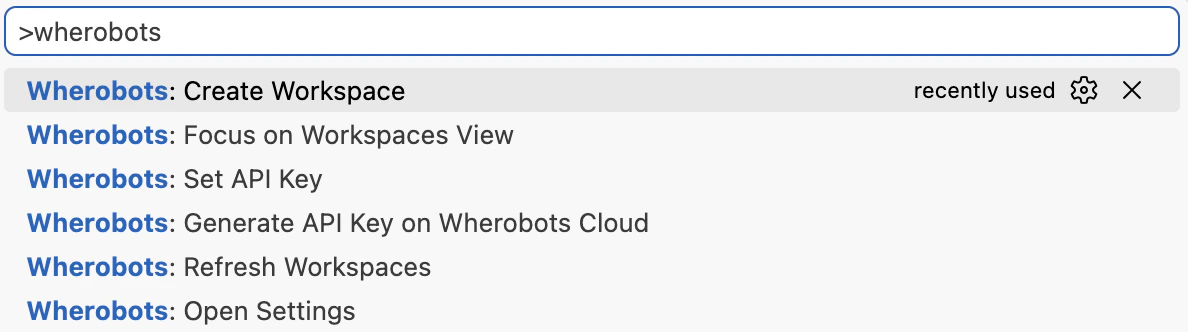 You can also press ⌘ + Shift + P on Mac, Ctrl + Shift + P on Windows/Linux.
Type **Wherobots** and select `Wherobots: Submit Job`.
You can also press ⌘ + Shift + P on Mac, Ctrl + Shift + P on Windows/Linux.
Type **Wherobots** and select `Wherobots: Submit Job`.
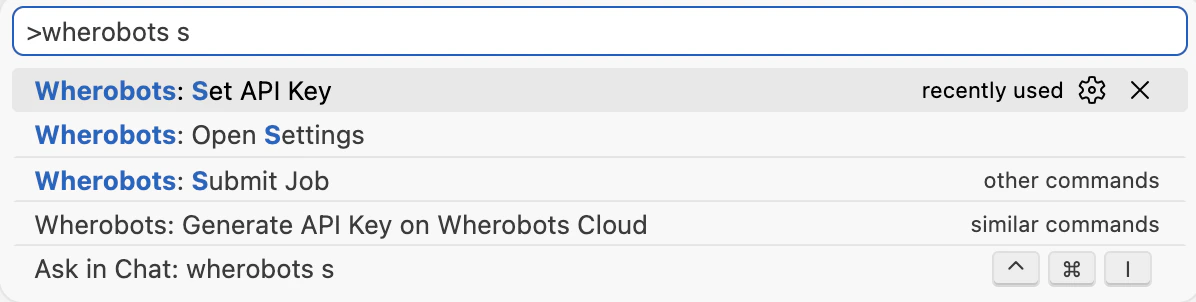 Confirm job options in the submission form -- including **Runtime**, **Region**, **Arguments**, and **Timeout**.
You can pass the local path to your Python file as an **Argument**.
Submit the job. Use the **Open Job** action from the success notification to track the job in the Wherobots Cloud Console.
Job runs execute on Wherobots Cloud infrastructure and appear in [**Workload History**](https://cloud.wherobots.com/workloads).
For more information on job runs, see [Job Runs REST API](/reference/runs).
## Inline job configuration
You can provide job defaults directly in your Python file using special comments. The extension reads
these comments and pre-fills the submission form:
```python theme={"system"}
# wvsc-region: aws-us-west-2
# wvsc-instanceSize: medium
# wvsc-timeout: 7200
# wvsc-args: input.csv,output.csv
```
### Supported keys
The following comment keys are supported for inline job configuration:
| Comment key | Description |
| -------------------------------- | ------------------------------------------------ |
| `# wvsc-region: ` | Cloud region for the job run |
| `# wvsc-instanceSize: ` | Runtime size (also supports `wvsc-runtime-size`) |
| `# wvsc-timeout: ` | Job timeout in seconds |
| `# wvsc-args: ,,...` | Comma-separated arguments passed to the script |
## Cost considerations
Job runs are billed based on runtime size and duration. See [Runtimes](/develop/runtimes) for pricing details. Confirm your Organization has sufficient Spatial Unit allocation before submitting jobs.
## Troubleshooting
If you encounter issues submitting jobs from the Wherobots VS Code Extension, refer to the following troubleshooting tips:
* Verify that you have a [Professional, Innovation, or Enterprise](/get-started/upgrade-organization) Wherobots Organization.
* Community Edition Organizations do not have access to job submission features.
* Ensure the [Wherobots VS Code Extension is installed](/develop/agentic-tools) and configured with your API key.
* Check that the script path is valid and the file is accessible.
* Review the **Output** panel for error details.
* Confirm your Organization has sufficient Spatial Unit allocation.
* Job submission only supports saved `.py` files
* Save untitled files and confirm the file extension is `.py` before running `Wherobots: Submit Job`
* Set `wherobotsjobsubmit.scriptPath` in your editor's Settings to an explicit managed path if needed
* If left empty, the extension derives a managed default path for your user
Confirm job options in the submission form -- including **Runtime**, **Region**, **Arguments**, and **Timeout**.
You can pass the local path to your Python file as an **Argument**.
Submit the job. Use the **Open Job** action from the success notification to track the job in the Wherobots Cloud Console.
Job runs execute on Wherobots Cloud infrastructure and appear in [**Workload History**](https://cloud.wherobots.com/workloads).
For more information on job runs, see [Job Runs REST API](/reference/runs).
## Inline job configuration
You can provide job defaults directly in your Python file using special comments. The extension reads
these comments and pre-fills the submission form:
```python theme={"system"}
# wvsc-region: aws-us-west-2
# wvsc-instanceSize: medium
# wvsc-timeout: 7200
# wvsc-args: input.csv,output.csv
```
### Supported keys
The following comment keys are supported for inline job configuration:
| Comment key | Description |
| -------------------------------- | ------------------------------------------------ |
| `# wvsc-region: ` | Cloud region for the job run |
| `# wvsc-instanceSize: ` | Runtime size (also supports `wvsc-runtime-size`) |
| `# wvsc-timeout: ` | Job timeout in seconds |
| `# wvsc-args: ,,...` | Comma-separated arguments passed to the script |
## Cost considerations
Job runs are billed based on runtime size and duration. See [Runtimes](/develop/runtimes) for pricing details. Confirm your Organization has sufficient Spatial Unit allocation before submitting jobs.
## Troubleshooting
If you encounter issues submitting jobs from the Wherobots VS Code Extension, refer to the following troubleshooting tips:
* Verify that you have a [Professional, Innovation, or Enterprise](/get-started/upgrade-organization) Wherobots Organization.
* Community Edition Organizations do not have access to job submission features.
* Ensure the [Wherobots VS Code Extension is installed](/develop/agentic-tools) and configured with your API key.
* Check that the script path is valid and the file is accessible.
* Review the **Output** panel for error details.
* Confirm your Organization has sufficient Spatial Unit allocation.
* Job submission only supports saved `.py` files
* Save untitled files and confirm the file extension is `.py` before running `Wherobots: Submit Job`
* Set `wherobotsjobsubmit.scriptPath` in your editor's Settings to an explicit managed path if needed
* If left empty, the extension derives a managed default path for your user