> ## Documentation Index
> Fetch the complete documentation index at: https://docs.wherobots.com/llms.txt
> Use this file to discover all available pages before exploring further.
# Notebook and Data Storage
> Understand the storage options available in Wherobots Cloud for your notebooks and data, including Wherobots File System, Managed Storage, and S3 Storage integration.
This page provides detailed information about storing and accessing your data in Wherobots Cloud.
You can upload file(s) to Wherobots Cloud for later use within your Jupyter notebooks and jobs.
You can upload individual files directly through your browser using [Wherobots Managed Storage](#wherobots-managed-storage), or
integrate your existing Amazon S3 storage buckets.
## Wherobots notebook and data storage guidance
When creating geospatial solutions, we recommend that you store all of your code, configuration files, and notebook
files within the Wherobots File System.
While, you can use other locations inside your Jupyter
notebook environment for temporary data storage, we recommend using Wherobots storage
options: [Wherobots Managed Storage](#wherobots-managed-storage) or an [S3 storage integration](./s3-storage-integration).
You can use Wherobots Managed Storage or integrate external Amazon S3 storage with Wherobots.
## Wherobots File System
Jupyter's top-level directory points to the `/home/wherobots` directory in your
Jupyter notebook environment's file system. This directory is backed by Wherobots File System
and automatically persisted across your notebook instances, and is only visible and accessible
to your Wherobots user.
### Wherobots File System Data Residency
* Storage within the [**Wherobots File System**](#wherobots-file-system) is deployed locally within your selected region (e.g., `aws-eu-west-1` if your runtime is deployed there).
* This is in contrast to Wherobots Cloud's out-of-the-box
S3-based [**Managed Storage**](./managed-storage), which remains in AWS `us-west-2`.
To share notebooks with other members of your Organization, you can download your
notebook files from your Jupyter notebook environment and exchange them with your
team members. You can also use Wherobots Managed Storage (see below) and upload
your notebook files into the S3 data folder `/data/shared`. You can then upload new
notebook files into Jupyter notebook environment with Jupyter's built-in upload function.
### User specific folders
The folders with the name of `customer-XXXX/` are unique to each account.
The files and folders within `customer-XXXX/` folders can only be accessed by the account holder.
### Organization-wide shared folders
Folders named `shared/` grant access to everyone within your
Organization. Any member of the Organization can create new folders,
delete existing ones, and have the privileges to read, write, upload,
and delete files within this shared folder.
### Copy a file or folder's S3 Path
If needed, you can copy the direct S3 path for your directory and files
by clicking on the "copy" icon on the right-hand side of each displayed
folder or file.
### Folder permissions
The following top-level folders are read-only, indicating that it is not
possible to create new folders, upload files, or delete any existing
folders:
* `/` (root)
* `/data/`
The following folders are where the user can create new folders, upload
files, or delete any file within them:
* `/data/customer-XXXX`
* `/data/shared`
* `/spark-logs`
The `/spark-logs` folder allows read and write permissions, but it is recommended that users refrain from tampering with the logs, as it may affect their experience.
## Wherobots Managed Storage
Wherobots provides out-of-the-box, managed storage for your geospatial
datasets and Havasu tables, accessible from your notebooks and jobs with WherobotsDB.
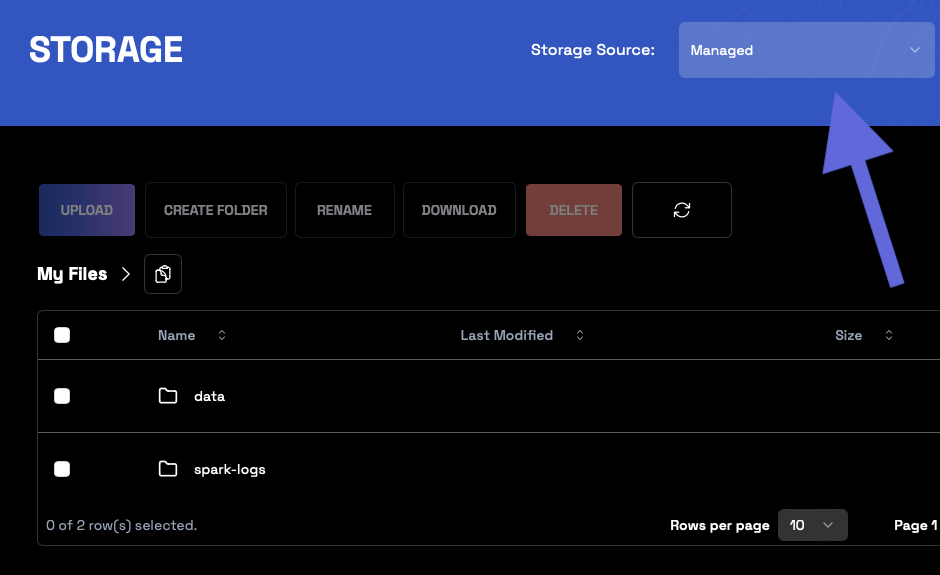
You can browse and manage the contents of your Wherobots Managed Storage
with the [Storage page in Wherobots Cloud](https://cloud.wherobots.com/storage)
in Wherobots Cloud.
Wherobots Managed Storage allows you to see the file and directory structure of your data
warehouse on Wherobots Cloud.
 ### Note
You can also use Wherobots Managed Storage to upload files and data
for your spatial analytics tasks.
For more information, see [Managed Storage](./managed-storage).
## S3 Storage integration
Wherobots' integration with Amazon Simple Storage Service (S3) allows Amazon S3 customers to
utilize Wherobots as the spatial engine that operates on their data while still
using Amazon S3 for their data storage.
If you need to upload large files or more complex folder structures like
partitioned Parquet files, consider integrating your existing S3 Storage buckets.
For more information, see [S3 Storage integration](./s3-storage-integration).
### Note
You can also use Wherobots Managed Storage to upload files and data
for your spatial analytics tasks.
For more information, see [Managed Storage](./managed-storage).
## S3 Storage integration
Wherobots' integration with Amazon Simple Storage Service (S3) allows Amazon S3 customers to
utilize Wherobots as the spatial engine that operates on their data while still
using Amazon S3 for their data storage.
If you need to upload large files or more complex folder structures like
partitioned Parquet files, consider integrating your existing S3 Storage buckets.
For more information, see [S3 Storage integration](./s3-storage-integration).