> ## Documentation Index
> Fetch the complete documentation index at: https://docs.wherobots.com/llms.txt
> Use this file to discover all available pages before exploring further.
# Bring Your Own Cloud (BYOC)
> Run Wherobots workloads inside your own AWS account and region so your data never leaves your cloud, while still using Wherobots as the spatial engine.
**Bring Your Own Cloud (BYOC)** lets your Organization run Wherobots workloads — Job Runs, SQL Sessions, notebooks, and the SDK(s) — inside *your own* AWS account and region.
In Wherobots, every workload runs in a **region**, and a region is one of two types. A **Hosted region** maps to serverless compute in Wherobots' own AWS account. A **BYOC region** maps to infrastructure that Wherobots manages inside a VPC in *your* account.
With BYOC, your data stays in your cloud and is processed by runtimes provisioned in your account, while you continue to use Wherobots workloads exactly as you would in a Hosted region.
Regions, storage, and data isolation
Enable, default region, storage
Notebooks, SQL, Jobs, SDK, MCP
## Why use BYOC?
Bring-Your-Own-Cloud (BYOC) is ideal for Organizations with strict data residency, sovereignty, and compliance requirements.
Your data is read, written, and processed within your own AWS account and chosen region, helping you meet GDPR, regulatory, and internal requirements.
BYOC regions operate on data in *your* S3 buckets. Data processing is in a Virtual Private Cloud (VPC) you manage.
## How BYOC works
When BYOC is enabled, Wherobots provisions a dedicated **BYOC region** for your Organization that maps to a region in *your* AWS account. Where a Hosted region runs your workloads on serverless compute in Wherobots' account, a BYOC region runs them on infrastructure Wherobots manages inside your VPC. Workloads you target at this region run on compute inside your account.
Your BYOC region appears as a region identifier in the format:
```text theme={"system"}
aws--
```
For example, a BYOC region in `us-east-1` might appear as `aws-us-east-1-abcd123ef`.
You'll select this region when starting notebooks and pass it explicitly when submitting Job Runs or starting SQL Sessions.
BYOC workloads must read and write data through **[S3 Storage Integrations](/develop/storage-management/s3-storage-integration)** that point at buckets in your own AWS account.
**BYOC workloads cannot access Wherobots Managed Storage.**
[Wherobots Managed Storage](/develop/storage-management/managed-storage) lives in the Wherobots-managed account (`us-west-2`) and is intentionally unreachable from BYOC regions. Use an [S3 Storage Integration](/develop/storage-management/s3-storage-integration) for all BYOC data — input data, job scripts, and output destinations.
BYOC enforces a boundary between your cloud and the Wherobots Hosted platform:
* Data processed in your BYOC region stays in your AWS account.
* A bucket whose trust policy allows **only** your BYOC account cannot be reached from Hosted regions.
See [Data isolation & access boundaries](#data-isolation-and-access-boundaries) for the specifics.
## Before you start
Prior to setting up and running workloads in BYOC, review the requirements for both Wherobots and AWS.
* A **Innovation** or **Enterprise** Organization in Wherobots Cloud.
* BYOC enabled for your Organization. BYOC is provisioned by Wherobots — contact your account team or [support@wherobots.com](mailto:support@wherobots.com) to enable it.
* An **Admin** account to set the Organization's Default Region and create Storage Integrations.
* Members with the **User** role can run workloads in BYOC once BYOC has been configured. See [Organization Roles](/get-started/organization-info/organization-roles/).
* An **AWS account** in the region where your BYOC environment is provisioned.
* An S3 bucket for your [S3 Storage Integration](/develop/storage-management/s3-storage-integration). BYOC has no access to [Wherobots' Managed Storage](/develop/storage-management/managed-storage), so at least one Storage Integration is required to move data in and out.
* Sufficient Amazon EC2 (Elastic Compute Cloud) service quotas in the target region (Wherobots recommends a quota of at least `128 vCPUs` for `Running On-Demand Standard A/C/D/H/I/M/R/T/Z instances`).
* New accounts often have low default quotas, which can block workload startup and leave sessions stuck in the `PENDING` state.
## Set up BYOC
Setting up BYOC is a one-time configuration handled by an Organization **Admin**.
### What to provide, and when
To start BYOC provisioning, the customer only needs to provide three items:
* Target AWS region
* AWS account ID (12 digits)
* Wherobots Organization ID
Everything else happens after kickoff, guided by Wherobots.
The sequence below shows what happens in order and what each side provides at each phase.
```mermaid theme={"system"}
sequenceDiagram
autonumber
participant Customer as BYOC customer
participant Wherobots as Wherobots
Note over Customer,Wherobots: Phase 1: Kickoff (required to start)
Customer->>Wherobots: Provide target AWS region,
AWS account ID, and Wherobots Organization ID
Wherobots-->>Customer: Confirm BYOC provisioning plan, and timelines
Note over Customer,Wherobots: Phase 2: Provisioning setup (after kickoff)
Wherobots->>Customer: Provide CloudFormation templates
and setup instructions
Customer-->>Wherobots: Run CloudFormation deployment complete
Note over Customer,Wherobots: Phase 3: Network and access configuration
Wherobots->>Customer: Provide egress IP ranges (required)
and ingress IP ranges for MCP access (optional)
Customer-->>Wherobots: Update allowlisting in customer AWS
and network controls
Note over Customer,Wherobots: Phase 4: Environment ready
Wherobots-->>Customer: Provision BYOC infrastructure in customer AWS account
and make Region ID available
```
Contact your Wherobots account team via Slack/email or the general Wherobots support team at [support@wherobots.com](mailto:support@wherobots.com) to enable BYOC for your Organization for next steps and timelines regarding your BYOC environment provisioning.
To provision your BYOC environment, send your Wherobots account team the following details about your AWS account and target region:
* [ ] **Target AWS region**: The region where you want your BYOC environment provisioned (for example, `us-east-1`).
* [ ] **AWS account ID**: The 12-digit account where the BYOC environment will be provisioned. Wherobots strongly recommends a **new, dedicated AWS account**; if that isn't possible, tell the Wherobots contact handling your request.
* [ ] **Wherobots Organization ID**: Find it within [**Organization Settings**](https://cloud.wherobots.com/organization).
* Wherobots will provide you with the necessary **CloudFormation** templates and instructions to run in your AWS account.
This sets up the infrastructure for your BYOC environment (including creating an IAM role and Role Actions), including the compute resources and permissions Wherobots needs to operate within your account.
For more information about CloudFormation, see [What is CloudFormation?](https://docs.aws.amazon.com/AWSCloudFormation/latest/UserGuide/Welcome.html) in the AWS documentation.
* Once you've been given the CloudFormation template, click **Create stack** in the AWS CloudFormation console.
This stack creates an IAM Role which will grant Wherobots permission to deploy infra into the BYOC account.
Once successfully created, the IAM role will appear as `CREATE_COMPLETE` in the CloudFormation console.
Wherobots will provide you with a **list of IP address ranges and FQDNs** to whitelist for egress traffic from your BYOC environment. This allows the runtimes in your BYOC region to communicate with Wherobots Cloud and other necessary services.
Complete this step only if you want the [Wherobots MCP server](/develop/mcp/mcp-server-overview) to operate on compute in your BYOC environment. Currently, the MCP server runs in the Wherobots Hosted `us-west-2` region — see [MCP & agentic tools](#run-workloads-in-byoc).
The Wherobots MCP server currently runs in a Wherobots Hosted `us-west-2` region. Its SQL is executed against the runtime within the customer specified region (BYOC or Hosted, as specified), but responses are routed back to the MCP server.
Wherobots needs **inbound (ingress)** access from its control plane to the compute it runs in your account. When users request the MCP server to execute SQL Queries, the MCP server opens a WebSocket connection to the SQL-session workload pod in the BYOC compute plane to relay queries and stream results between the customer's agent and the SQL engine.
To allow this, Wherobots will provide you with a list of IP address ranges to whitelist for inbound traffic. You will
add the Wherobots IP ranges to the relevant security groups so the control plane can reach the load balancer Wherobots provisions in front of those compute endpoints.
Wherobots will create AWS resources, including but not limited to the following:
* Amazon Virtual Private Cloud (VPC)
* Amazon Elastic Kubernetes Service (EKS)
* Amazon Elastic Compute Cloud (EC2) compute
* Amazon EC2 networking
* Elastic Load Balancing (ELB)
* AWS Identity and Access Management (IAM)
* AWS Key Management Service (KMS)
* Amazon CloudWatch Logs
* Amazon Route 53
* Amazon Simple Queue Service (SQS) and Amazon EventBridge
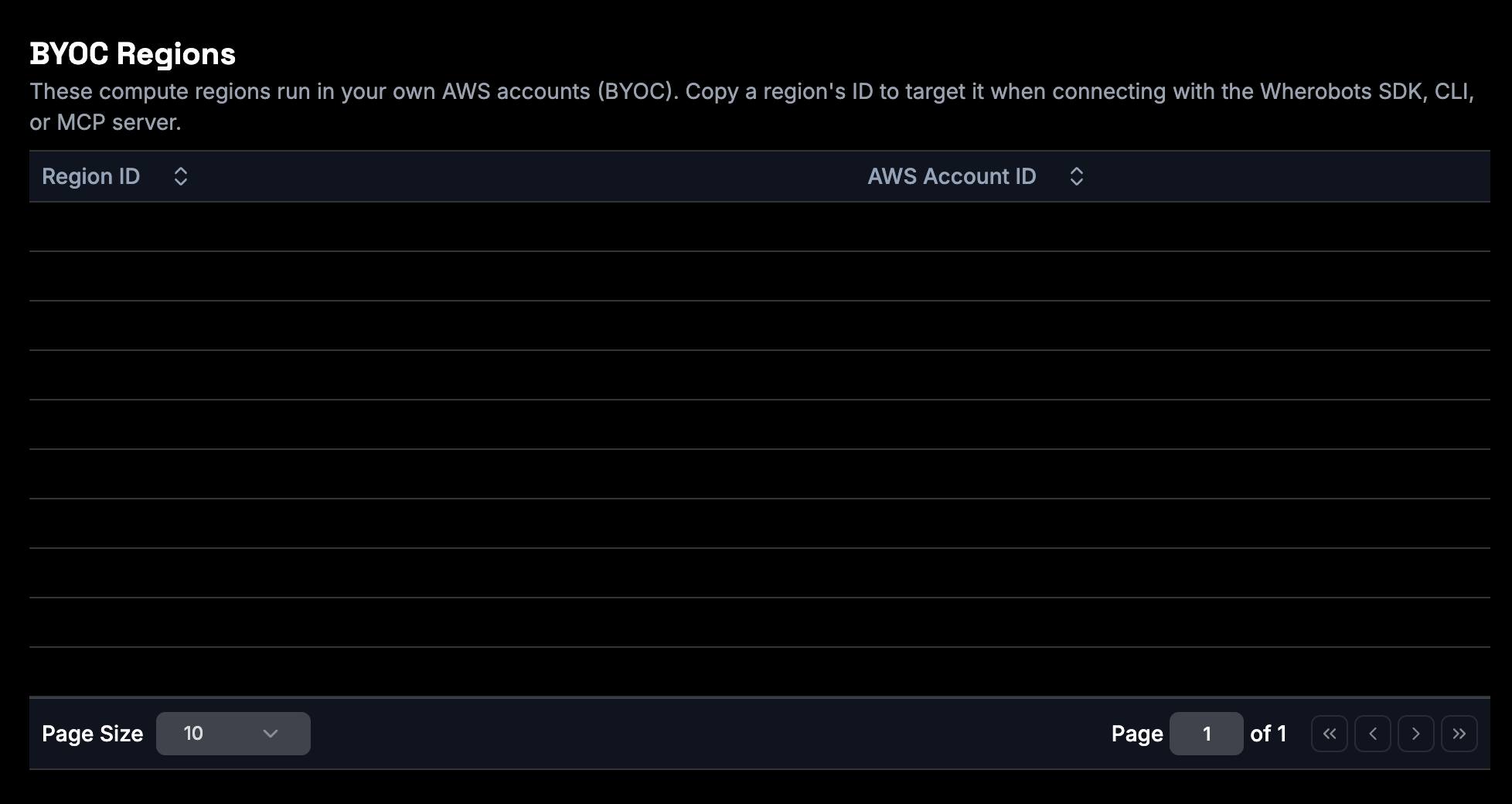
1. After Wherobots enables BYOC for your Organization, you can confirm your BYOC region is available.
2. Log in to [Wherobots Cloud](https://cloud.wherobots.com/).
3. Open [**Organization Settings → BYOC Regions**](https://cloud.wherobots.com/organization#byoc-regions)
Each enabled region is listed with its **Region ID** and the **AWS Account ID** it runs in.
 To prevent members from accidentally running notebooks in a Hosted region, set the BYOC region as your Organization's default.
1. Go to [**Organization Settings → Preferences**](https://cloud.wherobots.com/organization#preferences).
2. Set **Default Region** to your BYOC region.
3. Save your changes.
**Default Region applies to notebooks only.** Setting a Default Region does **not** apply to Job Runs or SQL Sessions — you must select the BYOC region explicitly when you start those workloads. See [Organization Preferences](/get-started/organization-info/organization-preferences#default-region).
Because BYOC workloads can't use [Wherobots' Managed Storage](/develop/storage-management/managed-storage), create at least one [S3 Storage Integration](/develop/storage-management/s3-storage-integration) pointing at a bucket in your AWS account. This bucket holds your input data, job scripts, and output.
Follow the [S3 Storage Integration guide](/develop/storage-management/s3-storage-integration) — a guided wizard provisions the access with AWS CloudFormation, so there's no manual IAM role or trust policy to configure. Choose **Read & Write** if you'll create catalogs on the bucket.
The integration uses a [Cloud Connection](/develop/storage-management/s3-storage-integration#cloud-connections), the reusable credential Wherobots assumes in your account. A connection's **Allowed compute** setting controls which compute environments may use it.
To keep a bucket reachable **only** from your BYOC region, scope **Allowed compute** to that region and exclude the Wherobots Hosted platform by unchecking it. See [Data isolation & access boundaries](#data-isolation-and-access-boundaries).
To prevent members from accidentally running notebooks in a Hosted region, set the BYOC region as your Organization's default.
1. Go to [**Organization Settings → Preferences**](https://cloud.wherobots.com/organization#preferences).
2. Set **Default Region** to your BYOC region.
3. Save your changes.
**Default Region applies to notebooks only.** Setting a Default Region does **not** apply to Job Runs or SQL Sessions — you must select the BYOC region explicitly when you start those workloads. See [Organization Preferences](/get-started/organization-info/organization-preferences#default-region).
Because BYOC workloads can't use [Wherobots' Managed Storage](/develop/storage-management/managed-storage), create at least one [S3 Storage Integration](/develop/storage-management/s3-storage-integration) pointing at a bucket in your AWS account. This bucket holds your input data, job scripts, and output.
Follow the [S3 Storage Integration guide](/develop/storage-management/s3-storage-integration) — a guided wizard provisions the access with AWS CloudFormation, so there's no manual IAM role or trust policy to configure. Choose **Read & Write** if you'll create catalogs on the bucket.
The integration uses a [Cloud Connection](/develop/storage-management/s3-storage-integration#cloud-connections), the reusable credential Wherobots assumes in your account. A connection's **Allowed compute** setting controls which compute environments may use it.
To keep a bucket reachable **only** from your BYOC region, scope **Allowed compute** to that region and exclude the Wherobots Hosted platform by unchecking it. See [Data isolation & access boundaries](#data-isolation-and-access-boundaries).
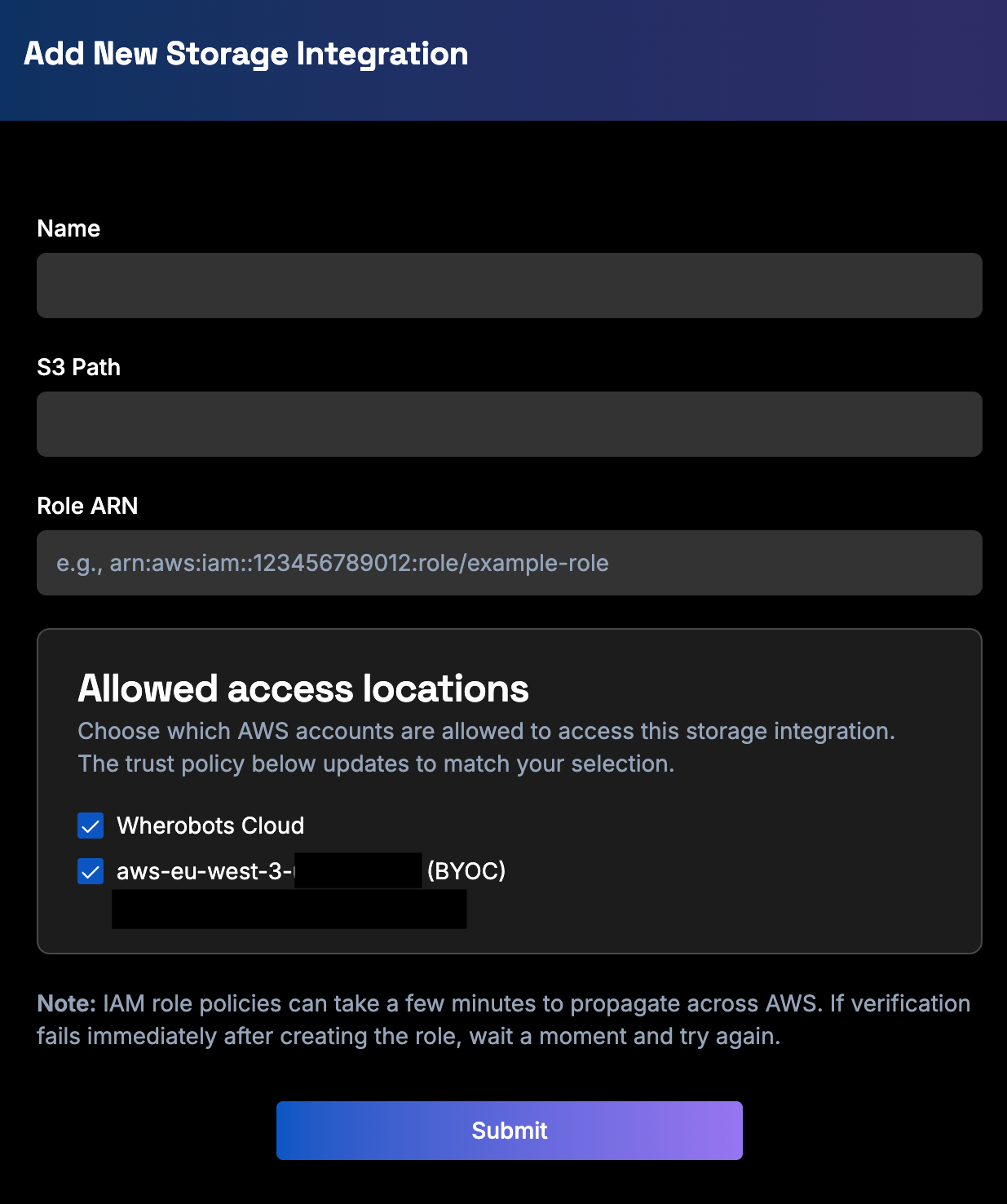 **A storage integration is not a catalog.** Creating a storage integration connects Wherobots to your S3 bucket, but it doesn't expose your data as a queryable catalog. To query the data, create a catalog from the bucket in the [**Data Hub**](https://cloud.wherobots.com/data-hub): click **Add Catalog**, then choose your storage under **Catalog in**. See [Create a Managed Catalog](/develop/storage-management/s3-storage-integration#managed-catalog).
## Run workloads in BYOC
Once BYOC is set up, target the BYOC region from your Wherobots workloads.
The core rule for BYOC compute is the same everywhere: **point the workload at your BYOC region and read/write through an S3 Storage Integration.**
The Wherobots MCP server itself runs in the Wherobots Hosted `us-west-2` region, even when it executes your SQL against a BYOC runtime. See the **MCP & agentic tools** tab below.
1. In [Wherobots Cloud](https://cloud.wherobots.com/), click **Start a Notebook**.
2. Set **Region** to your BYOC region. A BYOC-enabled region will be denoted with (BYOC) in the **Start a Notebook** dropdown.
(If you set it as the [Default Region](#set-up-byoc), it's already selected.)
3. Launch the notebook and run your cells. Load and save data using your [Storage Integration](/develop/storage-management/s3-storage-integration) catalog.
To use a Storage Integration or catalog created after a notebook started, launch a **new** notebook. Runtimes only see integrations that existed when they started.
Several [Wherobots example notebooks](https://github.com/wherobots/wherobots-examples) will not work in BYOC, due to storage limitations.
A SQL Session starts when you connect to the [Spatial SQL API](/develop/spatial-sql-api) — through the Python or Java SDK's `connect()` call, or a tool built on it such as the [Harlequin SQL IDE](/develop/spatial-sql-api#harlequin-wherobots-sql-ide-for-your-terminal). To run the session in BYOC, pass your BYOC region identifier (for example, `aws-us-east-1-`) as the connection's `region`. The [Default Region](#set-up-byoc) does **not** auto-apply to SQL Sessions, so set it explicitly every time. See [Runtime and region selection](/develop/spatial-sql-api#runtime-and-region-selection) and the [Region values reference](/develop/runtimes#region-enum-values) for how regions are passed.
Run queries against tables in catalogs backed by your [Storage Integration](/develop/storage-management/s3-storage-integration) bucket. Temporary results persist for the life of the session.
Submit a Job Run targeting your BYOC region. Pass the region identifier you copied from the notebook **Region** dropdown, for example:
```text theme={"system"}
aws-us-east-1-abcd123ef
```
**Upload your job script to a Storage Integration bucket.** BYOC Job Runs can't read scripts from Wherobots' Managed Storage. Place your script in a bucket covered by a Storage Integration before submitting the run.
Watch status transitions and review logs and outputs as usual. See the [Runs REST API](/reference/runs) and the [Wherobots CLI](/develop/cli) for submitting and monitoring runs.
When using the Python SDK or [Wherobots CLI](/develop/cli), specify your BYOC region identifier (for example, `aws-us-east-1-`) wherever a region is accepted, and reference data via your Storage Integration. See the [Region values reference](/develop/runtimes#region-enum-values) for how regions are passed in the APIs and SDKs.
**Set your API key in the VS Code Extension.** When you use the Wherobots MCP server through the VS Code Extension (or another Code OSS editor), authenticate it with your [Wherobots API key](/get-started/wherobots-cloud/api-keys/): open the Command Palette and run **`Wherobots: Set API Key`**, then enter your key and press Enter. For full steps, see [Configure the extension](/develop/agentic-tools/vscode#configure-the-extension).
If you need the MCP server hosted in an alternative region, file a request at [support@wherobots.com](mailto:support@wherobots.com).
## Data isolation and access boundaries
BYOC is designed so that your data stays in your cloud. The following boundaries are enforced:
| Data Relationship | Behavior |
| :------------------------------- | :-------------------------------------------------------------------------------------------------------------------- |
| BYOC → Wherobots Managed Storage | BYOC regions **cannot** read from or write to Wherobots Managed Storage. |
| Hosted → restricted bucket | A bucket served by a Cloud Connection scoped to **only** your BYOC region **cannot** be accessed from Hosted regions. |
You control the second boundary through the Cloud Connection's **Allowed compute** setting: scope a connection to **only** your BYOC region to make its buckets reachable exclusively from your BYOC account. See [Create an S3 Storage Integration](#set-up-byoc).
## Next steps
After BYOC is set up, the next step is to create an S3 Storage Integration so you can read and write data in your BYOC workloads.
### Create a storage integration
Follow the instructions in the [S3 Storage Integration guide](/develop/storage-management/s3-storage-integration) to create an integration pointing at a bucket in your AWS account.
#### Catalogs & Data Hub in BYOC
You can create and operate catalogs on your Storage Integration bucket from BYOC regions the same way you would on the Wherobots Hosted platform. For example:
* **Create a catalog** on your Storage Integration bucket in [Data Hub](/get-started/initial-storage/data-hub), then run programmatic operations on that table as you would on any other table on the Wherobots Hosted platform. These operations work on BYOC the same way they do on the Wherobots Hosted platform. For more information, see [Querying Datasets](/develop/spatial-catalog/spatial-catalog).
* **Open Data catalogs are readable** from BYOC workloads — your runtimes can read from Wherobots Open Data catalogs (such as Overture Maps) as usual.
## Limitations
* The Wherobots MCP server is not yet deployed in BYOC regions; it runs in `us-west-2`. Your SQL still executes against the runtime in your selected region (BYOC or Hosted), but the MCP server relays queries and routes responses back through `us-west-2`. See [Run workloads in BYOC](#run-workloads-in-byoc).
* The **Default Region** preference applies only to notebooks. Select the BYOC region explicitly for **Job Runs** and **SQL Sessions**.
* Standard [S3 Storage Integration limitations](/develop/storage-management/s3-storage-integration#limitations) apply (for example, bucket paths cannot contain periods, and a bucket can have a single storage integration).
## Related resources
Connect your S3 buckets — required for BYOC data.
Set your Organization's Default Region.
Runtime sizing and region values.
Create catalogs on your buckets.
**A storage integration is not a catalog.** Creating a storage integration connects Wherobots to your S3 bucket, but it doesn't expose your data as a queryable catalog. To query the data, create a catalog from the bucket in the [**Data Hub**](https://cloud.wherobots.com/data-hub): click **Add Catalog**, then choose your storage under **Catalog in**. See [Create a Managed Catalog](/develop/storage-management/s3-storage-integration#managed-catalog).
## Run workloads in BYOC
Once BYOC is set up, target the BYOC region from your Wherobots workloads.
The core rule for BYOC compute is the same everywhere: **point the workload at your BYOC region and read/write through an S3 Storage Integration.**
The Wherobots MCP server itself runs in the Wherobots Hosted `us-west-2` region, even when it executes your SQL against a BYOC runtime. See the **MCP & agentic tools** tab below.
1. In [Wherobots Cloud](https://cloud.wherobots.com/), click **Start a Notebook**.
2. Set **Region** to your BYOC region. A BYOC-enabled region will be denoted with (BYOC) in the **Start a Notebook** dropdown.
(If you set it as the [Default Region](#set-up-byoc), it's already selected.)
3. Launch the notebook and run your cells. Load and save data using your [Storage Integration](/develop/storage-management/s3-storage-integration) catalog.
To use a Storage Integration or catalog created after a notebook started, launch a **new** notebook. Runtimes only see integrations that existed when they started.
Several [Wherobots example notebooks](https://github.com/wherobots/wherobots-examples) will not work in BYOC, due to storage limitations.
A SQL Session starts when you connect to the [Spatial SQL API](/develop/spatial-sql-api) — through the Python or Java SDK's `connect()` call, or a tool built on it such as the [Harlequin SQL IDE](/develop/spatial-sql-api#harlequin-wherobots-sql-ide-for-your-terminal). To run the session in BYOC, pass your BYOC region identifier (for example, `aws-us-east-1-`) as the connection's `region`. The [Default Region](#set-up-byoc) does **not** auto-apply to SQL Sessions, so set it explicitly every time. See [Runtime and region selection](/develop/spatial-sql-api#runtime-and-region-selection) and the [Region values reference](/develop/runtimes#region-enum-values) for how regions are passed.
Run queries against tables in catalogs backed by your [Storage Integration](/develop/storage-management/s3-storage-integration) bucket. Temporary results persist for the life of the session.
Submit a Job Run targeting your BYOC region. Pass the region identifier you copied from the notebook **Region** dropdown, for example:
```text theme={"system"}
aws-us-east-1-abcd123ef
```
**Upload your job script to a Storage Integration bucket.** BYOC Job Runs can't read scripts from Wherobots' Managed Storage. Place your script in a bucket covered by a Storage Integration before submitting the run.
Watch status transitions and review logs and outputs as usual. See the [Runs REST API](/reference/runs) and the [Wherobots CLI](/develop/cli) for submitting and monitoring runs.
When using the Python SDK or [Wherobots CLI](/develop/cli), specify your BYOC region identifier (for example, `aws-us-east-1-`) wherever a region is accepted, and reference data via your Storage Integration. See the [Region values reference](/develop/runtimes#region-enum-values) for how regions are passed in the APIs and SDKs.
**Set your API key in the VS Code Extension.** When you use the Wherobots MCP server through the VS Code Extension (or another Code OSS editor), authenticate it with your [Wherobots API key](/get-started/wherobots-cloud/api-keys/): open the Command Palette and run **`Wherobots: Set API Key`**, then enter your key and press Enter. For full steps, see [Configure the extension](/develop/agentic-tools/vscode#configure-the-extension).
If you need the MCP server hosted in an alternative region, file a request at [support@wherobots.com](mailto:support@wherobots.com).
## Data isolation and access boundaries
BYOC is designed so that your data stays in your cloud. The following boundaries are enforced:
| Data Relationship | Behavior |
| :------------------------------- | :-------------------------------------------------------------------------------------------------------------------- |
| BYOC → Wherobots Managed Storage | BYOC regions **cannot** read from or write to Wherobots Managed Storage. |
| Hosted → restricted bucket | A bucket served by a Cloud Connection scoped to **only** your BYOC region **cannot** be accessed from Hosted regions. |
You control the second boundary through the Cloud Connection's **Allowed compute** setting: scope a connection to **only** your BYOC region to make its buckets reachable exclusively from your BYOC account. See [Create an S3 Storage Integration](#set-up-byoc).
## Next steps
After BYOC is set up, the next step is to create an S3 Storage Integration so you can read and write data in your BYOC workloads.
### Create a storage integration
Follow the instructions in the [S3 Storage Integration guide](/develop/storage-management/s3-storage-integration) to create an integration pointing at a bucket in your AWS account.
#### Catalogs & Data Hub in BYOC
You can create and operate catalogs on your Storage Integration bucket from BYOC regions the same way you would on the Wherobots Hosted platform. For example:
* **Create a catalog** on your Storage Integration bucket in [Data Hub](/get-started/initial-storage/data-hub), then run programmatic operations on that table as you would on any other table on the Wherobots Hosted platform. These operations work on BYOC the same way they do on the Wherobots Hosted platform. For more information, see [Querying Datasets](/develop/spatial-catalog/spatial-catalog).
* **Open Data catalogs are readable** from BYOC workloads — your runtimes can read from Wherobots Open Data catalogs (such as Overture Maps) as usual.
## Limitations
* The Wherobots MCP server is not yet deployed in BYOC regions; it runs in `us-west-2`. Your SQL still executes against the runtime in your selected region (BYOC or Hosted), but the MCP server relays queries and routes responses back through `us-west-2`. See [Run workloads in BYOC](#run-workloads-in-byoc).
* The **Default Region** preference applies only to notebooks. Select the BYOC region explicitly for **Job Runs** and **SQL Sessions**.
* Standard [S3 Storage Integration limitations](/develop/storage-management/s3-storage-integration#limitations) apply (for example, bucket paths cannot contain periods, and a bucket can have a single storage integration).
## Related resources
Connect your S3 buckets — required for BYOC data.
Set your Organization's Default Region.
Runtime sizing and region values.
Create catalogs on your buckets.