> ## Documentation Index
> Fetch the complete documentation index at: https://docs.wherobots.com/llms.txt
> Use this file to discover all available pages before exploring further.
# Notebook Instance Management
> Manage your Wherobots Notebook Instances, including starting, sharing, and destroying notebook instances.
With Wherobots Cloud, you can start a pre-configured JupyterLab instance with just a few clicks, creating a spatial computing environment to develop your spatial analytics and AI workflows.
With Wherobots Notebooks, you can focus on extracting value from your geospatial data
without the complexities of managing infrastructure or configuring software.
## Benefits
The following are some of the key benefits of using Wherobots Notebooks:
Start analyzing your data immediately with pre-configured runtime environments.
Leverage distributed computing to analyze massive geospatial datasets with ease.
Share notebooks and collaborate with your team in a centralized environment.
Access a rich set of tools and libraries for geospatial analysis, visualization, and machine learning.
Reduce infrastructure costs with serverless computing and efficient resource utilization.
Supports S3 Storage Integration S3 Paths. Connect directly to your cloud storage and other Wherobots services for a streamlined workflow.
## Before you start
The following is required to start a Wherobots Notebook:
* An account within a Community, Professional, Innovation, or Enterprise Edition Organization. For more information, see [Create an Account](/get-started/wherobots-cloud/create-account).
## Open a Wherobots Notebook
To start a Wherobots Notebook, do the following:
1. Login to [Wherobots Cloud](https://cloud.wherobots.com).
2. Choose a runtime.
The runtime size determines the resources allocated to the notebook instance.
Available Runtimes vary by Organization Edition. Some runtimes are reserved for our Professional, Innovation, or Enterprise Edition Organizations. By default, Community Edition Organizations can only use the **Tiny** and **Micro** runtimes. If you are interested in additional runtimes, see [Upgrade Organization](/get-started/upgrade-organization/) or [Compute Requests](/develop/runtimes/#compute-requests).
3. (Optional) Enter a **Name** for your notebook.
4. Select a **Region**.
For the best performance, select a region closest to your data.
For a full list of Wherobots' supported cloud regions, see [Cloud and Cloud Region Availability section](/availability#cloud-and-cloud-region-availability).
5. Click **Advanced Options > Idle Timeout**.
1. Select an **Idle Timeout**. The default is **45 minutes**.
You can also choose a timeout of **15** or **120** minutes for your notebook sessions.
While 45 minutes is the default, your last selection will be saved and used for your subsequent sessions, even after logging out. This setting is specific to you and does not change the global default for other members your Wherobots Organization.
**How does the Idle Timeout feature work?** Idle Timeout lets you control how long your notebook can be inactive before automatically being scaled down to save resources. When your notebook exceeds the idle timeout threshold, the Jupyter kernel will terminate. To resume work, restart the kernel and re-execute all cells from the beginning. The Idle Timeout feature **only** works with Notebook Instances, not Job Runs.
**Managing Costs: Releasing Resources vs. Idle Timeout** While Idle Timeout can help *reduce* costs by minimizing resource usage, you'll still be charged for the minimum resources used while idle. For more information, see [Managing Costs](get-started/organization-management/managing-costs).
The Idle Timeout feature **only** works with Notebook Instances, not Job Runs.
To fully release notebook resources and stop incurring related charges, [destroy your active Notebook instances](/develop/notebook-management/notebook-instance-management#destroying-notebook-instance)
Billing begins when the runtime is provisioned, indicated by the notebook's status indicator changing from a spinning icon to a green dot 🟢.
6. Click **Open** once the notebook has loaded.
Before using your notebook instance, familiarize yourself with Jupyter notebooks by reviewing the [Jupyter notebook management](/develop/notebook-management/jupyter-notebook-management) documentation. This guide provides an overview of managing notebooks, including running code cells.
## Share a Wherobots Notebook
To share a Wherobots Notebook with your Organization, you can save that Notebook within **Wherobots Managed Storage** or within an Amazon S3 bucket that has been integrated with Wherobots.
### Managed Storage
To share your Wherobots Notebook within an Amazon S3 bucket, do the following:
1. [Start a Wherobots Notebook](/develop/notebook-management/notebook-instance-management/).
2. In JupyterLab:
1. Add your code and analysis to the notebook.
2. Click **File > Save Notebook**.
3. Click **File > Download**.
3. In Wherobots Cloud:
1. Go to [**Storage > data > shared**](https://cloud.wherobots.com/storage?path=data/shared/).
2. Click **Upload**.
3. Click **+ Click to upload a file** and upload the Wherobots Notebook that you previously downloaded.
### S3 Integration
To share your Wherobots Notebook within an Amazon S3 bucket, do the following:
1. [Start a Wherobots Notebook](/develop/notebook-management/notebook-instance-management/).
2. In JupyterLab:
1. Add your code and analysis to the Notebook.
2. Click **File > Save Notebook**.
3. Click **File > Download**.
3. In Wherobots Cloud:
1. Go to [**Storage**](https://cloud.wherobots.com/storage).
2. Click **Storage Source** dropdown menu.
3. Select an S3 bucket.
4. Navigate to your desired folder within the bucket.
5. Click **Upload**.
6. Click **+ Click to upload a file** and upload the Wherobots Notebook that you previously downloaded.
For more details on creating storage integrations, refer to [S3 Storage Integration](/develop/storage-management/s3-storage-integration/).
## Destroying Notebook Instance
Once you have finished using the notebook instance, you can click **Destroy**.
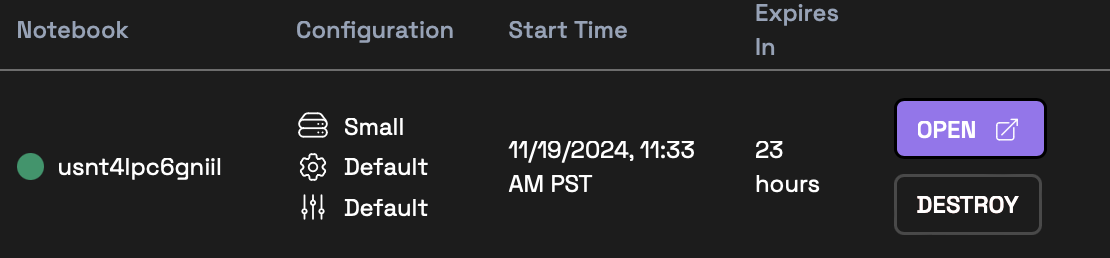 This will shut down the Notebook instance and release the resources it was using. It is recommended that you destroy notebook instances when they are no longer needed.
Community Edition Organizations can expect Notebook instances to automatically shut down after 4 hours. Community Edition Organizations can restart the Notebook instance if additional time is required beyond the 4 limit.
## Troubleshooting
### Notebook stuck in `STARTING` status
The notebook instance will usually start within 5 minutes of clicking **Start**. If you observe the notebook stuck in `STARTING` status, you can try to destroy and re-create the notebook instance. If the problem persists, please Contact Support.
This will shut down the Notebook instance and release the resources it was using. It is recommended that you destroy notebook instances when they are no longer needed.
Community Edition Organizations can expect Notebook instances to automatically shut down after 4 hours. Community Edition Organizations can restart the Notebook instance if additional time is required beyond the 4 limit.
## Troubleshooting
### Notebook stuck in `STARTING` status
The notebook instance will usually start within 5 minutes of clicking **Start**. If you observe the notebook stuck in `STARTING` status, you can try to destroy and re-create the notebook instance. If the problem persists, please Contact Support.