> ## Documentation Index
> Fetch the complete documentation index at: https://docs.wherobots.com/llms.txt
> Use this file to discover all available pages before exploring further.
# Environment Presets
> Customize configurations for your Wherobots Notebook instances, including Wherobots version, Spark configuration, dependencies, and environment overrides.
Environment Presets allow you to customize infrequently changed configurations for your notebook instance. These currently include:
* Wherobots version
* Spark configuration
* Dependencies
To create a custom preset, do the following:
1. Click **Environment**.
 2. Click **+** next to **Environment Preset**.
3. Fill in the required information.
2. Click **+** next to **Environment Preset**.
3. Fill in the required information.
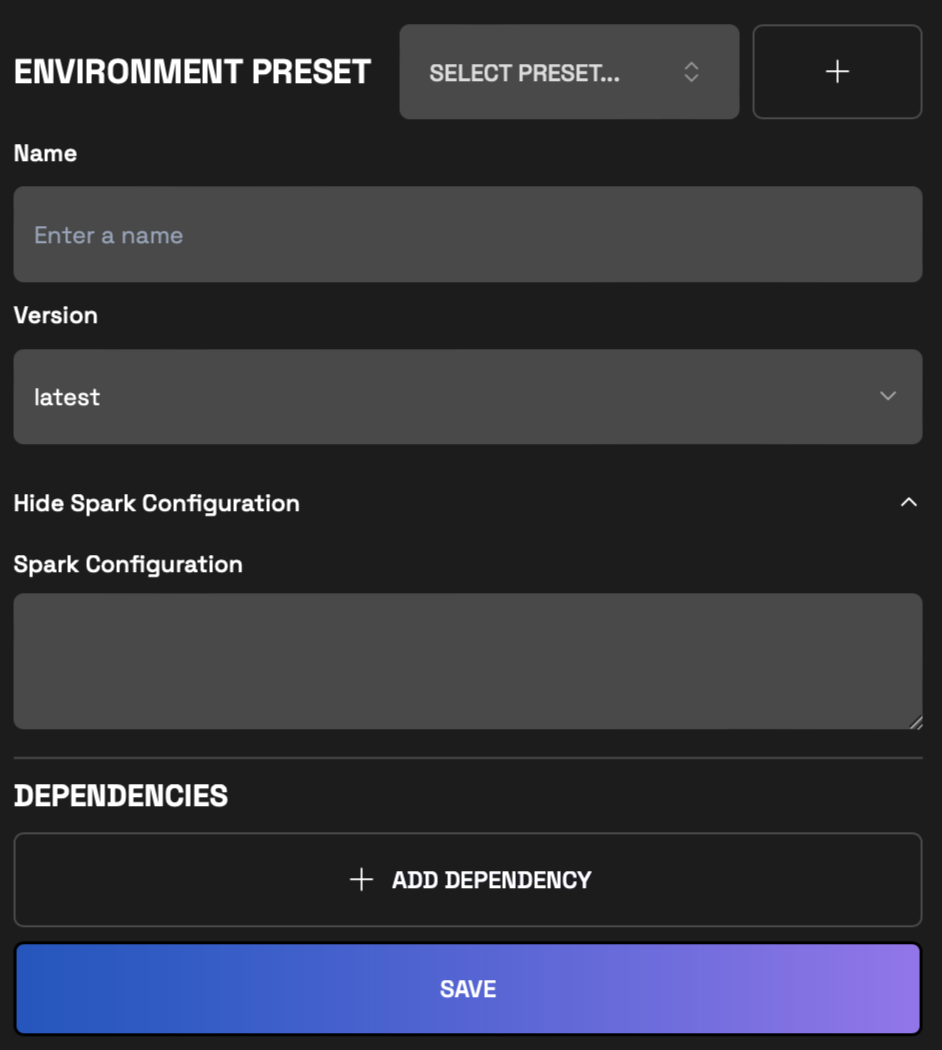 4. Click **Save**.
## Change Wherobots Version
You can customize the Wherobots version for your notebook instance. The default Wherobots version is the latest version.
## Change Spark Configuration
Add any custom spark configurations you want before starting the notebook instance.
## Adding Dependencies
We support both **FILE** and **PYPI** as sources for dependencies inside Wherobots Notebooks. Below you will find the directions for adding dependencies from each source.
### Adding Dependencies from a File
Wherobots Cloud allows you to add dependencies from the Wherobots File system.
Supported file types Only Python Wheel (.whl), JAR (.jar), ZIP (.zip), and JSON (.json) files are supported.
Please refer to [storage layer management](/develop/storage-management/storage/) page to upload the files in the correct directory.
Click "Browse" and select the file from the Wherobots File Browser. The selected file must have a valid file extension (.whl, .jar, .zip, or .json).
JSON files can be used to place a configuration file at a predetermined file-system location on all nodes of the compute cluster (`/opt/wherobots/.json`).
### PYPI Source
You can add dependencies from the PYPI source by providing the library name and version.
4. Click **Save**.
## Change Wherobots Version
You can customize the Wherobots version for your notebook instance. The default Wherobots version is the latest version.
## Change Spark Configuration
Add any custom spark configurations you want before starting the notebook instance.
## Adding Dependencies
We support both **FILE** and **PYPI** as sources for dependencies inside Wherobots Notebooks. Below you will find the directions for adding dependencies from each source.
### Adding Dependencies from a File
Wherobots Cloud allows you to add dependencies from the Wherobots File system.
Supported file types Only Python Wheel (.whl), JAR (.jar), ZIP (.zip), and JSON (.json) files are supported.
Please refer to [storage layer management](/develop/storage-management/storage/) page to upload the files in the correct directory.
Click "Browse" and select the file from the Wherobots File Browser. The selected file must have a valid file extension (.whl, .jar, .zip, or .json).
JSON files can be used to place a configuration file at a predetermined file-system location on all nodes of the compute cluster (`/opt/wherobots/.json`).
### PYPI Source
You can add dependencies from the PYPI source by providing the library name and version.
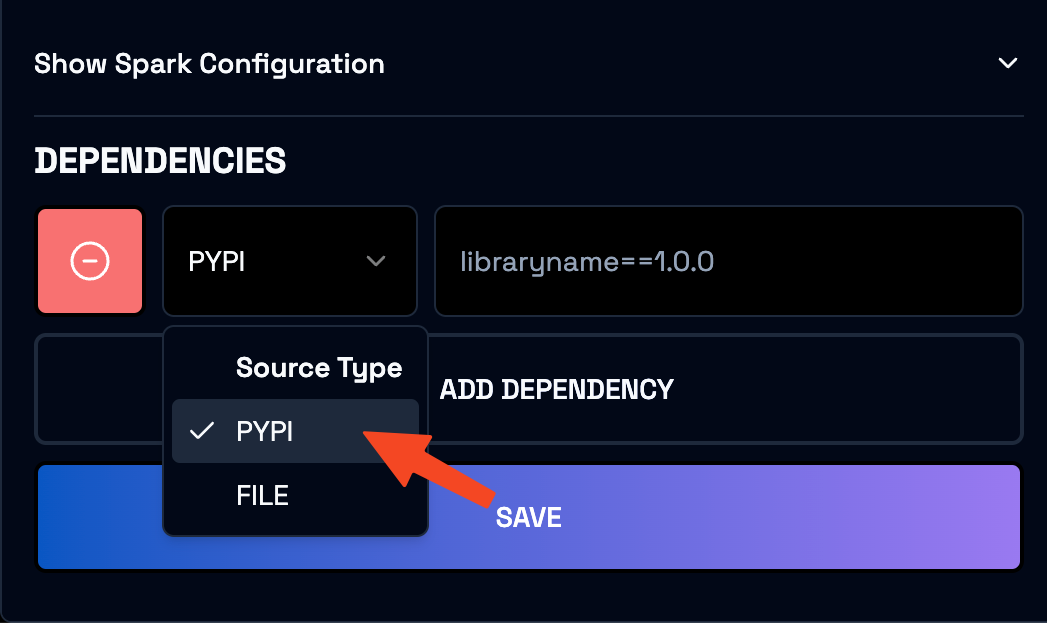 When the notebook instance starts, it will fetch and install listed packages from PYPI.
## Environment Override Presets
Configurations present in Environment Override Presets are subject to change. Configurations may be added or removed as the product evolves.
Environment Overrides allow you to customize the most commonly updated values for your notebook instance. These currently include:
* Driver disk size
* Executor disk size
* Spark configuration
To access the Environment Overrides, do the following:
1. Go to [**Start a Notebook**](https://cloud.wherobots.com/notebooks)
2. Click **Environment**.
3. Click **Show Environment Overrides**.
When the notebook instance starts, it will fetch and install listed packages from PYPI.
## Environment Override Presets
Configurations present in Environment Override Presets are subject to change. Configurations may be added or removed as the product evolves.
Environment Overrides allow you to customize the most commonly updated values for your notebook instance. These currently include:
* Driver disk size
* Executor disk size
* Spark configuration
To access the Environment Overrides, do the following:
1. Go to [**Start a Notebook**](https://cloud.wherobots.com/notebooks)
2. Click **Environment**.
3. Click **Show Environment Overrides**.
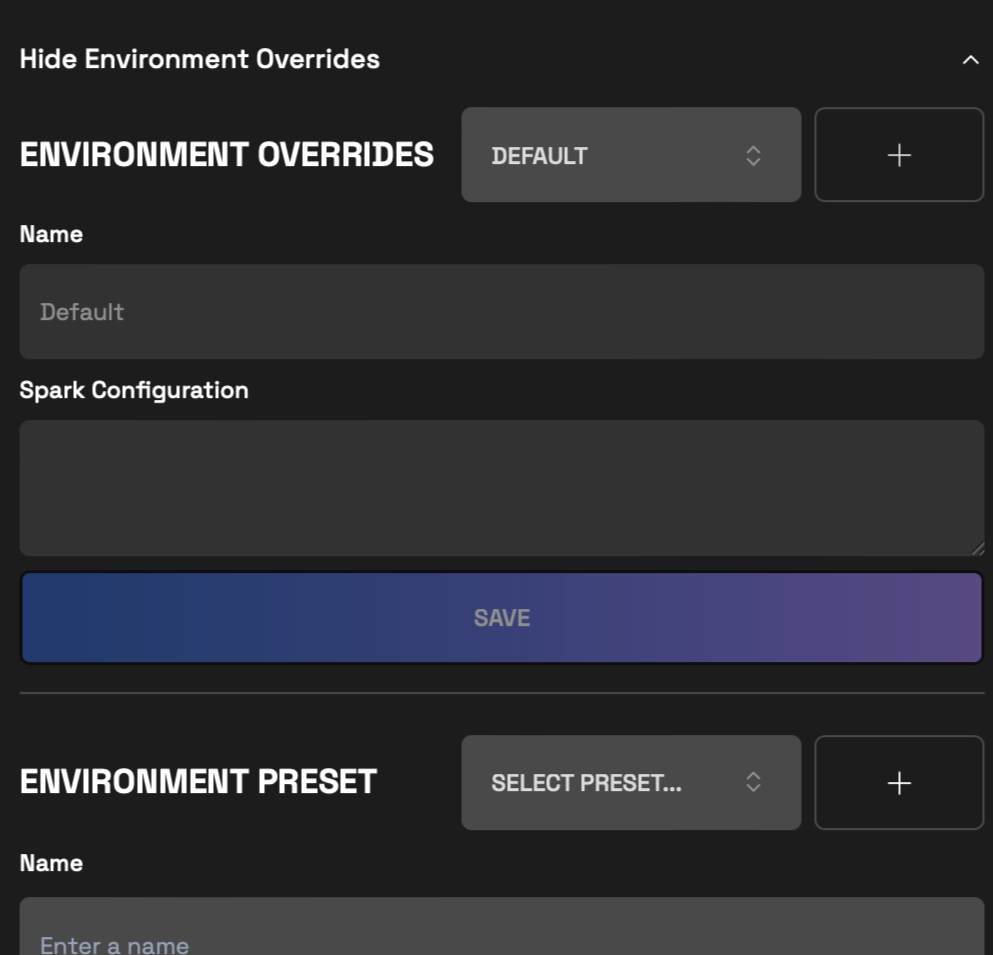 4. Click a previously created override from the dropdown.
To create custom Environment Overrides, do the following:
1. Click **Environment**.
2. Click **Show Environment Overrides**.
4. Click a previously created override from the dropdown.
To create custom Environment Overrides, do the following:
1. Click **Environment**.
2. Click **Show Environment Overrides**.
 3. Click **+**.
4. Enter the necessary information.
5. Click **Save**.
### Change Disk Size
You can customize the default disk size for your notebook instance. The default disk size for driver and executor nodes is based on the runtime size and is listed below:
| Runtime Size | Disk Size |
| ------------ | --------- |
| Tiny | 20 GB |
| All others | 200 GB |
### Spark Configuration
Refer to the [Spark configuration](#change-spark-configuration) section for more information.
3. Click **+**.
4. Enter the necessary information.
5. Click **Save**.
### Change Disk Size
You can customize the default disk size for your notebook instance. The default disk size for driver and executor nodes is based on the runtime size and is listed below:
| Runtime Size | Disk Size |
| ------------ | --------- |
| Tiny | 20 GB |
| All others | 200 GB |
### Spark Configuration
Refer to the [Spark configuration](#change-spark-configuration) section for more information.