> ## Documentation Index
> Fetch the complete documentation index at: https://docs.wherobots.com/llms.txt
> Use this file to discover all available pages before exploring further.
# Wherobots Apache Airflow Provider
> Wherobots offers an Apache Airflow provider that enables Wherobots Job Runs and SQL Sessions to be orchestrated from Apache Airflow DAGs.
These features are particularly useful for automating spatial ETL workloads.
## Benefits
You can use Airflow to streamline, automate, and manage complex ETL workload tasks that are running on your data.
For example, you might want to perform your training and inference on large datasets in batches rather than all at once due to potential efficiency increases. Airflow can schedule these batch jobs to run at specific time intervals or trigger those batch jobs based on events like the arrival of new data.
## Before you start
Before installing the Wherobots Apache Airflow Provider, ensure that you have the following required resources:
* Python version 3.8, 3.9, 3.10, 3.11, or 3.12.
Python 3.13 is not yet supported. For details on how to circumvent this limitation, see the **uv** tab in [Install from PyPI](#install-from-pypi).
* Wherobots API key. For more information, see [API keys](/get-started/wherobots-cloud/api-keys) in the Wherobots documentation.
* Apache Airflow. For more information see, [Installation of Airflow](https://airflow.apache.org/docs/apache-airflow/stable/installation/index.html) in the Apache Airflow documentation.
## Setup
You can install the Wherobots Apache Airflow provider with `pip` or `uv pip`.
You can also add the Wherobots Apache Airflow provider to the dependencies of your Apache Airflow application.
### Install from PyPI
To install the Wherobots Apache Airflow provider, run the following commands in your terminal:
```bash theme={"system"}
pip install airflow-providers-wherobots
```
The provider currently supports Python **3.8 to 3.12**.
If your environment is running Python 3.13, use `uv` to create a compatible environment.
1. Create a virtual Python 3.12 environment.
```bash theme={"system"}
uv venv .venv-wherobots-airflow --python 3.12
```
2. Activate the virtual environment.
```bash theme={"system"}
source .venv-wherobots-airflow/bin/activate
```
3. Install `airflow-providers-wherobots`.
```bash theme={"system"}
# Recommended if using Python 3.13+
uv pip install airflow-providers-wherobots
```
* Replace `3.12` with your desired compatible Python version.
* Replace `.venv-wherobots-airflow` with your desired virtual environment name.
### Create a new Connection in Airflow Server
You first need to create a Connection in the Airflow Server. There are two ways to create a connection: through the CLI or through the UI.
#### Create through CLI
You can create the connection through the Apache Airflow CLI.
Execute the following from your command line, replacing `$(< api.key)` with your Wherobots API key.
```bash theme={"system"}
airflow connections add "wherobots_default" \
--conn-type "generic" \
--conn-host "api.cloud.wherobots.com" \
--conn-password "$(< api.key)"
```
These commands should return a link to the Airflow Server. For more information, see [Managing Connections](https://airflow.apache.org/docs/apache-airflow/stable/howto/connection.html) in the Apache Airflow Documentation.
#### Create through UI
Or you can create the connection through the Apache Airflow UI following the steps below:
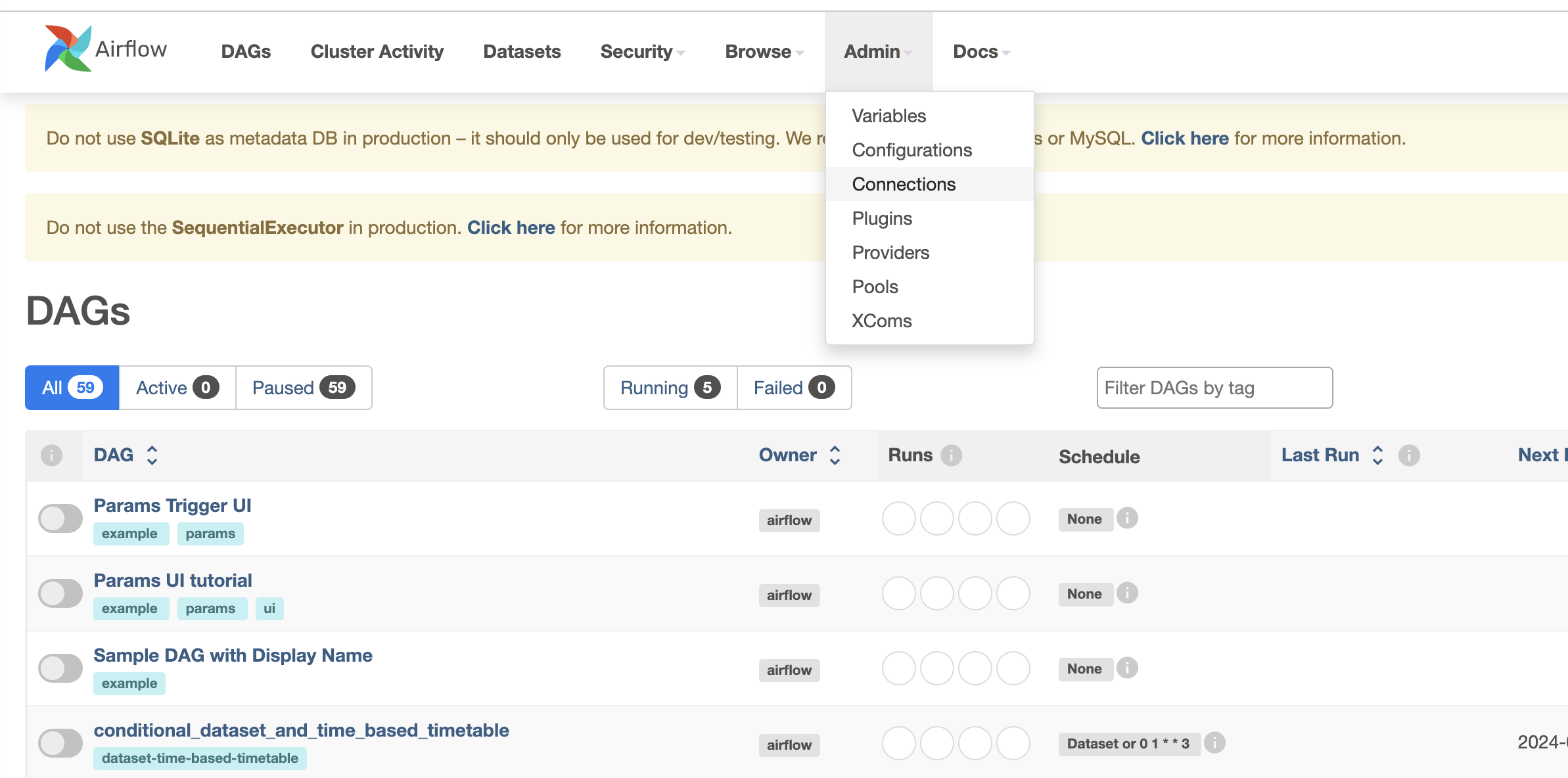
Navigate to your Apache Airflow UI home page. click the `Admin` tab on the top right corner, and select `Connections`.
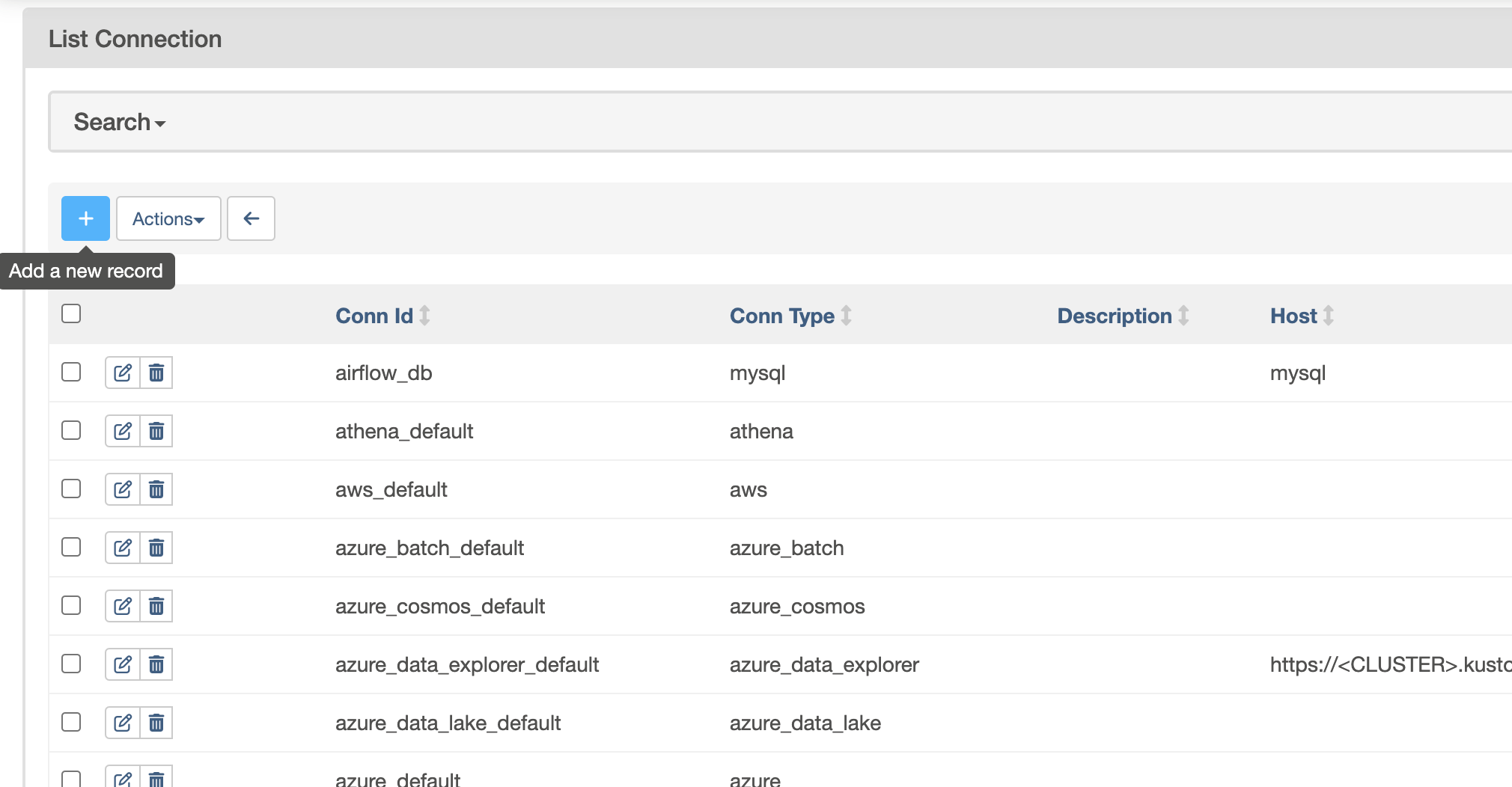
 Click the `+` button to add a new connection.
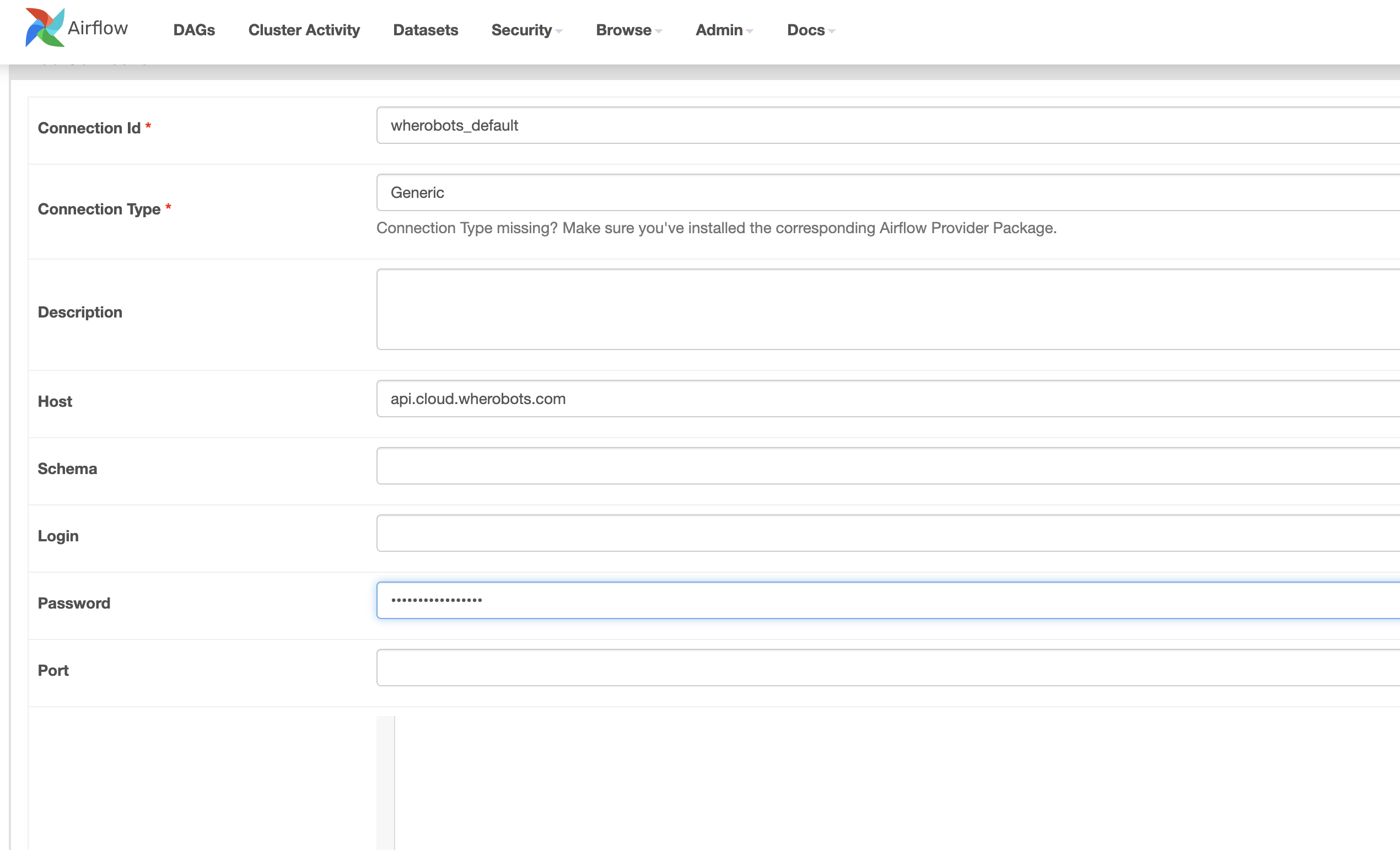
 Fill in the connection details:
Connection ID: `wherobots_default`
Connection Type: `generic`
Host: `api.cloud.wherobots.com`
Password: Your Wherobots API key
Fill in the connection details:
Connection ID: `wherobots_default`
Connection Type: `generic`
Host: `api.cloud.wherobots.com`
Password: Your Wherobots API key
 Click `Save` to confirm the connection.