> ## Documentation Index
> Fetch the complete documentation index at: https://docs.wherobots.com/llms.txt
> Use this file to discover all available pages before exploring further.
# Set Up Wherobots in OpenCode
> Configure the Wherobots MCP Server, Agent Skills, and CLI in OpenCode for AI-assisted geospatial development from your terminal.
Public Preview
[**OpenCode**](https://opencode.ai/) is an open-source terminal-based agentic coding tool. Unlike the VS Code extension, OpenCode requires separate installation of the MCP Server, Agent Skills, and CLI.
The following instructions work for both the **Open Code Agentic Terminal** and the **OpenCode desktop application**. For more information on OpenCode, see the [OpenCode documentation](https://opencode.ai/docs/).
## Component Overview
Wherobots' Agentic Tools consist of the following components that work together to provide our agentic experience:
Connects your AI assistant to Wherobots Cloud for catalog exploration, Spatial SQL generation, and query execution.
Gives your AI assistant domain-specific Wherobots knowledge for more accurate commands and fewer errors.
Wraps the full Wherobots API into a single binary for job submission, log streaming, and automation.
## Why use Wherobots' agentic tools?
Wherobots' agentic tools connect your AI assistant to Wherobots Cloud and your local development environment so you can interact with your spatial data, catalogs, and jobs in a more intuitive way.
The MCP Server connects your AI assistant to Wherobots Cloud so you can browse catalogs, databases, and table schemas (including Overture Maps and your own datasets) by asking questions in plain language instead of navigating the console.
Describe a geospatial task (e.g. "find buildings within 500m of this point") and the MCP Server returns optimized Spatial SQL using WherobotsDB's ST functions, spatial joins, and indexing patterns.
Use the CLI or the extension to submit Spark job runs, stream logs in real time, check resource metrics, and cancel jobs without leaving your editor or terminal.
Agent Skills teach your AI assistant Wherobots-specific APIs, query patterns, and workflow sequences so it produces correct `wherobots` CLI commands, valid MCP tool calls, and accurate notebook code on the first try.
## Before you start
The following prerequisites are required:
* [OpenCode](https://opencode.ai/) installed with a [modern terminal emulator](https://opencode.ai/docs/#prerequisites).
* A **Wherobots Account** within a Professional, Innovation, or Enterprise Organization. See [Create a Wherobots Account](/get-started/wherobots-cloud/create-account).
* A Wherobots API key. For more information, see [API Keys](/get-started/wherobots-cloud/api-keys).
* You will use this to install the Wherobots CLI, which is recommended for accessing Wherobots features in OpenCode.
* [Node.js](https://nodejs.org/) and [npm](https://www.npmjs.com/) installed on your system (required for installing Agent Skills via `npx`).
## Install Wherobots MCP Server in OpenCode
These steps connect OpenCode to the Wherobots MCP Server, giving your AI assistant access to your Wherobots Organization's catalogs, datasets, and tools.
Choose one of two methods to add the Wherobots MCP server to OpenCode.
1. In your terminal, start the OpenCode MCP setup wizard:
```bash theme={"system"}
opencode mcp add
```
2. Respond to each prompt as follows:
| Prompt | Value |
| --------------------------------------------------- | --------------------------------------------------------------------------------------------------------- |
| Location | `Global` or `Local` |
| Enter MCP server name | `YOUR-WHEROBOTS-MCP-SERVER-NAME`
Replace with your desired name for the Wherobots MCP server |
| Select MCP server type | `Remote` |
| Enter MCP server URL | `https://api.cloud.wherobots.com/mcp/` |
| Does this server
require OAuth authentication? | `Yes` |
| Do you have a pre-registered
client ID? | `No` |
Choose the **Global** location to make the server available in all your projects, or **Local** to keep it separate from other projects.
OpenCode writes the entry to `~/.config/opencode/opencode.jsonc` and prints `MCP server "YOUR-WHEROBOTS-MCP-SERVER-NAME" added successfully`.
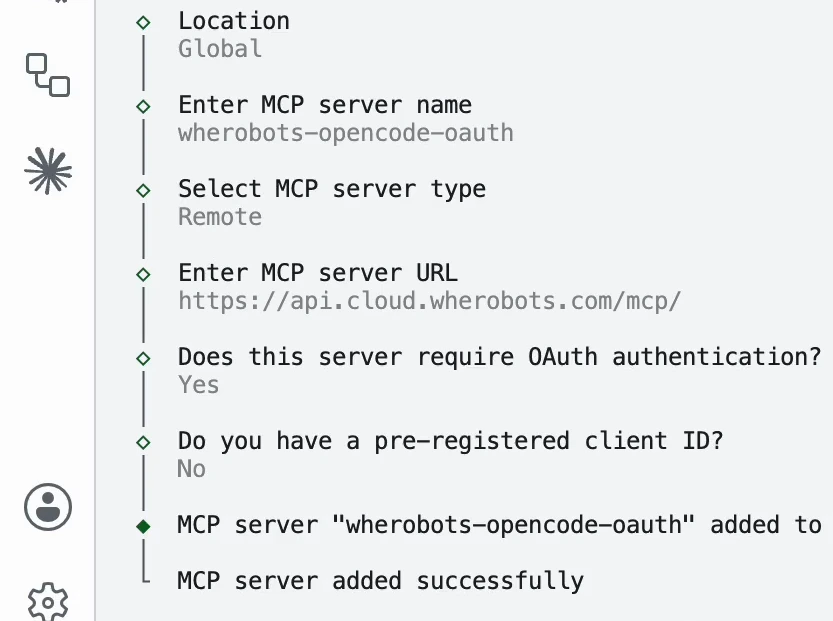 3. Authenticate the new server with OAuth, replacing `` with your desired name for the Wherobots MCP server (e.g. `wherobots-mcp-server-opencode`):
```bash theme={"system"}
opencode mcp auth
```
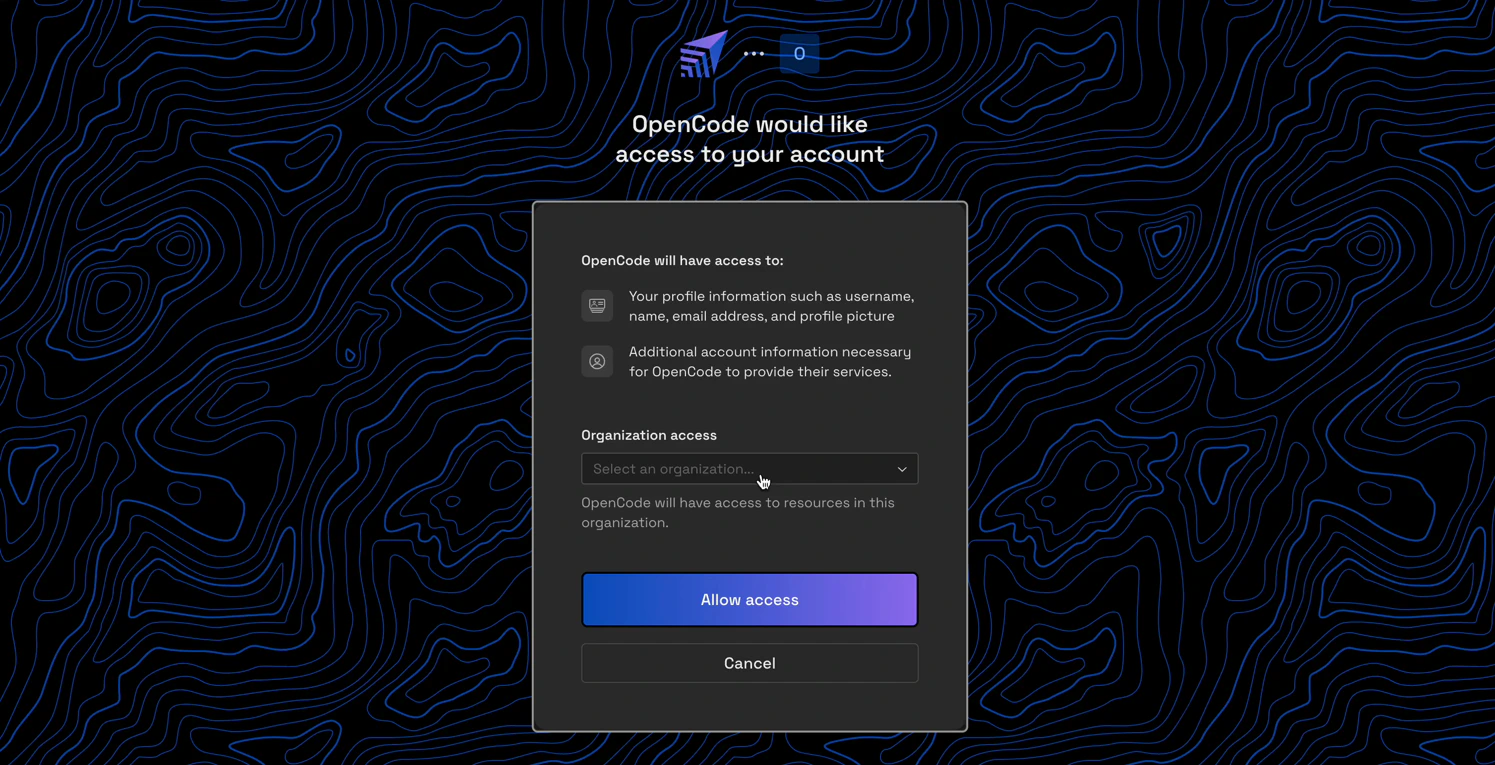
This opens a browser window prompting you to log in to your Wherobots account and authorize OpenCode to access your account information.
4. In the browser, select the Wherobots Organization that you want OpenCode to access, then click **Allow Access**.
3. Authenticate the new server with OAuth, replacing `` with your desired name for the Wherobots MCP server (e.g. `wherobots-mcp-server-opencode`):
```bash theme={"system"}
opencode mcp auth
```
This opens a browser window prompting you to log in to your Wherobots account and authorize OpenCode to access your account information.
4. In the browser, select the Wherobots Organization that you want OpenCode to access, then click **Allow Access**.
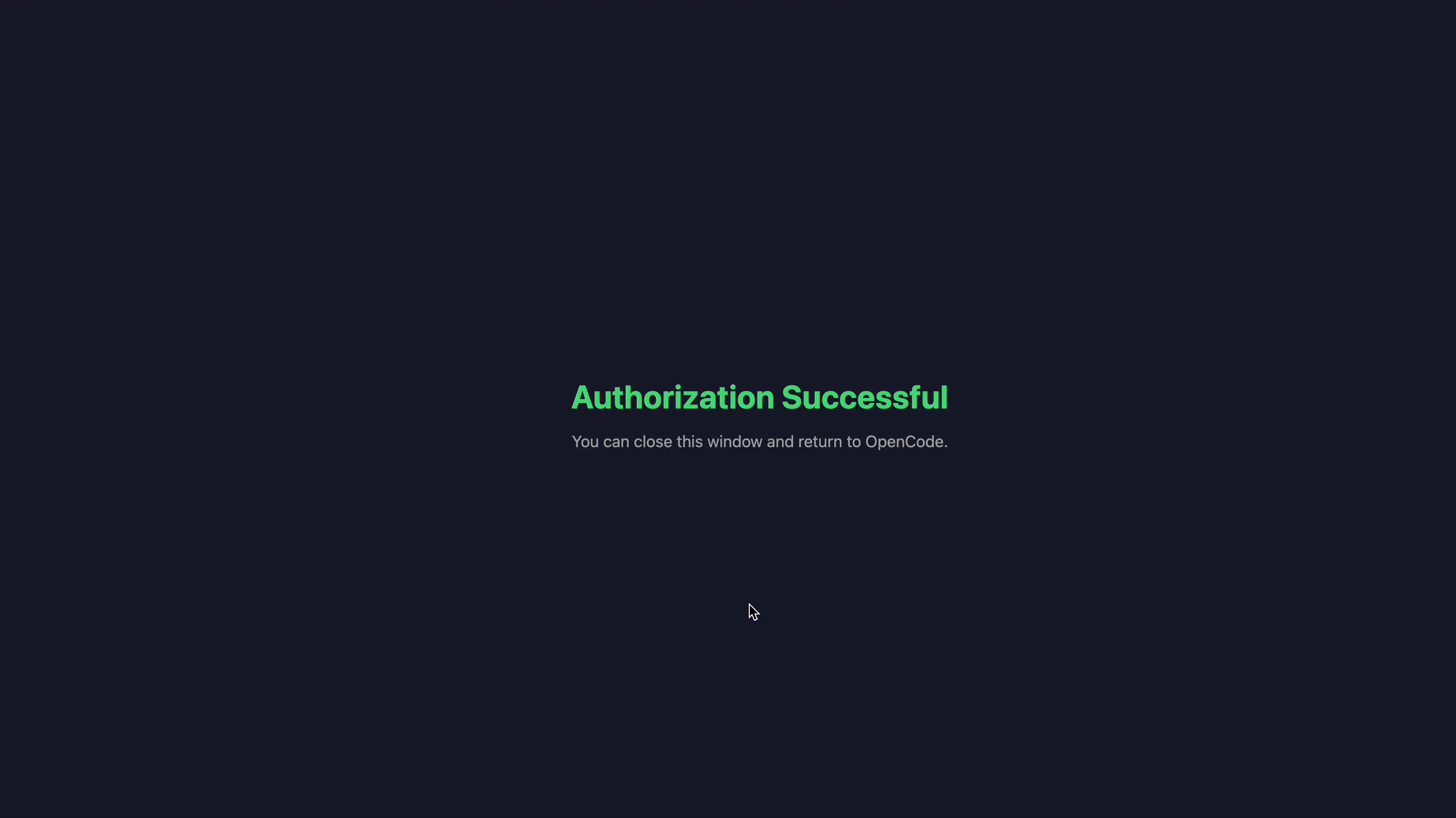
 5. Once the browser shows **Authorization Successful**, close the tab and return to your terminal. OpenCode prints `Authentication successful!`.
 6. Verify the server is connected:
```bash theme={"system"}
opencode mcp list
```
You should see something similar to the following, `YOUR-WHEROBOTS-MCP-SERVER-NAME connected (OAuth)` along with the server URL.
```bash theme={"system"}
┌ MCP Servers
│
● ✓ YOUR-WHEROBOTS-MCP-SERVER-NAME connected (OAuth)
│ https://api.cloud.wherobots.com/mcp/
│
│
└ 1 server(s)
```
1. Open your OpenCode config file in your editor — the path determines the scope (create the file if it does not exist):
* **Global** (available in all projects): `~/.config/opencode/opencode.jsonc` (or `~/.config/opencode/opencode.json`).
* **Local** (project-specific): `opencode.jsonc` (or `opencode.json`) in your project root.
2. Add a `YOUR-WHEROBOTS-MCP-SERVER-NAME` entry under `mcp`, replacing `YOUR-WHEROBOTS-MCP-SERVER-NAME` with your desired name for the Wherobots MCP server (e.g. `wherobots-mcp-server-opencode`):
```jsonc theme={"system"}
{
"$schema": "https://opencode.ai/config.json",
"mcp": {
"YOUR-WHEROBOTS-MCP-SERVER-NAME": {
"type": "remote",
"url": "https://api.cloud.wherobots.com/mcp/",
"oauth": {}
}
}
}
```
3. Save the file, then start the OAuth flow:
```bash theme={"system"}
opencode mcp auth YOUR-WHEROBOTS-MCP-SERVER-NAME
```
Sign in to Wherobots in the browser, select your Organization, and click **Allow Access**.
The browser shows **Authorization Successful**.
4. In the terminal, verify the server is connected:
```bash theme={"system"}
opencode mcp list
```
You will see something similar to the following, `YOUR-WHEROBOTS-MCP-SERVER-NAME connected (OAuth)` along with the server URL.
```bash theme={"system"}
┌ MCP Servers
│
● ✓ wherobots-opencode-oauth connected (OAuth)
│ https://api.cloud.wherobots.com/mcp/
│
│
└ 1 server(s)
```
For more information on downloading, installing, and using OpenCode, see [Install](https://opencode.ai/docs/#install) and [Usage](https://opencode.ai/docs/#usage) sections in the OpenCode documentation.
[Agent Skills](/develop/agent-skills) give your AI assistant structured context about Wherobots workflows, APIs, and best practices.
```bash theme={"system"}
npx skills add -g wherobots/agent-skills
```
The [Wherobots CLI](/develop/cli) wraps the full Wherobots API into a single binary for job submission, log streaming, and automation.
```bash theme={"system"}
gh repo clone wherobots/wbc-cli && cd wbc-cli && ./scripts/install-release.sh
```
Set your API key as an environment variable:
```bash theme={"system"}
export WHEROBOTS_API_KEY=''
```
Verify the connection:
```bash theme={"system"}
wherobots api --tree
```
## Verify installation
The following steps confirm that OpenCode is properly connected to the Wherobots MCP server and that your AI assistant can access your Wherobots data and tools.
### Test the MCP Server connection
To confirm that OpenCode can communicate with the Wherobots MCP server, ask a question in your AI assistant within OpenCode:
```text wrap theme={"system"}
List the catalogs in my Wherobots Data Hub
```
If configured correctly, OpenCode will call the Wherobots MCP server (showing a tool such as `list_catalogs`) and return the catalogs available in your Organization.
## Next steps
Explore the following resources to learn how to use Wherobots in OpenCode and get ideas for using your AI assistant to automate geospatial workflows.
Common tasks, example prompts, and cost considerations for the MCP Server.
Watch the MCP Server automate catalog discovery, spatial queries, and notebook generation.
Learn more about available skills and installation options.
Use the CLI with OpenCode for natural language job management.
Submit jobs, stream logs, and access the full Wherobots API.
Understand when to use the MCP Server vs. the CLI.
6. Verify the server is connected:
```bash theme={"system"}
opencode mcp list
```
You should see something similar to the following, `YOUR-WHEROBOTS-MCP-SERVER-NAME connected (OAuth)` along with the server URL.
```bash theme={"system"}
┌ MCP Servers
│
● ✓ YOUR-WHEROBOTS-MCP-SERVER-NAME connected (OAuth)
│ https://api.cloud.wherobots.com/mcp/
│
│
└ 1 server(s)
```
1. Open your OpenCode config file in your editor — the path determines the scope (create the file if it does not exist):
* **Global** (available in all projects): `~/.config/opencode/opencode.jsonc` (or `~/.config/opencode/opencode.json`).
* **Local** (project-specific): `opencode.jsonc` (or `opencode.json`) in your project root.
2. Add a `YOUR-WHEROBOTS-MCP-SERVER-NAME` entry under `mcp`, replacing `YOUR-WHEROBOTS-MCP-SERVER-NAME` with your desired name for the Wherobots MCP server (e.g. `wherobots-mcp-server-opencode`):
```jsonc theme={"system"}
{
"$schema": "https://opencode.ai/config.json",
"mcp": {
"YOUR-WHEROBOTS-MCP-SERVER-NAME": {
"type": "remote",
"url": "https://api.cloud.wherobots.com/mcp/",
"oauth": {}
}
}
}
```
3. Save the file, then start the OAuth flow:
```bash theme={"system"}
opencode mcp auth YOUR-WHEROBOTS-MCP-SERVER-NAME
```
Sign in to Wherobots in the browser, select your Organization, and click **Allow Access**.
The browser shows **Authorization Successful**.
4. In the terminal, verify the server is connected:
```bash theme={"system"}
opencode mcp list
```
You will see something similar to the following, `YOUR-WHEROBOTS-MCP-SERVER-NAME connected (OAuth)` along with the server URL.
```bash theme={"system"}
┌ MCP Servers
│
● ✓ wherobots-opencode-oauth connected (OAuth)
│ https://api.cloud.wherobots.com/mcp/
│
│
└ 1 server(s)
```
For more information on downloading, installing, and using OpenCode, see [Install](https://opencode.ai/docs/#install) and [Usage](https://opencode.ai/docs/#usage) sections in the OpenCode documentation.
[Agent Skills](/develop/agent-skills) give your AI assistant structured context about Wherobots workflows, APIs, and best practices.
```bash theme={"system"}
npx skills add -g wherobots/agent-skills
```
The [Wherobots CLI](/develop/cli) wraps the full Wherobots API into a single binary for job submission, log streaming, and automation.
```bash theme={"system"}
gh repo clone wherobots/wbc-cli && cd wbc-cli && ./scripts/install-release.sh
```
Set your API key as an environment variable:
```bash theme={"system"}
export WHEROBOTS_API_KEY=''
```
Verify the connection:
```bash theme={"system"}
wherobots api --tree
```
## Verify installation
The following steps confirm that OpenCode is properly connected to the Wherobots MCP server and that your AI assistant can access your Wherobots data and tools.
### Test the MCP Server connection
To confirm that OpenCode can communicate with the Wherobots MCP server, ask a question in your AI assistant within OpenCode:
```text wrap theme={"system"}
List the catalogs in my Wherobots Data Hub
```
If configured correctly, OpenCode will call the Wherobots MCP server (showing a tool such as `list_catalogs`) and return the catalogs available in your Organization.
## Next steps
Explore the following resources to learn how to use Wherobots in OpenCode and get ideas for using your AI assistant to automate geospatial workflows.
Common tasks, example prompts, and cost considerations for the MCP Server.
Watch the MCP Server automate catalog discovery, spatial queries, and notebook generation.
Learn more about available skills and installation options.
Use the CLI with OpenCode for natural language job management.
Submit jobs, stream logs, and access the full Wherobots API.
Understand when to use the MCP Server vs. the CLI.