> ## Documentation Index
> Fetch the complete documentation index at: https://docs.wherobots.com/llms.txt
> Use this file to discover all available pages before exploring further.
# Set Up Wherobots in Codex
> Configure the Wherobots MCP Server, Agent Skills, and CLI in OpenAI Codex — in the desktop app or terminal — for AI-assisted geospatial development.
Public Preview
[**Codex**](https://developers.openai.com/codex) is OpenAI's agentic coding tool, available as both a [terminal CLI](https://developers.openai.com/codex/cli) and a [native desktop app](https://developers.openai.com/codex/app).
Unlike the VS Code extension flow, Codex requires separate installation of the MCP Server, Agent Skills, and CLI.
## Component Overview
Wherobots' Agentic Tools consist of the following components that work together to provide our agentic experience:
Connects your AI assistant to Wherobots Cloud for catalog exploration, Spatial SQL generation, and query execution.
Gives your AI assistant domain-specific Wherobots knowledge for more accurate commands and fewer errors.
Wraps the full Wherobots API into a single binary for job submission, log streaming, and automation.
## Why use Wherobots' agentic tools?
Wherobots' agentic tools connect your AI assistant to Wherobots Cloud and your local development environment so you can interact with your spatial data, catalogs, and jobs in a more intuitive way.
The MCP Server connects your AI assistant to Wherobots Cloud so you can browse catalogs, databases, and table schemas (including Overture Maps and your own datasets) by asking questions in plain language instead of navigating the console.
Describe a geospatial task (e.g. "find buildings within 500m of this point") and the MCP Server returns optimized Spatial SQL using WherobotsDB's ST functions, spatial joins, and indexing patterns.
Use the CLI or the extension to submit Spark job runs, stream logs in real time, check resource metrics, and cancel jobs without leaving your editor or terminal.
Agent Skills teach your AI assistant Wherobots-specific APIs, query patterns, and workflow sequences so it produces correct `wherobots` CLI commands, valid MCP tool calls, and accurate notebook code on the first try.
## Before you start
The following prerequisites are required:
* Either the [Codex CLI](https://developers.openai.com/codex/cli) (run in a modern terminal emulator) or the [Codex desktop app](https://developers.openai.com/codex/app) installed.
* A **Wherobots Account** within a Professional, Innovation, or Enterprise Organization. See [Create a Wherobots Account](/get-started/wherobots-cloud/create-account).
* An API key for the Wherobots CLI. For more information, see [API Keys](/get-started/wherobots-cloud/api-keys).
* [Node.js](https://nodejs.org/) and [npm](https://www.npmjs.com/) installed on your system (required for installing Agent Skills via `npx`).
## Install and configure
Codex stores MCP server entries in `~/.codex/config.toml`.
The Codex CLI and the Codex desktop app share the same config file, so the following steps apply to both interfaces:
1. Open `~/.codex/config.toml` in your editor (create the file if it does not exist):
Remote HTTP servers like Wherobots must be added by editing this file directly — `codex mcp add` only supports local stdio servers.
* Add a `[mcp_servers.]` section.
* Replace `` with your preferred name for the Wherobots MCP server (e.g. `wherobots-mcp-server`):
```toml theme={"system"}
[mcp_servers.]
url = "https://api.cloud.wherobots.com/mcp/"
```
2. Save the file, then start the OAuth flow:
```shell theme={"system"}
codex mcp login
```
A browser window opens for you to sign in to Wherobots. Select your Organization and click **Allow access**. Alternatively, the terminal will display a URL you can copy and paste into any browser to complete the login.
3. Restart Codex so it picks up the new MCP server.
Skip `codex mcp login` and add an `X-API-Key` header to the server entry:
```toml theme={"system"}
[mcp_servers.]
url = "https://api.cloud.wherobots.com/mcp/"
http_headers = { "X-API-Key" = "" }
```
For more information on downloading, installing, and using Codex, see the [Codex documentation](https://developers.openai.com/codex/cli).
[Agent Skills](/develop/agent-skills) give your AI assistant structured context about Wherobots workflows, APIs, and best practices.
```bash theme={"system"}
npx skills add -g wherobots/agent-skills
```
The [Wherobots CLI](/develop/cli) wraps the full Wherobots API into a single binary for job submission, log streaming, and automation.
```bash theme={"system"}
gh repo clone wherobots/wbc-cli && cd wbc-cli && ./scripts/install-release.sh
```
Set your API key as an environment variable:
```bash theme={"system"}
export WHEROBOTS_API_KEY=''
```
Verify the connection:
```bash theme={"system"}
wherobots api --tree
```
## Verify installation
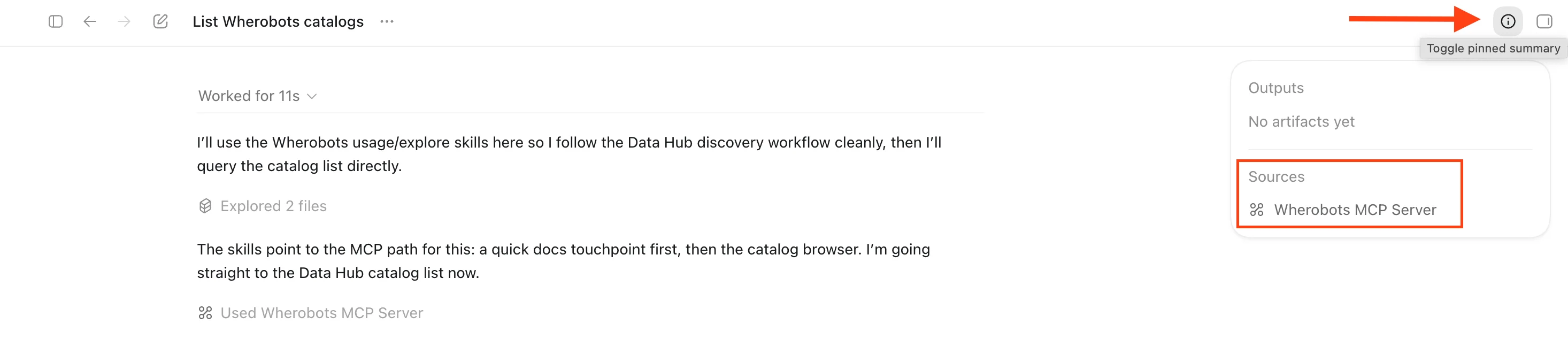
To confirm the installation, ask a question in Codex:
```text wrap theme={"system"}
List the catalogs in my Wherobots Data Hub
```
If configured correctly, Codex will call the Wherobots MCP server and return the catalogs available in your [Wherobots Data Hub](https://cloud.wherobots.com/data-hub).
Additionally, you can verify that the Agent Skills were installed correctly, if the **Wherobots MCP Server** is listed as a **Source** within Codex as it processes your query.
 ## Next steps
Common tasks, example prompts, and cost considerations for the MCP Server.
Watch the MCP Server automate catalog discovery, spatial queries, and notebook generation.
Learn more about available skills and installation options.
Use the CLI with Codex for natural language job management.
Submit jobs, stream logs, and access the full Wherobots API.
Understand when to use the MCP Server vs. the CLI.
## Next steps
Common tasks, example prompts, and cost considerations for the MCP Server.
Watch the MCP Server automate catalog discovery, spatial queries, and notebook generation.
Learn more about available skills and installation options.
Use the CLI with Codex for natural language job management.
Submit jobs, stream logs, and access the full Wherobots API.
Understand when to use the MCP Server vs. the CLI.