> ## Documentation Index
> Fetch the complete documentation index at: https://docs.wherobots.com/llms.txt
> Use this file to discover all available pages before exploring further.
# Set Up Wherobots in Claude Desktop and Web
> Configure the Wherobots MCP Server in the Claude Desktop app or Claude's web interface for AI-assisted geospatial development.
Public Preview
**Claude** is Anthropic's AI assistant, available as a [native desktop app](https://claude.ai/download) for macOS and Windows and a [browser-based app](https://claude.ai). Both support MCP integrations, allowing you to connect Wherobots tools directly.
## Component Overview
Wherobots' Agentic Tools consist of the following components that work together to provide our agentic experience:
Connects your AI assistant to Wherobots Cloud for catalog exploration, Spatial SQL generation, and query execution.
Gives your AI assistant domain-specific Wherobots knowledge for more accurate commands and fewer errors.
Wraps the full Wherobots API into a single binary for job submission, log streaming, and automation.
## Why use Wherobots' agentic tools?
Wherobots' agentic tools connect your AI assistant to Wherobots Cloud and your local development environment so you can interact with your spatial data, catalogs, and jobs in a more intuitive way.
The MCP Server connects your AI assistant to Wherobots Cloud so you can browse catalogs, databases, and table schemas (including Overture Maps and your own datasets) by asking questions in plain language instead of navigating the console.
Describe a geospatial task (e.g. "find buildings within 500m of this point") and the MCP Server returns optimized Spatial SQL using WherobotsDB's ST functions, spatial joins, and indexing patterns.
Use the CLI or the extension to submit Spark job runs, stream logs in real time, check resource metrics, and cancel jobs without leaving your editor or terminal.
Agent Skills teach your AI assistant Wherobots-specific APIs, query patterns, and workflow sequences so it produces correct `wherobots` CLI commands, valid MCP tool calls, and accurate notebook code on the first try.
## Before you start
The following prerequisites are required:
* A [Claude](https://claude.ai) account with an active paid [subscription](https://www.anthropic.com/pricing).
* You cannot add a Custom Connector in a free account, so an active paid subscription is required to use the Wherobots MCP Server with Claude (Web & Desktop app).
* A **Wherobots Account** within a Professional, Innovation, or Enterprise Organization. See [Create a Wherobots Account](/get-started/wherobots-cloud/create-account).
* For the desktop flow: [Claude Desktop](https://claude.ai/download) installed.
## Install and configure
Setting up the Wherobots MCP Server in Claude is a two-part process:
1. A **Team Owner** adds Wherobots as a Custom Connector for the Claude Organization (once).
2. Each **Team Member** enables the connector for their own account.
### Team Owner: Add Wherobots as a Custom Connector
Before anyone on your team can connect, a Team Owner must add the Wherobots MCP Server as a Custom Connector at the Organization level.
To add Wherobots as a Custom Connector in Claude on the web:
1. Go to [**Connectors**](https://claude.ai/customize/connectors).
2. Click **Add custom connector** or use this [pre-filled link](https://claude.ai/customize/connectors?modal=add-custom-connector\&connectorName=wherobots\&connectorUrl=https://api.cloud.wherobots.com/mcp/) to enter credentials in the subsequent step:
3. Configure the connector:
* **Name:** `wherobots` or a name of your choosing.
* **Remote MCP server URL:** `https://api.cloud.wherobots.com/mcp/`
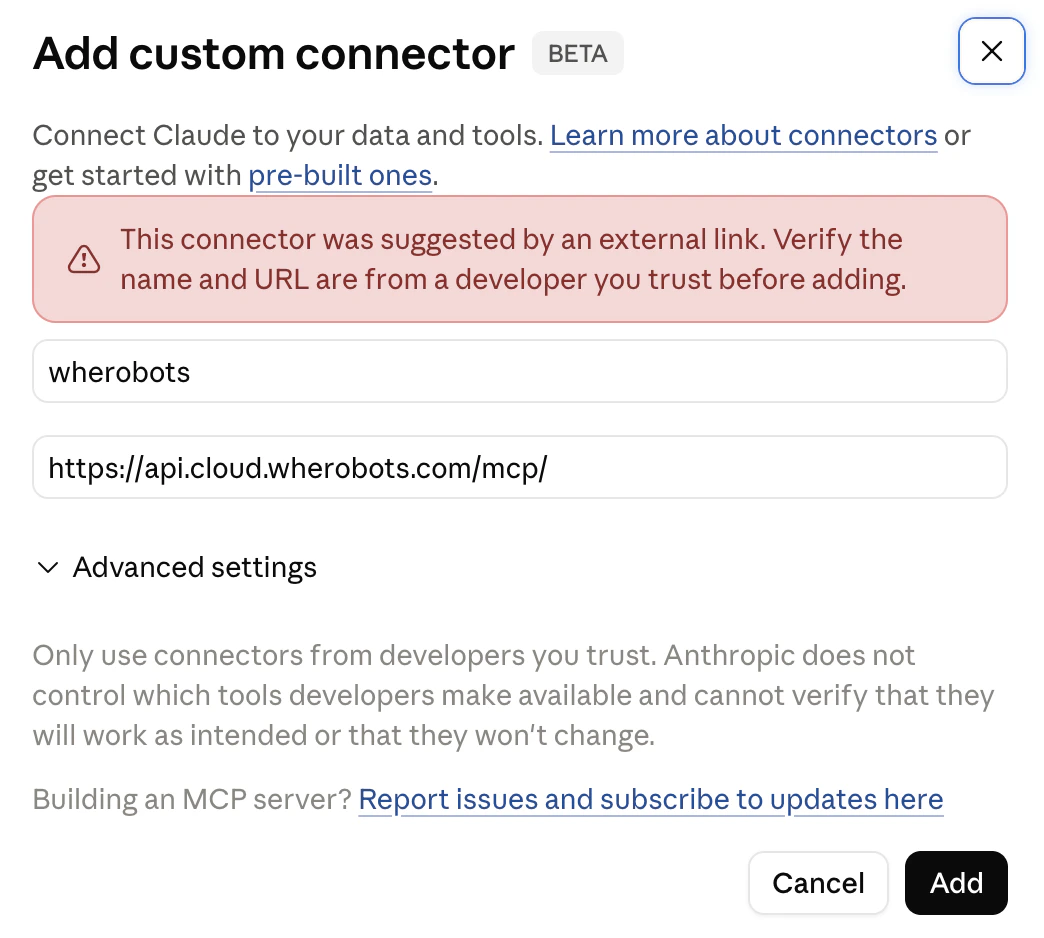 Adding a Custom Connector in Claude Web.
4. Save the connector.
1. In Claude Desktop, go to **Settings** → **Connectors** → **Customize**.
2. Click **Add custom connector**.
3. Configure the connector:
* **Name:** `wherobots` or a name of your choosing.
* **Remote MCP server URL:** `https://api.cloud.wherobots.com/mcp/`
4. Save the connector.
The connector now appears under **Custom connectors** in the Directory for everyone in your Claude Organization.
### Team Member: Enable the Wherobots MCP Server
After [a Team Owner has added the Custom Connector](#team-owner-add-wherobots-as-a-custom-connector), each team member must enable it on their own account. The same steps work in both Claude on the web and Claude Desktop — both use the same connectors interface.
1. Open the connectors page in Claude:
* **Web:** Go to [claude.ai/customize/connectors](https://claude.ai/customize/connectors).
* **Desktop:** Open **Settings** → **Connectors** → **Customize**.
2. Click the **+** (**Add connector**) button.
Adding a Custom Connector in Claude Web.
4. Save the connector.
1. In Claude Desktop, go to **Settings** → **Connectors** → **Customize**.
2. Click **Add custom connector**.
3. Configure the connector:
* **Name:** `wherobots` or a name of your choosing.
* **Remote MCP server URL:** `https://api.cloud.wherobots.com/mcp/`
4. Save the connector.
The connector now appears under **Custom connectors** in the Directory for everyone in your Claude Organization.
### Team Member: Enable the Wherobots MCP Server
After [a Team Owner has added the Custom Connector](#team-owner-add-wherobots-as-a-custom-connector), each team member must enable it on their own account. The same steps work in both Claude on the web and Claude Desktop — both use the same connectors interface.
1. Open the connectors page in Claude:
* **Web:** Go to [claude.ai/customize/connectors](https://claude.ai/customize/connectors).
* **Desktop:** Open **Settings** → **Connectors** → **Customize**.
2. Click the **+** (**Add connector**) button.
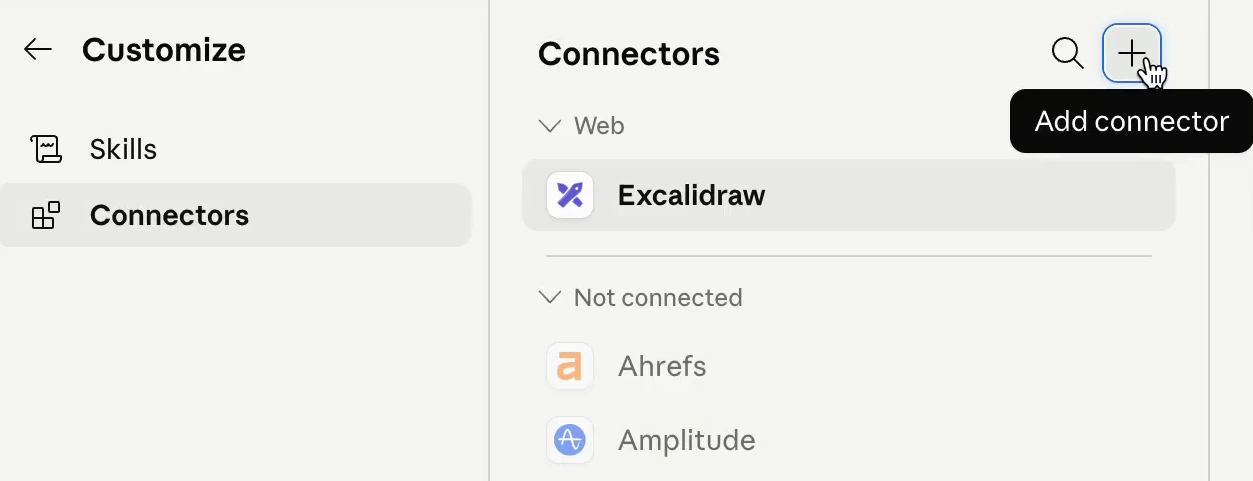 3. In the **Directory** modal, search for `wherobots`. Under **Custom connectors**, click the **+** next to **Wherobots Production**.
A pop-up appears asking you to grant access to **Wherobots Production** for your Claude account.
3. In the **Directory** modal, search for `wherobots`. Under **Custom connectors**, click the **+** next to **Wherobots Production**.
A pop-up appears asking you to grant access to **Wherobots Production** for your Claude account.
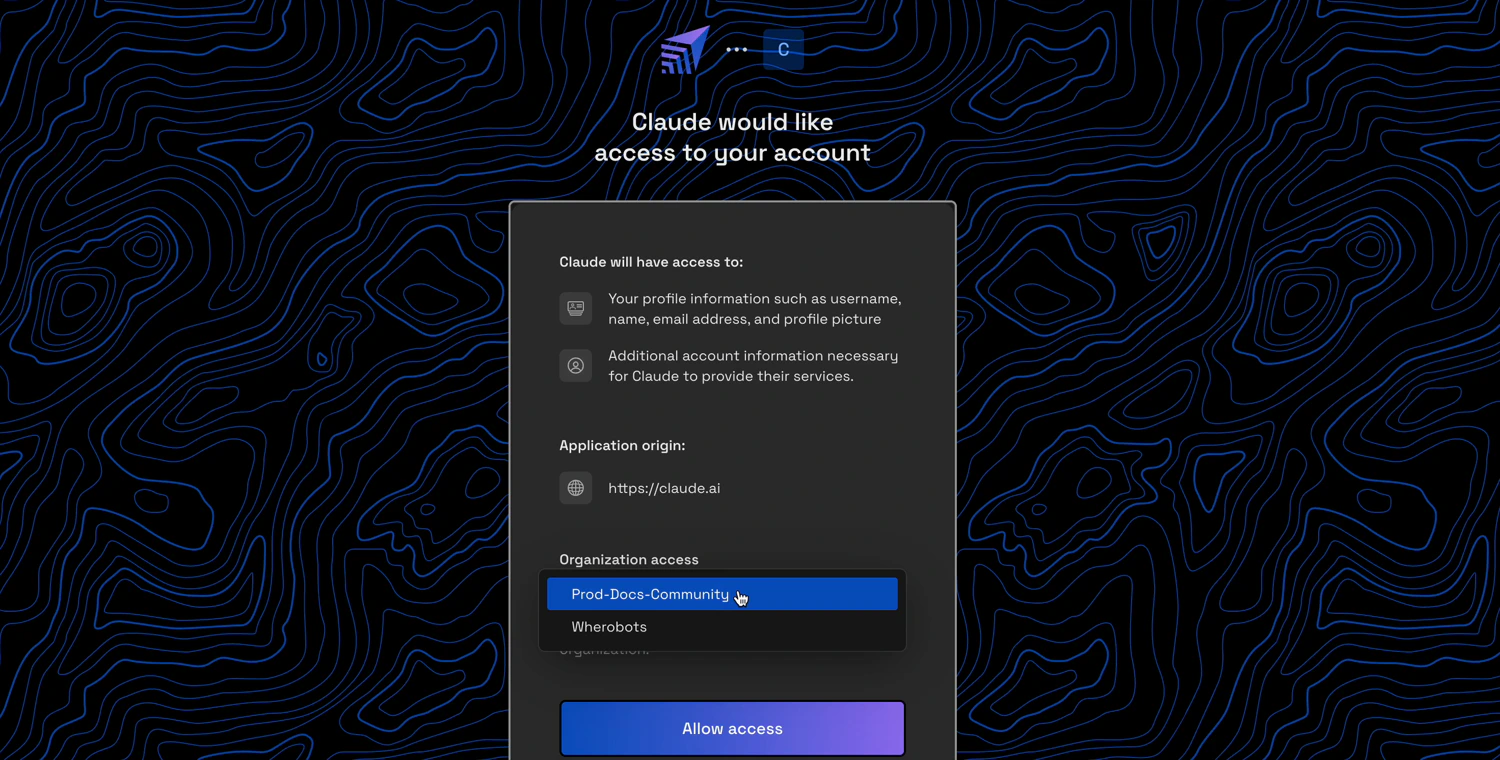
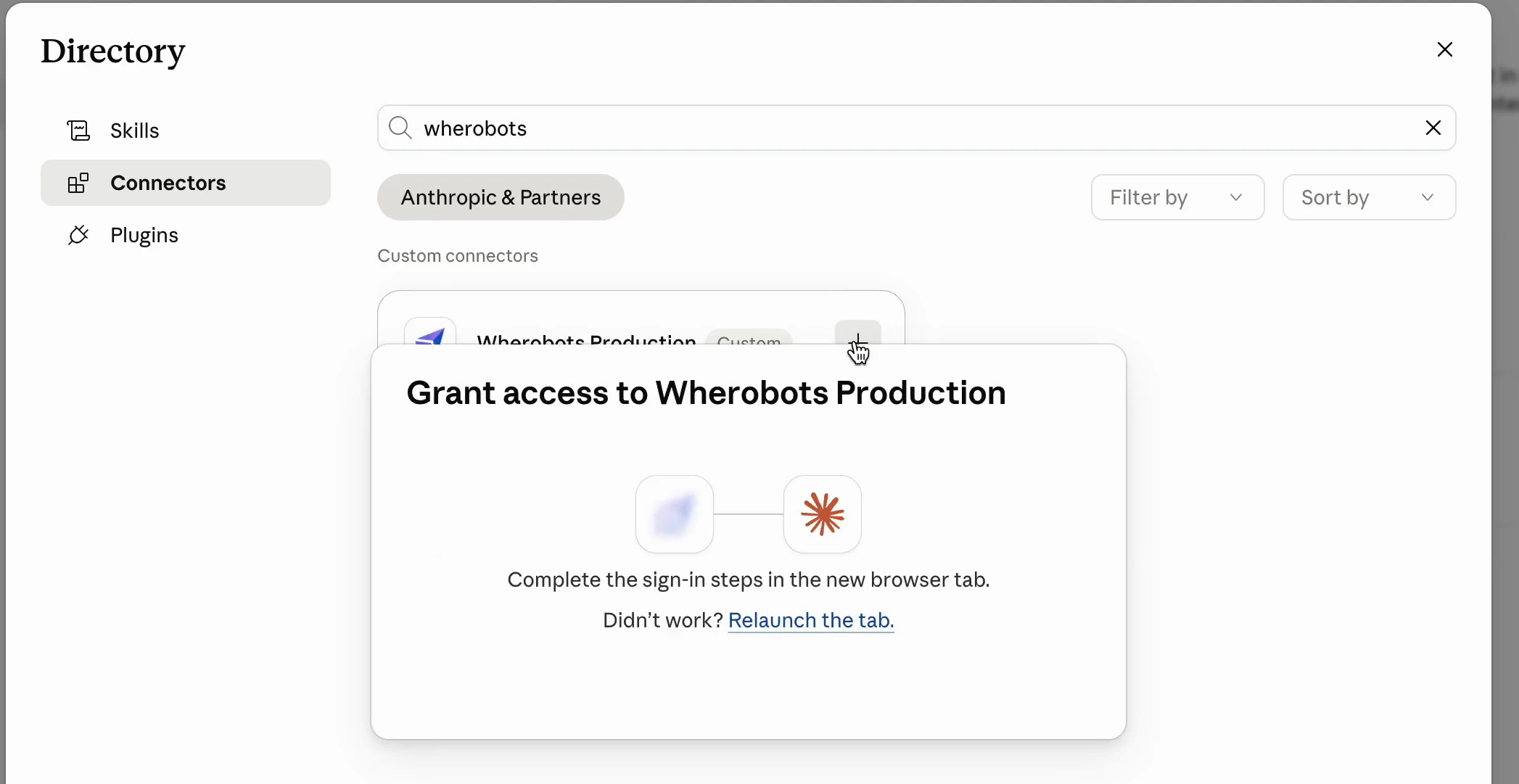 4. A new browser tab opens to the Wherobots sign-in page:
* Sign in to Wherobots, select your Organization from the **Organization access** dropdown, and click **Allow access**.
4. A new browser tab opens to the Wherobots sign-in page:
* Sign in to Wherobots, select your Organization from the **Organization access** dropdown, and click **Allow access**.
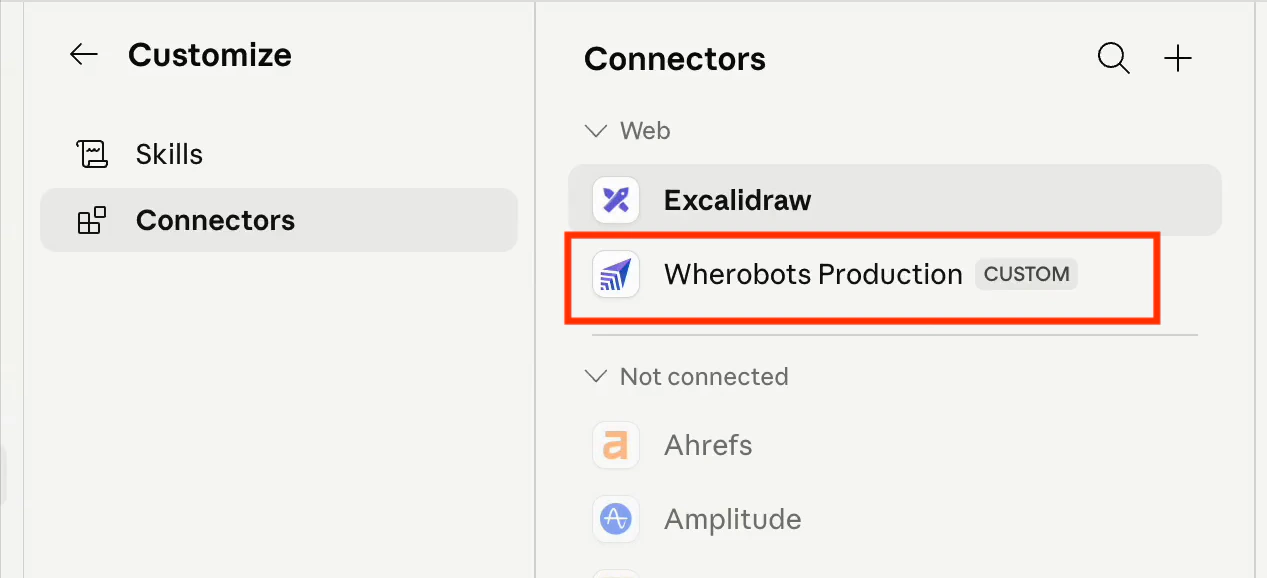
 5. Return to Claude. A **Wherobots Production** connector will appear under your **Web** connectors with the **Custom** badge.
 ## Verify installation
Ask a question in Claude:
```text wrap theme={"system"}
List the catalogs in my Wherobots Data Hub
```
If configured correctly, Claude will call the Wherobots MCP server (showing a tool such as `list_catalogs`) and return the catalogs available in your Organization.
## Next steps
Common tasks, example prompts, and cost considerations for the MCP Server.
Watch the MCP Server automate catalog discovery, spatial queries, and notebook generation.
Learn more about available skills and installation options.
Understand when to use the MCP Server vs. the CLI.
## Verify installation
Ask a question in Claude:
```text wrap theme={"system"}
List the catalogs in my Wherobots Data Hub
```
If configured correctly, Claude will call the Wherobots MCP server (showing a tool such as `list_catalogs`) and return the catalogs available in your Organization.
## Next steps
Common tasks, example prompts, and cost considerations for the MCP Server.
Watch the MCP Server automate catalog discovery, spatial queries, and notebook generation.
Learn more about available skills and installation options.
Understand when to use the MCP Server vs. the CLI.