

Benefits
The following are some of the key benefits of using Wherobots Notebooks:No installation necessary
No installation necessary
Start analyzing your data immediately with pre-configured runtime environments.
Scalable Processing
Scalable Processing
Leverage distributed computing to analyze massive geospatial datasets with ease.
Enhanced Collaboration
Enhanced Collaboration
Share notebooks and collaborate with your team in a centralized environment.
Pre-built Tools
Pre-built Tools
Access a rich set of tools and libraries for geospatial analysis, visualization, and machine learning.
Cost-Effectiveness
Cost-Effectiveness
Reduce infrastructure costs with serverless computing and efficient resource utilization.
Ease of access to data
Ease of access to data
Supports S3 Storage Integration S3 Paths. Connect directly to your cloud storage and other Wherobots services for a streamlined workflow.
Before you start
The following is required to start a Wherobots Notebook:- An account within a Community, Professional, or Enterprise Edition Organization. For more information, see Create an Account.
Open a Wherobots Notebook
To start a Wherobots Notebook, do the following:- Login to Wherobots Cloud.
-
Choose a runtime.
The runtime size determines the resources allocated to the notebook instance.
Available Runtimes vary by Organization Edition. Some runtimes are reserved for our Professional or Enterprise Edition Organizations. By default, Community Edition Organizations can only use the Tiny and Micro runtimes. If you are interested in additional runtimes, see Upgrade Organization or Compute Requests.
- (Optional) Enter a Name for your notebook.
- Select a Region. For the best performance, select a region closest to your data. For a full list of Wherobots’ supported cloud regions, see Cloud and Cloud Region Availability section.
-
Click Advanced Options > Idle Timeout.
- Select an Idle Timeout. The default is 45 minutes. You can also choose a timeout of 15 or 120 minutes for your notebook sessions. While 45 minutes is the default, your last selection will be saved and used for your subsequent sessions, even after logging out. This setting is specific to you and does not change the global default for other members your Wherobots Organization.
- Click Open once the notebook has loaded.
Before using your notebook instance, familiarize yourself with Jupyter notebooks by reviewing the Jupyter notebook management documentation. This guide provides an overview of managing notebooks, including running code cells.
Share a Wherobots Notebook
To share a Wherobots Notebook with your Organization, you can save that Notebook within Wherobots Managed Storage or within an Amazon S3 bucket that has been integrated with Wherobots.Managed Storage
To share your Wherobots Notebook within an Amazon S3 bucket, do the following:- Start a Wherobots Notebook.
- In JupyterLab:
- Add your code and analysis to the notebook.
- Click File > Save Notebook.
- Click File > Download.
- In Wherobots Cloud:
- Go to Storage > data > shared.
- Click Upload.
- Click + Click to upload a file and upload the Wherobots Notebook that you previously downloaded.
S3 Integration
To share your Wherobots Notebook within an Amazon S3 bucket, do the following:- Start a Wherobots Notebook.
- In JupyterLab:
- Add your code and analysis to the Notebook.
- Click File > Save Notebook.
- Click File > Download.
- In Wherobots Cloud:
- Go to Storage.
- Click Storage Source dropdown menu.
- Select an S3 bucket.
- Navigate to your desired folder within the bucket.
- Click Upload.
- Click + Click to upload a file and upload the Wherobots Notebook that you previously downloaded.
Destroying Notebook Instance
Once you have finished using the notebook instance, you can click Destroy.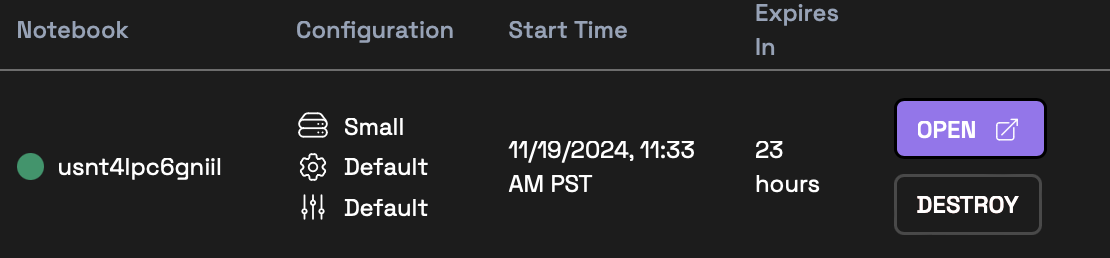
Community Edition Organizations can expect Notebook instances to automatically shut down after 4 hours. Community Edition Organizations can restart the Notebook instance if additional time is required beyond the 4 limit.
Troubleshooting
Notebook stuck in STARTING status
The notebook instance will usually start within 5 minutes of clicking Start. If you observe the notebook stuck in STARTING status, you can try to destroy and re-create the notebook instance. If the problem persists, please Contact Support.